
Learn - Your Account
Plan, profile, backups, sign out, and account deletion.
Your Account
Everything you do at the account level starts in one menu: checking your plan, changing your username, backing a budget up to a file, restoring one, clearing what this device has cached, signing out, and, if you ever need it, deleting your account. These settings are personal to you. They are not tied to any one budget, and they change nothing for people who share budgets with you.
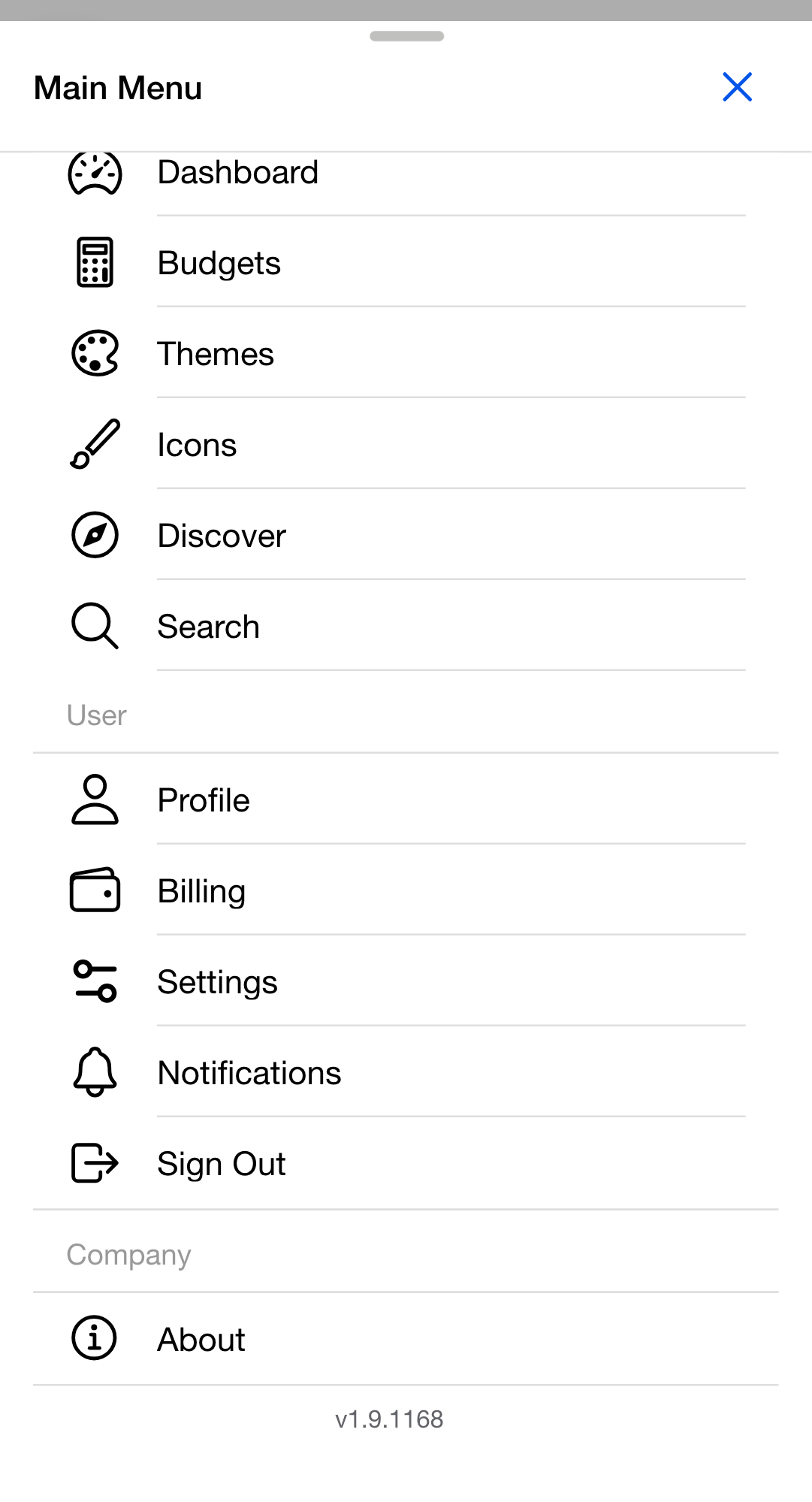
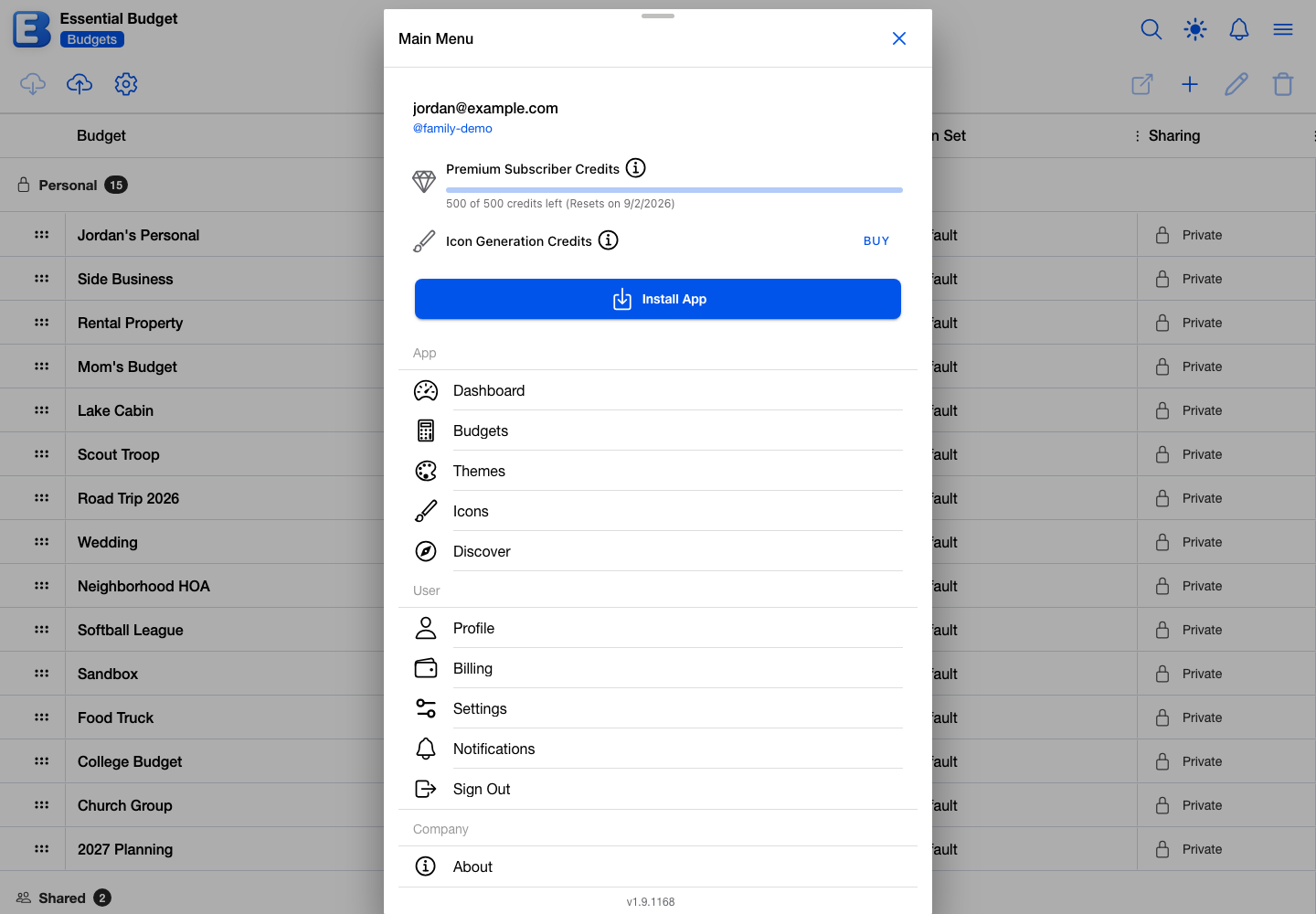
Where to find your account
Tap the Menu button in the top corner of any page after you sign in. The Main Menu opens with your email address and your @username at the top; tapping the @username opens your profile. Below them sit your two credit balances and, until you install the app, an Install App button.
The menu’s User section holds the five rows this page covers:
- Profile opens your public profile page, or the Set Up Your Profile dialog if you have not picked a username yet. See Profile and username.
- Billing opens the page with your plan, your credits, and the Delete Account button. See Your plan and billing.
- Settings opens the per-device settings page: the Accessibility, Theme Variant, Timezone, Notifications, Date Format, Privacy & Blocking, and Clear Local Data cards, plus Linked Accounts and Contribute to Community Prices when they apply. See Clearing your device’s local data, and Accessibility for the display cards.
- Notifications opens the Notifications page.
- Sign Out signs you out on this device. See Signing out.
An App section above (Dashboard, Budgets, Themes, Icons, Discover) covers navigation, and a Company section below holds About and the app’s version number.
Your plan and billing
Tapping Billing opens the Subscription Status card. The first row names your plan:
- Free Plan if you are on the free tier.
- Premium Plan, with
$11.99 per monthbelow it, if you have an active subscription. A Next Billing Date row follows. - Complimentary Premium, with a short reason, if Premium was granted to you outside the normal billing flow.
If you have asked to cancel, a Cancellation row names the date Premium stops (Will cancel on ...), the same date the Next Billing Date row shows. Your Premium features keep working until then.
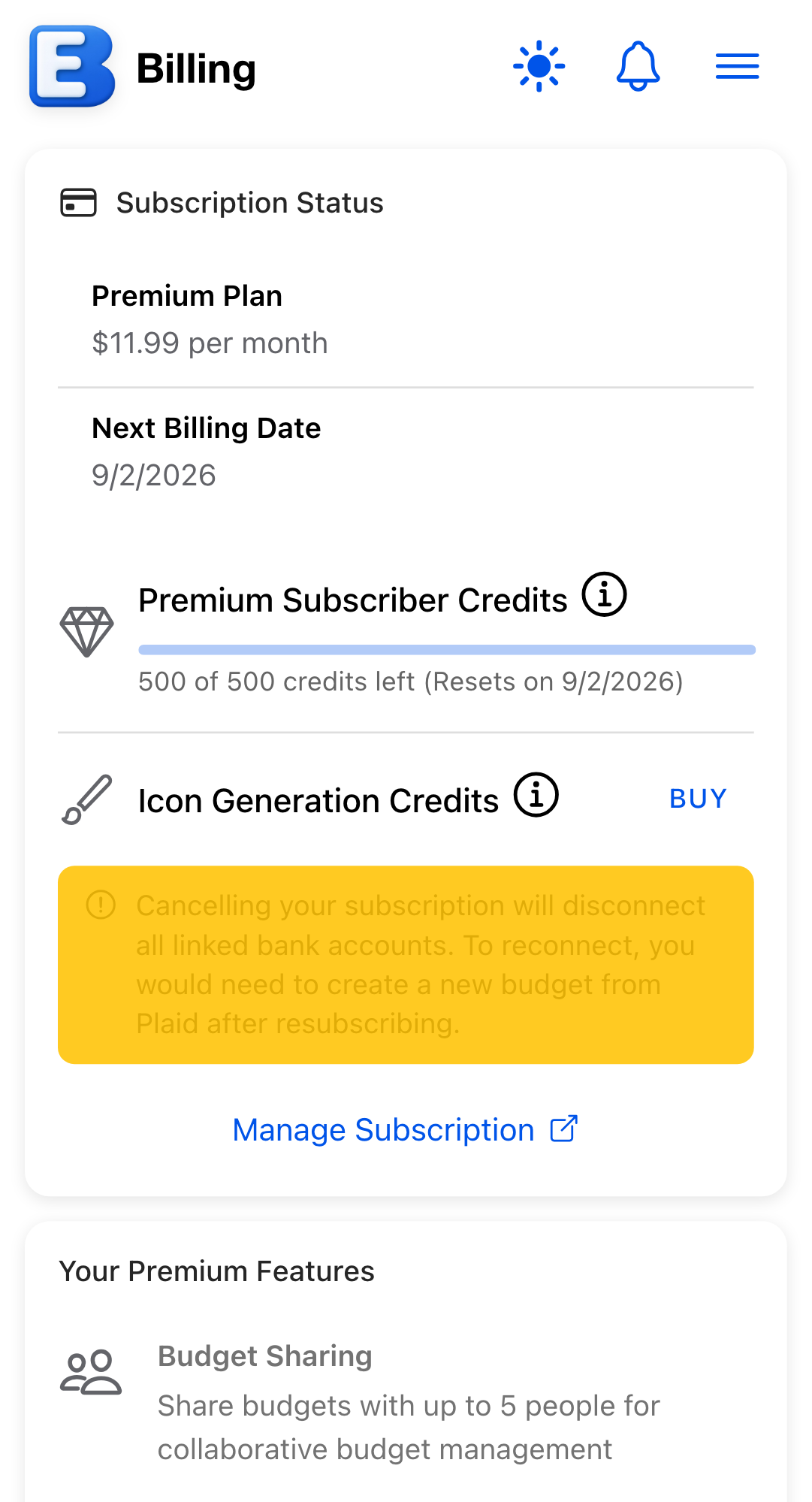
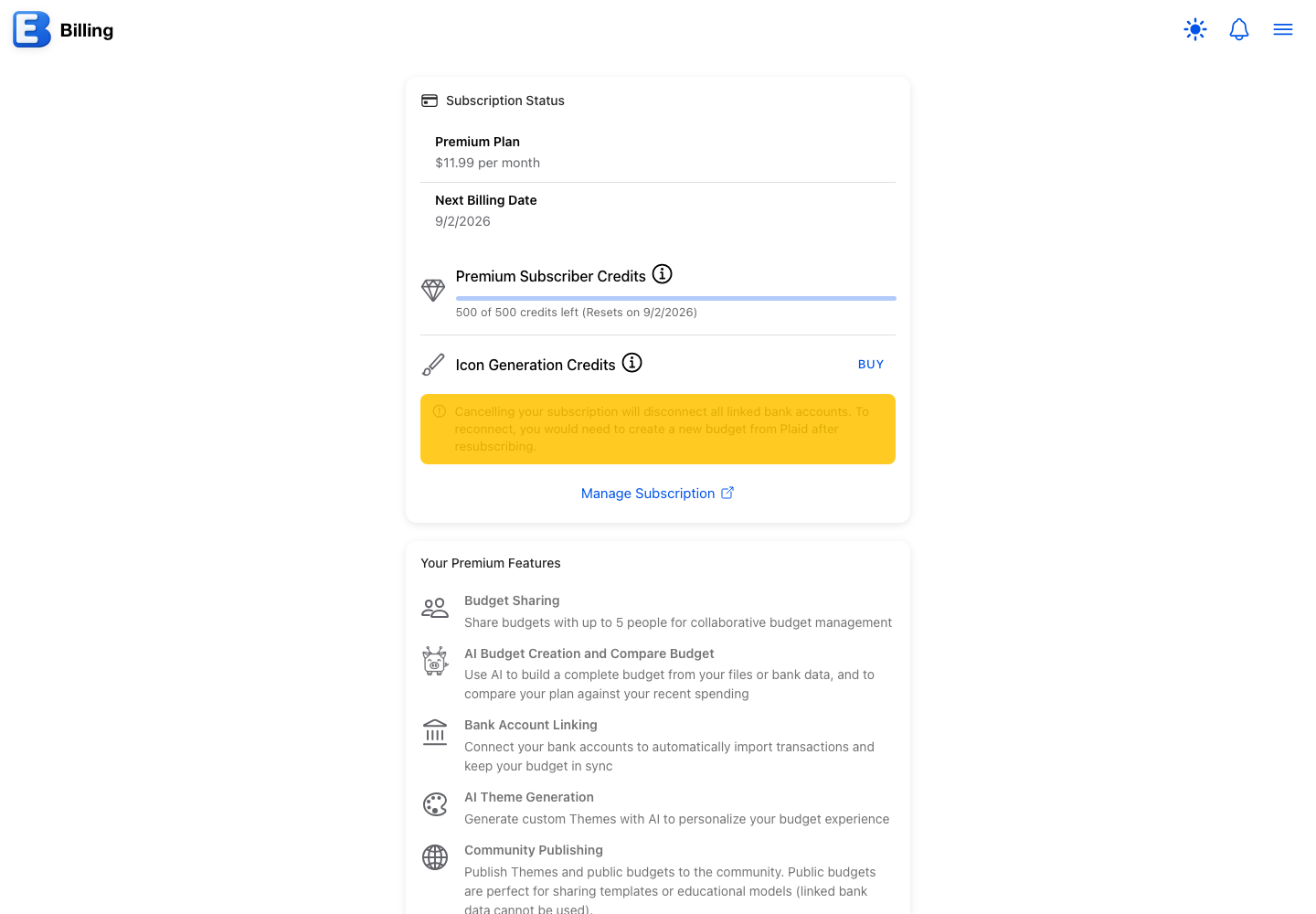
The same card carries your two credit balances (Premium Subscriber Credits and Icon Generation Credits), and a second card lists the Premium features. Subscription covers what each plan includes, how both kinds of credits work, and what changes when Premium ends.
If you just paid for Premium and the page still says Free Plan, give the payment provider a moment to confirm; the page updates on its own as soon as the confirmation arrives. If anything seems stuck, reload the page.
Cancelling Premium
Billing runs through Paddle, the app’s payment provider. From the Billing page, tap Manage Subscription: a new browser tab opens on your Paddle billing portal, already signed in, and cancellation, payment-method changes, and invoices all live there.
After you cancel, the Billing page shows the Cancellation row until the paid period ends, and you keep every Premium feature until then. If you change your mind before the period ends, open Manage Subscription again and remove the scheduled cancellation.
If you have banks connected, a note above the Manage Subscription link warns you first: Cancelling your subscription will disconnect all linked bank accounts. For everything that changes once Premium actually ends, see Subscription; if you share budgets, Sharing a Budget covers your collaborators.
Profile and username
Tapping Profile opens your public profile page. If you have no username yet, the Set Up Your Profile dialog appears so you can pick one; if you dismiss it, the page shows Profile Not Set Up with a Set Up Profile button to reopen it. Publishing anything (a theme, an icon set, a public budget) asks for a username the same way.
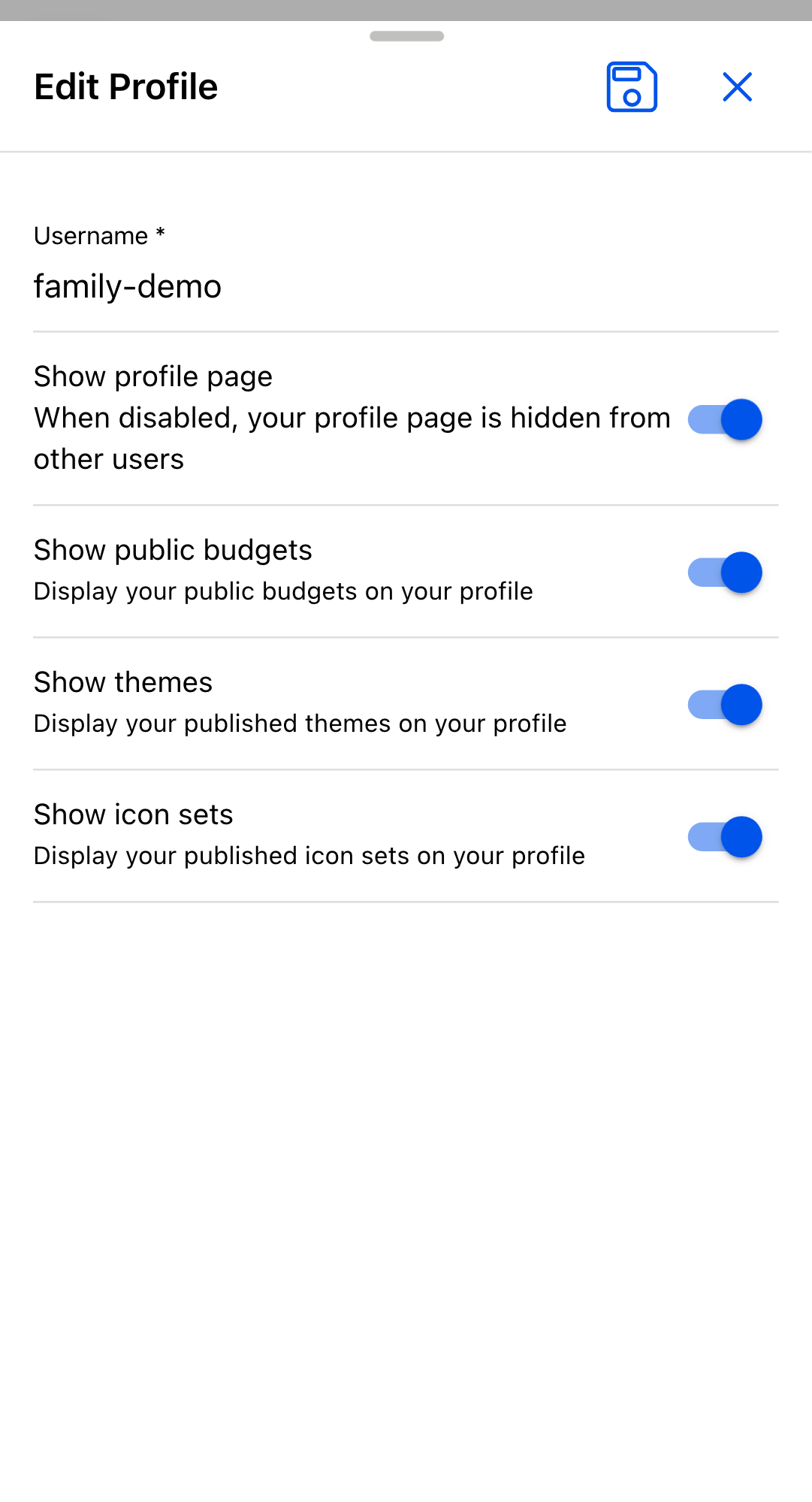
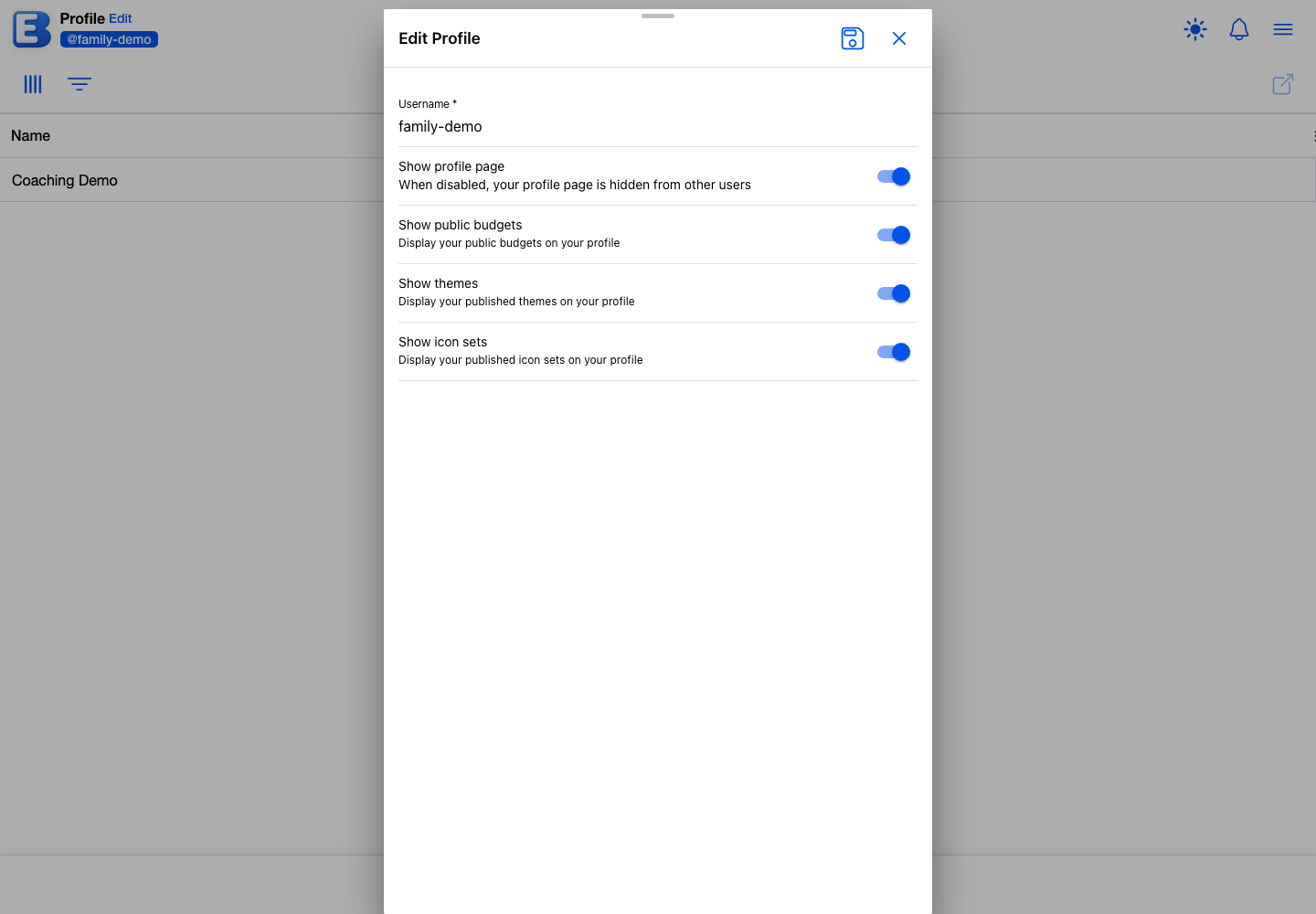
The only personal field is your Username: 3 to 30 characters, letters, numbers, and hyphens, starting and ending with a letter or number. While you type, the dialog checks the name and reports Username is available or Username is already taken. Username changes are capped at 100 per calendar month, far beyond normal use; a save past the cap shows the message Monthly profile update limit reached. Please try again next month. Changing only the visibility toggles never counts against the cap.
Why this default? Username, not real name. The app has no display-name or avatar field. The username is what other users see on anything you publish, so one unique handle keeps your email address off community pages.
The dialog’s Show toggles (Show profile page, Show public budgets, Show themes, Show icon sets) control what visitors see on your public profile; they are covered in Your Public Profile.
To change the email address on your account, change it with the sign-in provider you used (your Google account, or your email-and-password sign-in). The app reads your email from the provider and has no email-edit field of its own.
Backing up a budget
The Budgets page toolbar starts with Create Backup and Restore. Select a budget and tap Create Backup; with nothing selected, the button asks you to pick a budget first.
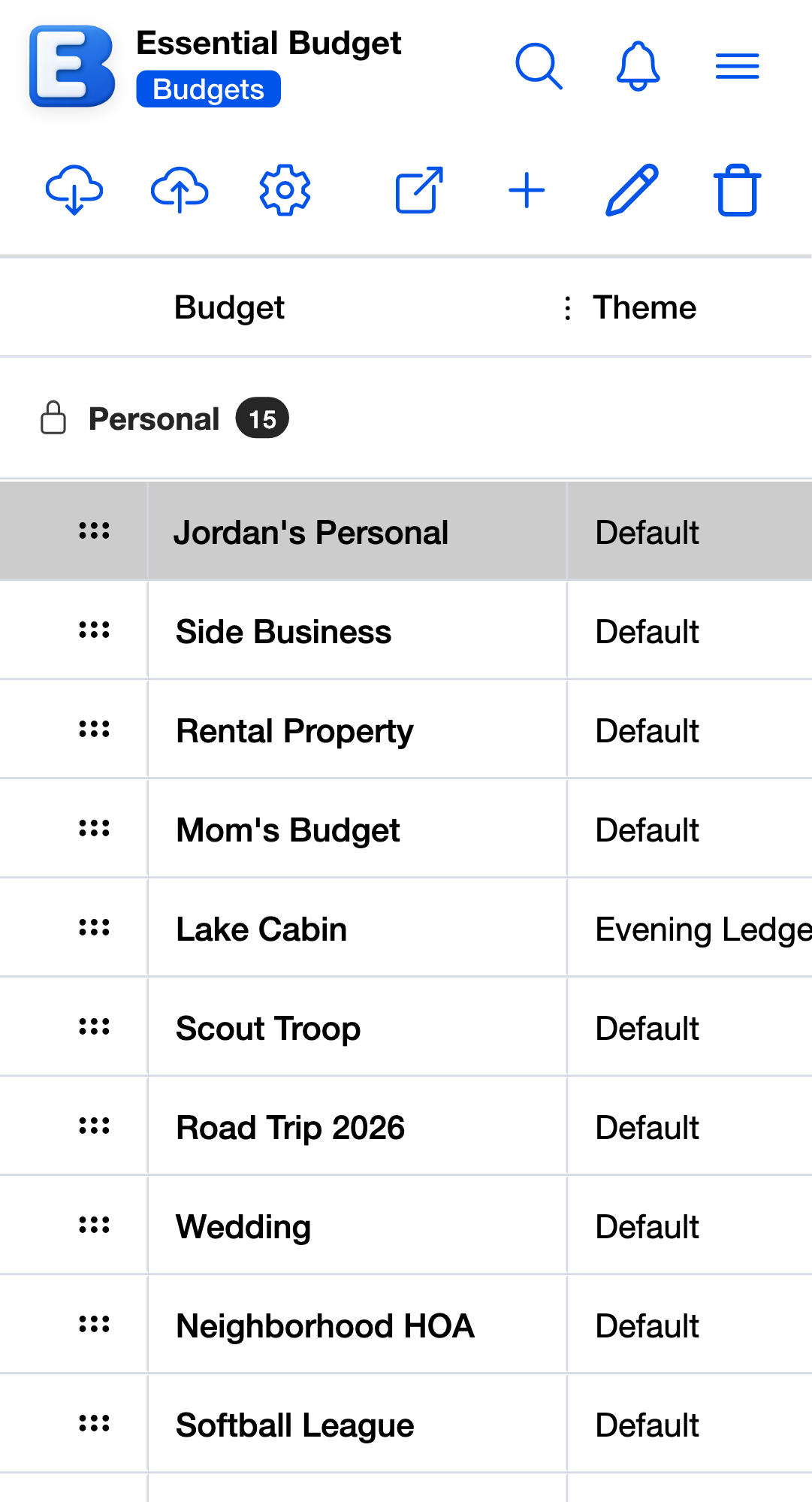
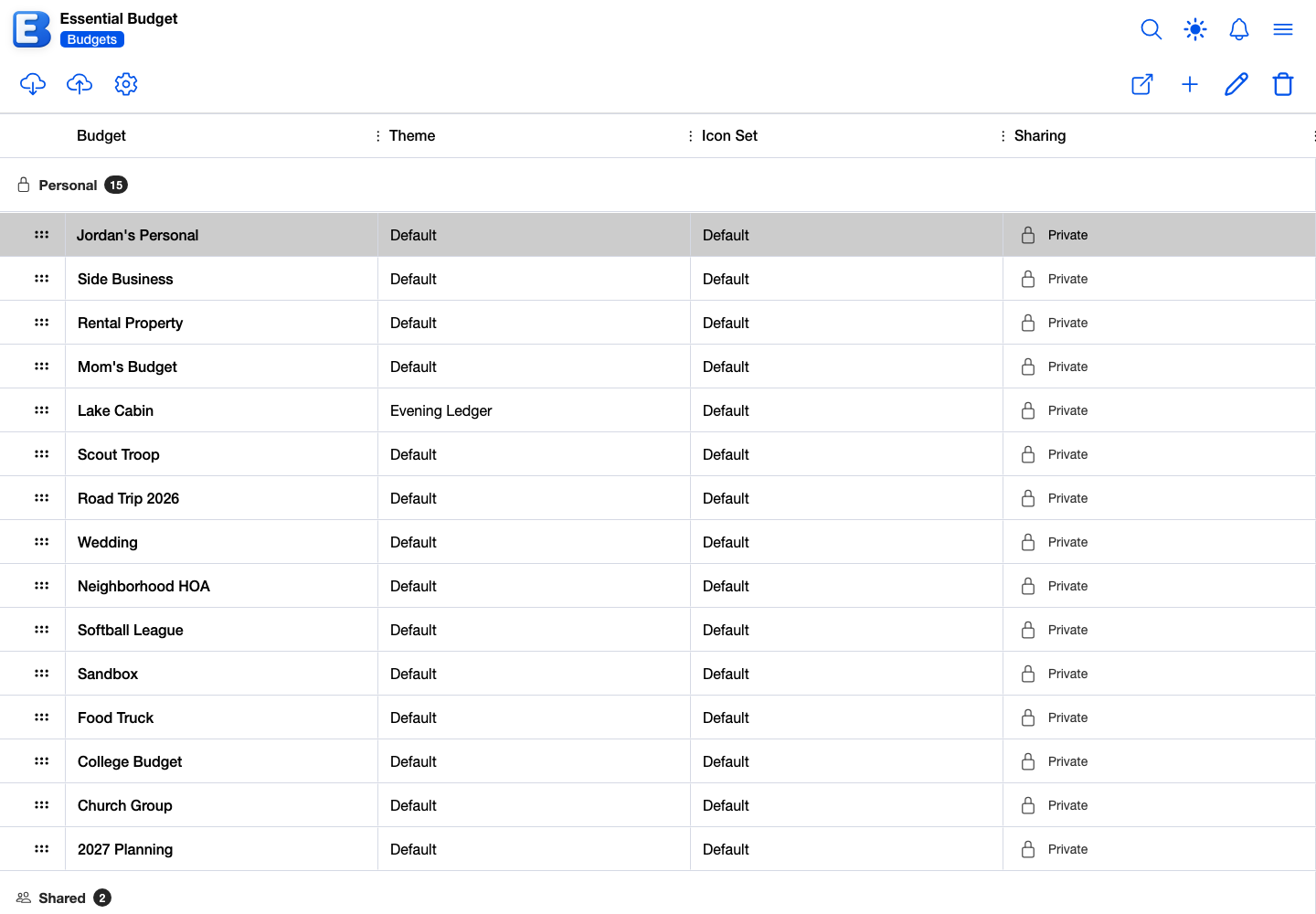
The Create Backup dialog shows a Backup Type row and a Select Flows list with every flow checked. Leave everything checked for a complete backup, or deselect flows (or whole categories) for a partial one; the N of M flows chip tracks the selection. When you save, the app downloads a .json file named after the budget and the date, with partial in place of backup in the name when you left flows out, for example Family_Budget_partial_2026-07-29.json.
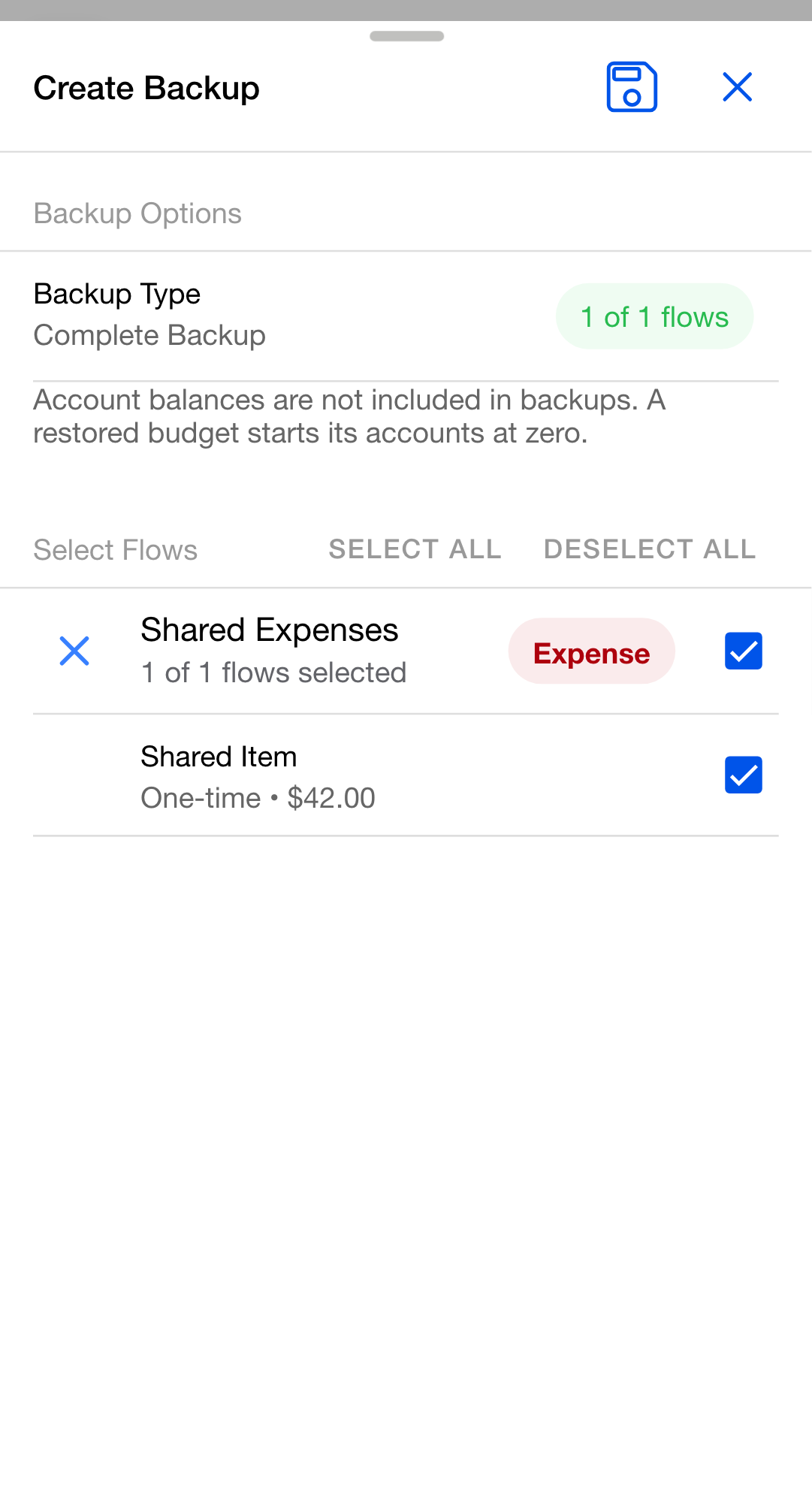

The file contains the budget’s structure: its name and currency, every account, every category, the flows you selected with their schedules, and the data of your scanned receipts with their learned merchant matches (the receipt images stay behind; see Receipts). A backup of a budget created from receipts records that too, so restoring it keeps the Receipts-first tab arrangement. It does not contain account balances, transactions, History, your bank connection, or anything about the people you share the budget with. Restoring it always produces a fresh, unconnected budget, even if the original was bank-linked.
Why this default? Balances never leave in a backup. A backup file is made to travel: cloud storage, an email attachment, another person’s account. What you planned (flows, schedules, receipt data) is the budget’s structure, but what your accounts currently hold is not, so the file never includes balances and there is no option to add them. A restored budget starts its accounts at zero, and you set the balances by hand.
The file is plain JSON. You can keep it anywhere a file goes, and anyone with an account can restore it as a new budget of their own.
Restoring a budget
Tap Restore on the Budgets toolbar to open the Restore Backup dialog. Drop a .json backup file on the marked area or click it to browse. The dialog walks through three steps; the toolbar’s Next, Back, and Save buttons move between them:
- File: the dialog validates the file and shows a File Information list with its flow, account, and category counts.
- Details: a Budget Name (pre-filled from the backup; a name you already use gains a number, like
Family Budget (2)) and a Schedule Start Date, which defaults to today. - Confirm: a summary, then Save creates the budget and opens it.
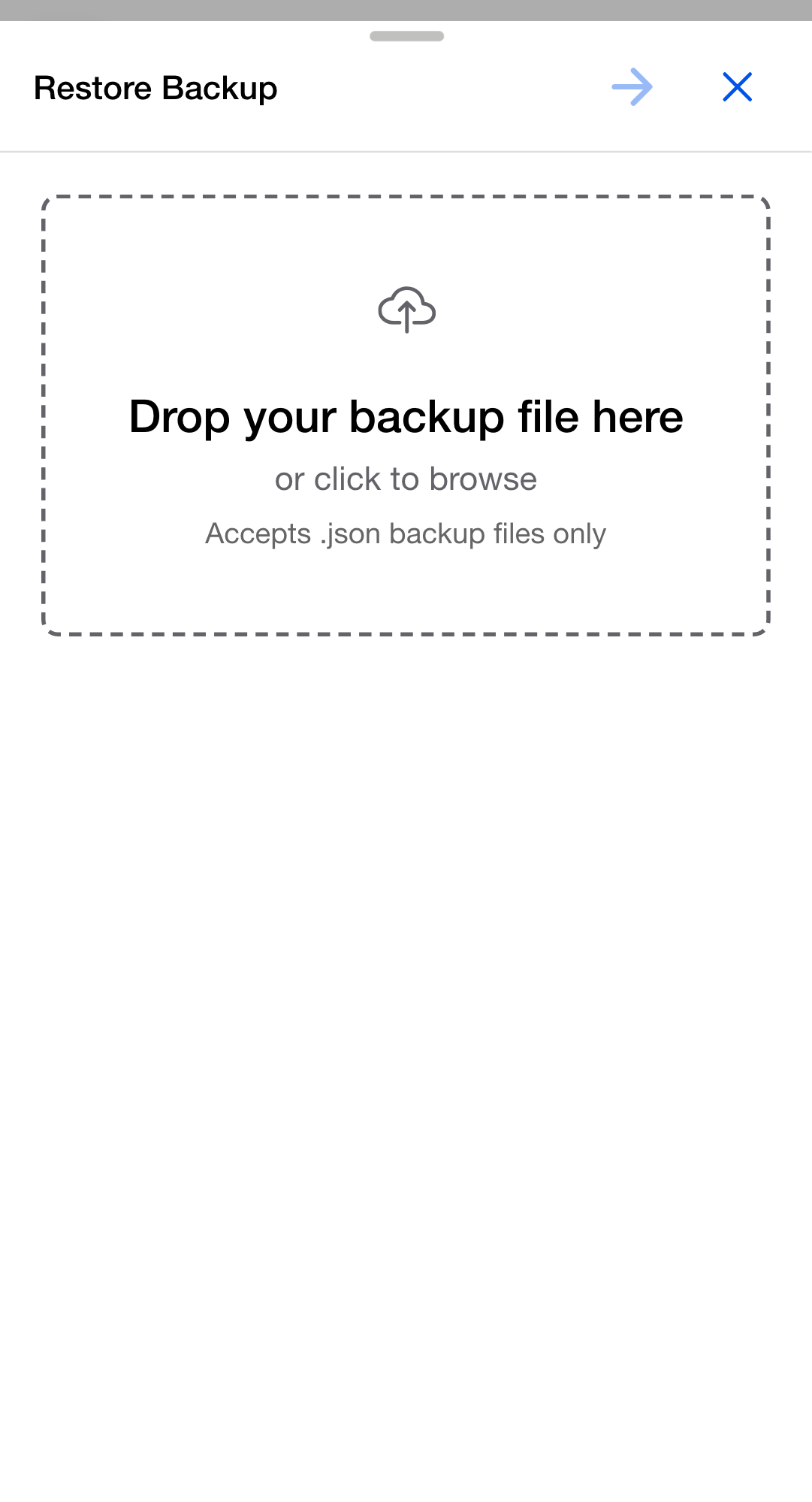
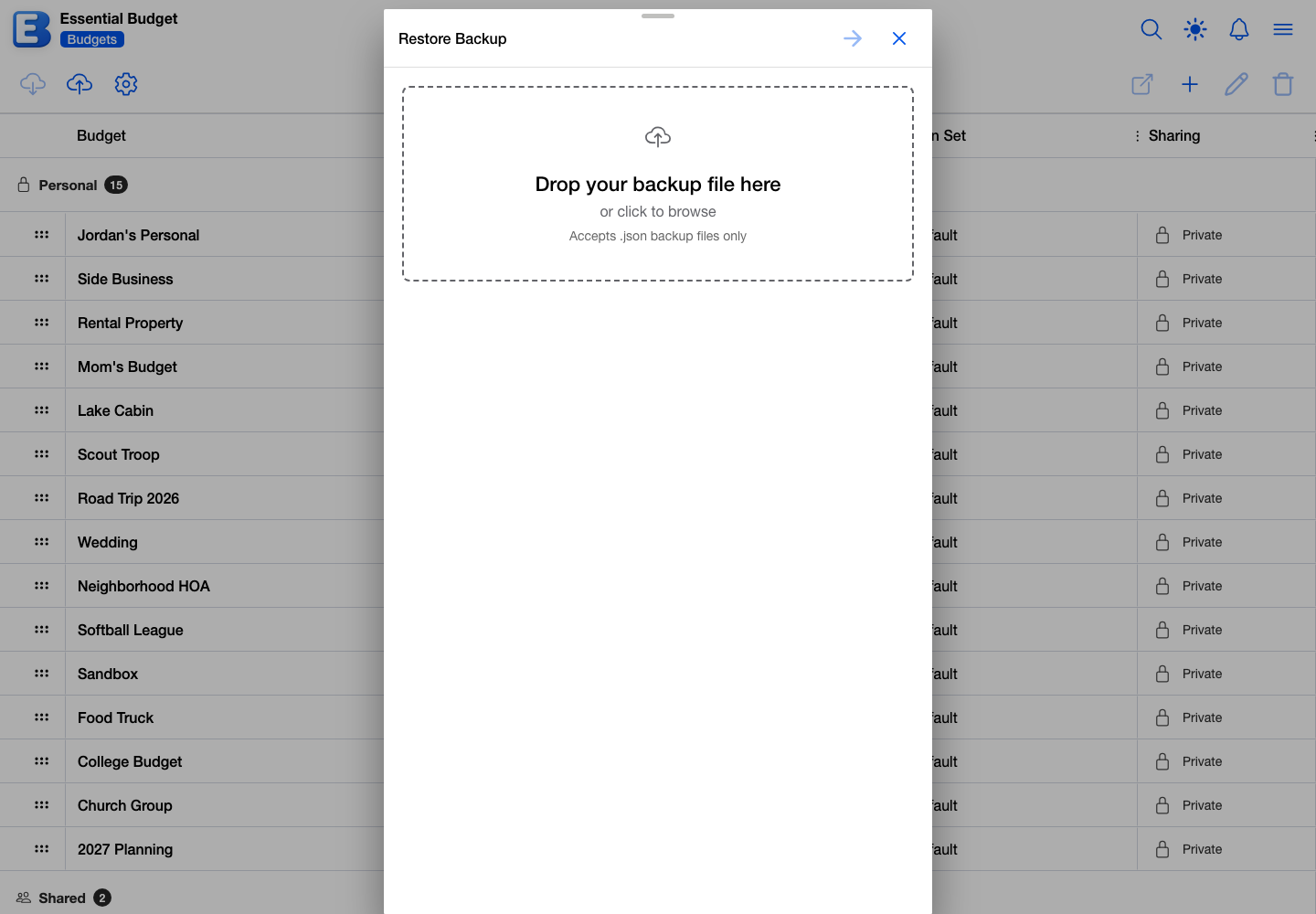
Why this default? Restoring always makes a new budget. There is no restore-over-the-top mode, so a restore can never overwrite the budget you work in today. To roll a budget back to an earlier state, restore the backup as a new budget, compare, and carry the changes over by hand.
The Schedule Start Date matters: every recurring flow in the backup is rescheduled to start from the date you pick. A backup taken six months ago, restored with today’s date, lays its schedules out from today forward instead of filling your planner with past-due rows.
Accounts in a restored budget start at a zero balance, because backups do not carry balances. Open each account and enter the balance from your bank; Accounts covers it.
The dialog accepts only backup files this app produced. If you browse to a CSV file instead, it answers Please select a JSON backup file. For CSV files, use the AI budget creation feature instead; that flow is covered in Getting Started.
Clearing your device’s local data
The last card on the Settings page is Clear Local Data. Its button opens a short confirmation (This will reset your local preferences and cached data. The app will reload after clearing.); confirming with Clear wipes this device’s saved preferences, things like grid column layouts, chart preferences, and the cached theme, then reloads the app.
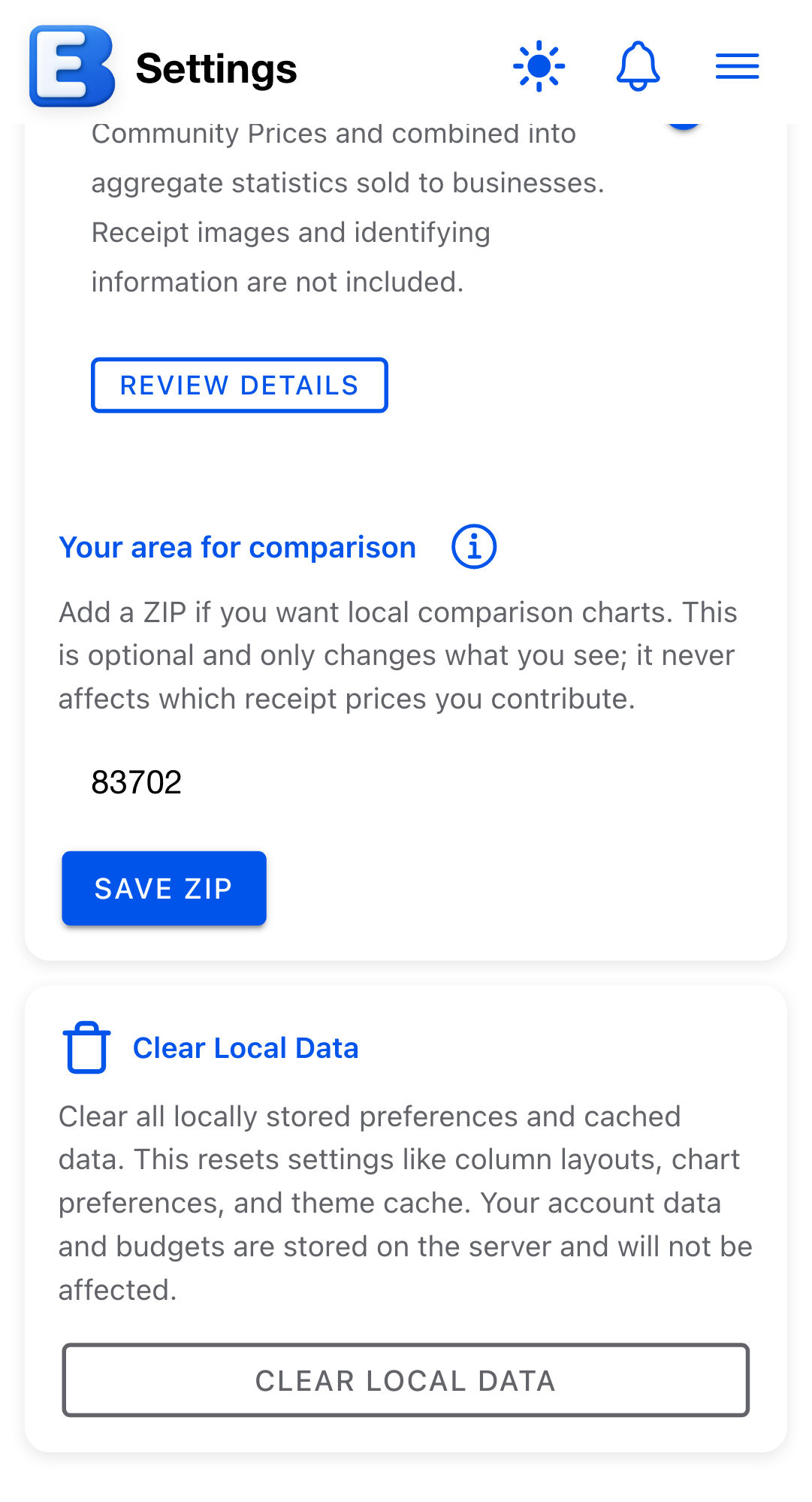
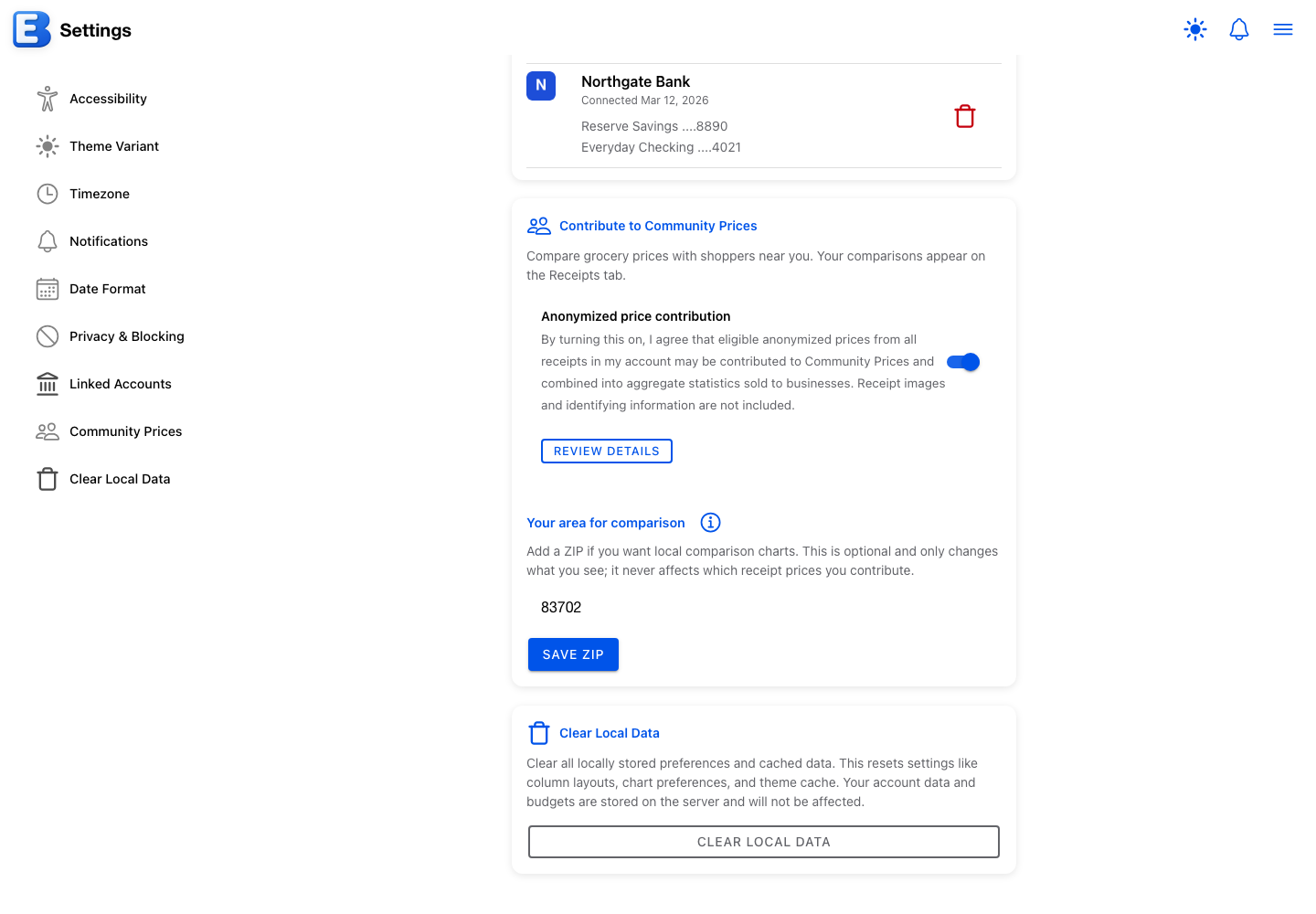
Why this default? Clearing local data does not touch your account. Your budgets, accounts, transactions, History, themes, icon sets, subscription, blocked-users list, and notifications all live on the server. The card resets only what this phone or browser remembered between sessions, so the app loads as if freshly installed on this device. Reach for it when something on this device looks stuck (a chart will not redraw, a grid layout is wrong) before anything heavier.
If you want to remove your data from the app itself, that is Deleting your account, not Clear Local Data.
The Settings page also holds Privacy & Blocking: the people you have blocked, each with an Unblock button. As the card puts it, users you have blocked cannot send you budget invites. Sharing a Budget covers how blocking behaves end to end.
Deleting your account
The Delete Account button sits at the bottom of the Billing page. It opens the Delete Account confirmation, which opens with This action cannot be undone. and spells out what goes and what stays. It also lists by name each budget that will be deleted, so you can check the list before confirming.
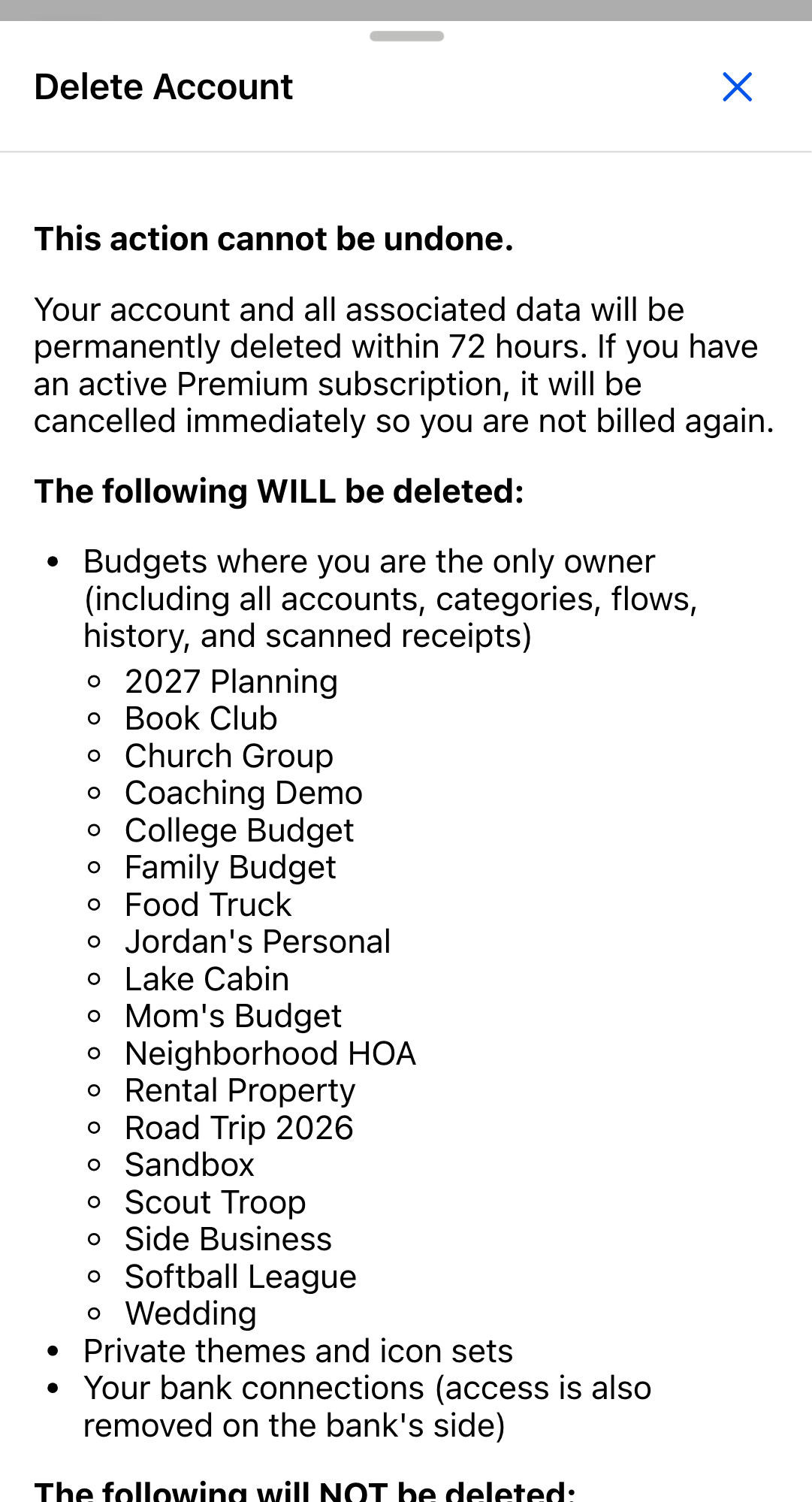
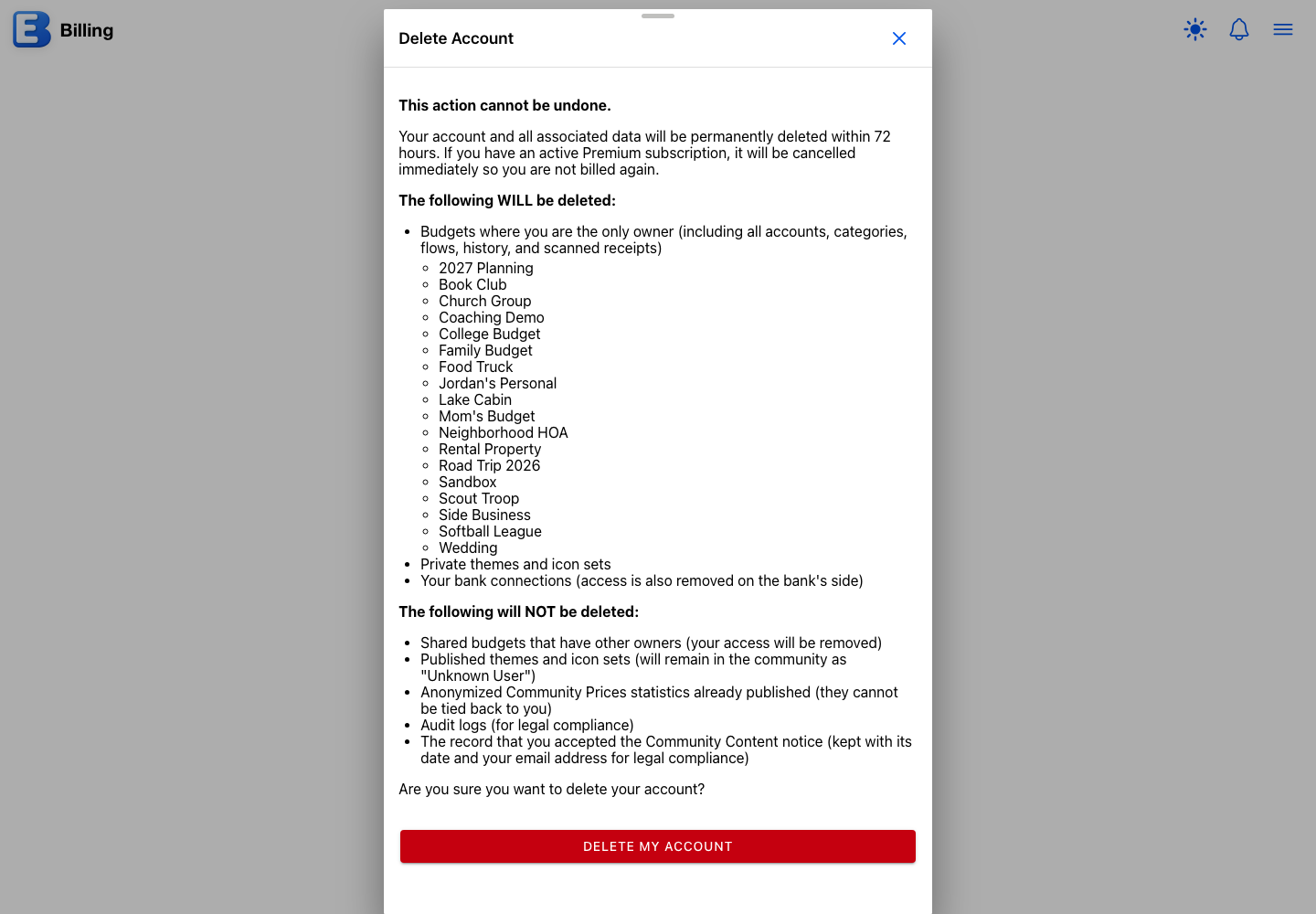
Deleted with your account:
- Budgets where you are the only owner, with everything inside them: accounts, categories, flows, History, shopping lists, recipes, and every scanned receipt including its image.
- Public budgets you published. Everyone who added one loses it, the same as when you make a budget private (see Publishing a Budget).
- Shopping lists and recipes you published. Their links stop working (see Publishing Lists and Recipes).
- Your unpublished themes and icon sets.
- Your bank connections, with access removed on the bank’s side too.
- Your username and public profile, along with your settings, notifications, and any remaining Icon Generation Credits, including purchased packs.
Not deleted:
- Shared budgets that have another owner. The budget and everything in it, including receipts you scanned there, stays with the remaining owners; you are removed from it.
- Themes and icon sets you published. They stay in the community, attributed to “Unknown User”, so people who installed them keep them.
- Prices you contributed to Community Prices that were already published in anonymized form. Your unpublished contributions are removed.
- Audit records kept for legal reasons.
- The record that you accepted the Community Content notice. It is kept with its date and your email address for legal compliance; everything else on it, such as the device details from the day you accepted, is removed with the account.
What happens when you confirm
Tapping Delete My Account runs a fixed sequence, built so an account can never end up half deleted:
- An active Premium subscription is cancelled first, effective immediately, so you are not billed again. You do not need to visit Paddle beforehand.
- Every connected bank is disconnected, and its access is ended on the bank’s side, not just in the app.
- Only after both steps are confirmed does the app delete your data. The deletion is immediate: when the success message appears, your budgets, accounts, and History are already gone. Copies of scanned receipt images take a little longer to clear from storage; the 72 hours the dialog quotes is the outer bound for that final cleanup.
If the subscription or a bank cannot be confirmed as released (a provider outage, for example), the app deletes nothing at all and asks you to try again in a few minutes. A failed attempt leaves your account exactly as it was.
There is no recall window: you cannot get the account back by signing in again. Signing in later with the same Google account or email address starts a brand-new, empty account. If you want a copy of any budget first, take a backup of each one before opening this dialog (see Backing up a budget).
After the deletion succeeds, an Account Deleted Successfully message appears, and the app signs you out and returns you to eb.app after five seconds.
Why this default? Cancellation is automatic. Account deletion used to require two steps: cancel Premium, then delete. The delete flow now cancels the subscription itself, and it refuses to delete the account if the cancellation cannot be confirmed, so a deleted account can never keep billing.
Signing out
Sign Out in the Main Menu signs you out on this device only. Your data lives on the server, so signing back in, here or anywhere, restores the same budgets, accounts, History, and notifications.
Signing out does not cancel your subscription, does not remove any data, and does not affect anyone you share a budget with. To switch Google or email accounts, sign out first, then sign in with the other account.
See also: Subscription for what each plan includes and what happens when Premium ends; Notifications for the bell icon and its alerts; Sharing a Budget for blocking and shared-budget rules; Your Public Profile for the Show toggles and the page other users see.
Questions or feedback about this page?Email us.