
Learn - Sharing a Budget
Direct sharing with named people. Three permission levels.
Sharing a Budget
Sharing puts one budget in front of your whole household: everyone you invite sees the same planner, the same accounts, and the same numbers, live. You choose per person whether they can only look, edit day to day, or run the budget as a second owner. This page covers inviting people by email, the three permission levels, leaving a shared budget, blocking unwanted invitations, and what happens to your collaborators when Premium ends or an account is deleted.
A budget can instead be published as a read-only example that signed-in users add from a link; that is a separate mode, covered on Publishing a Budget. A budget is in exactly one of the three states (Private, Shared, Public) at a time.
Sharing is a Premium feature for the budget owner. The share list holds five entries including your own, so you can share with up to four other people, counting co-owners and pending invitations. The people you invite do not need Premium to view or edit the budget.
How sharing fits with the other access levels
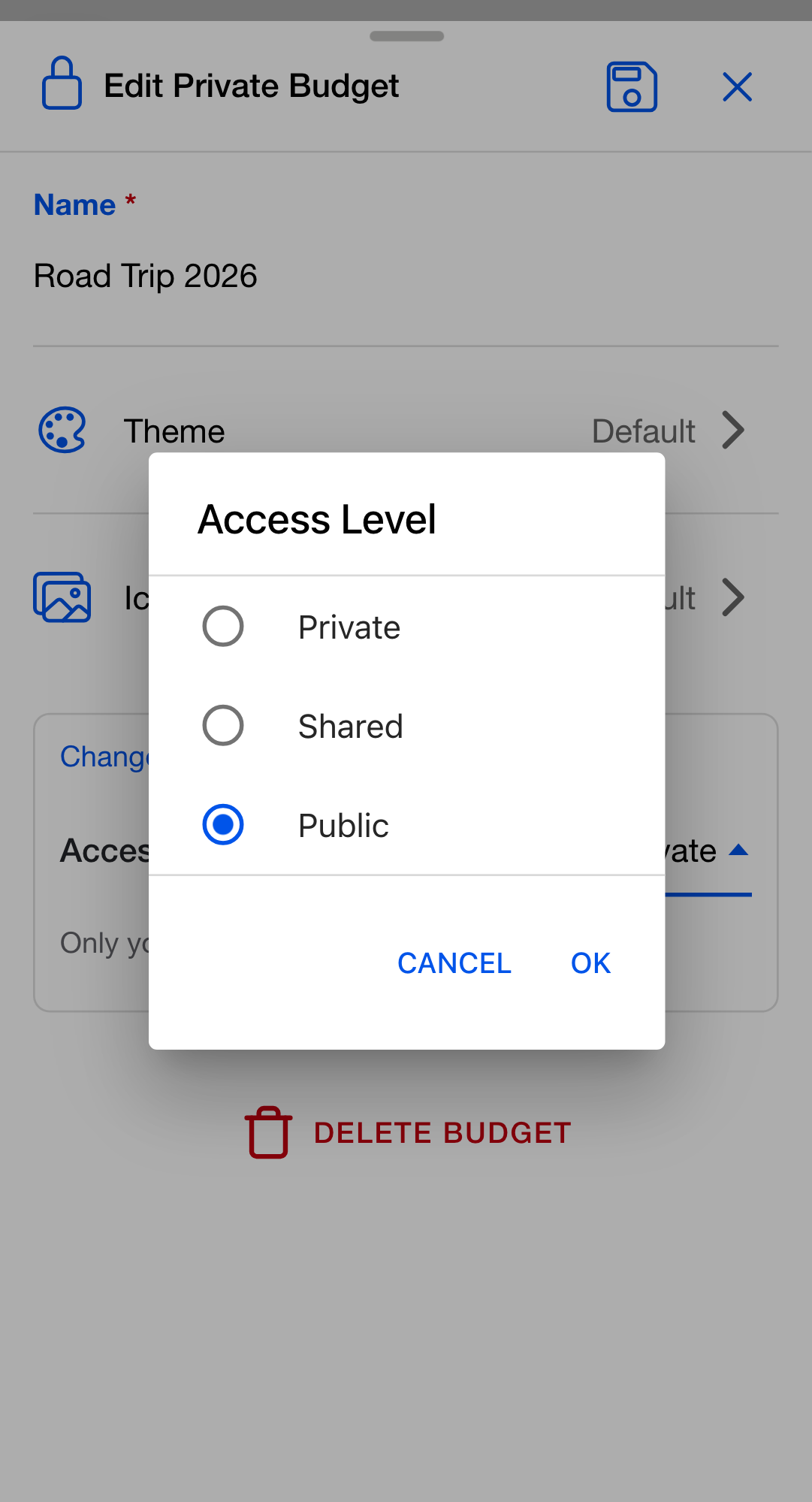
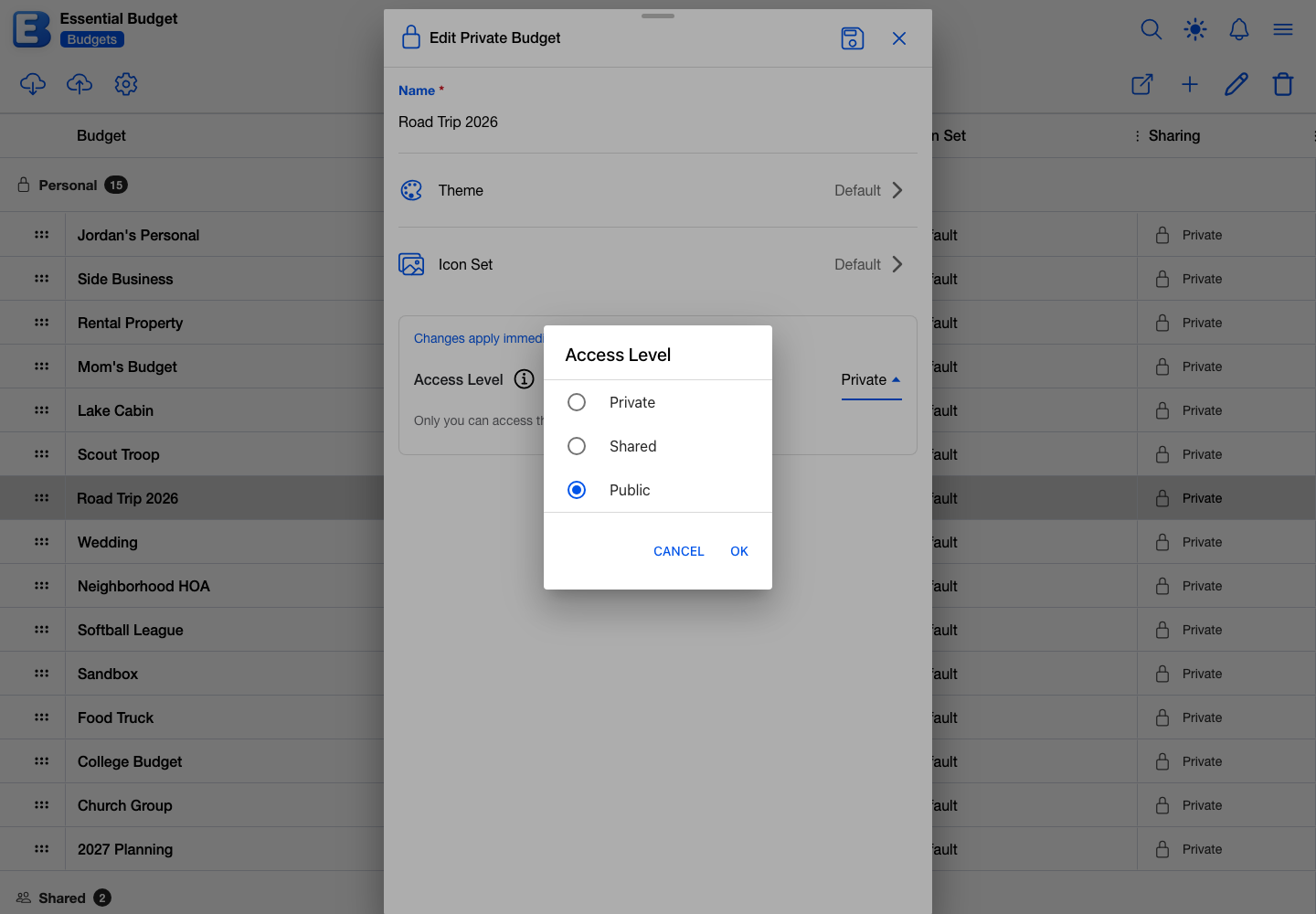
The state is set on the budget’s edit dialog, in the Access Level selector. It has three options:
- Private. Only you can access the budget. The default for new budgets.
- Shared. You invite specific people by email, each with their own permission level.
- Public. Signed-in users with the link can read it. See Publishing a Budget.
Sharing a budget shares everything in it, including its receipts, Shopping Lists, and Recipes. On a shared list, household members can hand items to each other, and prices come from the budget’s own receipts, so everyone sees the same numbers.
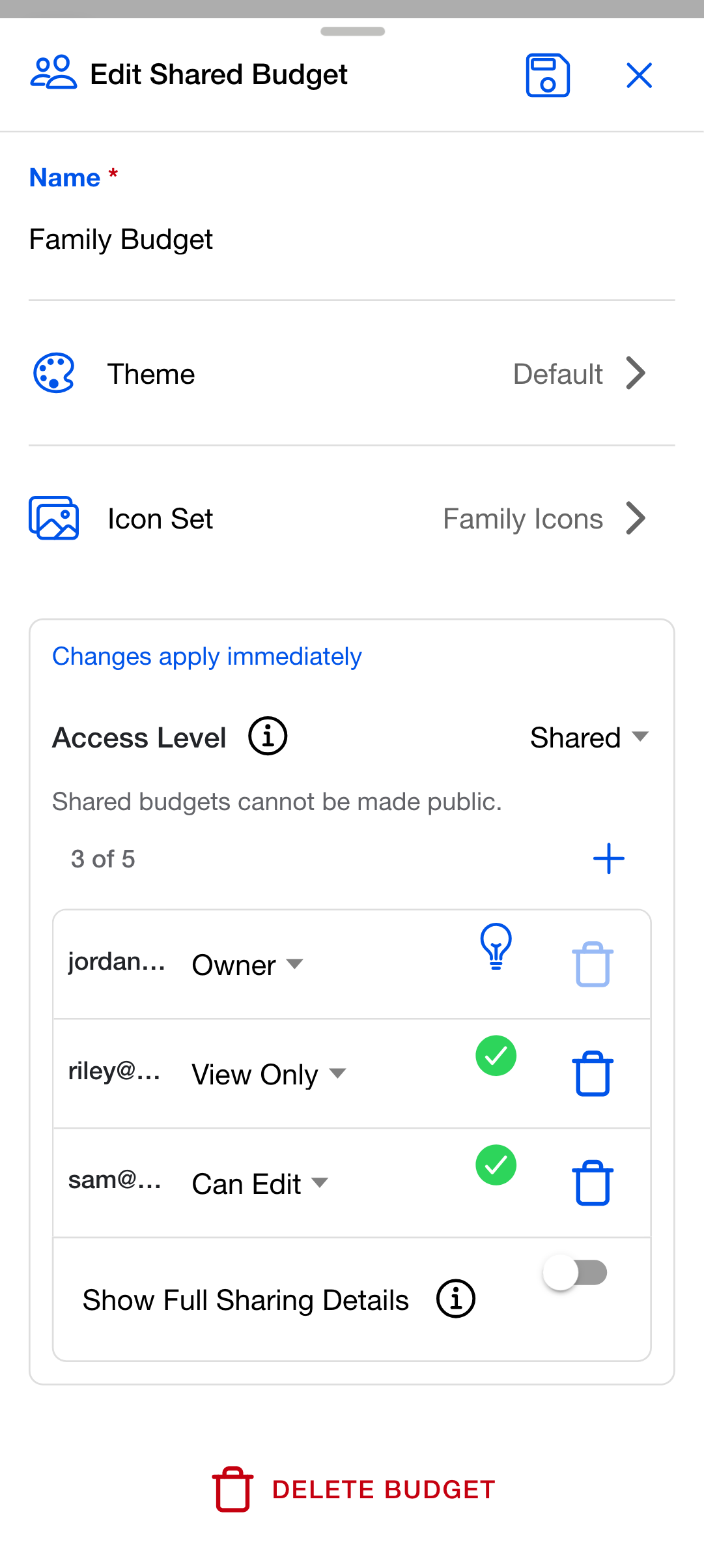
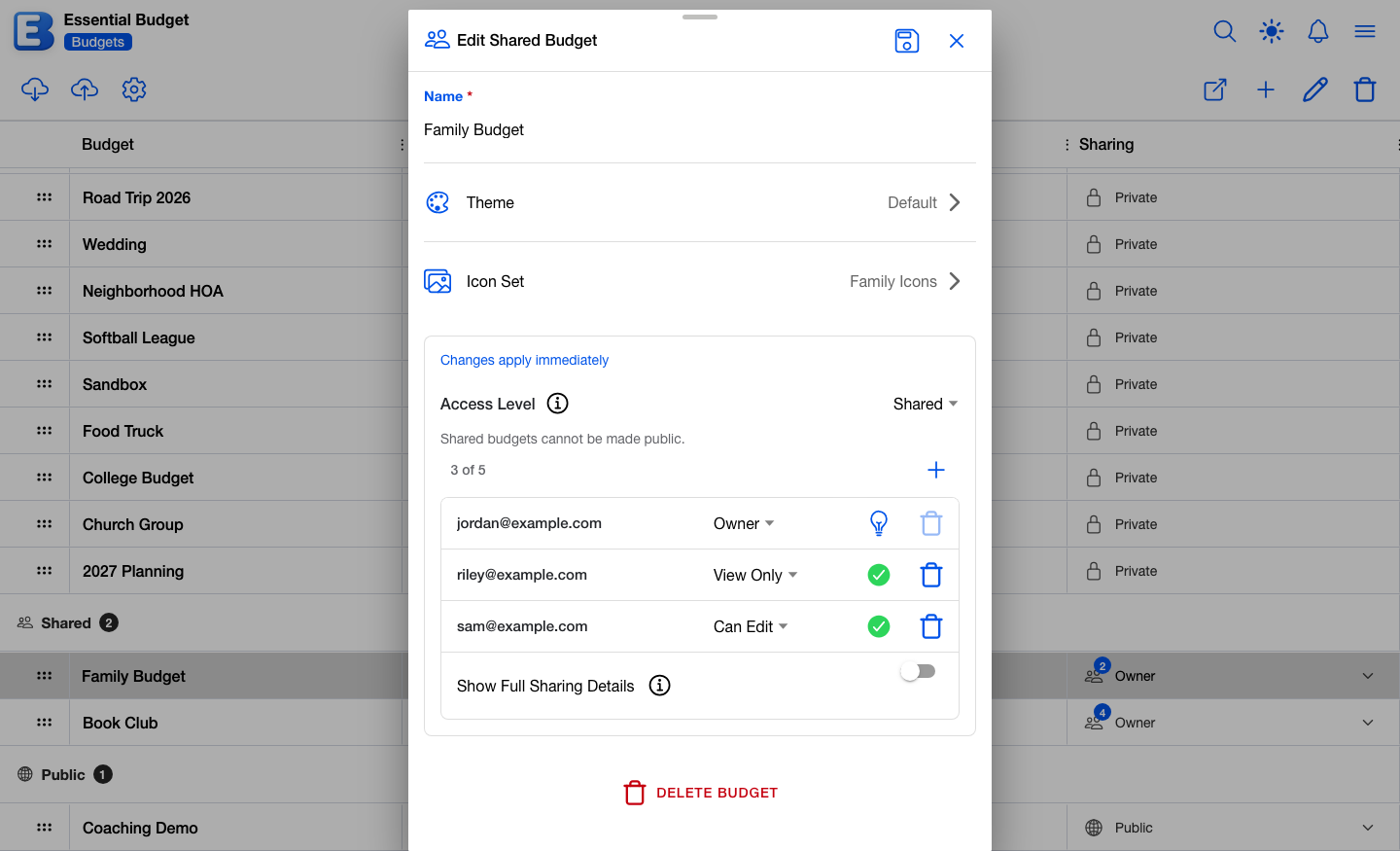
While the budget is Shared, the Public option is not offered at all, and a note below the selector reads Shared budgets cannot be made public. To publish a budget that is currently shared, switch it to Private first, then to Public. The Private switch revokes editors and viewers, but it does not remove a co-owner: as long as another owner remains on the budget, publishing stays blocked.
Why is Shared to Public blocked? A shared budget contains entries your collaborators made. Publishing it would expose their contributions to strangers without their consent, so the app forces you to revoke access deliberately before the Public option appears.
Opening the Sharing section
Open the Budgets page, tap the budget so it is selected, then tap the pencil-icon Edit Budget button on the toolbar. Only an owner can open this dialog; for everyone else the button is disabled. The dialog title tells you the budget’s current state: Edit Private Budget, Edit Shared Budget, or Edit Public Budget.
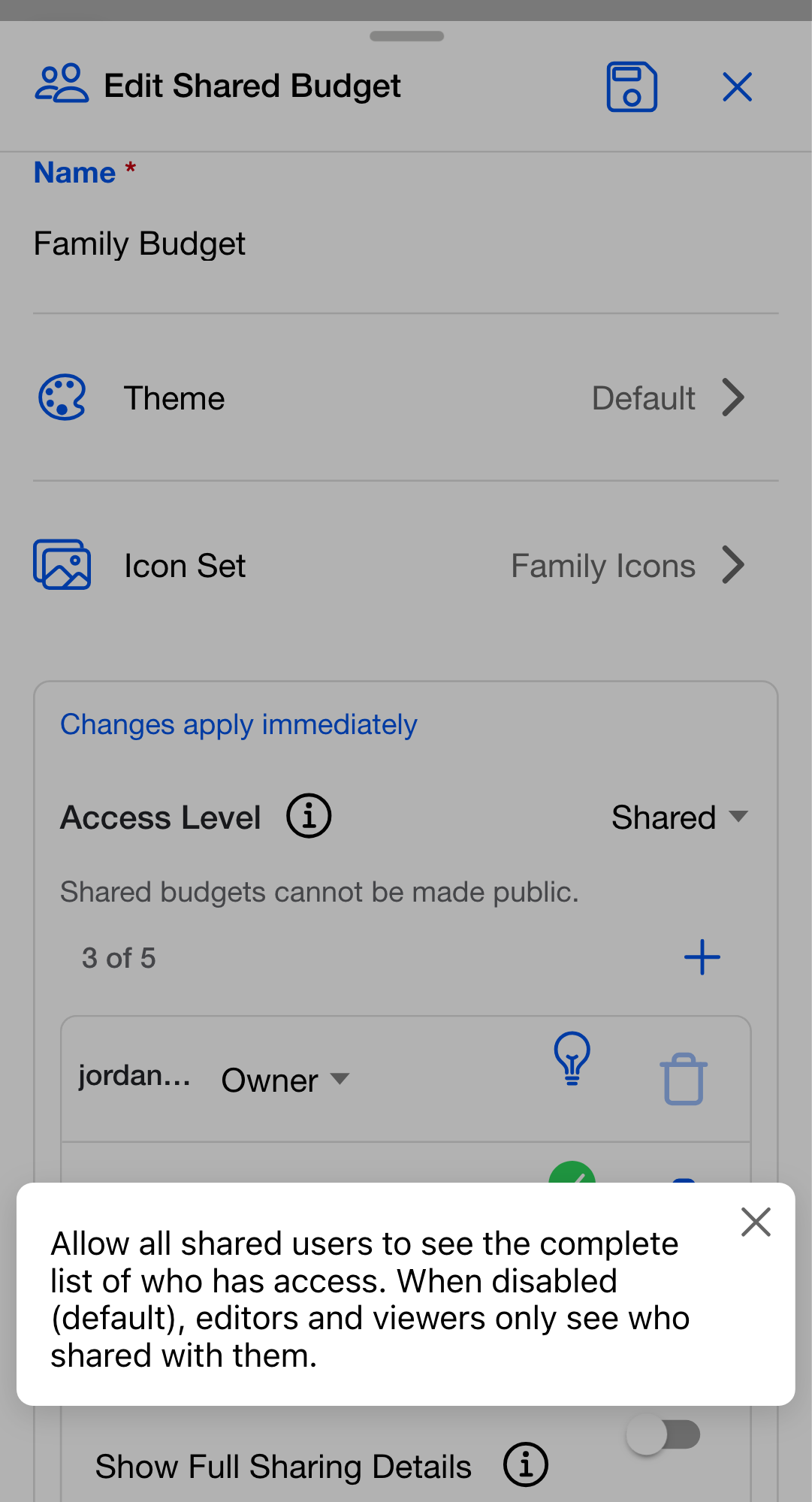
The sharing card at the bottom of the dialog is headed Changes apply immediately: everything in it saves as you go, without tapping Save. When the Access Level is Shared, the card shows the share count (for example 3 of 5), an add button, and the Show Full Sharing Details toggle.
If you are not on Premium, the card instead shows To enable budget sharing, upgrade to premium. with a link to the billing page.
Inviting someone
Tap the plus button at the top right of the share list. A new row appears with an email input and a permission dropdown.
- Email address. The input placeholder is user@example.com.
- Permission. View Only (the preselected default), Can Edit, or Owner.
Tap the checkmark to send the invitation, or the X to drop the row without sending. The new row joins the list with a clock icon while it waits to be accepted; the list is ordered alphabetically by email address.
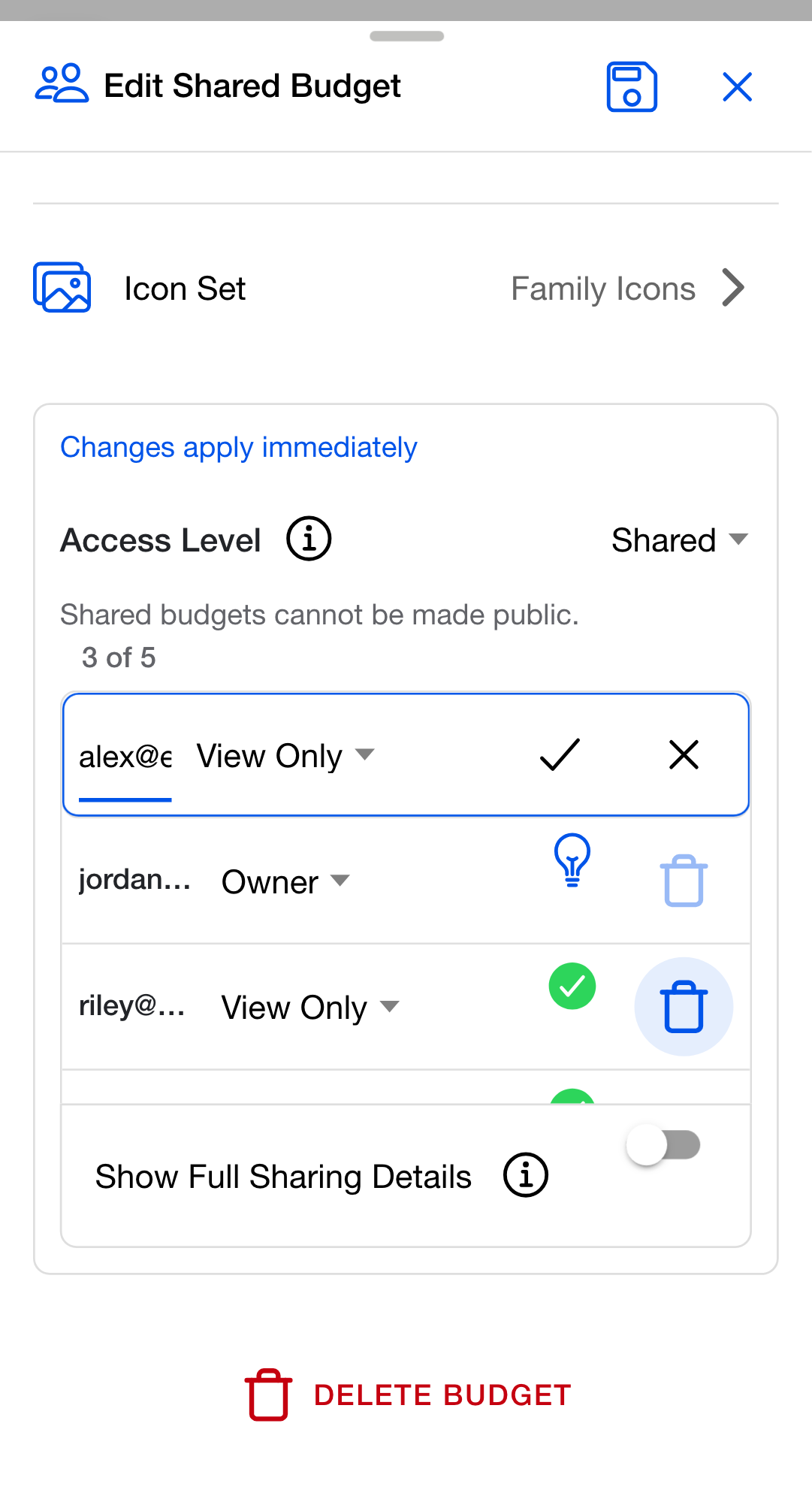
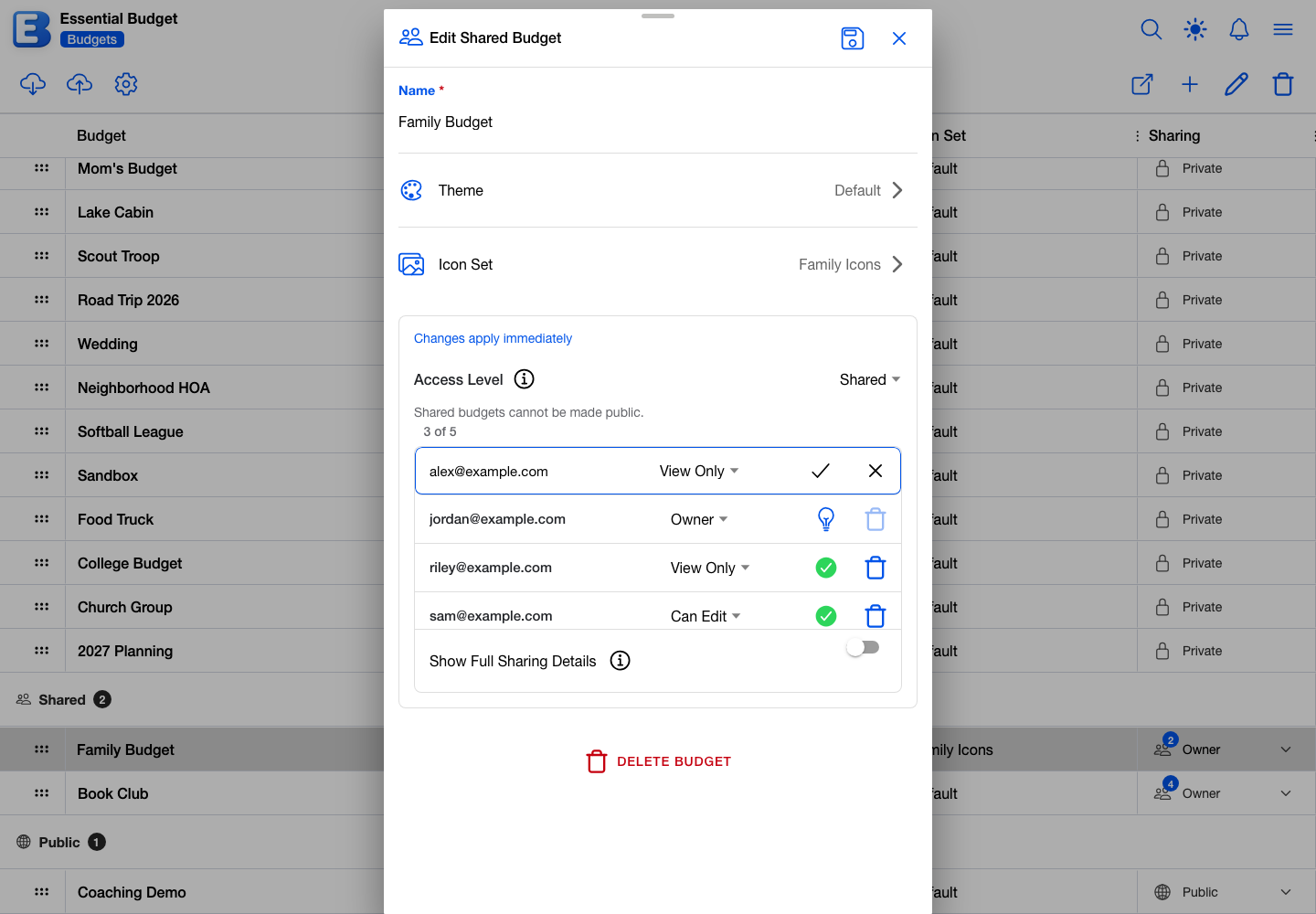
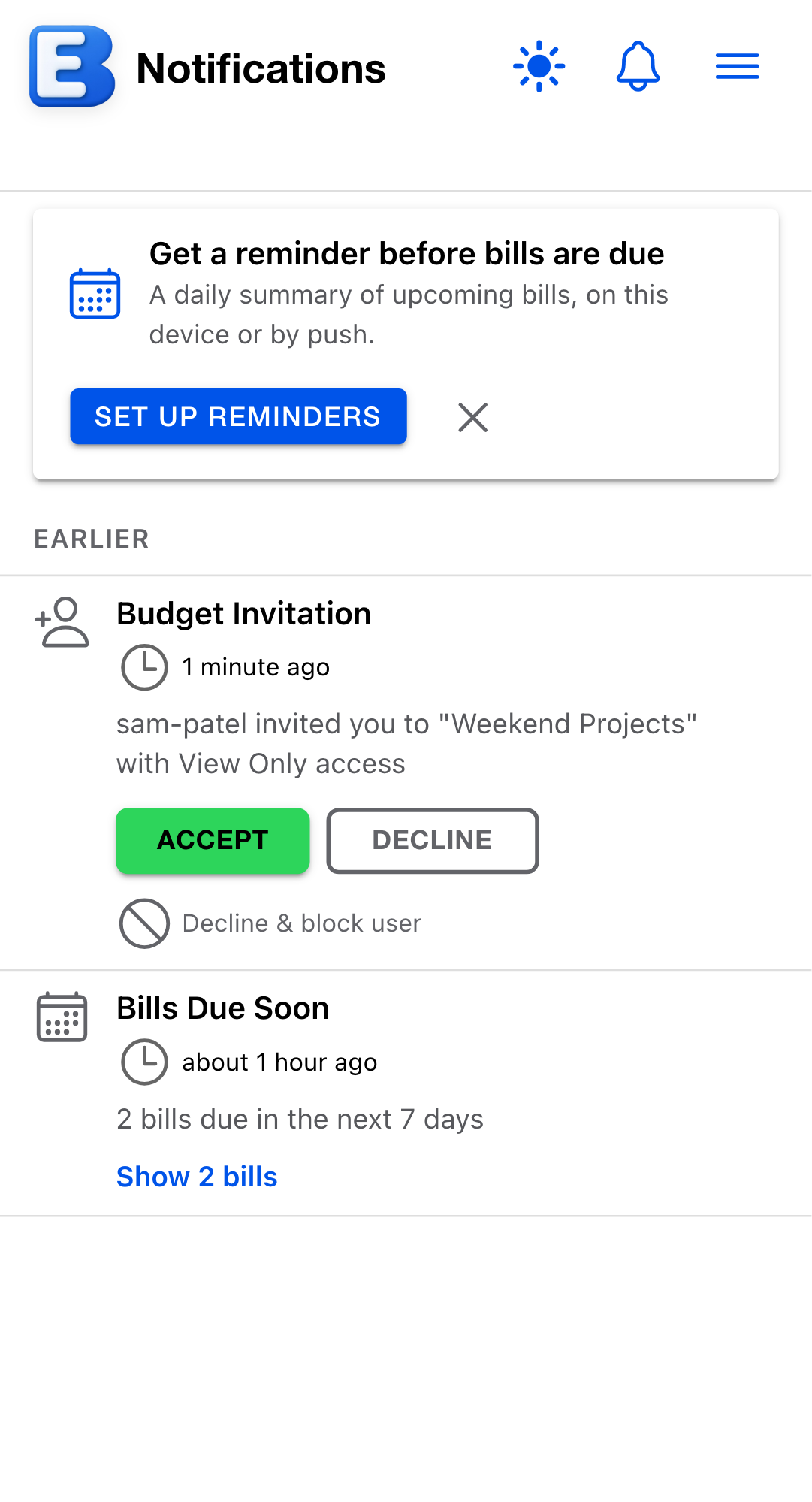
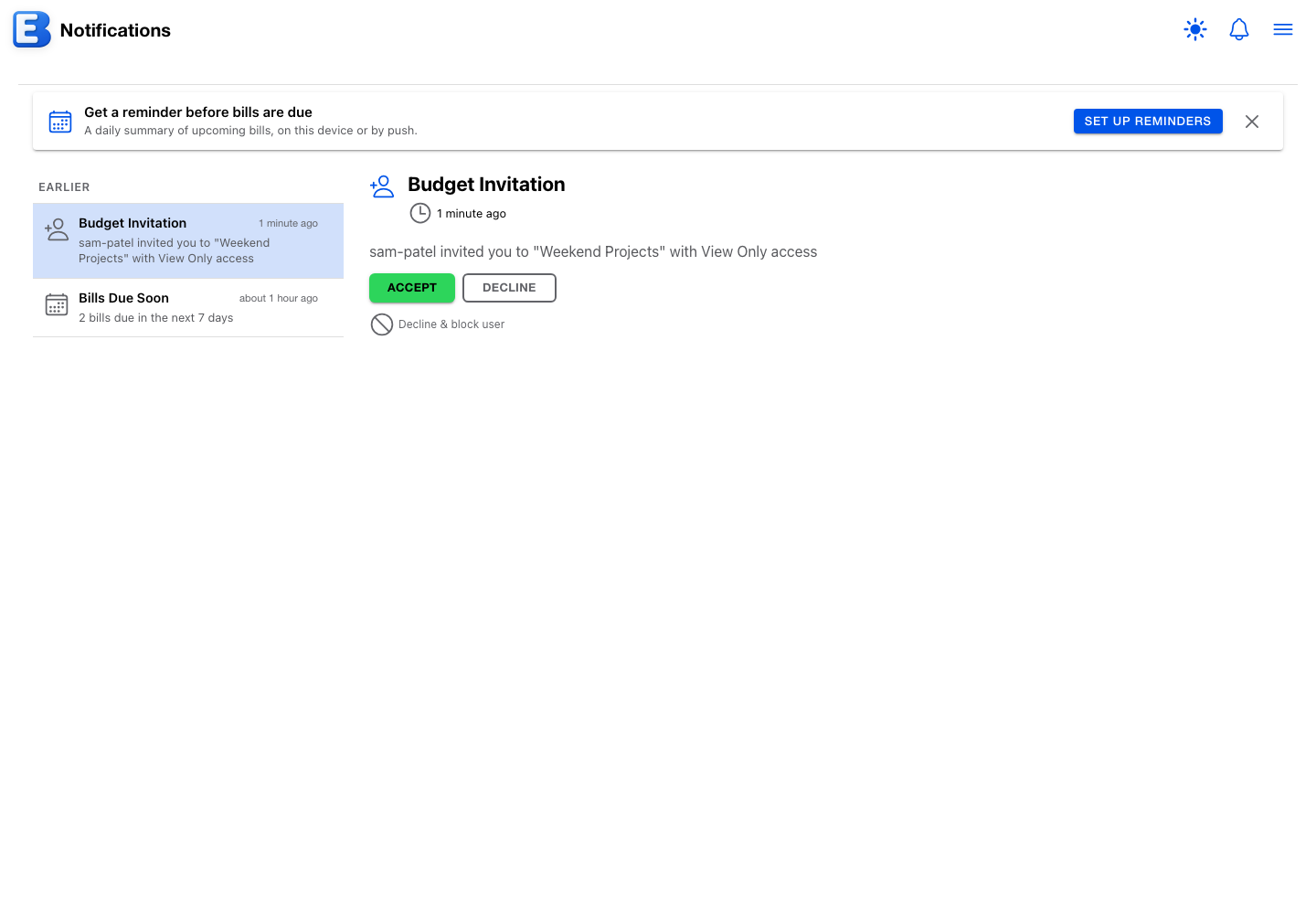
If the address belongs to an existing account, that person gets a Budget Invitation notification on their bell icon, with Accept, Decline, and Decline & block user buttons. When they accept, the budget appears in their Budgets list and their row’s clock becomes a green checkmark. No email is sent; the invitation exists only inside the app.
If the address does not belong to an account, the row still appears in your list as pending, but nothing ever reaches the other person, not even if they sign up later. For someone who is new to the app, have them create an account with that email first, then send the invitation. You can cancel an undelivered invitation with its trash icon at any time.
You cannot invite yourself; the row shows Cannot share budget with yourself if the email matches your own. Re-inviting has one quirk: sending an invitation to someone already on the list, including someone who has already accepted, resets their row to pending, and they have to accept again.
The invitation limits
Two limits apply; the 3 of 5 style count on the card tracks only the first.
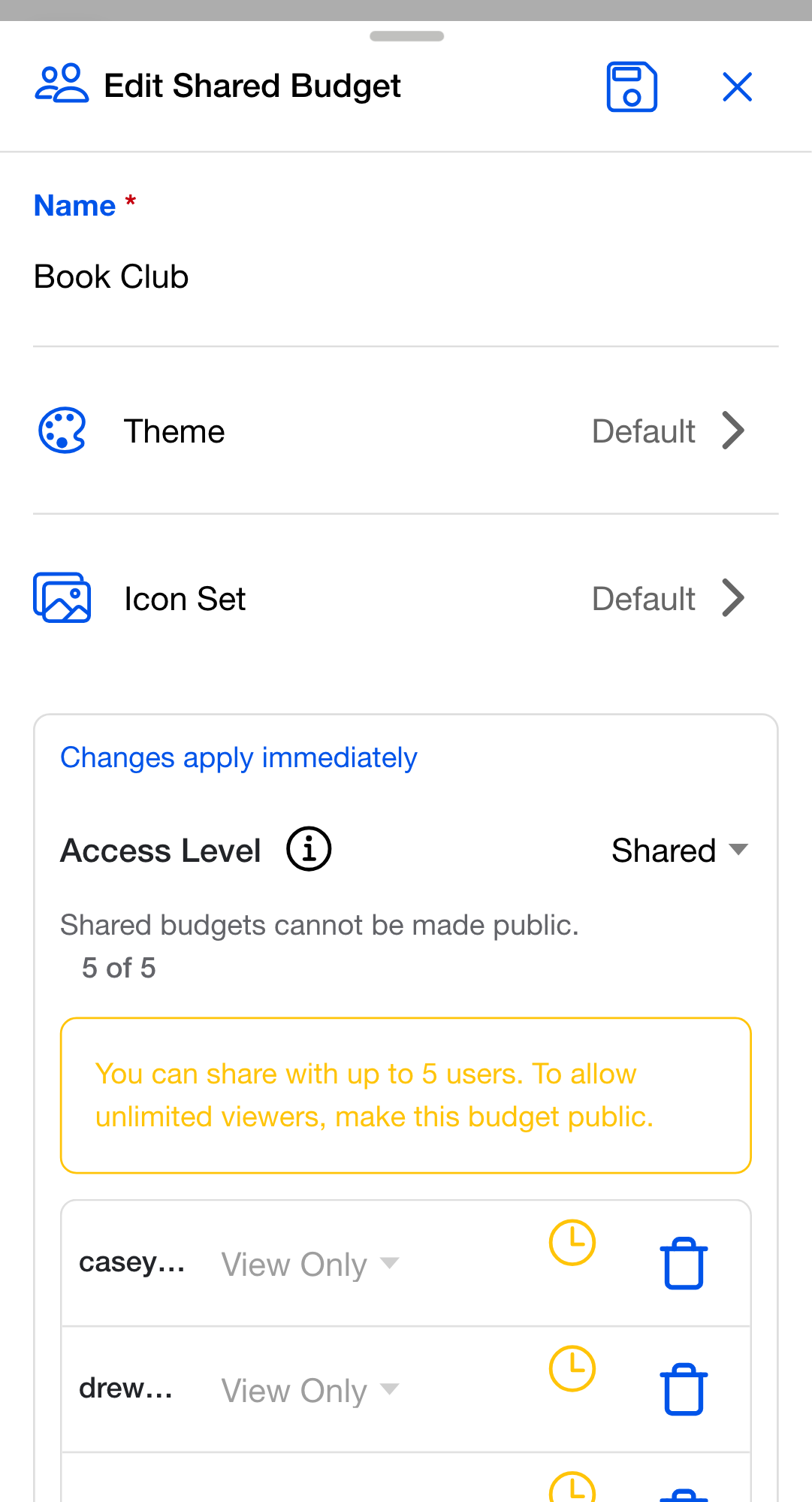
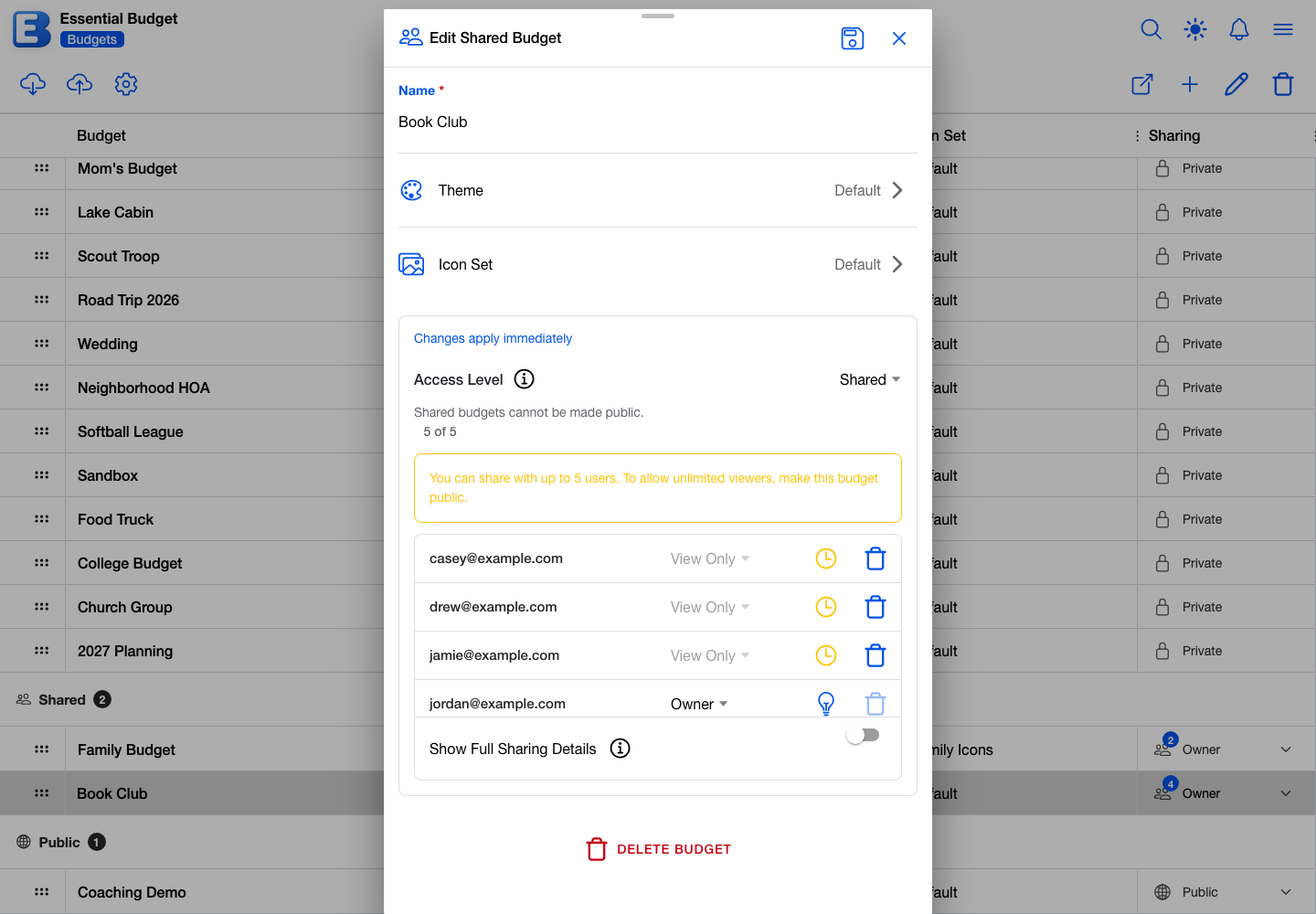
- Five entries per budget. The list holds you plus up to four others, counting pending invitations. At five, the add button disappears and a note reads You can share with up to 5 users. To allow unlimited viewers, make this budget public. Declined and canceled invitations free their slot.
- Ten invitations per budget per hour. The app counts the invitations you sent on this budget in the last 60 minutes. Past ten, the next attempt shows a Rate limit exceeded toast and the add row stays open until the window passes. Canceling an invitation removes it from the count; an invitation the other person declined still counts until its hour passes. Permission changes, revocations, and acceptances never count.
Why is there a per-hour cap? Sharing is meant to be deliberate. The cap stops a typo loop or a pasted-list mistake from spamming unrelated inboxes, and it is far higher than any real household would hit.
The three permission levels
View Only
A viewer sees the entire budget the way you do: the planner, the reports, History, accounts, flows, categories. Every editing control is disabled for them; the resolve button, for example, is labeled Read-only access - cannot modify, and opening an event shows a View Flow Event dialog with no way to change anything. In a budget created from receipts, the Sync button on the Receipts tab is hidden for viewers, because building or updating from receipts changes the budget.
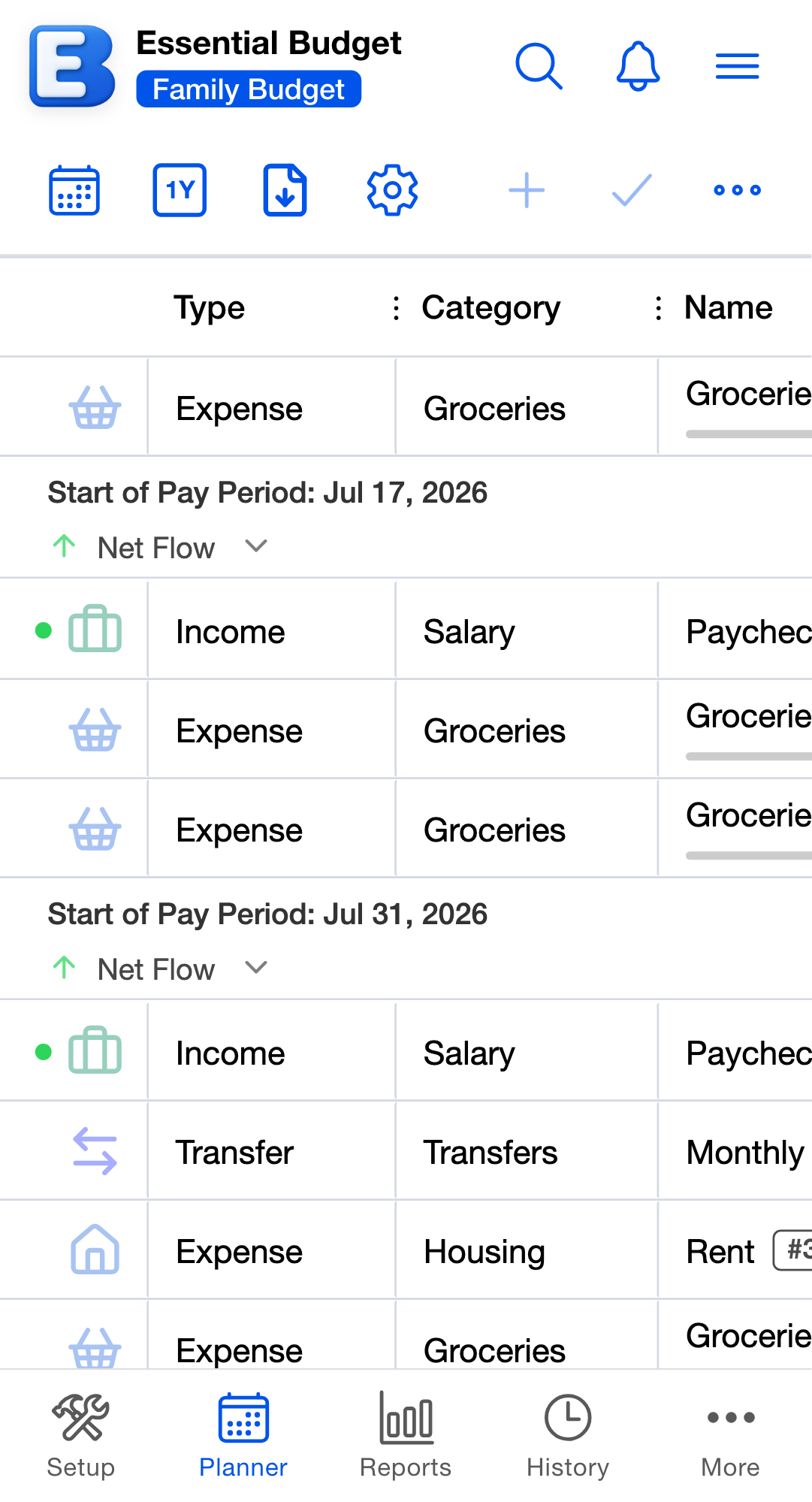
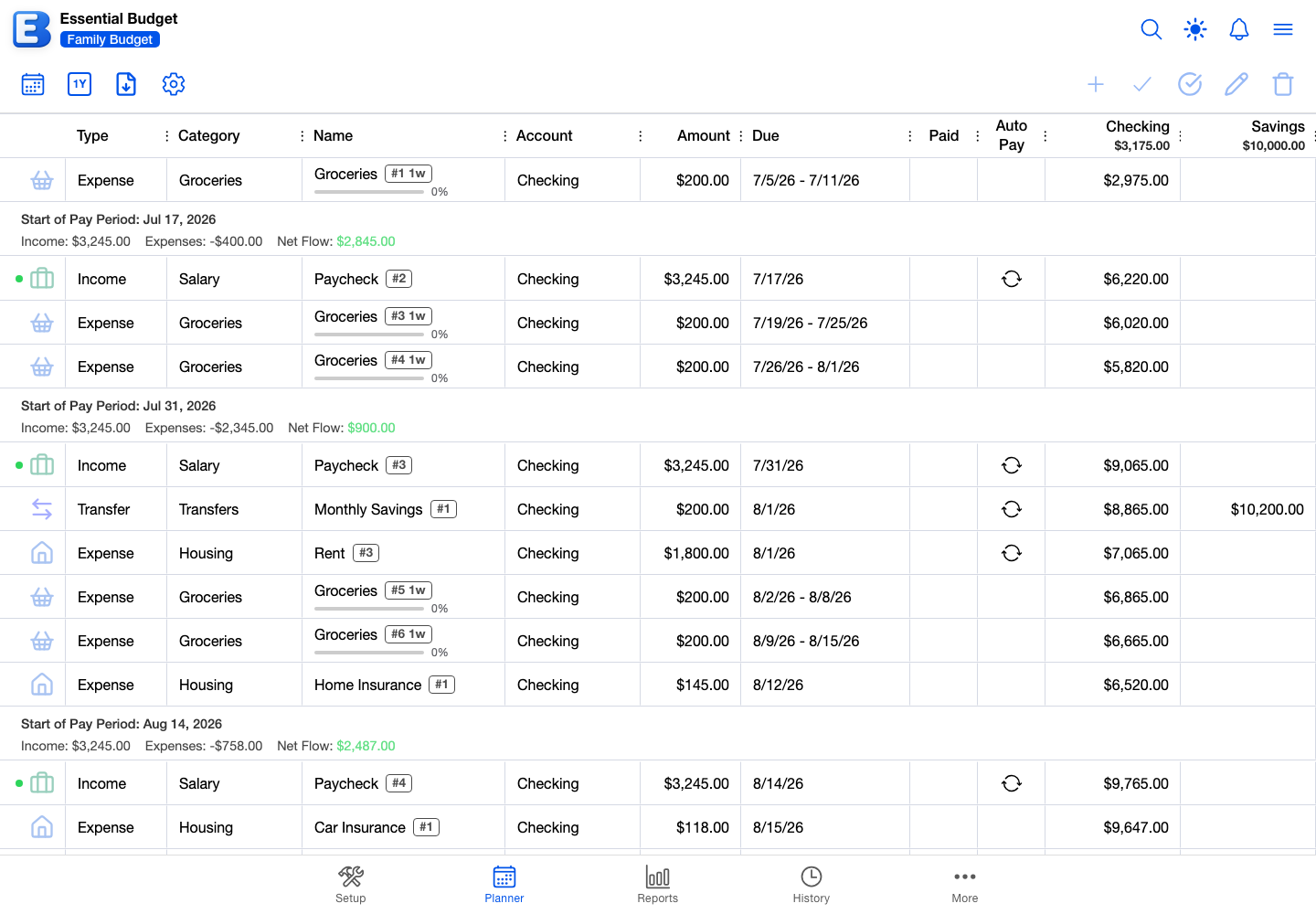
Useful for a partner who wants to follow along, or an accountant reviewing your books.
Can Edit
An editor changes the budget’s content: they can add and edit accounts, categories, flows, and transactions, mark events paid, resolve events, and undo entries from History. The Match Transactions dialog is available to any editor; a bank-linked budget only pulls transactions from the bank when the person using the dialog has Premium themselves, and otherwise falls back to file upload.
Editors cannot manage sharing, change the Access Level, rename the budget, change its theme or icon set, or delete it. The Edit Budget button is disabled for them, so the settings dialog is out of reach entirely.
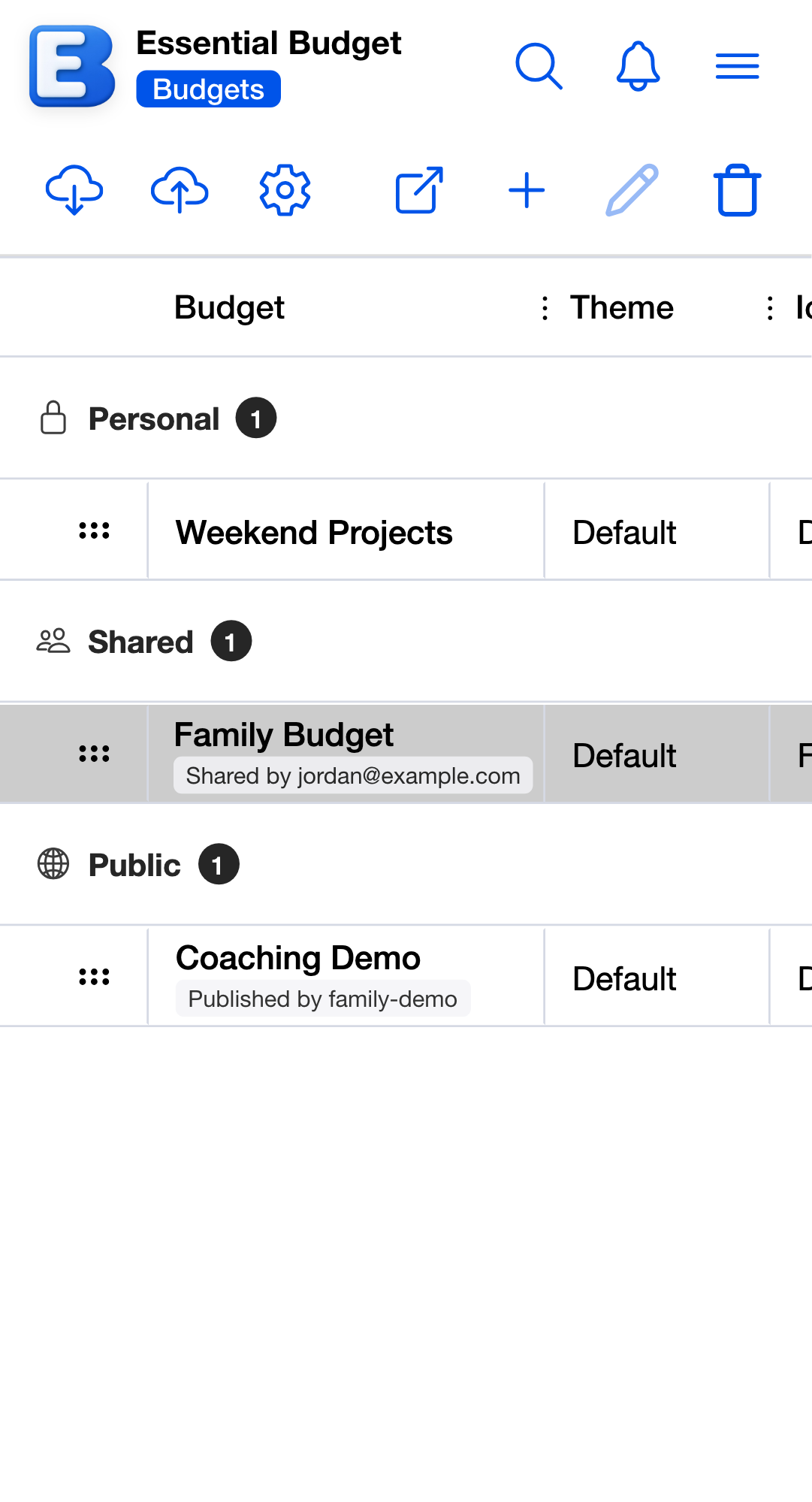
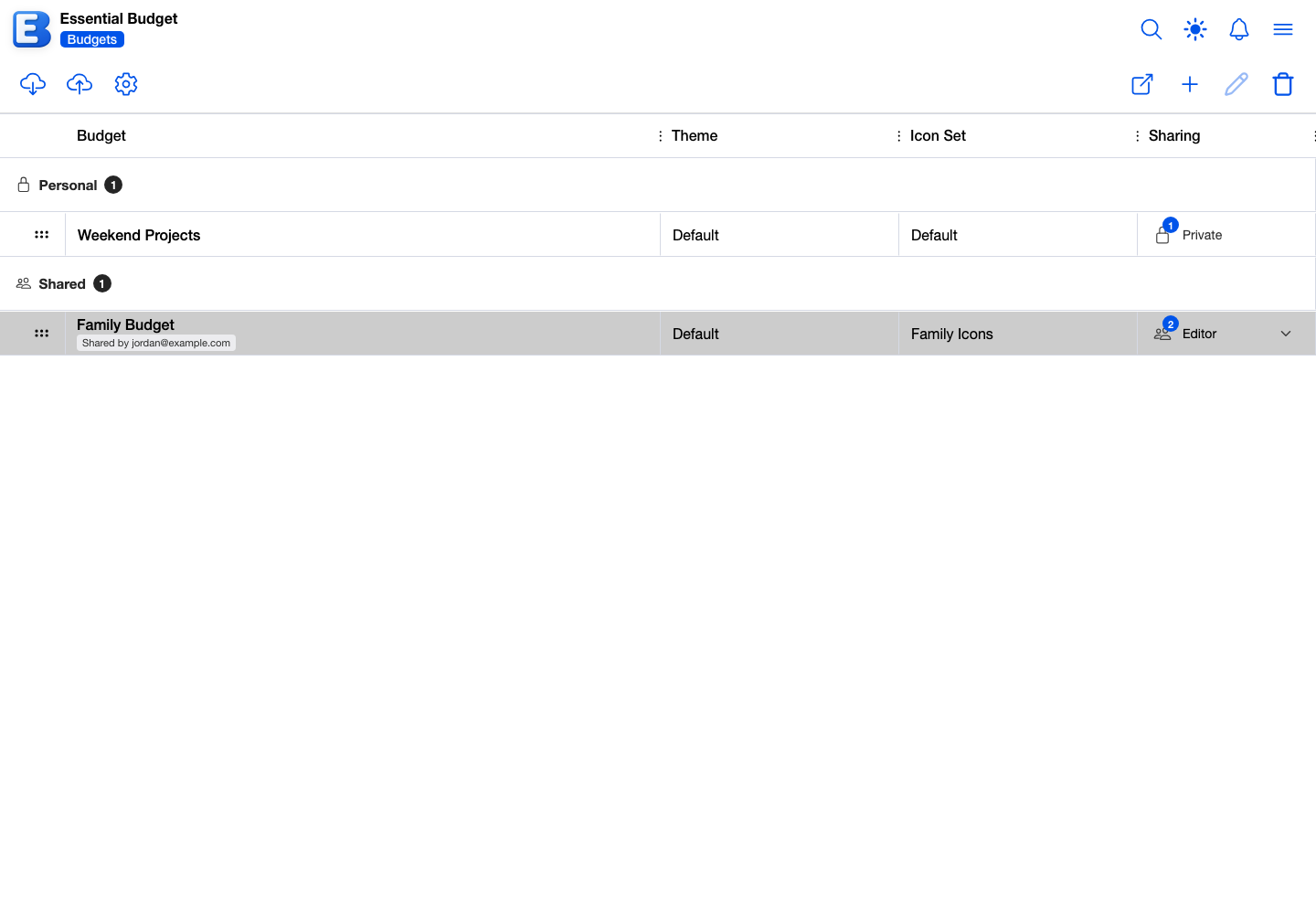
Useful for a roommate, partner, or co-founder budgeting alongside you.
Owner
A second owner manages the budget as fully as you do: they can invite and remove people, change permissions, change the Access Level, rename the budget, and change its theme. A lightbulb icon marks the row of the person who created the budget.
Three rules keep multiple owners from locking each other out:
- Owners cannot change or remove each other. Another owner’s permission dropdown and trash icon are disabled; the trash icon’s tooltip reads Cannot remove other owners. An owner can only step down or leave on their own.
- Only the last owner can delete. While a budget has more than one owner, the delete flow refuses with a Cannot Delete Budget dialog; the other owners must remove themselves first.
- The last owner cannot demote themselves. Changing your own permission as the only owner shows Cannot Change Permission, telling you to promote another user first. With a co-owner present, demoting yourself opens Change Your Permission?, which lists what you are giving up (managing sharing, deleting the budget, making it public or private) before you confirm.
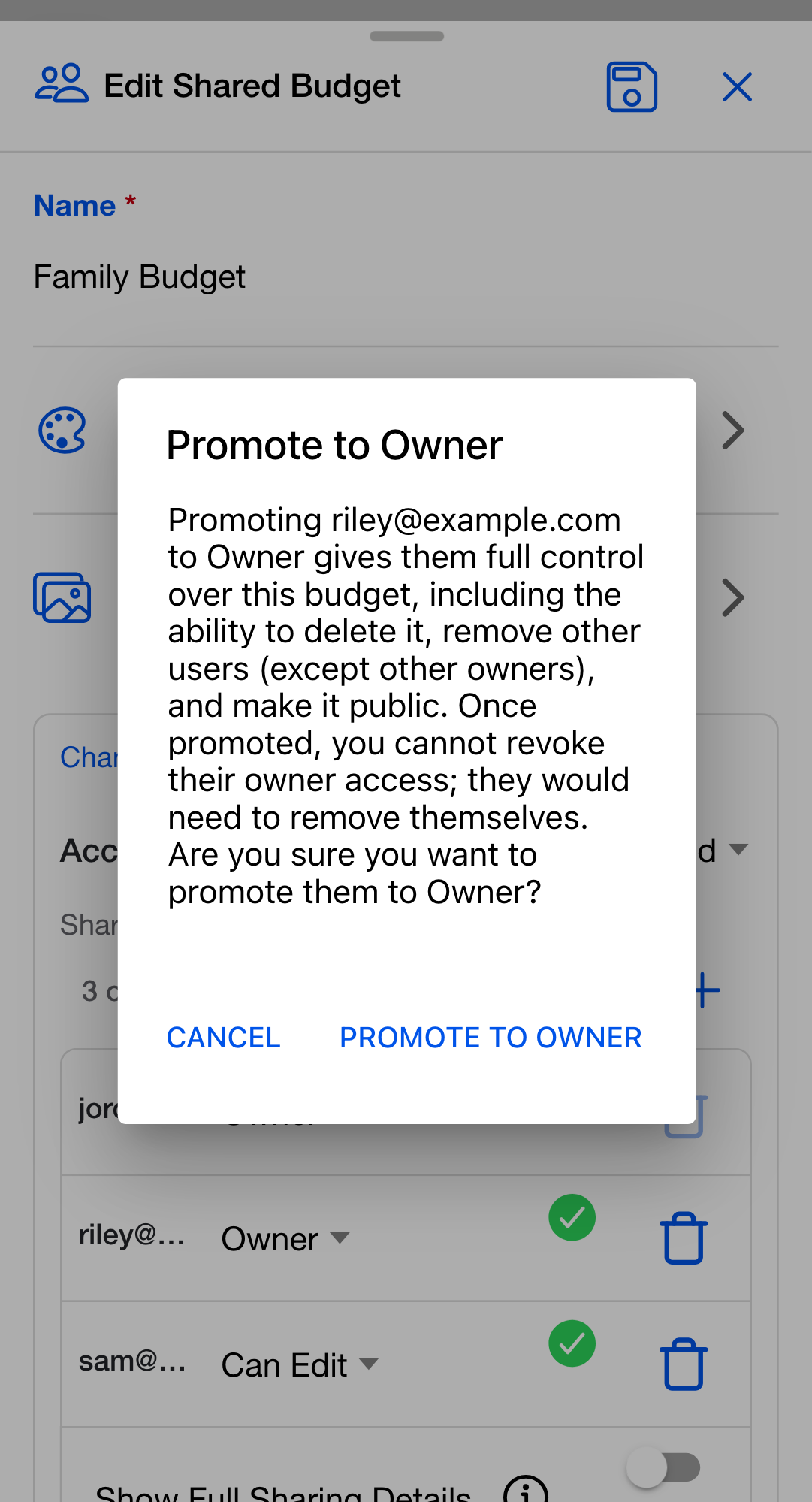
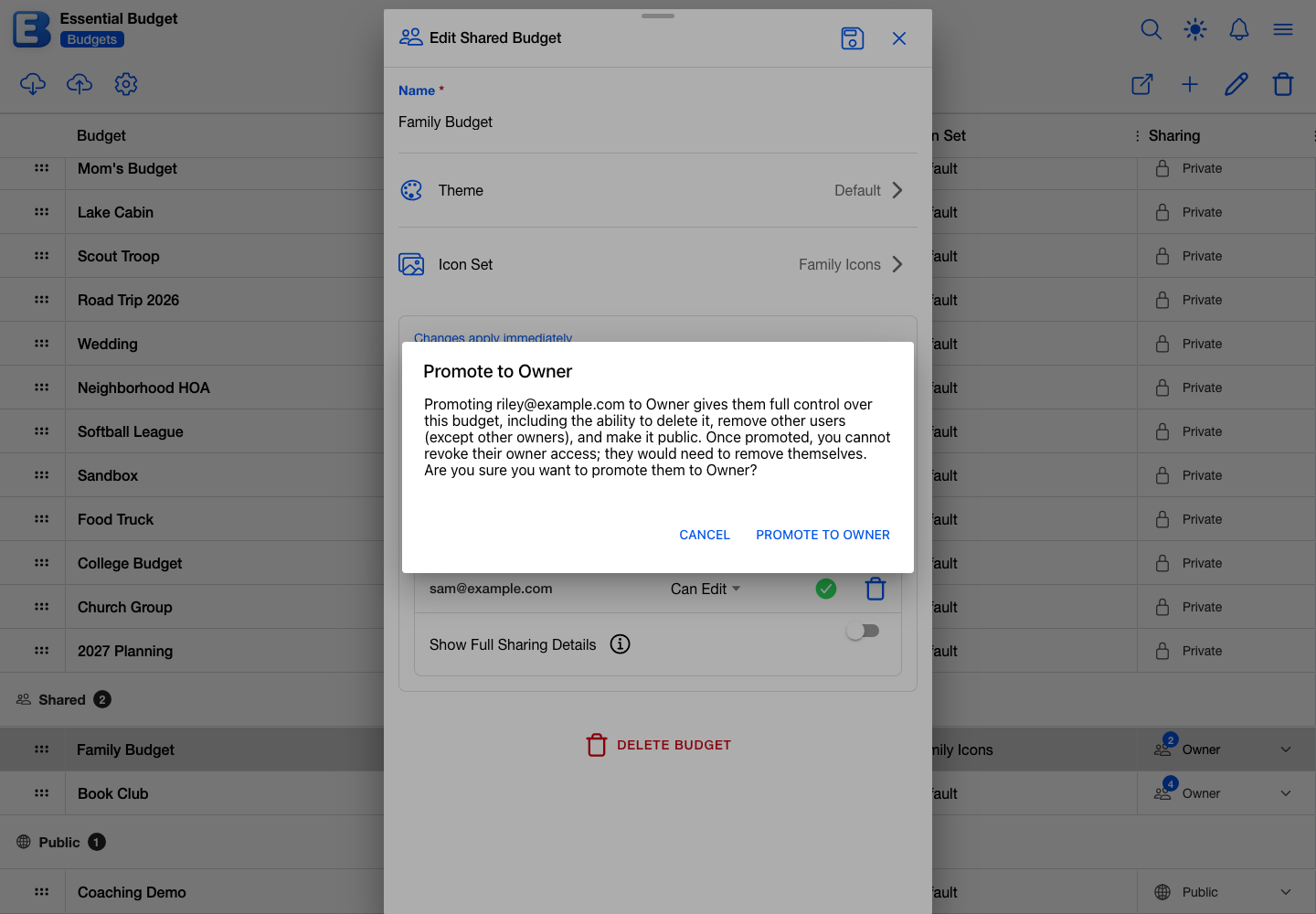
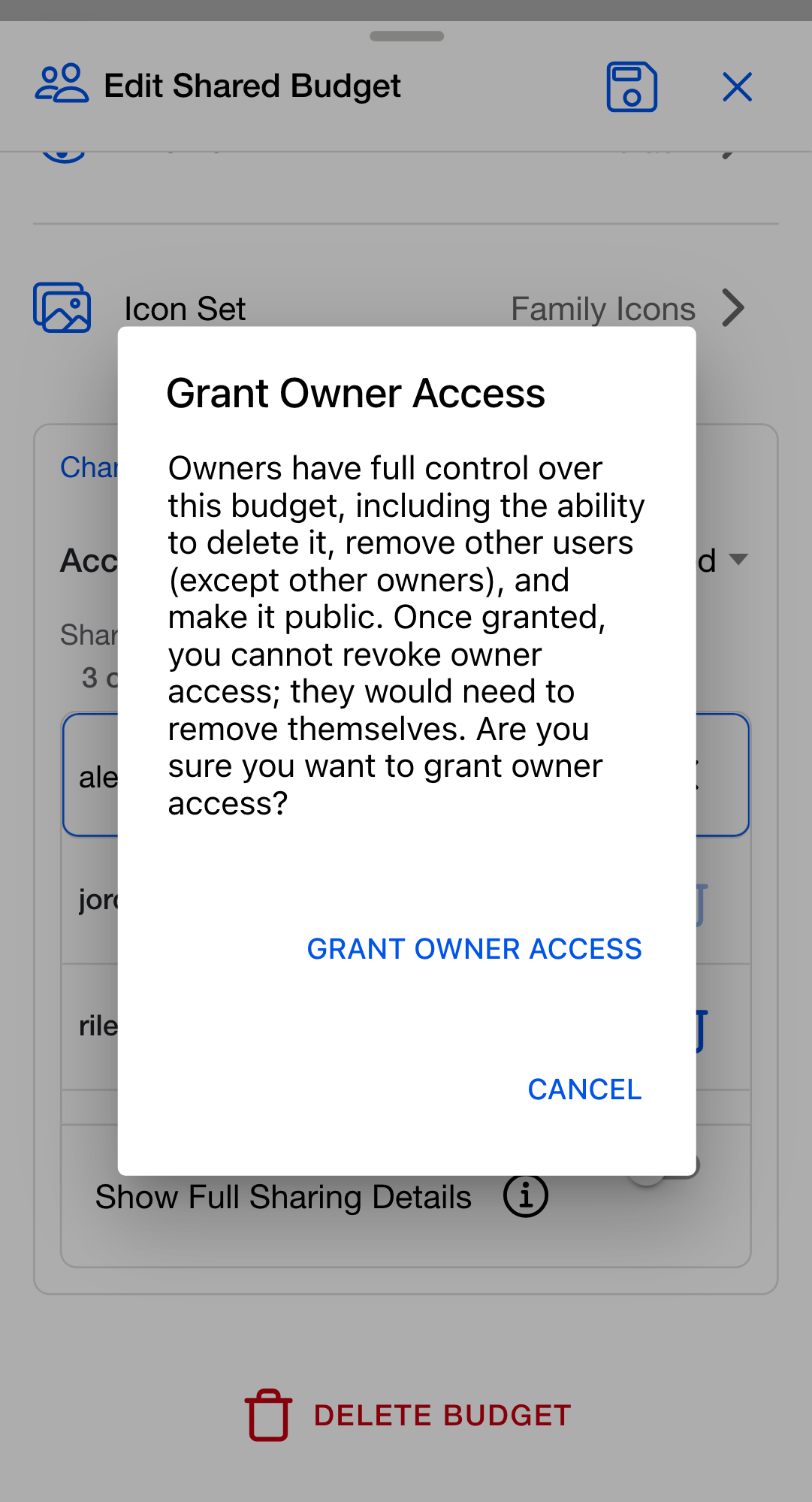
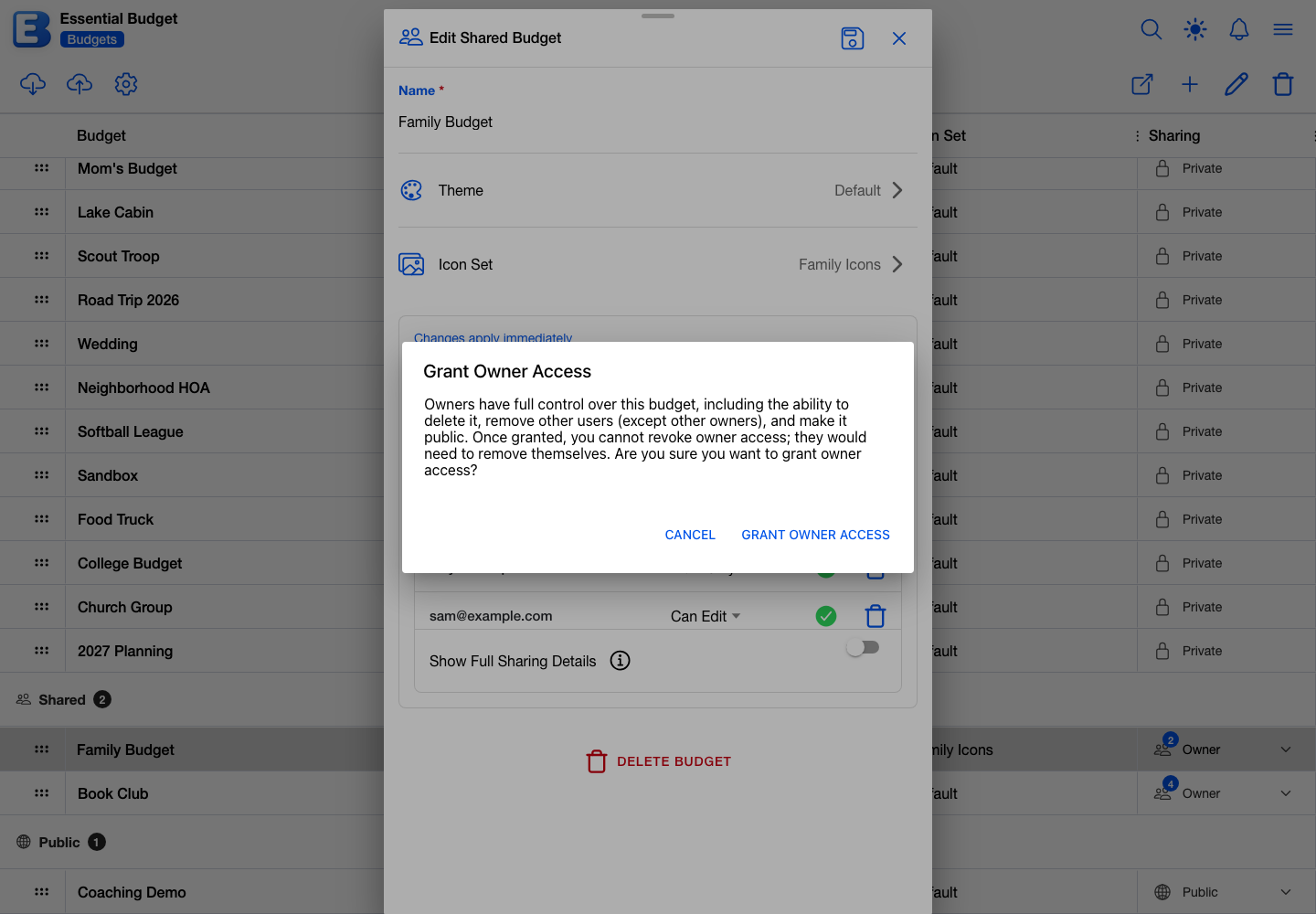
Granting Owner is deliberately hard to do by accident. Changing an existing row to Owner opens a confirmation titled Promote to Owner; granting it on a new invitation opens Grant Owner Access. Both explain that the person will have full control of the budget, including deleting it and removing other users, and that you cannot revoke owner access yourself: they would have to remove themselves.
Owner access also requires the other person to be on Premium. The app rejects the change otherwise, with a toast explaining that only users with a premium subscription can be made budget owners; the dropdown reverts to the old value. For an invitation sent to someone who has not joined the app yet, the check happens when they accept.
On a budget that was created with a connected bank, the Owner option is not offered at all: bank-linked budgets have exactly one owner, so that the bank connection always has a single accountable owner. The same budgets also disable the owner’s own trash icon, with the tooltip Cannot leave: budget contains Plaid data. Delete the budget instead.
Live updates
When one person edits a shared budget, everyone else with it open sees the change shortly after. Move an event to a new date, mark an event paid, add a transaction; the other people watching the same budget see the update without refreshing. There is nothing to enable, and the same applies to permission changes: the share list refreshes on every device as invitations are accepted or revoked.
Why is this default-on? The alternative (manual refresh) would create timing disputes. If you marked rent paid and your partner marked it paid five seconds later because they had not seen your change, you would each be looking at a different state and have to sort out the duplicate. Live updates remove the question.
The Show Full Sharing Details toggle
Inside the sharing card sits a toggle labeled Show Full Sharing Details, off by default. It controls what the people you share with see when they check the budget’s sharing details on their own Budgets page. Switching it shows a confirmation toast either way: Full sharing details now visible to all or Sharing details now limited to owners only.
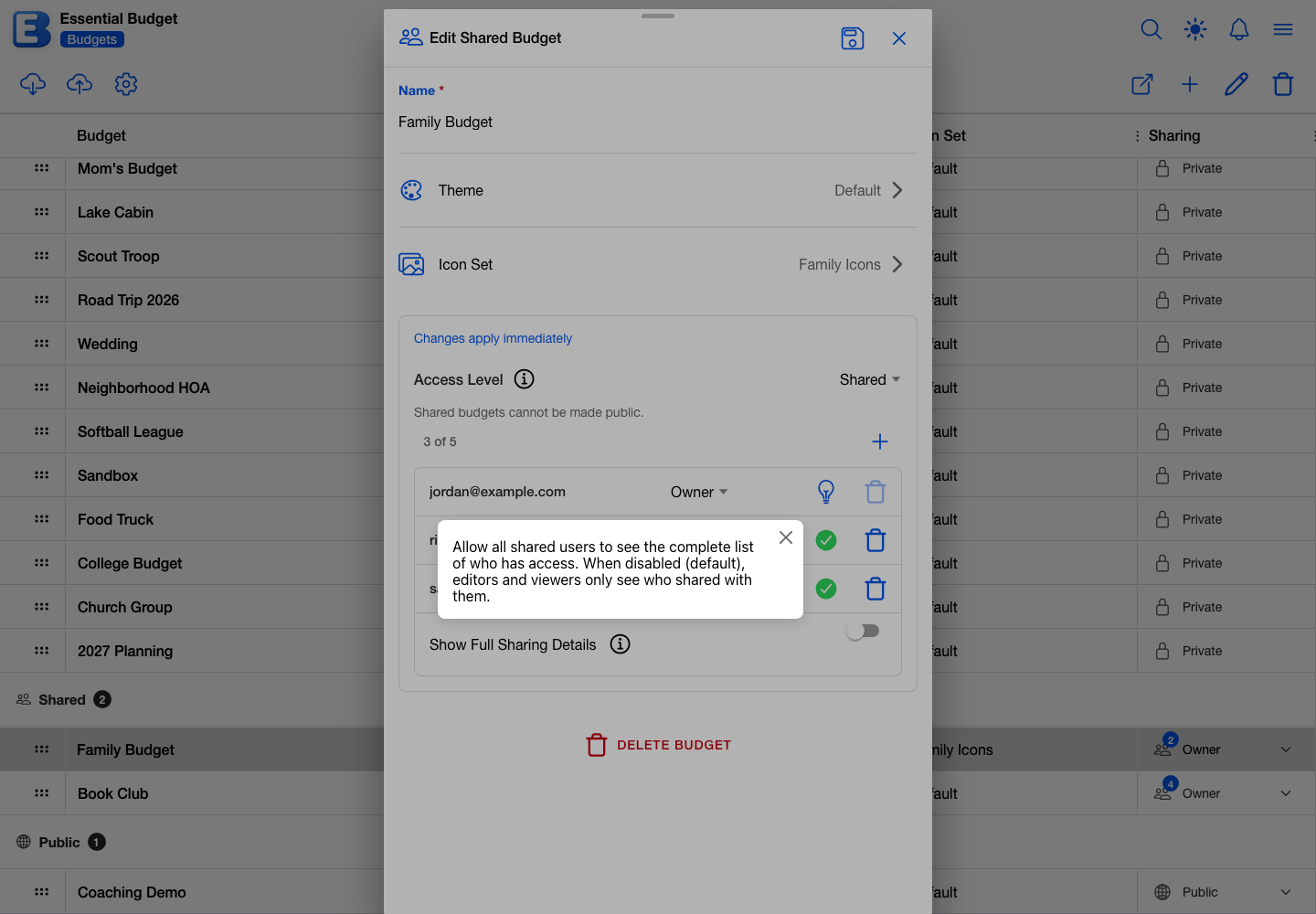
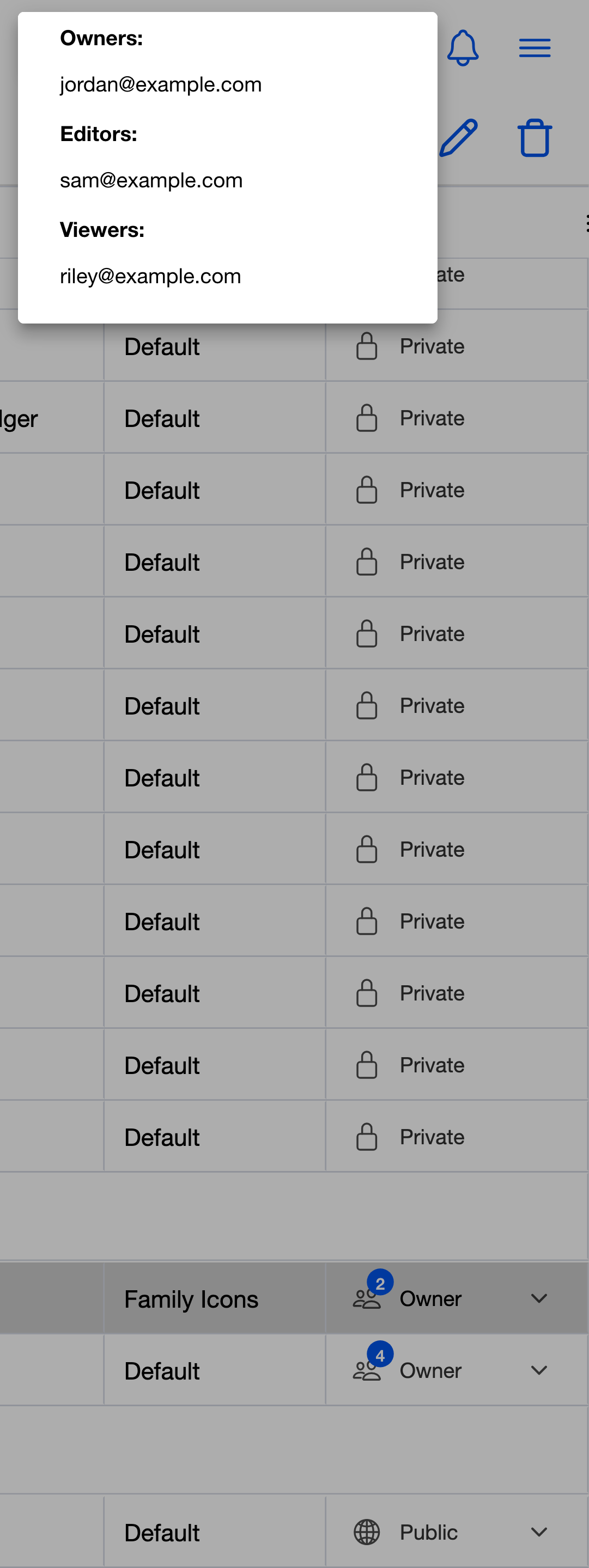
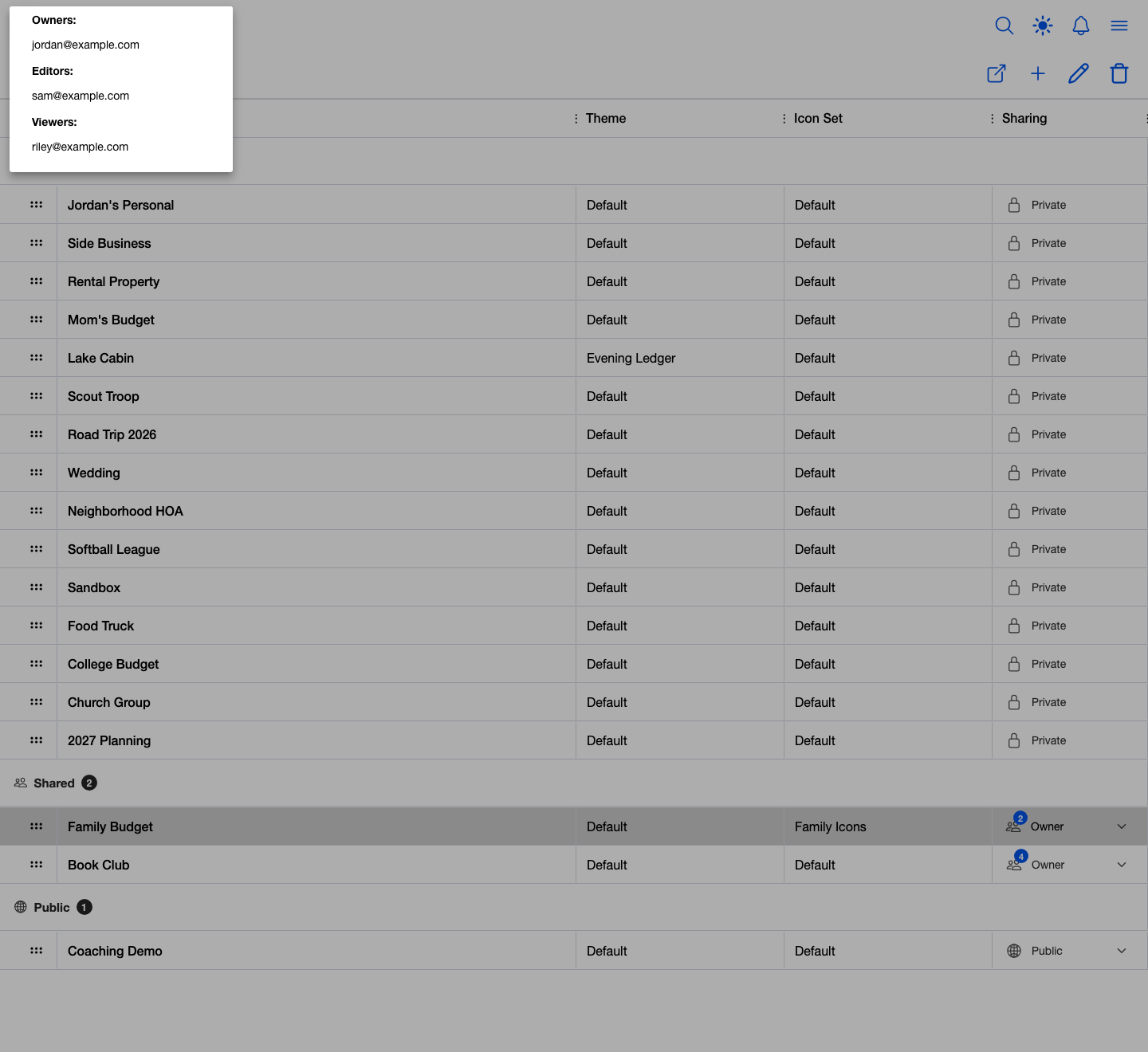
The place the toggle controls is the Sharing column on the Budgets page. Each row there shows the budget’s status: Private, Public, or, on a budget shared with you, your access level (Owner, Editor, or Viewer), with a count of the other people who have access or a pending invitation. On shared and public budgets, a small down arrow next to the label opens the sharing details:
- An owner always sees the complete list, grouped under Owners:, Editors:, and Viewers:, by email address.
- With the toggle off, everyone else sees The budget owner has not enabled sharing details visibility. in place of the list.
- With the toggle on, everyone the budget is shared with sees the same complete list an owner sees.
Revoking access
Tap the trash icon next to a row. The confirmation depends on the row’s state.
- Pending invitation. The dialog is Cancel Invitation (or Cancel Owner Invitation for a pending Owner row). Confirming cancels the invitation; the other person is never notified and never gains access.
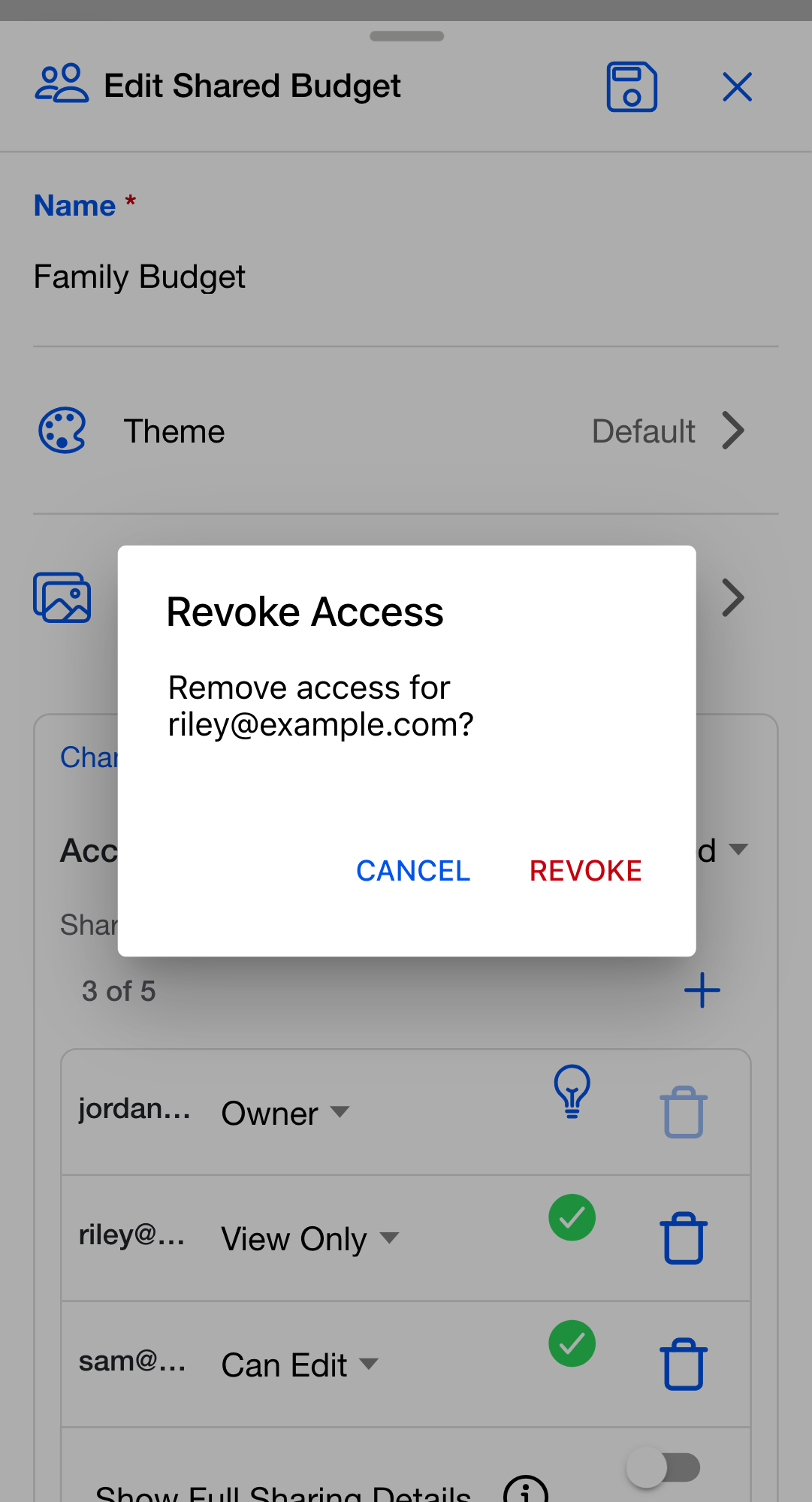
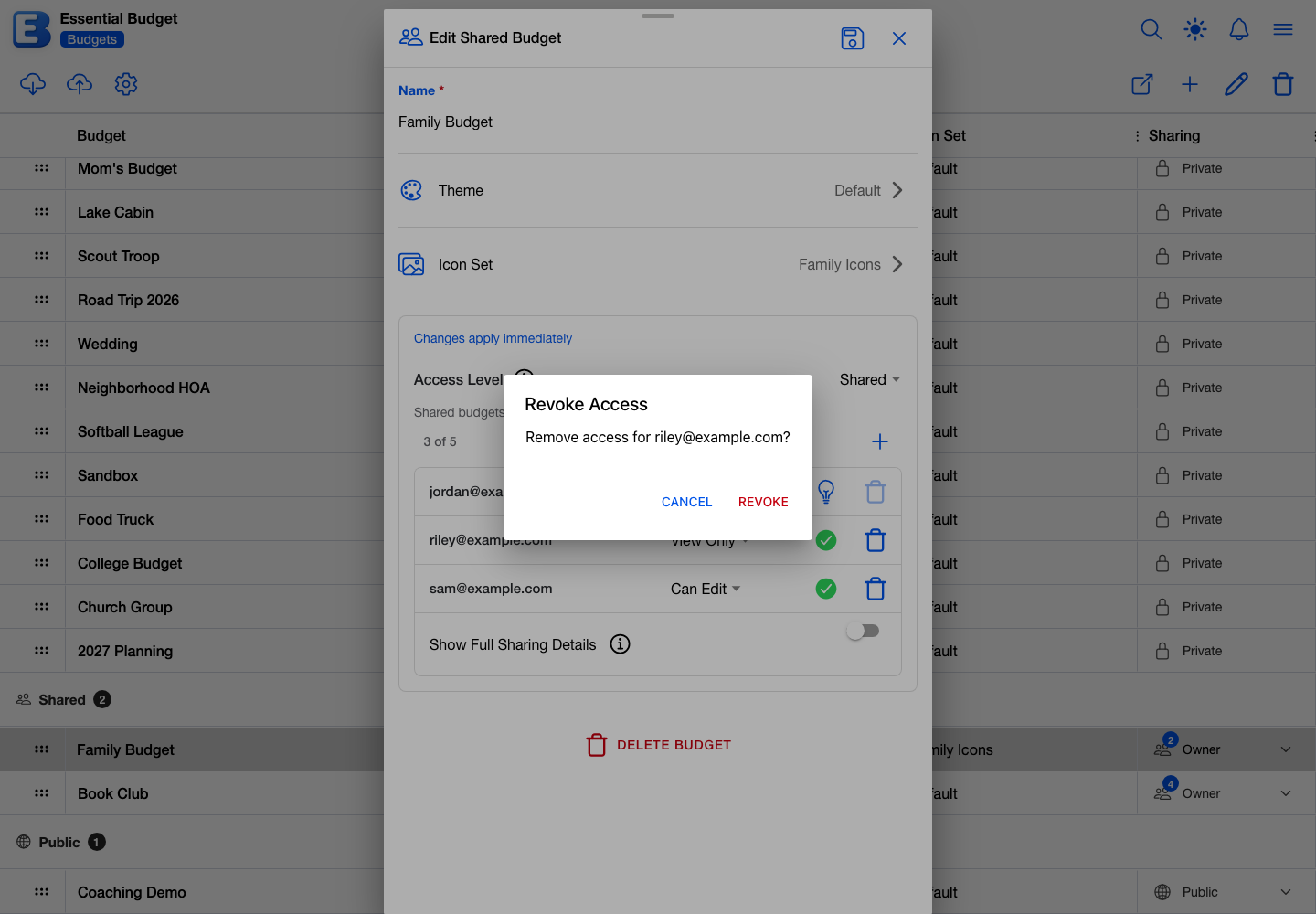
- Accepted View Only or Can Edit. The dialog is Revoke Access, and its confirm button reads Revoke. Their access ends immediately and they get an Access Removed notification.
- Another owner. The trash icon is disabled (Cannot remove other owners).
- Your own owner row. With a co-owner present, the trash icon opens the same Revoke Access dialog against yourself, and the budget continues under the remaining owners. If you are the only owner, the icon is disabled with the tooltip Cannot leave: you are the only owner; promote someone first, or delete the budget.
Re-inviting someone you revoked is a fresh invitation: their old access is fully removed, so they reappear with a clock icon and you pick their permission again.
Switching back to Private
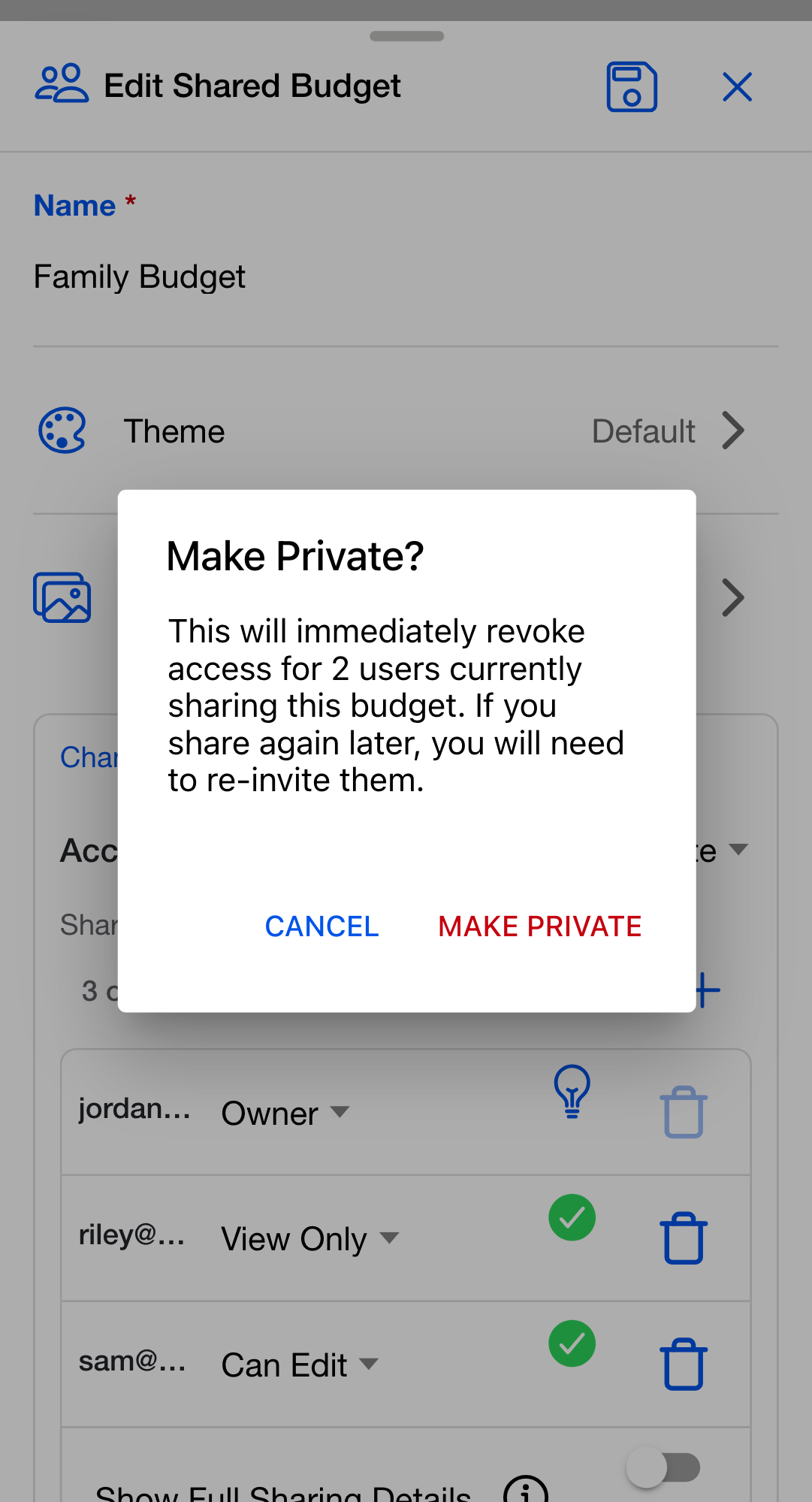
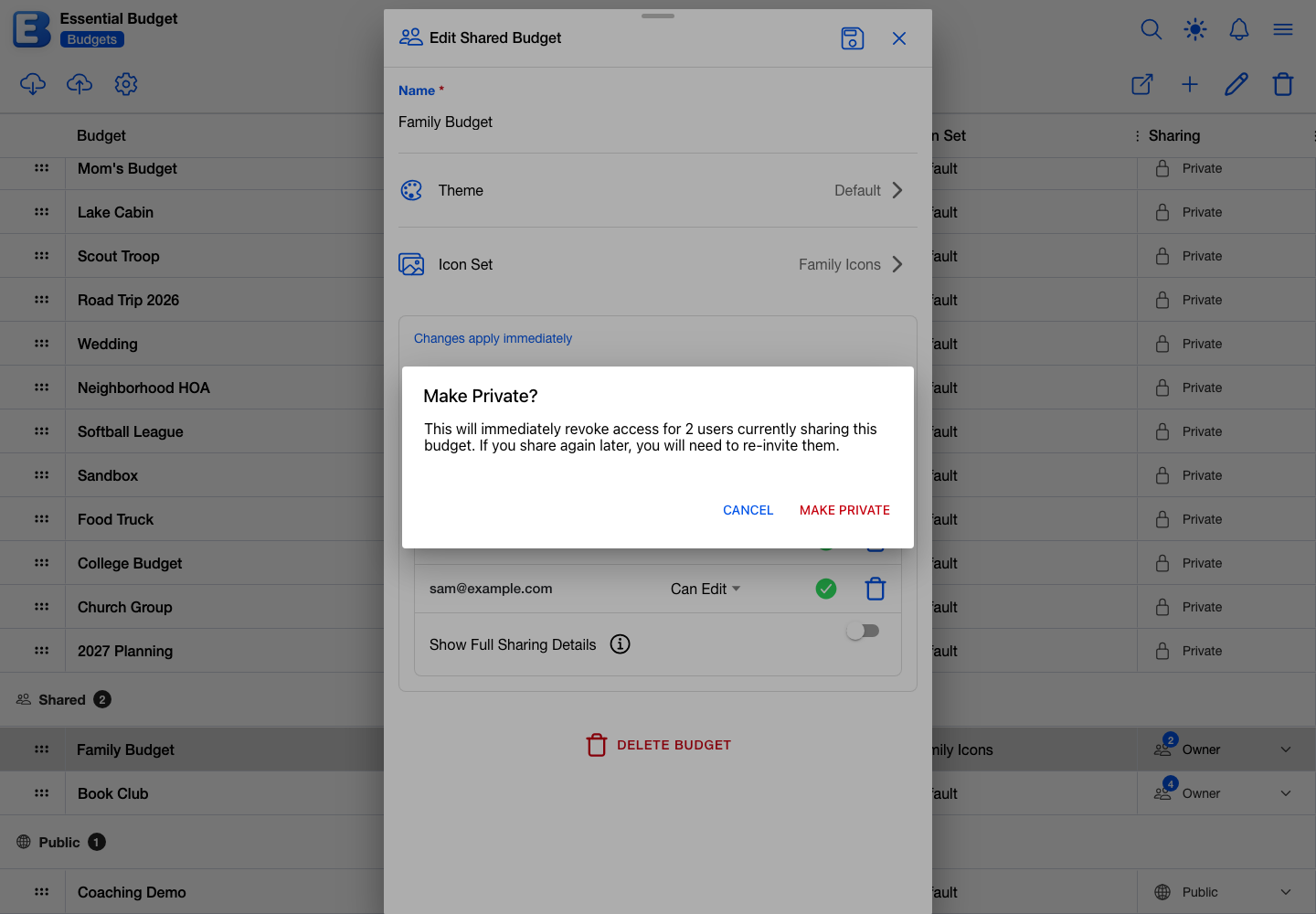
Pick Private in the Access Level selector. If people are on the budget, a Make Private? confirmation names how many will lose access and warns: If you share again later, you will need to re-invite them. Confirming revokes every editor and viewer in one step and shows Budget is now private.
A co-owner is the exception: making the budget private does not remove another owner. They keep their access, and only their own departure (or the budget’s deletion) ends it.
Leaving a shared budget
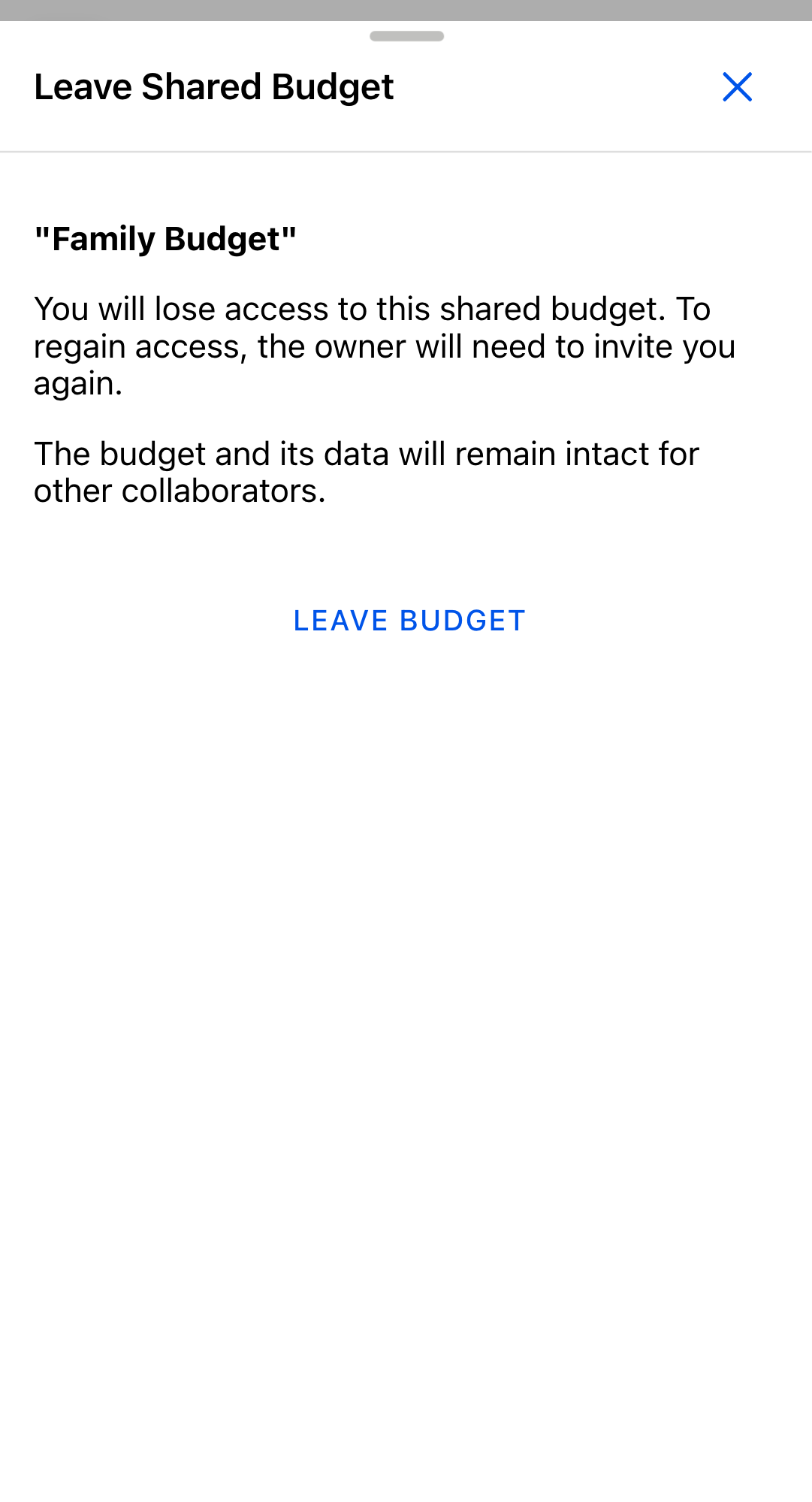
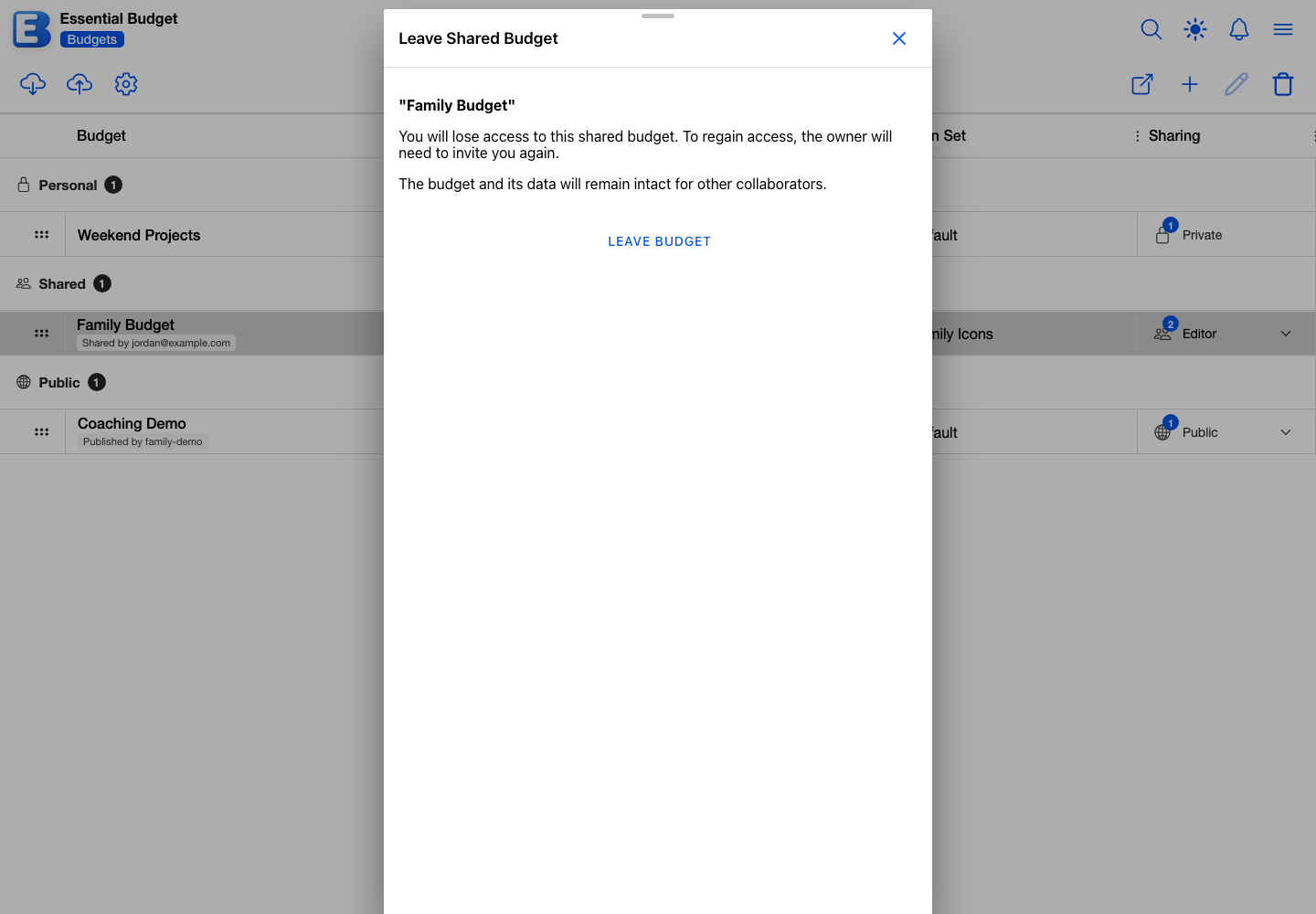
If a budget was shared with you and you no longer want it, select it on the Budgets page and tap the toolbar’s Leave Budget button (it takes the place of Delete Budget on a budget you do not own). A confirmation dialog titled Leave Shared Budget explains that you will lose access and that the owner would need to invite you again; its confirm button reads Leave Budget. The budget disappears from your list with a Left ”…” toast, and every owner gets a User Left Budget notification.
Owners cannot leave: an owner who wants out either demotes themselves first (which requires a co-owner) and then leaves, or deletes the budget as its last owner.
What happens when Premium ends
A budget’s shares stay live only while at least one of its owners is on Premium. Nothing happens the moment you cancel; you keep every feature through the end of the paid period, and renewing before it ends means nothing changes. When the period actually ends:
- If a co-owner is still on Premium, you are demoted to Can Edit on that budget and everyone else keeps their access. You get an Owner Access Ended notification naming the budget.
- If no owner is on Premium anymore, every editor and viewer is removed from the budget. Each gets an Access Removed notification attributing the removal to System (subscription expired). The budget itself stays yours; you can keep using it solo on the free plan, and share again when you renew.
See Subscription for the broader picture.
When the owner’s account is deleted
If the only owner of a budget deletes their account, the entire budget goes with them: accounts, categories, flows, History, and pending invitations are all removed, and collaborators lose access with no way to recover the data. No notification is sent; collaborators discover the change when the budget is gone from their list.
If the budget has a second owner, deleting one owner’s account removes only that person, and everyone else keeps working unchanged. So if you plan to delete your account and want the budget to outlive you, promote someone to Owner first (they need Premium), and tell your collaborators before you go.
See Your Account for the deletion flow itself.
Privacy and Blocking
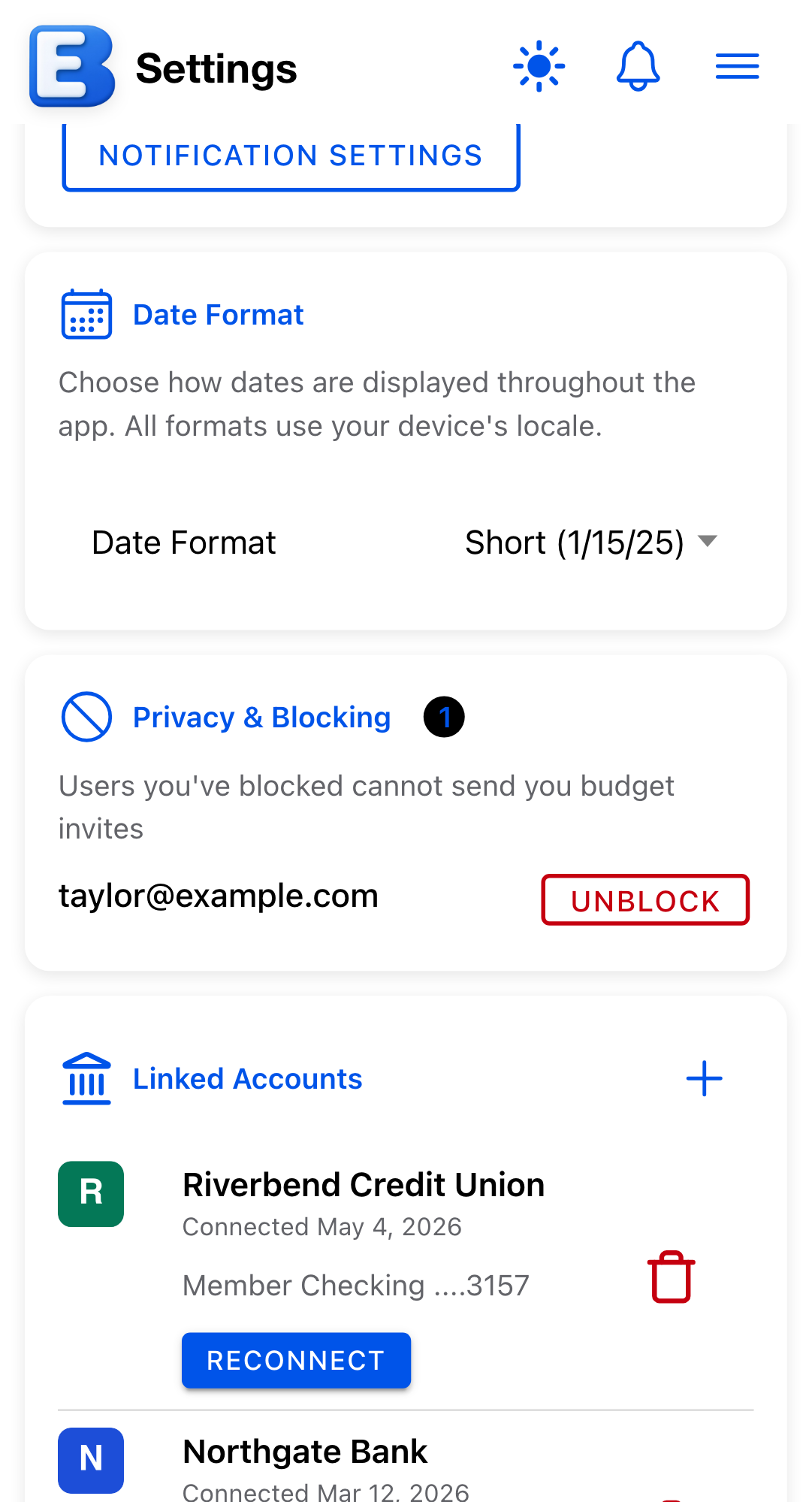
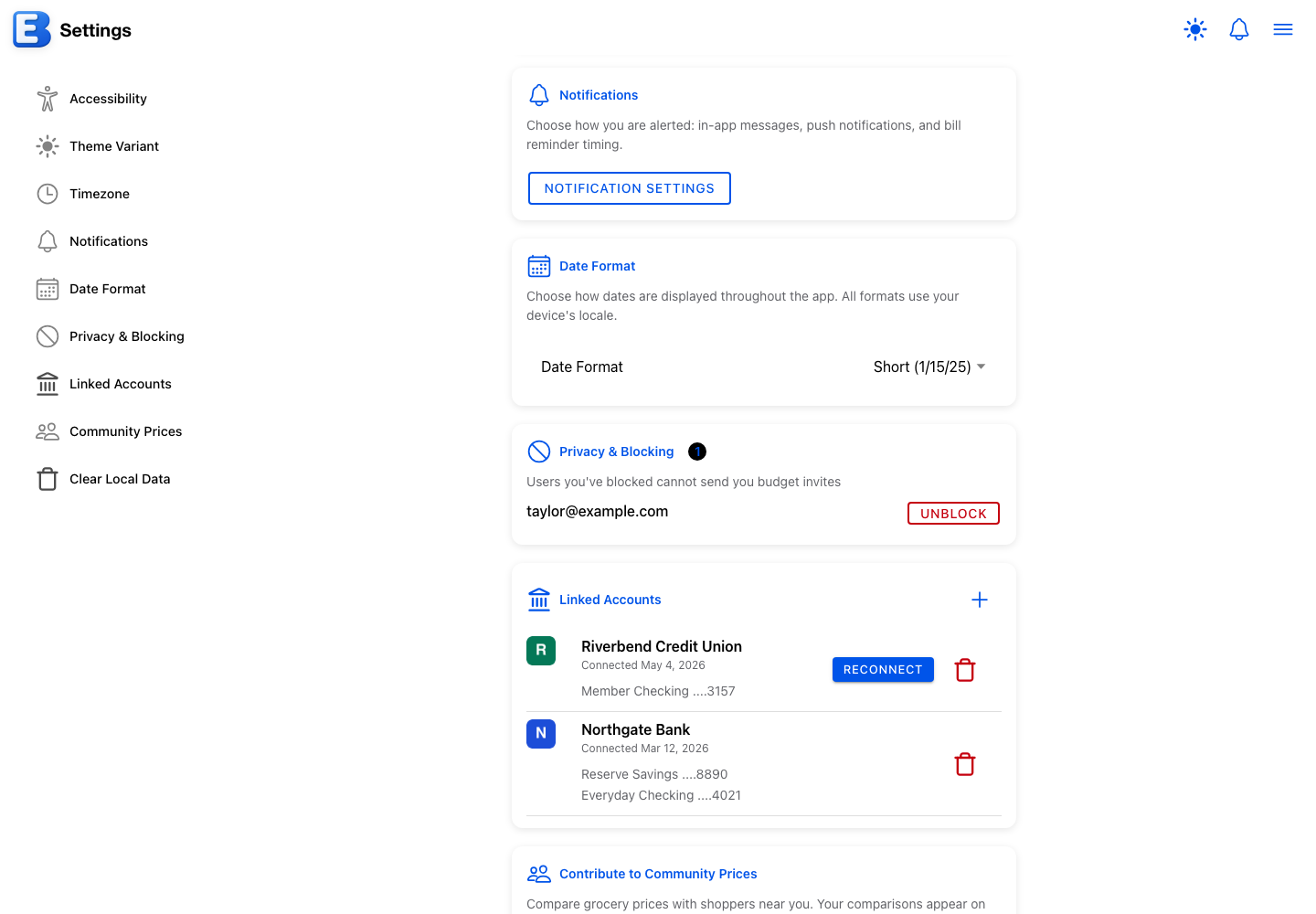
The Privacy & Blocking card on the Settings page manages the people you have blocked. Open Settings from the hamburger menu and scroll to the card; its description reads Users you’ve blocked cannot send you budget invites. Each blocked person is listed by username (or email), with an Unblock button that asks for confirmation in an Unblock User dialog before restoring their ability to invite you.
Blocking is one-directional and tied to your account, so it follows you across devices. It stops that person’s budget invitations from reaching you; it does not touch any budget you already share with them.
Decline and block on an invitation
The third button on a Budget Invitation notification is Decline & block user. Tapping it declines the invitation and adds the inviter to your blocked list in one step. The notification itself stays in your panel, marked Declined & blocked user.
Why this default? The inviter cannot tell they were blocked. A declined invitation disappears from the inviter’s share list, and it disappears in exactly the same way whether you declined or declined-and-blocked. If they invite you again after being blocked, their share list shows a normal pending row that simply never gets answered. Blocking never announces itself, so shutting the door does not become a confrontation.
A plain Decline rejects the invitation the same way but leaves the door open: the person can invite you again, and the new invitation will reach you.
One thing to know before unblocking: invitations a blocked person sent while blocked are not gone. They sit unanswered, and the moment you unblock that person, any that are still pending arrive in your notifications. Ignore or decline them like any other invitation.
You can also block someone by reporting a budget they published; see Reporting a public budget.
Quick reference
| If you want to | Do this |
|---|---|
| Invite someone | Edit Budget, set Access Level to Shared, tap the plus, fill in email and permission, tap the checkmark |
| Change someone’s permission | Tap their permission dropdown, pick the new level |
| Cancel a pending invitation | Trash icon on the pending row, Cancel Invitation |
| Revoke an accepted share | Trash icon on the row, Revoke |
| Promote someone to Owner | Their permission dropdown, Owner, confirm Promote to Owner |
| Step down from Owner | Your own permission dropdown, Can Edit or View Only, confirm (requires another Owner) |
| Switch the budget back to Private | Access Level selector, Private, confirm Make Private |
| Leave a shared budget you do not own | Select it on the Budgets page, toolbar Leave Budget, confirm |
| Block someone who keeps inviting you | Open the invitation, tap Decline & block user |
| Unblock someone | Settings, Privacy & Blocking card, Unblock, confirm |
Related pages
- Publishing a Budget: the read-only public mode, distinct from Shared.
- Your Public Profile: the page behind your username; used by publishing, not by sharing.
- Your Account: deleting your account, and what that does to shared budgets.
- Subscription: the Premium requirement for sharing and what changes for collaborators when Premium ends.
- Notifications: the bell-icon panel where Budget Invitation, Access Changed, Access Removed, and User Left Budget appear.
- Budgets: the Budgets page and its toolbar, where Edit Budget and Leave Budget live.
Questions or feedback about this page?Email us.