
Learn - Transactions
Recording individual purchases and deposits inside your events.
Transactions
Some planned amounts are paid in one go, and some are spent a little at a time. Every event can record the individual purchases, charges, or deposits behind it, and a flow marked Due Over a Date Range collects them across its whole period. You can then see that you are $111.51 into a $200.00 grocery budget, instead of guessing.
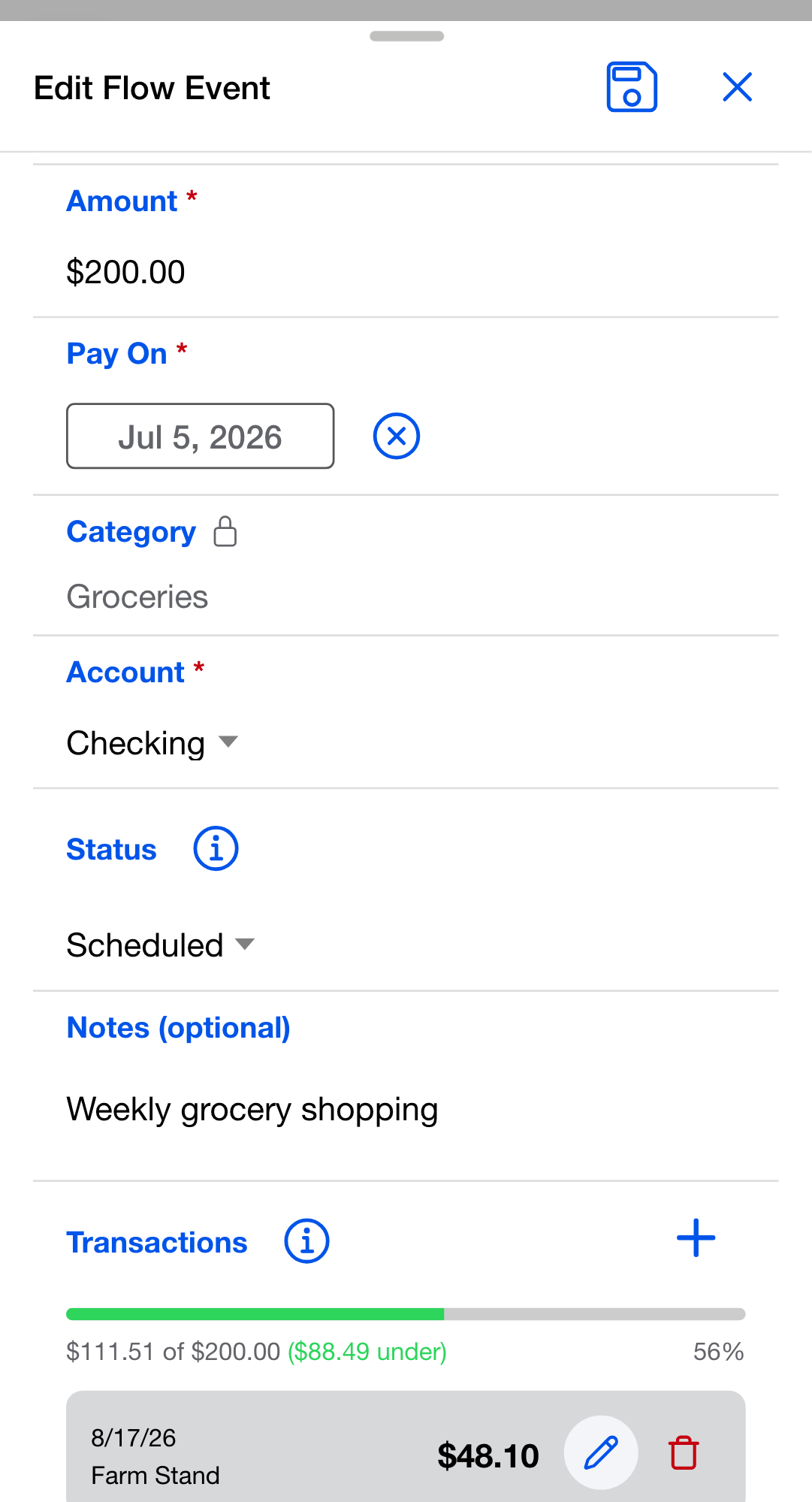
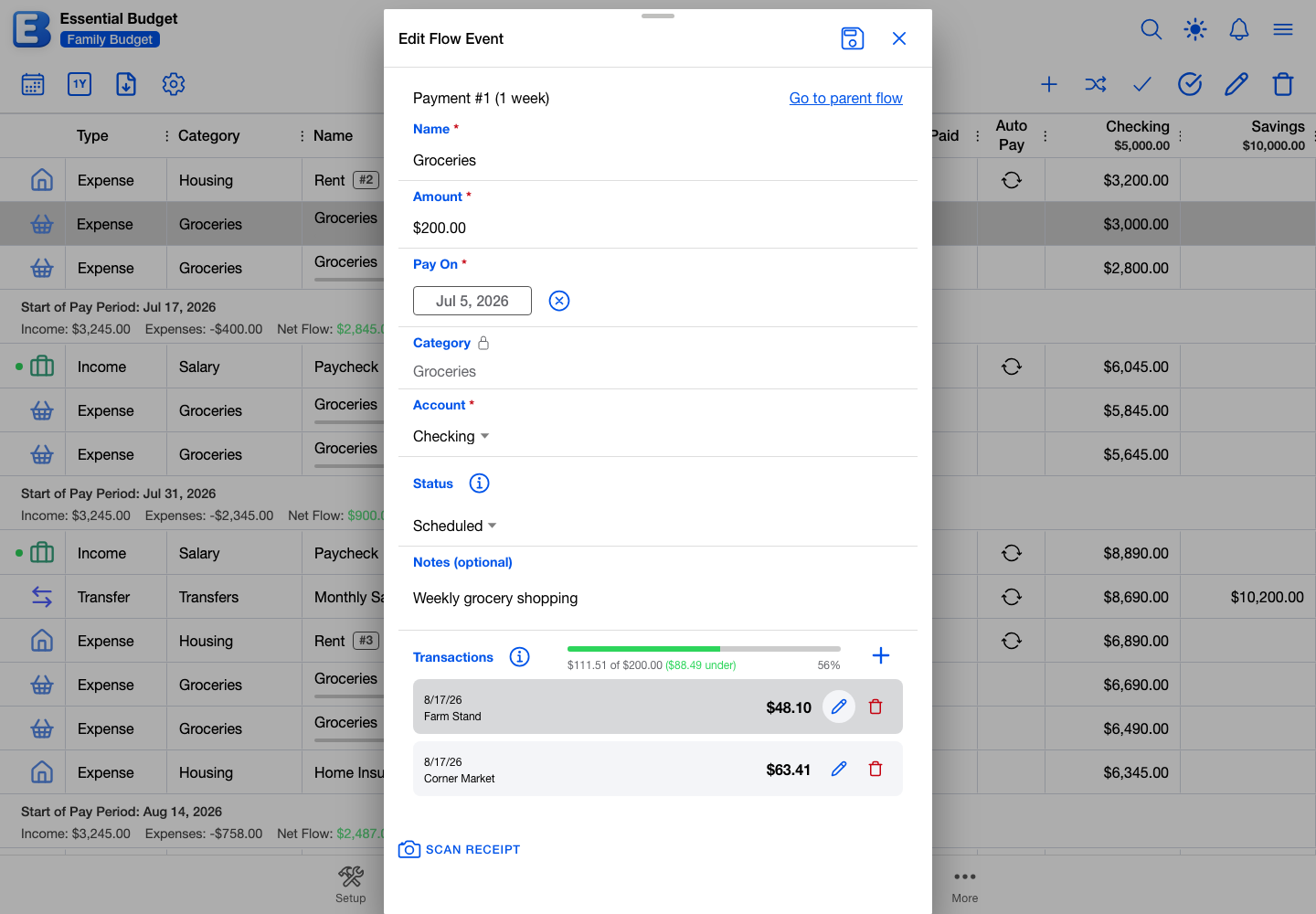
A transaction is one of those individual entries. Transactions are optional: any event can hold them, whether they arrive by hand, from a matched bank or file row, or from a receipt. On a dated flow, such as rent or a gym membership, the first matched payment resolves the whole event, so its list rarely holds more than one. On a flow due over a date range, transactions accumulate until they reach the planned amount. The setting is described on Flows.
Where transactions live
Transactions are not a tab of their own. They live inside the event they belong to. Open the Planner, select an event row, and use Edit Event on the toolbar. Double-tapping the row does the same. The dialog that opens is titled Edit Flow Event.
Its Transactions section sits near the bottom, with a progress bar and a running line reading “$111.51 of $200.00” plus how far over or under the planned amount you are. The section appears on every event except those of Transfer flows.
Bank and uploaded transactions land in this same section once they are matched to the event, alongside anything you typed by hand. There is no separate list for imported ones, and the running total adds them all together.
Adding a transaction
In the Transactions section header, tap the plus button, labeled Add transaction. An inline form opens with three fields.
- Date. Defaults to today. You can pick any date from five years ago to five years ahead, so recording something before it clears is fine.
- Amount. Must be greater than zero. Typing
5and typing5.00record the same value. - Description (optional). Up to 100 characters. What you type here is what shows on the row, and in History after the event resolves.
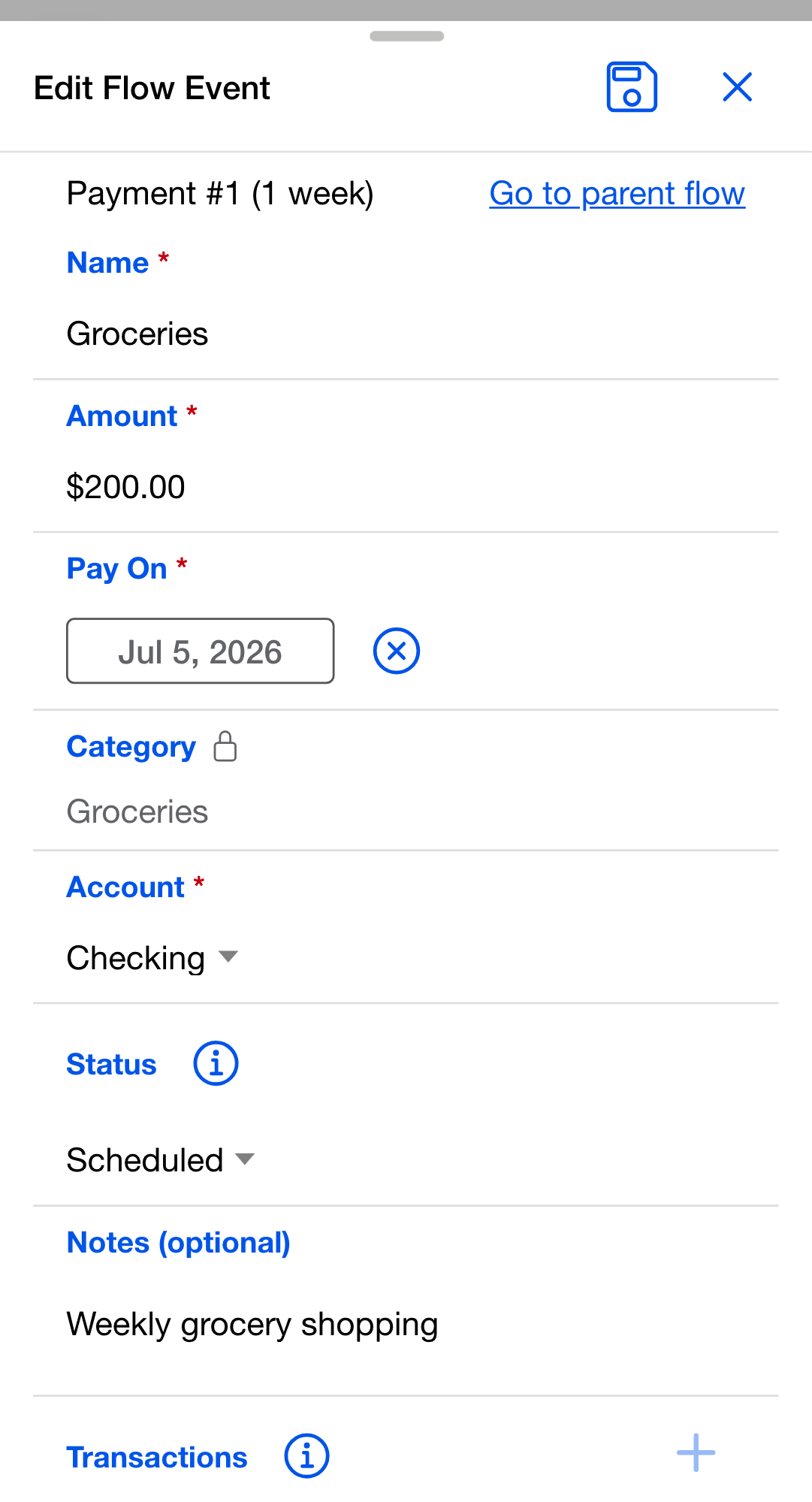
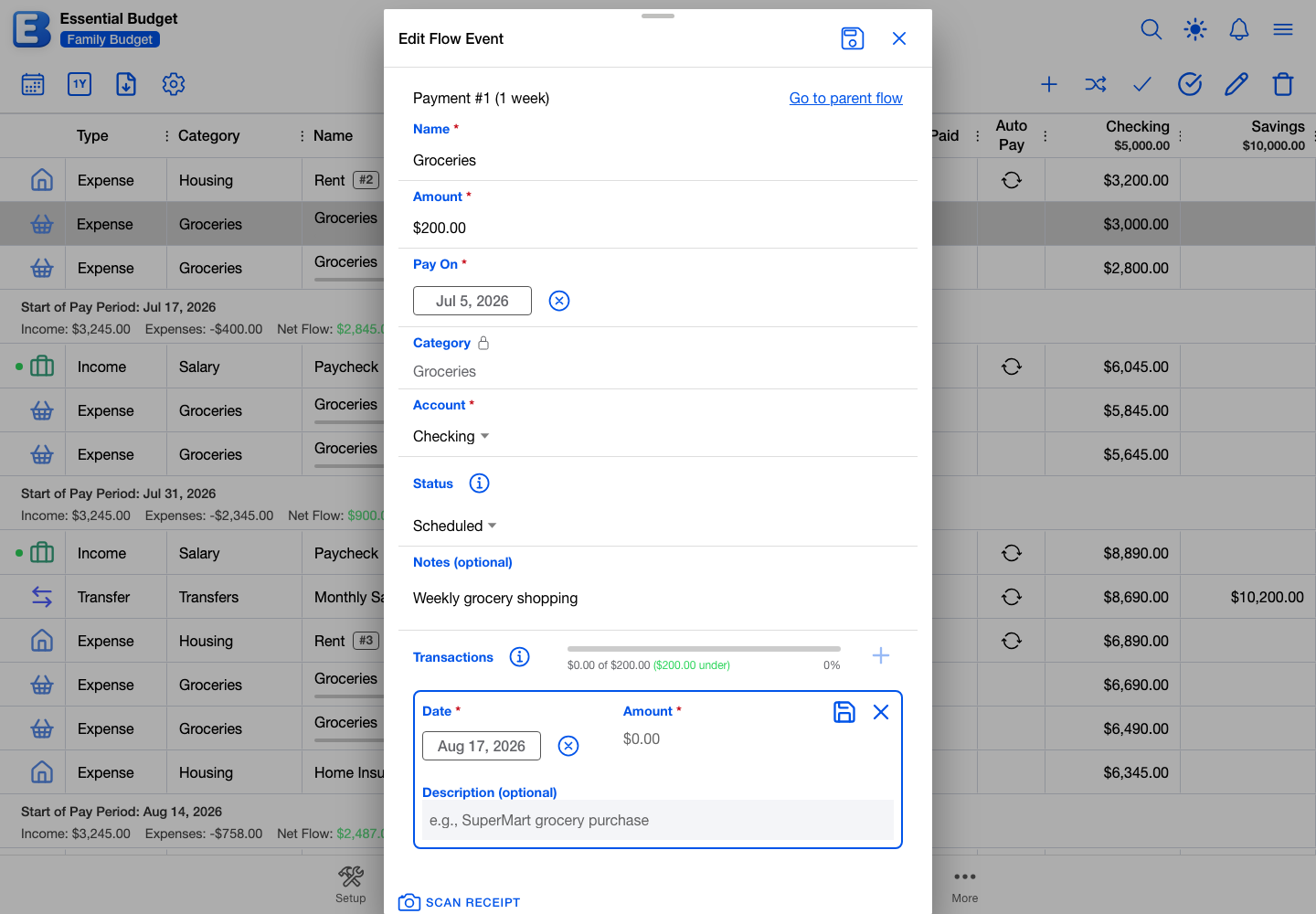
Tap Save transaction, the floppy-disk icon in the top right of the form. The row joins the list and the running total updates. Cancel, the X beside it, discards the entry. While the form is open, pressing Enter saves it and pressing Escape cancels it, from anywhere in the dialog.
The plus button is unavailable while a form is already open, so finish or cancel one entry before starting the next.
Nothing reaches your budget until you save the dialog itself. If you close it with unsaved work, the app asks first, with Stay and Discard.
Why does the balance move when you save, and not when the event resolves? A transaction records something that already happened. The app moves the account balance as soon as you save the dialog so the number you see keeps up with your bank. Resolving the event later files it to History; it does not move the same money a second time.
An event holds up to 500 transactions in this dialog. At 500 the Add transaction button is disabled and the section shows Maximum transaction limit reached (500). The count is per event, so the next event in the series starts again at zero. Matching and receipts are not held to that ceiling, so a very busy event can pass it.
Editing a transaction
Double-tap the row, or tap the pencil icon on it, which is labeled Edit transaction. The same inline form opens with the existing values filled in. Change what you need, tap Save transaction, then save the dialog.
Editing an amount moves your account balance by the difference, not by the whole amount again. Changing $63.41 to $68.41 moves the balance by $5.00.
This works the same whether you typed the transaction or it arrived from a bank match.
Why is a bank-imported transaction editable at all? Because the description a bank sends is sometimes a terminal code rather than a name you would recognize, such as “SQ* MAINSTREET PIZZA” instead of “Mainstreet Pizza”, and cleaning it up makes History readable later. The amount and date are editable too, but your bank’s record is the one to trust, so treat those as a last resort. An edit does not change the fingerprint the app uses to spot duplicates, so your version stands until you delete the row.
Transactions that came from a receipt
A transaction that a scanned receipt added to your budget is read-only here. Its row carries a receipt icon, labeled View receipt, in place of the pencil and trash icons, and double-tapping the row opens the receipt. The app enforces this on its own servers, not just by hiding the buttons.
The amount is the receipt’s own math: the products you mapped to this flow, plus that flow’s proportional share of everything on the receipt that is not a product line, which covers tax, tips, bag fees, and deposits. Changing it here would put the event at odds with the receipt.
To change it, open the receipt, tap Edit receipt, adjust the mapping, and save. The receipt reverses what it posted and posts the new split. If the event dialog has unsaved changes, the app asks about them before it takes you there.
Once an event holding a receipt’s transactions has resolved into History, the split is locked. Undo that event from History (under More in a budget created from receipts) first, then change the mapping.
Deleting a transaction
Tap the trash icon on the row, labeled Delete transaction. The row is replaced by a confirmation reading Delete $63.41 transaction? with Cancel and Delete.
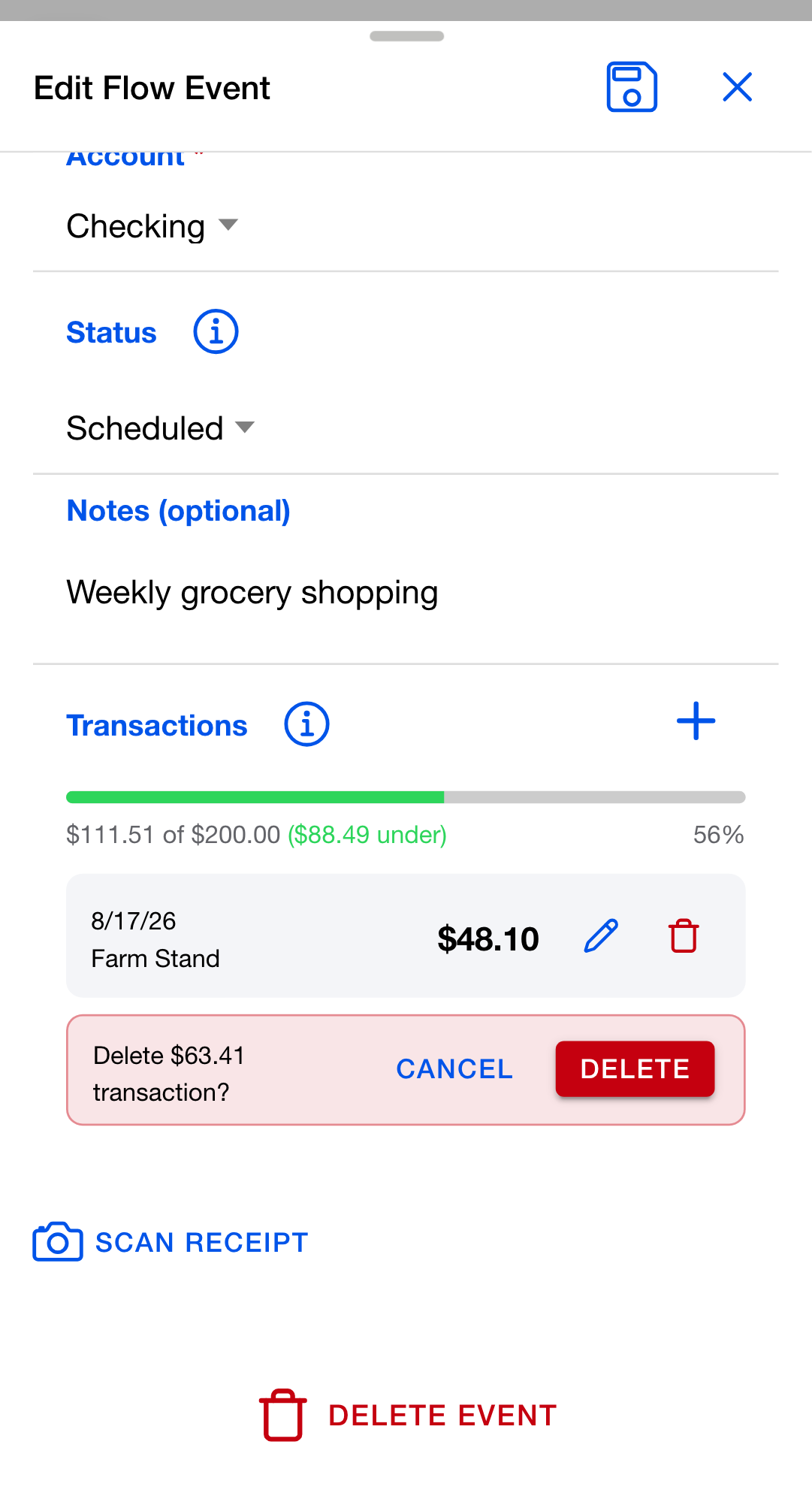
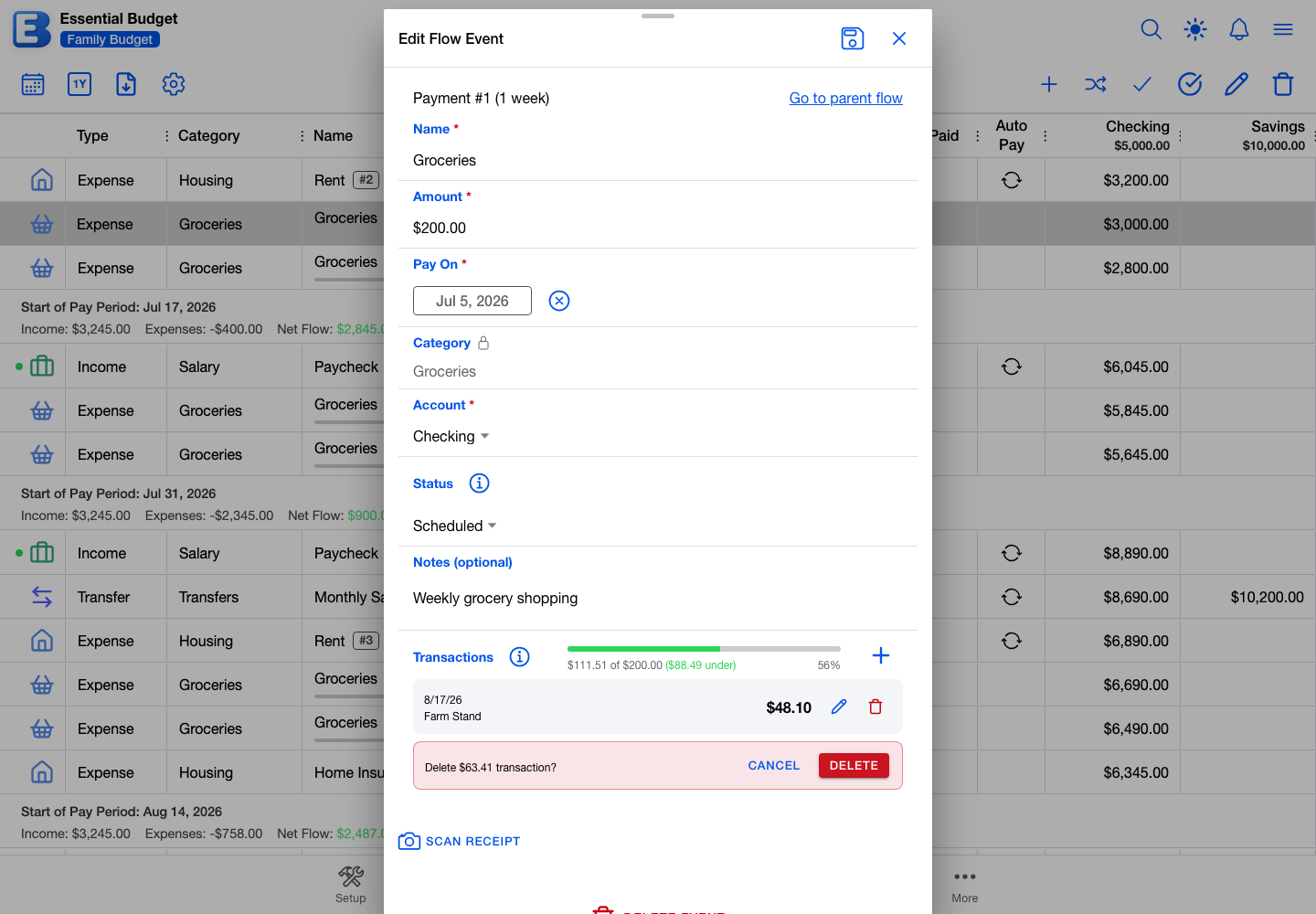
Tapping Delete removes the row and drops the running total right away. Saving the dialog is what makes it permanent and reverses the account balance by that amount. If you close the dialog and choose Discard, the transaction comes back.
If removing a transaction drops an already-resolved event below its planned amount, the event stays in History. To bring it back to the Planner, open History, select its row, and use Undo Action. See History and Undo.
Why does deleting a bank-imported transaction free it up to land again? So you can fix a wrong match. If a $63.41 charge was matched to Groceries when it belonged on Dining, deleting it from Groceries releases its fingerprint, and the next bank pull or file upload offers it again so you can route it correctly. If you would rather it did not come back, put it where it belongs first.
Where transactions come from
A transaction can reach an event four ways: you type it in, you pull it from a linked bank, you upload it from a CSV, TSV, or TXT file, or a receipt you scanned posts it for you. The first is described above, and receipts are covered in Receipts. The middle two run through the Match Transactions dialog on the Planner toolbar, described in Matching and Resolving.
A bank row matched to an event is recorded as a transaction on it. On a flow due over a date range it joins the running total; on a dated flow it also resolves the event, since the payment it represents is the event.
Once matched, an imported transaction is indistinguishable from one you typed. It uses the same row, the same edit and delete gestures, and the same place in the running total. The practical difference is that the bank set the amount and date, so the description is the safe field to change.
Pending bank charges are skipped on the way in, so a card charge that has not posted yet will not appear. If you can see something in your bank’s app but not in Match Transactions, check again the day after it posts.
Why the same imported transaction is not recorded twice
Every transaction that arrives from a bank pull or a file upload carries a fingerprint. Bank rows are fingerprinted from the date, a tidied-up description, and the signed amount. Uploaded files use their own fingerprint column when they have one, and otherwise the app builds one from the date, description, amount, and balance.
When you confirm a match, the app records that fingerprint against your budget. Any later pull or upload skips a transaction whose fingerprint is already recorded, so re-uploading the same CSV because you were not sure the first one went through does not double up, and neither does pulling the same range from your bank twice.
The check covers the whole budget, not one flow. Once a transaction is recorded anywhere in the budget, matching will not offer it against any other event there. That is what makes the correction above work: deleting the row releases the fingerprint, and the transaction becomes available to match again.
Two limits are worth knowing. Recorded fingerprints are kept for 90 days from the transaction’s own date, so re-importing a file of much older activity can offer the same transactions again. And transactions you type by hand carry no fingerprint at all, because two identical $5 cash purchases are a normal thing to record. That also means typing an imported transaction in by hand instead of matching it leaves nothing recorded, and the next pull will still offer it.
What happens to the fingerprint as you work:
- Editing a row leaves it attached, even when the values no longer match what the bank reported.
- Deleting a row releases it, so the transaction can be imported again.
- Resolving the event keeps it recorded, so a repeat pull does not offer the same transaction against a resolved event.
- Deleting the whole event releases every fingerprint on it. Undoing that deletion puts them back, and undo is refused if one of those transactions has since been matched somewhere else. See When Undo is blocked.
How transactions move your balance
A transaction’s amount has no sign of its own. The direction comes from the flow’s category type.
- An Income category raises the linked account’s balance.
- An Expense category lowers it.
Transfer flows never hold transactions; they resolve as whole events instead.
The category belongs to the flow and is locked on the event, which is why the Category field in the dialog carries a small lock. The Account field is not locked: changing it on a single event applies to that event only, while changing it on the flow applies to every event the flow produces from then on.
If the app’s running balance drifts away from your bank’s, fix it by editing the account’s Current Balance directly. The app never changes that number for you, because doing so silently could hide a transaction it missed. See Accounts.
For the rules behind category types, see Categories.
Who can do what
- Owner and editor. Add, edit, and delete transactions on any event, on any plan. Nothing here depends on a subscription.
- Viewer. The dialog opens as View Flow Event. The transactions are all visible, but there is no add button and no pencil or trash on the rows, and double-tapping a row does nothing. A receipt-sourced row still offers its View receipt icon, since that only opens the receipt. To make changes, ask the budget owner for edit access. See Sharing.
A viewer also cannot open the dialog from the toolbar, because Edit Event is disabled without edit access. Double-tapping the row still opens it.
Bringing many transactions in at once through Match Transactions follows a different rule, described in Matching and Resolving.
AI is not involved here
Typing a transaction, editing one, deleting one, and the duplicate check all run on the app’s own servers. No AI model sees any of it. Matching bank and uploaded transactions to events does not use an AI either. See Subscription.
Quick reference
| If you want to | Do this |
|---|---|
| Add a transaction | Open the event, tap Add transaction, fill in Date and Amount, tap Save transaction, then save the dialog |
| Edit one | Open the event, double-tap the row or tap the pencil, edit, tap Save transaction, then save the dialog |
| Delete one | Open the event, tap the trash on the row, tap Delete, then save the dialog |
| Change a receipt’s transaction | Open the receipt, tap Edit receipt, change the mapping, save |
| Budget a period of spending you record purchase by purchase | Open the flow, turn Due Over a Date Range on, save. See Flows |
| Re-match a transaction you sent to the wrong event | Delete the row from the wrong event, then run Match Transactions again |
| Fix a balance that no longer matches the bank | Open the account, edit Current Balance, save. See Accounts |
Related pages
- Flows: the Due Over a Date Range and Show Spending Progress settings and what each changes.
- Matching and Resolving: bringing bank and uploaded transactions in, and how an event resolves once they reach the planned amount.
- Receipts: scanning a receipt and posting its items to your budget.
- Accounts: how balances work and how to correct one.
- Categories: the category type behind every transaction’s direction.
- Bank Linking: connecting an account so you can pull transactions.
- File Uploads: adding transactions from a file.
- History and Undo: where resolved events go, and how to bring one back.
- Sharing: who can edit transactions on a shared budget.
Questions or feedback about this page?Email us.