
Learn - Discover
A featured page for the most-loved community themes, icon sets, and icons.
Discover
Discover is a single-page tour of the most-loved community work in Essential Budget. It gathers the top community themes, icon sets, and individual icons by like count into three labeled groups, so you can scan all of it in one place and jump to anything worth installing.
This page covers where Discover lives, what its groups show, how the ranking works, and what tapping a card does. The steps for installing, liking, bookmarking, and downloading themes and icon sets live on Themes and Icons; Discover sends you there once you find something you want.
Where to find it
Open the hamburger menu in the top corner of any page and tap Discover. The entry sits directly below Icons, with a compass icon. The page also has a direct address at /discover if you prefer to bookmark it.
You have to be signed in to open Discover; the address sends a signed-out visitor through sign-in first. Premium is not required, and browsing community content never uses AI or costs anything.
The Community Content prompt
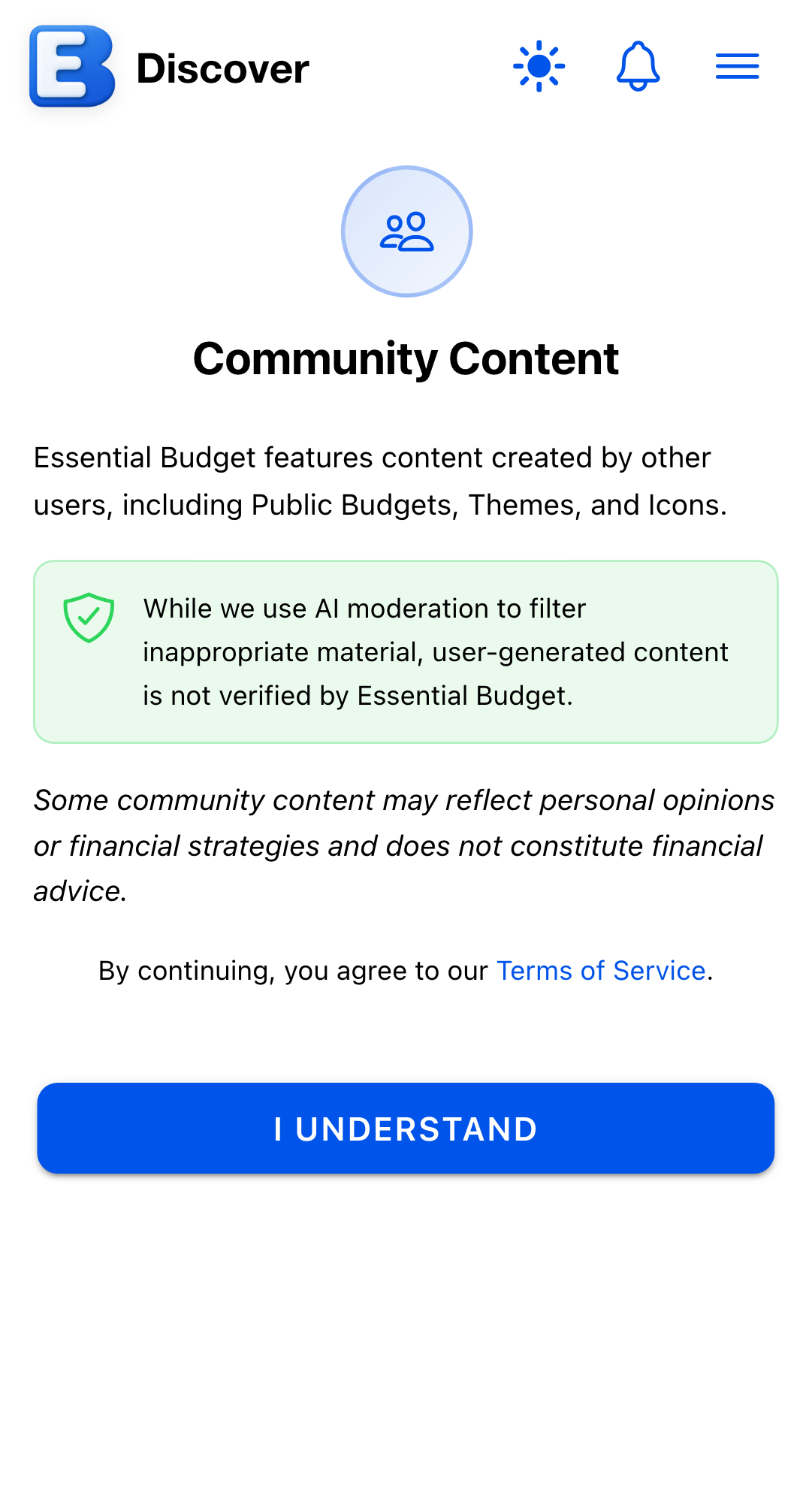
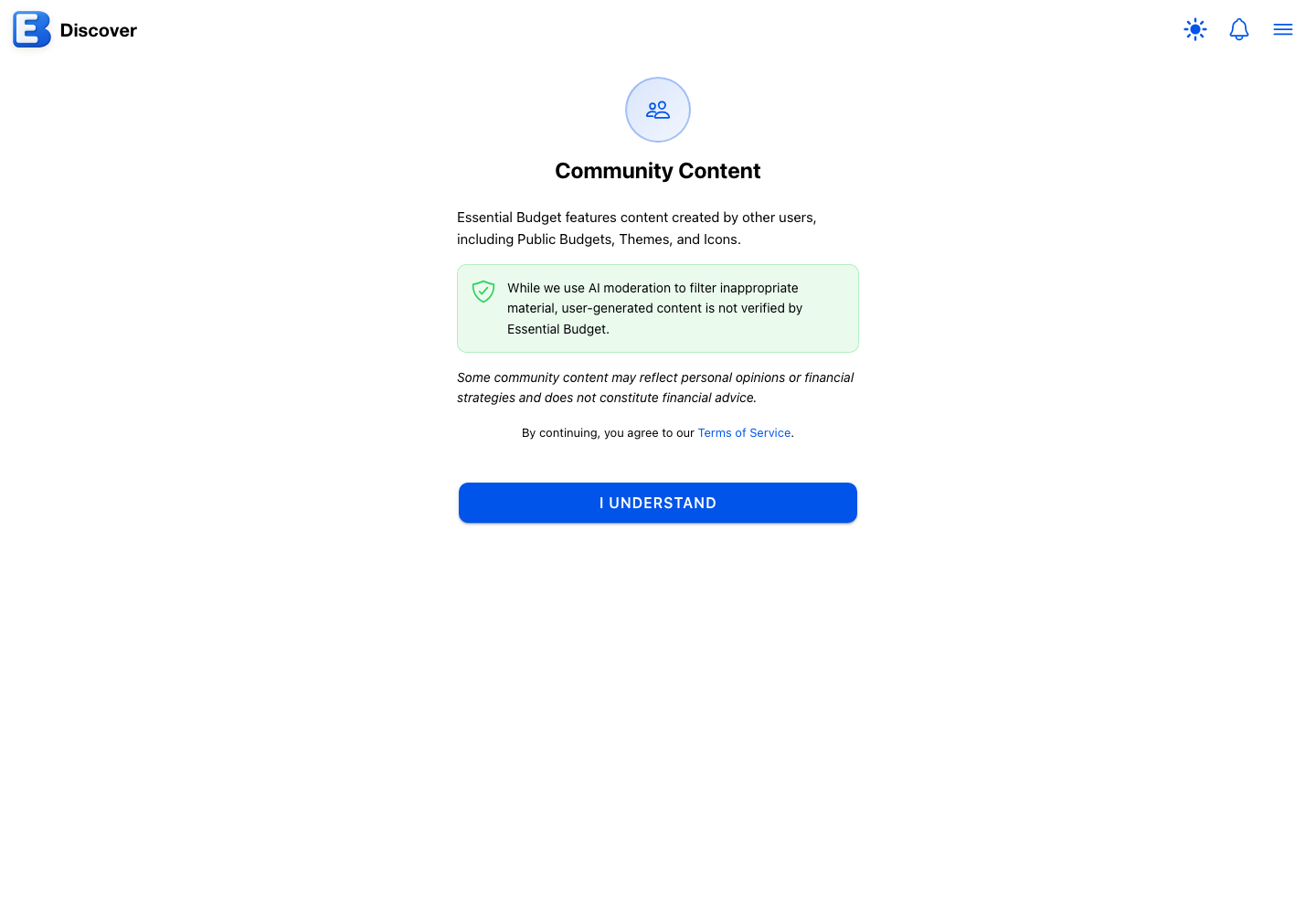
The first time you reach Discover, or any other page in the app that shows community work, you see a one-page notice headed Community Content. It explains that the app features content created by other users, and that while AI moderation filters inappropriate material, user-generated content is not verified by Essential Budget. A single button labeled I Understand records your acknowledgement and removes the notice.
The acknowledgement is per account, not per page: tap I Understand once on Discover, the Themes Community tab, the Icons Community tab, a public profile, or a public budget link, and the notice stops appearing on all of them. There is no way to undo the acknowledgement.
What you’ll see
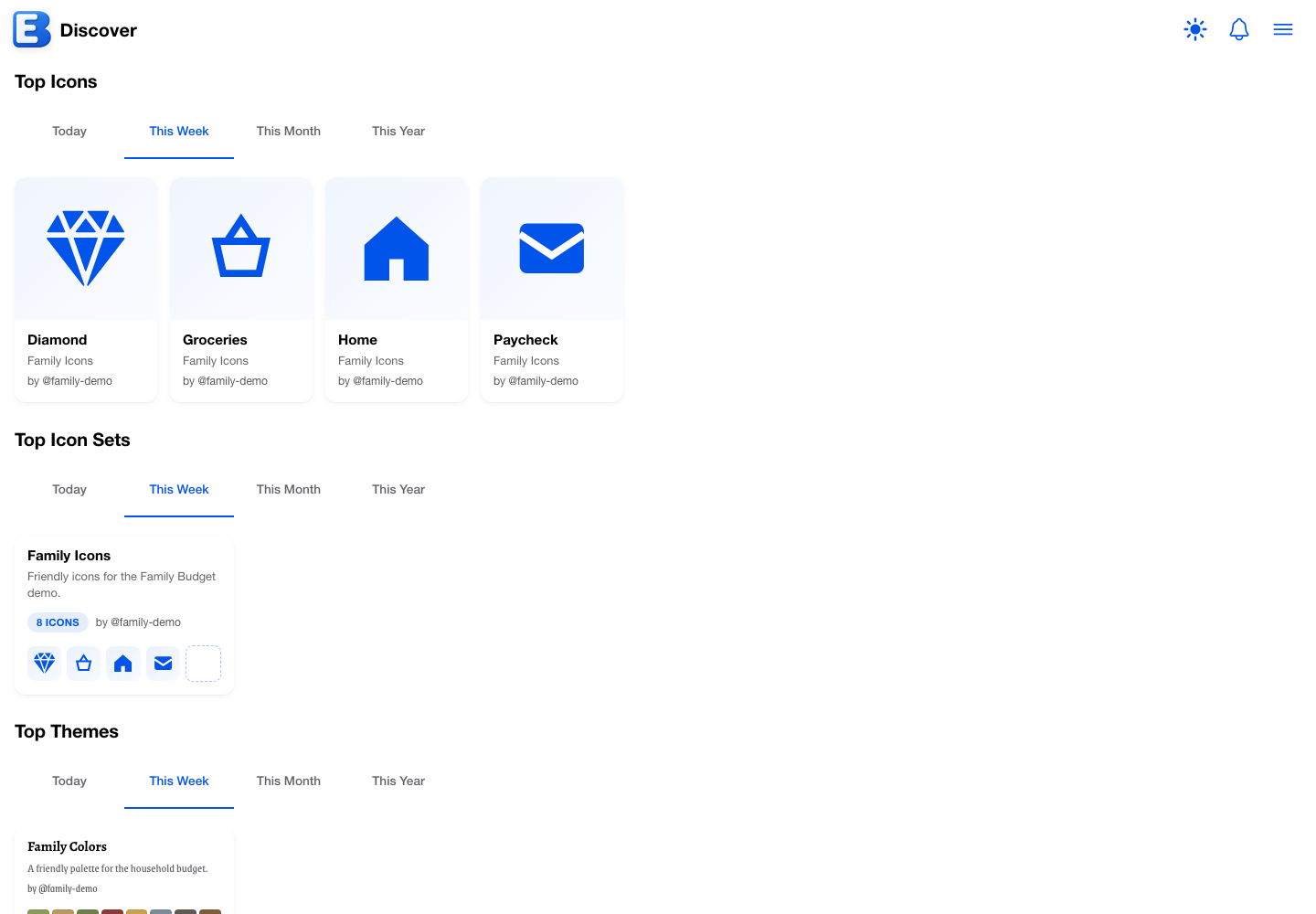
Discover is organized into three groups, in this order:
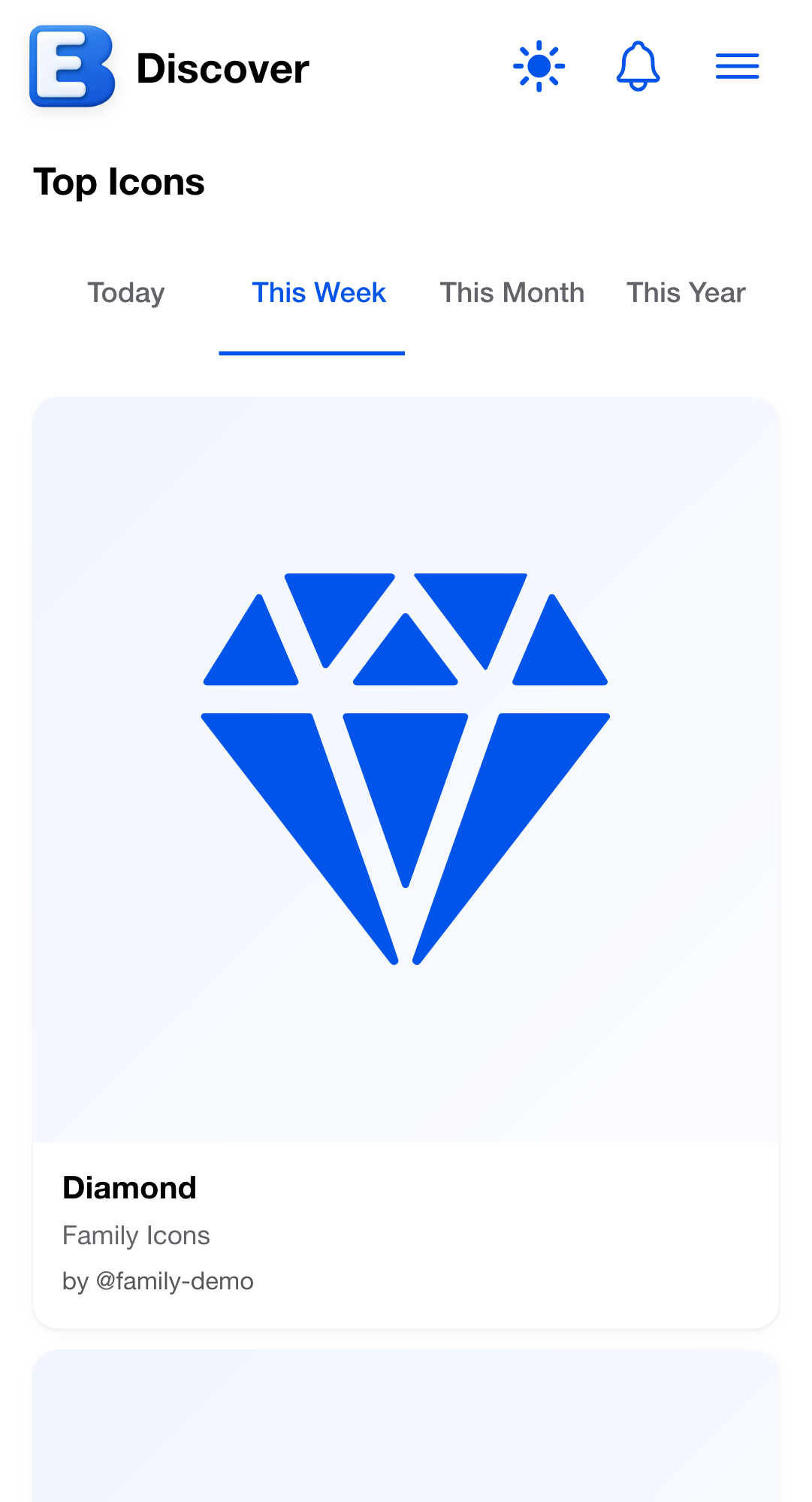
- Top Icons. Individual icons the community has liked the most. Each card shows the icon, its name, the icon set it lives in, and the creator’s username.
- Top Icon Sets. Whole published icon sets, ranked by likes on the set itself. The card shows the set’s name, an optional description, an icon count, the creator’s username, and the set’s first five icons so you can get a feel for its style without opening it.
- Top Themes. Published themes, ranked by likes on the theme. The card shows the theme’s name, an optional description, the creator’s username, and a strip of thin color rectangles spanning the theme’s full palette, rendered in the theme’s own fonts.
Each group has a four-button row at the top labeled Today, This Week, This Month, This Year. This Week is selected when the page opens; tapping another period loads it the first time and keeps it for the rest of your visit. Each group shows up to ten cards for the active period, laid out in rows that wrap (on a phone, a single column).
Icons appear as their own group because individual icons inside a set can be liked separately. An icon can chart in Top Icons even when its set is not in Top Icon Sets, and the other way around.
Why this default? Discover ranks by likes, not by recency or downloads. A page that ranks by recency floats the newest things to the top whether or not anyone wanted them; ranking by downloads turns into a popularity-of-popularity loop. Likes are closer to a vote: people install all sorts of things and only like the ones they actually enjoyed. The trade-off is that brand-new community work needs at least one like before it appears on Discover at all. The Community tabs on Themes and Icons offer Most Recent and Most Downloads sorts if those are what you want.
How items are ranked
Within each group, cards are ordered by the number of likes the item received during the active period. Ties are broken by lifetime like count, then by which item is newer. Each group caps at ten cards, and an item nobody has ever liked does not appear at all, even if it is brand new.
The four periods are rolling, not calendar-aligned: Today counts likes from the last 24 hours, This Week the last 7 days, This Month the last 30 days, and This Year the last 365 days. Switching periods reorders the same well-liked items rather than changing which ones qualify, so expect to see the same names shuffle around: a theme picking up likes right now leads Today, while an old favorite with a large lifetime count holds its place in the wider periods.
Liking and unliking happen on the Community tabs of Themes and Icons and, for individual icons, on the icon set’s page; Discover’s own cards have no Like button. If you unlike something, your like comes off its period counts, and the item can rank lower or drop out the next time Discover loads.
Tapping a card
Tapping a card opens its destination:
- An icon card is display-only. To interact with the icon, find its parent set in the Top Icon Sets row and tap that.
- An icon set card opens the icon set’s own page, where you can view every icon in the set, like individual icons (Like Icon), and save a copy with Download Icon Set. Liking or bookmarking the set as a whole happens on the Icons Community tab, described on Themes and Icons.
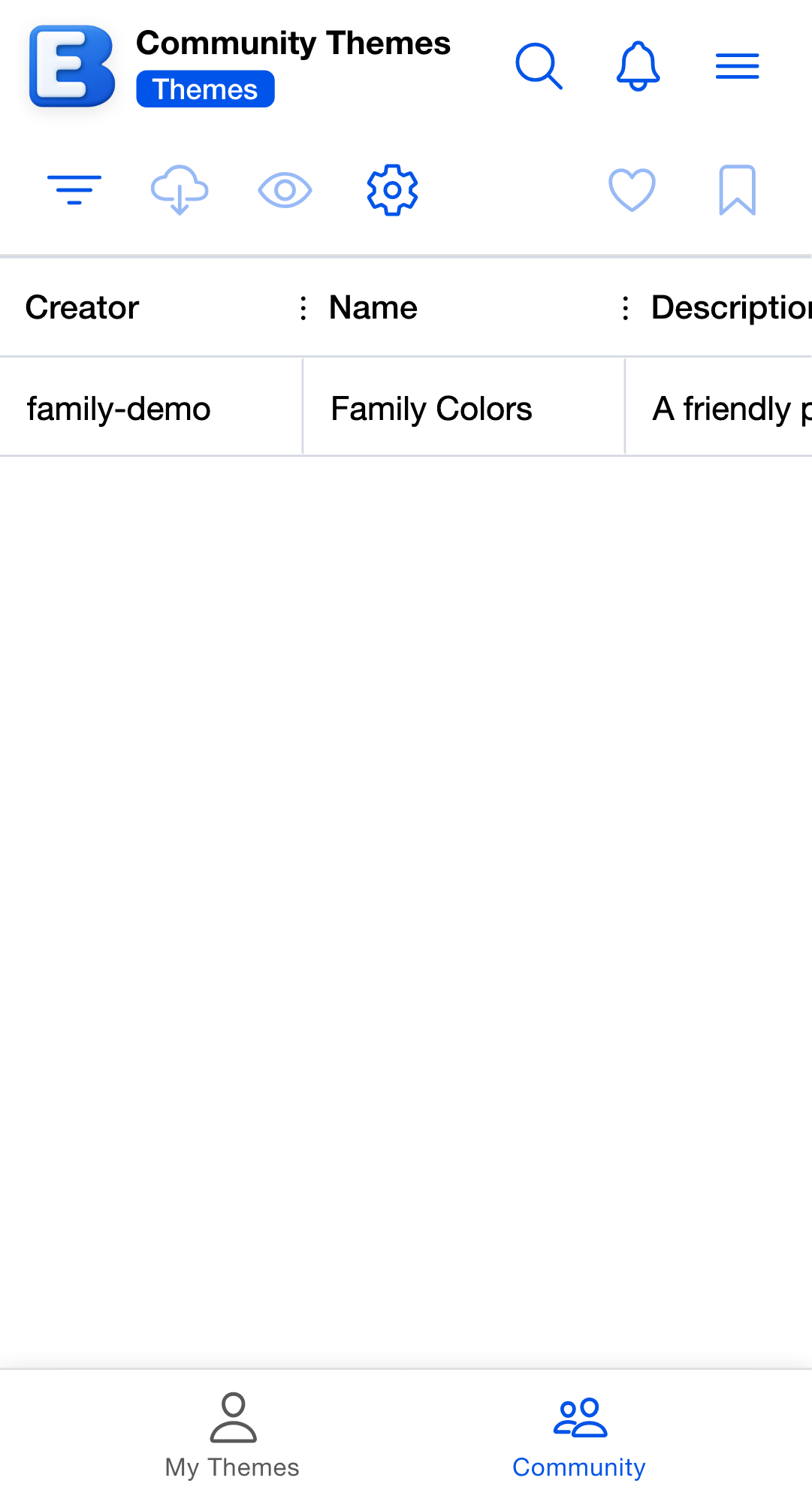
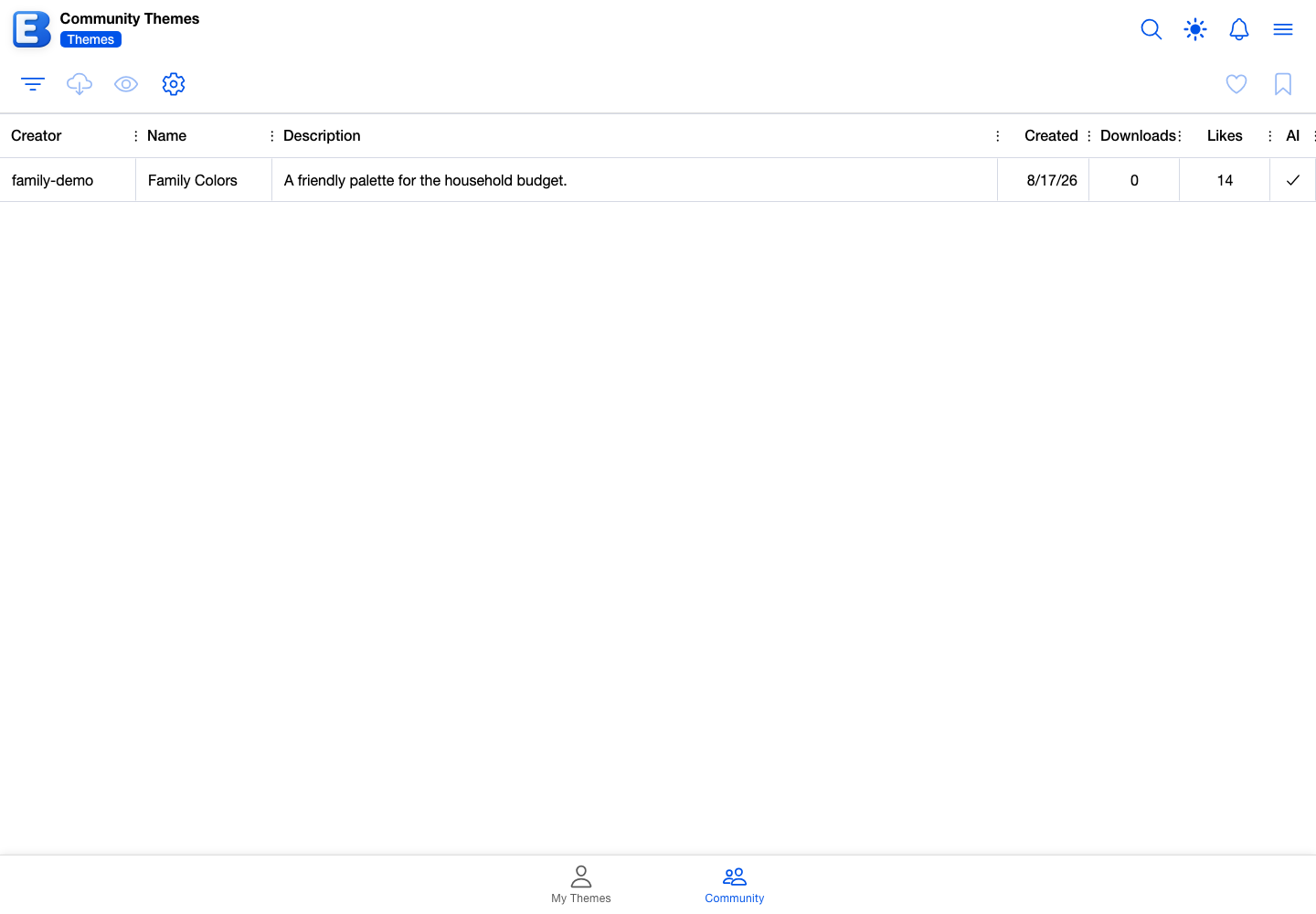
- A theme card opens the Community tab of the Themes and Icons page with the tapped theme selected, previews the theme live on the budget you have open, and opens the View Theme dialog so you can read the full color list. Themes have no page of their own; the Community tab is where liking, bookmarking, downloading, and installing live.
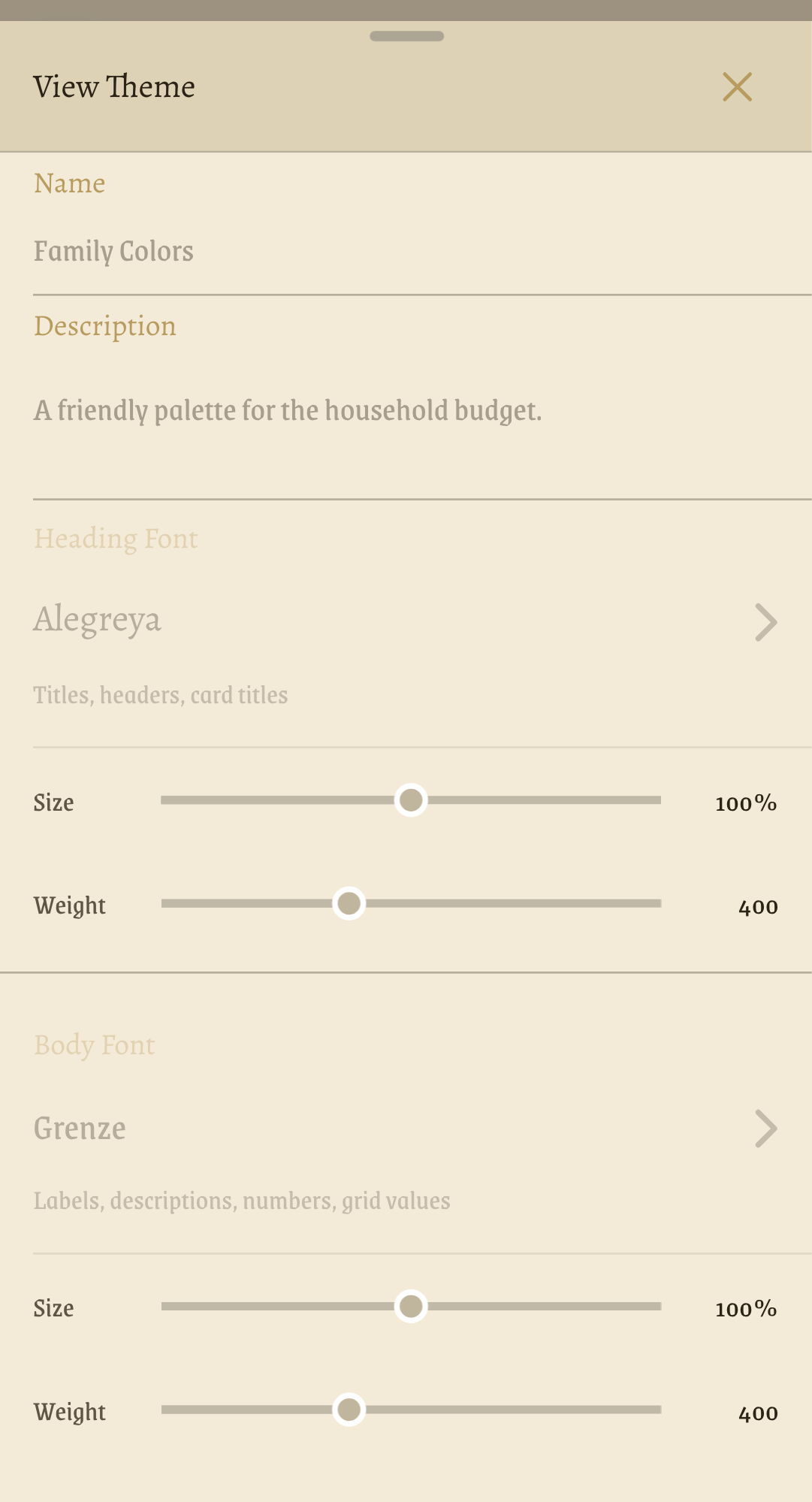
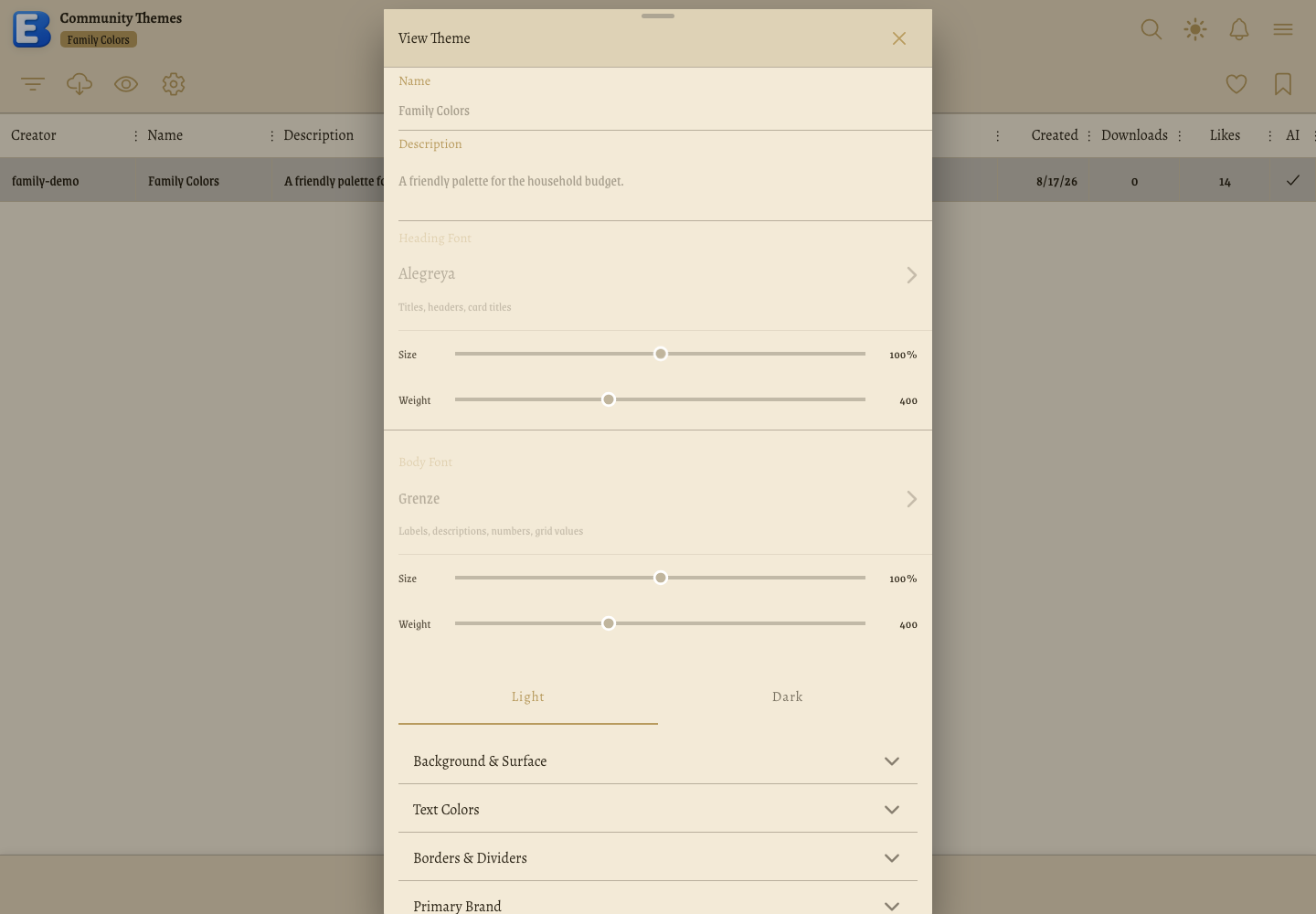
Why this default? Tapping a theme opens its View Theme dialog. Themes have no detail page in the app, so the dialog gives you the same in-depth look you would get by double-tapping the theme’s row on the Community tab. The live preview on your open budget shows how the colors actually feel before you install anything.
Saving for later, liking, downloading
Discover is the starting point; the actions live on the destination pages:
- Like. Tap Like on the Community tab toolbar of Themes and Icons with the theme or icon set selected, or Like Icon on an icon set’s page. Likes feed the Discover rankings.
- Bookmark. Tap Add Bookmark on the same Community tab toolbars. Bookmarks are personal and do not affect rankings; the Community tabs have a Bookmarked filter for finding them again.
- Install or download. The Theme and Icon Set pickers on the budget’s edit dialog apply community work to a budget; Download Theme and Download Icon Set on the Community tab toolbars save a copy.
Following a creator
Each card shows the creator’s username with an @ prefix when the creator has one and their profile is visible; a creator who hides their profile keeps their work on Discover but their name comes off the cards. The username is a label, not a link; a creator’s public profile is reached by its address, which the creator shares themselves. The profile lists what the creator has published. See Your Public Profile for what a profile page looks like and how its Show toggles affect what a visitor sees.
If the by-line is missing on a card, the creator’s account has been deleted. Their published themes and icon sets stay in the community library; only the name is gone.
When Discover is empty
If no community item anywhere in the app has been liked yet, the page shows a single message headed No Featured Content Found: No featured content yet. Be the first to create and share! Once anything has a like, its group appears.
If a group’s content could not be loaded, the group shows Couldn’t load featured icons. Check your connection and try again. (naming its own content type) in place of its cards, with a Try again button that reloads just that group.
What Discover does not have
A few things are deliberately not part of Discover:
- No public budgets. Public budgets are not browsable anywhere in the app; they are reached by their share link or through the publisher’s profile. See Publishing a Budget.
- No search, filters, or sort controls. The page is a fixed tour. The Community tabs on Themes and Icons have search and the full sort menu (All, Most Popular, Most Downloads, Most Recent, Most Liked, Bookmarked).
- No notifications. The app never pushes new community work at you; you come to Discover. See Notifications for what the bell does cover.
- No Like buttons on the cards. Liking happens on the destination pages, so a like is always cast where you can see the whole item.
Behind the scenes
A few details the screen does not show directly:
- Periods load on demand. Opening Discover fetches only This Week for each group, so the page paints quickly. Other periods fetch on first tap and are kept for the rest of the visit; nothing is cached across visits or offline.
- Each group loads independently. A slow request for one group does not hold up the others; the group you are waiting on shows its own small spinner under its period buttons.
- Revoking is not unpublishing. A creator who revokes a published theme or icon set gives up their own edit access; the published copy stays in the community, keeps its likes, and can keep appearing on Discover. See Themes and Icons for what revoking means.
Related pages
- Themes and Icons: the Community tabs where Like, Bookmark, install, and download live. Tapping a Discover card hands off to this page.
- Your Public Profile: the page behind a creator’s username.
- Publishing a Budget: public budgets are reached by link or profile, never from Discover.
- Subscription: browsing community content is free; publishing your own themes and icon sets is where Premium comes in.
- Notifications: the bell never announces new community work; this is what it does announce.
Questions or feedback about this page?Email us.