
Learn - Getting Started
From sign-in to your first resolved event.
Getting Started
Essential Budget answers one question: what will my accounts hold on a given day? You enter the money that moves on a schedule, and the app projects it forward, showing every paycheck, bill, and subscription with a running balance beside it. Setting that up takes about half an hour, and from then on the planner is the only screen you need most days.
Your first time signing in
The first time you sign in, the app opens a dialog titled Welcome. It starts with an introduction and a “How it works” summary built around Plan, Adapt, and Relax, then asks “How would you like to start?” and offers two cards: Start with a budget and Start by capturing receipts. An arrow at the top left returns you to the previous screen at any point.
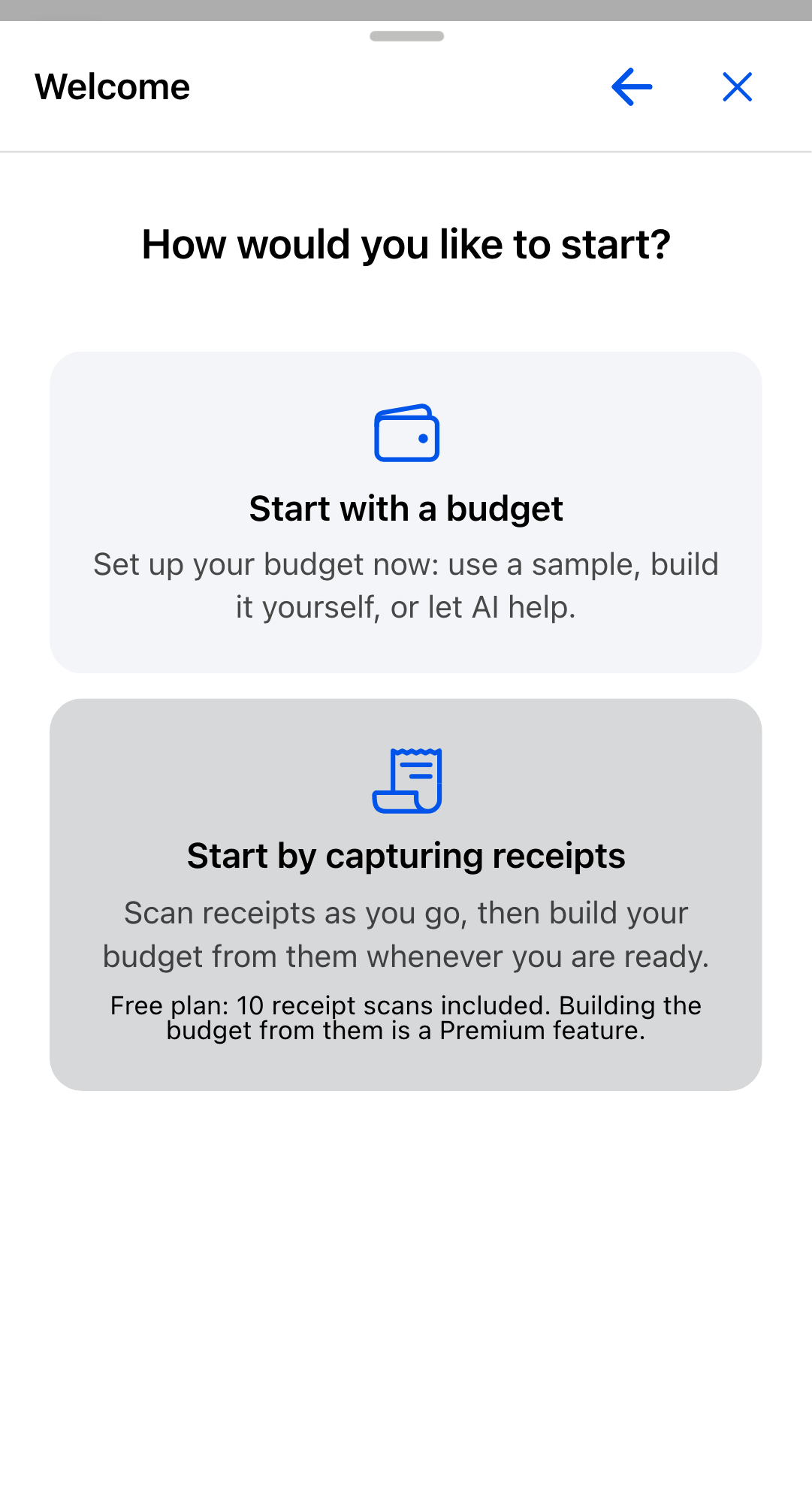
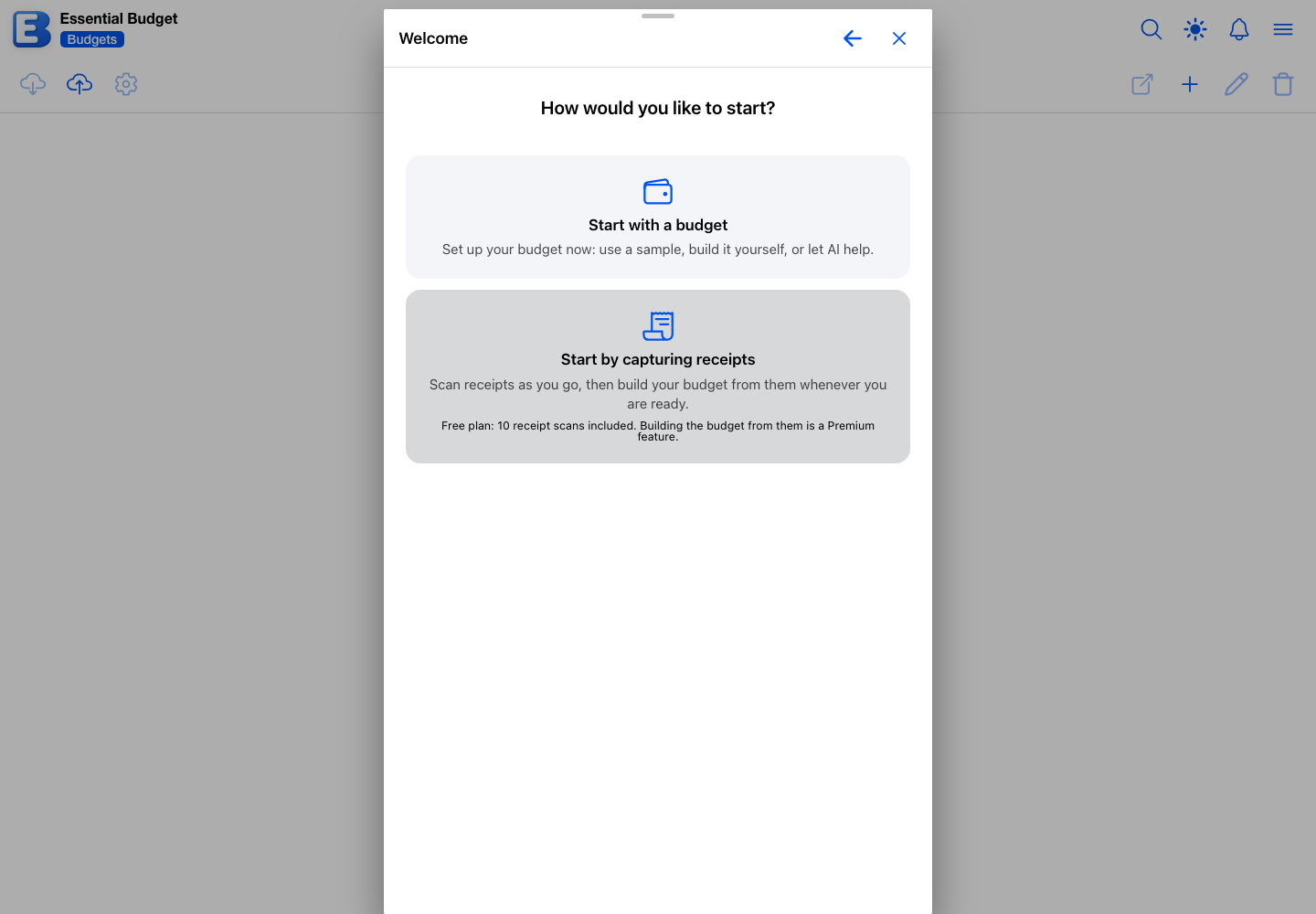
Start by capturing receipts is for people who save their receipts. You name a budget (the name is prefilled with My Budget), and the Start Capturing Receipts button creates it and takes you straight to the Receipts tab, ready to scan; the Sync button there proposes a budget built from your receipts whenever you ask. On the free plan, the card states the included receipt scans and that building the budget from them is a Premium feature. Receipt-Based Budgeting covers the whole journey.
Start with a budget leads to a second choice between two cards.
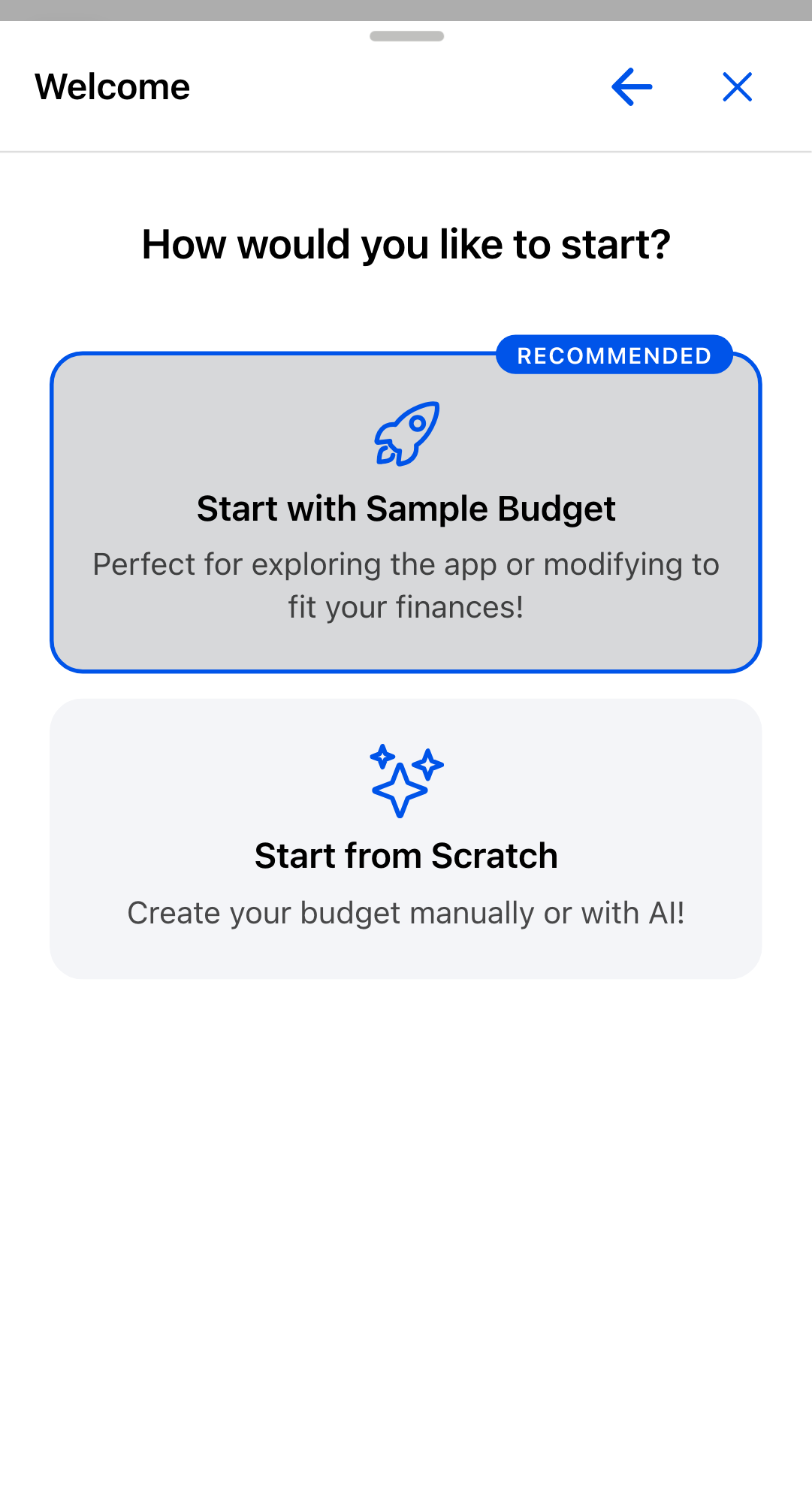
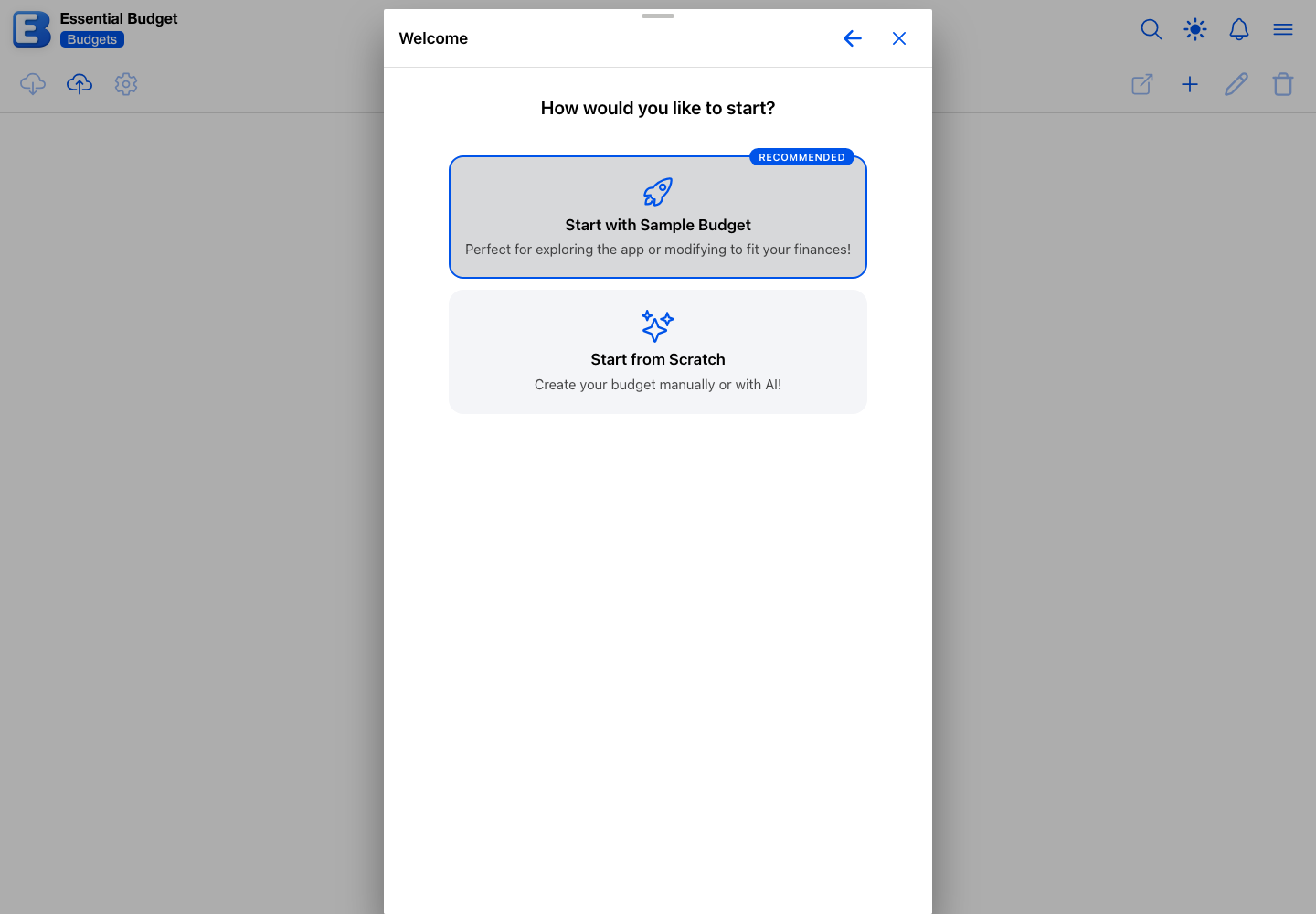
Start with Sample Budget carries a Recommended badge. The app builds a complete budget you can explore and edit: one checking account named Account 1 holding $12,556.71, 44 categories arranged in 18 groups (Income, Housing, Utilities, Transportation, Food, Insurance, Healthcare, Services, Personal Care, Fitness, Education, Kids, Pets, Entertainment, Travel, Holiday, Gifts, and Transfers), and 30 things that repeat, among them a weekly paycheck, monthly insurance premiums, utilities, subscriptions, groceries, and fuel. Every schedule is dated from today, so the planner has real dates in it as soon as the budget opens. When the build finishes you land on the Planner.
Before it builds, the app shows a Customize Your Budget step with a Theme section and an Icons section. Six choices appear in each, and Browse all themes… and Browse all icon sets… open the full community libraries. Leave them alone and you get Blue Theme with the Modern Minimal icon set. Either can be changed later. See Themes and Icons.
Start from Scratch closes the dialog and opens the Create Budget dialog straight away, ready for you to name an empty budget.
Why this default? The walkthrough appears once. Closing the Welcome dialog in any way records that you have seen it: creating a budget from it, choosing Start from Scratch, or closing the dialog outright. It is recorded against your account rather than your browser, so the introduction does not replay when you sign in on a second device. Nothing is lost either way, because everything the dialog offers is on the Budgets page afterwards.
If the sample budget turns out not to suit you, you can delete it from the Budgets page and create your own in its place.
If you come back with no budgets
When you have signed in before and no longer have any budgets, the Welcome dialog opens by itself on the Budgets page, going straight to the “How would you like to start?” question and skipping the introduction. With nothing to list, the app puts the ways to begin in front of you rather than an empty screen. Close the dialog if you would rather look around first.
What you agreed to when you signed in
The sign-in page asked you to check one box: “I confirm that I am 18 years or older, a United States resident, understand that all currency values are in USD, and accept the Terms of Service, Privacy Policy, and Billing Policy.” Sign-in does not proceed until it is checked. Essential Budget is available in the United States and works in US dollars only. The Terms of Service, Privacy Policy, and Billing Policy are the official copies of what you agreed to, and nothing in the app asks you to confirm it again.
Setting a username is separate and optional. You only need one to publish anything to the community, and Your Account covers it.
Making a budget yourself
A budget is your workspace: it holds your accounts, your categories, your planner, and your history. You can keep more than one, such as a personal budget and one you share with a partner, though most people need only one.
Open the Budgets page and tap the add button in the toolbar to open the Create Budget dialog. It opens on a three-way switch between Manual, AI Generated, and From Receipts. Manual is free, AI Generated is a Premium feature, and on the free plan From Receipts shows a line with the number of free receipt scans included with your account. Budgets walks through all three.
Manual creates an empty budget, which is what the four steps below assume. It asks for a Name (up to 50 characters, and the only required field), a Theme, and an Icon Set, the last two showing Default until you change them. Every budget is in US dollars, so there is no currency to pick. Saving closes the dialog and leaves you on the Budgets list, where you open the new budget yourself.
AI Generated builds a starter budget from your recent bank activity instead, reading a file you export from your bank or, on Premium with a linked bank, the transactions themselves. Bank Linking and File Uploads cover that path.
From Receipts creates an empty budget you scan receipts into, and the Sync button on its Receipts tab proposes budget lines and amounts from those receipts whenever you ask. Building the budget this way is a Premium feature. Receipt-Based Budgeting covers it end to end.
You can create 3 budgets per calendar month on the free plan and 10 on Premium. Deleting a budget in the same calendar month gives the slot back, so the limit counts new budgets for the month rather than the number you keep.
Why does a new budget start empty? The right accounts and categories differ for everyone. If the app pre-filled categories you do not use, you would have to clear them out before the planner could be trusted. Starting blank is faster and holds no surprises.
Where everything lives
An open budget has five tabs along the bottom: Setup, Planner, Reports, History, and More. Setup is where you start, and it is split into three segments at the top of the screen: Accounts, Categories, and Flows. More holds Receipts, Shopping Lists, and Recipes. A budget created from receipts arranges the same tabs differently: Receipts comes first, and History moves into the More menu; see Receipt-Based Budgeting.
Planner and Reports stay unavailable until the budget has at least one account, one category, and one flow. The same rule decides where a budget opens: a finished budget opens on the Planner, and an unfinished one opens on the first Setup segment still missing something. Budgets has the full rule.
Step 1: Add your accounts
An account is a place your money lives, such as a checking or savings account. Open the Setup tab, which starts on the Accounts segment, and tap the add button on the right of the toolbar.
The New Account dialog asks for five things, of which two are required:
- Account Name, something you will recognize at a glance, such as Chase Checking.
- Current Balance, whatever your bank shows right now.
- Account Type, either Checking or Savings.
- Description, optional.
- Account Icon, optional.
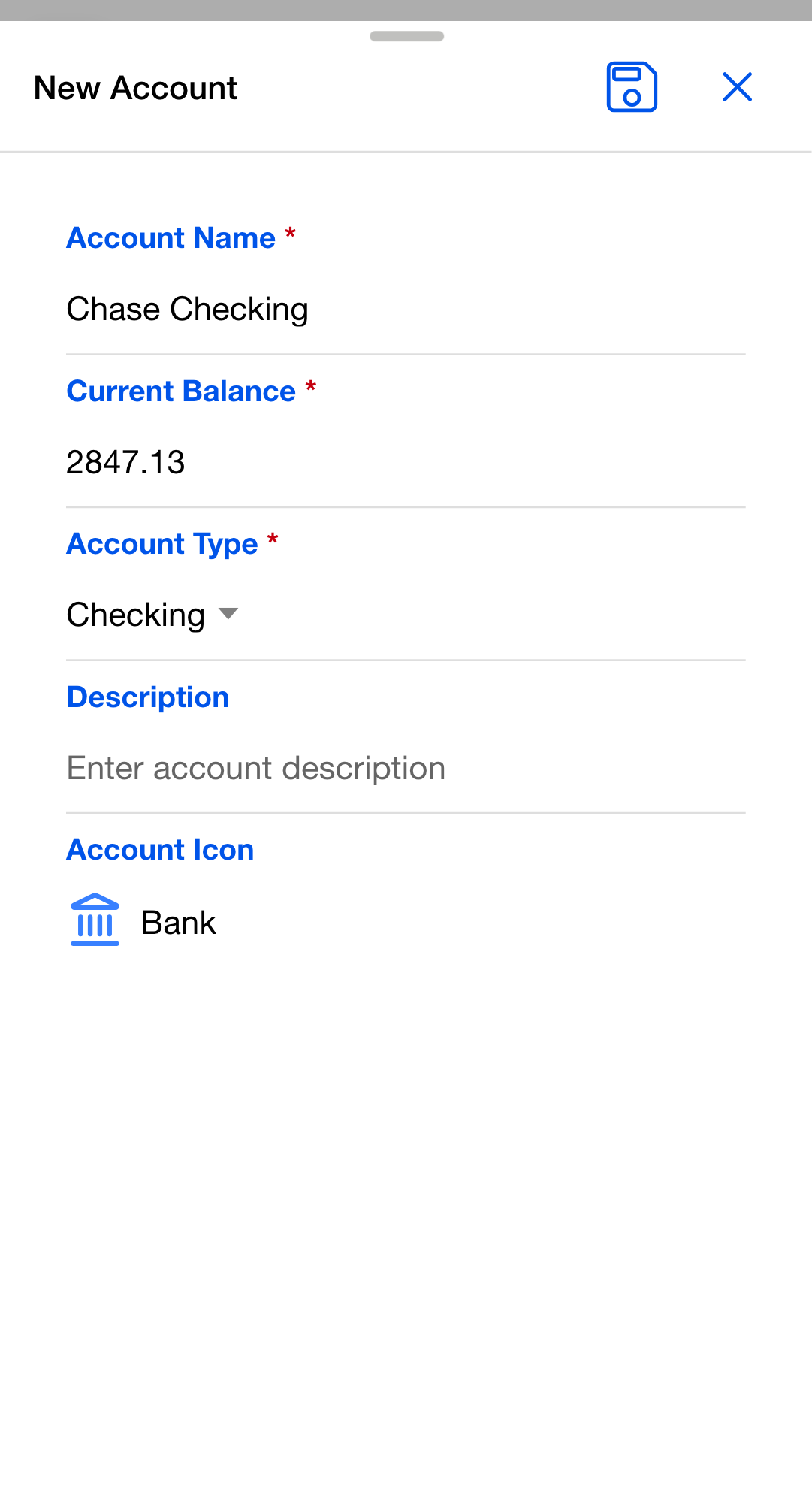
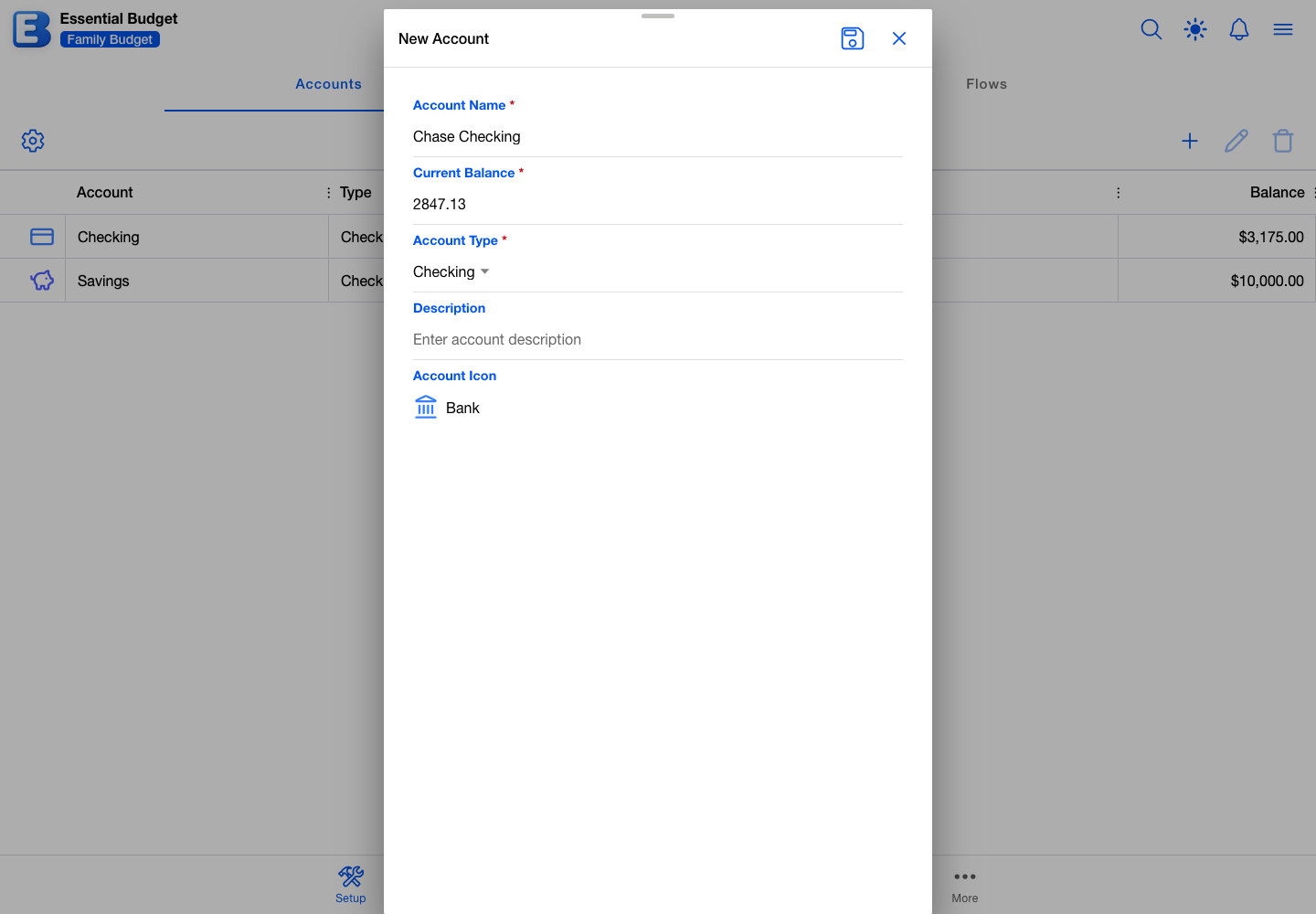
The balance you enter is the account’s starting point, and every transaction you record afterwards moves it up or down. As long as the number matches your bank today, the running balance in the app keeps pace with your bank’s.
Two or three accounts are plenty to begin with. You can add more whenever you like, up to 250 in one budget.
Why this default? The balance stays editable. Banks and apps drift apart occasionally, and when they do, you are the one who should decide how to close the gap. Open the account and set the balance to your bank’s number. The app never rewrites it for you, because a silent correction could hide a transaction you forgot to enter. Editing the balance leaves every past transaction as it is.
Step 2: Add your categories
Categories are the buckets you sort spending and income into. Tap Categories in the segment at the top, then the add button.
The New Category dialog asks for a Category Name (the only required field), an optional Description, a Type, a Parent Category, and a Category Icon. The type is Income, Expense, or Transfer, and it decides which way money moves for everything filed under it. Choosing a parent nests the category inside another one, which is how “Groceries” ends up inside “Food”. Nesting goes two levels deep, and a nested category takes its parent’s type.
Most people start with five to ten categories and add more as they go. Pick the ones you actually want to watch rather than every possible kind of spending. One budget holds up to 250.
To remove one, select it and use Delete Category. Two things can stand in the way. A category with sub-categories cannot be deleted until you delete or move those first. A category with flows filed under it offers a Replacement Category (Optional) picker, but only when another category of the same type exists to move them to. Leaving that picker empty deletes those flows along with the category, and the dialog says so before you confirm. Anyone with edit access can delete categories.
Step 3: Add the things that repeat
A flow is anything that happens on a schedule: rent, your paycheck, a phone bill, a streaming subscription, a weekly grocery budget. Tap Flows in the segment at the top, then the add button.
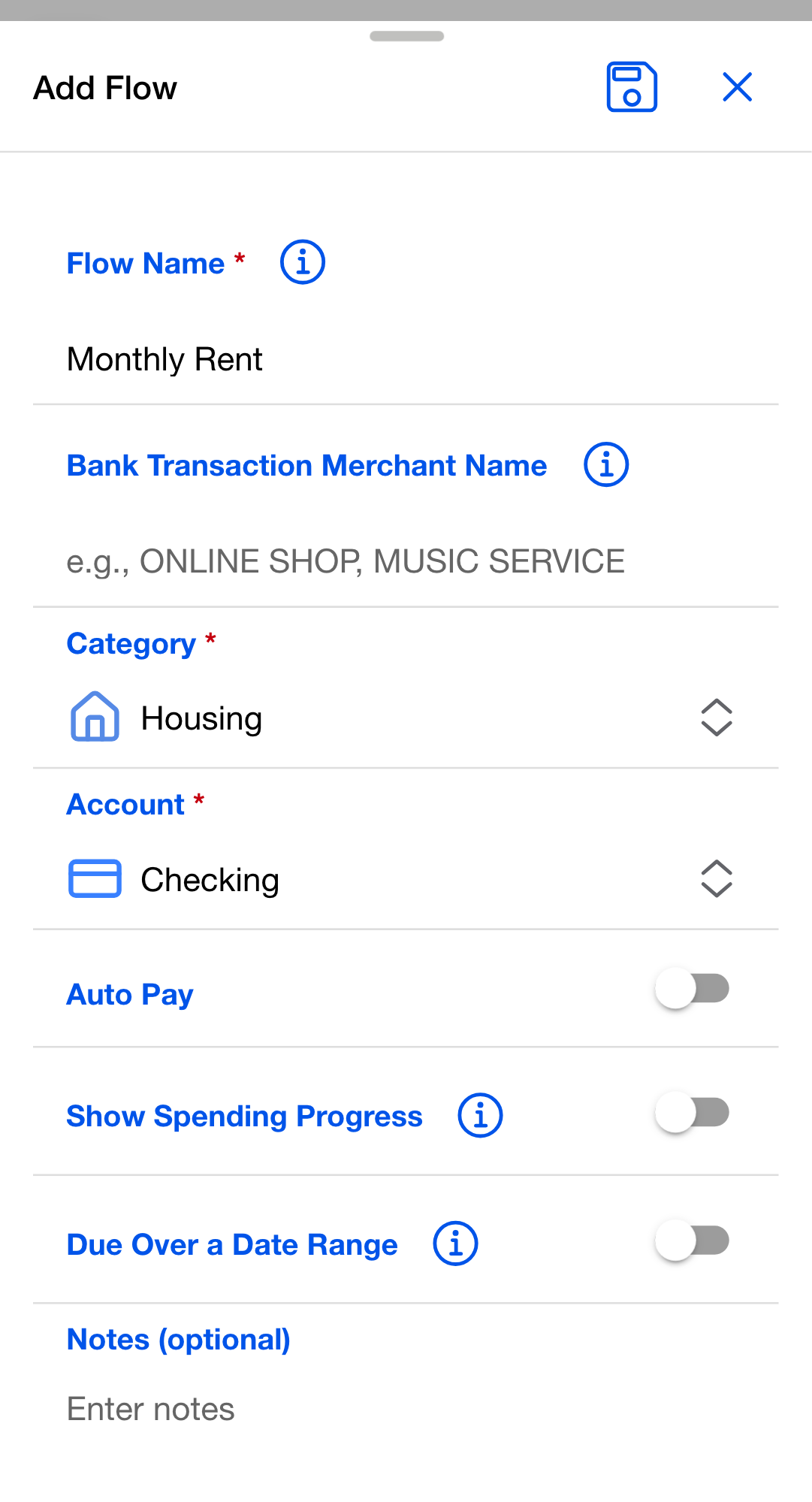
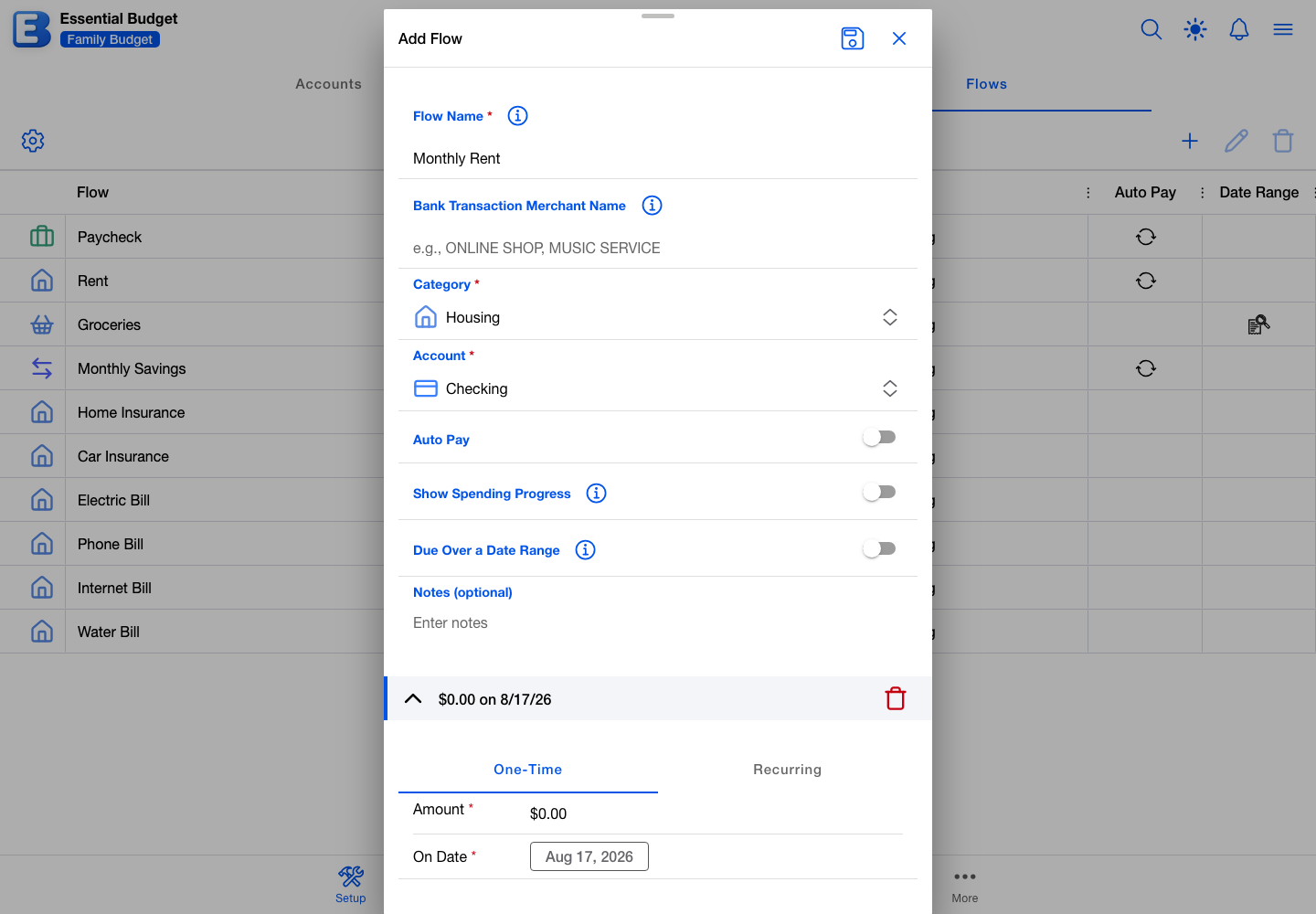
The Add Flow dialog asks for a Flow Name, a Category, and an Account, and it will not save until all three are set. When the category you pick is a Transfer, the single account field is replaced by From Account and To Account. The remaining fields, Auto Pay, Show Spending Progress, Due Over a Date Range, and Notes (optional), can all be left as they are.
Below those sits the schedule, which starts as One-Time. Switch it to Recurring to set how often the flow repeats: Weekly, Bi-weekly, Monthly, Quarterly, Semi-annually, Annually, or “Every …”, which lets you name your own number of weeks or months. A recurring schedule takes a start date, and an end date if you want one. One flow can carry several schedules, each with its own amount and dates, so a bill whose amount changes partway through the year can stay one flow.
Leave Due Over a Date Range off for a fixed bill that lands as one payment, such as rent or a streaming subscription. Turn it on for spending you build up across many purchases, such as groceries or fuel, so the event covers the whole stretch and collects those purchases as they happen. Show Spending Progress adds a progress bar to the flow’s planner rows if you want one.
For rent, you might add a Rent flow, choose Housing as its category, pick the account it pays from, set the schedule to Recurring and Monthly on the 1st, and enter $1,800.00. For your paycheck, add a Paycheck flow with Income as its category, the account it lands in, and a Bi-weekly schedule starting on your next payday. For groceries, add a Groceries flow at $400.00 on a Weekly schedule with Due Over a Date Range on, because you will spend it across several trips.
Start with the flows that would hurt to miss, and add the smaller ones later. The planner picks up each one’s dates the moment you save it.
Why this default? Due Over a Date Range starts off. Most of what people enter first is a fixed bill, due on a day, where the planned amount and the real amount are the same number. The spread-out kind of spending is the exception rather than the rule, so it waits for you to ask for it.
Step 4: Look at the planner
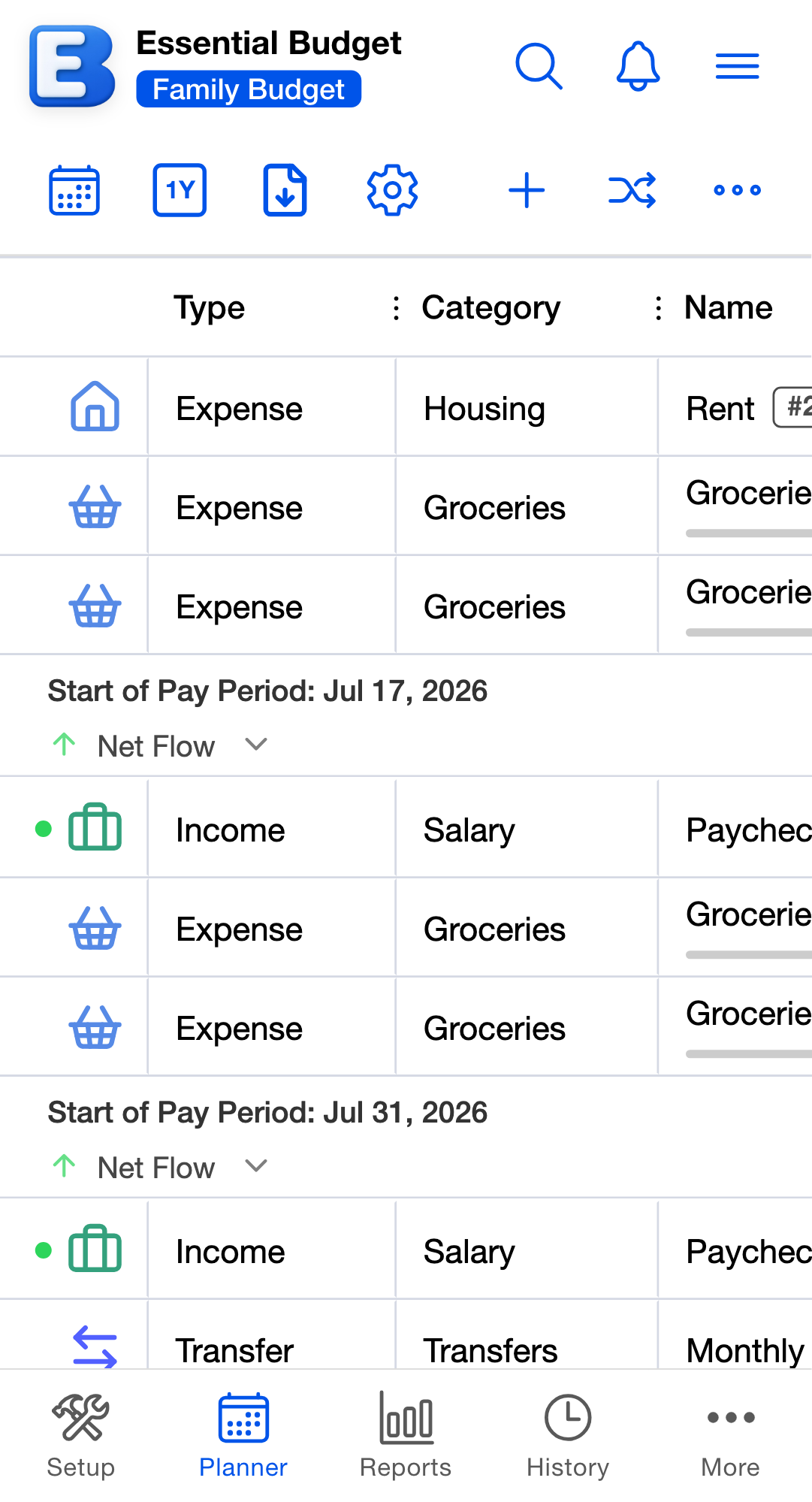
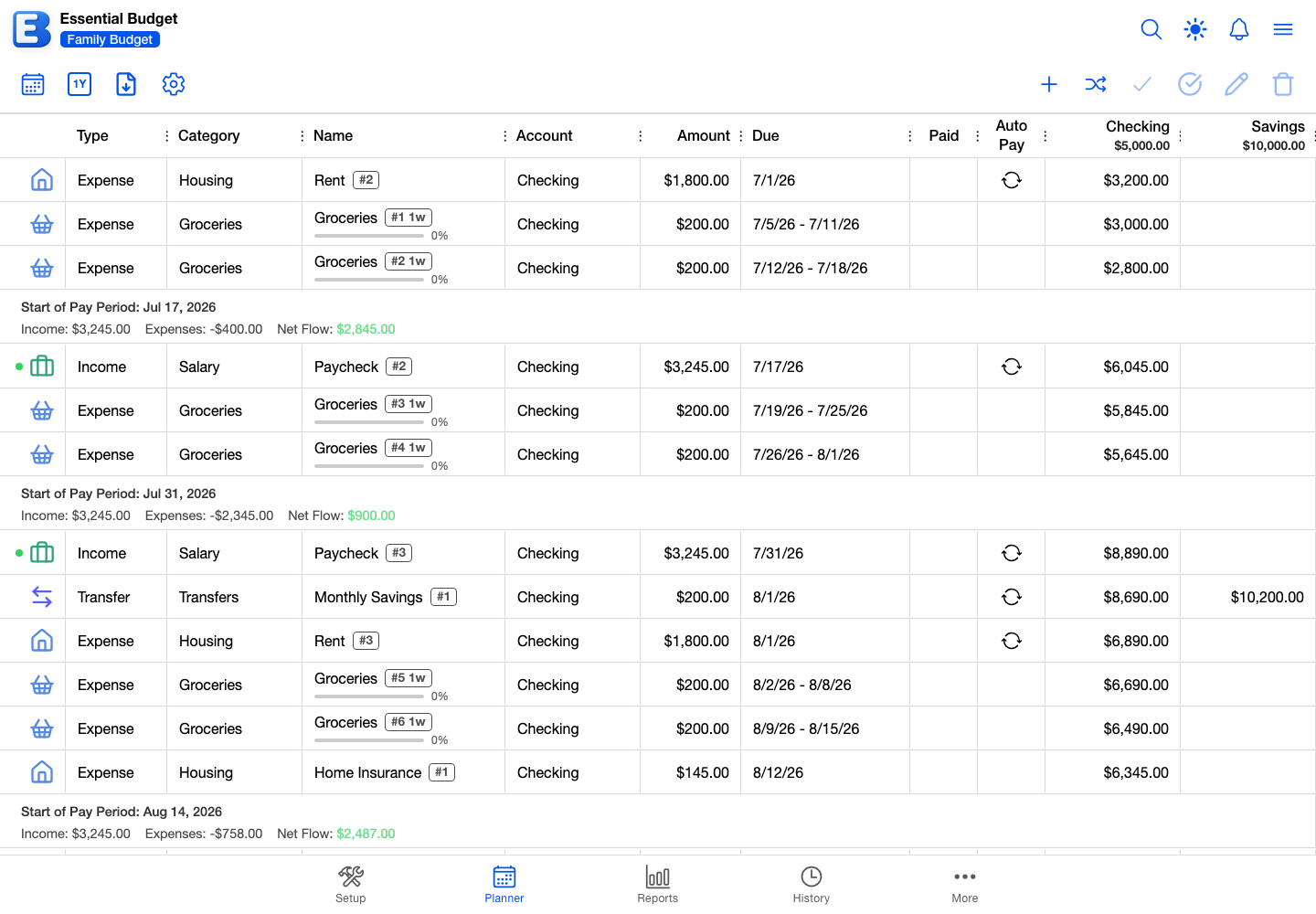
Tap the Planner tab. The flows you saved are now events, one per date the schedule produces, and the ones you have not dealt with yet stay on the list whether their date has passed or not.
Each row shows the event’s type, category, name, account, amount, due date, whether it is paid, and whether it pays automatically. To the right sits one balance column per account, and each row fills in only the column for the account it touches. Those numbers are the app’s projection: your account’s balance today, carried forward through every event still ahead of it. They describe what is planned, not money that has already moved.
Your first week
Two things come up early.
A bill you planned for goes through. Once the payment shows up at your bank, you have two ways to bring the planner up to date. The quicker one: select the event and tap Resolve Event. The event files at its planned amount, your balance moves, and the record lands in History.
The other way brings in the real numbers. Tap Match Transactions on the Planner toolbar and a dialog of the same name opens, where you either upload a file you exported from your bank or, with a linked bank, pull the transactions directly. Matching a transaction to a planned event resolves that event for you. Match Transactions is available to the budget’s owner, and to anyone with edit access on Premium.
A flow due over a date range collects purchases. Open the event to reach the Edit Flow Event dialog, where a Transactions section lists everything recorded so far. Transactions you type in yourself stay there until you resolve the event; they do not resolve it on their own. Transactions that arrive through Match Transactions do resolve it, as soon as their total reaches or passes the planned amount. An event with transactions files at their total rather than the planned figure.
Mark Event as Paid does something different, and it is worth knowing early. It flags an event as paid without resolving it, so the event stays on the planner and no balance moves.
If you realize you forgot something, add the flow in the Flows segment of the Setup tab and the planner picks up its events immediately. Matching and Resolving covers all of this in full.
What you can undo, and what you cannot
The History tab lists what you have resolved and what you have deleted. Select a row and tap Undo Action, and a confirmation dialog explains what will happen before anything changes.
The event goes back on the planner at the date it held before. Whether your balance moves back with it depends on what resolved it. When you resolved the event yourself and it had no transactions on it, the dialog offers a Reverse Balance Change toggle, on by default, which puts the balance back. When the event carried transactions, the balance is left alone on purpose: those transactions moved it when you added them, and undoing restores them, so the original change stays where it is. Undoing a deletion never touches the balance.
Undo is not always possible. The button is unavailable, with the reason shown, when the flow the event came from has been deleted, when its schedule has been deleted, when the schedule’s timing has been changed since the event resolved, when the account or category it used has been deleted, or when the record predates undo support. Changing a schedule’s amount does not block undo; only timing does. Undo needs edit access on the budget. History keeps the current year plus the previous five, on both plans. History and Undo has the detail.
Deleting from the Setup tab is the exception, and it is permanent. Deleting an account removes the flows attached to it, their scheduled events, and their transaction history, and the dialog says as much before you confirm. Deleting a category can take its flows with it, as Step 2 describes. Neither deletion appears in History, and neither can be undone.
Install the app
Essential Budget runs in a browser, so there is no App Store or Play Store download. Adding it to your home screen, dock, or taskbar gives you an app icon and a full-screen window.
The quickest route is inside the app: open the hamburger menu and tap Install App at the top, which opens a dialog with the right steps for your device and browser. Where your browser can install directly, that dialog carries an Install App button that does it in one tap. The entry disappears once the app is installed.
On iPhone or iPad. Apps install from Safari only, so copy the address into Safari if you are in another browser. Tap the Share button in the toolbar, scroll down and tap Add to Home Screen, then tap Add in the top right.
On Android. Tap Install App in the hamburger menu and the system install dialog opens. If it does not, open your browser’s menu (three dots), tap Install app or Add to Home screen, tap Install to confirm, then find the app in your app drawer and drag it to your home screen.
On a computer. In Chrome, Edge, and other Chromium-based browsers, look for the install icon at the right edge of the address bar (a small computer with a down arrow) and click it, then click Install. In Safari 17 and later, open the File menu and choose Add to Dock. Firefox does not install web apps on desktop; bookmark the site or pin the tab, or open Essential Budget in Chrome or Edge for a real app window.
Signing in on the installed app is the same as on the website, and your data is the same account.
AI and the free plan
The AI features are part of Premium: building a budget from your transactions, Compare Budget, theme generation, receipt scanning, recipe scanning, and icon generation. Everything else in this guide is manual and free, and matching transactions from an uploaded file is free too, since it never uses an AI. Receipt scanning has a free allowance of its own: 10 scans included with your account, granted once at sign-up, described in full on Receipts. Subscription covers what each feature sends, what stays on your device, and how the included Premium Subscriber Credits are spent.
Free and Premium
The free plan covers everything this guide describes: accounts, categories, flows, the planner, history, undo, reports, and 3 new budgets per calendar month.
Premium adds nine things:
- Budget Sharing. Share a budget with up to 5 people.
- AI Budget Creation and Compare Budget. Have the app build a budget from your files or bank data, and have Compare Budget read your recent spending against the plan and propose changes. (Matching transactions to events is free on every plan.)
- Bank Account Linking. Connect your bank accounts so transactions import automatically.
- AI Theme Generation. Generate custom themes with AI.
- Community Publishing. Publish themes and public budgets. A budget holding linked bank data cannot be published.
- More Receipt Scanning. Scan past the 10 free scans included with your account, and with a linked bank, have every receipt match itself to the right transaction.
- Receipt-Based Budgeting. Build a budget from your scanned receipts and keep it in sync as new receipts arrive.
- Recipe Photos. Add up to 10 photos to any recipe.
- Increased Limits. Higher caps on budgets, transactions, and AI requests, including 10 new budgets per calendar month and a theme library of up to 50 themes instead of 10.
Subscription has the pricing and the full comparison. Your Account has the cancel and account-deletion flows.
Quick reference
| Step | Where | What you set | Time |
|---|---|---|---|
| 1 | Setup tab, Accounts segment | Account Name, Current Balance, Account Type (Checking or Savings) | About 2 minutes per account |
| 2 | Setup tab, Categories segment | Category Name, Type (Income, Expense, or Transfer), optional parent | About 5 minutes |
| 3 | Setup tab, Flows segment | Flow Name, Category, Account, schedule, Due Over a Date Range | About 2 minutes per flow |
| 4 | Planner tab | Nothing. The events are already there. | 30 seconds |
Related pages
- Budgets: the Budgets page, the monthly creation limit, and where a budget opens.
- Accounts, Categories, Flows: the full reference for each Setup segment.
- Planner: views, filters, and everything the planner can do.
- Matching and Resolving: the Match Transactions and Resolve Event flows in full.
- History and Undo: every reason an undo can be refused, and the retention rule.
- Bank Linking: connecting your bank on Premium.
- Themes and Icons: changing a budget’s colors and icons.
- Your Account: your username and profile, backups, and the Sign Out and Delete Account flows.
- Subscription: the free and Premium comparison, and how the AI features are paid for.
Questions or feedback about this page?Email us.