
Learn - Matching Transactions and Resolving Events
How bank and uploaded transactions connect to planned events.
Matching Transactions and Resolving Events
Your plan says what you meant to spend. Your bank says what you actually spent. Matching connects the two in one pass: the app lines up incoming payments, deposits, and transfers with the events waiting on your Planner, shows you what it found, and files the ones you confirm. Events that are fully paid leave the Planner for History with your balance updated, so what remains on the Planner is what is genuinely still outstanding.
Two words carry most of this page. Matching connects a real payment, deposit, or transfer to the planned event it represents. Resolving sends the event off the Planner and into History.
Resolving and deleting are both reversible. Each one leaves a row in History (under More in a budget created from receipts), and selecting that row and tapping Undo Action restores the event. A handful of situations block undo; they are listed under When Undo is blocked.
The three states of an event
Scheduled. Waiting for its date. Your balance is untouched.
Paid. You have paid it in real life, but the transaction has not shown up in your bank yet. Mark Event as Paid puts a checkmark in the Planner’s Paid column so you do not pay it twice. The event stays where it is and your balance does not move. The same button then reads Mark Event as Unpaid. Neither marking nor unmarking writes anything to History.
Resolved. Done, and moved into History. If the event had no transactions on it, this is the moment your balance moves. If it had transactions, your balance already moved as each one was recorded, so resolving changes nothing further.
Why a separate Paid state? Paid is a reminder, not a balance change. It covers the days between sending a payment and seeing it land. When the transaction appears, match it or resolve the event.
Who can use Match Transactions
Matching needs edit access, and nothing else. It is not a paid feature, and it works the same on every plan.
Someone with view-only access does not see the button. If that is you, ask the budget’s owner to run matching.
What a subscription changes is where the transactions come from, not whether you can match them. Pulling from a linked bank is the paid part. Without a subscription you upload a file instead, and that includes budgets that were built from a bank connection: if your Premium ends, the budget keeps working and the dialog offers file upload in place of the bank list.
The button is unavailable whenever the Planner is showing no rows, including when a search has filtered them all out. Clear the search to bring it back.
See Sharing a Budget for how access levels work.
The paths to Resolved
| Path | What triggers it | What happens to your balance |
|---|---|---|
| A match on a flow due on a single date | You confirm the match in the Match Transactions dialog | Moves by the matched amount |
| A match on a flow due over a date range | Confirming matches brings the event’s total to or past the planned amount | Already moved as each transaction was saved |
| Confirming a receipt | The receipt’s items bring the total to or past the planned amount | Already moved when the receipt posted |
| Resolving it yourself | You tap Resolve Event, or set Status to Resolved in the Edit Flow Event dialog | Moves by the planned amount when the event has no transactions |
An event on a flow due over a date range resolves by itself only when a batch of matches is saved or a receipt is confirmed, and only when the total reaches or passes the planned amount. Transactions you type in by hand never resolve an event, no matter what they add up to; resolve it yourself when you are ready. See Transactions.
For cash, a transfer between people, or anything else with no bank record to match, select the event and tap Resolve Event. If the flow is due over a date range and the event has no transactions, the app asks first with No Transactions Recorded: Add Transaction opens the Edit Flow Event dialog so you can record what you actually spent, and Resolve Anyway resolves at the planned amount.
Setting Status to Resolved in the Edit Flow Event dialog does the same thing, but skips that question, so an event on a range flow with no transactions resolves at its planned amount without asking.
Mark Event as Paid is not a path to Resolved. It is a checkmark on the way to one.
The Match Transactions dialog
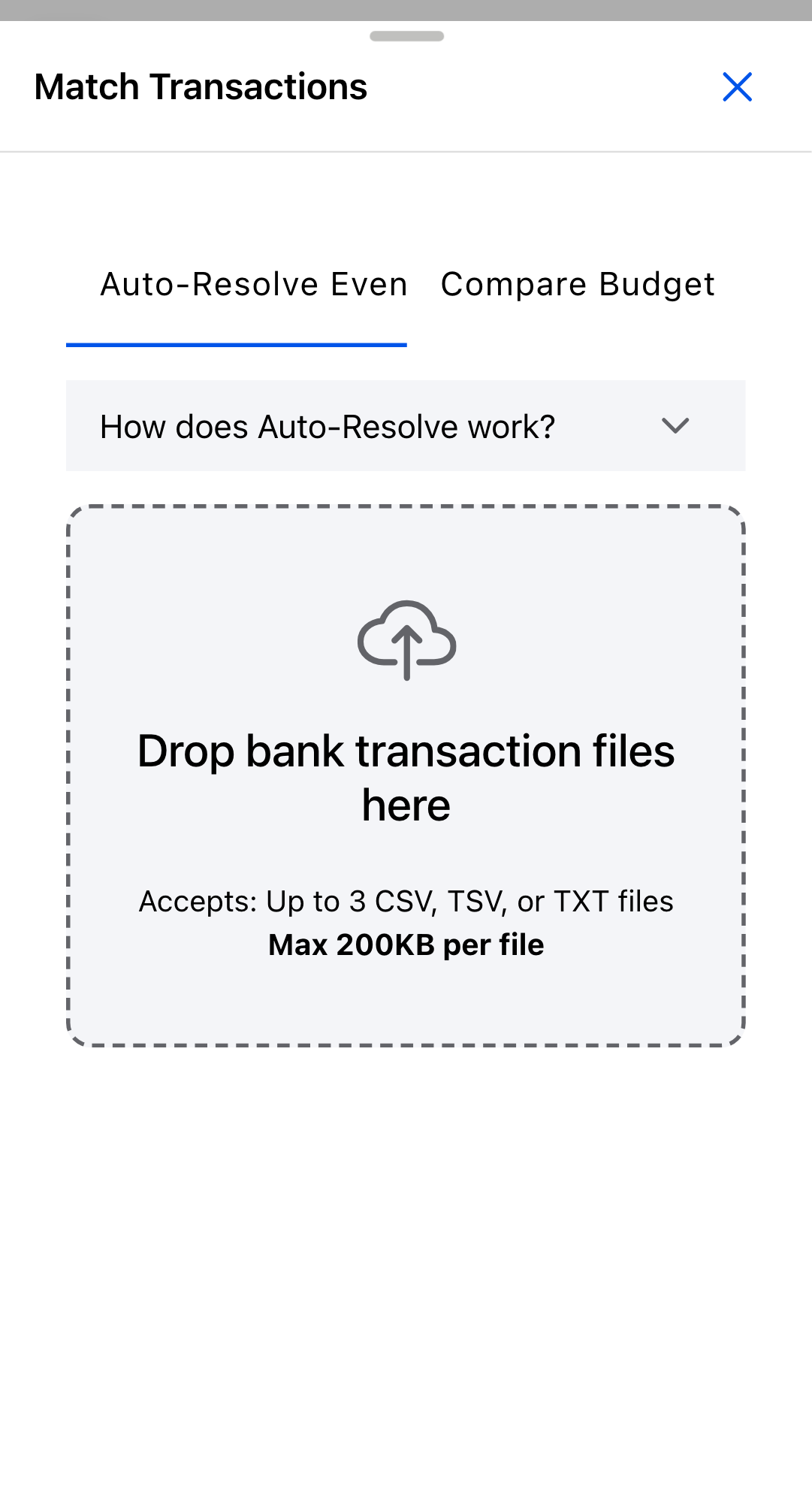
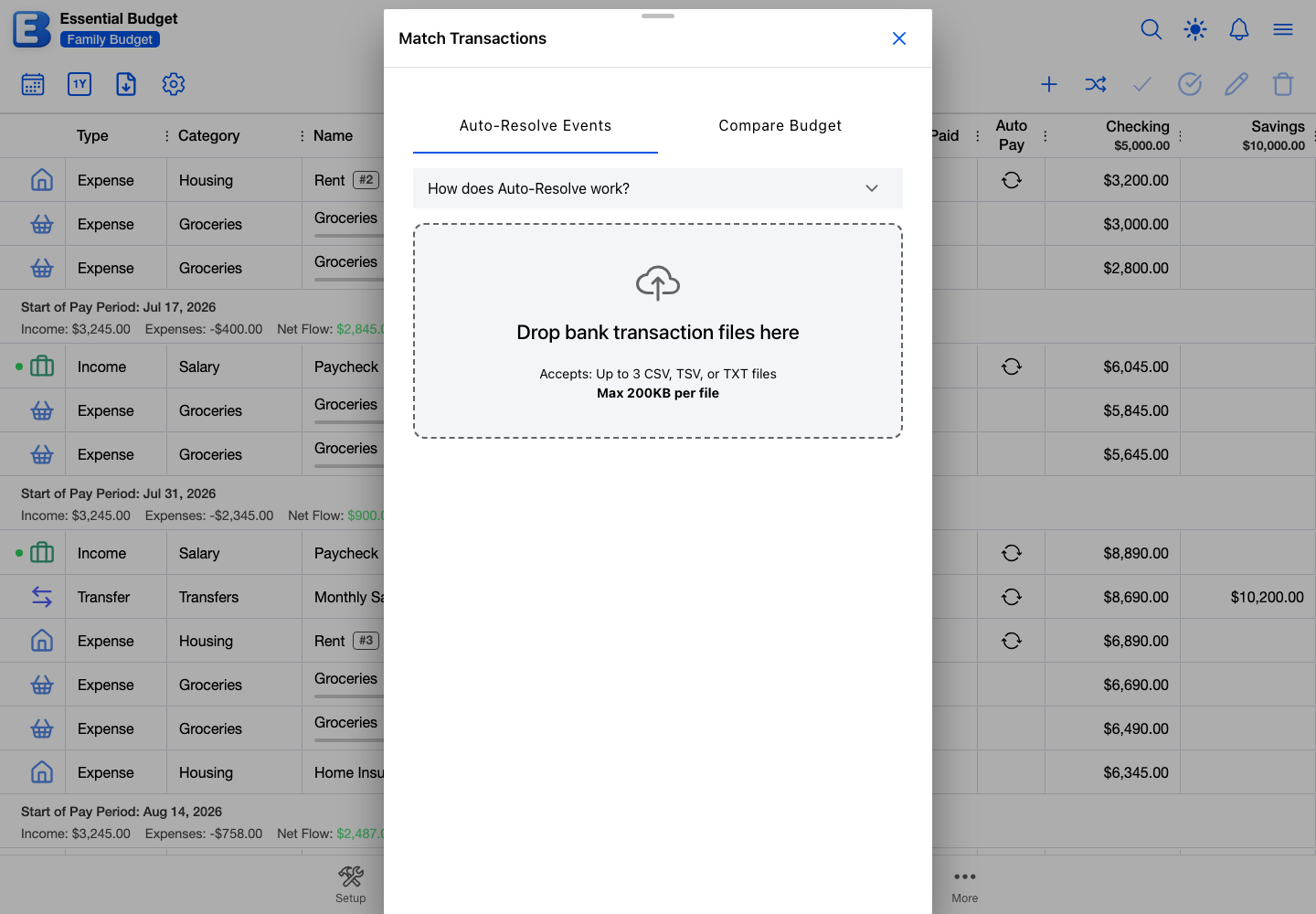
Open it from Match Transactions on the Planner toolbar. Nothing is fetched when it opens; the bank pull and the file upload happen inside it.
A segment at the top picks what the dialog does. Opened from the Planner it starts on Auto-Resolve Events, the matching mode. Opened from the Reports page it starts on Compare Budget, which is a different job entirely and is described under Comparing your spending.
What matching costs
Matching is free on every plan. Despite the dialog’s name, it does not use an AI: the app matches your transactions on its own servers, using the rules under What decides a match, and nothing is sent to an AI provider.
Two things in the dialog do need a subscription. Pulling transactions straight from a linked bank is part of Bank Account Linking, and Compare Budget uses an AI. Opening Compare Budget without a subscription replaces the input area with a Premium Feature panel and a Subscribe button.
Bringing in the transactions
If the budget is not linked to a bank, the input step is a drop area for files. Drag one in or tap to choose. The formats are CSV, TSV, and TXT, up to 3 files, 200 KB each, and on Premium up to 600 KB across all of them together.
Each file gets a dropdown for the account its transactions belong to. It arrives pre-filled with the first account in your budget, so check it before continuing, especially when you have more than one account.
Then tap Analyze.
If the budget has a linked bank and you are on Premium, the input step lists your linked accounts rather than a file picker, and Analyze pulls everything new since the last time and matches it. Without a subscription you get the file drop area instead, since the pull is the paid part. See Bank Linking.
Reviewing the matches
The results open in Review Transaction Matches.
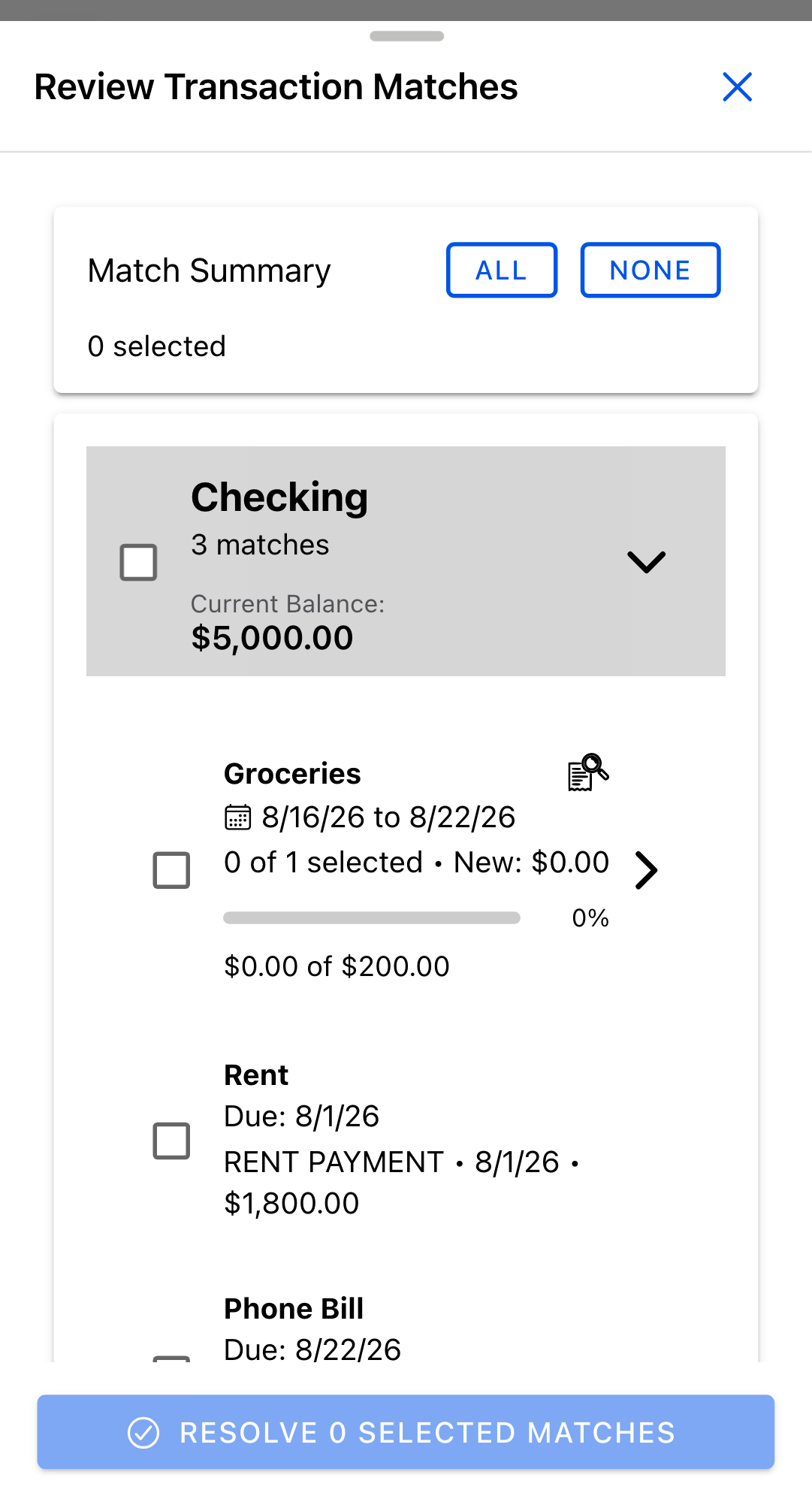
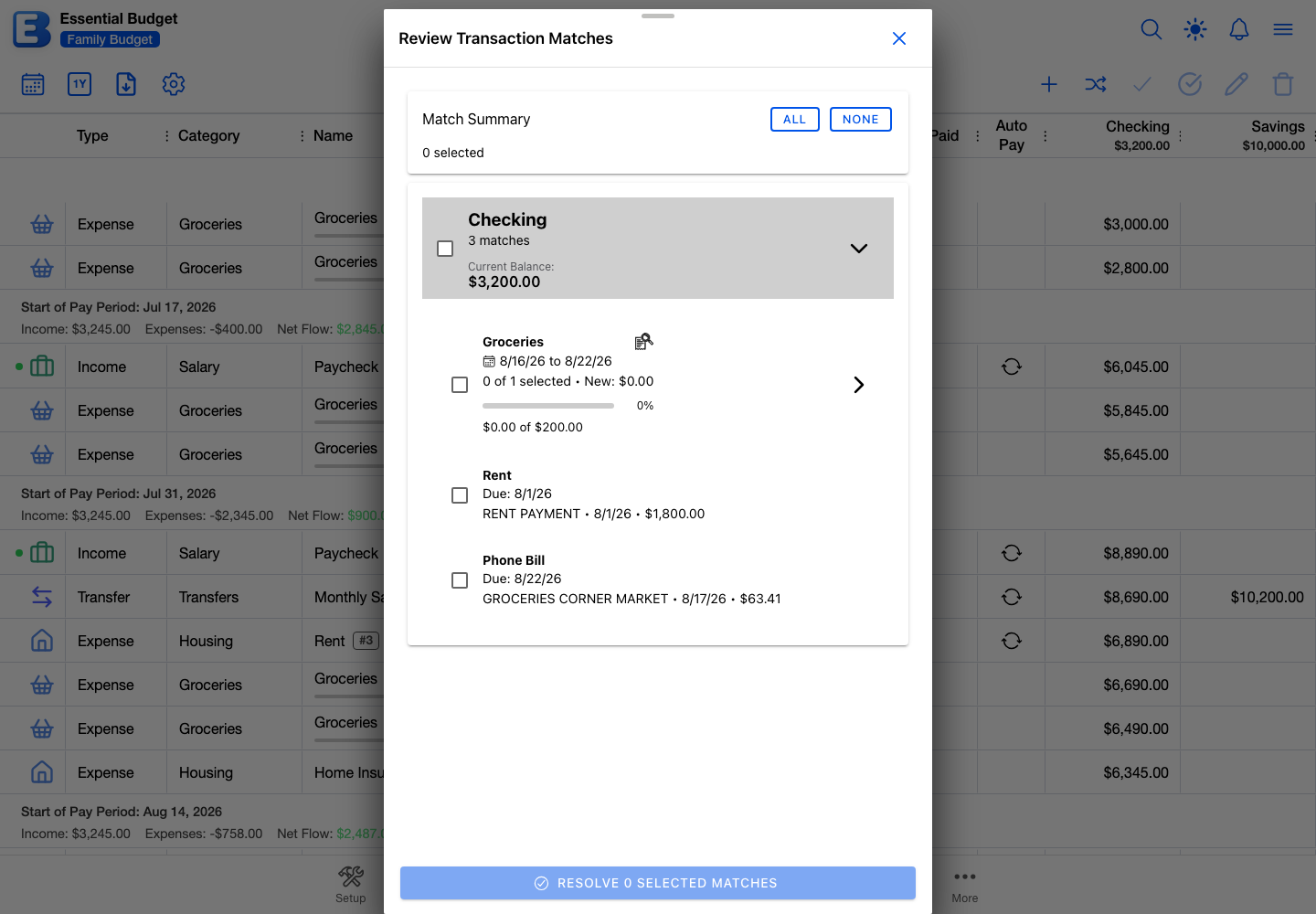
Matches are grouped by account, and the cards start collapsed; tap a header to open one. Each account card shows its Current Balance, and a Projected Balance once your selection would change that account’s balance.
The Match Summary card at the top carries All and None, which select or clear every match on the screen. Each account and each flow group has its own checkbox for selecting that group alone.
Where a flow is due over a date range, a progress bar shows how the selection compares with the planned amount, counting transactions already on the event as well as the ones you are adding. A green ✓ Will Resolve tag appears on the running-total line once the selection brings it to or past that amount.
Why this default? Nothing is selected when the review opens. Matching is good but not certain: a $43 grocery charge and a $43 transfer to a friend look much alike. Starting empty makes you confirm each row rather than skim a screen of pre-ticked ones. Tap All once you have looked.
When the selection is right, use the button at the bottom, which counts what you picked and reads Resolve 3 Selected Matches. The batch saves together, balances update, and any event whose total now reaches its planned amount resolves into History.
If you leave some matches unselected, the review stays open with those still listed so you can make a second pass. Resolve everything and both the review and the Match Transactions dialog close.
A failure that stops the whole batch, such as a dropped connection, leaves the matches on screen so you can try again, and the app will not post the same transaction twice. If some rows save and others fail, the failed ones leave the list, so reopen Match Transactions to pick them up.
When nothing matches
Two messages can appear instead of the review screen.
- No Matches Found. Nothing lined up with your scheduled events. This is normal when the transactions do not correspond to flows you have set up, or when the events they belong to were resolved earlier.
- No New Transactions. Everything in this batch has already been recorded. A Match All Transactions button inside that message re-runs on everything from the last batch, including transactions already recorded, which is useful when you skipped something by mistake.
What decides a match
Matching compares each incoming transaction with the events near it and pairs them when three things line up: the date, the amount, and the merchant.
| Test | How close it has to be |
|---|---|
| Date | 2 days for a weekly flow, 3 for bi-weekly or twice-monthly, 5 for monthly, 7 for quarterly, 14 for annual |
| Amount | Within $5.00, or within 5% of the planned amount, whichever is larger |
| Merchant | The Bank Transaction Merchant Name on the flow, falling back to the flow’s own name |
A schedule that fits none of those buckets gets 5 days.
A monthly $1,800.00 rent event therefore matches a rent charge of $1,795.00 posted three days off its due date, and does not match one posted three weeks later.
How transactions move your account balance
A transaction moves your balance when it is recorded, not when the event resolves. Amounts carry no sign of their own; the direction comes from the flow’s category type.
- An Income category raises the balance.
- An Expense category lowers it.
- A Transfer category lowers the source account and raises the destination by the same amount.
Categorizing a flow correctly is what tells the app which way the money moves. A paycheck filed under an Expense category will move your balance the wrong way. See Categories.
Resolving an event that has no transactions on it is the exception. There the resolve itself moves the balance, by whatever amount you set on that occurrence, or by the planned amount if you did not change it.
Why trust the bank’s number over the app’s? The app keeps its own running balance from your Current Balance plus everything recorded since. If that ever disagrees with your bank, the bank is right. Edit Current Balance on the account to match. See Accounts.
Helping the matcher get it right
Two things on a flow improve its matches.
Bank Transaction Merchant Name. Write the merchant as your statement shows it, such as WHOLE FOODS MARKET for a Groceries flow. The matcher leans on this when the flow’s name and the bank’s description look nothing alike. On a budget with a bank-linked account this field is filled in for you on the flows the app built from your recurring bank activity, and it becomes read-only on every flow in that budget.
Due Over a Date Range. With it on, matched transactions accumulate inside the event and the event resolves once they reach the planned amount. With it off, one matched payment resolves the whole event.
See Flows. If a recurring charge keeps landing on the wrong flow, split that flow into two and give each its own merchant name.
Comparing your spending
The dialog’s other mode, Compare Budget, does not match anything. It reads your recent transactions against your plan and proposes changes to the budget itself, in three groups: New Flows for recurring charges you have not budgeted, Amount Changes where your actual spending has drifted from the planned figure, and Flows to Review for ones that look inactive. Each carries a button that writes the change into your budget, so it is a way of updating the plan rather than a report on it. When nothing needs attention it says Budget Up to Date.
Compare Budget uses an AI, so it needs a Premium subscription on every budget. Without one, the mode shows a Premium Feature panel and a Subscribe button in place of the input.
Undoing a resolve or delete
Open History, select the row, and tap Undo Action on the toolbar. Opening the row instead shows the same action inside Event History, where it reads Undo Resolution or Undo Deletion.
The confirmation dialog names what comes back and what happens to your balance. There are three versions.
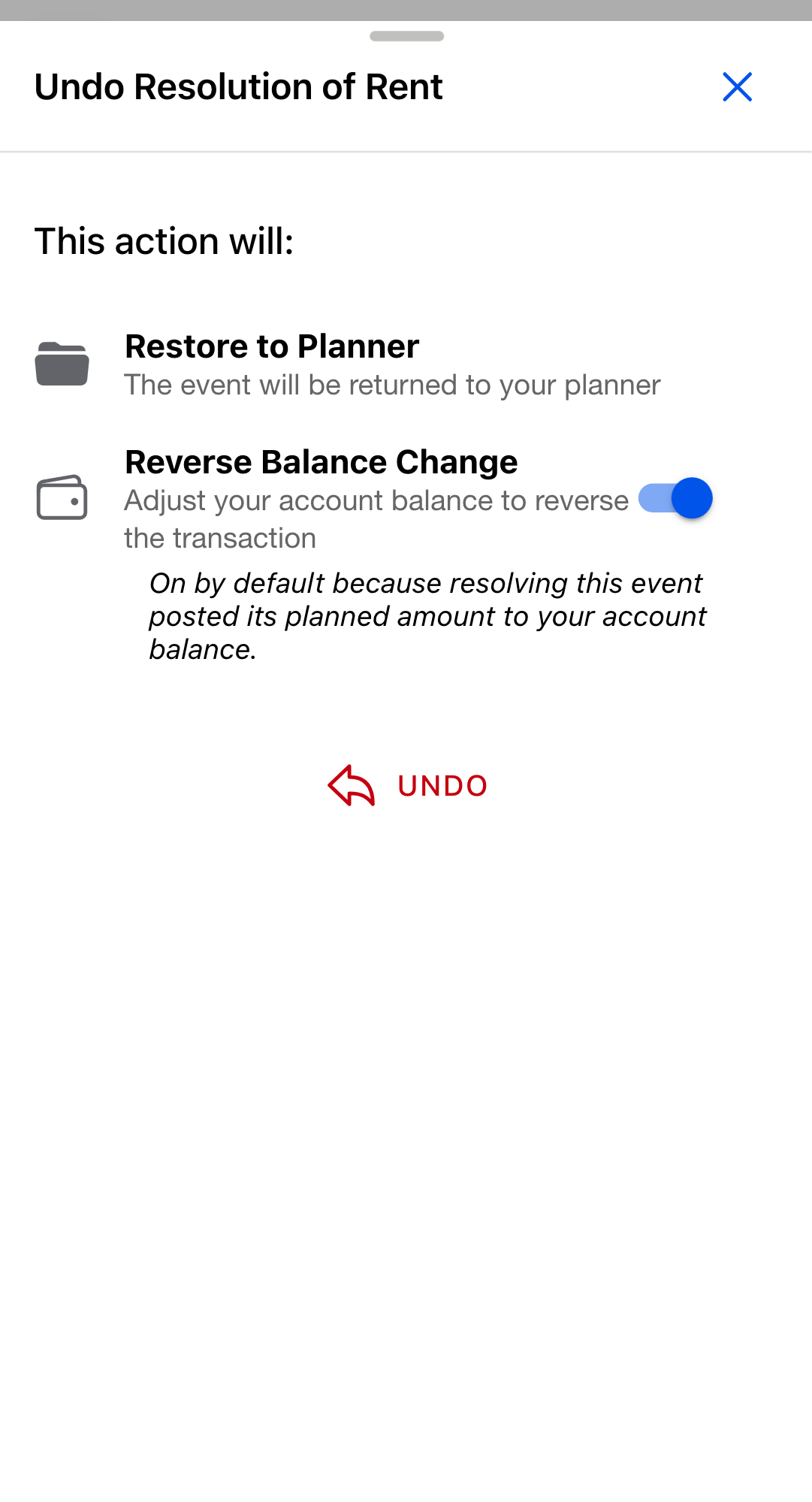
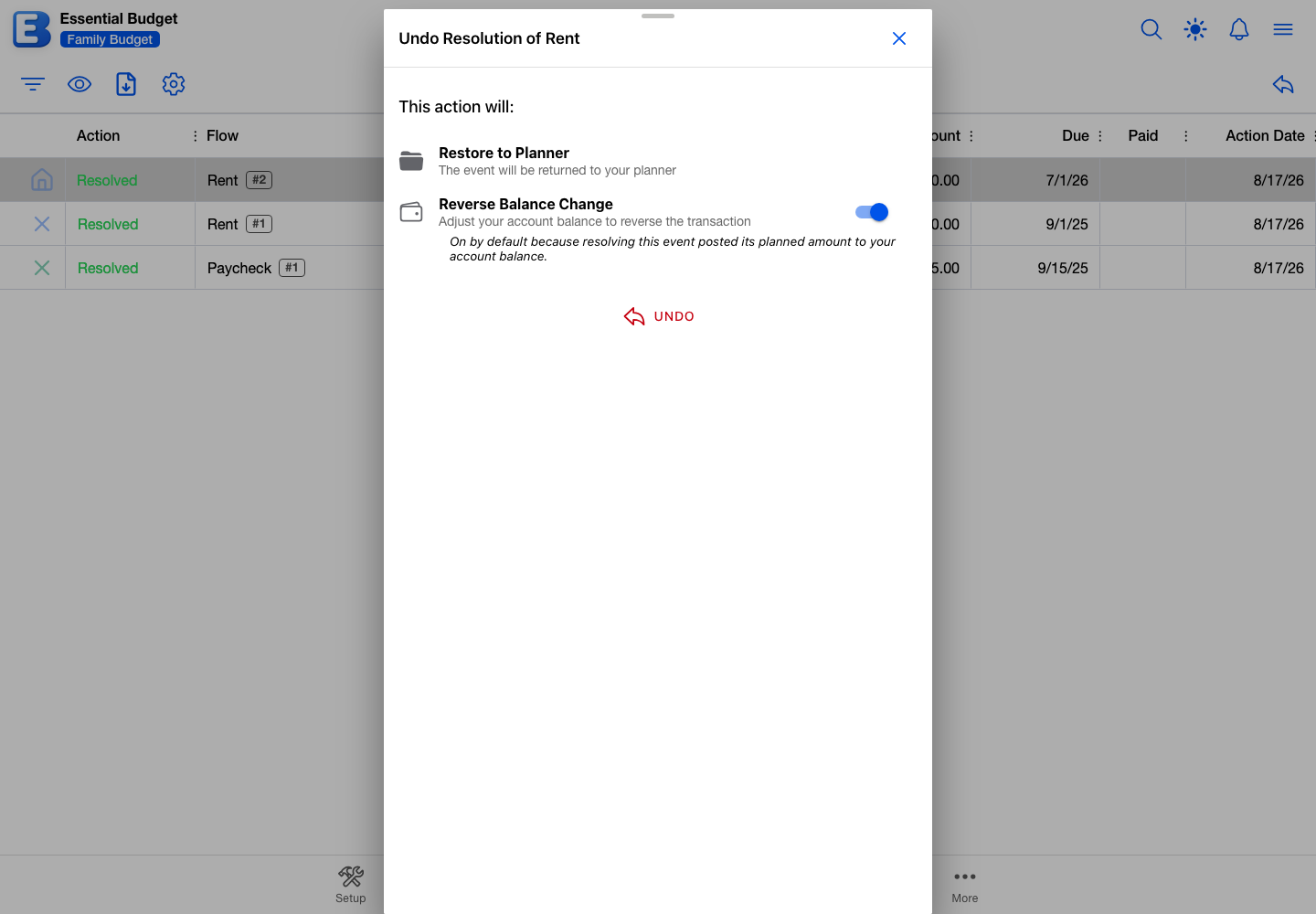
The resolved event had no transactions. A Reverse Balance Change toggle appears, on by default, because resolving was the moment your balance moved. Leave it on to put the balance back. Switch it off if you have already corrected the balance another way.
The resolved event had transactions. No toggle. Those transactions moved your balance when they were recorded and come back as active, so the balance is already right.
You are undoing a delete. No toggle. Deleting never moved your balance, so there is nothing to reverse. Note that deleting an event that had transactions on it leaves their balance change in place.
In all three, the event returns to the Planner on the date it left, with its transactions, its receipts, and any changes you had made to that occurrence.
Undoing needs edit access.
When Undo is blocked
Sometimes the app cannot rebuild the event. The toolbar’s undo button is grayed out, and opening the row shows Cannot undo with the reason.
| Reason shown | What happened |
|---|---|
| The parent flow no longer exists. | The flow that produced the event was deleted. |
| Original account no longer exists | The account was deleted. |
| Original category no longer exists | The category was deleted. |
| The schedule for this event has been deleted. | That schedule was removed from the flow. |
| The schedule’s timing has been modified since this event was resolved. | The frequency, day, or start date changed, so the original timing is gone. |
| This event was created before undo support was introduced. | A few very old rows cannot be reversed. |
| This event was created before schedule-independent positions were introduced. | Likewise, for a slightly later group of old rows. |
The row stays in History either way. The record is intact; only the reversal is unavailable.
One case is not caught in advance. If a deleted event had bank transactions and one of them has since been matched to another event, undo is refused when you confirm:
Cannot undo: Bank transactions have been matched to other events. Please remove those matches before undoing this deletion.
Open the other event, remove that transaction, then try again. The block exists so one bank transaction cannot sit under two events at once.
History keeps the current year plus the five calendar years before it, on every plan. Older rows are removed automatically.
What changes if Premium ends
Matching keeps working. It is not a paid feature, so the button stays where it is and the file upload path stays open.
What you lose is the bank pull. On a budget built from a bank connection, the input step stops listing your linked accounts and offers file upload instead, so you can carry on by exporting transactions from your bank. Transactions already matched, events already resolved, and History rows are untouched.
Compare Budget is different. Working from an uploaded file it calls an AI, so it stays behind the subscription.
See Subscription and Your Account.
Quick reference
| If you want to | Do this |
|---|---|
| Flag a bill you have paid while you wait for the bank | Tap Mark Event as Paid. Your balance does not move. |
| Resolve an event with no bank record | Select it and tap Resolve Event. |
| Match many transactions at once | Tap Match Transactions on the Planner toolbar. |
| Match without paying for Premium | Upload a file. Matching is free on every plan; only the bank pull is Premium. |
| Cut down wrong matches on a flow | Fill in Bank Transaction Merchant Name. See Flows. |
| Undo a resolve or a delete | Open History, select the row, tap Undo Action. |
| Restore a deleted event whose transactions moved | Remove the conflicting transaction from the other event, then retry Undo. |
Behind the scenes
Matching never leaves the app: your transactions and the events near them are compared on the app’s own servers by the rules above, and no AI provider is involved. Compare Budget is the exception. It sends the AI the account name you chose, the transactions from that file or pull, and the nearby flows with their names, amounts, dates, frequencies, and merchant names. It never includes your balances, your account numbers, or your bank sign-in.
Before matching runs, transactions already recorded in the budget are filtered out, which is what makes re-uploading the same file safe. The same check runs again when you save, so a transaction cannot be recorded twice. See Transactions.
Related pages
- Planner for the Grid and Calendar views and the toolbar.
- Flows for Due Over a Date Range and Bank Transaction Merchant Name.
- Transactions for working with transactions inside an event.
- History and Undo for the History page in detail.
- Bank Linking for connecting an account.
- File Uploads for supported formats and odd column orders.
- Subscription for what each plan includes.
- Your Account for cancelling Premium or backing up a budget.
Questions or feedback about this page?Email us.