
Learn - File Uploads
Uploading transactions from a CSV, TSV, or TXT file.
File Uploads
Every bank lets you export your transactions to a file, and the app reads that file directly. Drop it in, tell the app which account it belongs to, and your transactions are matched against the events you planned, the same way they would be if the bank were connected. It works on every plan, with no bank connection involved.
An event is one dated occurrence of something you planned, like this month’s rent, and the flow it comes from is the template that produces it.
Uploading a file is one of two ways transactions arrive. The other is connecting your bank, which is part of Premium. What happens after the transactions arrive is identical either way.
Where to upload
Files go in at two moments: when you build a budget, and when you match transactions in a budget you already have.
When creating a new budget
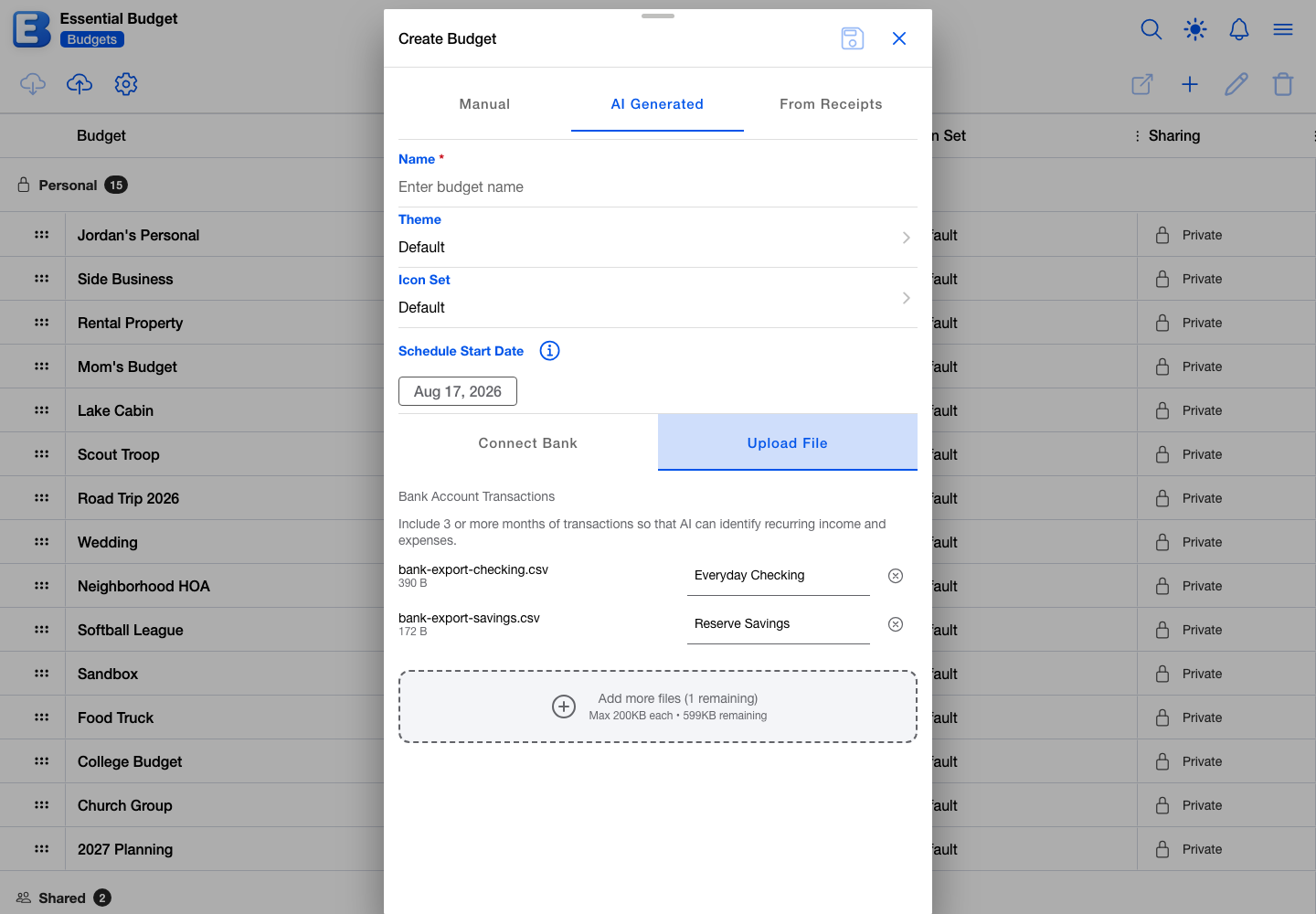
Open the Budgets page, tap Create Budget, and choose AI Generated in the segment at the top; its other two choices, Manual and From Receipts, are covered in Creating a budget. Fill in the name, theme, icon set and schedule start date.
Below those is a dashed drop area reading Drop bank transaction files here, with the accepted formats and the size limit underneath. Drag a file onto it, or tap it to open your file picker.
On Premium, a Connect Bank and Upload File switch sits above the drop area, and Connect Bank starts selected. Tap Upload File to get the drop area back. The switch appears whether or not you have a bank connected.
Inside an existing budget
Open the Planner tab and tap Match Transactions. In Auto-Resolve Events mode, the same drop area appears.
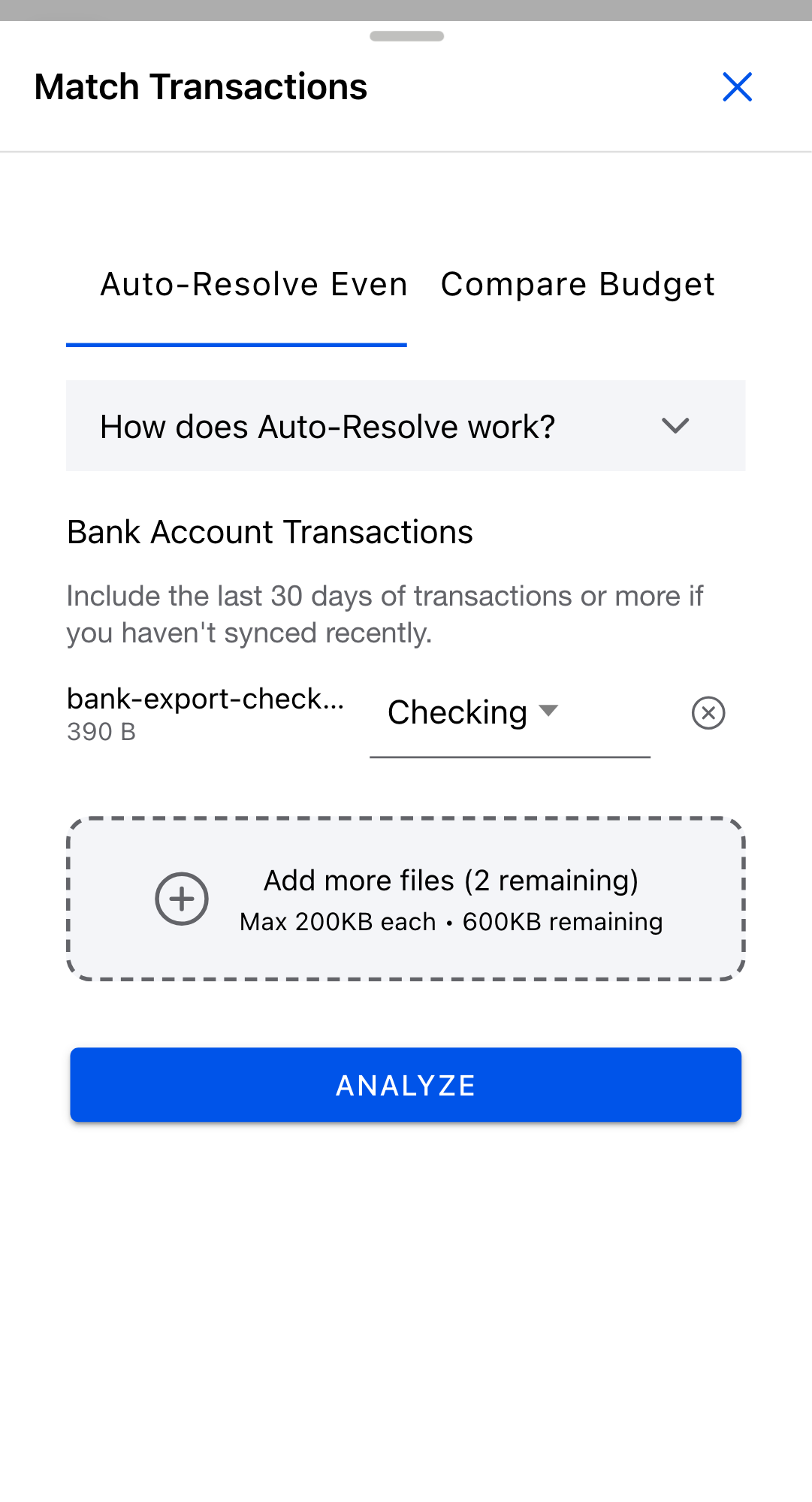
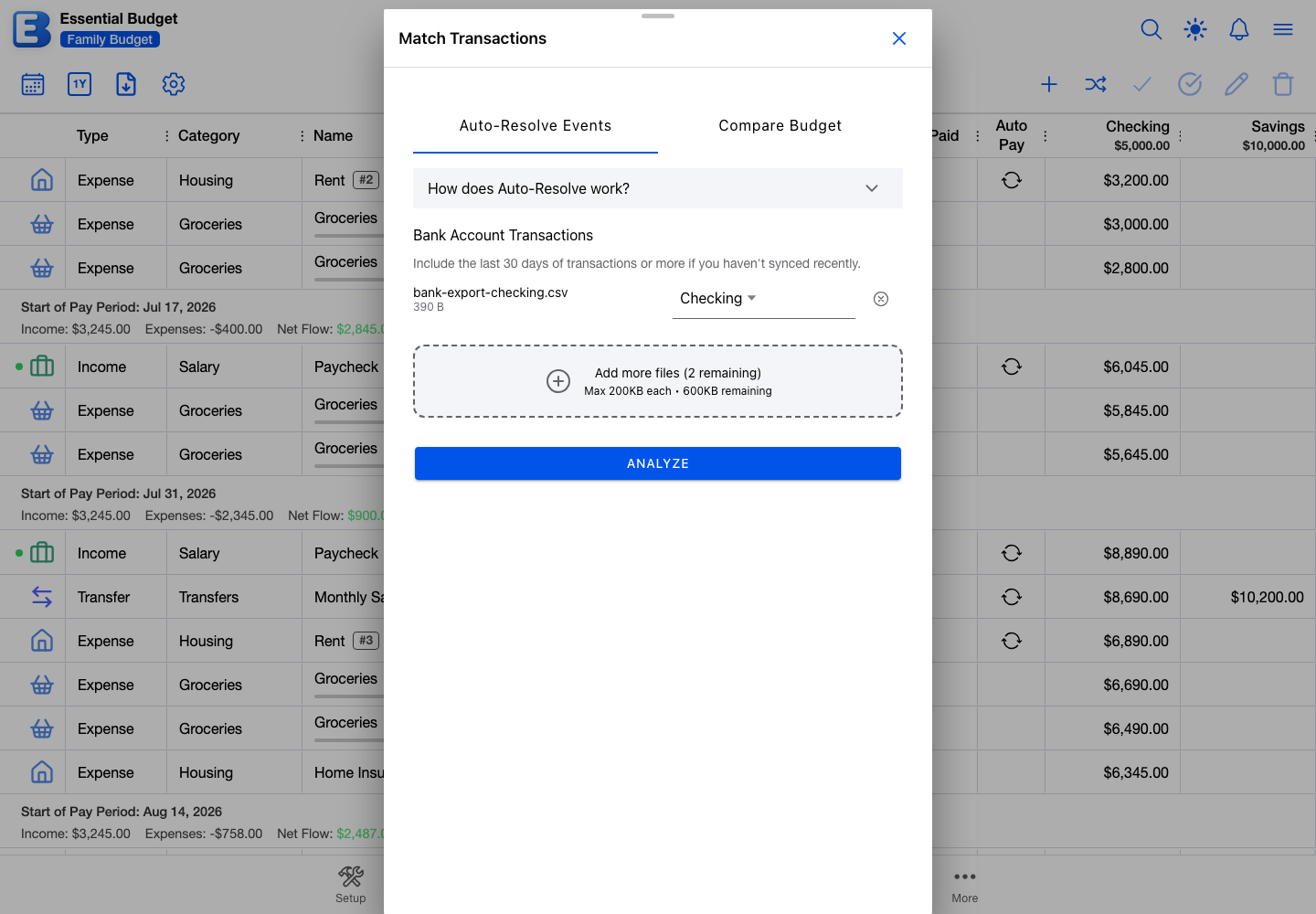
Add your file, choose which of the budget’s accounts it belongs to, and tap Analyze. The app reads the file, works out which of your open events each transaction belongs to, and opens Review Transaction Matches for you to confirm.
A budget that pulls from a bank shows its linked accounts here instead of the drop area, and file upload is not offered alongside it. To upload a file into that budget you would need to unlink its bank accounts first, or build a separate budget for the file. See Bank Linking.
The matching itself is described on Matching and Resolving. The rules are the same for a file as for a bank pull.
Supported file formats
Three plain-text formats:
.csv, comma-separated values..tsv, tab-separated values..txt, plain text.
The extension does not decide how the file is read. The app looks at the first five lines of every file, tries comma, tab, semicolon and pipe as the separator, and keeps whichever appears most often and most evenly. A .csv that is really semicolon-separated works fine.
Most bank exports need no preparation, including exports that put a few lines of account details above the column headers.
Why no Excel (
.xlsx)? The reader works on text, and an Excel file is not text. If your bank only offers Excel, open the file in Excel or Numbers, choose Save As or Export, pick CSV, and upload that. Nothing about a transaction is lost in the conversion.
Amounts need to be in US dollar formatting. Dollar signs and thousands separators are stripped, and a figure in parentheses such as (123.45) is read as negative. Other currency symbols, a minus sign written after the number, and a comma used as the decimal point are not understood.
Size and count limits
- 3 files at most in one go. Once you have three, the drop area disappears.
- 200 KB per file, on every plan.
- 600 KB across all files, on Premium.
A typical month of transactions for one account is well under 100 KB, so the cap usually only bites when someone exports several years at once. An oversized file gets an error naming the file and the limit; the fix is to export a shorter date range.
Why these caps? Building a budget with AI sends the file’s contents to a language model, and models are billed by how much text they read. 600 KB is the ceiling that keeps one budget build affordable against your monthly Premium Subscriber Credits. The 200 KB per-file cap applies to matching on every plan too, because it keeps reading the file quick on a phone and stops one oversized export crowding out the other two.
Each file is one account
Every file belongs to exactly one account.
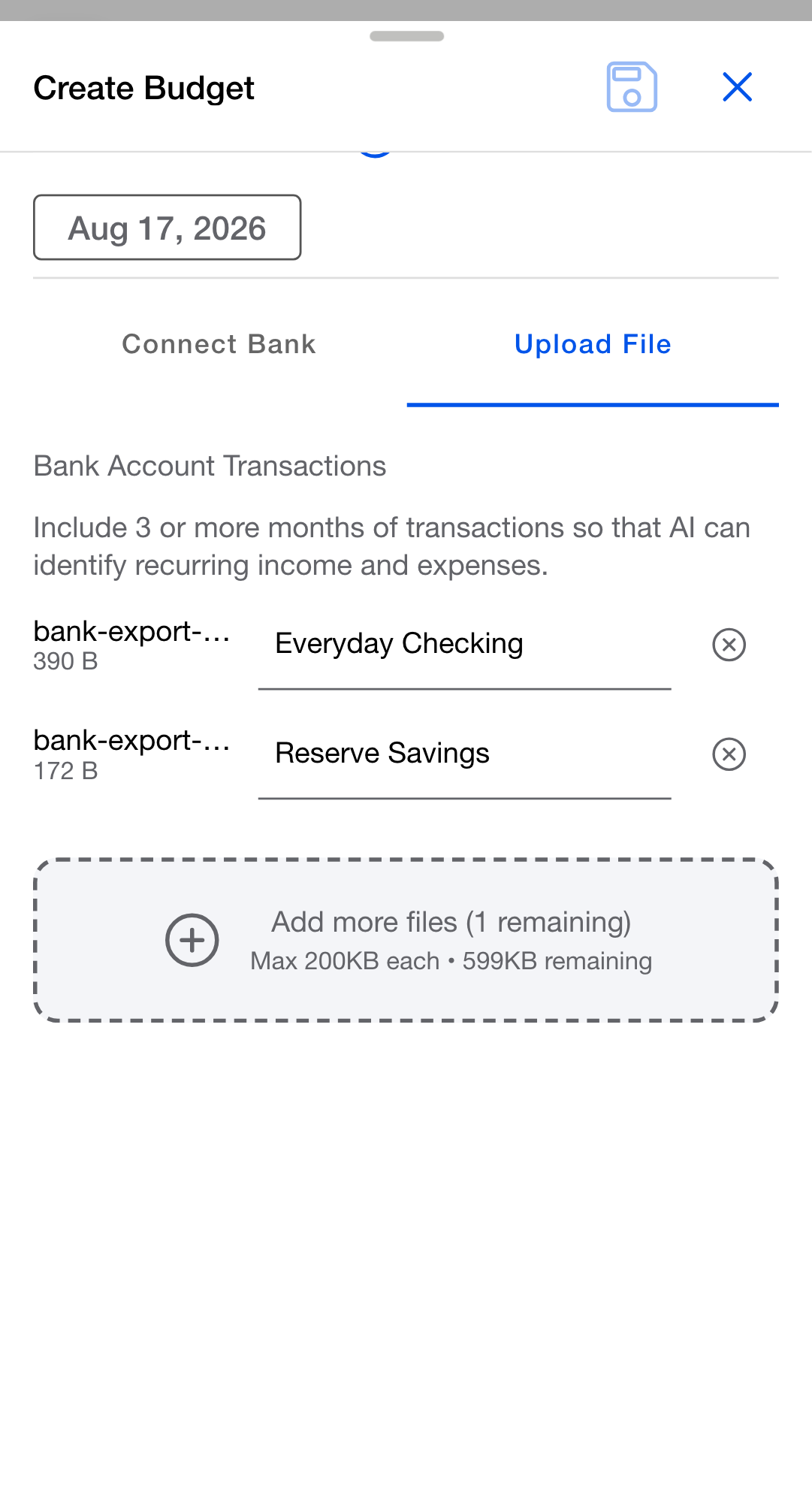
In a new budget, each file you add gets a name field, already filled in with Account 1, Account 2 and so on. Type over it with something you will recognize, because that name becomes a real account in the budget. Three files means three accounts. Clearing the field turns its underline red and switches Save off until you type something.
In an existing budget, each file gets a picker instead, showing the account it will be filed under. It starts on your first account, so change it if that is not the right one. In this dialog the submit button is hidden entirely until every file has an account.
If your bank exports every account into one file with a column saying which account each row belongs to, split it before uploading. Most banks can export one account at a time; if yours cannot, open the file in a spreadsheet, filter by account, and save each one separately.
What the parser figures out for you
Bank exports vary enormously, and the app absorbs most of that so you do not have to clean the file up:
- Details above the headers. If your bank writes three or four lines of account information before the column headings, the app searches the first 10 rows for the heading row and ignores everything above it.
- Everyday column names for the date, description, amount, debit, credit, balance and reference columns. Date, Posted and Transaction Date all read as the date; Description, Memo, Payee and Merchant all read as the description; Balance, Running Balance and Running Bal. all read as the running balance. Spanish headings are recognized as well, with or without their accents.
- Day-first dates. For a format like
21/09/2025, the app reads up to 50 rows looking for a value that settles which number is the day. Without one it assumes month first.YYYY-MM-DD,DD.MM.YYYYand written months like21 Sep 2025are all understood. - Separate debit and credit columns. When your file splits money out and money in across two columns instead of using one signed figure, both are read, with debits treated as negative.
- However your bank writes a negative. A leading minus (
-45.67), parentheses ((45.67)) and a trailing minus (45.67-) all read as money out. Currency symbols and thousands separators are stripped either way, so"$1,234.56-"reads as a debit of $1,234.56. - Quoted descriptions. A description like
"Acme Co., Inc."stays one field despite the comma. - Any line endings. Files saved on Windows, macOS or Linux all read the same.
Once at least one file is loaded, a Bank Account Transactions section appears above the drop area listing each file with its size. In Create Budget the note under it reads “Include 3 or more months of transactions so that AI can identify recurring income and expenses.” In Match Transactions it reads “Include the last 30 days of transactions or more if you haven’t synced recently.”
Re-uploading the same file is safe
Every row gets a fingerprint, built from its date, description and signed amount, plus the running balance when the file has one. If your export already carries a fingerprint column, the app uses that value as it stands.
When you confirm a match, the app records that fingerprint against the budget. A later upload skips any row whose fingerprint is already recorded. Uploading the same export twice, because you were not sure the first one worked, does not double anything up. The check covers the whole budget, so a transaction recorded against one flow will not be offered against another.
If every row in your file has already been recorded, the app says so rather than showing an empty screen. A No New Transactions message appears with a Match All Transactions button, which re-runs the match with the duplicate check switched off. That is the way back if you skipped a match last time and want another look at it.
Three consequences worth knowing:
- The fingerprint is fixed when the row is read. Editing the description, amount or date on an imported transaction later does not change it, so a re-upload still skips that row.
- Deleting an imported transaction from an event releases its fingerprint. Re-uploading the file offers the row again, so you can file it somewhere else.
- Fingerprints are kept for 90 days, counted from the transaction’s own date rather than the day you imported it. Re-importing much older activity can offer the same transactions a second time.
The same detail from the transaction’s side is on Transactions.
When a file can’t be read
A file is rejected outright when the app cannot find what it needs. Every message names the file it is about and says which of these it hit:
- The file appears to be empty. Banks do sometimes hand back a blank report, so export it again and retry.
- It does not look like a delimited file. The file is not using comma, tab, semicolon or pipe, or its shape is too irregular. Export it from your bank as CSV and try again.
- It contains no dates or amounts. Check that you exported transaction history rather than a summary.
- A date, description or amount column could not be identified. The file is structured, but one of the three essentials is missing or has a heading the app does not recognize. The message names which one is missing.
- No valid transactions were found. The columns were identified but every row was unusable.
If the file will not read whatever you try, type the transactions in by hand on the events that matter. See Transactions.
Individual rows are treated more gently than whole files. A row with an unreadable date, a blank description, no usable amount, or an amount of exactly zero is dropped without comment while the rest of the file imports. Trust the count on Review Transaction Matches rather than the number of lines in your file.
After you confirm matches
Ticking matches on Review Transaction Matches and tapping the button at the bottom, which reads Resolve 3 Selected Matches when three are ticked, does the same work as confirming a bank pull:
- Every match you keep becomes a transaction inside its event.
- Your account balance moves by the total. Income adds, expenses subtract, and a transfer moves money between two accounts.
- An event on a flow set to Due Over a Date Range resolves once its transactions reach the planned amount. Below that it stays on the Planner with the partial total attached.
- An event on a flow due on a single date resolves as soon as one match is confirmed.
Once you have confirmed a batch, the screen reports how many transactions were recorded and how many events resolved.
Rows that matched nothing are not carried anywhere. They are usually rows with no flow set up for them, and if none of your rows match, you get a No Matches Found message instead of the review screen. Create the missing flow, then upload the file again; the fingerprint check skips whatever you already recorded.
Quick reference
| If you want to… | Do this |
|---|---|
| Upload while creating a budget | Budgets, Create Budget, AI Generated, drop the file, name each account |
| Upload into a budget you already have | Planner, Match Transactions, drop the file, pick each account |
| Upload more than one file | The same flow, up to 3 files |
| Re-upload without duplicating | Just upload it; recorded rows are skipped |
| Convert an Excel export | Open in Excel or Numbers, save as CSV, upload that |
| Split one export into per-account files | Open in a spreadsheet, filter by account, save each one separately |
| Get under the size limit | Export a shorter date range. 200 KB per file, 3 files at most |
Behind the scenes
Skim this if you are curious; none of it changes what you do.
- Separator choice. Comma, tab, semicolon and pipe are each scored across the first five lines on how often they appear and how evenly they are spread. The best score wins, and a tie goes to the comma.
- Heading row. A row counts as the headings when at least half its fields contain a recognized column word.
- Two-column money. With no heading row to go on, two number columns are treated as debit and credit only when no row has a figure in both.
- Running balances. With no heading row, a number column is treated as a running balance when it tracks the previous row’s value plus the amount, to within a cent, on at least 60% of the rows the app checks.
- Fingerprints. Each is a short hash of the row’s date, description, amount and balance, in a fixed form, so the same transaction fingerprints the same however your bank happened to format it that day. A file fingerprint and a bank-pull fingerprint for the same purchase are not interchangeable, so uploading a file for an account you also pull from your bank is not protected by this check.
Related pages
- Bank Linking: the Premium alternative to uploading files.
- Matching and Resolving: what happens after the rows are read.
- Transactions: the duplicate check from the transaction’s side, and how to type transactions in by hand.
- Subscription: file upload is on every plan; bank linking is Premium.
Questions or feedback about this page?Email us.