
Learn - Your Public Profile
Your community-facing handle and what other users see.
Your Public Profile
Your profile is the one page that gathers everything you have published: your public budgets, your themes, and your icon sets, all under your username instead of your email address. It exists as soon as you pick a username, and it lives at /profiles/{your-username}. Share that address when you want someone to see all of your published work at once; each budget, theme, or icon set also has its own link that works without the profile.
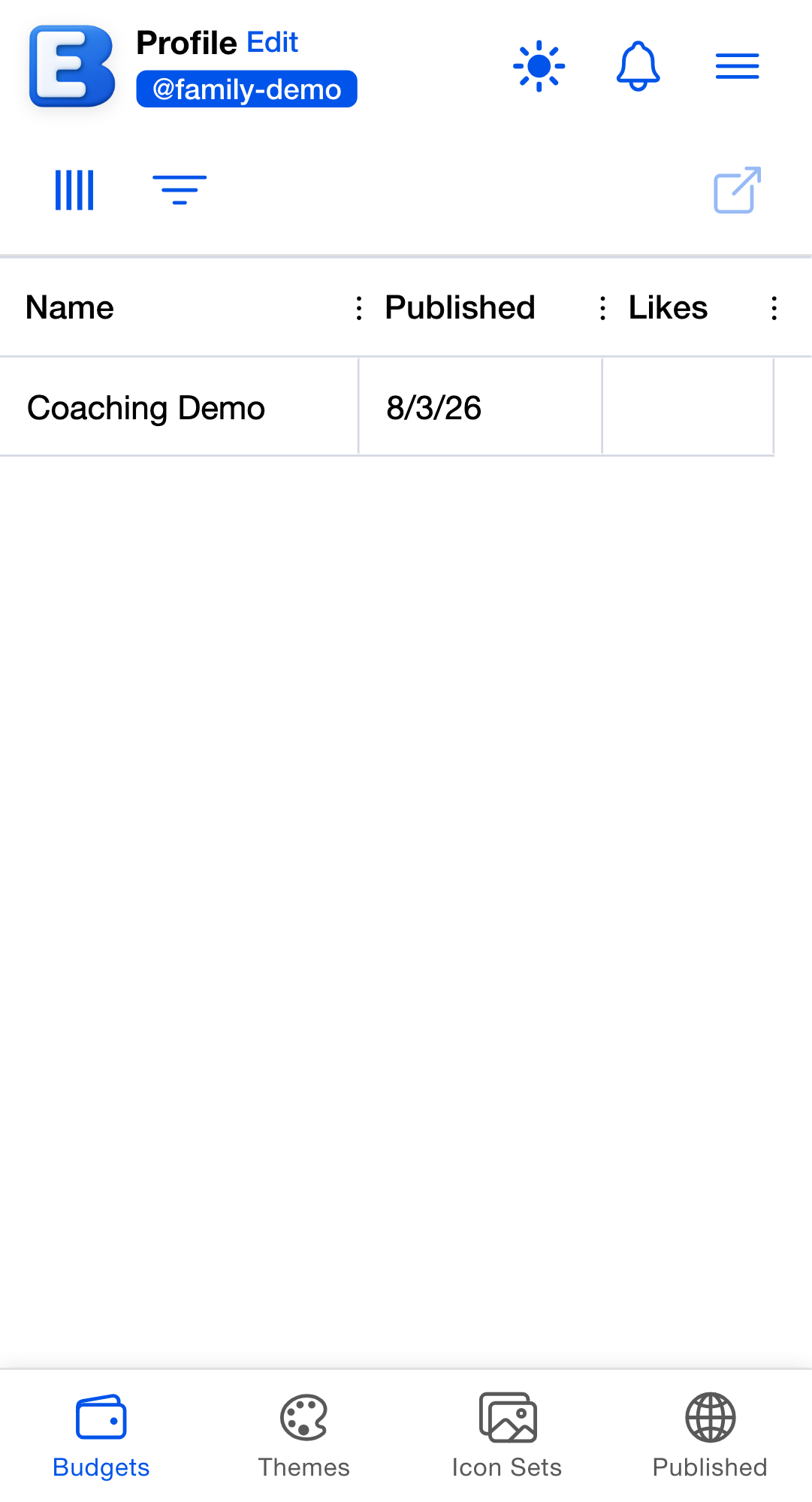
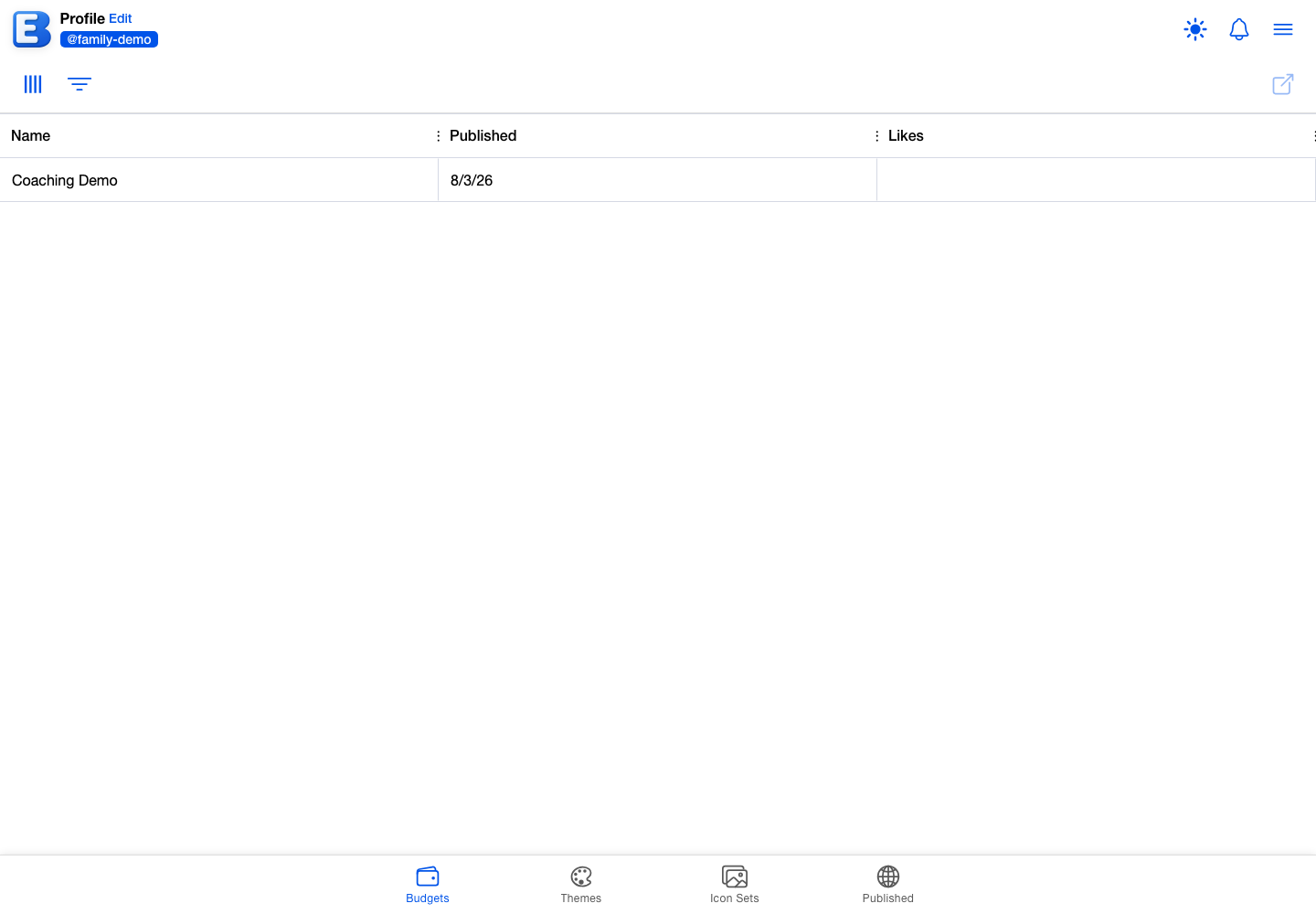
Profiles are part of the app, so viewing one requires being signed in, and first-time viewers of community content acknowledge the one-time Community Content notice. There is no way to stumble onto a profile from inside the app: the usernames shown on community themes and icon sets are labels, not links, so the people who see your profile are the people you gave the address to.
Where to find yours
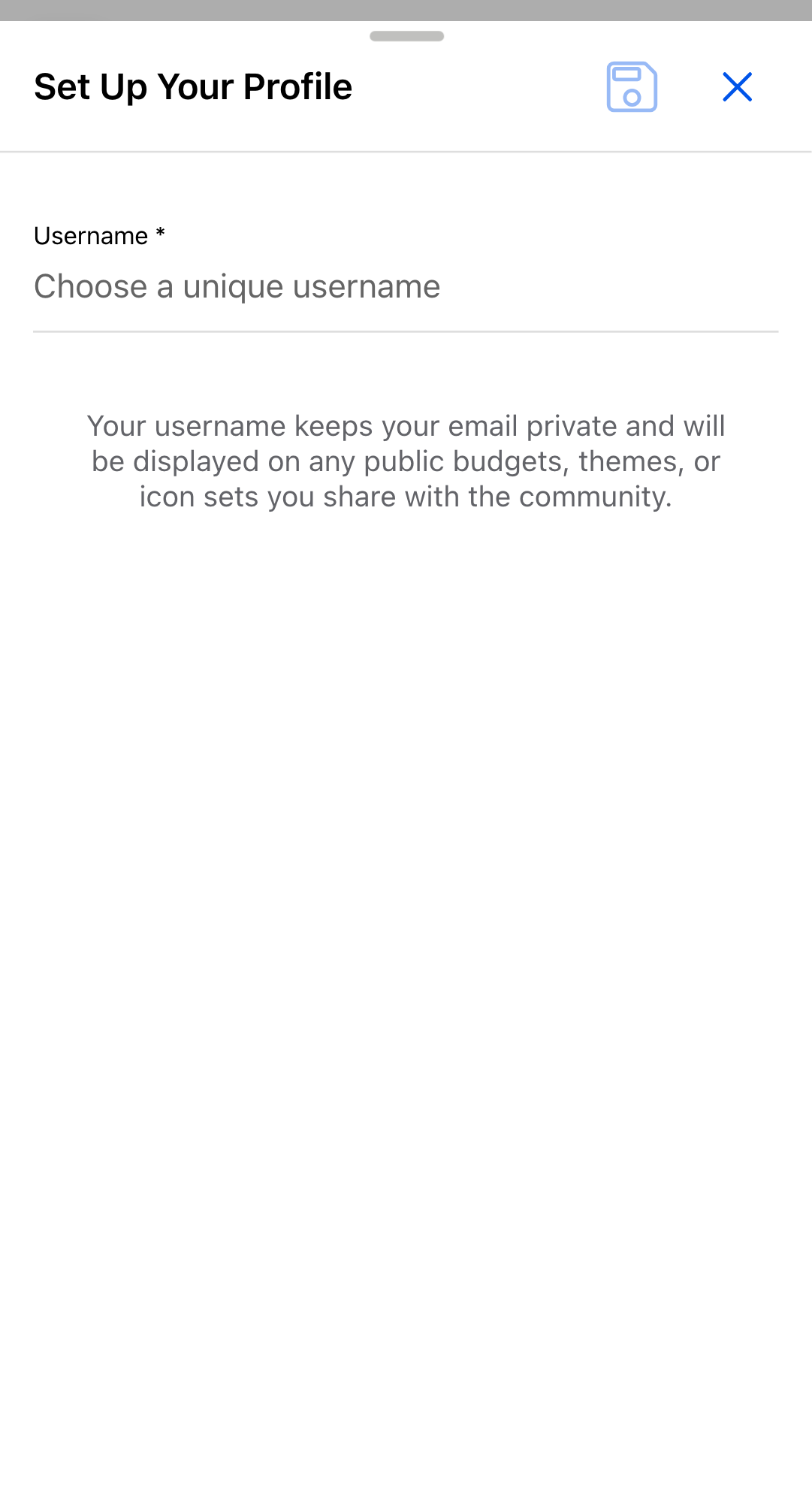
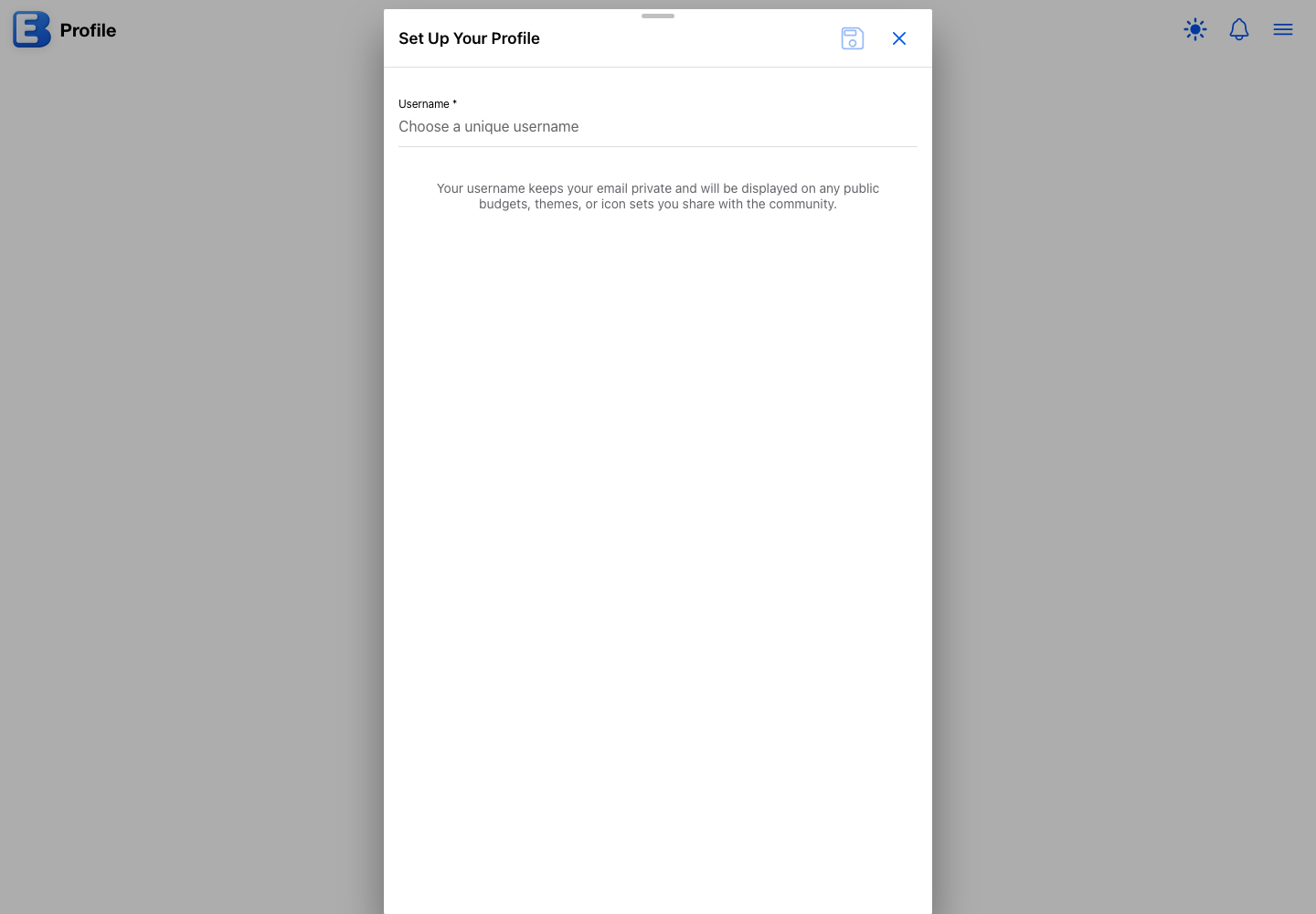
Tap Profile in the hamburger menu. The first time, the Set Up Your Profile dialog appears so you can pick a username; it explains that the username keeps your email private and is displayed on anything you publish. Once a username exists, the menu row opens your profile page directly, and an Edit button in the header opens the Edit Profile dialog.
What’s on the profile
Tabs sit at the bottom of the page:
- Budgets lists your public budgets: name, published date, and likes. Visitors can tap the Like and Bookmark buttons on a row; opening a row lands in the budget’s read-only planner. See Publishing a Budget.
- Themes and Icon Sets list what you have published to the community, with the same grids the Themes and Icons Community tabs use: creator, name, created date, downloads, and likes. A visitor selects a row and uses the toolbar’s Like and Add Bookmark buttons, or downloads it, exactly as they would from Themes and Icons.
A section you have published nothing in still shows its tab, with a note that you have not published anything there yet. Only the Show toggles below hide a tab.
On your own profile there is one extra tab, Published, listing the shopping lists and recipes you have published. Only you can see it; it is a management surface, not part of the public page. See Publishing Lists and Recipes.
Show toggles: what visitors see
The Edit Profile dialog holds your username and four toggles, all on by default:
- Show profile page is the master switch for the whole page.
- Show public budgets, Show themes, and Show icon sets each control one tab.
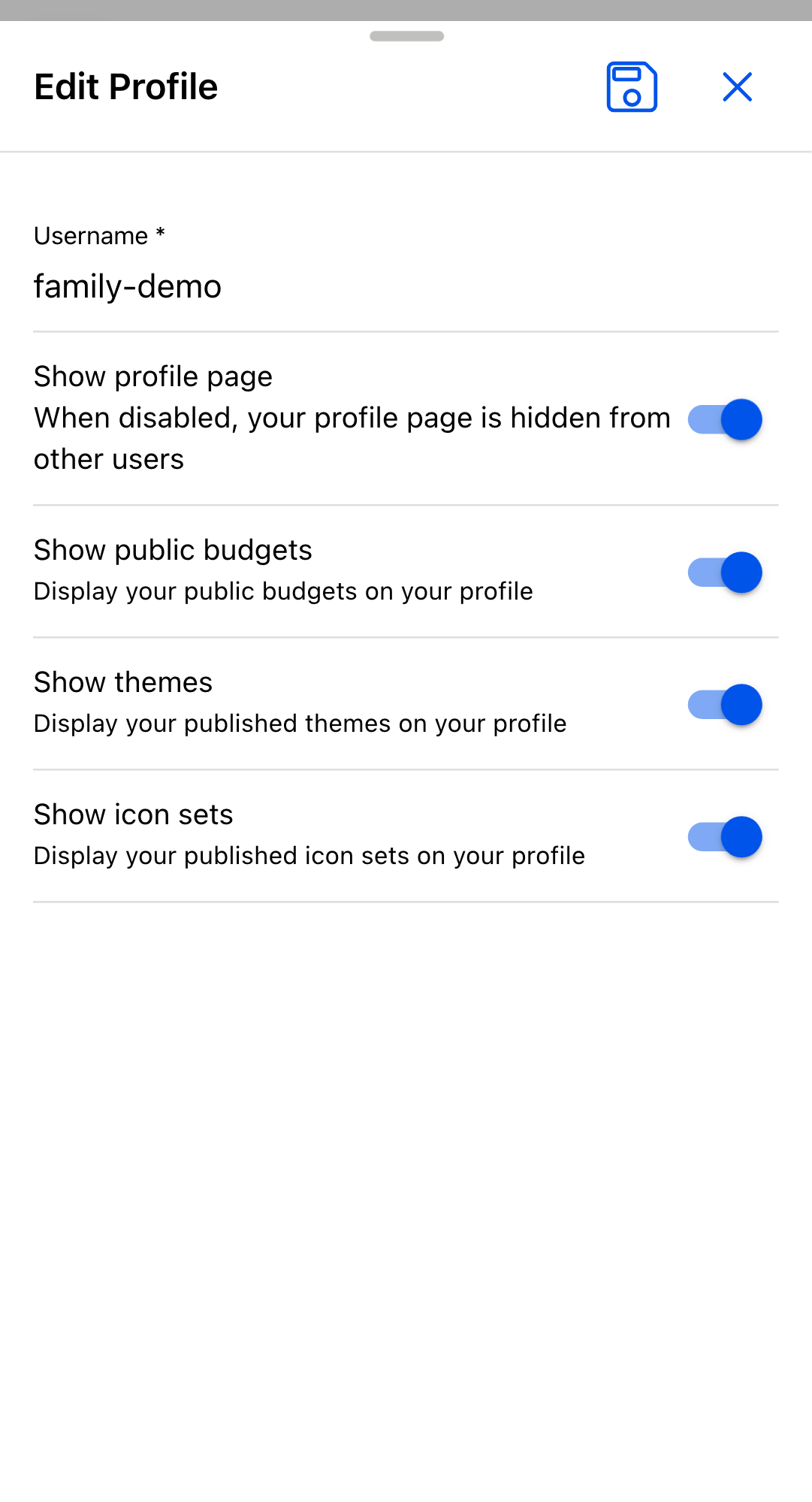
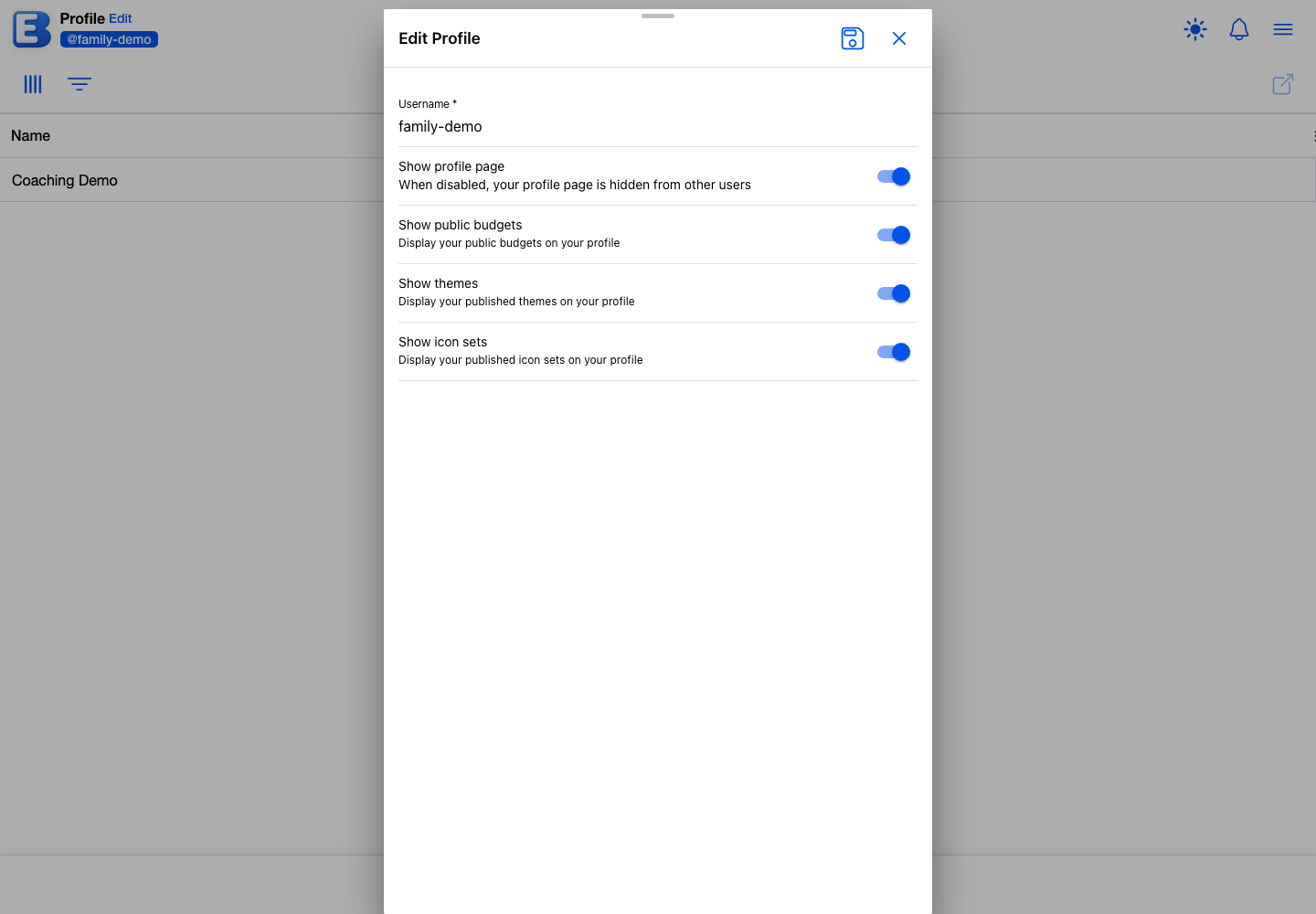
The toggles move together: turning the master off turns all three sections off, turning it on turns them all on, turning any section on switches the master on, and turning the last section off switches the master off.
Hiding your profile
With Show profile page off, your profile address stops resolving for visitors, who see a not-found page, and your username comes off the community cards on Discover; work you have published stays listed there, without your name. You can still open the profile yourself; it shows Your Profile is Hidden with a pointer to the Edit button above.
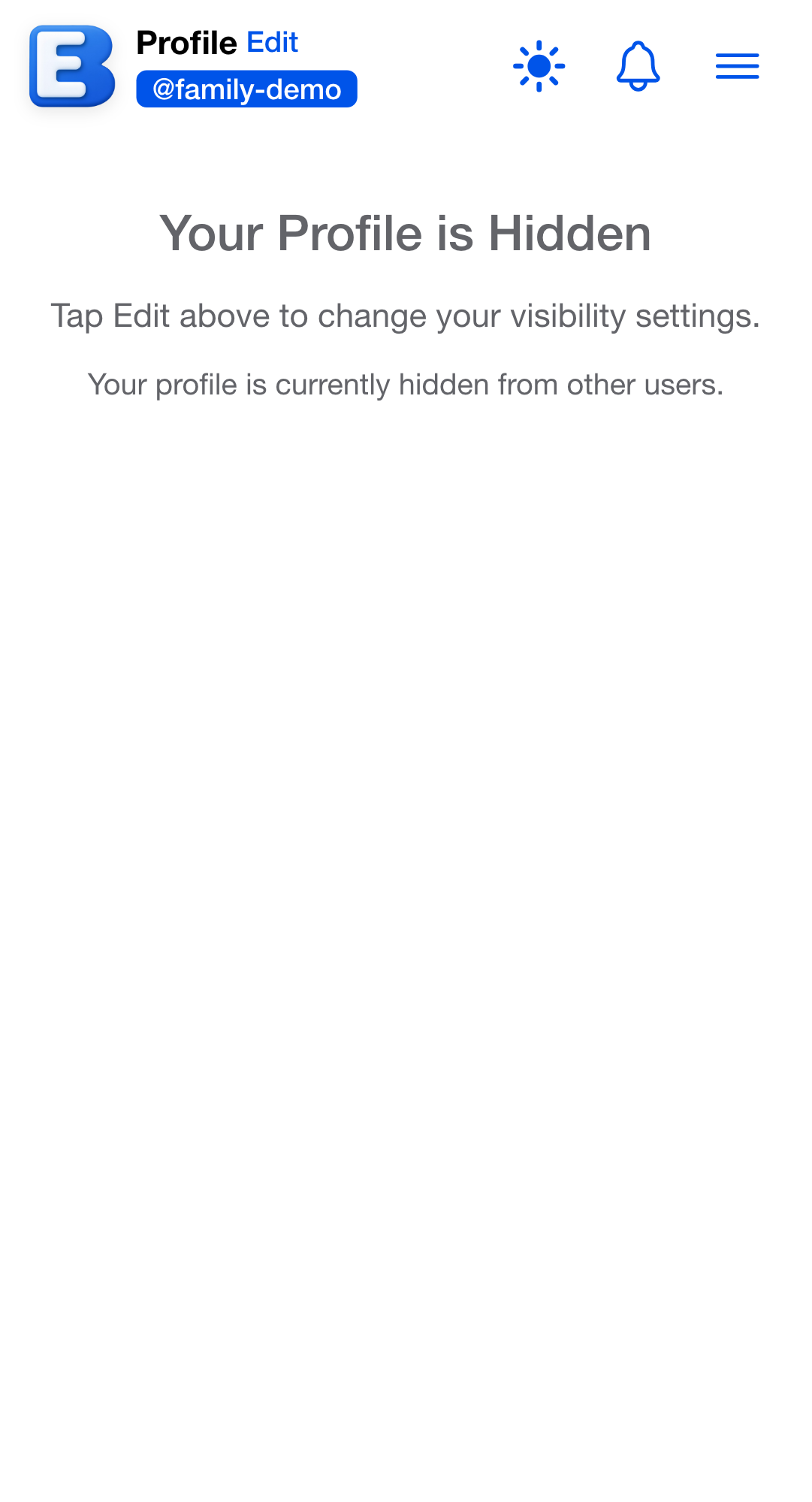
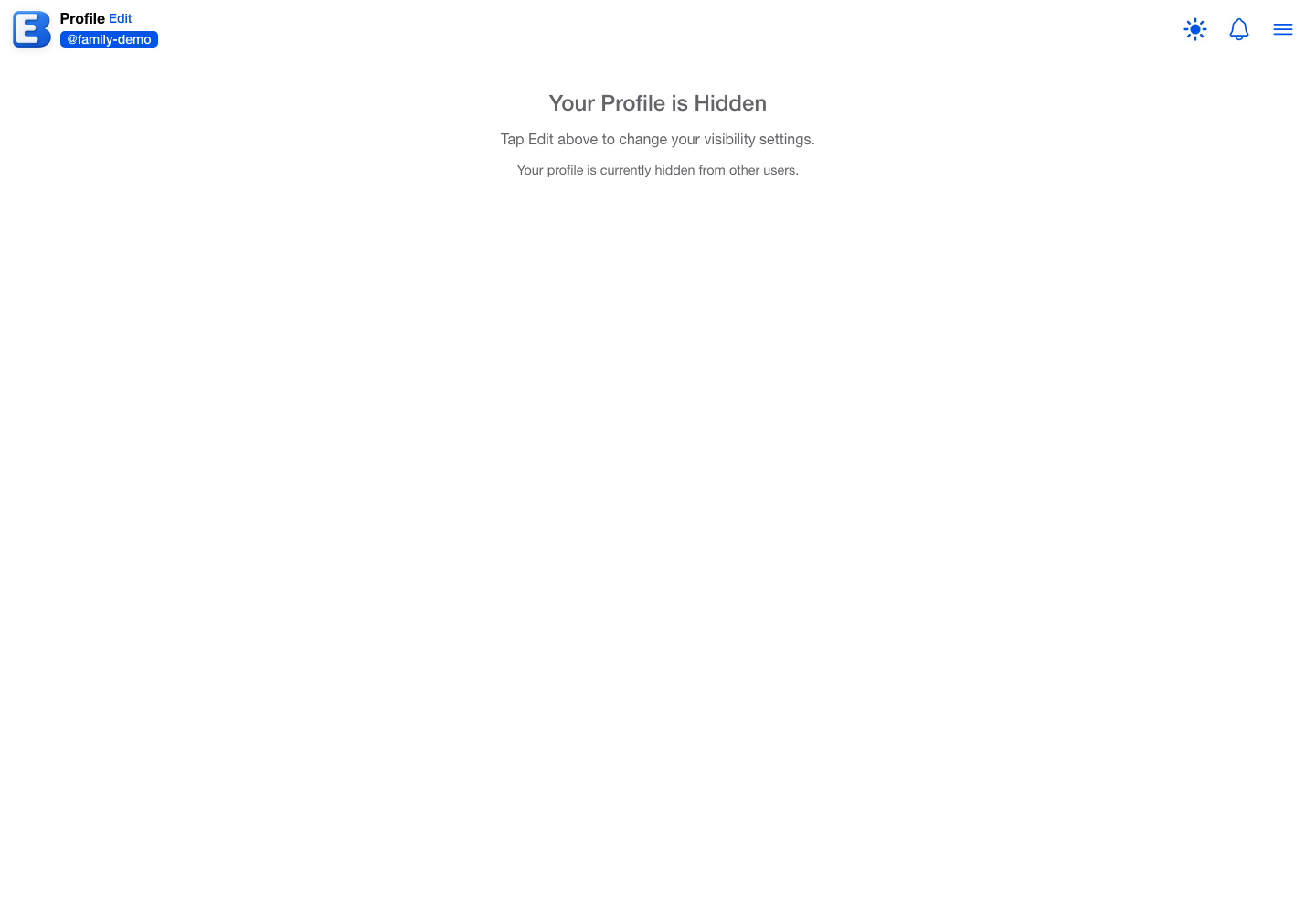
Hiding the profile does not unpublish anything. Your themes and icon sets stay in the community library, listed without your name as their creator, and anyone who installed them keeps them. Public-budget share links keep working too, @username and all, because the budget link never depended on the profile page. Hiding is the right tool when you want to publish a budget for one class without putting the rest of your published work behind the same address.
When your username changes
Renaming your username moves your profile: the page is at /profiles/{new-username} from then on, and the old address stops resolving. Anything you published stays published, and public-budget share links are unaffected, since they are built from the budget rather than from your name; the @username shown on them is read live and updates everywhere at once.
Why this default? Renaming keeps your share links but breaks your profile link. Budget links identify the budget, so they survive any rename. The profile address is the username, so an old bookmark of it cannot follow you. If you maintain a public profile, rename sparingly and re-send the new address.
Username changes are checked automatically when you save: names that are already taken, inappropriate, or reserved for the app’s own use are rejected (the dialog shows This username is not available for reserved and taken names, and checks availability as you type). Username changes are limited to 100 per calendar month; at the limit, saving a new username shows Monthly profile update limit reached. Please try again next month. Saving with only the Show toggles changed is never limited.
What the profile is not
- Not a social page. The only personal field is the username: no bio, no avatar, no display name. Your email is never shown.
- No followers and no feed. Nobody is notified when you publish; people come to your profile because you gave them the address.
- No view counter. The signals that anyone looked are the likes on all three tabs and the downloads on themes and icon sets.
Behind the scenes
A few details the screen does not show directly:
- The address is not case-sensitive.
/profiles/Coachand/profiles/coachreach the same page, so a capitalization typo in a shared link still works. - Username rules. 3-30 characters; letters, numbers, and hyphens; it must start and end with a letter or number. A handful of names are reserved to prevent impersonating the app itself.
Related pages
- Publishing a Budget: public budgets, their share links, and the Budgets tab.
- Publishing Lists and Recipes: the owner-only Published tab.
- Themes and Icons: publishing themes and icon sets, and the community tabs that show them.
- Your Account: the account behind the profile, and what deletion does to published work.
- Sharing a Budget: inviting specific people by email, which never touches the profile.
Questions or feedback about this page?Email us.