
Learn - Notifications
How the app tells you something needs your attention.
Notifications
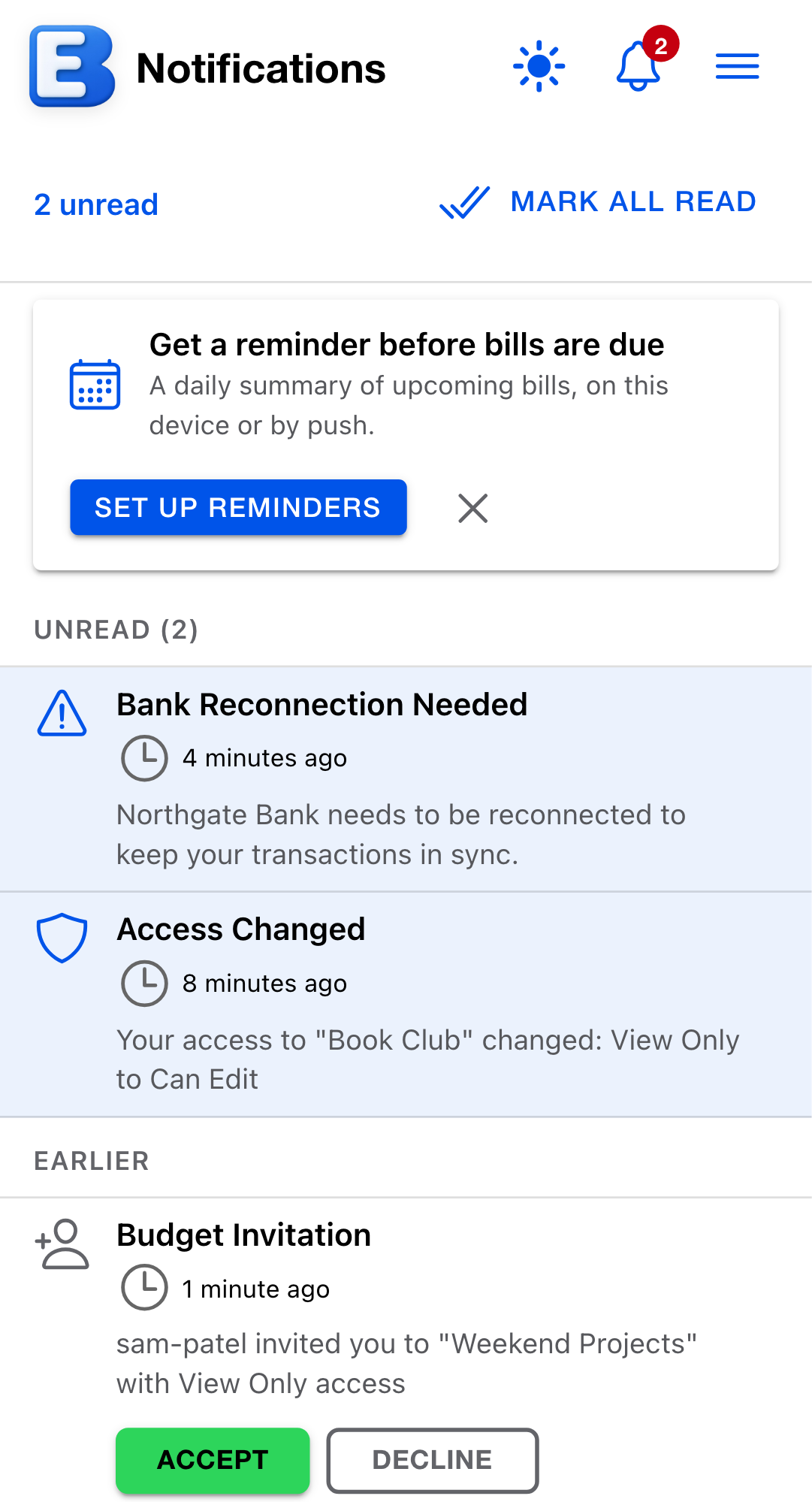
Notifications are how the app tells you something happened that you did not do yourself: an invitation arrived, your access to a shared budget changed, a bank connection needs attention, bills are coming due, a grocery price hit a new low. Every one of them lands on the bell icon and the Notifications page, and you choose per type whether it should also alert you, in the app or as a push notification on your device.
The app does not send notification emails.
Where you see new notifications
The bell icon sits at the top of every page once you sign in. When something new arrives, a badge with the unread count appears on it, the bell does a quick ring animation, and the count goes up. The badge shows 99+ if the count passes ninety-nine.
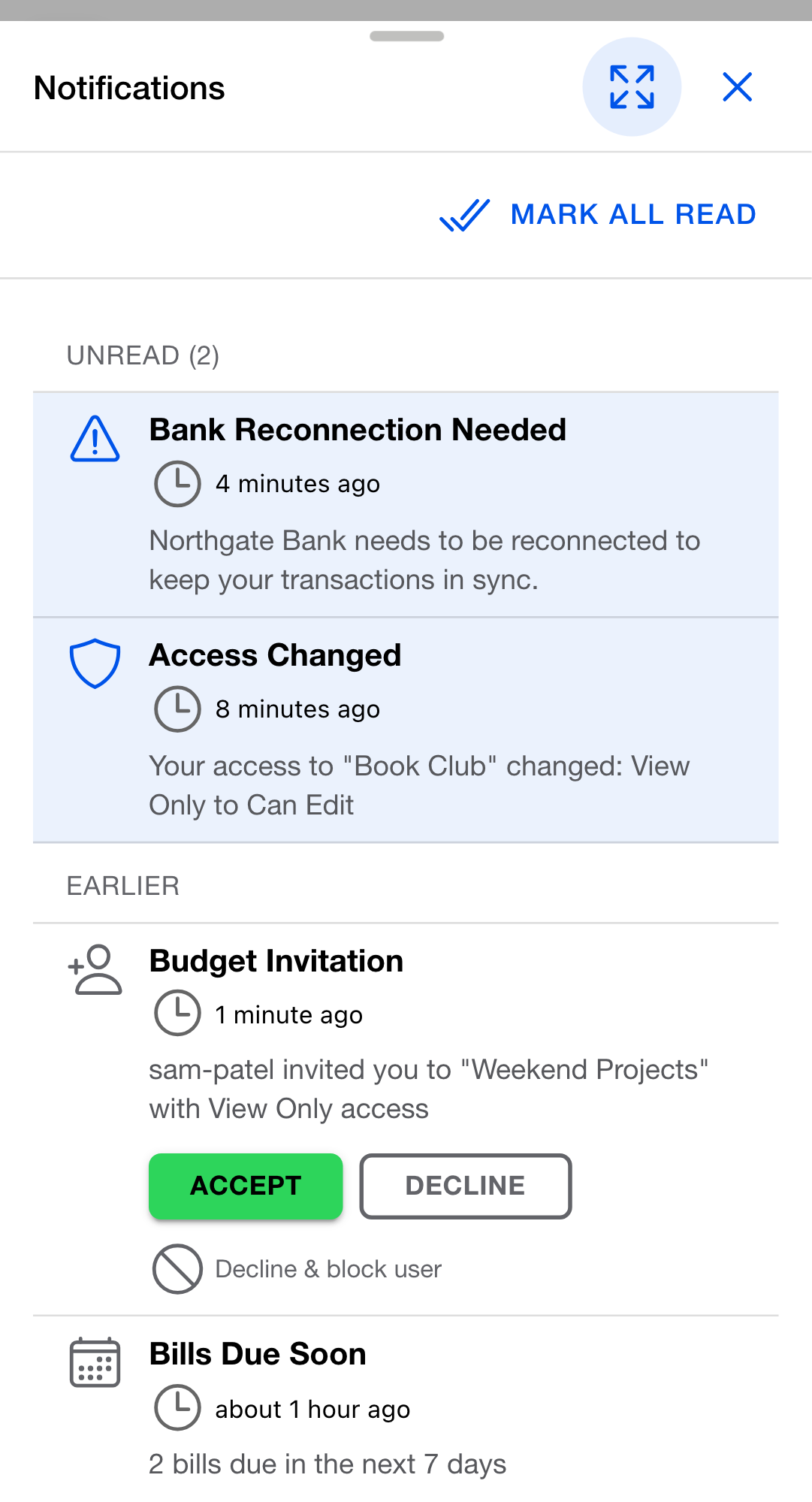
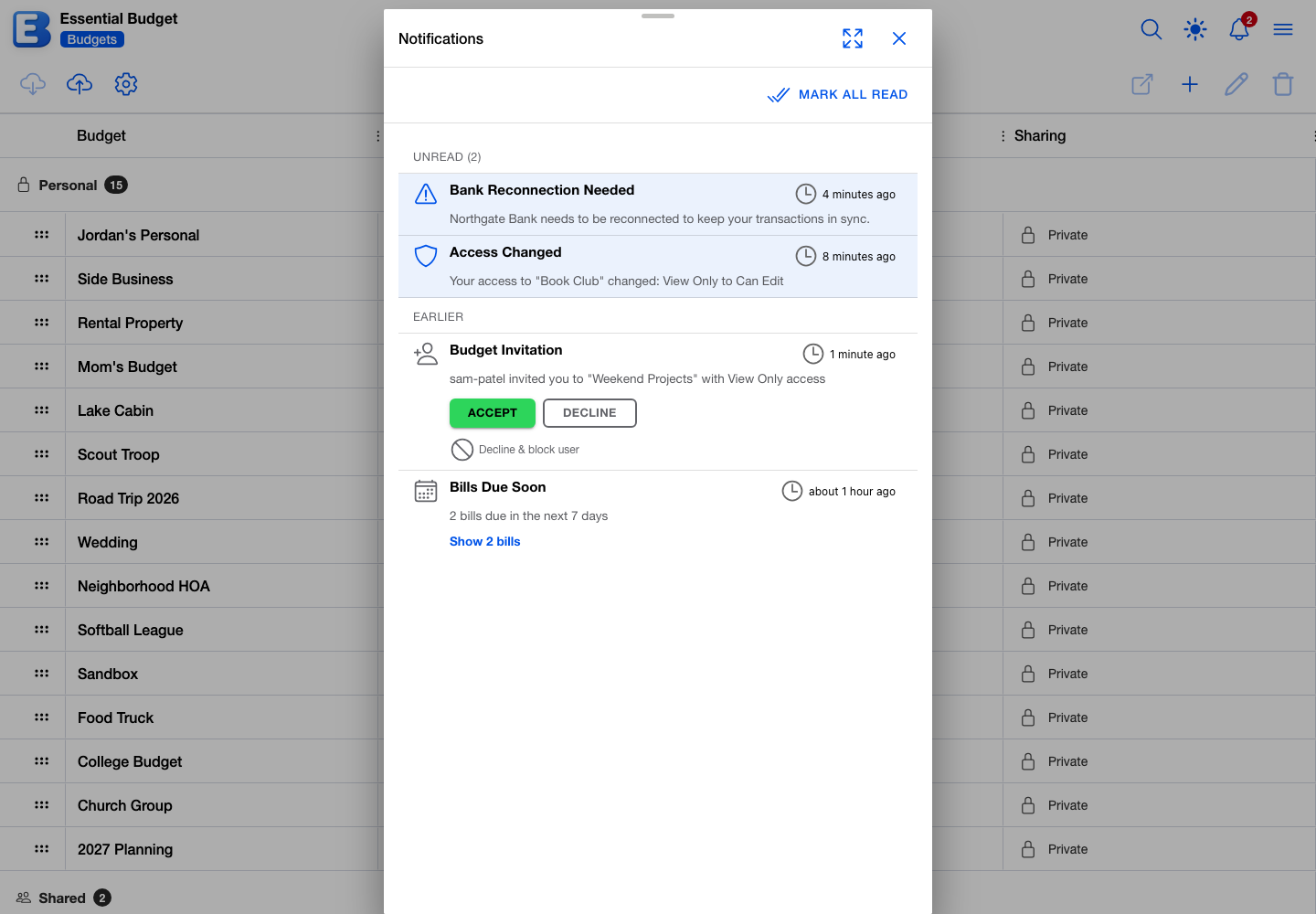
Tapping the bell opens a Notifications dialog. The list splits into two sections, Unread (N) on top and Earlier for everything already read, and each row shows an icon for its type, a title, a one-line description, and how long ago it arrived. When anything is unread, a Mark all read button sits above the list. The dialog’s toolbar has an Open in full page button.
The Home dashboard also has a Notifications card listing your latest notifications by title; its empty state reads “All caught up!”, and tapping a row or the card header opens the full page.
The Notifications page
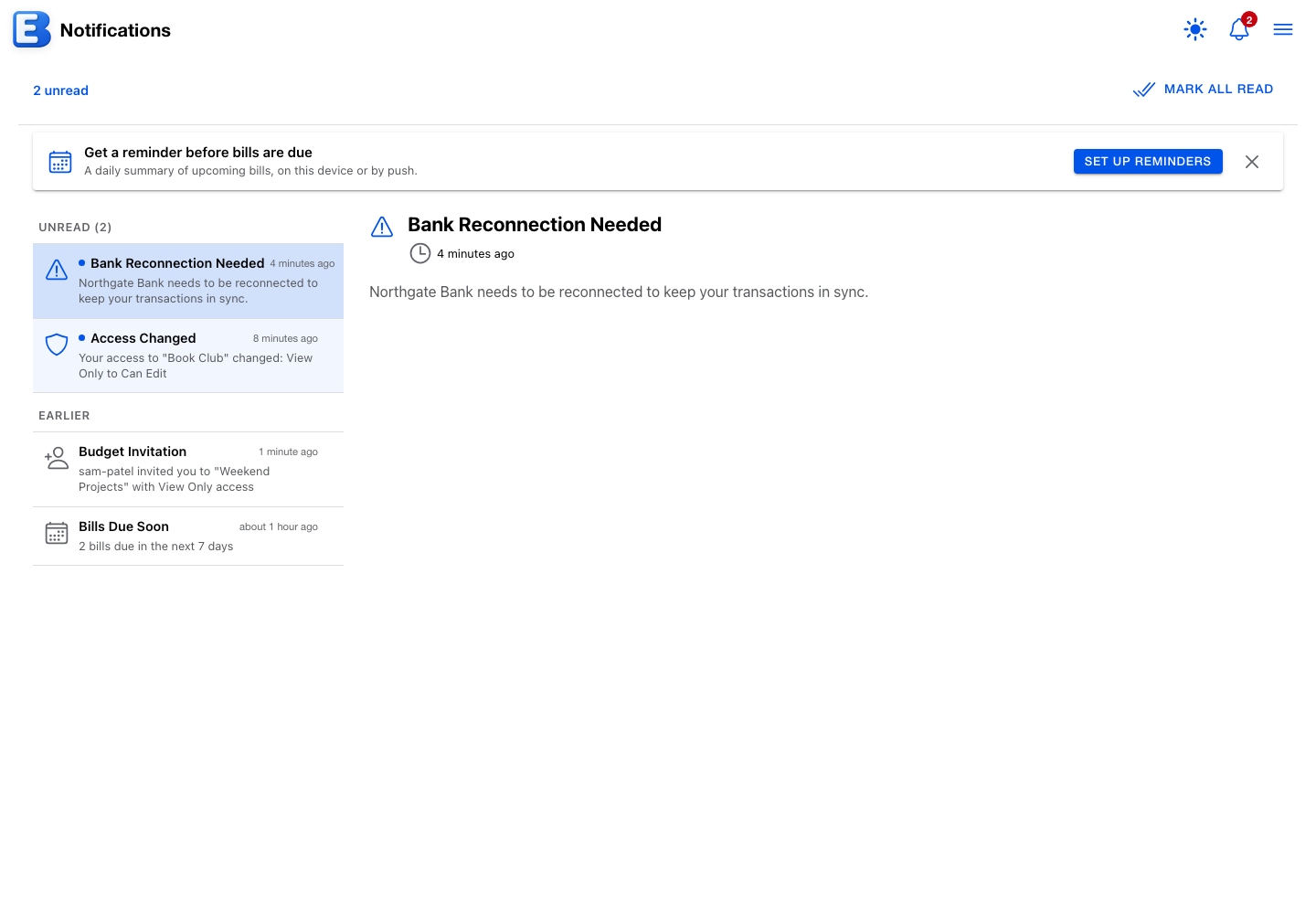
The dialog is for a quick scan; the Notifications page gives the same list more room. Open it from the dialog’s Open in full page button, from the Main Menu’s Notifications row, or from the Home dashboard’s card. While anything is unread, the page shows N unread and its own Mark all read button.
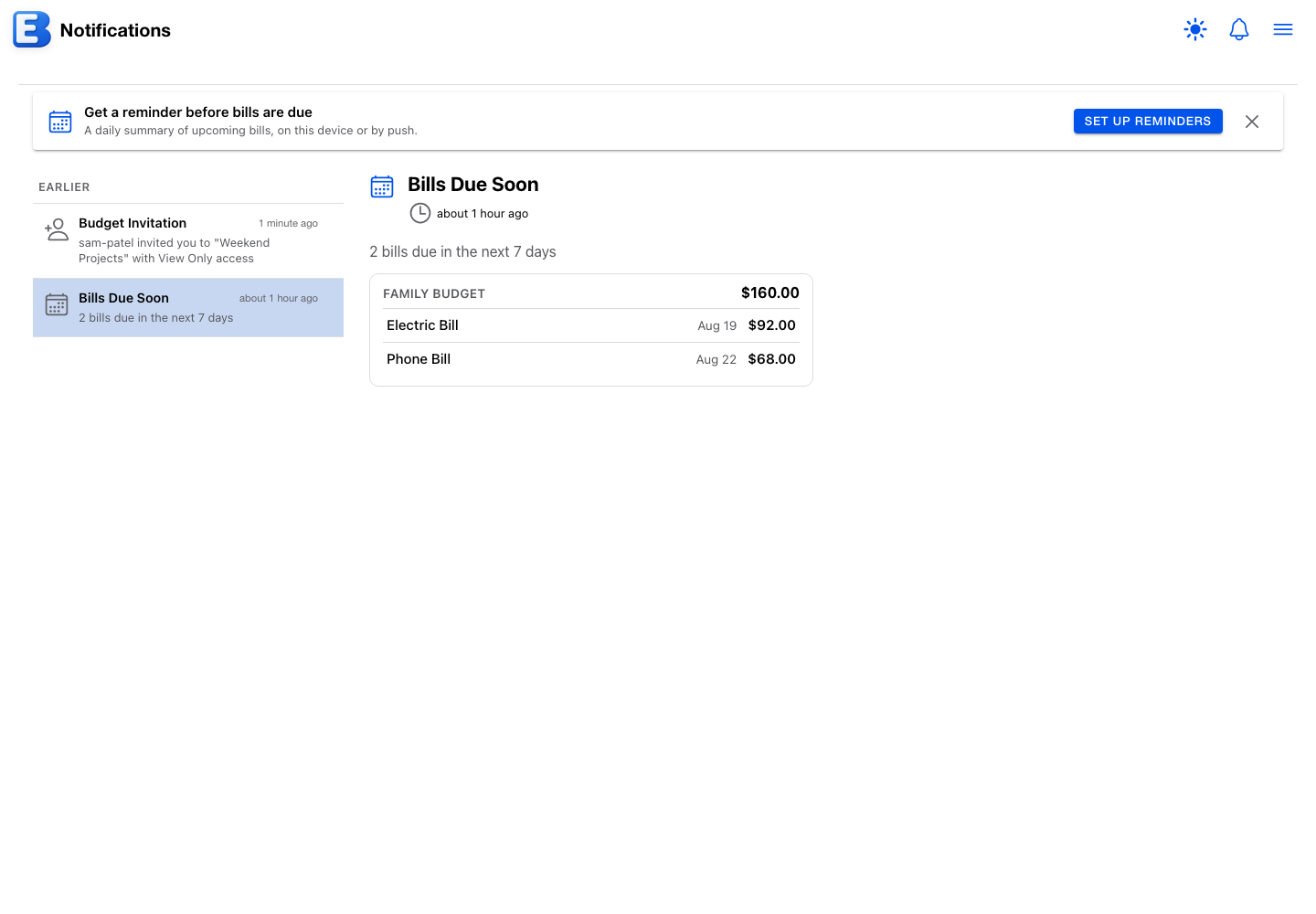
The page keeps your 100 most recent notifications; older ones drop off automatically. On a wide screen it becomes two panes, the list on the left and the selected notification’s detail on the right, and selecting a row there marks it read.
What you get notified about
- Someone invited you to share their budget. The row names the inviter, the budget, and the offered access level: Owner, Can Edit, or View Only. See Budget invites.
- Your access to a shared budget changed. An owner raised or lowered your access; the row shows the change, for example
Your access to "Family Budget" changed: Can Edit to View Only. - Your access to a shared budget was removed. An Access Removed row names who removed you. When Premium ending is what removed the budget’s sharing, the row is attributed to
System (subscription expired). - Your owner access ended with Premium. If your own Premium ends on a budget that still has another Premium owner, an Owner Access Ended row tells you that you now have Can Edit access. See Subscription.
- A collaborator left a budget you own. A User Left Budget row names who left.
- A bank connection needs attention. Bank Reconnection Needed asks you to sign in to the bank again; Bank Access Revoked and Bank Connection Ended cover the connections signing in cannot repair; Bank Connection Expiring warns before a bank’s consent window closes; Bank Connection Restored confirms a connection healed on its own; and Bank Connections Ending warns that paused connections will be removed after a lapsed subscription. A successful reconnect marks that bank’s earlier rows read and dealt with; they stay in the list as a record. See Bank Linking.
- Bills are coming due. A Bills Due Soon row summarizes them, at most once a day. See Bill reminders.
- A grocery price hit a new low. A Lowest Price Yet row names the product and the price, based on your scanned receipts. Together with the Year in Receipts recap, these are capped at two notifications per calendar month.
- Your Year in Receipts is ready. A yearly recap announcement. See Receipts.
- Your account is scheduled for removal. An Account Removal Notice warns that an account with no sign-ins for 12 months will be removed in 30 days. Signing in again is all it takes to keep the account; doing so cancels the removal.
- A new version of the app is out. An App Update Available row with an Update Now button. See App updates.
Reading and clearing
Unread rows are bolder; read rows dim and move under Earlier. There is no per-row delete: the way to clear the badge is to mark rows read.
- Tap a row to mark it read. Rows that carry buttons (a pending invitation, the App Update row) do not react to taps; they wait for you to use their buttons.
- Tap Mark all read to clear the unread count in one step. A pending App Update row is the exception: it stays unread until you update.
Tapping a row does not open the budget it is about; the list is for catching up, and you navigate from the Budgets page. The exception is the Bills Due Soon row: the bills inside it are links, and each opens its budget’s planner.
Why this default? Tapping does not jump to the budget. Several notifications can point at the same budget, and some (an access removal, a declined invitation) have no budget you could usefully open. Keeping tap as “mark read” makes the list predictable: you can sweep through it without being thrown into a budget you did not mean to open.
Budget invites
Invitations ask you for a decision, so their rows carry buttons:
- Accept adds the budget to your Budgets page at the offered access level.
- Decline turns the invitation down.
- Decline & block user also adds the inviter to your blocked list, so they cannot invite you again.
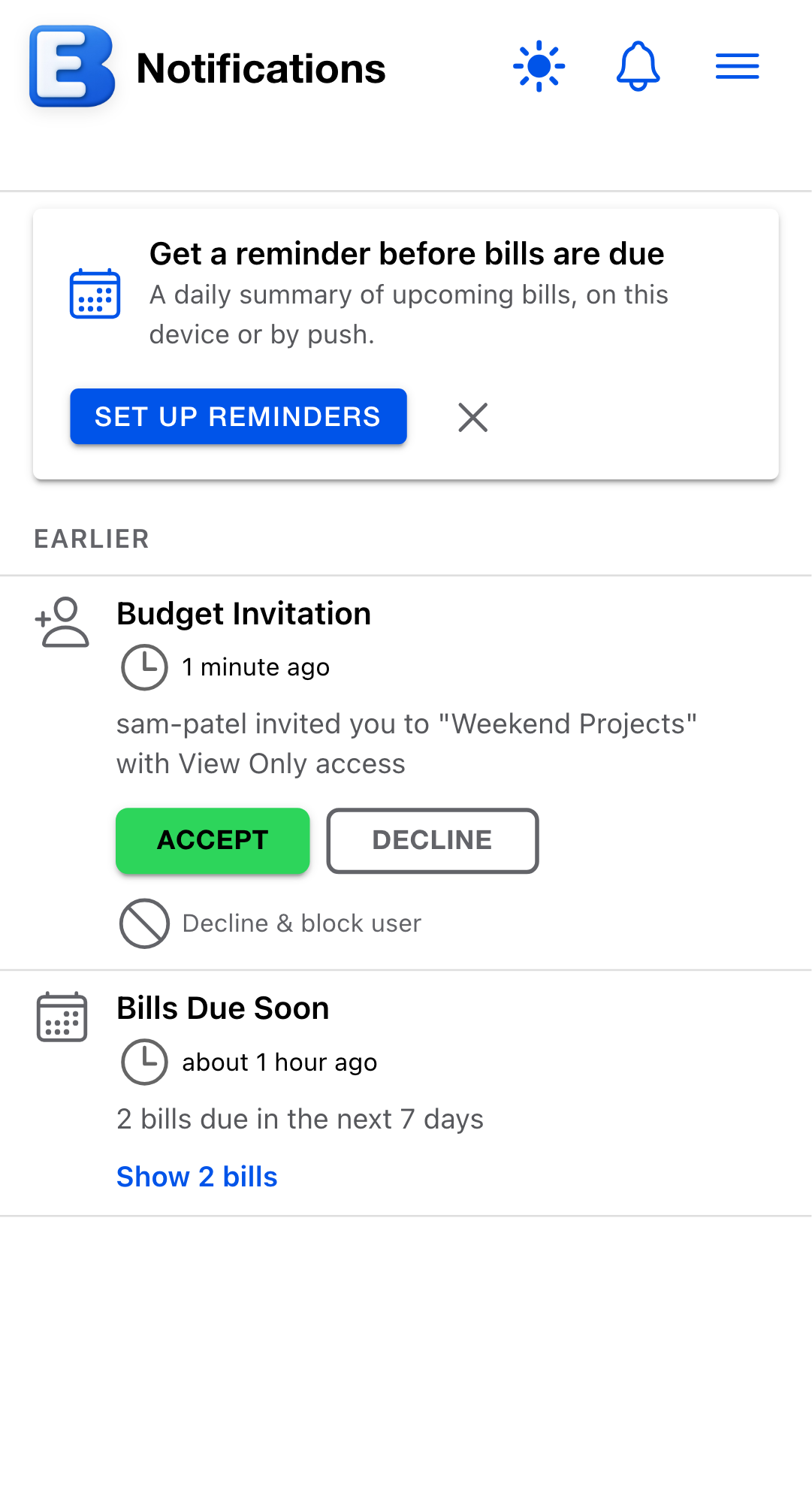
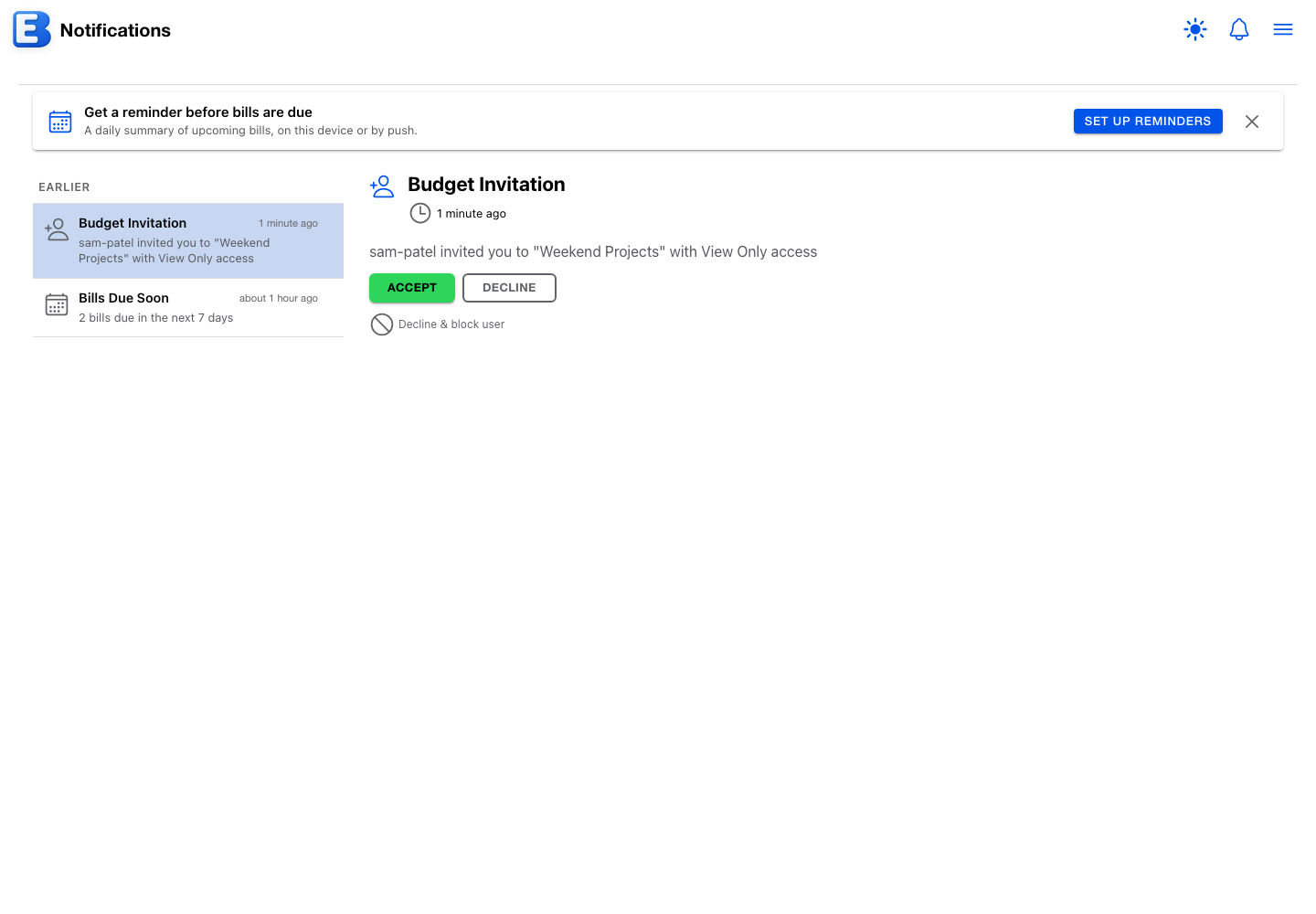
After you respond, the row stays with a status in place of the buttons: Accepted, Declined, or Declined & blocked user.
Why this default? Declining and blocking look the same to the inviter. Both paths make the invitation disappear from the inviter’s sharing list the same way, so they cannot tell a plain decline from a block. That protects you from awkward follow-ups and from someone probing whether they were blocked.
When two or more invitations are pending, Accept All (N) and Decline All buttons appear above the list. Decline All asks you to confirm (Decline all N pending invites?) and never blocks anyone. If you block someone and later unblock them, any invitation of theirs that is still pending reappears as a fresh notification.
Push notifications and alerts
Every notification always reaches the bell and the page. What you configure is whether a new one also alerts you, through two channels: an in-app message (a short toast with a View button, shown while you have the app open) and a push notification (a system notification on your device, even with the app closed).
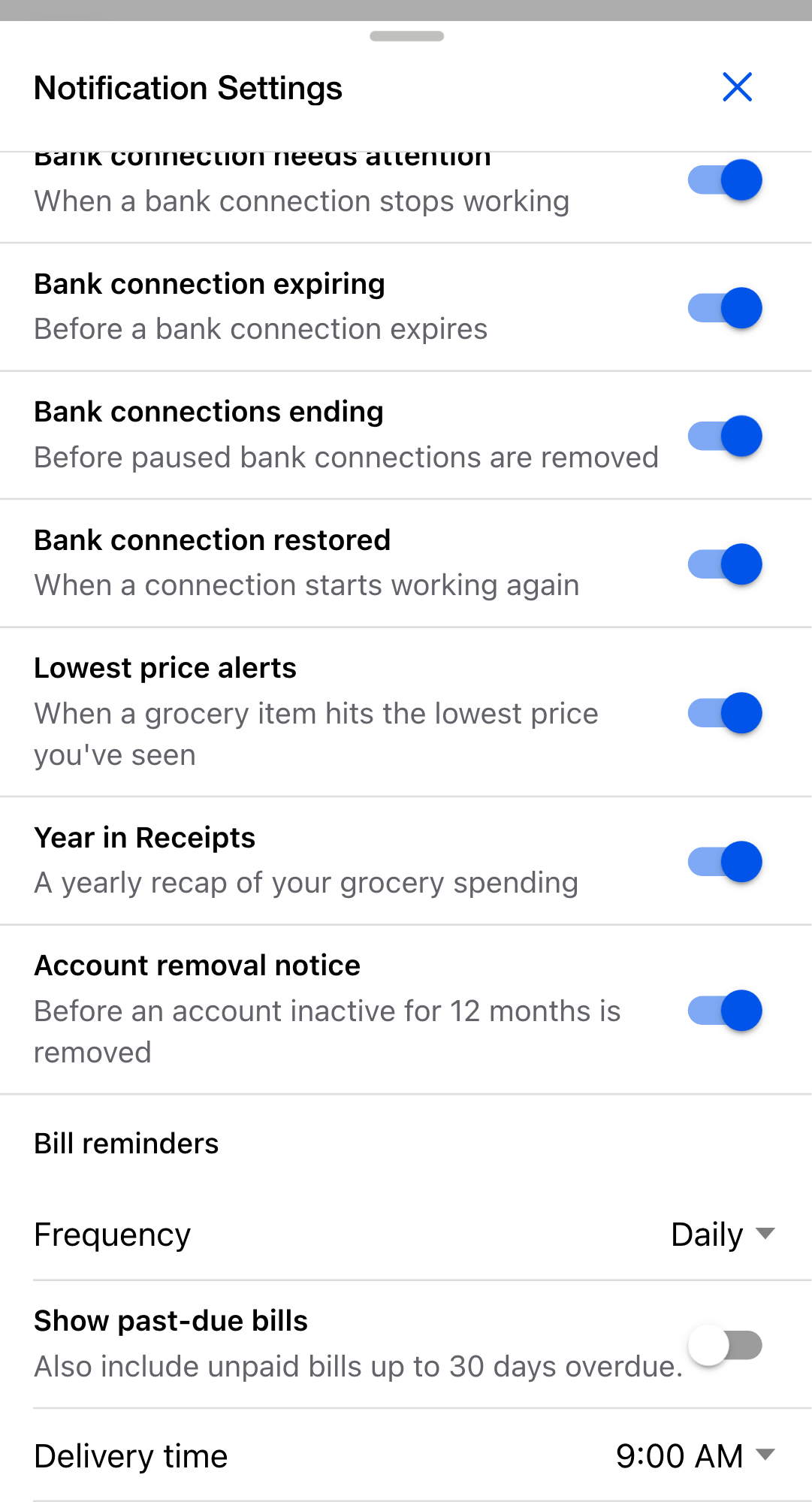
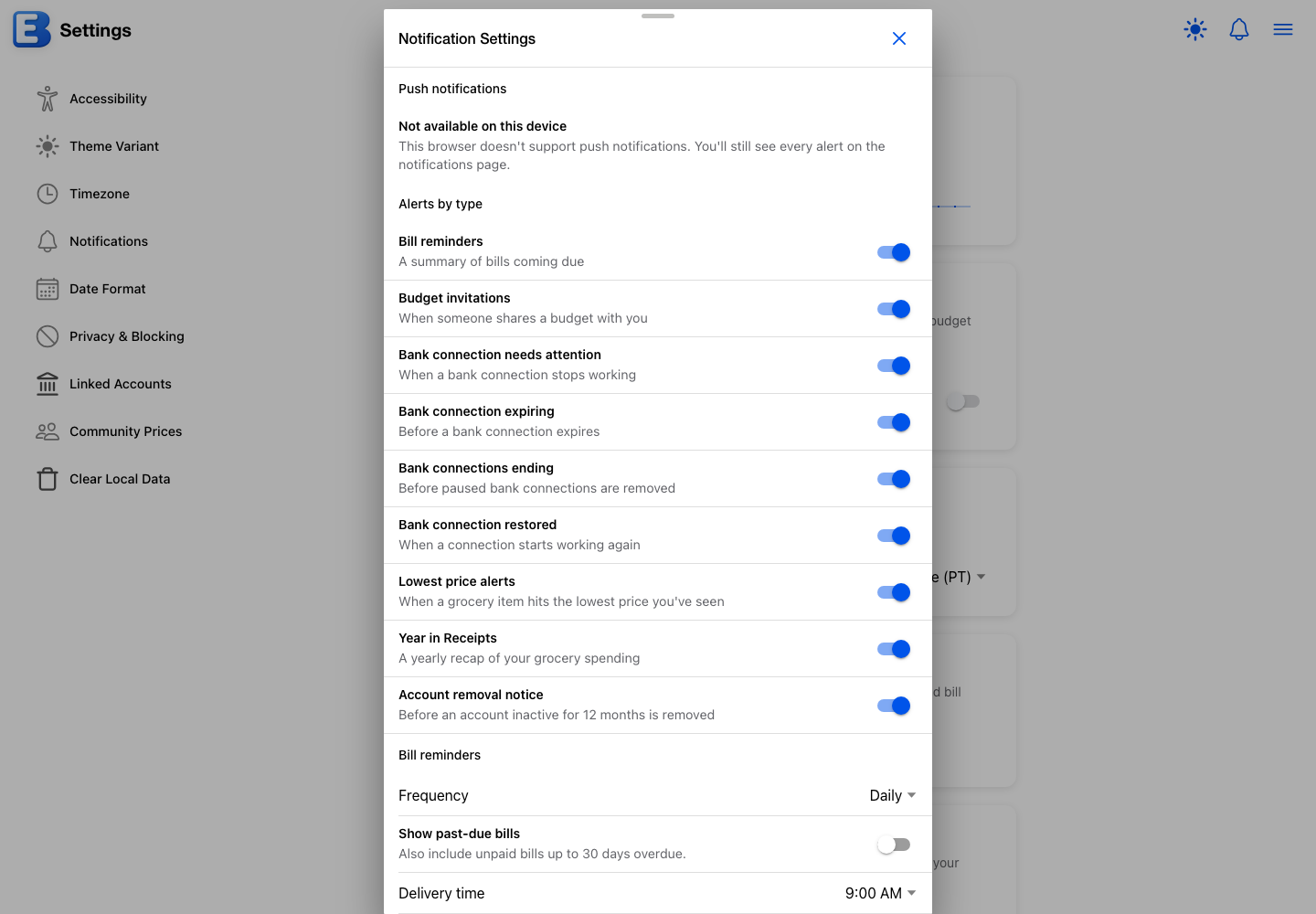
To set them up, open Settings, find the Notifications card, and tap Notification Settings. The dialog has three sections:
- Push notifications. The Enable on this device toggle asks your device for permission and turns push on. Both the permission and the toggle are per device, so each phone or computer asks once and keeps its own setting. Turning the toggle off on your phone stops push on that phone only; your other devices keep receiving it. Turning it back on there does not ask for permission again.
- Alerts by type. Each type has a toggle for the in-app message and, for every type except Bank connection restored, an
Also send a push notificationtoggle. The rows run from Bill reminders and Budget invitations through the bank-connection types to Lowest price alerts, Year in Receipts, and Account removal notice. - Bill reminders. The timing controls described in Bill reminders.
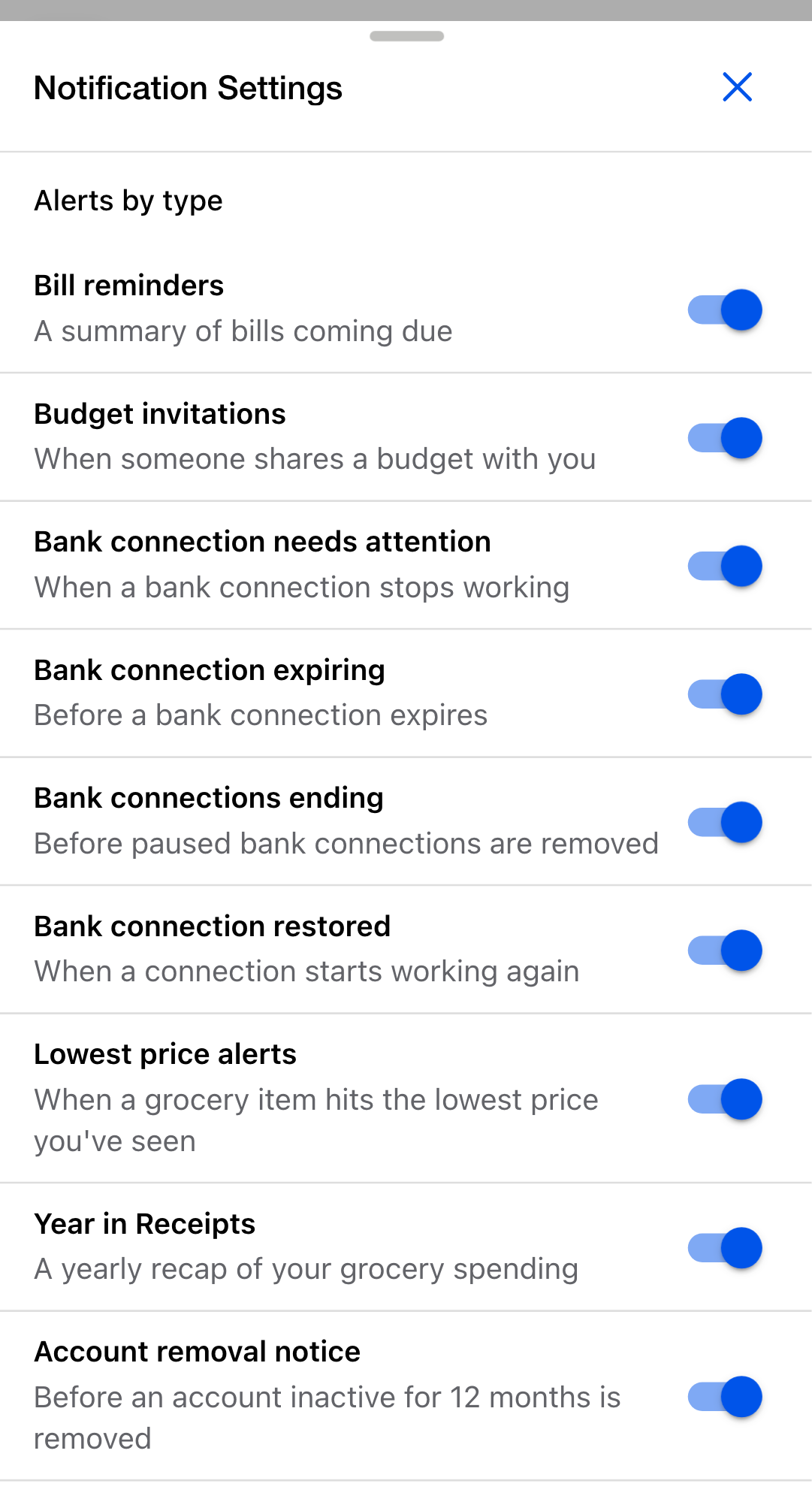
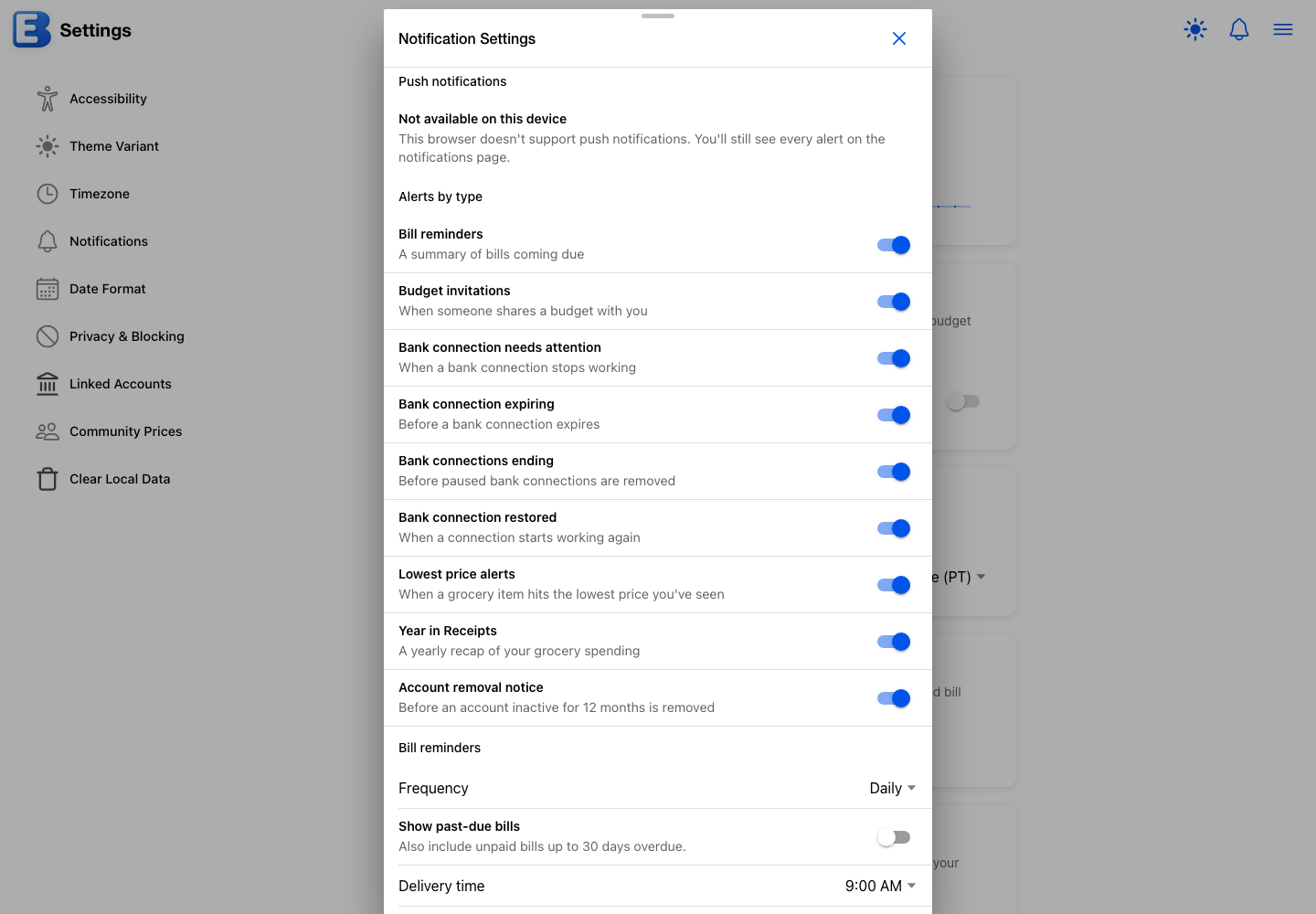
While the app is visible on a device, that device shows the in-app message and skips the system notification; a device where the app is closed still gets the push. Tapping a push notification opens the app on the Notifications page. As a safety cap, your account receives at most three push notifications in any 24-hour stretch; the page always has the complete list.
Why this default? Push is opt-in. The app never asks for notification permission on load. The prompt appears only when you flip Enable on this device yourself, so it always arrives in context, from something you just did.
On iPhone and iPad, push requires the app on your Home Screen first: in Safari, tap Share, then “Add to Home Screen”. Until then, the dialog shows that guidance in place of the toggle. If you previously blocked notifications for the site, a warning explains the fix (allow Notifications from the padlock in the address bar); when you return, the warning clears and the toggle flips on by itself. The warning’s Learn more link opens the troubleshooting guide.
Bill reminders
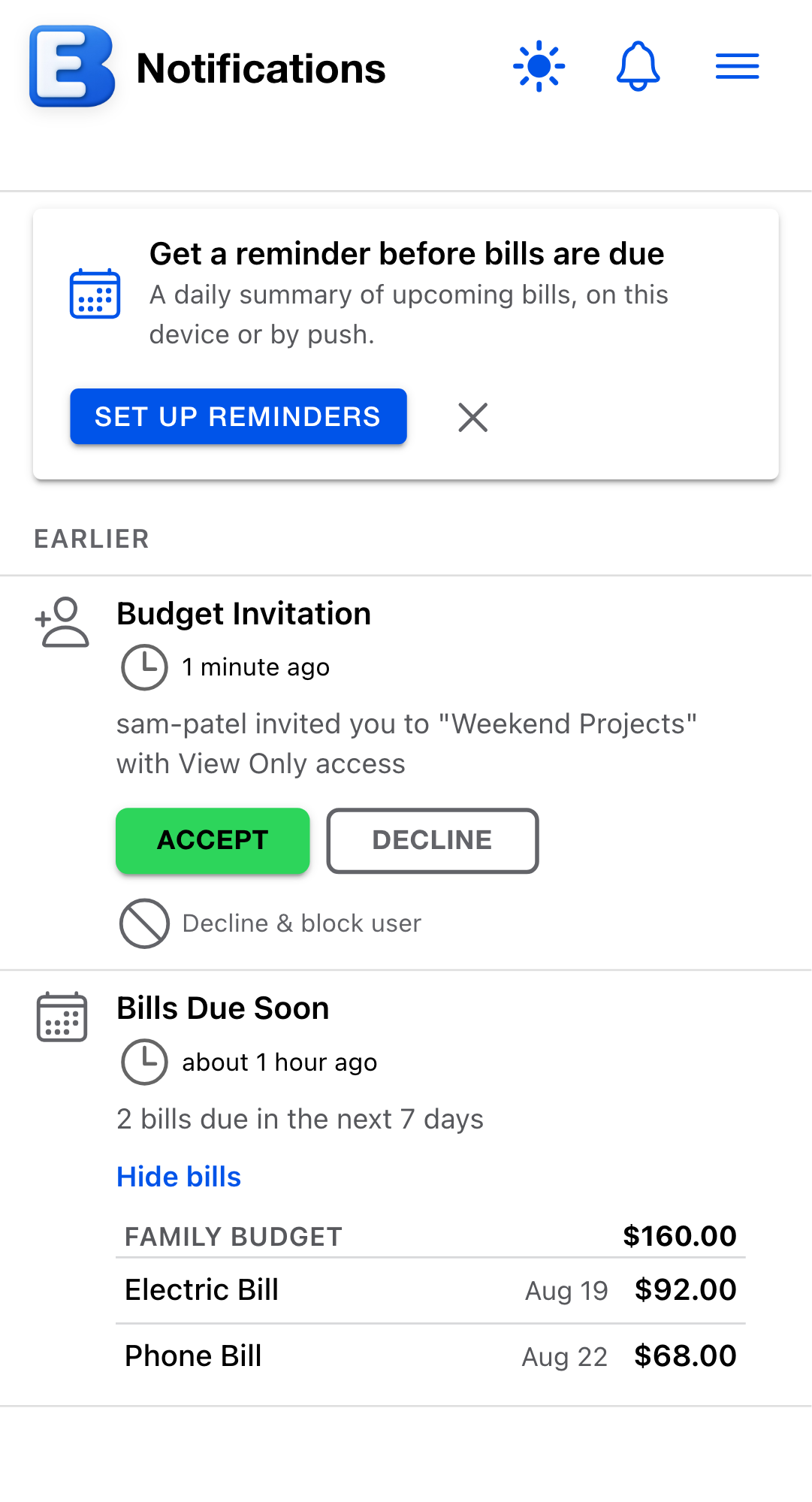
The app can post a single Bills Due Soon notification summarizing the bills coming due across all of your budgets, shared ones included. It is one summary row, never one notification per bill. The description reads like 2 bills due in the next 7 days; when the bills span budgets it adds across 2 budgets, and overdue bills are counted separately (1 overdue, 2 due in the next 7 days). Tap Show N bills inside the row to expand the list: bills group by budget, each group headed by the budget’s name and its own subtotal, and each bill line shows the flow’s name, due date, and amount. Tapping a bill opens that budget’s planner.
The Bill reminders section of Notification Settings controls the cadence:
- Frequency: Daily looks at today and tomorrow; Weekly looks at the next 7 days and adds a Day of week picker for when the summary arrives.
- Show past-due bills: also include unpaid bills up to 30 days overdue.
- Delivery time: the local hour the summary arrives; the default is 9:00 AM.
The summary counts scheduled expense events from your planner that fall inside the window; events you have already resolved are not bills anymore and are not counted. On a day when nothing is due, no reminder is posted, and if you turn both of the type’s alert toggles off, the summary is not generated at all.
A one-time card on the Notifications page (“Get a reminder before bills are due”) is a shortcut to these settings. Dismissing it hides it on that device, and it also goes away once push is on.
App updates
When a new version of the app deploys, an App Update Available row appears with the version numbers and an Update Now button. Tapping Update Now reloads the app on the new version; the reload fetches the new code from the network rather than the browser’s cache, so you actually get the new build.
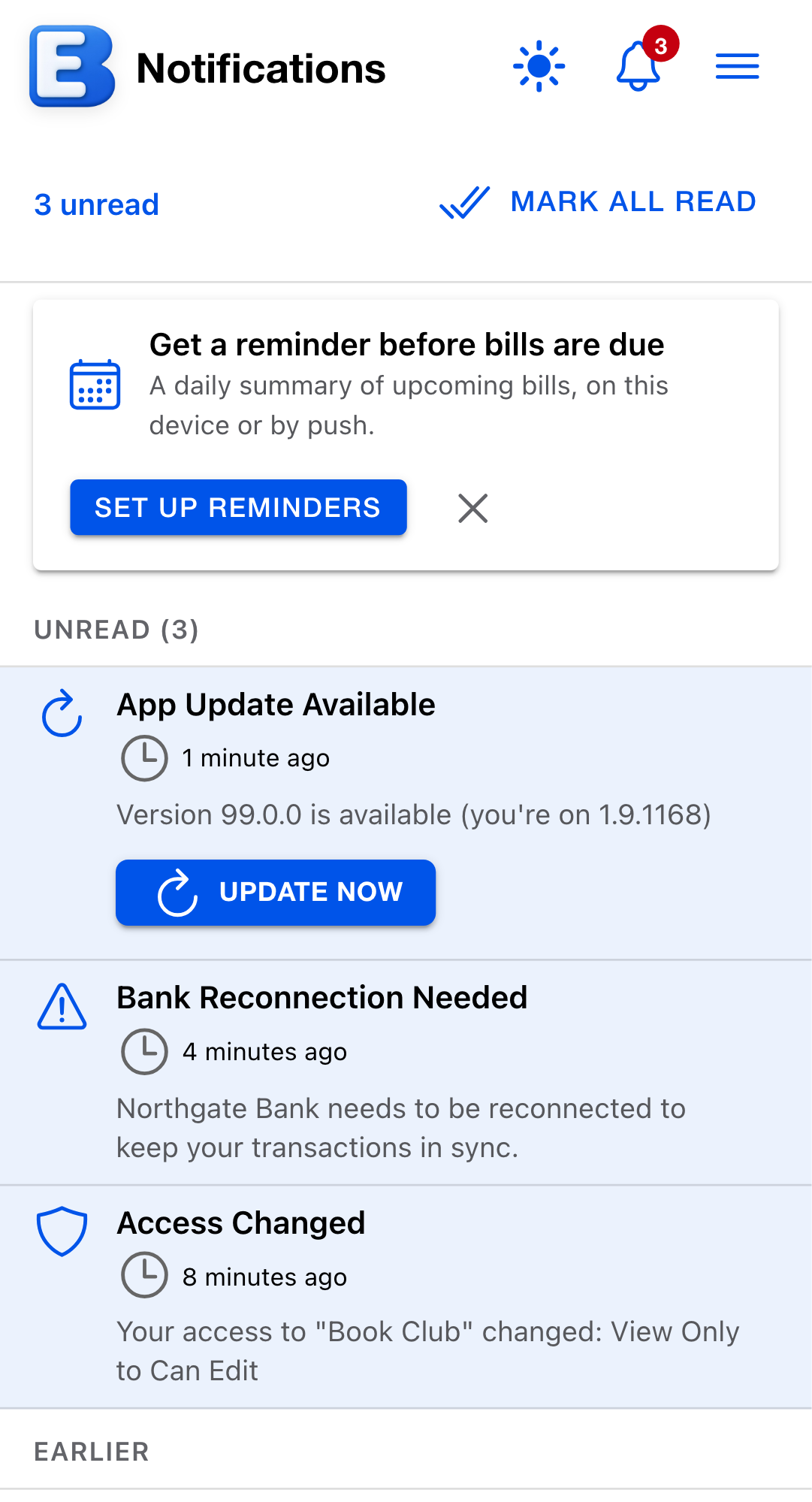
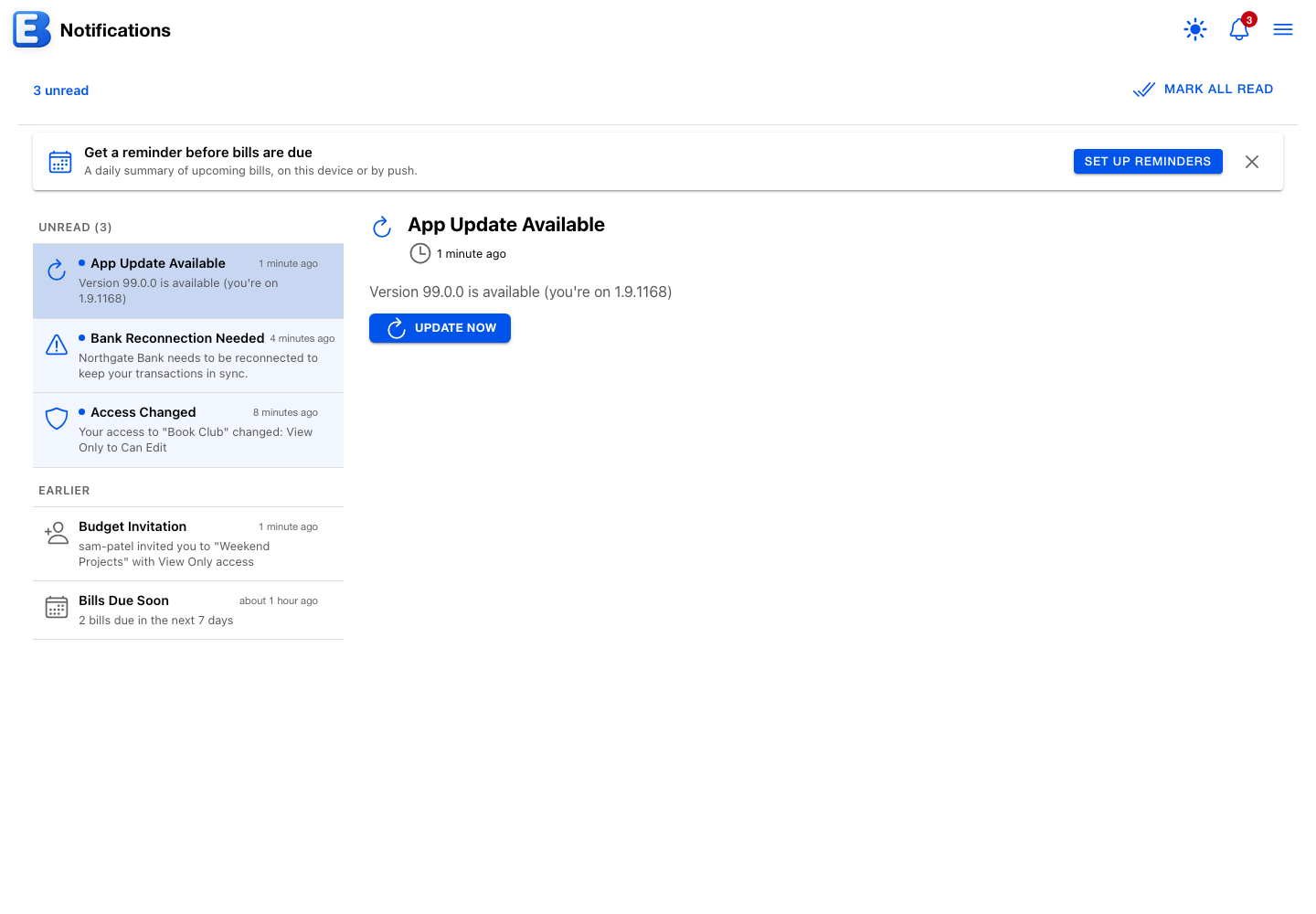
The row cannot be dismissed, and Mark all read leaves it unread: it stays until you update. You can keep using the app on the old version in the meantime; the newest fixes land when you update.
Privacy
Notifications are personal to your account. Nobody else, including people you share budgets with, can see your list.
Blocking someone stops their invitations, and permission changes they make no longer notify you. If a person you blocked leaves a budget you own, you still get the User Left Budget row, since that row is about your budget’s membership rather than about them contacting you.
Reporting a public budget is a different flow with its own dialog; see Public Budgets. The Notifications page has no report button.
Behind the scenes
- No email. Notifications appear in the app, on the bell, and as push notifications where you enabled them. Nothing is emailed.
- Real-time arrival. With the app open, a new notification appears within seconds, and the bell rings as it lands. After a dropped connection, the app refetches the list on its own.
- The 100-row cap. Each account keeps its 100 most recent notifications; the oldest Earlier rows roll off without warning.
- Read is permanent. There is no mark-unread. A read row stays in Earlier until it ages out.
- Subscription changes leave the list intact. Cancelling Premium or resubscribing neither clears nor re-marks anything; the same 100-row cap keeps applying.
See also: Sharing for what happens after you accept or decline an invite, Subscription for what arrives when Premium ends, and Bank Linking for acting on each bank-connection notification.
Questions or feedback about this page?Email us.