
Learn - Subscription
What's free, what's Premium, and what happens when you cancel.
Subscription
The free tier covers everything most people need to run a budget: accounts, categories, flows, the planner, reports, History, and undo. Premium adds the features where the app does work for you behind the scenes (bank linking, AI, sharing, publishing) and raises a few limits. This page covers what each tier includes, how billing works, the two kinds of credits, and what changes when Premium ends.
What is included free
Everyone gets these without paying:
- Up to 3 budget creation slots per calendar month. The count is net for the month: deleting a budget, even one created long ago, frees a slot for the month you delete it in. Budgets you already created stay forever.
- Up to 250 accounts, 250 categories, and 250 flows per budget.
- The full Planner, in both Grid and Calendar views, and the full Reports tab.
- History with Undo, keeping the current calendar year plus the previous five full years, the same for free and Premium.
- Manual transactions, entered inside the Edit Flow Event dialog on the planner.
- File upload of transactions inside the Match Transactions dialog: up to 3 CSV, TSV, or TXT files at a time, 200 KB each.
- Built-in themes and any community themes or icon sets you install, plus a library of up to 10 themes of your own (built by hand or restored from a backup).
- Receipt scanning: 10 free scans included with your account. The scans are granted once, at sign-up, and never expire; there is no monthly refresh. A failed read never uses a scan (the free plan also includes 20 read attempts, and an unreadable photo costs an attempt, not a scan). See Receipts.
- Grocery insights, price tracking, and your shareable Year in Receipts, free on every plan; more scans make them richer.
If this is all you need, the app stays free.
What is included with Premium
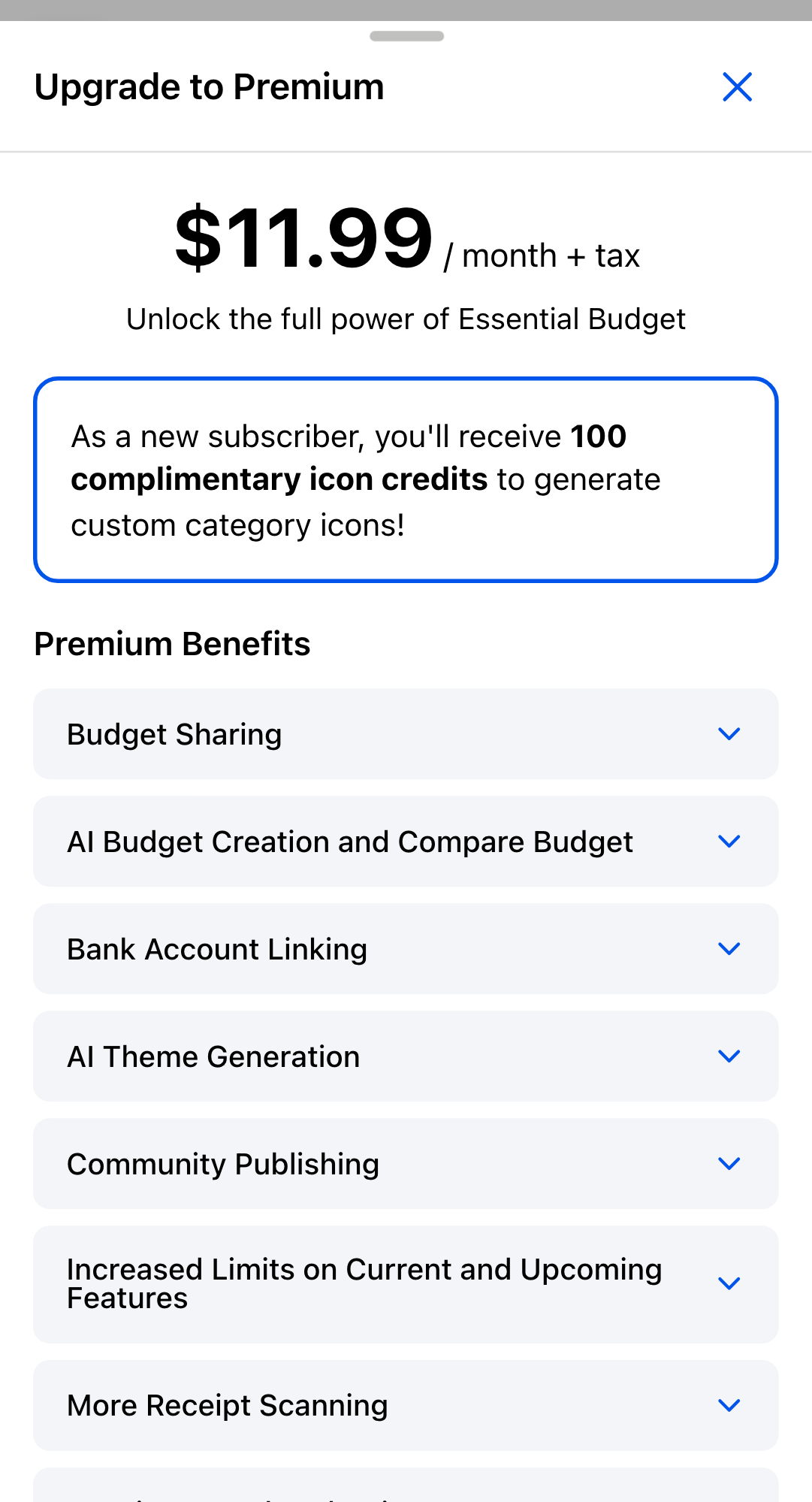
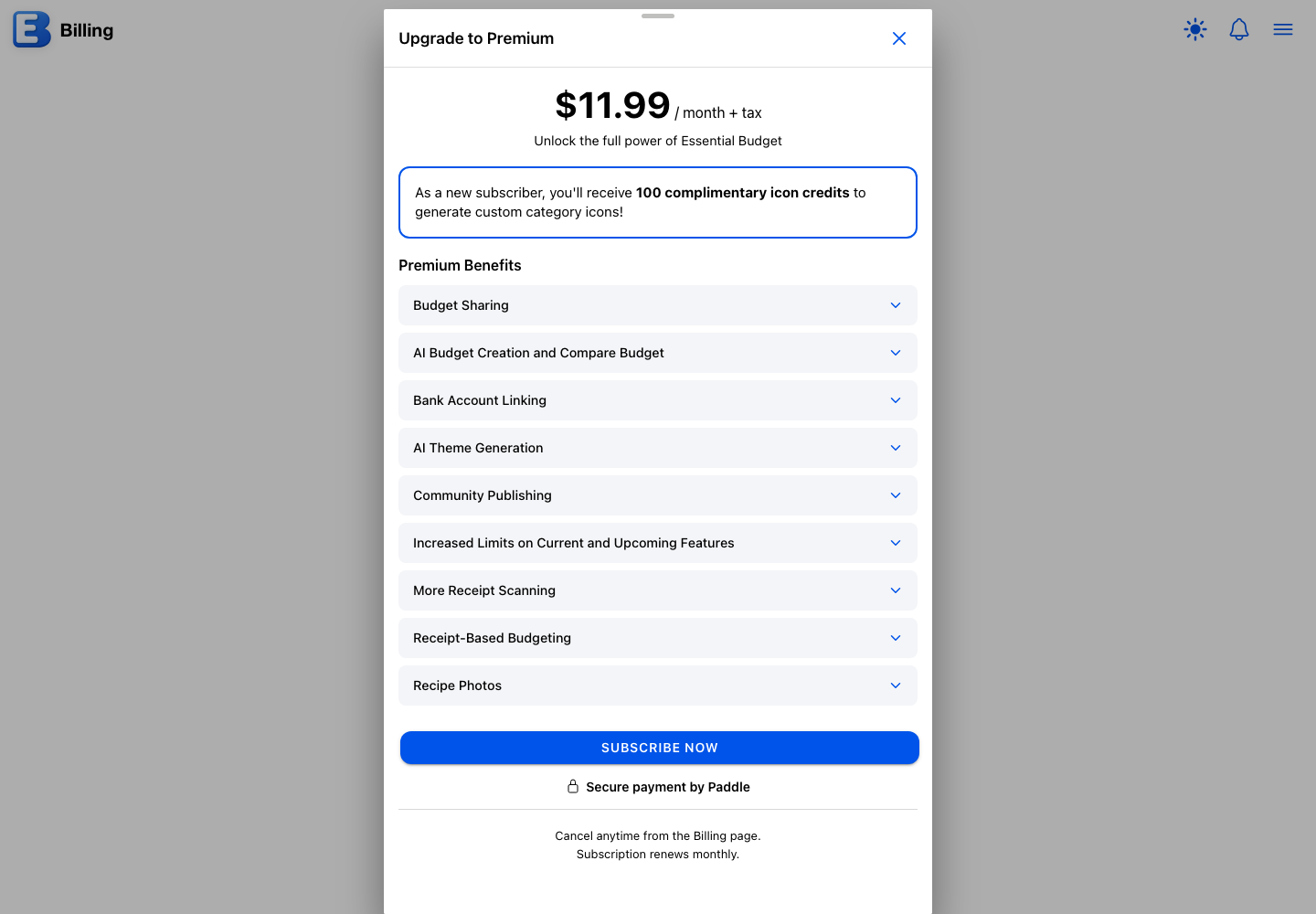
Premium is $11.99 a month plus tax. These are its features, as the Upgrade to Premium dialog lists them:
- Budget Sharing. Share budgets with up to 5 people for collaborative budget management. The five entries include you and any pending invitations. See Sharing a Budget.
- AI Budget Creation and Compare Budget. The app’s own AI builds a complete budget from your files or bank data, and Compare Budget reads your recent transactions against your plan and proposes changes. Matching transactions to events is not part of this: it is free on every plan and uses no AI. See Getting Started and Matching and Resolving.
- Bank Account Linking. Connect your bank accounts and pull recent transactions with Match Transactions. See Bank Linking.
- AI Theme Generation. Generate custom themes with AI. See Themes.
- Community Publishing. Publish themes, icon sets, and public budgets to the community; linked bank data cannot be published. Each type is limited to 50 publishes a month. See Publishing a Budget.
- Increased Limits on Current and Upcoming Features. Today that means the 10-budgets-per-month creation cap and a theme library of up to 50 themes instead of 10, and it covers limit raises on features as they ship.
- More Receipt Scanning. Keep scanning past the 10 free scans included with your account: no fixed count, your scans draw from the monthly AI credits described below. With a linked bank, every receipt also matches to the right transaction automatically. See Receipts.
- Receipt-Based Budgeting. Build a budget from your scanned receipts, then keep it in sync with one tap as new receipts arrive. A sync with new stores or products to place uses up to 15 of the AI credits described below, and the app asks before it spends them; a sync with nothing new costs nothing. You review every change before it is applied, and all receipt reports are free for everyone. See Receipt-Based Budgeting.
- Recipe Photos. Add up to 10 photos to any recipe, pick the one that represents it, and keep them with the recipe when you publish it. Viewing photos is free for everyone you share or publish to. See Recipes.
New subscribers also receive a one-time 100 complimentary Icon Generation Credits. The bonus arrives with your first Premium activation only; it is not granted again on later subscriptions. See Icon Generation Credits.
How billing works
Billing runs through Paddle. Tap Subscribe on the Billing page, then Subscribe Now in the Upgrade to Premium dialog, and complete Paddle’s checkout in the overlay that opens; your account flips to Premium when the payment confirms. The subscription renews monthly until you cancel.
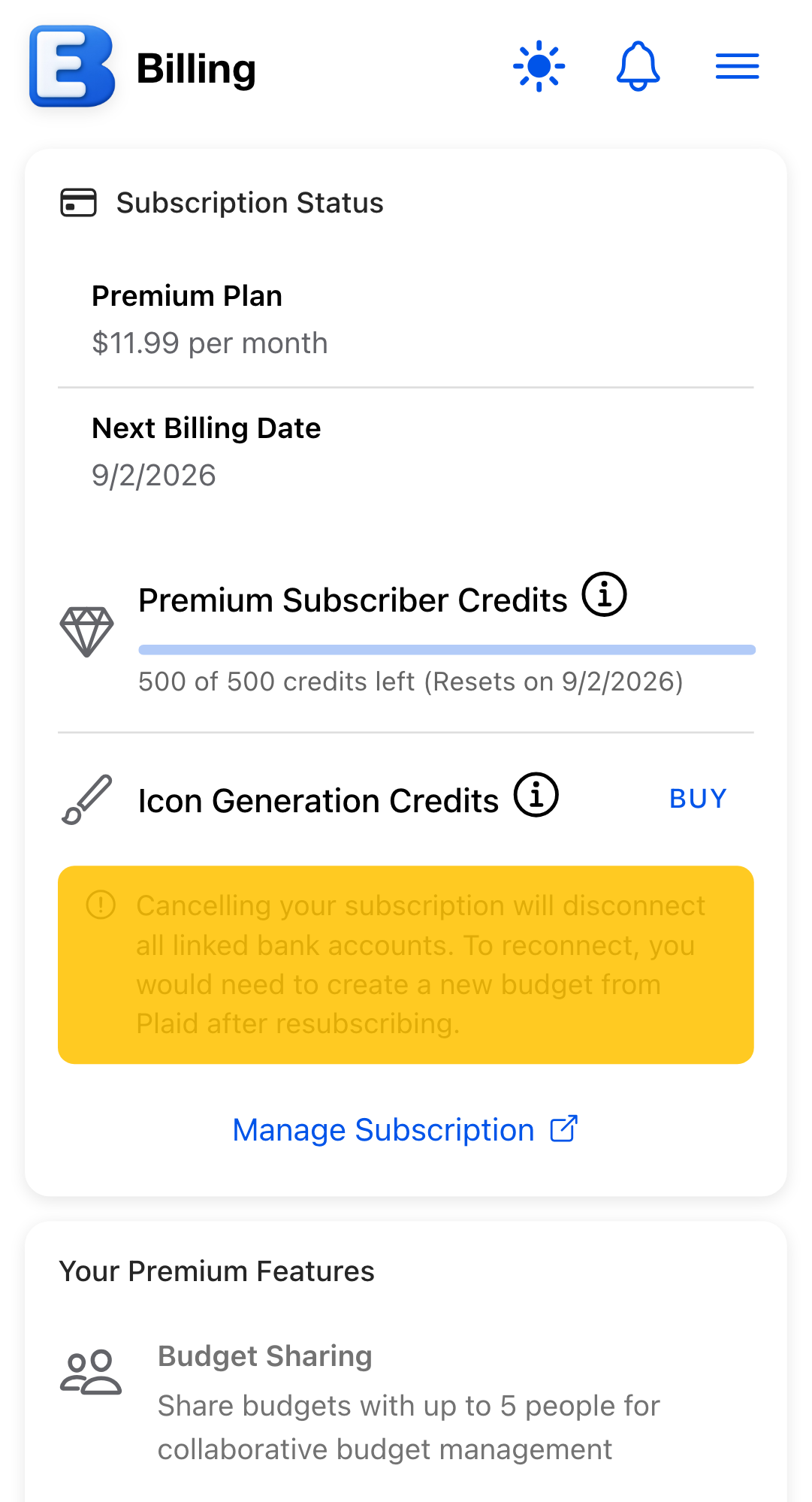
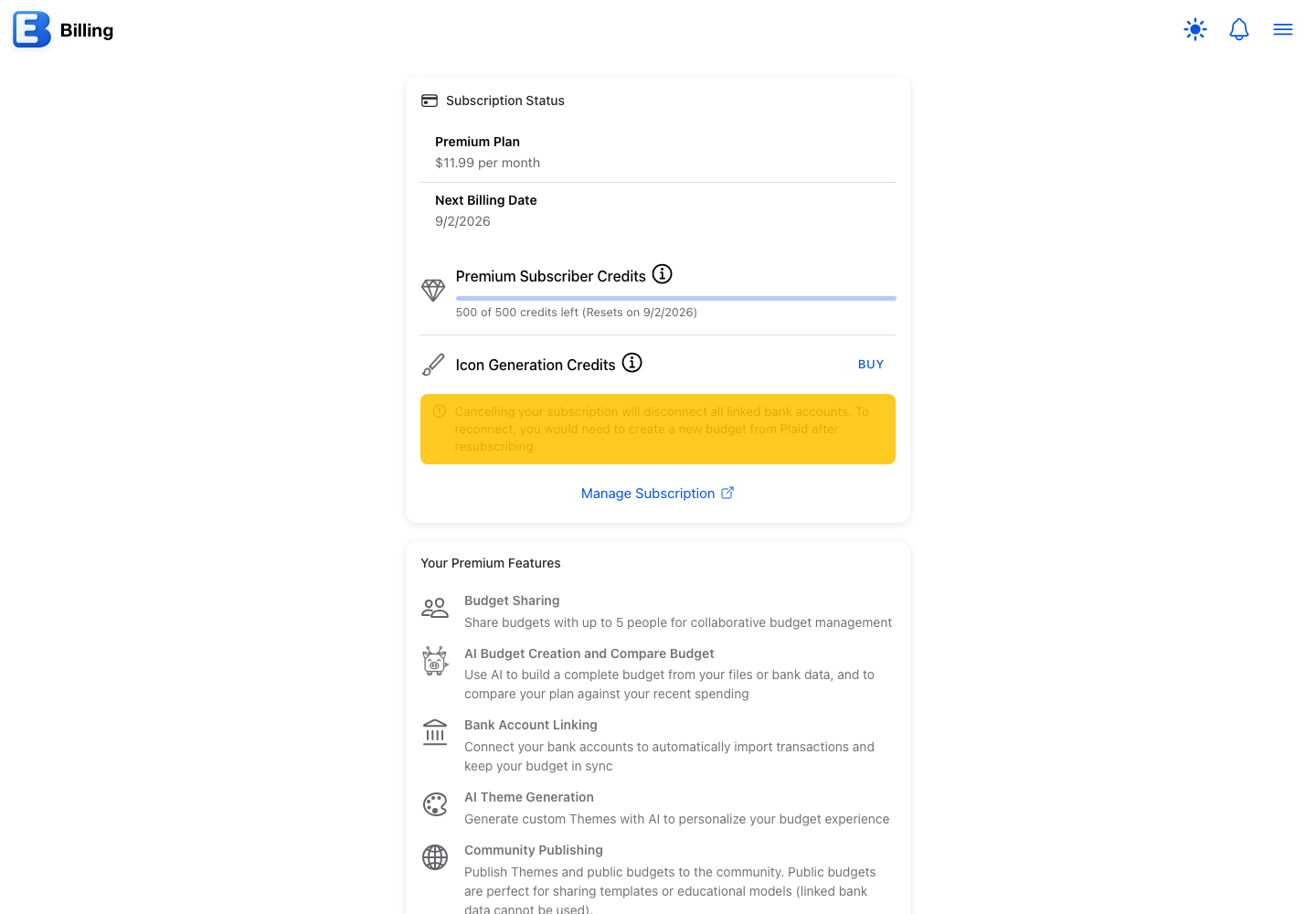
The Billing page (Main Menu, Billing) shows your status: your plan, $11.99 per month, your Next Billing Date, and a Cancellation row once you have asked to cancel. Manage Subscription opens your Paddle portal in a new tab for payment methods, invoices, and cancellation. Your Account walks through it.
When you cancel, Premium keeps working until the end of the paid period, and the changes below happen then. A failed payment is different: Premium features stop while Paddle retries your card, but nothing is torn down, and paying again picks up where you left off. If the payment is never recovered, Paddle closes the subscription and the cancellation changes run at that point.
Why this default? Cancelling does not delete data. The data is yours. The subscription pays for the features that act on the data; pulling the features does not justify pulling your records, your transactions, or your years of History with them.
When Premium ends
Bank linking stops, and what happens to the connections depends on why Premium ended. Cancelling removes them, at the bank’s end too, and resubscribing means linking each bank again. A failed payment pauses them instead: the Linked Accounts card stays in Settings, marked paused, and paying again resumes them with no re-linking. Paused connections do not last forever; if the subscription never recovers, they are removed, and a Bank Connections Ending notification warns you first. Either way, transactions you already imported stay in your budgets.
Why this default? Cancelling is a decision, a failed payment is an accident. When you cancel, the app drops its live access to your bank rather than holding it for an account that chose to stop paying. A failed card is not a choice to leave, so the connections wait, visible and disconnectable, while your card is retried.
Sharing winds down when the subscription actually cancels. For each budget you own:
- If another owner on the budget still has Premium, you drop to Can Edit and the budget keeps running on their subscription. You get an Owner Access Ended notification.
- If no Premium owner remains, everyone you shared with loses access, each with a notification attributed to
System (subscription expired). - Budgets other people shared with you are unaffected by your own cancellation.
You can still see a budget’s sharing list without Premium. You cannot send invites, change permissions, or change a budget’s access level until Premium is back.
Public budgets stay public. People can still read a budget you already published. Making a budget public, or taking a public one private, both wait until Premium is restored.
AI stops. The AI Generated segments in Create Budget and New Theme, and Compare Budget in Match Transactions, show the subscription screen instead. Matching transactions from an uploaded file keeps working, since it never used an AI. The monthly AI credits are no longer granted, and receipt scanning returns to the free allowance of 10 lifetime scans. Scans you made while on Premium count against that allowance, so after heavy Premium scanning it is usually already used up. The Sync button in a budget created from receipts becomes an upgrade prompt again, and your built budget stays exactly as it is.
Purchased AI credits are untouched. Extra credits from the Add 500 AI Credits pack are never revoked and never expire. The AI features need an active subscription, so the balance waits on your account and is spendable again when Premium is back.
The 100-credit signup bonus is revoked. Any unused signup-bonus icon credits are removed when the subscription cancels. Purchased Icon Generation Credit packs are untouched: they keep their balance and their original 90-day expiration.
Limits return to the free tier. Budget creation goes back to 3 a month and the theme library cap to 10. Nothing you already have is removed; you cannot add past the free cap until you are under it again.
Everything free keeps working, and your accounts, categories, flows, transactions, and History stay exactly as they were. Resubscribing restores every Premium feature; only bank connections need setting up again after a cancellation.
You are emailed before bank connections are removed. If a payment fails and the subscription is not recovered, the bank connections on the account are eventually removed, because they carry a cost even while they are switched off. The app emails you before that happens, and also puts the notice in the app. Renewing keeps them connected. If they are removed, your budgets, transactions and History all stay; you would link your bank again to resume automatic updates.
How AI works in this app
These are the AI features, and every one of them draws from the same credit pool described in Premium Subscriber Credits:
- AI budget creation (roughly 12 credits a run, depending on size).
- Compare Budget in the Match Transactions dialog.
- AI theme generation (about 1 credit).
- Receipt scans (about 1 credit each, a little more for a long or hard-to-read receipt). See Receipts.
- Recipe scans (well under 1 credit each). See Recipes.
- AI flow matching for receipt products: the receipt screen’s control for mapping every remaining product to a budget flow in one step.
Two AI features deliberately sit outside the allowance: custom icon generation, which uses the purchasable Icon Generation Credits, and the automatic moderation check when you publish to the community, which the app pays for itself.
Matching transactions to your planner with Match Transactions is not an AI feature and spends nothing: it runs on the app’s own servers against date, amount, and merchant rules, and none of your transactions are sent to an AI model.
When you do use an AI feature, the app sends only what that feature needs to its AI provider: the transaction files or bank summaries you submitted for budget creation, your planned flows and the spending being compared for Compare Budget, your style description for theme generation, or the photographed receipt or recipe for a scan. It never sends your bank login, account numbers, or other budgets. Everything else in the app runs on its own servers, and the manual features send nothing to any AI.
Premium Subscriber Credits
Active subscribers get a monthly allowance the Billing page calls Premium Subscriber Credits: 500 AI credits a month. Every AI feature draws from this one pool, at the approximate costs listed in How AI works in this app. The progress bar on the Billing page and in the Main Menu shows the credits you have left (“435 of 500 credits left”) along with the date they reset. The monthly credits reset each month on the day of the month your Premium started, the same day your billing renews; unused monthly credits do not carry over.
Why this default? One pool instead of per-feature quotas. You choose how to spend the month’s allowance: heavy receipt scanning one month, a batch of AI budgets the next. When the pool runs out, every AI feature waits, and the app tells you so with the days until the reset; adding extra credits (below) lifts the wait.
Adding extra credits
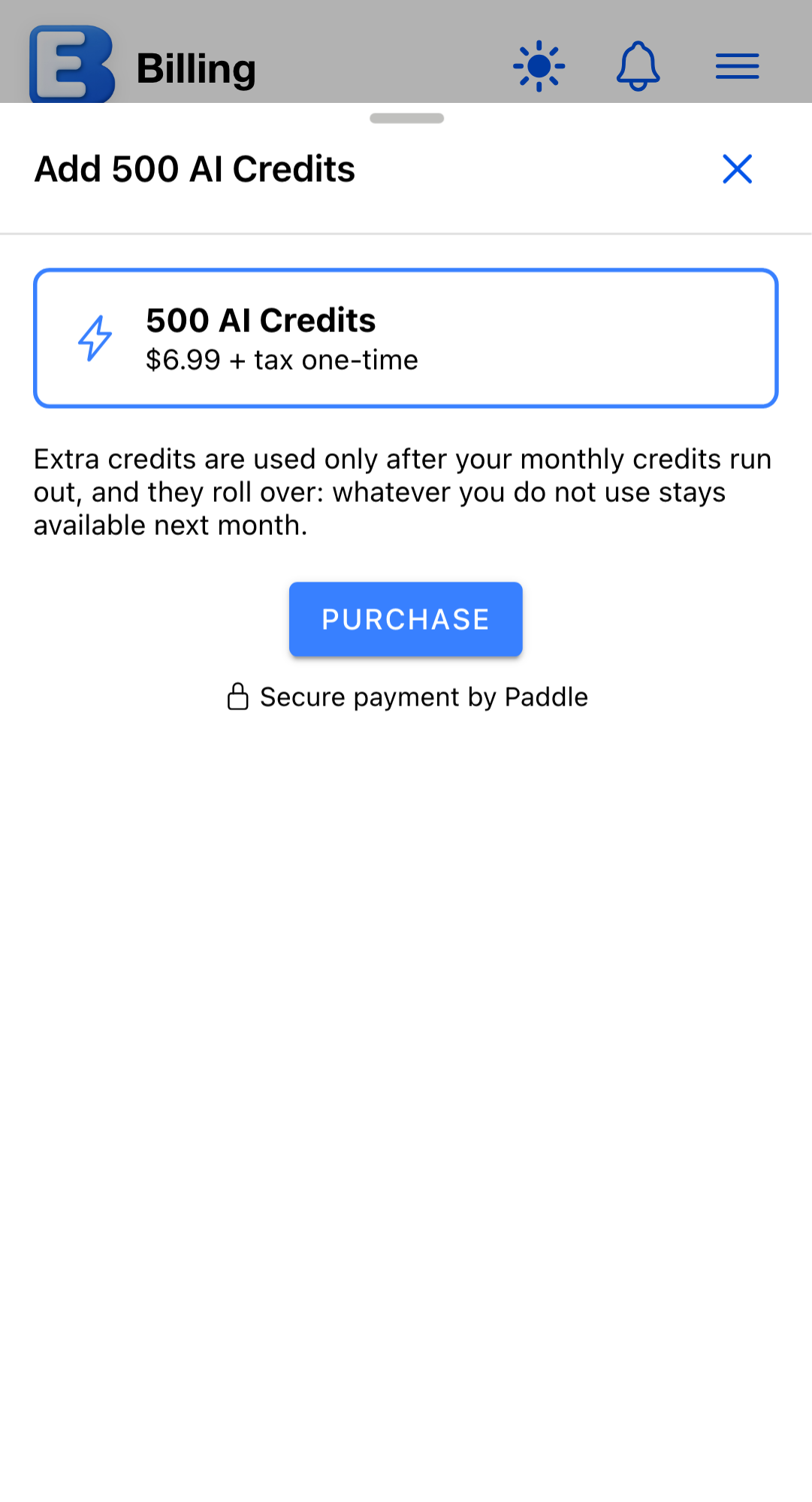
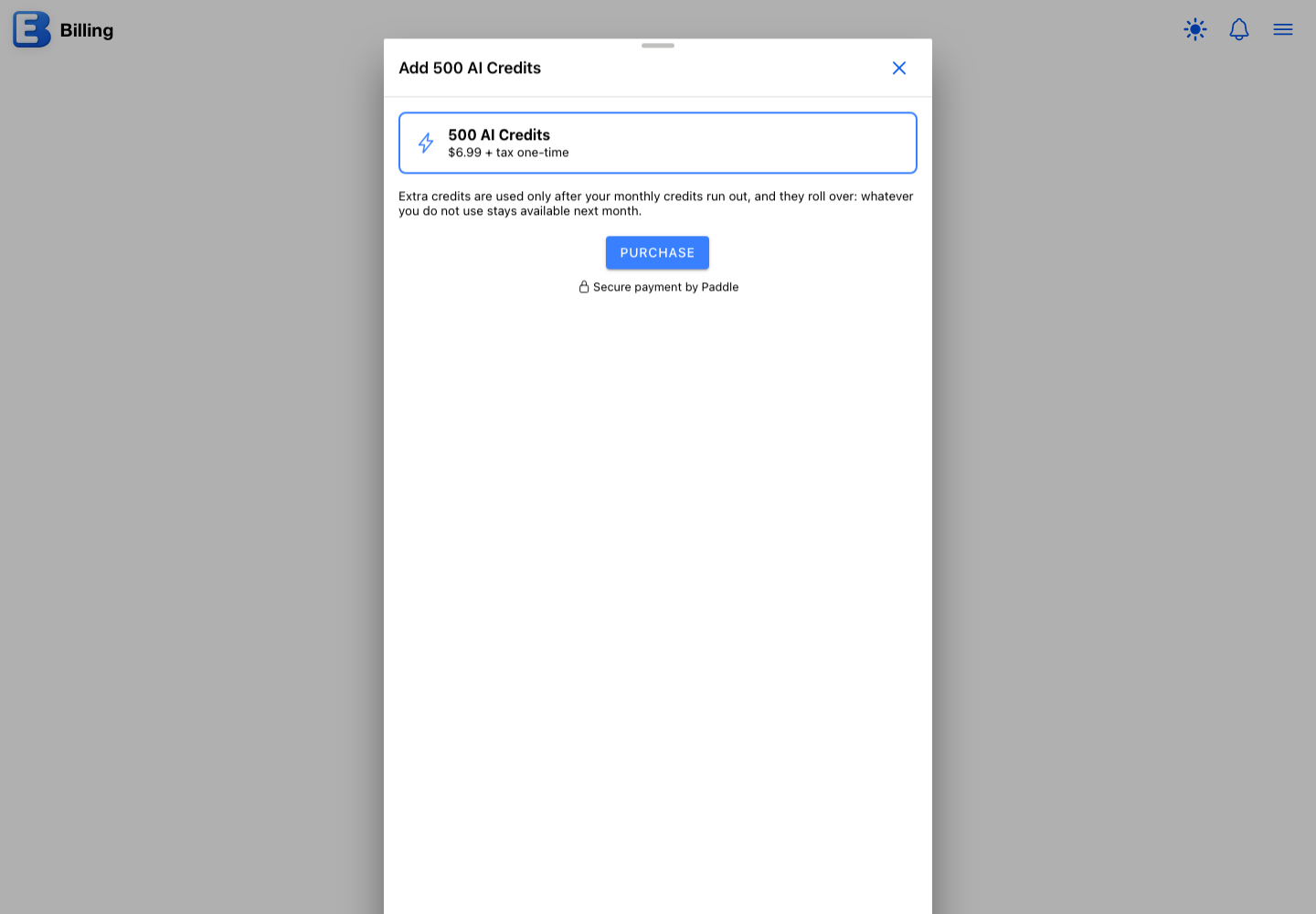
When the monthly credits run out, you do not have to wait for the reset: an Add 500 AI Credits button appears next to the credits bar (in the Main Menu and on the Billing page) and on the Receipts tab’s out-of-credits notice. It opens a dialog offering one pack, 500 AI Credits for $6.99 + tax, one-time, paid through Paddle’s secure checkout with the Purchase button.
Extra credits work differently from the monthly allowance:
- They never expire, and whatever you do not use rolls over from month to month.
- They are spent only after the month’s 500 credits are used up.
- Buying the pack again adds to the same balance.
With extra credits on your account, the credits bar spans both pools, with a divider line where the monthly allowance ends and a caption showing both totals (“935 of 500 monthly + 500 extra credits left”). The fill crosses the divider only once the monthly credits are gone.
Icon Generation Credits
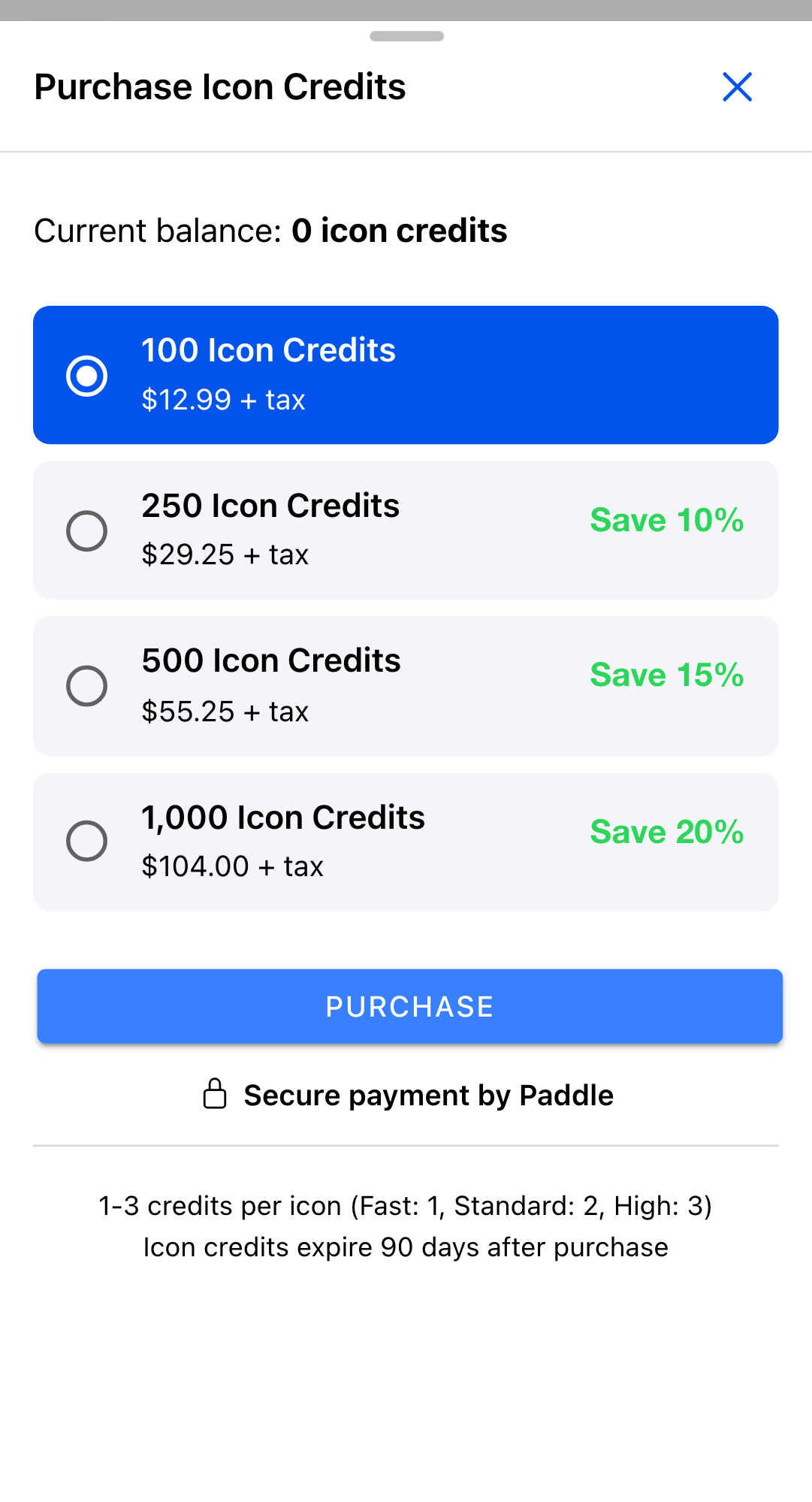
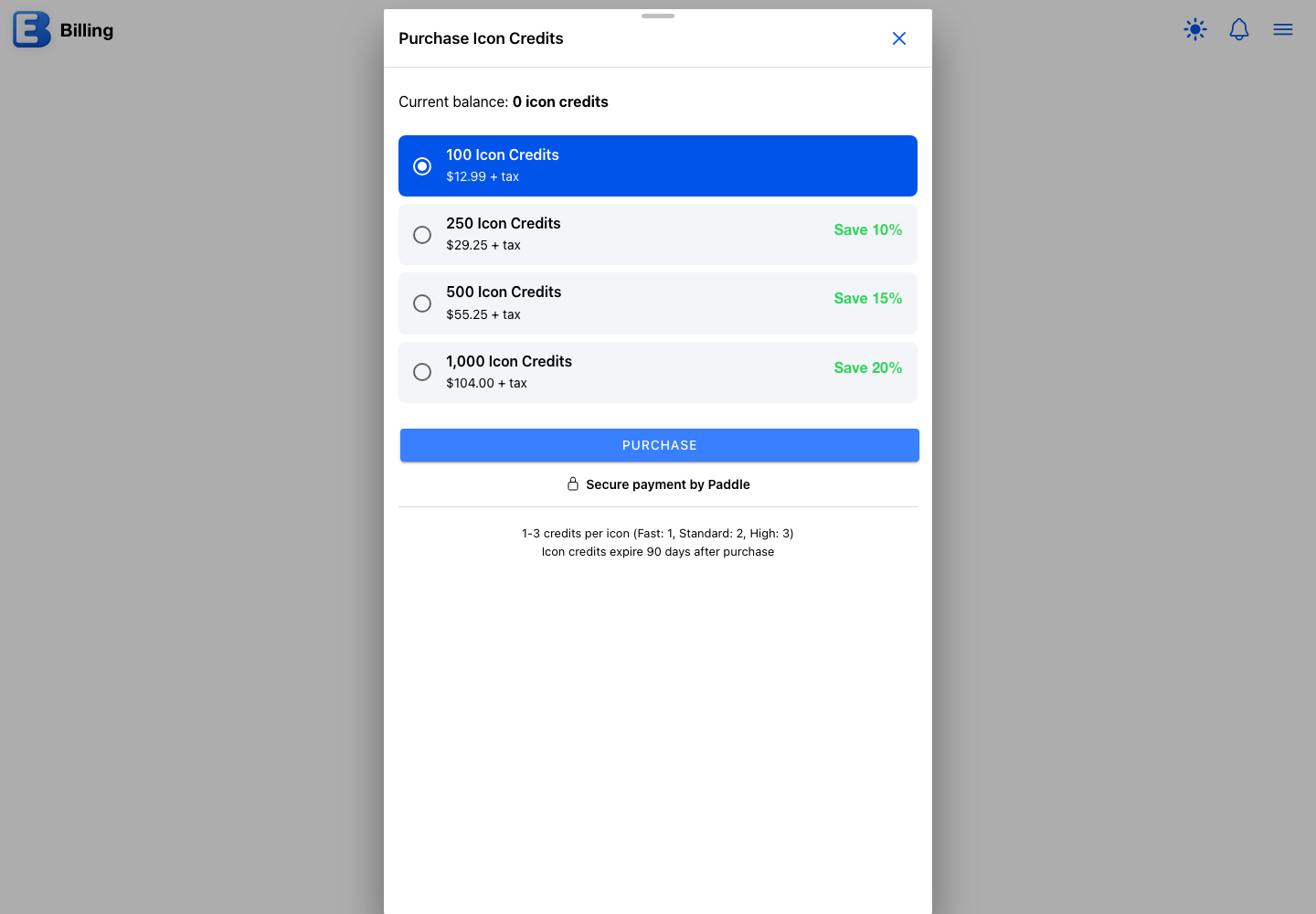
Custom AI category icons are billed separately, with Icon Generation Credits bought in packs. Open Buy (or Refill) on the Billing page, or Buy More inside the Add Icon dialog, to open Purchase Icon Credits.
| Pack | Price | Discount |
|---|---|---|
| 100 Icon Credits | $12.99 + tax | none |
| 250 Icon Credits | $29.25 + tax | Save 10% |
| 500 Icon Credits | $55.25 + tax | Save 15% |
| 1,000 Icon Credits | $104.00 + tax | Save 20% |
- Each generated icon costs 1 credit (Fast), 2 credits (Standard), or 3 credits (High Quality).
- Credits expire 90 days after purchase, the signup bonus included.
- The most credits you can hold at once is 10,000.
- You do not need Premium to buy packs. The dialog is open to free users too; only the 100-credit signup bonus is tied to Premium.
Credits are spent only when you generate an icon. As long as your balance is at least 1 credit, every quality level stays available: the app charges up to what you have and stops at zero, never below. The Purchase Icon Credits dialog opens on its own only when your balance reaches zero.
What you do not pay for
- Reading a public budget someone published. Anyone with the link can view it; signed-in users can add it to their list. Only the publisher needs Premium.
- Joining a budget someone shared with you. The owner’s Premium carries the sharing; accepting and collaborating are free.
- How many budgets you keep. The cap is on monthly creations (3 free, 10 Premium), never on how many you hold.
- Buying Icon Generation Credits, on any tier.
Quick reference
| If you want to… | Plan |
|---|---|
| Use the planner, reports, History (five years plus this year), and undo | Free |
| Type or upload transactions (CSV, TSV, or TXT) | Free |
| Scan the 10 receipts included with your account (granted once) | Free |
| Buy Icon Generation Credits for custom category icons | Free (the credits are paid; the access is open) |
| Create up to 3 budgets a calendar month | Free |
| Connect a bank account | Premium |
| Create up to 10 budgets a calendar month | Premium |
| Keep more than 10 themes in your library (up to 50) | Premium |
| Share a budget with up to 5 people | Premium |
| Publish themes, icon sets, or public budgets | Premium |
| Use AI (budgets, Compare Budget, themes, receipt and recipe scans) | Premium (draws the 500-credit monthly allowance) |
| Build or sync a budget from your scanned receipts | Premium (10 scans and all reports are free) |
| Add photos to a recipe | Premium (looking at them is free) |
Related pages
- Your Account for the Billing page, Manage Subscription, backups, and Delete Account.
- Bank Linking for the bank connection flow and what pausing looks like.
- Sharing a Budget for invites, permissions, and what collaborators see.
- Publishing a Budget for public budgets; Themes for AI themes and icon generation.
- Matching and Resolving for the free and Premium paths in Match Transactions.
- Notifications for what arrives when shared access changes.
- Shopping Lists and Recipes, free except scanning a recipe from a photo or PDF.
Questions or feedback about this page?Email us.