
Learn - Budgets
Managing the budgets you keep, share, and step away from.
Budgets
A budget is a self-contained workspace: its own accounts, categories, planner, and history, with nothing leaking between one budget and the next. Keeping several is normal: a personal budget alongside a household one, or a real-life budget beside a sandbox for trying something out. The Budgets page is where you switch between them, hand one to someone else, or delete one.
For your first time setting a budget up step by step, see Getting Started.
Where to find your budgets
Tap the menu button in the top corner of any page and choose Budgets.
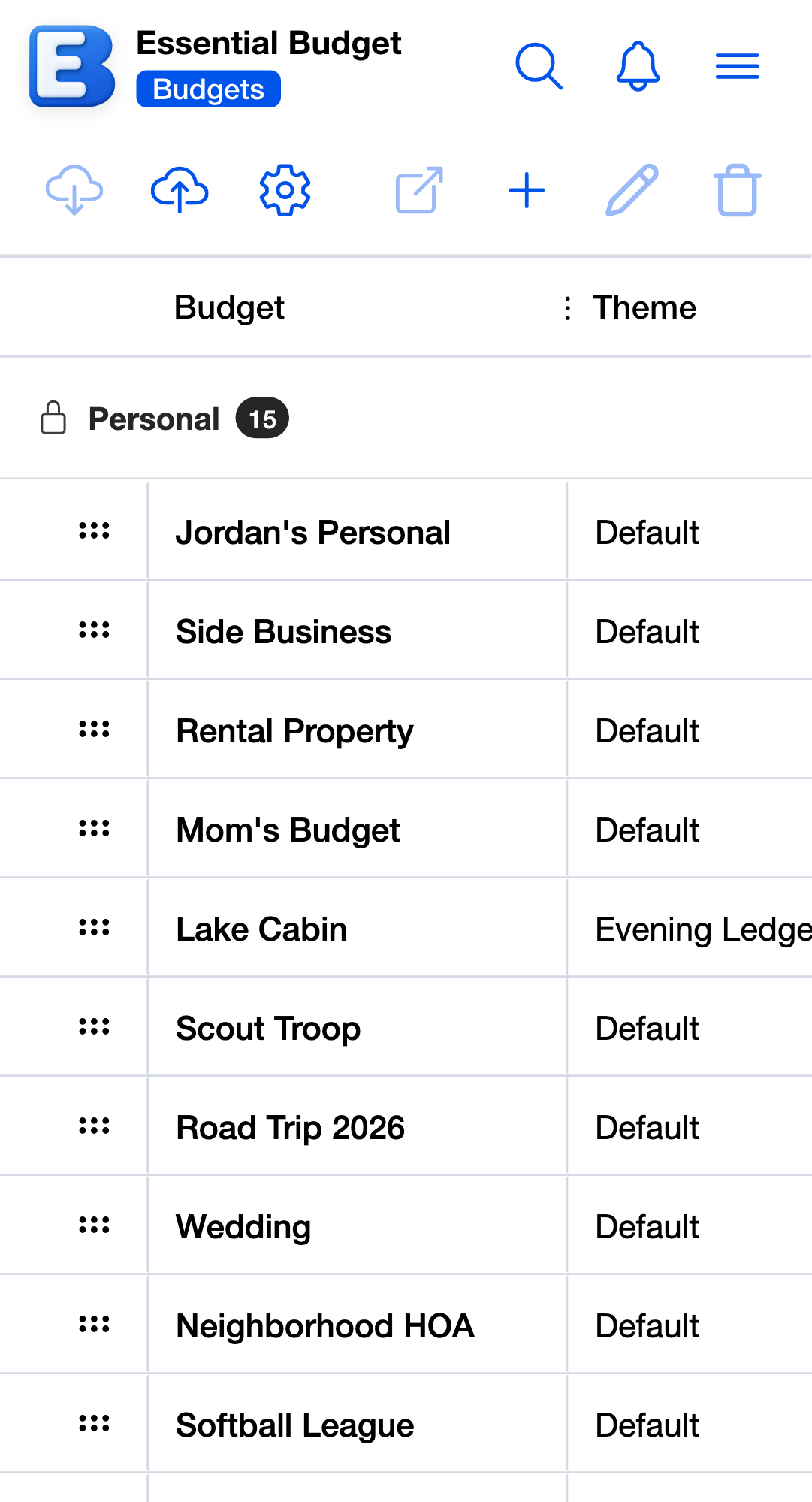
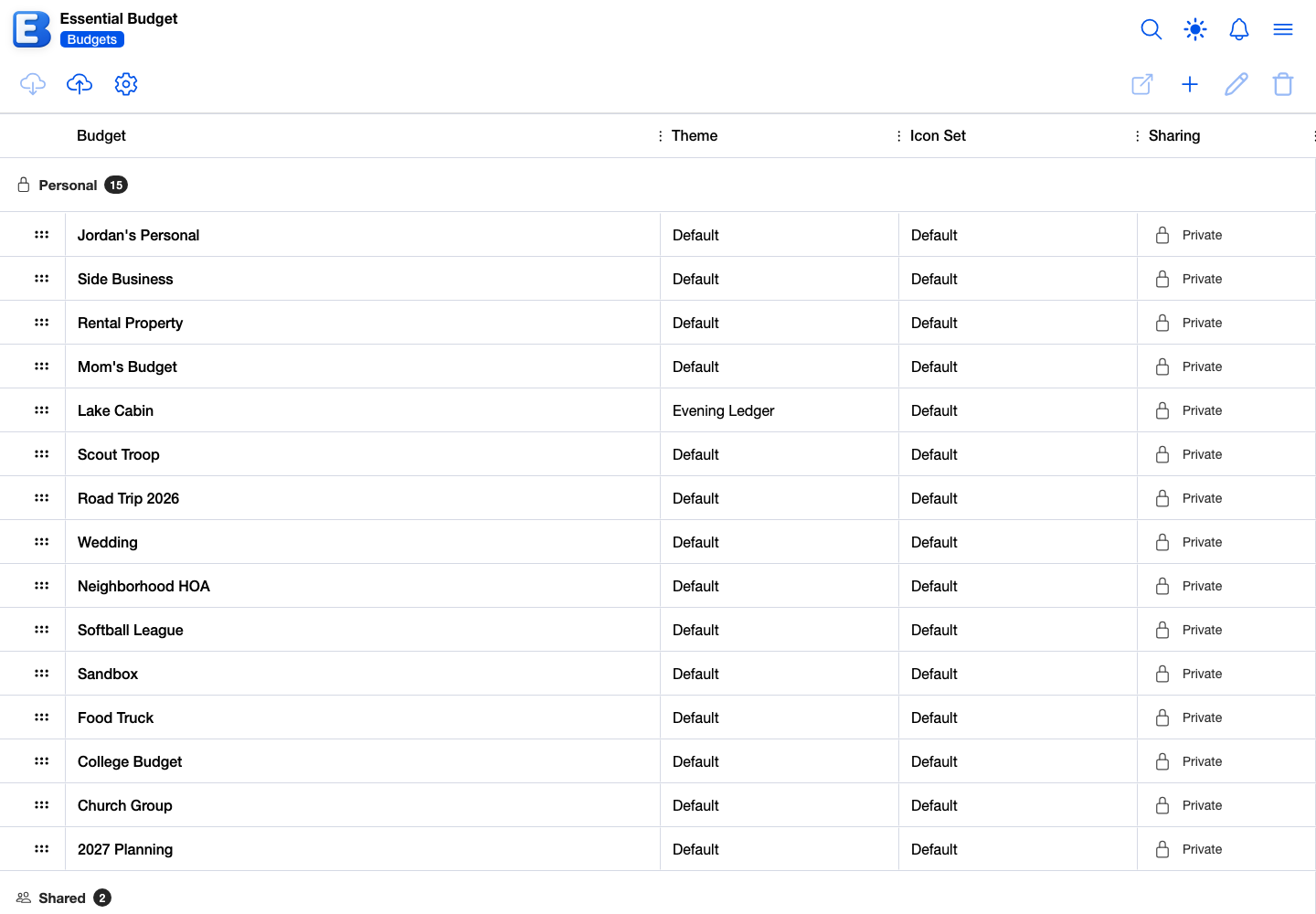
The page lists everything you can reach, in three labeled groups with a count on each: Personal, then Shared, then Public. A group only appears when you have something in it. Dragging a row reorders it inside its own group.
Each row carries four columns:
- Budget, the name.
- Theme and Icon Set, which read “Default” until you choose one.
- Sharing, which shows one icon and one word: a lock and Private, a globe and Public, or two people and your role on it, Owner, Editor, or Viewer.
On a phone the first columns fill the screen and the rest scroll into view sideways.
The toolbar carries Create Backup, Restore, and Grid Settings on the left, and Open Budget, Create Budget, Edit Budget, and Delete Budget on the right.
- Open Budget opens the selected budget. See Opening a budget.
- Create Budget opens the Create Budget dialog. See Creating a budget.
- Edit Budget opens the edit dialog. Only a budget’s owner can use it. See Editing a budget.
- Delete Budget reads Leave Budget on a budget somebody else owns. See Deleting a budget and Leaving a shared budget.
- Create Backup and Restore save and reload a copy of a budget. The flow itself is on Your Account.
- Grid Settings changes which columns show, their order, and how they are sized. It changes nothing inside any budget, and the choice is remembered on this device only.
Tapping Search in the page header opens a search box that matches budget names.
Opening a budget
Tapping a row once selects it, which switches on the toolbar buttons that need a selection: Create Backup, Open Budget, Edit Budget, and Delete Budget. Tapping the row twice, or tapping Open Budget, goes into the budget.
Why this default? Open Budget lands you where there is work to do. A budget with at least one account, one category, and one flow opens on the Planner. A budget still missing one of those opens on the first Setup segment that is empty, checking Accounts, then Categories, then Flows. A half-built budget has an empty Planner, and dropping you there would only mean navigating back to finish setting it up.
Inside a budget, the bottom of the screen shows five tabs.
- Setup holds accounts, categories, and flows, in three segments.
- Planner is the day-to-day list of upcoming events.
- Reports is the charts: account balances, spending by category, cash flow, unresolved expenses, and the receipt reports.
- History is everything resolved, with Undo on the rows that allow it.
- More holds the rest. On a computer it opens as a menu; in the installed app it opens as its own page.
A budget created from receipts shows the same five slots in a different arrangement: Receipts takes the first tab, and History moves into the More menu as its first entry. See Receipt-Based Budgeting.
The Budgets card on the Home dashboard has a gear that opens Budget Click Destination, where you choose what tapping a budget card there opens: Planner Grid, Planner Calendar, or Charts with a chart of your choosing. That setting is per device and does not affect the Budgets page.
Creating a budget
Tap Create Budget. The dialog opens with three segments, Manual, AI Generated, and From Receipts. Premium subscribers land on AI Generated; everyone else lands on Manual. Manual is free on every plan and AI Generated is a Premium feature; on the free plan, choosing From Receipts shows a caption with the number of free receipt scans included with your account.
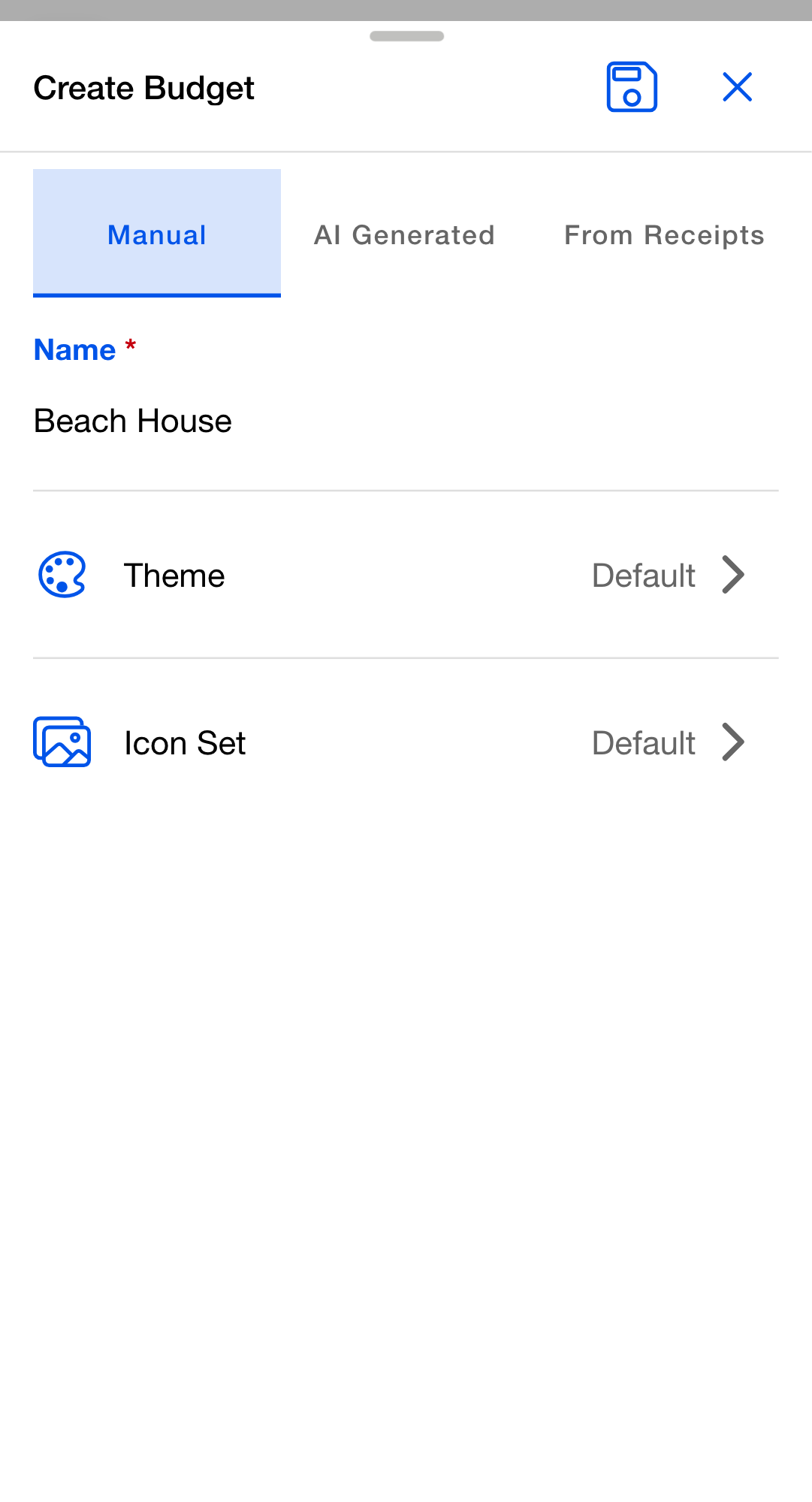
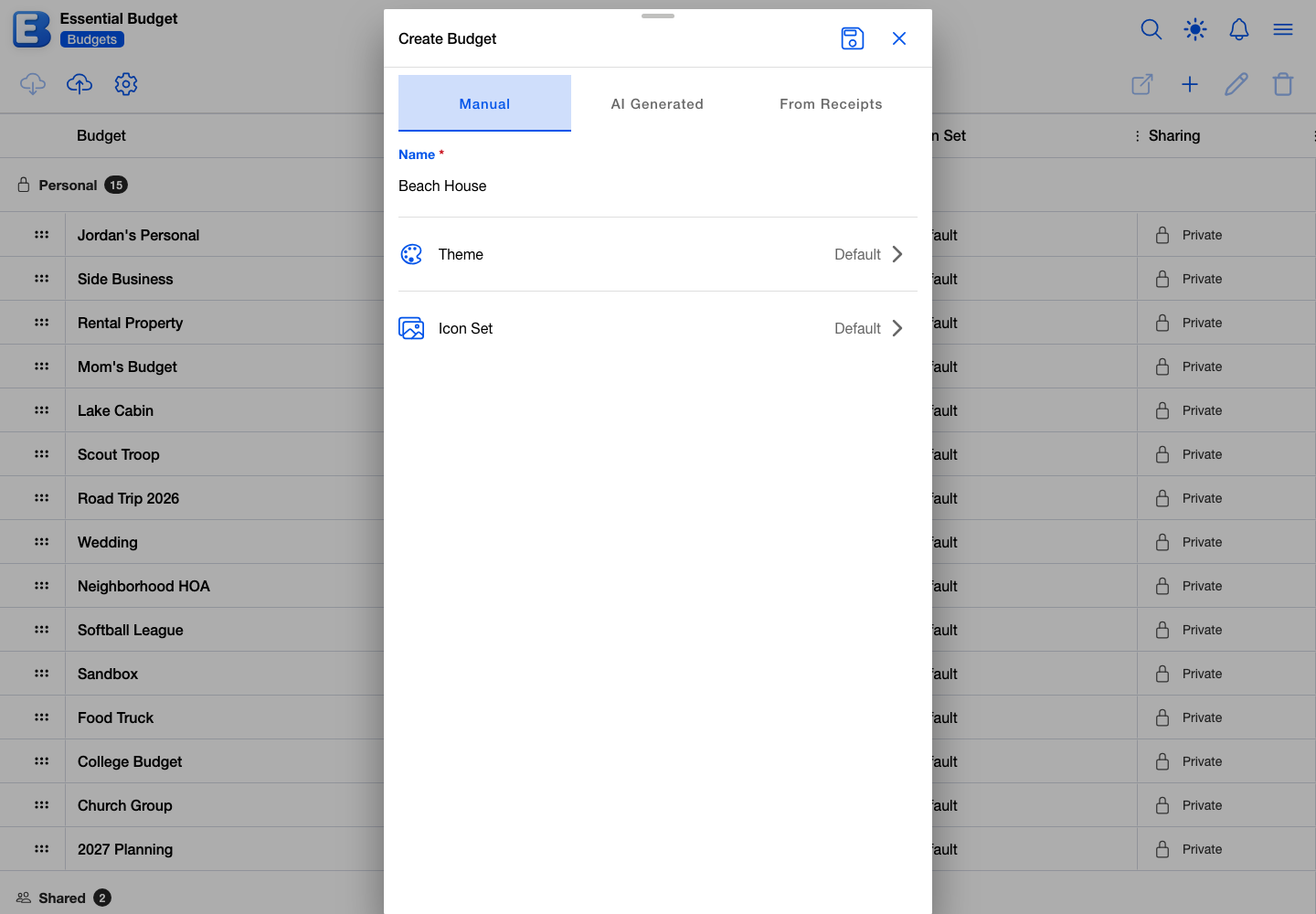
Manual. Type a Name, up to 50 characters, and optionally pick a Theme and an Icon Set. Save. The dialog closes and the budget appears in the list, empty and ready to set up. Open it when you are ready; nothing else happens automatically.
AI Generated. The app reads your recent spending and builds a starter budget with categories and recurring flows already in place. This is a Premium feature: choose Upload File to give it up to three CSV, TSV, or TXT files of at most 200KB each, or Connect Bank to build straight from your linked accounts with no file to upload. On the free plan the segment shows the upgrade page instead. Subscription covers what is sent and what stays on your device.
Connect Bank appears for Premium subscribers whether or not you have a bank linked yet. With nothing linked it reads “No bank accounts connected yet.” and offers to connect one. You can pick up to five accounts, and the new budget links to them as it saves, so bank transactions are ready for Match Transactions straight away. See Bank Linking.
Every AI Generated save shows a loading screen that reads “Usually takes 1-2 minutes” while the work runs. When it finishes, Budget Created Successfully! lists how many categories, budget flows, and accounts were created, and Review Budget Setup takes you to the Setup tab to adjust balances and amounts.
From Receipts. Type a Name (prefilled with My Budget) and save. The budget starts empty and opens on its Receipts tab, where the Sync button proposes budget lines and amounts built from your scanned receipts whenever you ask. One receipt is enough to start, and building the budget this way is a Premium feature. On Premium, if you are already collecting receipts in another budget that has not been built yet, the panel says so (“You’re already collecting receipts in My Budget. Open it instead?”) with a shortcut to open that budget, though creating a second collection is allowed. Receipt-Based Budgeting covers the whole journey.
Duplicate names are blocked as you type, in all three modes and when renaming later. The field shows A budget named “Beach House” already exists and Save stays switched off.
How many budgets you can create
Free accounts get 3 budget creations per calendar month. Premium raises that to 10. The limit counts what you create during the month, not how many budgets you keep, so budgets carried over from previous months do not count against it.
Why this default? Deleting a budget in the same month gives the slot back. The count is creations minus deletions for the current month, never below zero. Create three budgets in May and you are capped; delete any budget during May and you are back to two of three, free to create another. The deletion counts in the month you do it, whatever month the budget was made in. The limit is about how much new work you start in one month, not how much you keep.
Once you are capped, tapping Create Budget shows “Monthly budget creation limit reached (3/3). Limit resets next month.” On the free plan it adds “Upgrade to premium for up to 10 per month.” That message is the only place the count appears. The limit resets at the start of the next calendar month. See Subscription for how it fits with the rest of the free plan.
Restoring a backup also creates a budget, and counts the same way.
Editing a budget
Select a budget you own and tap Edit Budget. The dialog’s title follows how the budget is shared: Edit Private Budget with a lock, Edit Shared Budget with two people, or Edit Public Budget with a globe. Only an owner can open it; for anyone else the button stays greyed out.
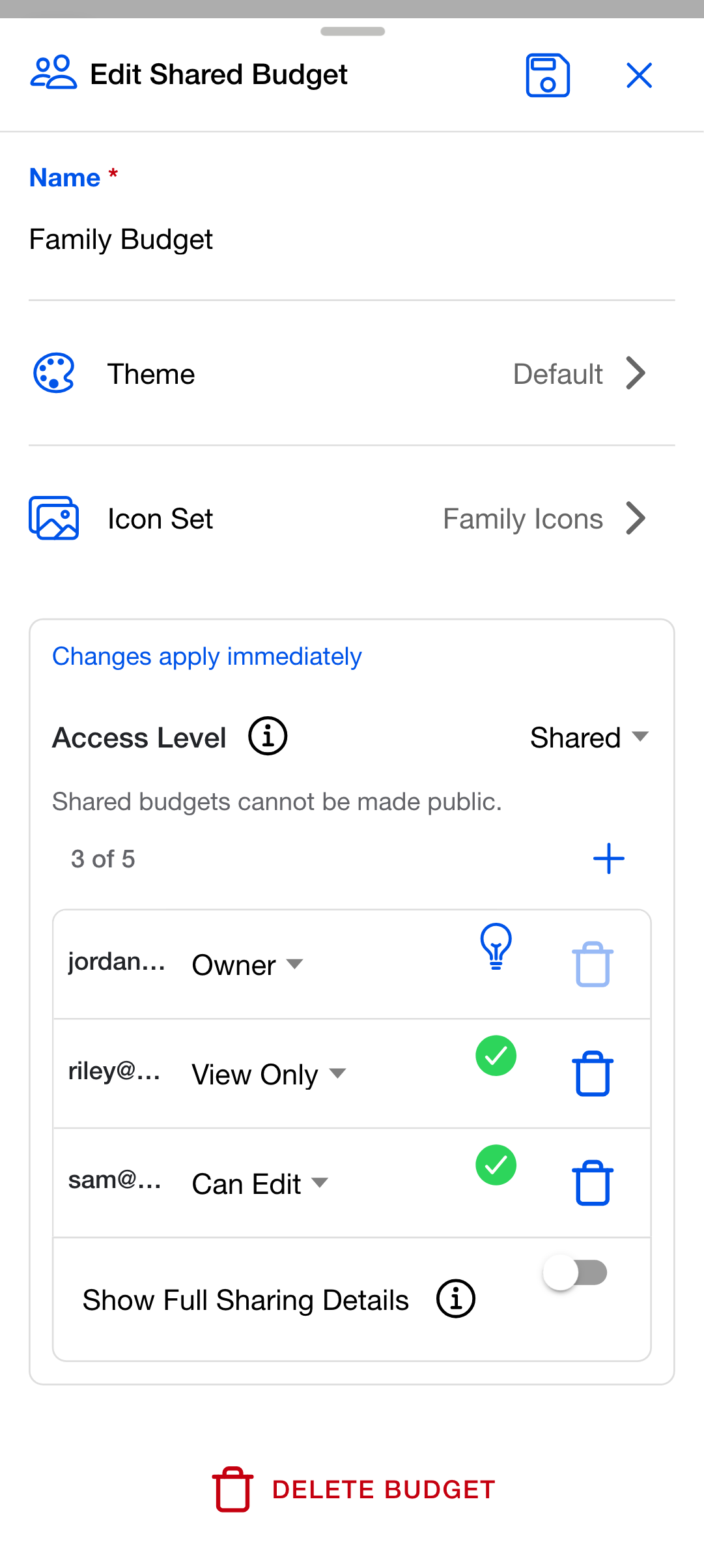
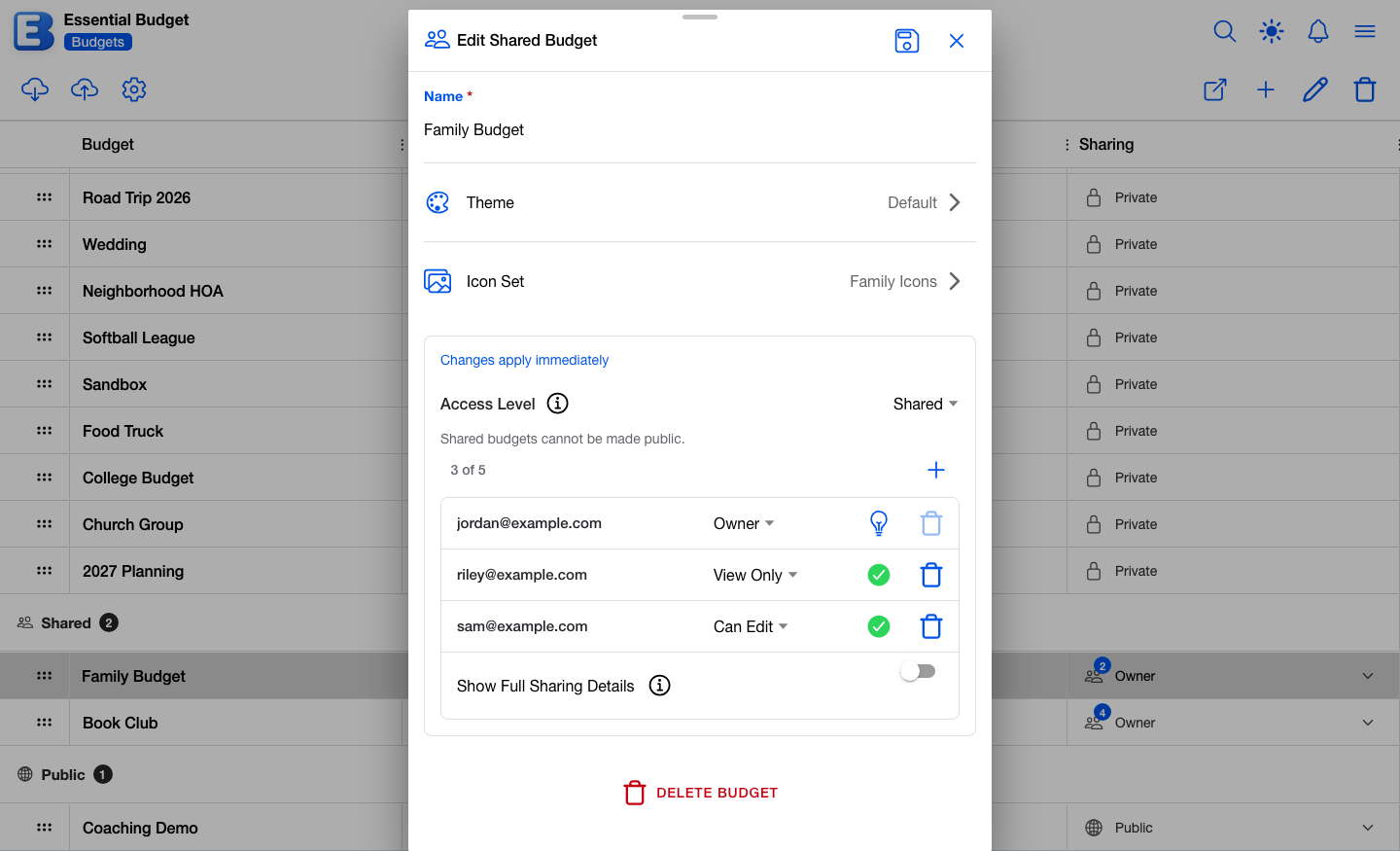
The dialog holds:
- Name. The same 50-character limit and duplicate check as creating.
- Theme. Tapping the row opens the Select Theme picker, covering your own library and the community library. Picking one previews it immediately, and closing without saving puts the old one back. See Themes and Icons.
- Icon Set. The Select Icon Set picker, working the same way.
- Sharing. The card below the pickers is headed by the note “Changes apply immediately”. Everything in it takes effect as you change it, not when you save. It holds an Access Level row for switching between Private, Shared, and Public, the list of people the budget is shared with, and a plus button for adding another. Free owners see “To enable budget sharing, upgrade to premium” here instead. See Sharing a Budget.
- Delete Budget at the bottom, which runs the same flow and the same confirmations as the toolbar button.
Name, Theme, and Icon Set are the parts that wait for Save.
Themes and icon sets belong to the budget, not to you, so changing either on a shared budget changes it for every collaborator. The themes in your library are still yours; only the choice on this budget is shared.
Leaving a shared budget
On a budget owned by somebody else, the Delete Budget button reads Leave Budget. Tapping it opens Leave Shared Budget, which explains that you will lose access, that the owner will need to invite you again, and that the budget and its data stay intact for everyone else. Confirm with Leave Budget.
Your access is removed, the budget disappears from your list, and every owner gets a User Left Budget notification naming you and the budget. It arrives in their notification list rather than as an alert. Editors and viewers cannot invite anyone, so coming back means asking an owner.
Owners have no Leave button. To step away from a budget you own, remove yourself from the sharing list inside Edit Budget. See Sharing a Budget for handing ownership over and removing yourself.
Removing a public budget you added
A public budget you added by link or from a creator’s profile also shows Leave Budget on the toolbar, but the dialog is Remove Public Budget and its button reads Remove from My List. It removes your copy from your list and nothing else; the budget stays public and you can add it again from the same link. See Publishing a Budget.
Deleting a budget
Owners get Delete Budget on the toolbar and inside the Edit Budget dialog. What happens next depends on how many owners the budget has.
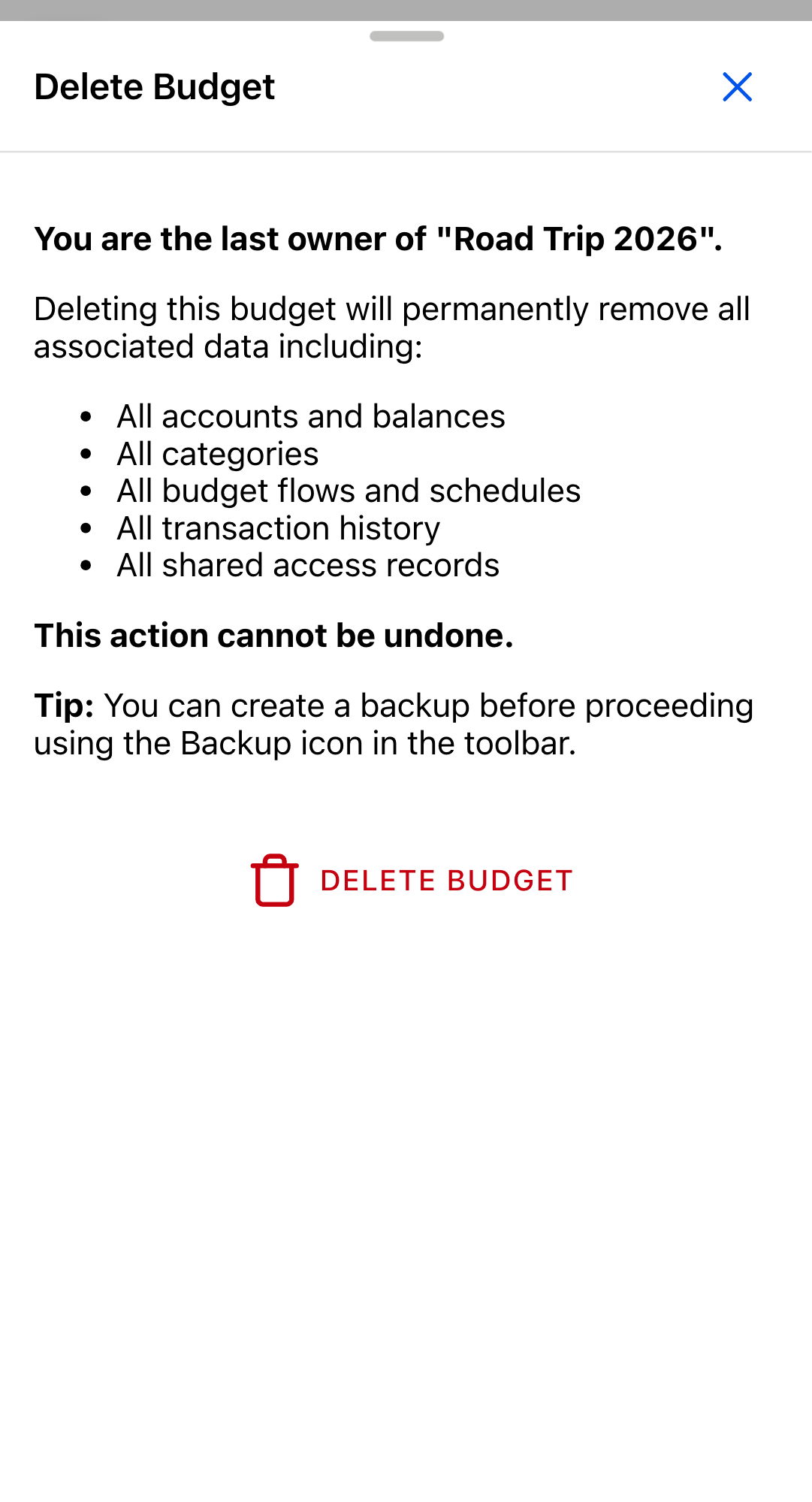
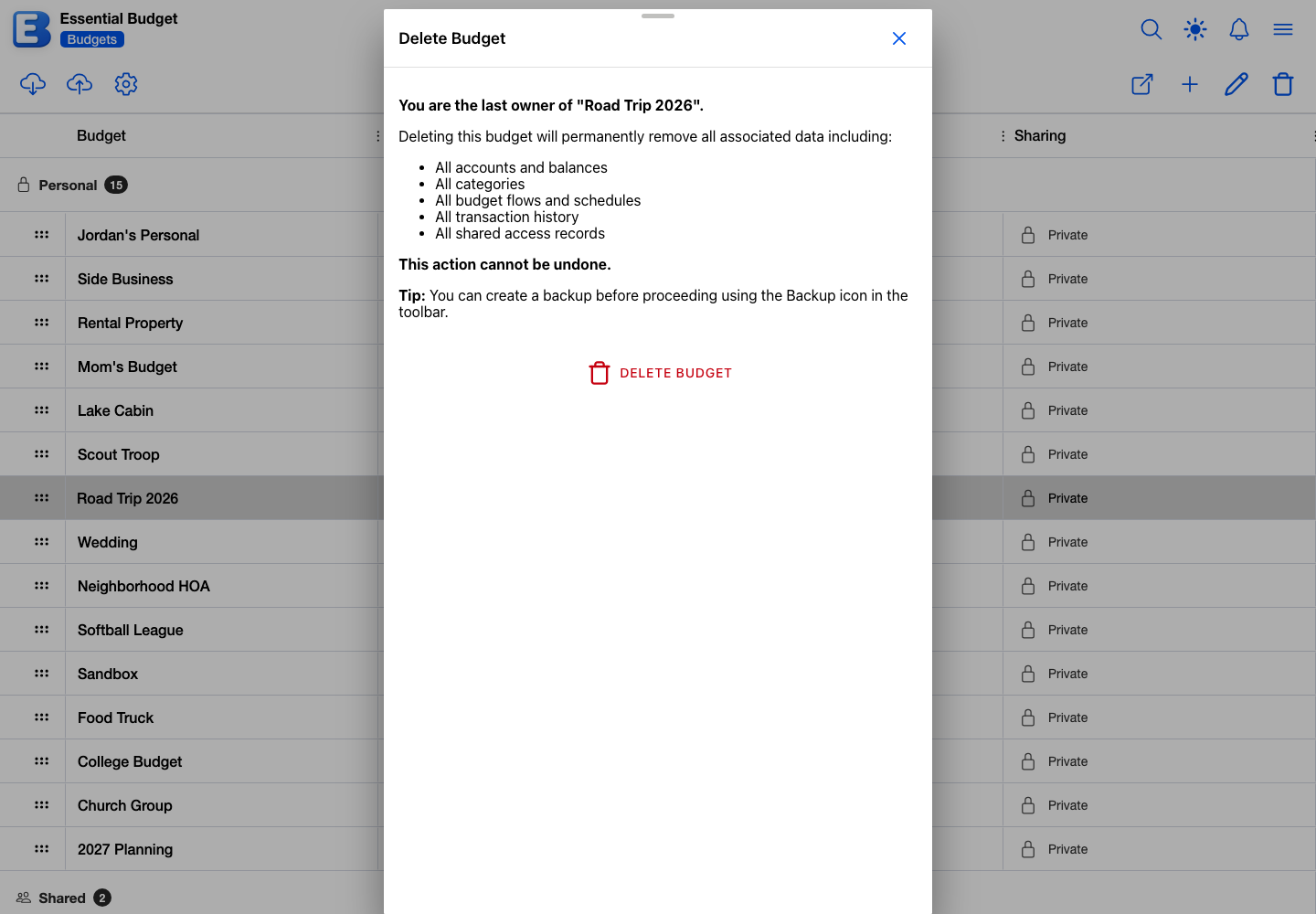
You are the only owner. The Delete Budget dialog opens with the warning You are the last owner of “Road Trip 2026” and lists what goes: all accounts and balances, all categories, all budget flows and schedules, all transaction history, and all shared access records. Below that sits “This action cannot be undone.” and a tip that you can take a backup first using the Backup icon in the toolbar.
The budget has other owners. The Cannot Delete Budget dialog opens instead. It explains that you can only remove your own access, and that the budget can be deleted once the other owners have removed themselves and you are the last one left.
That list names the headline items. The delete reaches further: receipts and their line items, shopping lists, recipes, and everyone who had added the budget from a public link all go with it. Editors and viewers lose access without a notification, and the budget simply stops appearing in their list. There is no recall window and no archive, so a backup taken beforehand is the only way back.
To back out before confirming, tap Close.
Why this default? Deleting a budget does not disconnect your bank. Bank connections belong to you, not to any one budget. Deleting a budget removes the bank-linked accounts inside it, but the connection itself stays live, so you can build a new budget on the same accounts without going back through your bank. To disconnect properly, manage it from Bank Linking. To remove everything at once, the tool is deleting your account, not deleting one budget.
Behind the scenes
The page needs a connection. The budget list is fetched when you open the page rather than cached, so opening it offline shows “You’re offline” with a Try Again button. Editing, deleting, and leaving all refuse while you are offline and tell you so.
The monthly limit is counted in calendar months, not rolling days. A budget created on April 30 stops counting towards your total once May begins. Deletions are counted in the month you perform them.
Related pages
- Getting Started: the first-run walkthrough through accounts, categories, flows, and the planner.
- Subscription: the free and Premium creation limits, what each plan includes, and how AI is used.
- Your Account: backup and restore, your username, cancellation, account deletion.
- Themes and Icons: the Theme and Icon Set rows, the pickers, and AI theme generation.
- Sharing a Budget: inviting collaborators, roles, ownership transfer, blocking.
- Publishing a Budget: making a budget public and the rules around bank-linked data.
- Bank Linking: connecting accounts and using Connect Bank during budget creation.
- Notifications: the “User Left Budget” notification owners receive.
Questions or feedback about this page?Email us.