
Learn - Planner
Where your budget lives day to day.
Planner
The Planner answers the question you actually care about: what will this account hold on the day that bill lands? It lists every event (one income, expense, or transfer falling on one date) next to a running balance projected forward for each account, so you can see a dip coming a week out instead of discovering it at the bank.
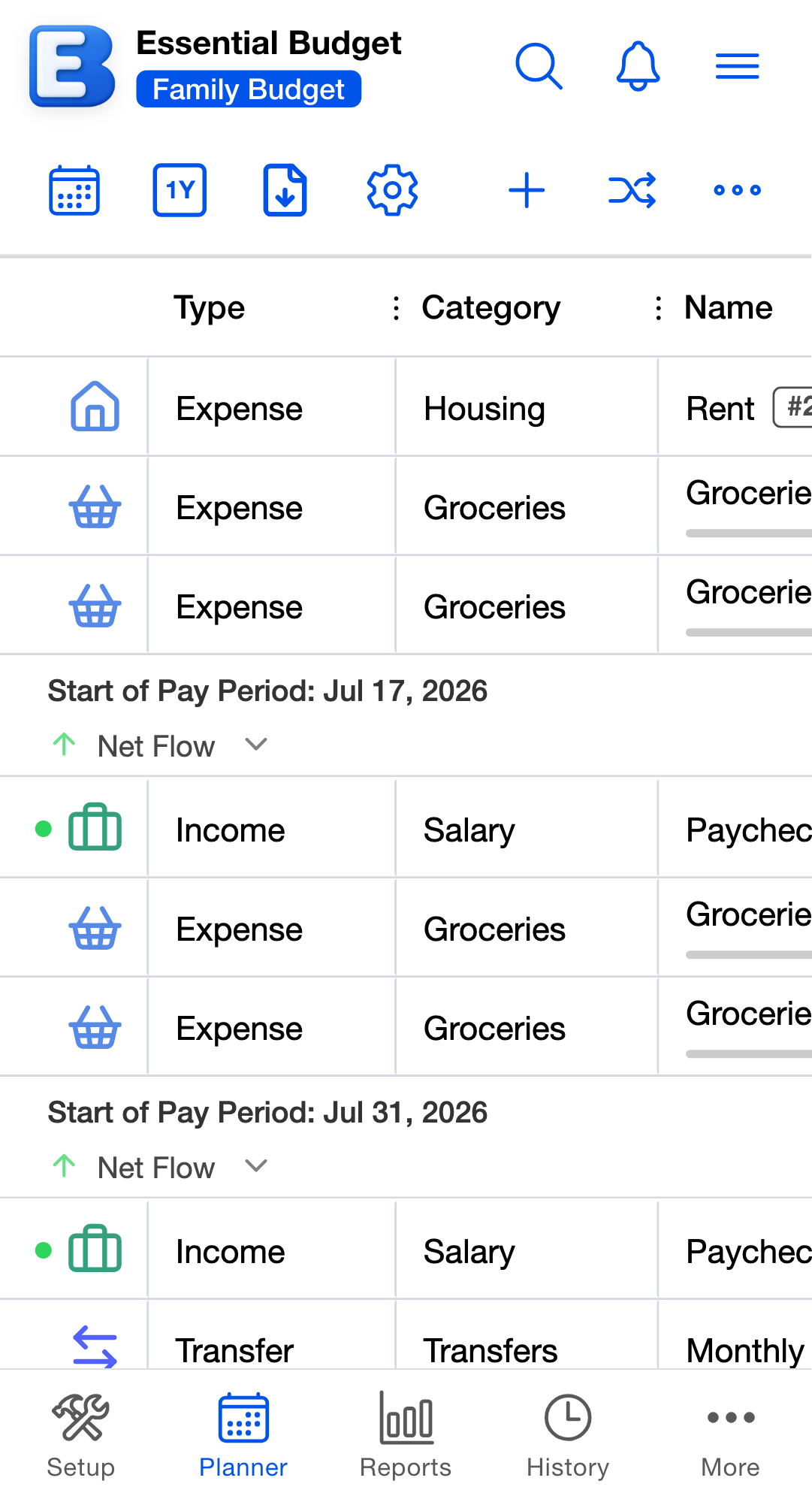
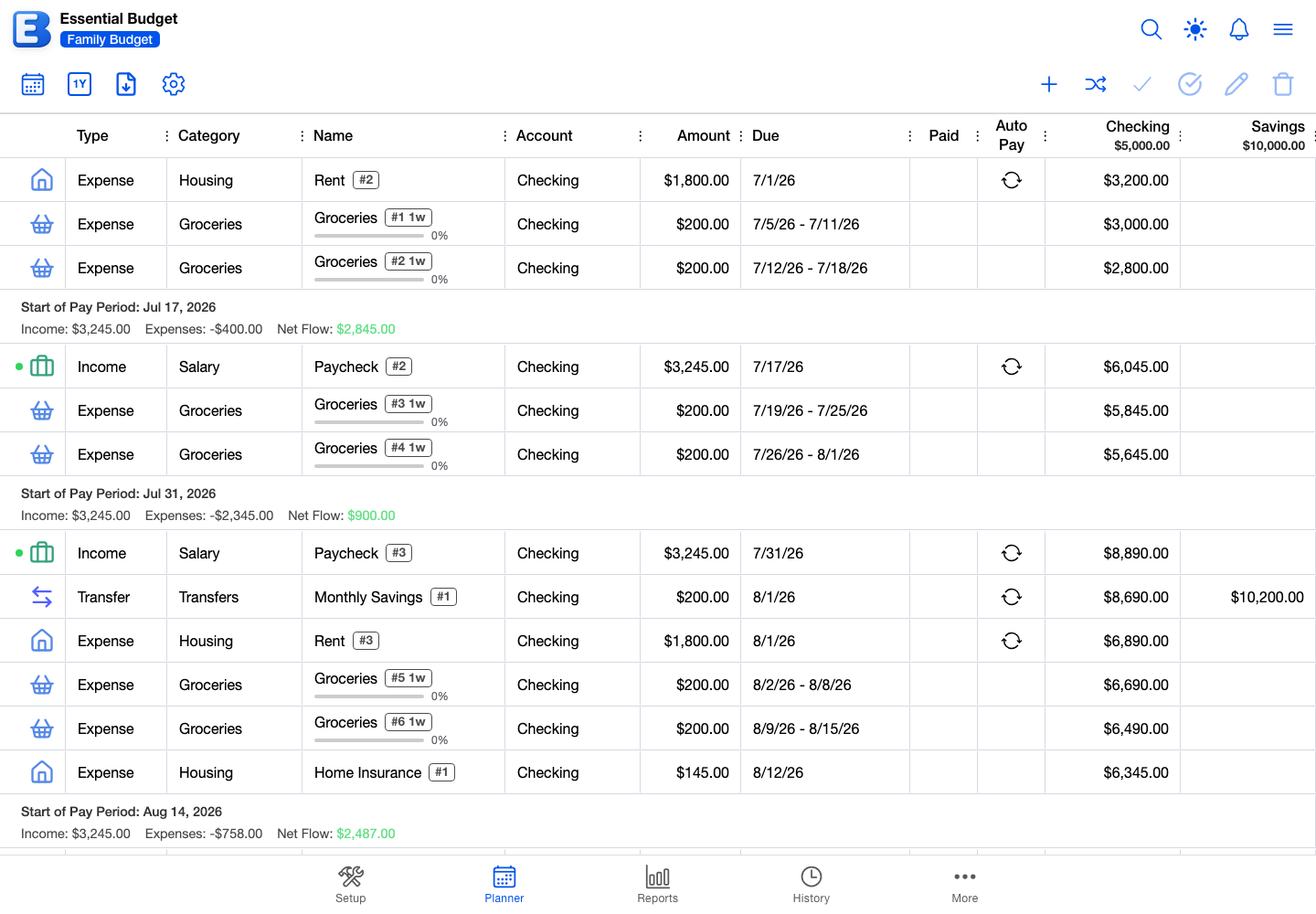
An open budget has five tabs along the bottom: Setup, Planner, Reports, History, and More. A budget created from receipts leads with a Receipts tab instead and moves History into the More menu. Planner and Reports stay unavailable until the budget has at least one account, one category, and one flow. The same events are laid out two ways, and the button at the far left of the toolbar switches between them: it reads Switch to Calendar View while you are in the Grid, and Switch to Grid View while you are in the Calendar. The app remembers which one you were last in.
For the words flow, event, schedule, category, transaction, and account, see Concepts.
Forecast Period: how far ahead the Planner reaches
The Planner shows events from today forward, up to a horizon you set. The control sits near the left of the toolbar and shows your current setting: 1Y, 2Y, 3Y, 4Y, or 5Y. Tap it to open the Forecast Period dialog and pick 1 Year, 2 Years, 3 Years, 4 Years, or 5 Years. The default is 1 Year, and five years is as far as it goes.
Each option reaches into December of the matching year ahead rather than counting twelve months from today, so 1 Year covers more time when you pick it in May than when you pick it in November. Picking 1 Year in May gives you about nineteen months. Your History is unaffected by this setting, and the dialog says so.
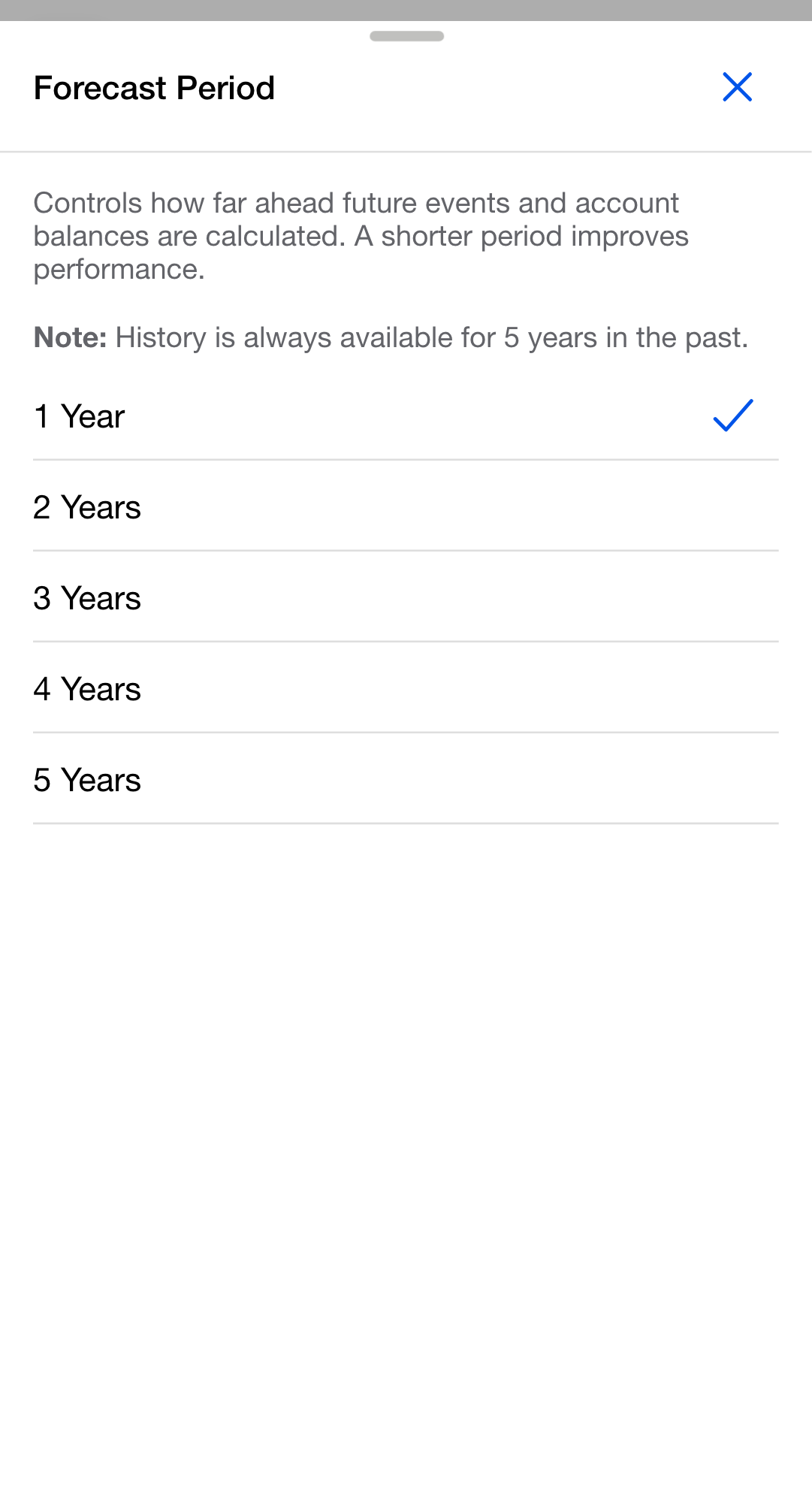
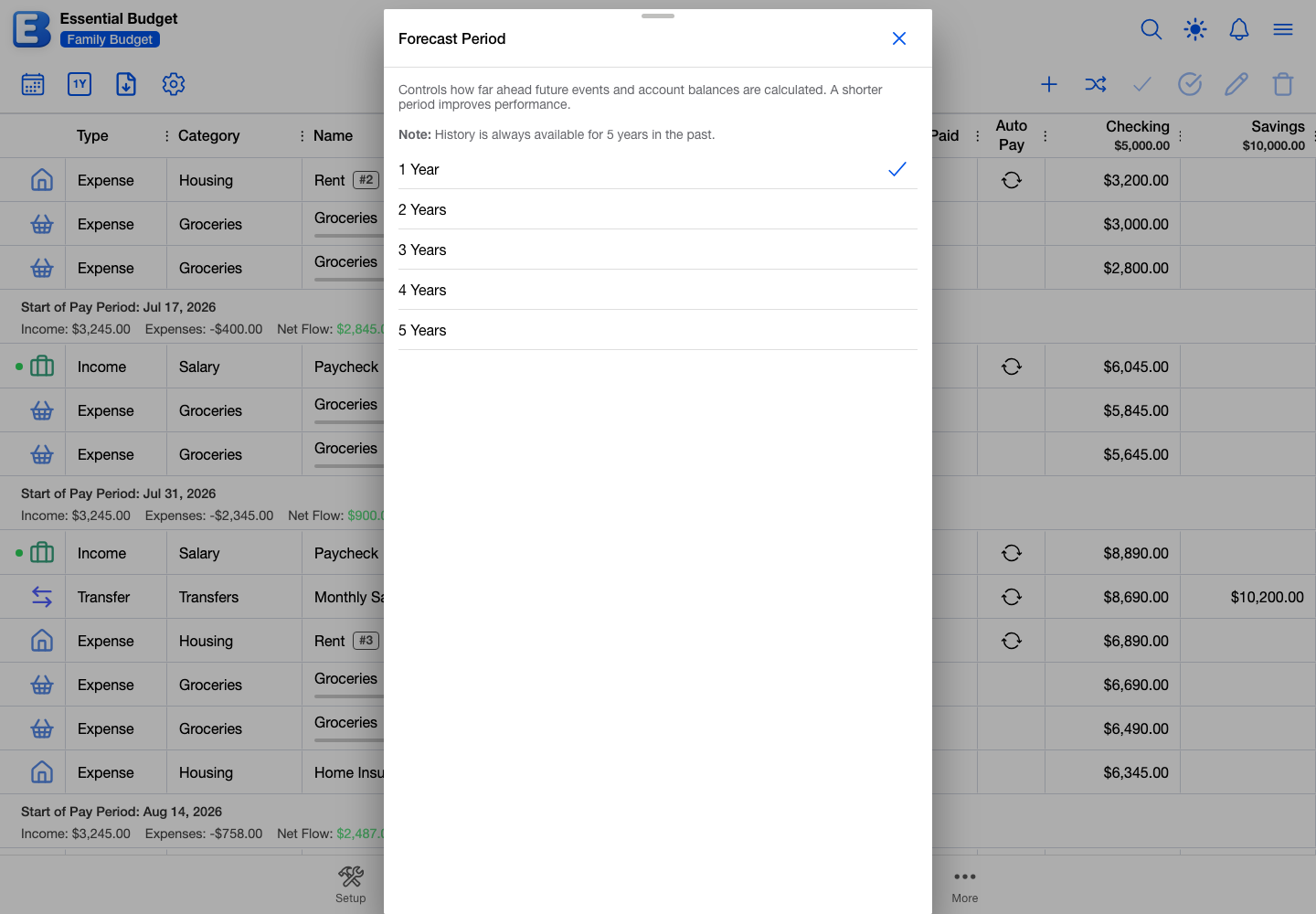
Why this default? One year loads fast. A shorter forecast keeps a large budget responsive, and most planning happens in the next few months. Reach further when you have a reason to: an annual fee, a one-time event a few years out, or how a savings rate compounds.
The Forecast Period is shared with Reports, so changing it on either tab changes it for both. It is remembered on the device you set it on, not on your account, so a second device keeps its own setting.
Grid view
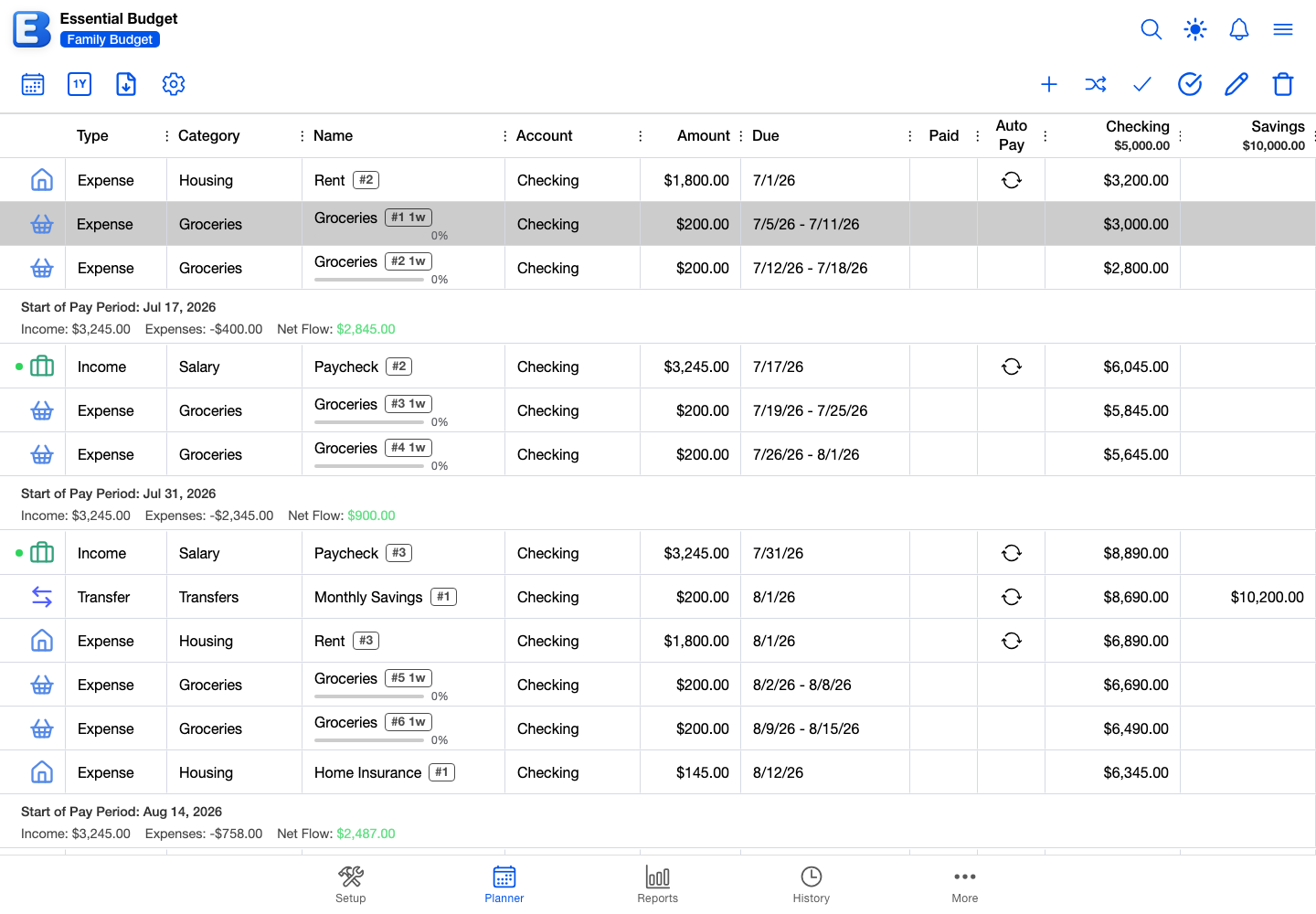
Each row is one event. The default columns, left to right:
- Type. Income, Expense, or Transfer, from the event’s category.
- Category. The category name.
- Name. The flow’s name. A flow with Show Spending Progress on also shows a progress bar, reading
0%until you record something and then the amount and percentage, such as$45.00 (30%). - Account. The account the event posts to.
- Amount. The planned amount.
- Due. The date.
- Paid. A checkmark when the event is marked paid.
- Auto Pay. An icon when the flow has Auto Pay on (a label, not an automation: see Flows).
To the right of those, the Grid adds one running balance column per account. Each header shows an account name and its current balance, and the cells carry that balance forward one event at a time. A row fills only the column for the account it touches, leaving the others blank; a transfer fills both the source and the destination.
Why per-account columns instead of one combined balance? Your bills are tied to specific accounts. Rent leaves checking, interest lands in savings, a transfer moves money between them. One combined number would smooth those together and hide a checking dip a week out.
Where the Grid shows that something changed
Two cells keep the original value visible next to the new one:
- A moved event shows the original date struck through, with the new date below it. That happens when you drag the event on the Calendar, change Pay On in the Edit Flow Event dialog, or drag a Grid row past a date boundary.
- An event with transactions recorded shows the planned amount struck through in smaller text, with the remaining amount below it in full size. Your transactions already moved the account balance when you saved them, so the projection only needs to absorb what is left. On a flow with Show Spending Progress on, what you have spent so far also sits in the Name column, next to the progress bar.
A one-off name change, an account swap, or an edited note leaves no marker on the row. To see what has been customized on an event, open it with Edit Event.
Headers and grouping
Events are grouped under headers, and the default is Pay Period Headers: a new group opens on each date that has income on it, so a group reads as “what this paycheck has to cover.” Events dated before your first income event sit above the first header, ungrouped. Each header is titled with its start date, as in “Start of Pay Period: May 1”, and summarises the group with Income, Expenses, and Net Flow. Expenses are shown as a negative figure, and transfers are left out of all three, since moving your own money between accounts is neither income nor spending.
On a narrow screen, the header collapses to an arrow, the words Net Flow, and a chevron; tap it for the full breakdown.
The header counts each event at its full planned amount, even when you have already recorded part of it. The running balance column does something different: it carries only what is still to come, because the transactions you recorded already moved your balance when you saved them. On a period that holds an event with transactions recorded, Net Flow and the change in the balance column will not be the same number, and both are correct. The row shows you the gap: the planned amount struck through, with the remaining amount below it. If you spend past what you planned, the header counts what you actually spent.
To change the grouping, open Grid Settings in the left toolbar and switch to the Row Headers tab. Six options:
| Option | What you see |
|---|---|
| No Headers | A flat list of events, no group breaks. |
| Pay Period Headers | One header per pay period (default). |
| Week Headers | One header per week. |
| Month Headers | One header per calendar month. |
| Quarterly Headers | One header per calendar quarter. |
| Yearly Headers | One header per calendar year. |
Grouping applies to the Grid only; the Calendar has no headers.
Why this default? Pay periods, not calendar months. Most people plan on the rhythm of when money lands rather than on the 1st of the month. A pay period runs from one paycheck to the day before the next, which is the span the Net Flow figure has to cover.
Reordering, hiding, exporting
Drag a row by the icon at its left edge to reorder events. The new order saves immediately and is shared with everyone on the budget. Dragging a row past a group header moves the event to that neighbouring date rather than just reordering it, so the row picks up the struck-through original date. Dragging is unavailable without edit access, and while a search is showing matches.
To hide columns, reorder them, or switch between flexible and fixed widths, open Grid Settings and use the Columns tab, which has a checkbox and a drag handle per column plus Reset to Defaults. Column choices are remembered on the device you make them on, unlike the row order, which everyone shares.
Export to Excel or CSV in the left toolbar opens an Export dialog offering Export to Excel and Export to CSV. Both include the columns you currently have visible, in your order, on every plan. The Excel file also keeps each group as a title row with its summary; the CSV file is a flat list of events with no group headers. Both buttons are greyed out when the Grid has nothing in it.
Calendar view
Same events, on a date grid.
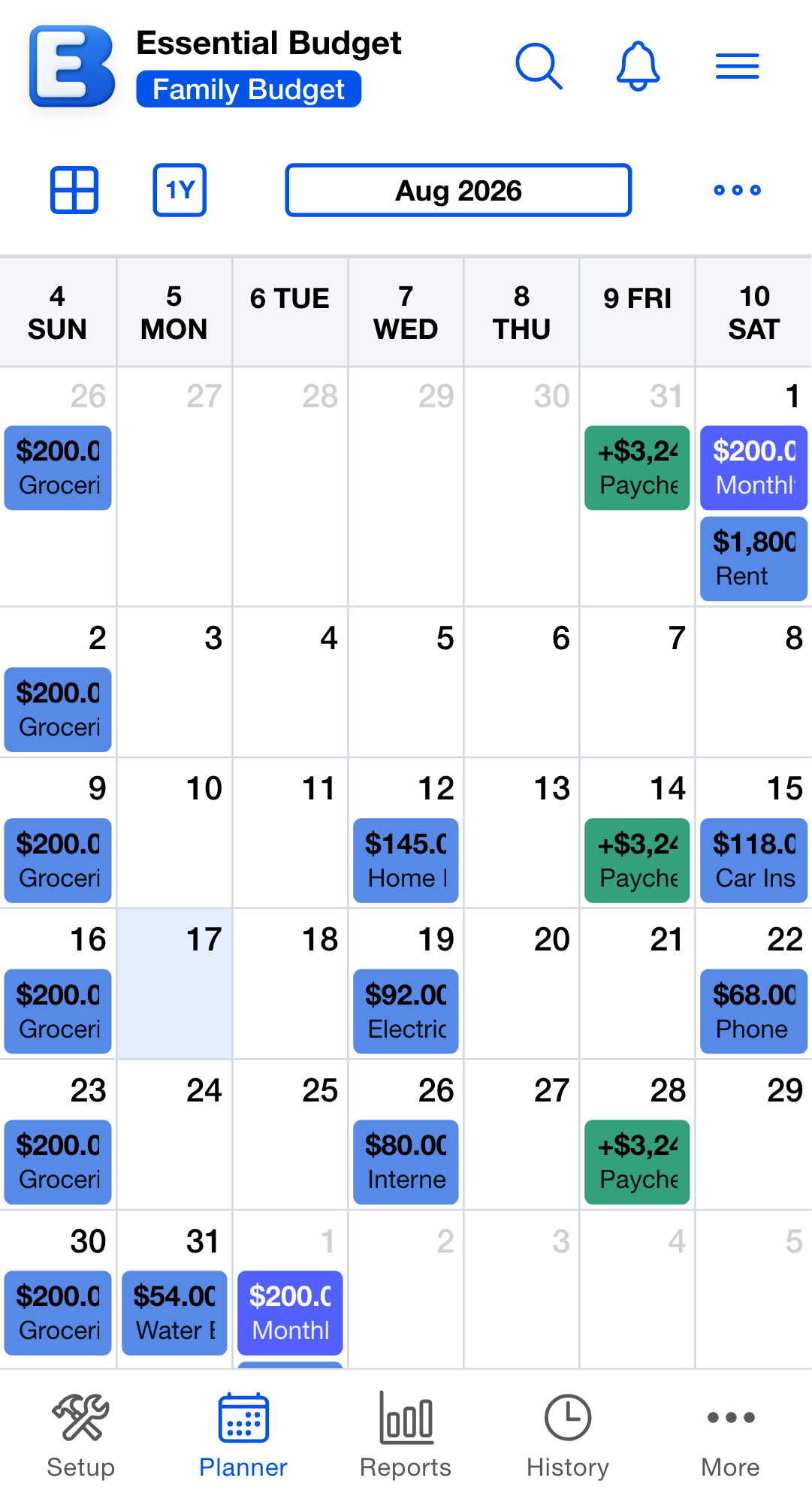
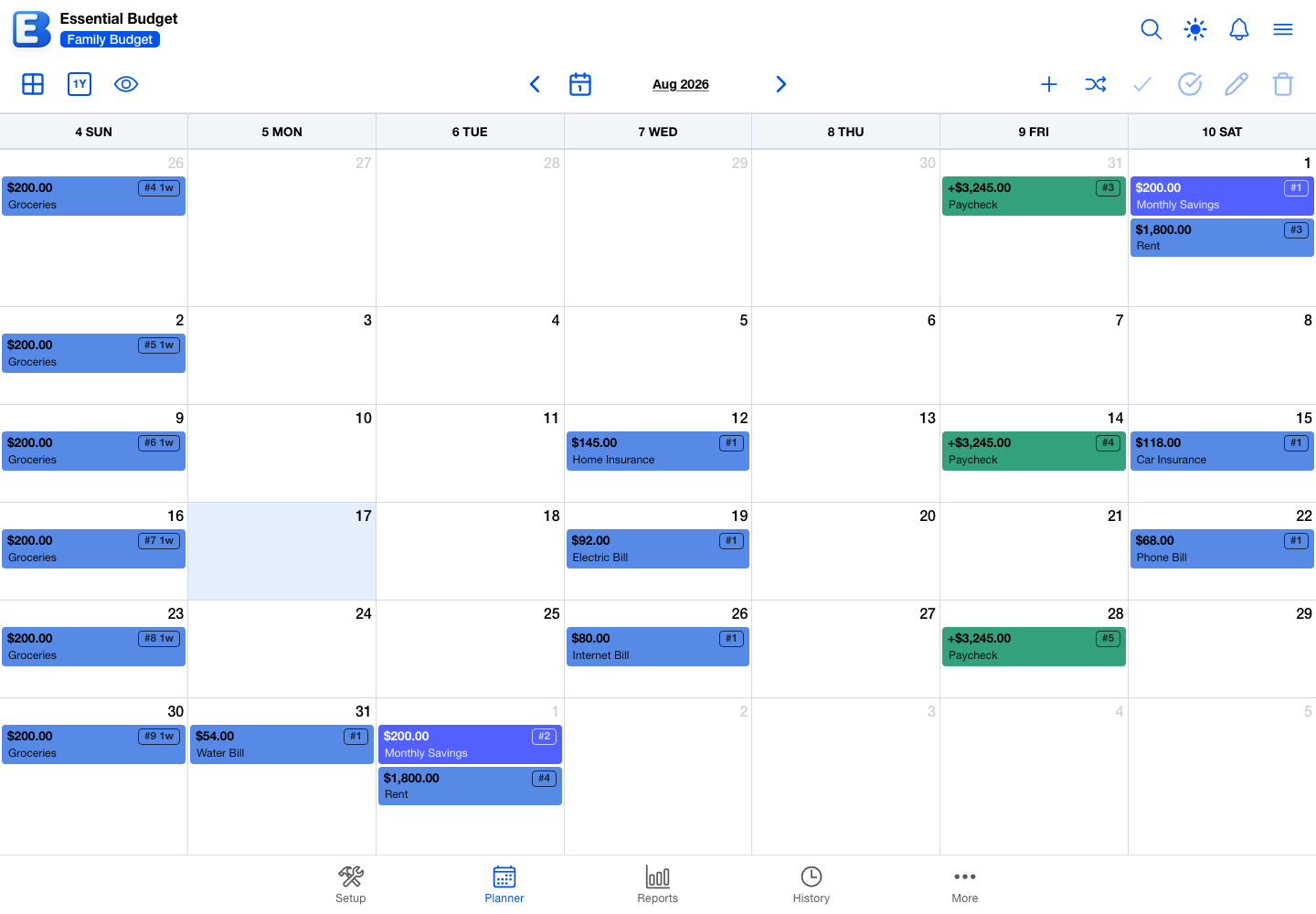
Tap the date in the middle of the toolbar to pick a layout:
- Month (default). One cell per day.
- Week. Seven days in a row, with more room in each.
- Day. One day at a time.
All three place an event on the day it belongs to; none of them lay events out by time of day, and no event ever spans more than one cell. The layout resets to Month each time you come back to the Calendar. On a narrow screen, the buttons for moving between months also live in that same popover.
A tile shows the amount still to come rather than the planned amount, so a grocery event you have already spent against shows what is left of it.
Max events per day
When a day holds more events than fit, the cell shows a +N more indicator that opens the rest in a popover. To change the limit, tap Max Events Per Day in the left toolbar (it appears in Calendar view only) and pick 3 events, 5 events, 10 events, 20 events, 30 events, or All. The default is 5 events, and this one is saved to your account, so it follows you to your other devices.
The setting applies to the Month layout. Week always shows up to 30 events in a day and Day shows all of them, whatever you pick here.
Moving an event to another date
Drag a tile to another day and drop it. On a touch screen, press and hold first. The event reschedules straight away, the running balances catch up a moment later, and anyone else on the budget sees the move without refreshing. Dragging needs edit access; viewers can open and read events but not move them.
Resolved events are not on the Calendar at all, so there is nothing to drag: they are in History, and Undo brings one back.
Toolbar actions
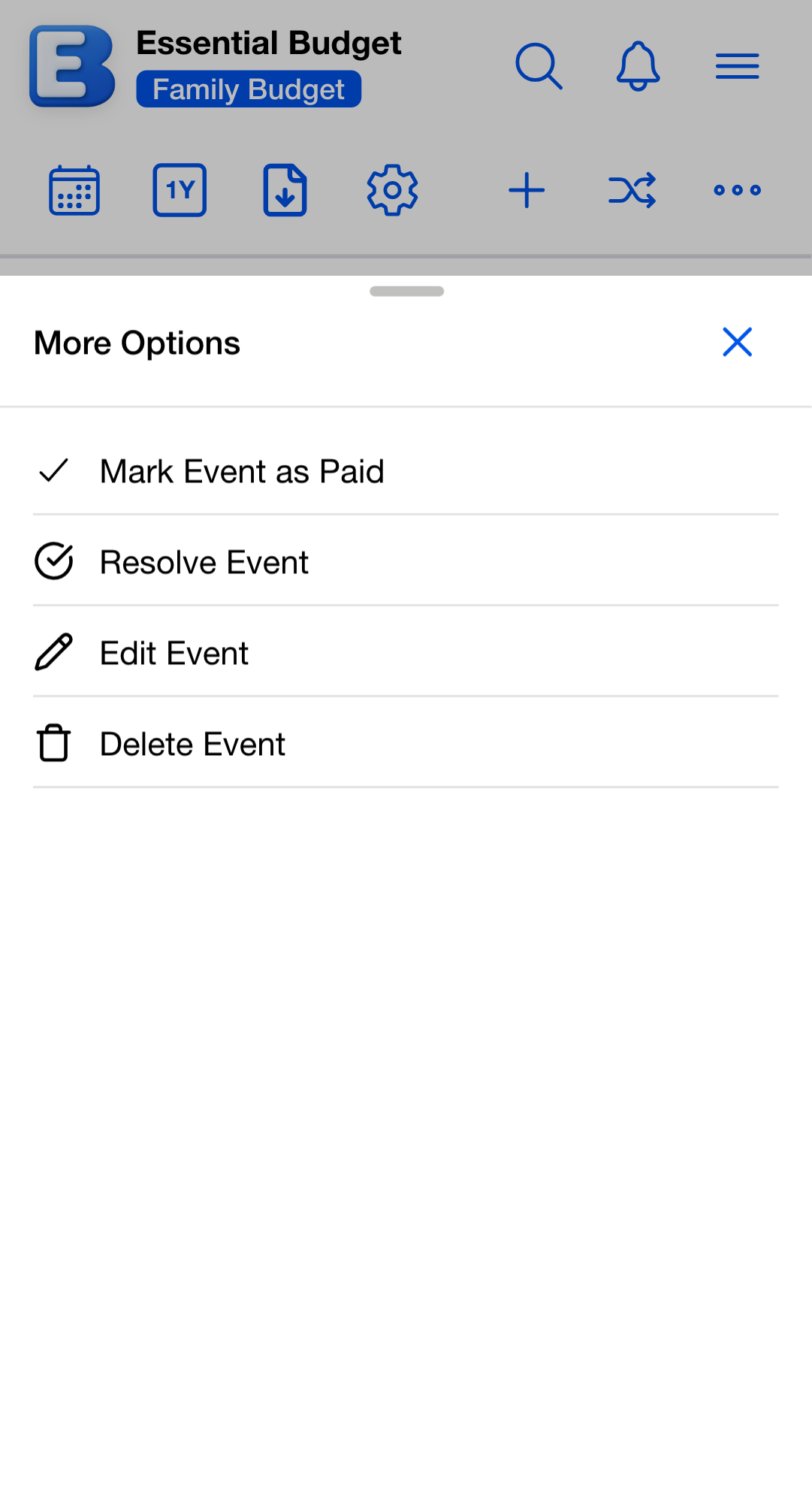
The right-side actions work on the event you have selected, except Add Flow, which needs no selection, and Match Transactions, which handles many events at once.
| Action | What it does |
|---|---|
| Add Flow | Opens the Add Flow dialog. The new flow produces events forward on its schedule. See Flows. |
| Match Transactions | Opens the Match Transactions dialog, which brings in transactions from a file you upload or from a linked bank and matches them to planned events. See Matching and Resolving. |
| Mark Event as Paid / Mark Event as Unpaid | Flags the event as paid, or clears the flag. The event stays on the Planner and no balance moves. |
| Resolve Event | Resolves the event and sends it to History. See below for the amount it files at. |
| Edit Event | Opens the Edit Flow Event dialog for that one event. |
| Delete Event | Removes the event from the Planner and writes a Deleted row to History, with no confirmation step. |
Resolve Event files the event at the total of its transactions when it has any, at this occurrence’s amount if you edited it, and otherwise at the planned amount. Your balance moves at that moment only when the event has no transactions on it, because transactions move the balance when you save them.
Delete Event does not reverse anything transactions already did to your balance. When you delete an event that carried transactions, their effect on the account stays, and you adjust the balance yourself if you want it gone. Deleting from inside the Edit Flow Event dialog asks you to confirm and says this; the toolbar button deletes immediately.
When Match Transactions is unavailable
The button is there for the budget owner, and for anyone with edit access whose account has Premium. Otherwise:
- Greyed out, with its label reading Requires premium or owner access. This is what an editor on the free plan sees, and what a viewer sees regardless of plan. It is also greyed for everyone when the Planner has no events yet.
- Not there at all. Once a budget has been linked to a bank, the button only appears for accounts with Premium, the owner’s included. Unlinking the bank later does not bring it back, because the budget keeps its bank-linked history.
If you only have read access, Resolve Event reads Read-only access - cannot modify.
Matching and Resolving has the fuller picture, including what changes when Premium ends.
When Resolve asks first
If the selected event belongs to a flow that is due over a date range and has no transactions recorded, Resolve Event opens a confirmation titled No Transactions Recorded. Pick Add Transaction to record one first, or Resolve Anyway to resolve at the planned amount. Events with at least one transaction, and events whose flows are due on a single date, resolve without asking. Setting Status to Resolved inside the dialog also skips the question.
Editing one event versus editing the flow
There are two scopes of edit, and which one you want depends on whether the change applies once or from now on.
- Edit the flow when the change applies forward. Rent rises to $1,900 next month: open the flow from Flows, change the amount, save, and every future event follows.
- Edit the event when the change applies to one date only. Your paycheck landed a day late, or rent was waived for a month: select the event, tap Edit Event, change what you need, save. The original value stays visible, struck through, on the row.
Why doesn’t editing one event change every future event? The schedule is the template and the events are what it produces. A one-off edit is written on top of the template rather than into it, so “rent waived this month” stays one month, and your other customized events are undisturbed when you later change the schedule itself.
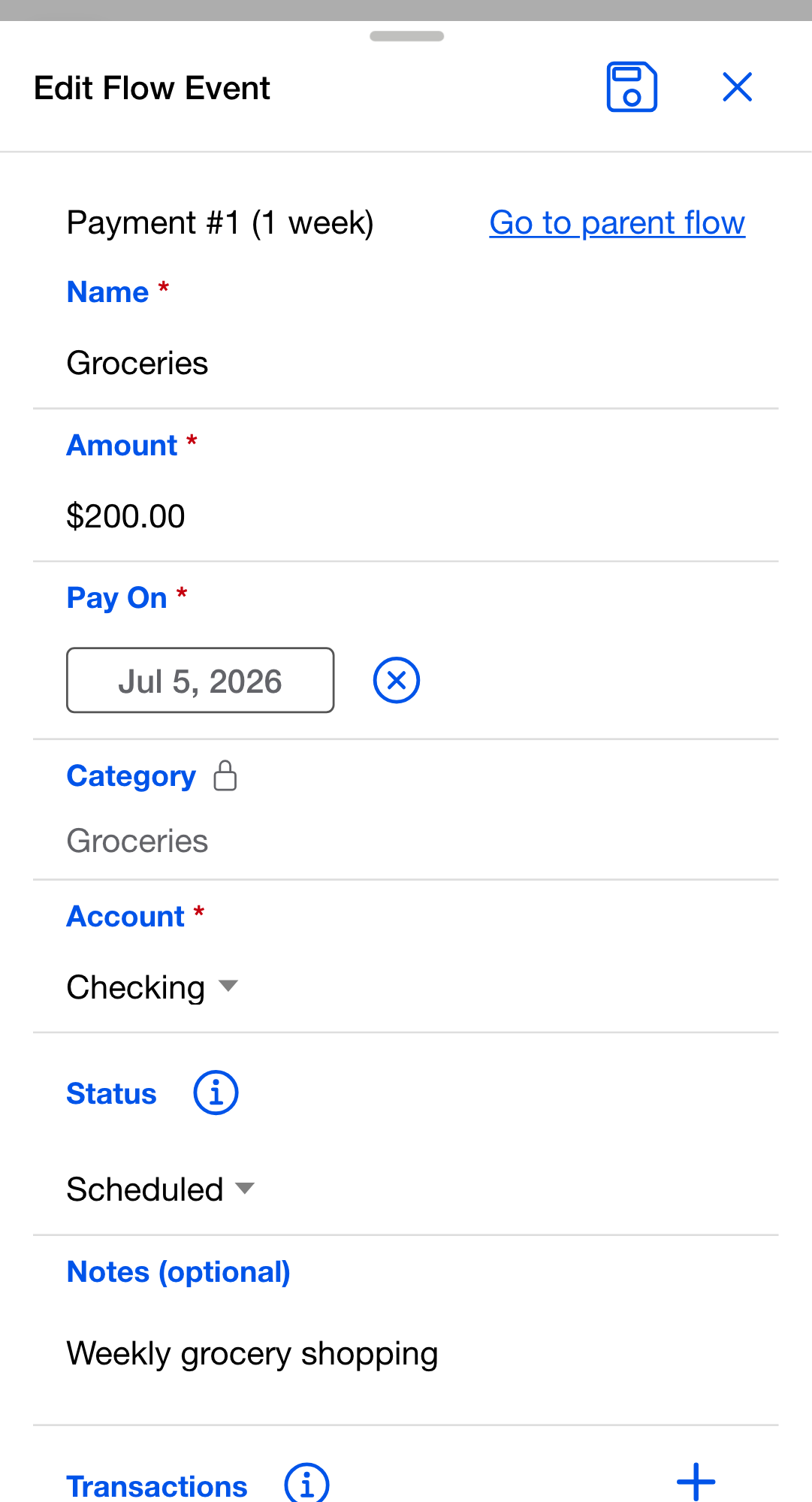
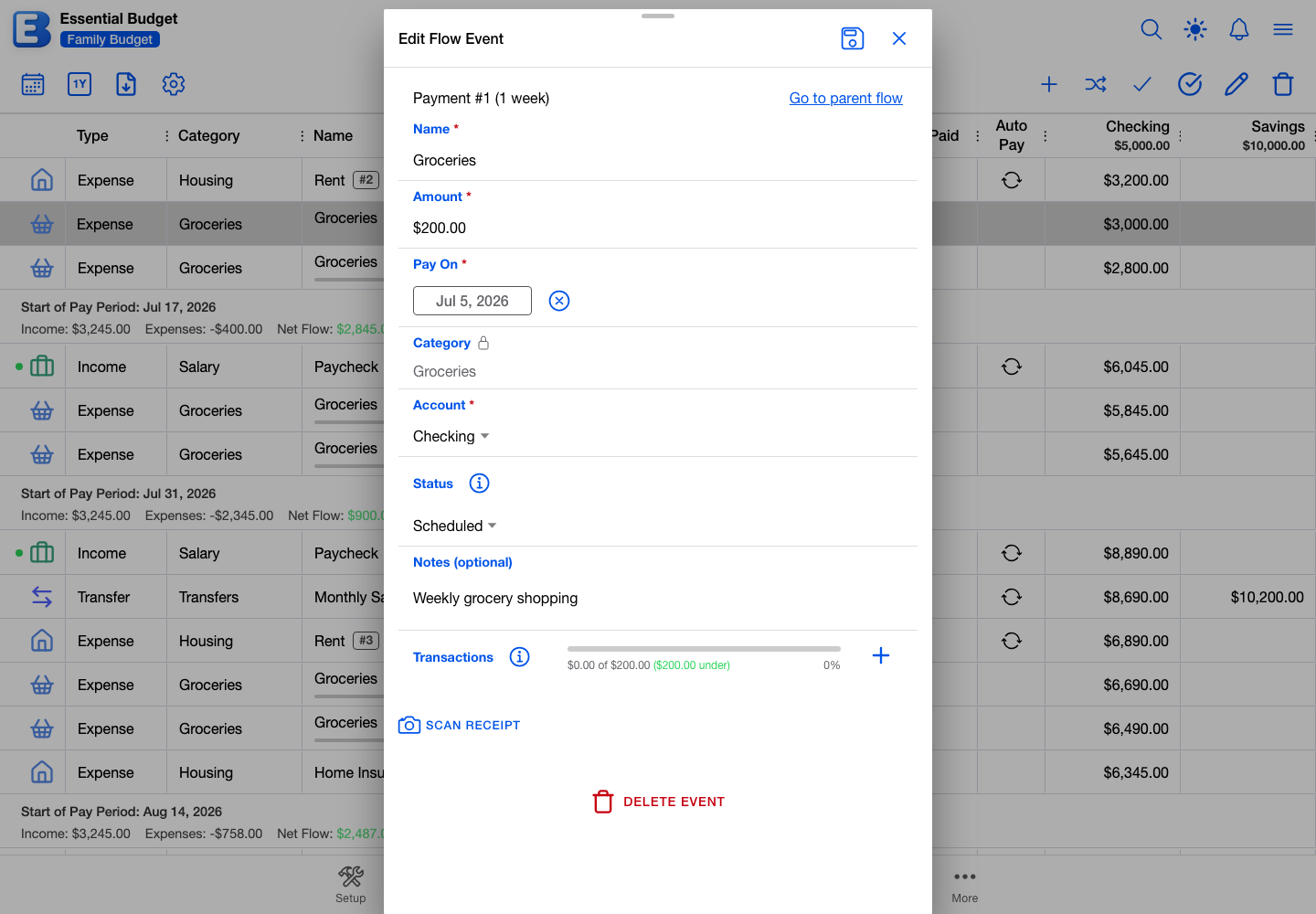
Edit Event opens the Edit Flow Event dialog, titled View Flow Event with read-only access. At the top it shows which occurrence this is, as in “Payment #3”, and a Go to parent flow link that closes this dialog and opens the flow for editing. Anything unsaved here is dropped when you follow it.
The fields:
- Name. The label on the event row. Defaults to the flow’s name.
- Amount. The planned amount for this event.
- Pay On. The date this event is scheduled for.
- Category. Shown with a padlock. To change it, edit the flow.
- Account, or From Account and To Account on a transfer.
- Status. Scheduled, Paid/Spent, or Resolved. Choosing Resolved and saving does the same thing as Resolve Event.
- Notes (optional). Free-form text.
Below those sits Delete Event, and, on an event that has one, the receipt attached to it.
Transactions inside an event
When the event’s flow is not a transfer, the dialog also shows a Transactions section: a progress bar against the planned amount, and the individual transactions. Each has a Date, an Amount, and a Description (optional). The editor holds up to 500 per event.
Transactions move your account balance the moment you save them, which is why the Planner’s projection only carries the remaining amount forward. Recording them here does not resolve the event, however far they add up; you resolve it yourself when you are ready. A transaction that came from a scanned receipt is read only here, and the row offers to open the receipt instead.
How an event’s state changes
An event starts as Scheduled. From there:
- Mark Event as Paid flags it for your own reference and puts a checkmark in the Paid column. No balance moves, the event stays on the Planner, and the button flips to Mark Event as Unpaid.
- Resolve Event, or setting Status to Resolved, sends it to History.
- A Match Transactions session can resolve it for you when a real transaction is matched to it.
- Delete Event removes it and writes a Deleted row to History.
Marking an event paid is the only one of these that does not write to History. Every other action puts a row in History, where selecting it enables Undo Action in the toolbar.
For the definitions of Scheduled, Paid, and Resolved and the three routes to Resolved, see Matching and Resolving. For reversing any of it, see History and Undo.
Quick reference
| If you want to | Do this |
|---|---|
| See events as rows with balance columns | Tap Switch to Grid View at the left of the toolbar. |
| See events on a date grid | Tap Switch to Calendar View, then tap the date in the toolbar to pick Month, Week, or Day. |
| Reach further forward than a year | Tap the 1Y button; pick up to 5 Years. |
| Add a new recurring flow | Add Flow. |
| Mark a bill paid before the bank shows it | Select the event, tap Mark Event as Paid. Tap Mark Event as Unpaid to clear it. |
| Resolve an event with no bank transaction | Select the event, tap Resolve Event. |
| Edit just this event | Select the event, tap Edit Event. |
| Edit every future event | Open the flow from Flows. |
| Move an event to a different date | Drag the tile in Calendar view, or change Pay On in Edit Event. |
| Reorder rows in a period | Grid view, drag the row by its left edge. The order is shared with everyone. |
| Hide or rearrange columns | Grid Settings, Columns tab. |
| Change how rows are grouped | Grid Settings, Row Headers tab. |
| Export the Grid | Export to Excel or CSV. Excel keeps the group headers; CSV is a flat list. |
| Match a batch of bank or file transactions to events | Match Transactions. See Matching and Resolving for who can use it. |
| Delete an event | Select it, tap Delete Event. The Deleted row appears in History, reversible with Undo Action. |
Behind the scenes
The forecast horizon lands in December. Picking “1 Year” reaches into December of next year, which is why the same choice covers more time in May than in November. The furthest you can reach is five years out.
Schedules clamp to the end of short months. A monthly schedule on the 31st falls back to the 28th in February, the 29th in a leap year, and the 30th in April. A schedule set to the last day of the month always lands on the last day, whatever that is. A February 29 schedule lands on the 29th in leap years and the 28th otherwise. One consequence: a flow scheduled on both the 30th and the 31st produces two events on the same day in February.
Daylight saving does not move events. Dates are held as dates, with no time attached, and the app pins each one to the middle of the day before comparing or moving it. A clock change of an hour cannot push an event into the next day.
The running balance recomputes on every change. Adding a transaction, dragging an event, finishing a Match Transactions session, resolving or deleting an event, changing the Forecast Period, or a collaborator’s edit arriving all recompute the projection within a moment. You never need to refresh.
The projection carries the remaining amount, not the planned amount. For an event with transactions on it, your bank balance has already absorbed what you recorded, so the Planner only projects the rest. It never goes below zero for a single event, so overspending shows in the Amount column rather than pushing the projection down twice.
Events resolve on their own only from a real transaction. A matched bank or file transaction, or a posted receipt, resolves an event due on a single date right away. On a flow due over a date range, the event resolves when its total reaches or passes the planned amount. Transactions you type in yourself never resolve anything. See Matching and Resolving.
Related pages
- Concepts: the words flow, event, schedule, transaction, category, and account defined once.
- Flows: the templates that produce events on the Planner.
- Matching and Resolving: the full lifecycle of an event and what each route does to your balance.
- History and Undo: where resolved and deleted events live, and how to reverse them.
- Reports: charts of what the Planner shows, sharing the same Forecast Period.
Questions or feedback about this page?Email us.