
Learn - Categories
The buckets your money flows through, and the type that drives the math.
Categories
Categories are the buckets your flows live in. Every flow you create, rent, a paycheck, groceries, a streaming subscription, belongs to exactly one category, and each category has a Type that tells the app which way money moves when a transaction is saved or an event is resolved. The type is the one field worth getting right. The name, the icon, and where a category sits in the tree are all for your benefit later, when you are scrolling for something.
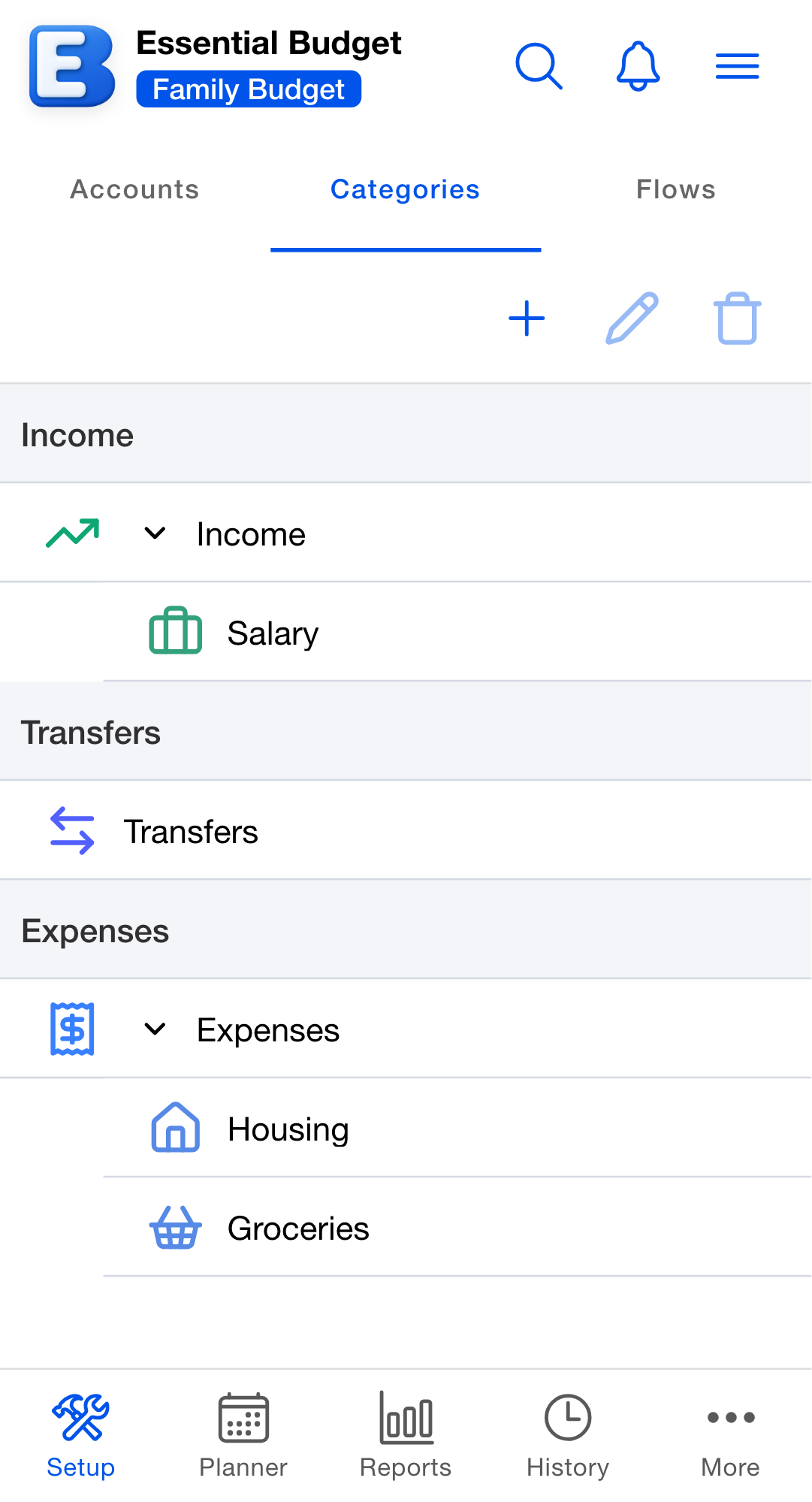
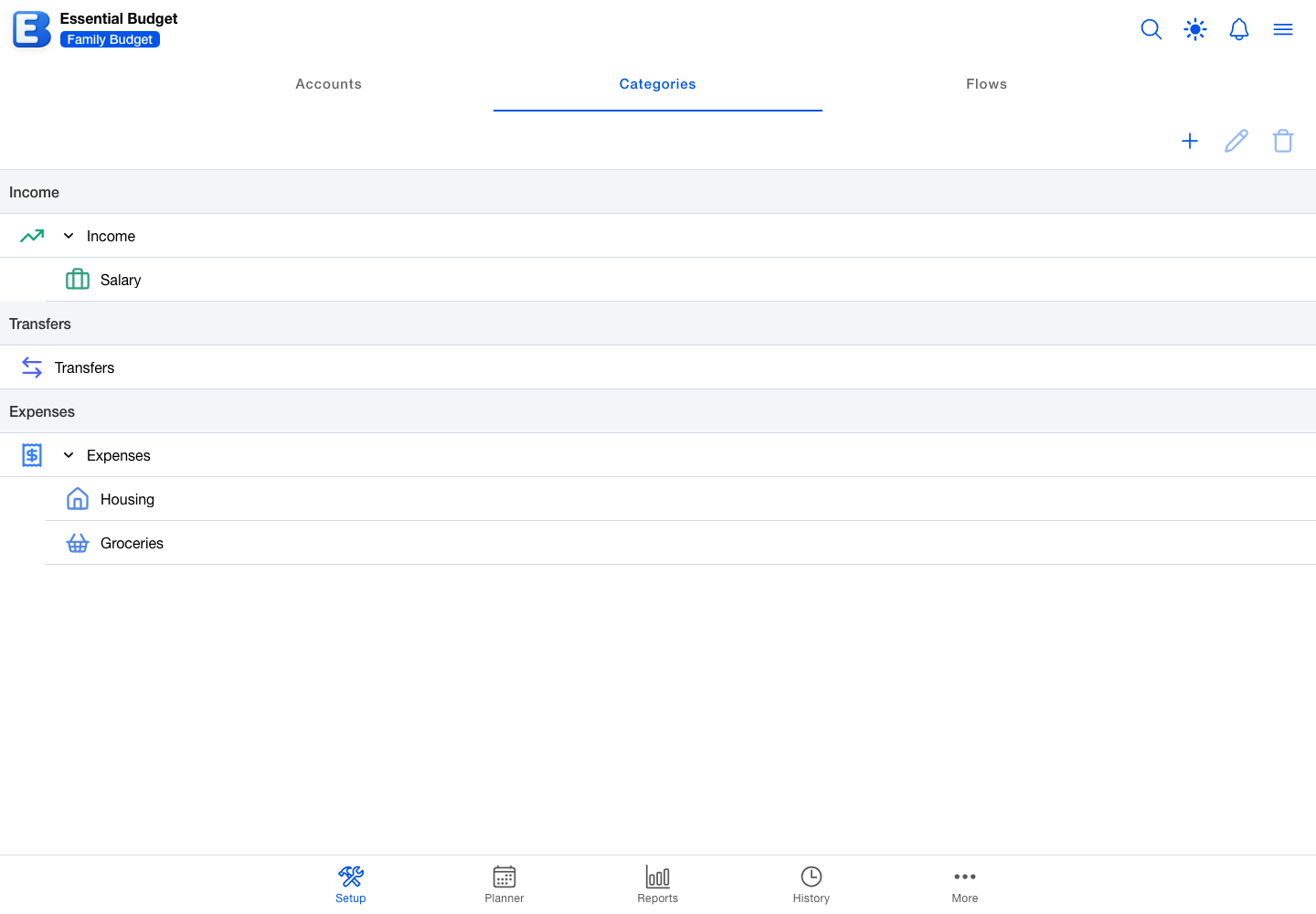
Categories are the second segment of the Setup tab, between Accounts and Flows. A budget you create manually starts with no categories; every one in your tree is one you added. A budget generated by AI, built from your receipts, restored from a backup, or imported from someone else arrives with its categories already in place.
The three types and the sign rule
Every category has one of three types, and the type is what the app reads when money moves.
Income. Money coming in: paychecks, refunds, gifts, freelance pay, dividends, interest. Resolving an Income event, or saving a transaction inside one, raises the linked account’s balance. Most people end up with a handful of Income categories.
Expense. Money going out: rent, groceries, gas, dining out, subscriptions. Resolving an Expense event, or saving a transaction inside one, lowers the linked account’s balance. This is where most of your categories will live.
Transfer. Money moving between two of your own accounts. Moving $500.00 from Checking to Savings is a transfer. A Transfer flow names a From Account and a To Account; when its event resolves, one balance goes down and the other goes up by the same amount, so your overall total is unchanged.
Why does the Type drive the sign, instead of the amount you record? The amount is always positive. The direction comes from the category’s type, read fresh at the moment the money is applied. That has one big payoff: file a flow under the wrong-type category and you never have to re-key an amount. Change the flow’s category and every future transaction follows the new direction. Balance changes already made keep the direction they were made with, so resetting Current Balance is the cleanest way to absorb the difference.
Why is Transfer a separate type rather than two transactions? Recording a Checking outflow and a Savings inflow as two unrelated entries, you could get them out of sync over time: different dates, different amounts, one entered without the other. Treating a transfer as a single record with two sides means you cannot accidentally record half of one. Both balances move together, or neither does.
How categories are organized
The tree groups your categories under three section headers, Income, Transfers, and Expenses, in that order, one per type. The headers are not records you create or edit; each appears when at least one category has that type, and a type you have not used yet shows no header at all.
Categories nest one level deep. A top-level Food category can hold Groceries and Restaurants; a top-level Subscriptions can hold Streaming, Software, and News. Two levels is the limit, so a sub-category cannot have sub-categories of its own. Dragging a category that already has children in under another parent is refused with the notice “Only two category levels are supported.”, and a childless category dragged too far right simply stops at the second level.
Sub-categories are worth adding when a parent holds so many flows that you cannot see patterns inside it, or when you want to watch one slice, just restaurants, just software, without losing the parent total. Skip them when the parent holds two or three flows, or when the sub-category would hold exactly one. Neither case reveals anything; both add taps.
Why this default? A flat list of eight to twelve categories stays usable forever. A nested tree of twenty-five needs maintenance you will quietly stop doing in month three. The app will build the deeper tree if you want it. It just will not push you there.
Drag and drop reorders categories inside a section and moves them under or out from under a parent. Each section is its own tree, so a drag cannot cross between Income, Transfers, and Expenses. A category that has sub-categories can be reordered but not reparented, and trying shows “Cannot move a category with subcategories to a different parent. Please move or delete subcategories first.” New positions save immediately; if the save fails, the row snaps back and an error notice appears.
Tap the chevron on a category that has sub-categories to fold it away. To find one category among many, tap the search button in the header and type. Search matches the category name and shows every match in a single combined list, without the three section headers, so it is a way to find a category rather than a way to see the shape of your tree. That combined list mixes the three types, so a drop that would file a category under a parent of a different type is refused there with the notice “A category can only sit under a parent of the same type.”
Adding a category
Tap Add Category on the toolbar. The New Category dialog opens.
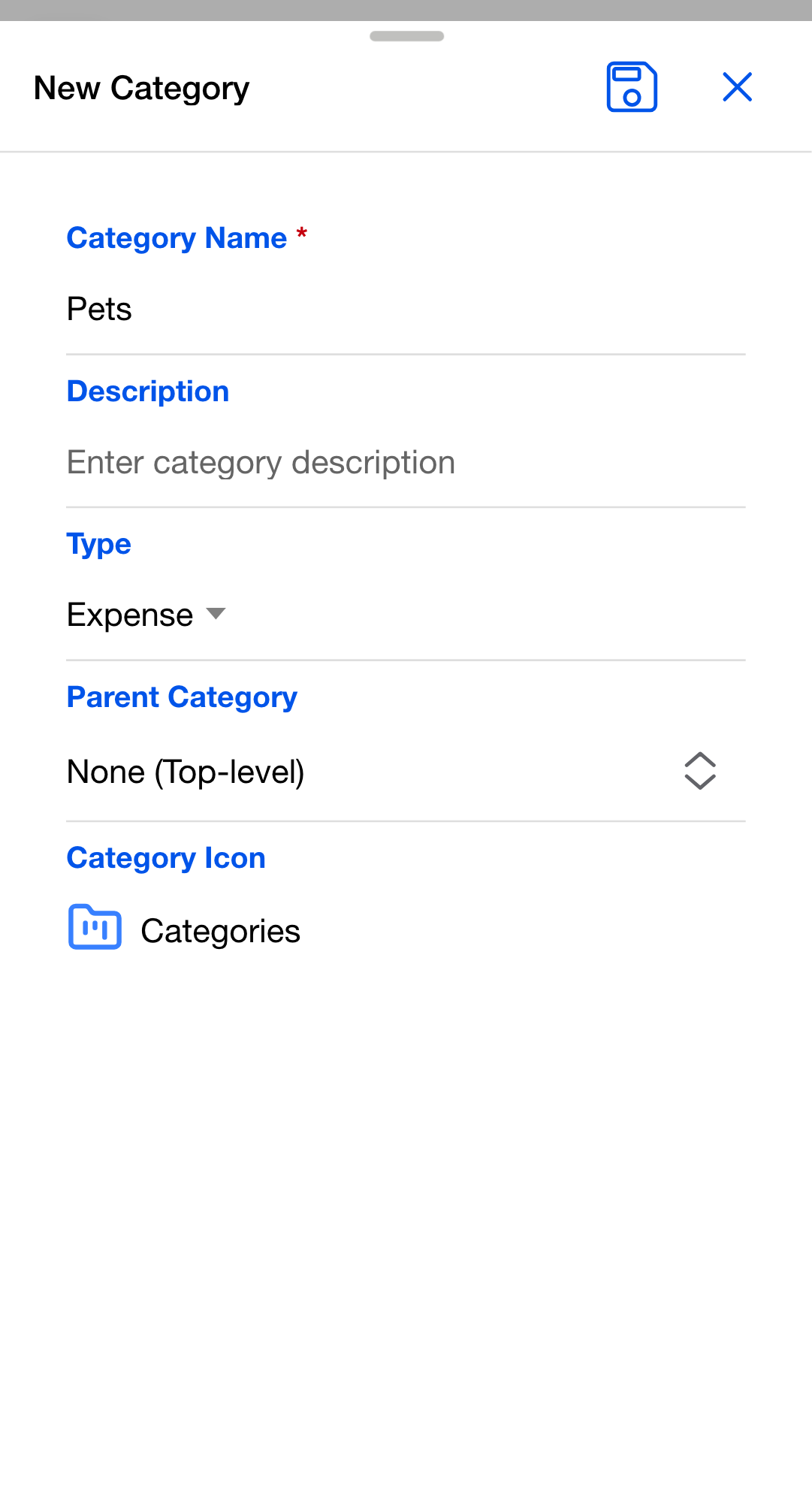
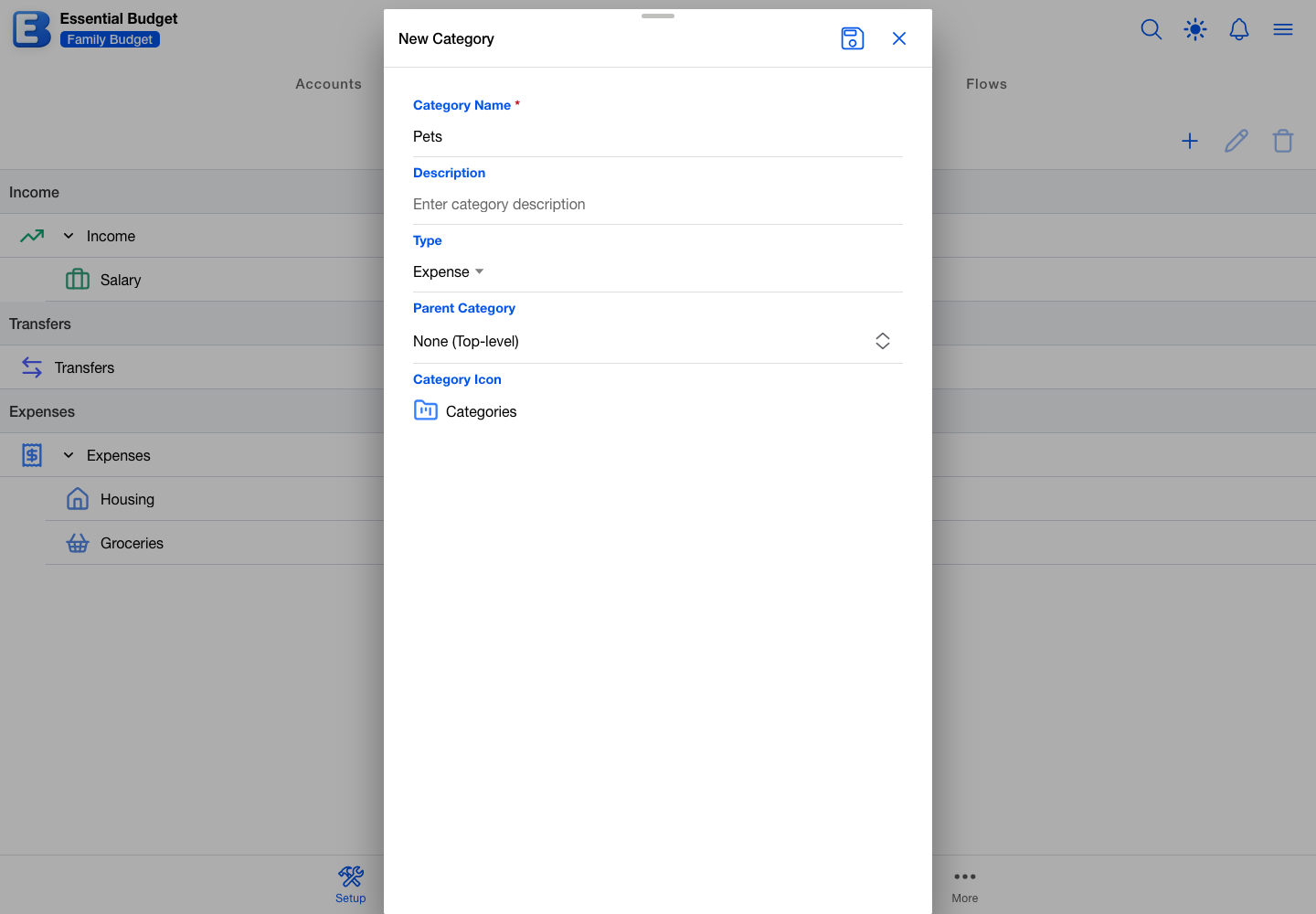
Fill in:
- Category Name. What you will recognize at a glance. Up to 50 characters, and the only required field.
- Description. Optional. A note for yourself, up to 1,000 characters.
- Type. Income, Expense, or Transfer. A new top-level category starts as Expense.
- Parent Category. Defaults to None (Top-level). Pick another category here to nest this one under it.
- Category Icon. Shown for this category, and for every flow filed under it, on the Planner and in lists.
Picking a parent does two things at once. The new category becomes a sub-category, and its Type switches to the parent’s and turns read-only, labelled (Inherited from parent). The picker only offers top-level categories of the type the form currently shows, so changing Type first changes what you can nest under.
Tapping Add Category while a category is selected pre-fills that category as the parent and inherits its type. If the selected one is itself a sub-category, the new category is parented to its top-level ancestor instead, since the tree only goes two levels deep.
Category names are unique within a budget, across every type and every level, and the check ignores capitalization. Naming a second category “groceries” when “Groceries” exists shows A category named “groceries” already exists and leaves Save greyed out.
A budget can hold up to 250 categories, on the free tier and on Premium alike. At the cap, tapping Add Category shows the notice “Category limit reached (250/250 per budget).” instead of opening the dialog.
Editing a category
Double-tap a category, or select it and tap Edit Category. The dialog opens as Edit Category and you can change the name, description, type, parent, and icon.
Three rules shape what you can change:
- A sub-category’s Type is read-only. It shows the parent’s type with the note (Inherited from parent). To change it, either change the parent’s type, or set Parent Category back to None (Top-level), which makes the Type field editable again and keeps the type it had. Moving the sub-category to a different parent will not do it: the parent picker only lists parents of the type it already has.
- A category with sub-categories cannot itself become a sub-category. Its Parent Category field is dimmed and does not open. Move or delete the sub-categories first.
- Changing the Type of a category with sub-categories cascades. A note under the field reads “Changing type will update all subcategories”, and saving applies the new type to the category and all of its children. The app updates them one at a time, so an interrupted save can leave some already changed; reopen the parent and save again if the tree looks half-converted.
Why must a sub-category share its parent’s Type? The constraint shows up in three places at once: the parent picker offers only same-type parents, the Type field is read-only on a sub-category, and a parent’s Type change overwrites its children. If a child were free to disagree, the cascade would have to either re-type it silently or stop and ask, and both are surprises. Forcing alignment keeps the tree predictable: pick the parent’s type once, and every child follows.
Changing the type of a category in use
You can change the type of a category that already has flows in it. The app does not block it, and the consequences are worth knowing before you save.
Flows filed under the category keep pointing at it; their category does not change. Future balance changes on those flows move money in the new direction, so an Expense category flipped to Income means the next resolved event adds to your balance instead of subtracting from it. Balance changes already made are not revisited: each was written with the direction that was in force at the time.
So flipping an in-use category’s type does not correct your history. The reliable fix is to flip it back and move the affected flows to a different category instead. Use type changes on categories you have not used yet, or be ready to reset the affected account’s Current Balance afterwards.
Deleting a category
Open the category and tap Delete Category at the bottom, or select it and tap Delete Category on the toolbar. The Delete Category dialog opens and works out how many flows use the category and whether it has sub-categories.
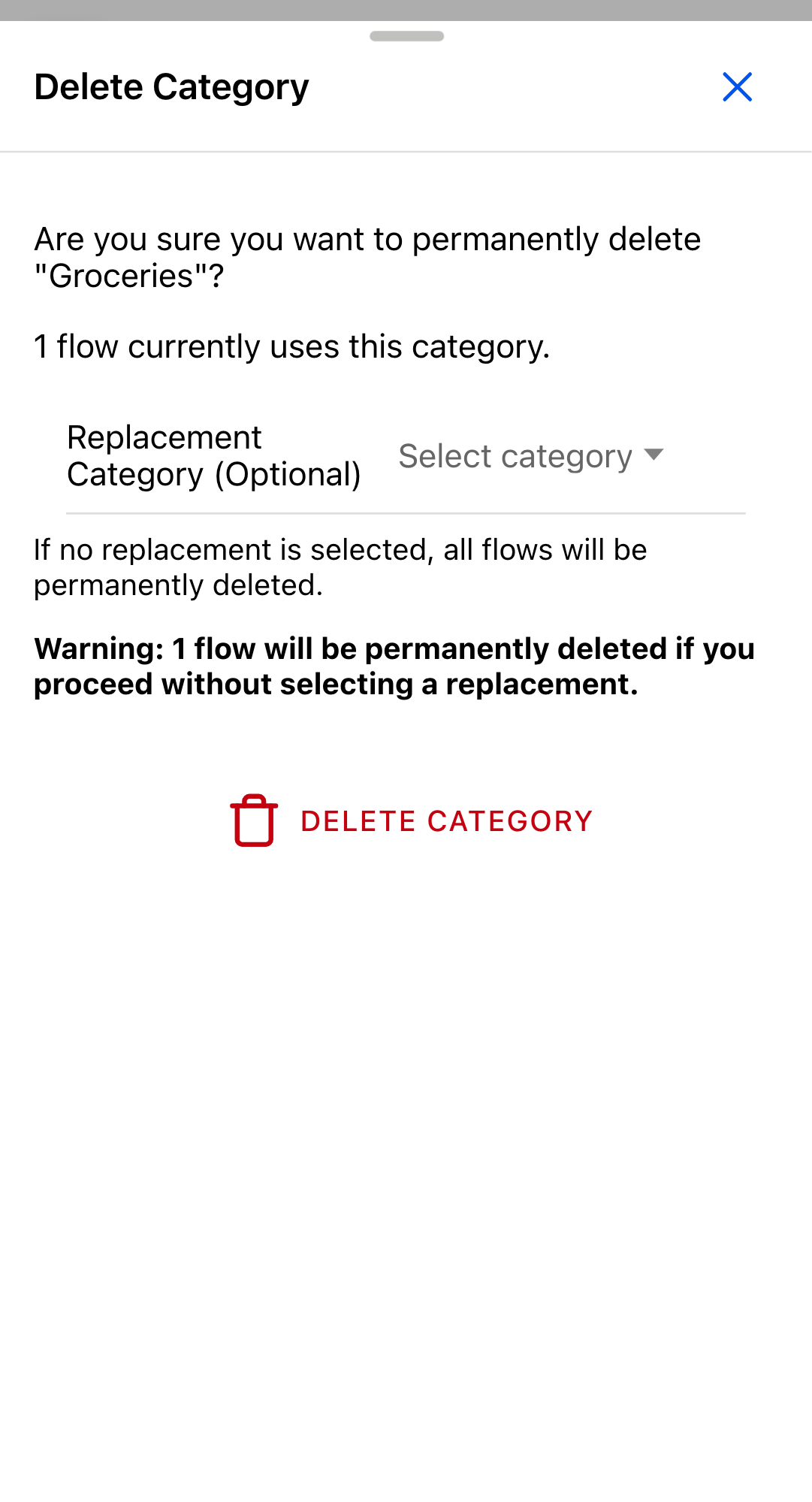
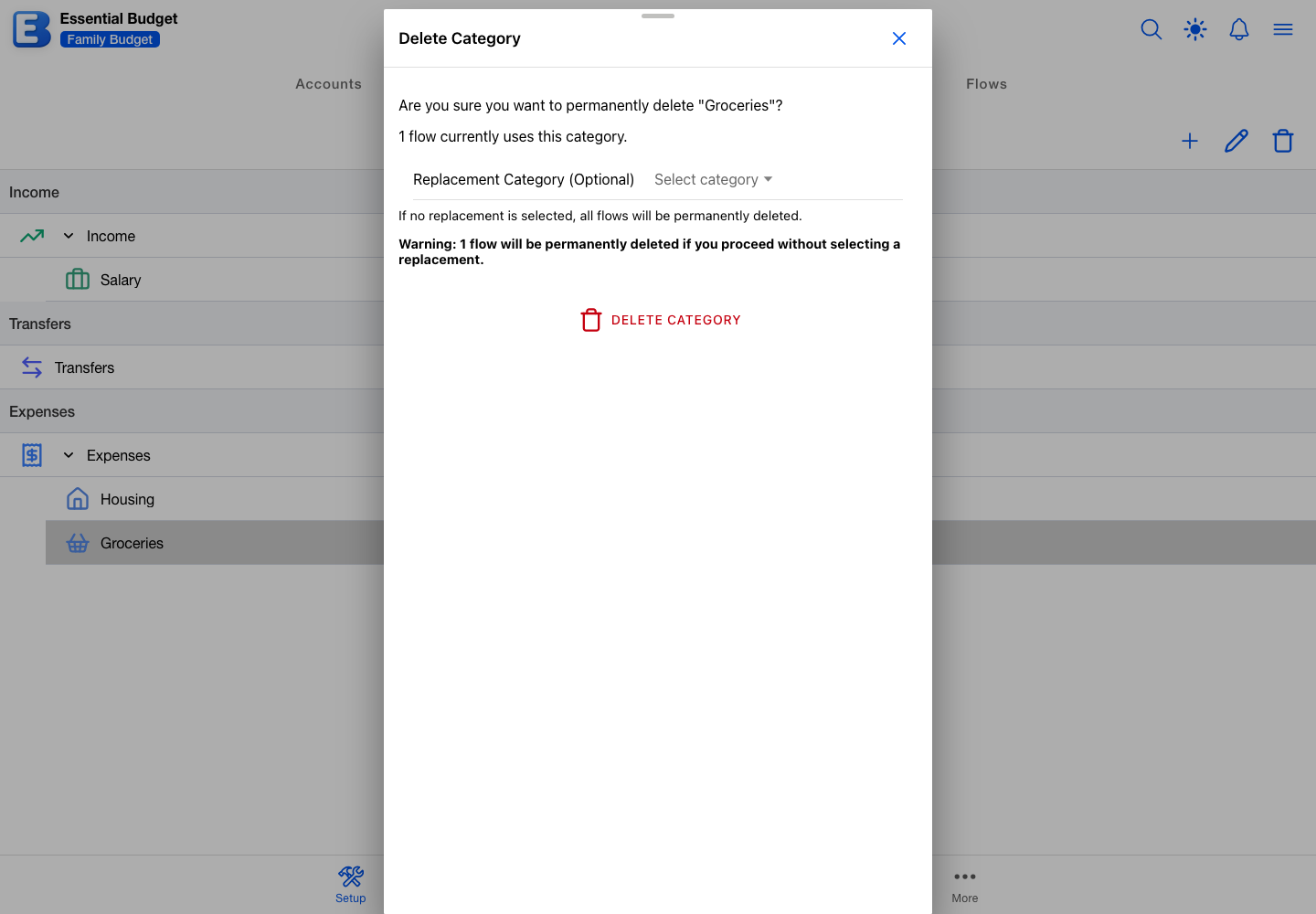
Three things can happen.
Sub-categories stop the delete. No Delete Category button appears at all, and the dialog explains why: “[Name]” has N subcategories. Please delete or move the subcategories first. Sub-categories are never promoted or merged for you.
No flows and no sub-categories: a clean delete. The dialog asks Are you sure you want to permanently delete “[Name]”? and you confirm.
Flows are using the category. The dialog says how many, and offers a Replacement Category (Optional) picker listing every other category of the same type. What you do with that picker decides what happens to the flows.
- Pick a replacement. The helper text becomes Flows will be reassigned to the selected category. Confirming moves the flows across. Their schedules, transactions, and events stay attached to the flows; only the category they file under changes.
- Leave it empty. The helper text reads If no replacement is selected, all flows will be permanently deleted., and a warning follows: Warning: N flows will be permanently deleted if you proceed without selecting a replacement. Confirming deletes those flows with their schedules and every transaction ever recorded on them. This is the path for tearing down a side project you want completely gone.
When no other category of that type exists, the picker does not appear and a red warning takes its place: Warning: N flows will be permanently deleted with this category. Add a category of the matching type first if you wanted to reassign.
Why does the replacement picker only offer categories of the same type? Reassigning across types would silently flip the direction of every flow on the list. A former Expense flow logged as Income would start adding to your balance instead of subtracting, with no warning anywhere. Keeping the picker on-type means whatever you pick produces the same kind of math the flows already had.
Why does the account dialog not offer a replacement too? A flow belongs to exactly one category, so swapping the category on every affected flow is clean: the flows keep their identities, schedules, and history. A flow references one or two accounts, and there is no equally clean swap for “this account is going away”, so deleting an account deletes the affected flows outright. Categories have the simpler relationship, so they can offer the simpler escape hatch.
Everything the dialog does happens together or not at all, so a delete cannot leave you half-finished. Two things are worth knowing before you confirm.
Your History rows survive on both paths, keeping the category name, type, and icon they were resolved with. They can no longer be undone, though. Opening one shows “Cannot undo: The original category no longer exists.”, and that is as true when you picked a replacement as when you did not, because the original category is gone either way.
The dialog also gives up counting after a couple of seconds on a slow connection. When that happens it says so and offers Try Again rather than reporting nothing affected, and it does not offer the delete until the count arrives.
What category to pick for a new flow
Choosing a category for a flow does three things. It sets the direction the flow moves money, up, down, or across two accounts. It groups the flow with its peers in the tree and in Reports. And it sets the icon used on the Planner and in lists.
When you are unsure, pick the category you would look under three months from now. Eight to twelve top-level categories is plenty for most people.
The mistake worth watching for is filing an Income flow under an Expense category. The app reads the type when the flow touches the balance, so a misfiled paycheck quietly subtracts every payday instead of adding. The giveaway is a running balance drifting the wrong way. Point the flow at an Income category and future events are fine; for events already resolved, either reset the account’s Current Balance to your bank’s number, or delete and re-add them under the corrected flow.
Who can edit categories
Anyone with edit access can add, edit, and delete categories, and the budget owner has edit access by default. Viewers see the same tree with the toolbar’s three buttons greyed out and no drag-and-drop; double-tapping a row opens it as View Category, read-only, with no Save button. Permissions are managed on the Sharing page.
When two people edit the same category at the same moment, the second save is stopped rather than allowed to overwrite the first. The Update Conflict dialog opens with two choices: Retry My Changes saves your version over theirs, and Use Server Version discards yours and keeps what they saved. Your edits stay on screen until you pick.
Quick reference
| If you want to… | Do this |
|---|---|
| Add a top-level category | Categories segment, Add Category, set Name and Type, leave Parent Category as None (Top-level), save |
| Add a sub-category | Select the parent first, then Add Category; the parent and type are pre-filled |
| Rename a category, or change its icon or description | Double-tap the category, change the field, save |
| Reorder categories or move them between parents | Drag and drop inside a section; the new order saves at once |
| Change the type of a category with sub-categories | Edit Category, change Type; the cascade updates every sub-category |
| Make a sub-category’s Type editable again | Edit Category, set Parent Category to None (Top-level) |
| Move a category to a different parent | Edit Category, change Parent Category; available only if it has no sub-categories of its own |
| Reassign all flows from one category to another, then delete the original | Delete Category, pick a Replacement Category of the same type, confirm |
| Delete a category and every flow under it | Delete Category, leave Replacement Category empty, acknowledge the warning |
| Recover from a wrong-type flow | Point the flow at a category of the correct type; reset the account’s Current Balance if past balances stopped matching your bank |
| Add more than 250 categories | Not possible. The cap is 250 per budget on every tier |
Behind the scenes
Skim past this section on a first read. It explains a few details you can sometimes feel without needing to know them.
Category colours come from your theme. You pick the icon; the colour is picked for you. Income categories use the theme’s income colour. Expense and Transfer categories share one set of palette swatches, handed out in the order their top-level categories appear in the tree. A sub-category takes a lighter shade of its parent’s colour, so a family reads as one. Reordering the tree changes which swatch each top-level category gets, and so does deleting one, since every category after it shifts up a place. Switching themes restyles everything at once. History rows keep the swatch they were resolved with, so your past does not change colour under you.
The sign is read when money moves, not stored with the amount. Saving a transaction, removing one, or resolving an event without transactions all look up the flow’s category type at that moment and apply the signed change to the account balance. That is what makes “fix the wrong-type flow by changing its category” work for everything still to come, and it is also why a type change is not retroactive: past changes were written with the sign that was in force then.
The Categories segment never calls AI. Every category here is one you added or edited yourself. AI budget generation writes categories for you when you create a budget that way (see Subscription for the AI overview), and building from receipts writes them too, for the placements you confirm in its review. Matching calls no AI at all: it compares merchant names, amounts, and dates (see Matching and Resolving).
Related pages
- Flows: every flow lives in exactly one category.
- Accounts: the category’s Type tells the app which way an account’s balance moves, and deleting an account follows a different rule than deleting a category.
- Matching and Resolving: how a category’s type drives the balance change behind each transaction.
- Reports: categories are the grouping the reports use.
- Sharing: who can edit categories on a shared budget.
- History and Undo: what survives when you delete a category, and why undo stops working on the rows it touched.
- Concepts: short definitions of flow, event, transaction, category, and account.
Questions or feedback about this page?Email us.