
Learn - Troubleshooting
Common questions and the fastest path to a fix.
Troubleshooting
This page is a lookup table for the questions that come up most often. Each entry states the symptom, the cause in one or two sentences, and a sequence of taps to fix it. Where the underlying behavior is documented in detail elsewhere, the entry links to the main paragraph.
If your situation is not on this page, the linked feature pages cover the rest. Every page has a Related pages section at the bottom.
My account balance in the app does not match my bank
The bank’s number is the balance to trust. The app’s running balance can stop matching if a payment, deposit, transfer, or purchase appears at the bank but has not been matched, resolved, or saved in the app, or if something in the app was later reversed at the bank.
You have two ways to make the app match your bank again.
Reset Current Balance. Open Setup, Accounts, select the account and tap Edit Account in the toolbar (or double-tap its row), change Current Balance to whatever your bank shows now, save. Fast, and the running total continues from the new number.
Find the missing or duplicate transaction. Open the Planner tab, tap the event the transaction belongs to, scroll to the Transactions section in the Edit Flow Event dialog, and add or remove the transaction.
Full details are on Accounts, with cross-references to Transactions for editing transactions inside an event.
I tapped Mark Event as Paid but the event is still on the planner
That is what Mark Event as Paid is for. It flags the event with a checkmark on the Planner so you do not pay the same bill twice while you wait for the transaction to appear in your bank transactions. The button is a toggle: once the event is marked, the label changes to Mark Event as Unpaid. Tap it to flip back to Scheduled. It does not move your account balance, and it does not move the event off the Planner.
To take the event off the planner, you have three options:
- Wait for the bank transaction to land. The next time you tap Match Transactions, the Match Transactions dialog matches it with the event and resolves the event for you.
- Tap Resolve Event in the right toolbar. The event resolves and moves to History.
- Open the event with Edit Event, change Status from Paid/Spent to Resolved, save.
Full lifecycle details are on Matching and Resolving.
I resolved the wrong event
Open History (under More in a budget created from receipts). Find the row, tap it, then tap Undo Action in the toolbar.
The Undo dialog opens. Its title reads Undo Resolution of followed by the event’s name. Below the heading, the dialog tells you what is being restored and what happens to your account balance. If the resolved event had no transactions filed against it, you see a Reverse Balance Change toggle (on by default). If transactions are attached, the dialog shows an Account Balance note instead, because the transactions already moved the balance when they were added and there is nothing extra to reverse.
Tap Undo to confirm. The event returns to the planner with whatever transactions and customizations it had at the time it left.
Full details are on History and Undo.
A bank transaction appeared but no event matched it
When you run Match Transactions, the matcher shows one of two messages instead of opening the review screen if it cannot produce usable matches.
- No Matches Found. The new transactions could not be matched with any open event. Add the missing flow under Setup, Flows, then run Match Transactions again.
- No New Transactions. Every transaction has already been processed. Tap the Match All Transactions button on the dialog to re-run the match against transactions you skipped earlier.
Full details are on Matching and Resolving.
My bank connection broke
Open Settings and find the Linked Accounts card. The bank that needs attention shows a Reconnect button on its row.
Tap Reconnect. Plaid reopens the connection you already have, so you go straight to your bank’s sign-in. The Reconnect button goes away once the bank is healthy, and pulls resume the next time you tap Match Transactions on the planner toolbar.
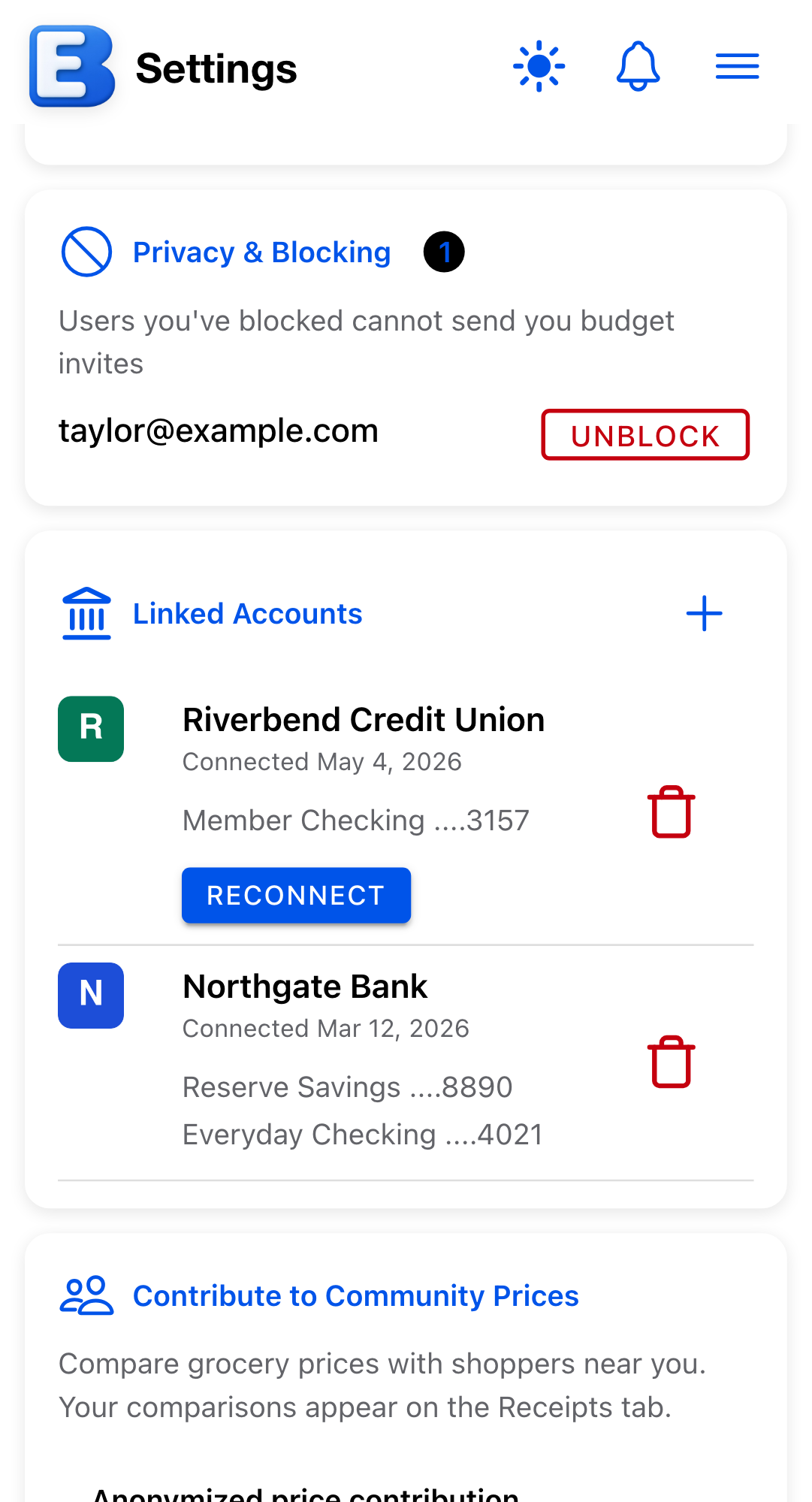
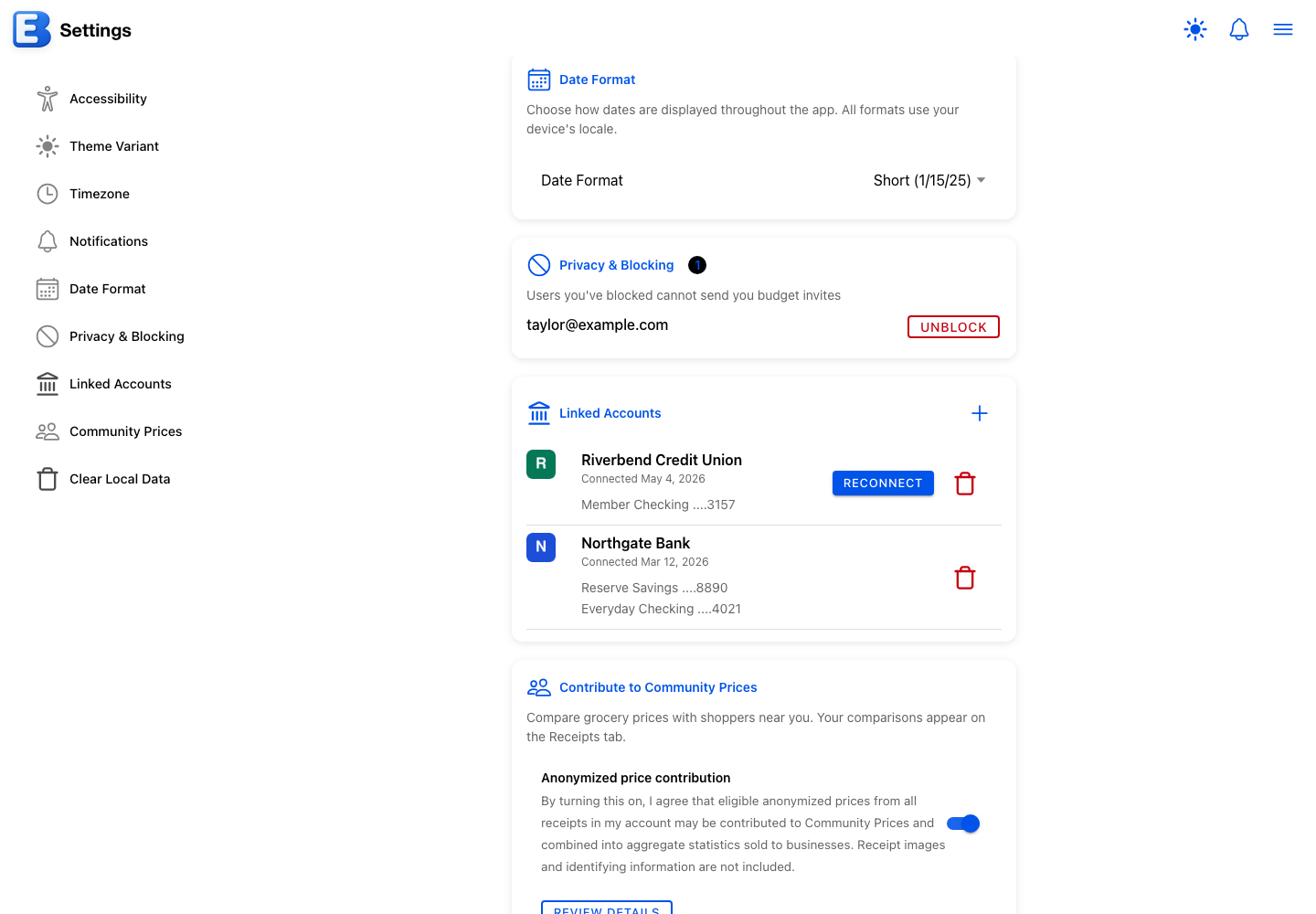
Full details are on Bank Linking.
Reconnect did not fix it, or the app says the bank cannot be reconnected automatically
If you revoked the app’s access at your bank’s website (rather than letting the session expire), Plaid no longer recognizes the original connection at all. Tapping Reconnect shows a yellow toast: This bank can't be reconnected automatically. Tap the trash icon to disconnect it, then tap the plus icon to add it again.
The fix is the two-step path the toast describes: open Settings, Linked Accounts, tap the trash icon on the bank’s row, confirm Disconnect in the Disconnect Bank dialog, then tap the + at the top right of the card and link the bank again from scratch. Existing transactions in your budgets are not affected; only future pulls were paused while the bank was disabled.
Full details are on Bank Linking.
I’m not receiving push notifications
Push notifications reach a device only when the push setting is on and that device has granted permission. Work down this list:
- Push was never turned on. Open Settings, find the Notifications card, tap Notification Settings, and check Enable on this device. The toggle asks the device you are holding for notification permission and turns on push for your account; other devices you have granted permission on start receiving pushes too, and turning the toggle off stops push for all of them.
- This device blocked the permission. If you previously denied the browser’s notification prompt, the settings screen shows a warning: notifications are blocked for this site. Tap the padlock in your browser’s address bar, allow Notifications, then return to the app. The warning clears and the Enable on this device toggle switches on as soon as you return; no restart is needed. Tap the save icon to keep the change.
- On iPhone or iPad, the app is not installed. Push requires the app on your Home Screen: in Safari, tap the Share button, then “Add to Home Screen”. The settings screen shows the same guidance in place of the toggle until the app is installed.
- The notification type is muted. Under Alerts by type, each type has its own Also send a push notification toggle. A muted type still appears on the Notifications page; it just does not push.
- The app was open and visible. While you are looking at the app on a device, that device shows the in-app alert instead of a system notification. That is the designed behavior, not a failure; close or background the app and the push comes through.
For bill reminders specifically, also check the Bill reminders section of the same screen: Frequency (Daily or Weekly, with a Day of week picker when Weekly), Show past-due bills, and Delivery time. The reminder only posts when at least one bill falls inside the reminder window, at your chosen hour, and at most once per day.
The Match Transactions button is grayed out or missing
Matching is not a paid feature, so a subscription is not what is missing. Two things can put the Match Transactions button out of reach on the planner toolbar.
- You have view-only access. Matching changes the budget, so the button does not appear at all. Ask the budget’s owner for edit access.
- There are no events on the planner. With nothing to match against, the button is disabled. Add at least one flow under Setup, Flows so the planner has events. A search that hides every row has the same effect, so clear the search box.
If the button works but the dialog offers a file drop area where you expected your linked accounts, that is the subscription. Pulling from the bank needs Premium; matching the transactions does not. Export the transactions from your bank and upload the file.
For the matching access rules, see Matching and Resolving.
A Reports total disagrees with the planner
Open the Reports tab. Tap the date range in the center of the toolbar to open the period picker and switch between Weekly, Pay Period, Monthly, Quarterly, and Yearly.
Two common reasons the totals do not match:
- Different period. The Reports tab keeps its own period choice, separate from your sense of “this month” on the Planner. Confirm the period and the date range match what you are comparing against.
- The Reports total includes resolved events at their actual amount. On the Cash Flow Analysis charts (Bar Chart and Flow Diagram) and All Expenses by Category, a resolved event uses the amount it resolved at (the sum of its transactions, the matched amount, or the planned amount when it was resolved without transactions), drawn with a diagonal stripe pattern. The Planner’s planned total uses the planned amount.
Full details are on Reports.
I cannot make my budget public
Five conditions block making a budget public.
- Free account. Publishing requires Premium. On a free account, the Edit Budget dialog replaces the whole sharing section with a note:
To enable budget sharing, upgrade to premium. - No username. The dialog shows
To make this budget public, first create a username.Picking Public anyway opens an alert titledUsername Requiredwith a Create Username button. Set a username, then come back. - Not the owner. Only an owner can open Edit Budget at all; editors and viewers cannot change the access level.
- The budget is currently in Shared mode. The Public option is hidden, with the note
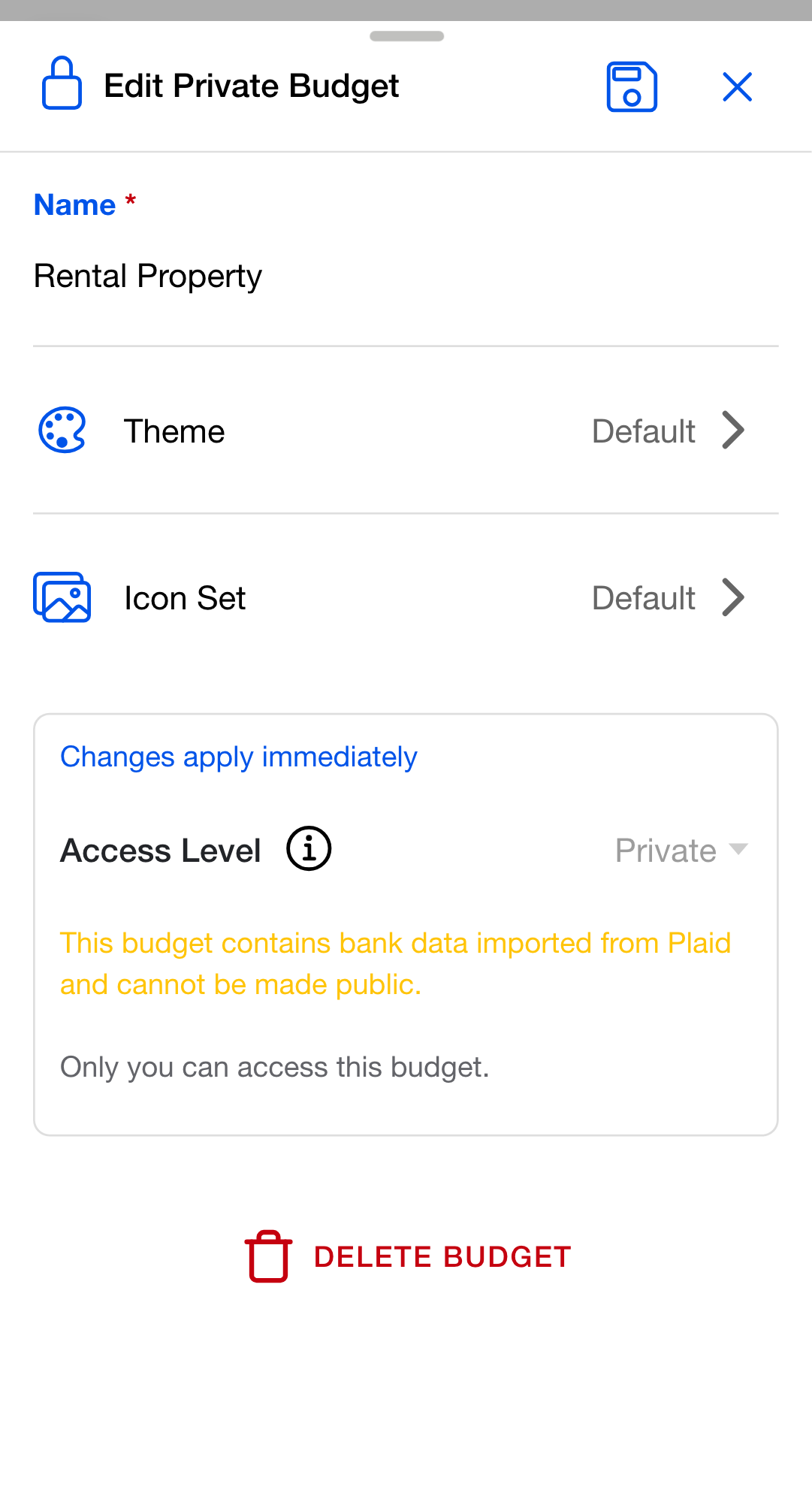
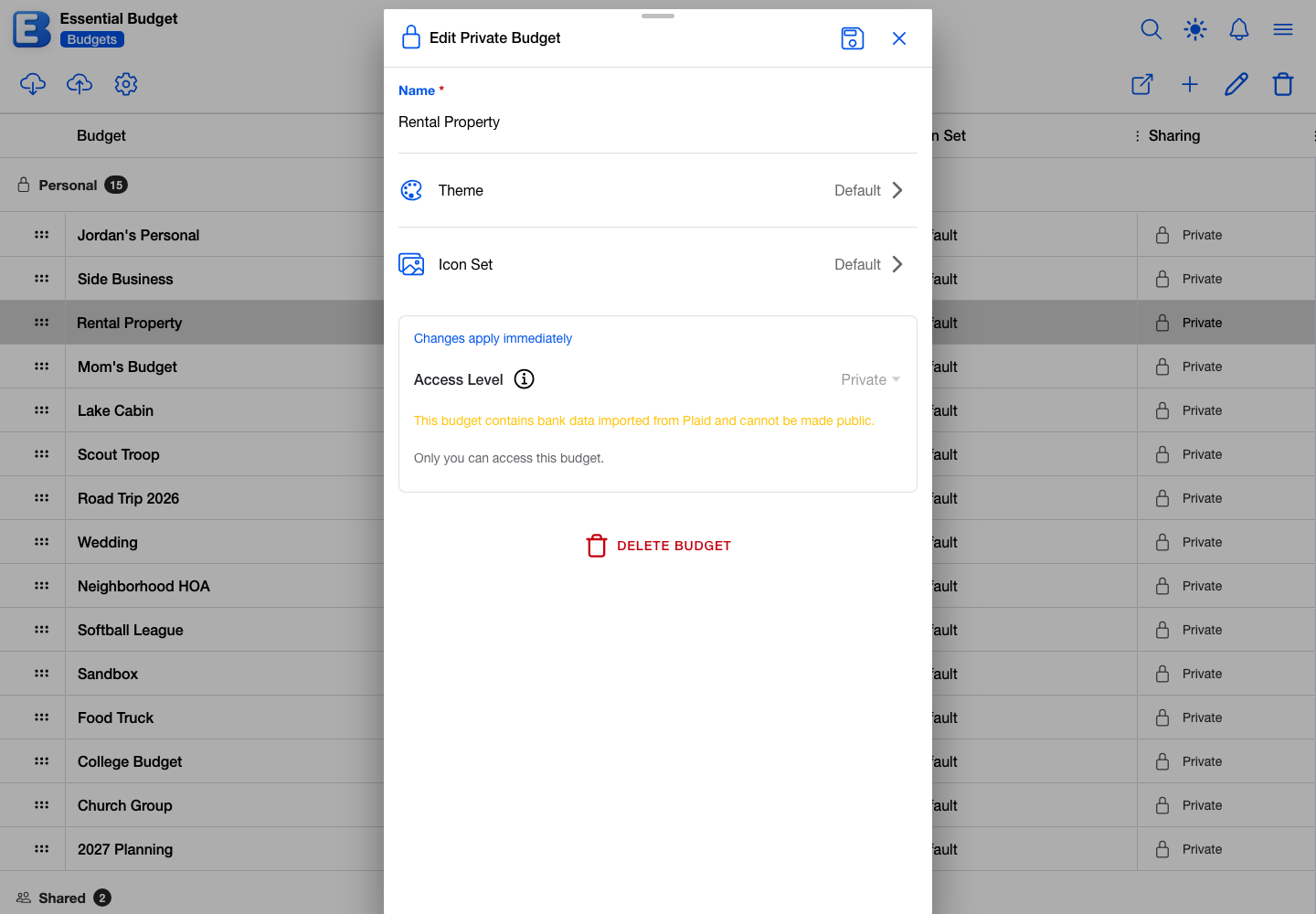
Shared budgets cannot be made public.Switch to Private first; theMake Private?alert names how many people lose access in that one step. - The budget has Plaid lineage. A budget that ever held bank-imported data cannot be made public, even after you disconnect the bank. The Access Level selector is disabled, with a warning beneath it:
This budget contains bank data imported from Plaid and cannot be made public.
Full details are on Public Budgets.
The Reports tab is missing a recent transaction
Two common reasons:
- No bank pull, manual transaction entry, or manual resolve has run since the bank posted the transaction. Bank pulls are user-triggered. On a Plaid-linked budget, tap Match Transactions on the planner toolbar to pull anything new. On a manual budget, either open the event and add the transaction inside the Edit Flow Event dialog, or select the event and tap Resolve Event to resolve it at the planned amount.
- The bank transaction belongs to a different period. The Reports period defaults to the period that contains today. Step back or forward with the arrows: on a wide screen they sit beside the date range, and on a phone they are inside the popover that opens when you tap the date range.
If neither helps, open the event on the planner. If the transaction is in the Transactions section there, the Reports view will show it the next time you switch periods or refresh the chart.
Full details are on Reports and Bank Linking.
I undid something and now my balance looks wrong
The Undo dialog handles the balance side automatically. If the resolved event had transactions attached, the dialog never shows a Reverse Balance Change toggle, because the transactions are restored as active and keep their original effect; nothing extra is reversed. If the resolved event had no transactions, the dialog shows the toggle on by default and reverses the planned-amount adjustment when you confirm.
If the number still looks wrong after the undo, the cleanest fix is to reset Current Balance: open Setup, Accounts, select the account, tap Edit Account, change Current Balance to what your bank shows, save. The running total continues from the new number.
Full details are on History and Undo and Accounts.
Undo was rejected with a “Bank transactions have been matched to other events” message
This is one of the few undo failures the Undo Action button cannot detect ahead of time. It only happens when you delete an event that had bank-imported transactions on it, and one of those transactions has since been re-matched to a different event. The undo confirms, the server checks, and the dialog comes back with the message above. The History row stays in place; nothing is damaged.
Open the other event that now holds the conflicting transaction, remove the transaction from there, then return to History and try the undo again. The block exists so a single bank transaction cannot sit under two events at once.
Full details are on History and Undo.
A theme I picked is not applying
Themes are stored on the budget, not on your user account. Confirm you are looking at the budget you applied the theme to.
To pick a theme: open the Budgets page, select the budget, tap Edit Budget, tap the Theme row, then pick from My Themes or Community. The picker closes when you tap a theme; the budget shows the new colors immediately.
Published themes cannot be edited or deleted, including by you. To make a tweaked version of a theme you have already published, Download Theme from the Community tab and use Restore Theme on My Themes to bring it back as a new local theme you can edit.
Full details are on Themes and Icons.
AI Theme Generation says Subscribe to Premium
When Premium ends, the AI Generated tab in the New Theme dialog stays visible, but it shows a Subscribe to Premium prompt instead of the form. Generating a theme with AI needs an active subscription.
Already-saved themes in your library are unaffected, and the manual color editor stays open on every plan.
Full details are on Themes and Icons.
Cannot Delete on a theme that is in use
If the theme you are trying to delete is currently applied to one or more budgets, the Theme In Use dialog opens before the regular delete confirmation. The header reads Cannot Delete, lists the budgets that use it, and offers two paths:
- Download Backup First. Saves the theme to a
.jsonfile before deleting. Use this if you might want it back later. Restore Theme on My Themes brings it back as a new theme. - Delete Anyway… Reveals a confirmation (
Are you sure?with the note that affected budgets fall back to the default). Tap Yes, Delete to force-delete the theme.
A published theme has no delete path at all: publishing moves it off My Themes, and the Community list has no delete button, so the way to retire it is to revoke it. A revoked theme stays on My Themes but its delete entry reads Cannot delete revoked theme and is disabled. The same in-use dialog and rules apply to icon sets.
Full details are on Themes and Icons.
Discover shows “No featured content yet” or “No featured icons today”
Discover ranks community work by likes, not by recency or downloads. Items the community has never liked do not appear, even brand-new ones, in every period. The page-level empty state No featured content yet. Be the first to create and share! only renders when nothing in the entire community has any likes.
The period buttons (Today, This Week, This Month, This Year) change how the liked items are ranked, using the likes received inside that window, but they never add or reveal items: an item with no likes at all is absent from every period. And when a group (icons, icon sets, or themes) has nothing to show in the default This Week view, the whole group is hidden, period buttons included, until the community likes something in it.
Full details are on Discover.
A sharing invite I sent has not been accepted
If the email belongs to someone who has not signed up yet, the invitation never reaches them: it sits pending in your list, and signing up later does not deliver it. Once they have created an account with that email, invite the same address again; the pending row updates in place, and this time the invitation reaches them. You do not need to cancel first.
A pending row shows a clock icon (rather than a green checkmark). If the email was mistyped, cancel the pending row (trash icon, confirm Cancel Invitation) and invite the correct address.
Full details are on Sharing a Budget.
“Rate limit exceeded” when I try to invite someone
You hit the invitation cap: 10 invitations per budget per hour, counting the ones you sent in the last 60 minutes. It stops a paste-the-wrong-list mistake from spamming twenty inboxes and is far higher than any normal household would hit.
Wait the hour out, then resume inviting. Canceling an invitation removes it from the count. The cap does not apply to permission changes, revocations, or accepting invites; only to new invitations.
Full details are on Sharing a Budget.
Promote to Owner was rejected
Promoting a collaborator to Owner only succeeds if that person also has a Premium subscription. After you confirm the Promote to Owner dialog, the picker changes optimistically, then the server rejects the promotion if the target is not on Premium and the dropdown reverts. A toast explains what happened: Only users with a premium subscription can be made budget owners. The user must upgrade to premium first.
The reason: an owner without Premium would lose ownership privileges as soon as their non-existent subscription ended. There is no “promotion request” that waits for them to upgrade; either they are Premium when you promote, or you ask them to upgrade first.
Full details are on Sharing a Budget.
A viewer of my public budget cannot tap Mark Event as Paid
Public-budget viewers have read-only access. Add-transaction, Edit Event, Mark Event as Paid / Mark Event as Unpaid, and Resolve Event are disabled for them, and an attempted Undo is refused. They can browse the budget and see the running balances, but they cannot change anything.
If you want them to be able to edit, switch the budget to Shared mode and invite them by email with Can Edit permission instead. (Public and Shared are mutually exclusive: a public budget cannot also have direct shares.)
Full details are on Public Budgets.
I deleted an account by mistake
Deleting an account is irreversible. The Delete Account dialog counts what will be removed before you confirm: the number of budget flows and schedules that use the account, the scheduled events for those flows, and the transaction history for those flows. It ends with the warning This action cannot be undone.
Resolved entries already in History stay where they are, with the account name and amount snapshotted. Deleting the account does not block Undo Action on them, but an undo no longer reverses the balance, because the account it would adjust is gone. The account’s flows were deleted with it, and that does block undo on rows from those flows.
The only recovery path is to add the account back with the same starting balance and re-add the transactions you want. The other accounts in the budget are unaffected.
Full details are on Accounts.
A Transfer flow disappeared when I deleted one of its accounts
A Transfer flow references two accounts, a From Account and a To Account. Deleting either side removes the whole Transfer flow, even though the other side is an account you are keeping. The Delete Account dialog includes Transfer flows in the flow count it shows before you confirm; they are not called out separately, so check for Transfers yourself before deleting an account they touch.
Past History rows from the Transfer are preserved, with their snapshots of the From and To account names; only the future events disappear. To continue a recurring transfer against a different destination, recreate the Transfer flow against a new account before or after the delete.
Full details are on Accounts.
I changed a schedule’s timing and lost the per-event customization I had made
Changing a schedule’s frequency, dates, weekdays, or start date is a stronger edit than changing the amount or the name. It discards every per-event override on that schedule (a one-month amount change, a moved date, transactions still pending), because the underlying schedule no longer matches the events those overrides were attached to. End dates follow the same rule only when they cut events off: adding an end date, or moving it earlier, clears overrides; removing the end date or moving it later does not.
When a save is about to clear something, the form warns you first with a note that reads Schedule timing changed. followed by what will be cleared, (history is preserved). If nothing would be cleared, no warning appears and nothing is lost.
Changing the parent flow’s name, category, account, or amount does not touch your per-event overrides. Those only get cleared by a timing change on the schedule itself.
Full details are on Flows.
“Monthly budget creation limit reached” even though I deleted a budget
The cap is on net new creates for the calendar month, not the total number of budgets you keep. The math is “creates this month minus deletes this month, never below zero.” Deleting any budget during the current month frees a slot, whenever that budget was created.
For example, on the free plan you can create three budgets in May, hit the cap, then delete one budget (even one you created back in March) and create another one in May. The full message reads Monthly budget creation limit reached (3/3). Limit resets next month.
The cap resets at the first of the next calendar month: 3 per month free, 10 per month Premium.
Full details are on Budgets.
Restore Backup says the file isn’t a backup
The Restore Backup dialog only accepts the .json files this app produces with Create Backup. Dropping any other file shows Please drop a JSON backup file; browsing to one shows Please select a JSON backup file. For CSV files, use the AI budget creation feature instead. That AI flow lives on the Create Budget dialog under the AI Generated mode.
If you have a backup .json that was downloaded from this app and the dialog still rejects it, the file may have been edited by another tool and lost its structure. Re-run Create Backup on the source budget if you still have it; otherwise the safer path is to start a fresh budget and re-enter the flows.
Full details are on Your Account.
“Monthly profile update limit reached” when I try to change my username
There is a generous monthly cap on username changes: 100 per calendar month, well above what any normal user would hit. When you reach it, saving a new username in the Edit Profile dialog shows the error Monthly profile update limit reached. Please try again next month. until the calendar rolls over. Saves that do not change the username (visibility toggles, for example) are never blocked by the cap.
Renaming your username breaks an old /profiles/{old-username} bookmark, but it does not invalidate any public-budget share link you have already sent (those are keyed by the budget itself, not the username).
Full details are on Your Public Profile and Your Account.
My xlsx file from Excel won’t upload
The file-upload path accepts plain-text formats only: .csv, .tsv, and .txt. Excel files are binary and the parser cannot read them.
Open the file in Excel or Numbers, choose Save As (or Export), pick CSV, and upload the CSV. The conversion is lossless for transaction data, so nothing is lost in the round trip.
Full details are on File Uploads.
The Match Review screen shows fewer transactions than my CSV had rows
Rows the parser cannot read are dropped quietly during parsing: a row with a missing date, a missing description, or an unreadable amount does not show as an error, but it also does not appear on the Review screen. Trust the count on the Review Transaction Matches screen, not the row count in the file.
If a lot of rows are missing, the file may have an unusual layout. Open it in a spreadsheet, check that every row has a date, a description, and an amount, and re-export. The parser also handles the easy variations (different separators, day-first dates, two-column debit/credit, parenthetical negatives) without any prep.
Full details are on File Uploads.
Quick reference
| Symptom | Cause | Fix |
|---|---|---|
| Balance disagrees with the bank | A transaction the app does not have, or vice versa | Reset Current Balance on the account, or find the missing transaction |
| Event still on the planner after Mark Event as Paid | That is the toggle’s design | Tap Resolve Event, or wait for the bank transaction to match |
| Resolved the wrong event | Almost every resolve is undoable | History, Undo Action, confirm |
| Bank connection stopped pulling | The bank session expired | Settings, Linked Accounts, Reconnect |
| Reconnect won’t work | Access was revoked at your bank | Disconnect, then re-add the bank from scratch |
| Match Transactions button grayed out | View-only access, or no events on the planner | Ask for edit access, or add a flow first |
| No push notifications arriving | Push off, permission blocked, app not installed (iOS), or the type is muted | Settings, Notifications card, Notification Settings |
| Cannot make budget public | One of five conditions | See the list above; the Edit Budget dialog notes name the blocker |
| Reports total differs from the planner | Different period, or resolved events use actual amount | Match the period in the date-range navigator |
| Theme did not apply | Picked on a different budget | Open the right budget, Edit Budget, Theme row |
| AI Theme Generation blocked | Premium has ended | Build the theme in the Manual segment, or renew Premium |
| Theme cannot be deleted | Theme is in use, published, or revoked | Theme In Use dialog offers Download Backup First or Delete Anyway |
| Discover empty | Items need at least one community like to appear | Like-worthy work surfaces on its own; periods only re-rank |
| Sharing invite not accepted | Recipient has not signed up yet | They sign up with the invited email, then invite that address again |
| Rate limit on invites | 10 per budget per hour; canceled invites do not count | Wait the hour out |
| Promote to Owner rejected | Target is not on Premium | Ask them to upgrade, then promote again |
| Transfer flow gone after account delete | Both sides of a Transfer are required | Recreate the Transfer flow against a different account |
| Schedule timing change wiped overrides | Frequency, dates, weekday, or start-date edits clear per-event overrides | Re-apply the overrides, or step back via the warning |
Monthly budget creation limit reached | 3 per month free, 10 per month Premium, on net creates | Delete any budget this month, wait for next month, or upgrade |
| Restore Backup rejected file | The dialog only accepts .json files this app produced | For a CSV, use Create Budget, AI Generated instead |
| Username change limit reached | 100 per calendar month | Wait for the next calendar month |
.xlsx rejected | Parser is text-only | Save the Excel file as CSV, then upload |
| Review count is less than file rows | Rows with missing fields are skipped quietly | Check the file for blank dates, descriptions, or amounts |
| Undo failed after confirm | Bank transactions were re-matched to a different event | Remove the conflict on the other event, retry undo |
Related pages
- Accounts: the Current Balance field and how to keep it in step with your bank.
- Matching and Resolving: the Match Transactions dialog, the Resolve flow, and the three states an event passes through.
- History and Undo: the Undo dialog and the Reverse Balance Change toggle.
- Bank Linking: connecting a bank, reconnecting when a session expires, and what happens when Reconnect can’t fix it.
- Public Budgets: the five conditions that block publishing.
- Sharing a Budget: inviting people, the three permission levels, and pending invitations.
- Reports: the period picker, resolved events with the diagonal stripe pattern, and per-chart settings.
- Themes and Icons: per-budget theme picking, publishing rules, and the Theme In Use delete flow.
- Discover: the four rolling periods and the like-based ranking.
- Flows: schedule edits and the per-event override rule.
- Budgets: the per-month creation cap and how deletes free slots.
- Your Account: backups, restores, and the username change limit.
- Your Public Profile: username changes, profile URL, and visibility toggles.
- File Uploads: supported formats and what the parser tolerates.
Questions or feedback about this page?Email us.