
Learn - Publishing Lists and Recipes
Share a list or recipe by link; it prices itself for whoever opens it.
Publishing Lists and Recipes
Publishing turns one of your shopping lists or recipes into a link anyone with an account can open. The link shows the items (for a recipe, the ingredients and steps), and whoever opens it can add a copy to one of their own budgets, where it prices itself from their receipts. Your own prices and the stores you shop never travel with it.
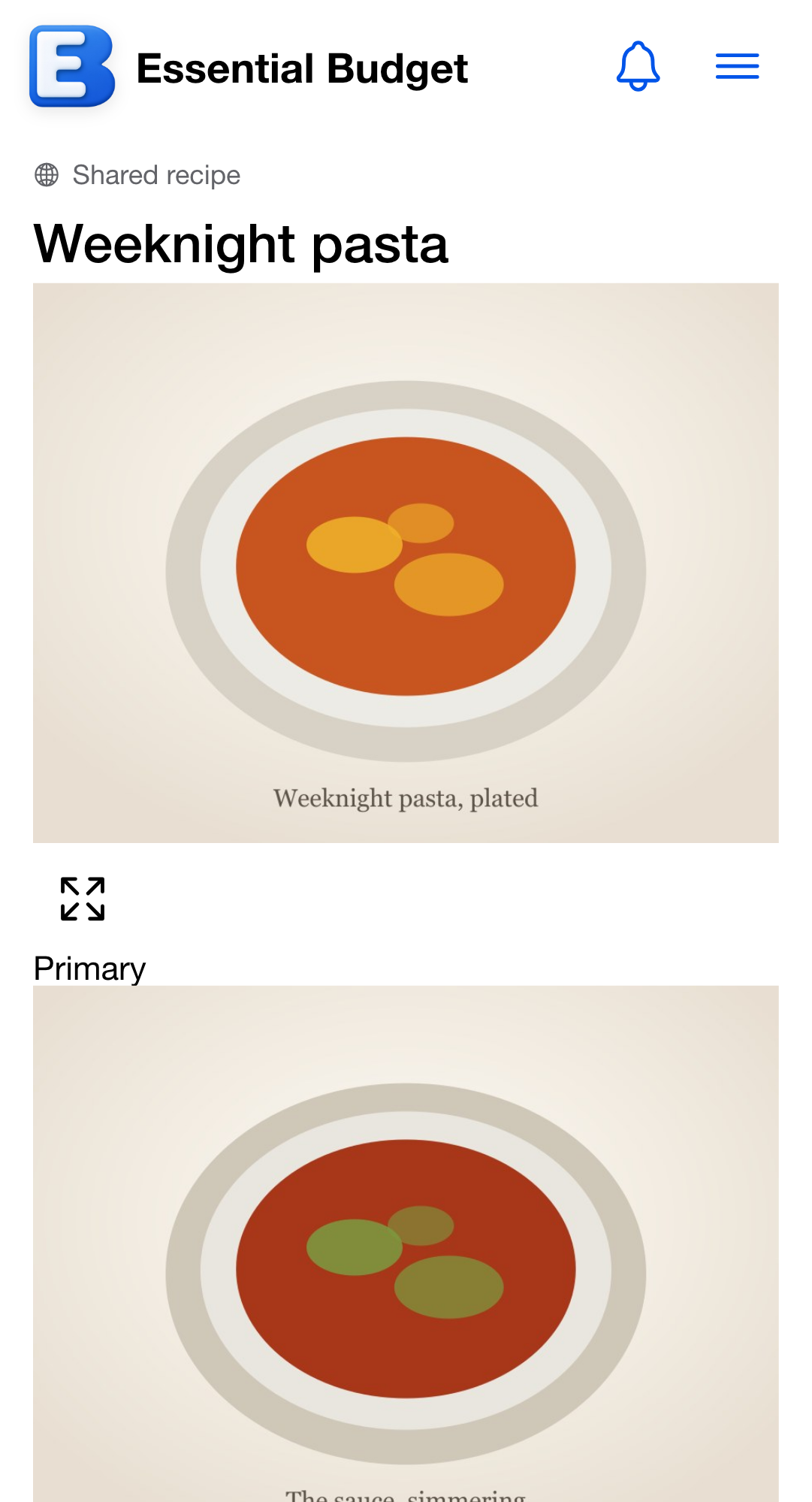
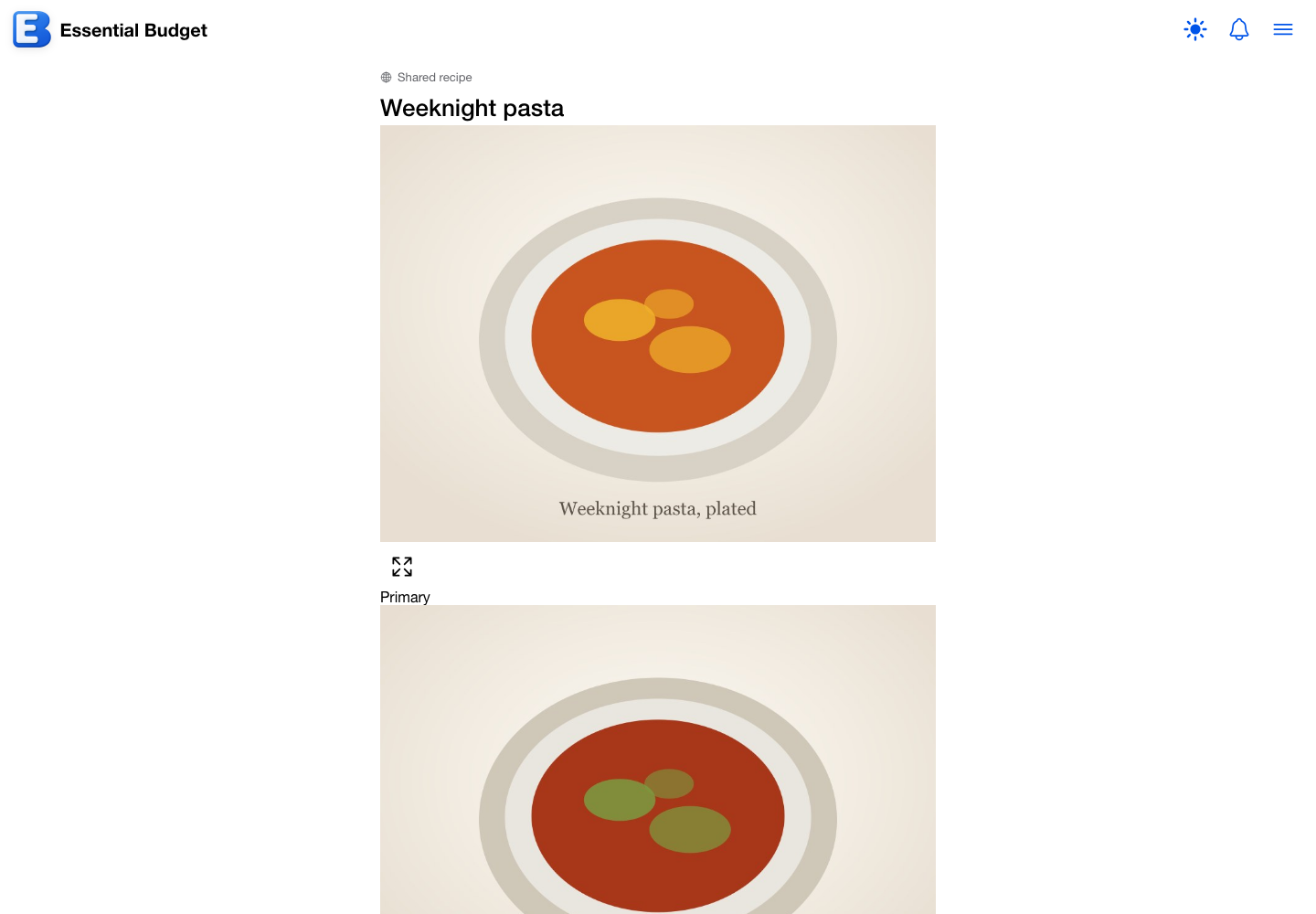
This page covers publishing a list or recipe, what a viewer sees, the optional rough total you can disclose, managing and unpublishing what you have shared, and what happens when someone opens your link and imports it. Publishing a list or recipe is free. It is a different feature from Publishing a Budget, which shares a whole budget as a read-only teaching example and requires Premium. The lists and recipes themselves are covered on Shopping Lists and Recipes.
Why publishing keeps your prices out of it. The estimate you see on a list or recipe is built from your own receipts, which is personal. So a published copy carries the items only, never the prices or the stores. The person who opens it gets their own estimate from their own receipts, which is more useful to them anyway.
Publishing a list or recipe
Open the list or recipe you want to share. In the header toolbar, tap the globe-icon button, labeled Publish list on a list and Publish recipe on a recipe.
The dialog is titled Publish list or Publish recipe and explains what gets shared: We copy the items only, never your prices or your stores. Below that is one optional control, a Show a rough total on the public copy toggle, covered in the next section. Tap Save to publish.
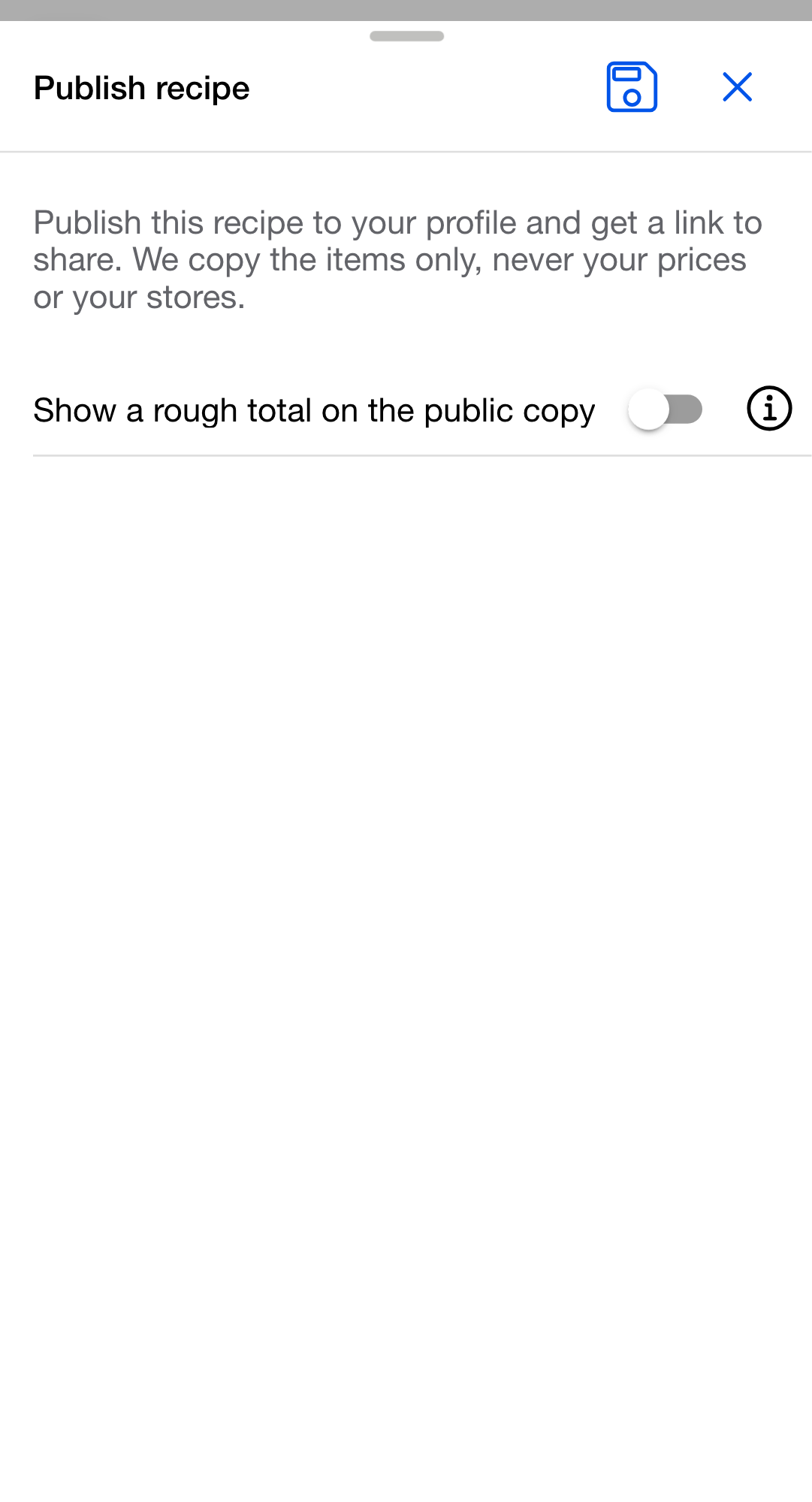
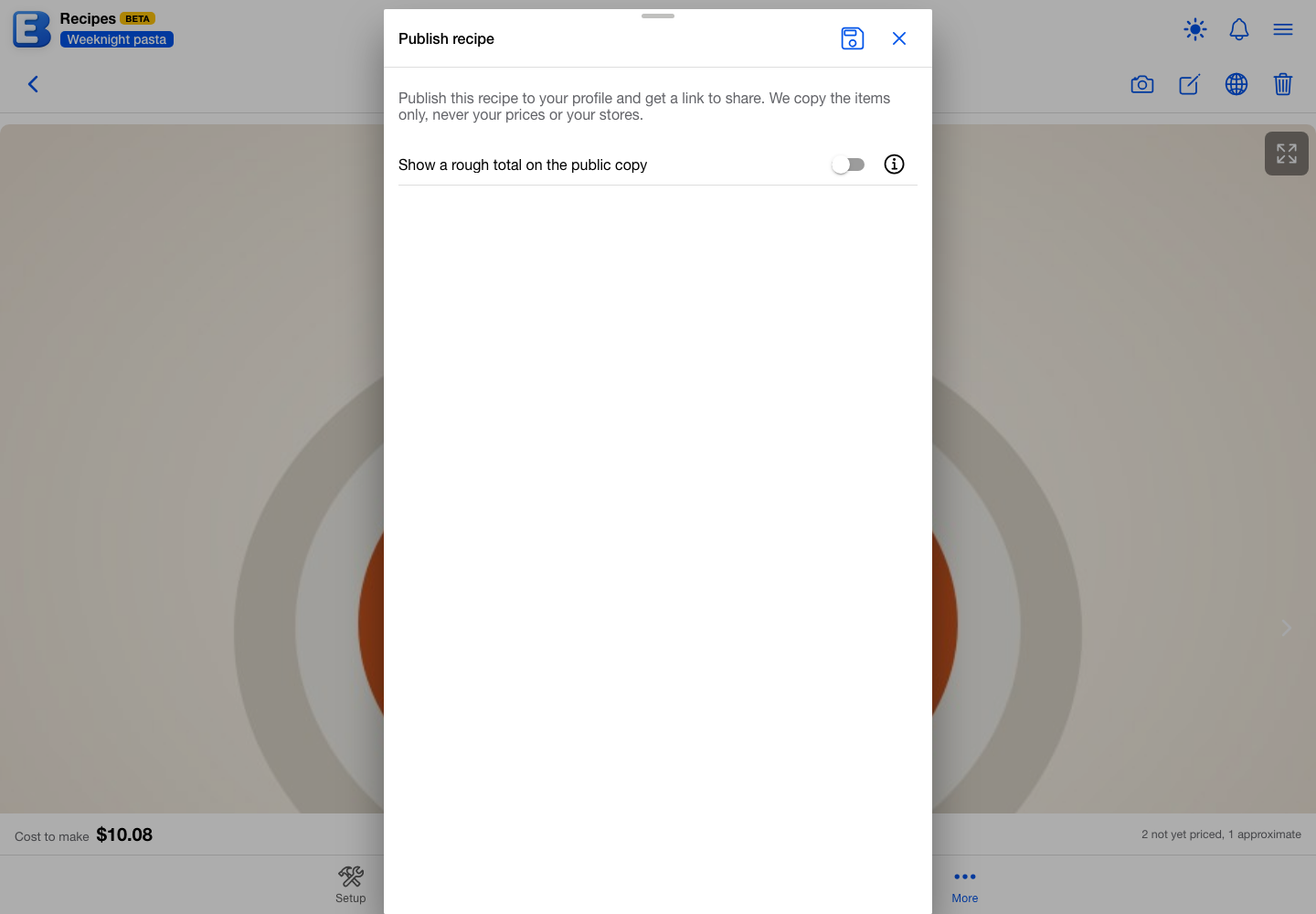
After you publish, the dialog’s title changes to Published and it shows the result: Your recipe is live. Anyone with the link can view it and add it to their own budget, priced for their kitchen. Below that sit the Public link (the address ends in /published/ followed by the title and a short suffix) and a Share link button. Tap Share link to hand the link off through your device’s share sheet; where sharing is not available, the app copies the link to your clipboard and a toast reads Link copied.
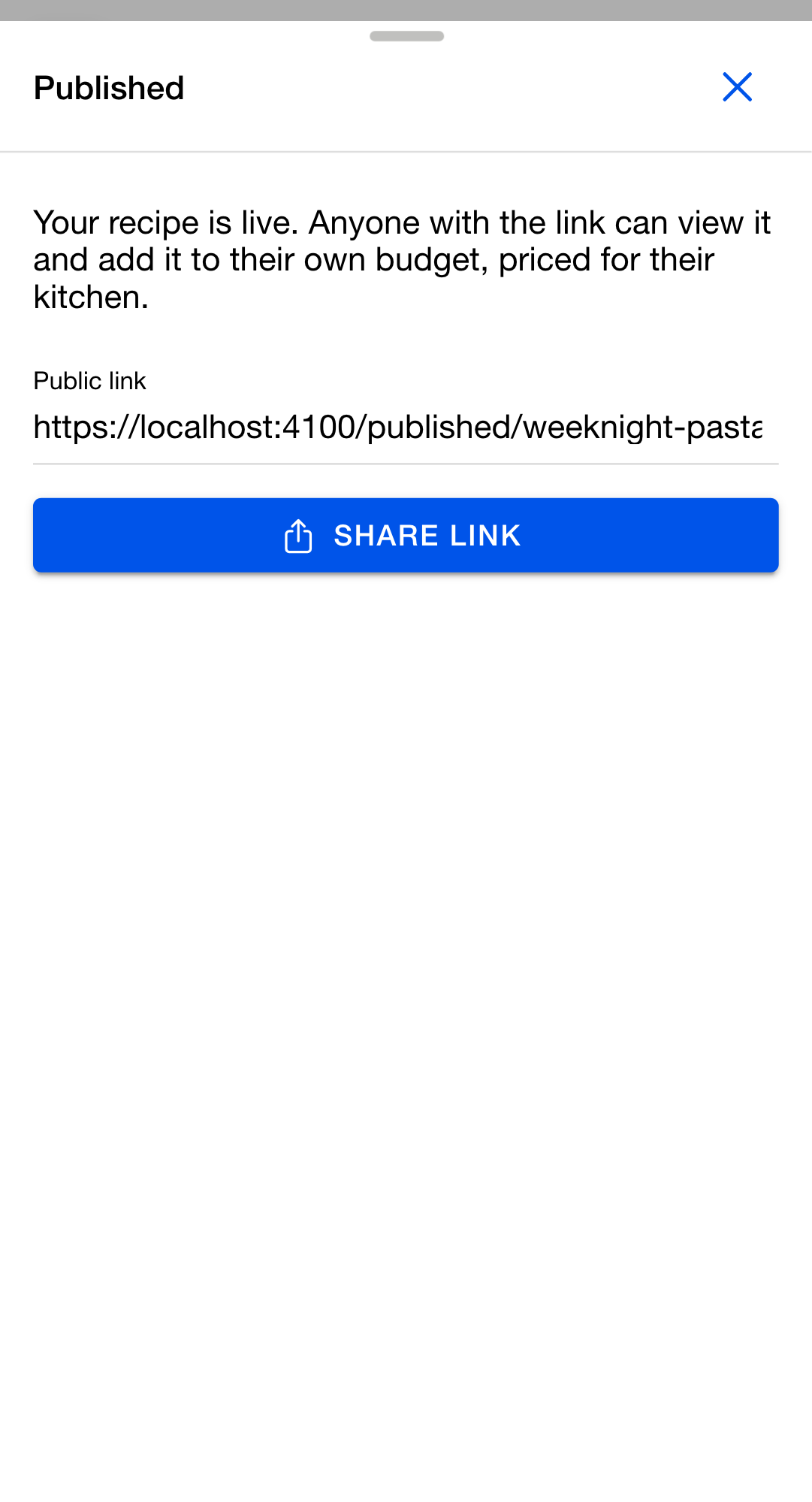
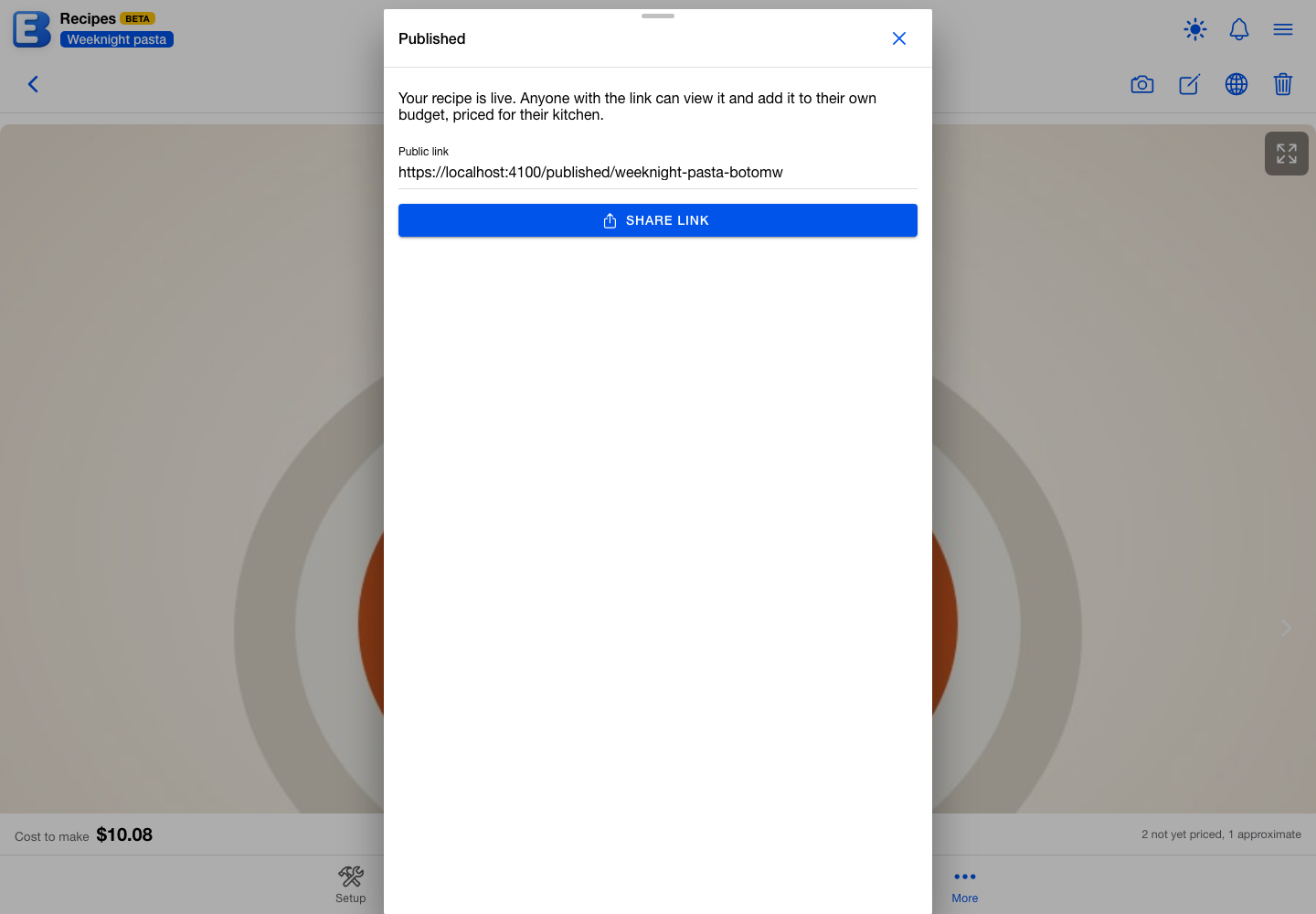
You can publish the same list or recipe again later. When it is already published, the dialog is titled Update published list or Update published recipe and explains: Re-publish this list to refresh its public copy with the latest items. The link stays the same. So anything you have already sent keeps working and points at the updated content.
A recipe’s photos are published with it. The public page shows the same gallery you see, and re-publishing refreshes it: a photo you have deleted since the last publish stops being public, and one you have added since becomes public. Unpublishing takes the public photos down with the rest of the page. Lists have no photos, so nothing changes for them.
Why this default? One link that keeps up. Re-publishing overwrites the existing public copy in place instead of minting a second one. So you can fix a typo or add an item after you have shared the link, and the people you sent it to see the update without a new link. Unpublishing is the only way to stop a link working.
Why this default? A published photo is a copy, not a window into your budget. The public page serves its own copy of each photo rather than reaching into the recipe you keep. That is what lets you delete or replace a photo in your own recipe without changing a page you already shared, and it keeps your budget out of the public address entirely.
Showing a rough total
By default a published list or recipe carries no prices at all. If you want viewers to see a ballpark cost, turn on Show a rough total on the public copy in the publish dialog. A Rough total field appears; type a dollar amount, and a note confirms Viewers will see about $X. Leave the toggle off, or the amount blank, and nothing about cost is disclosed.
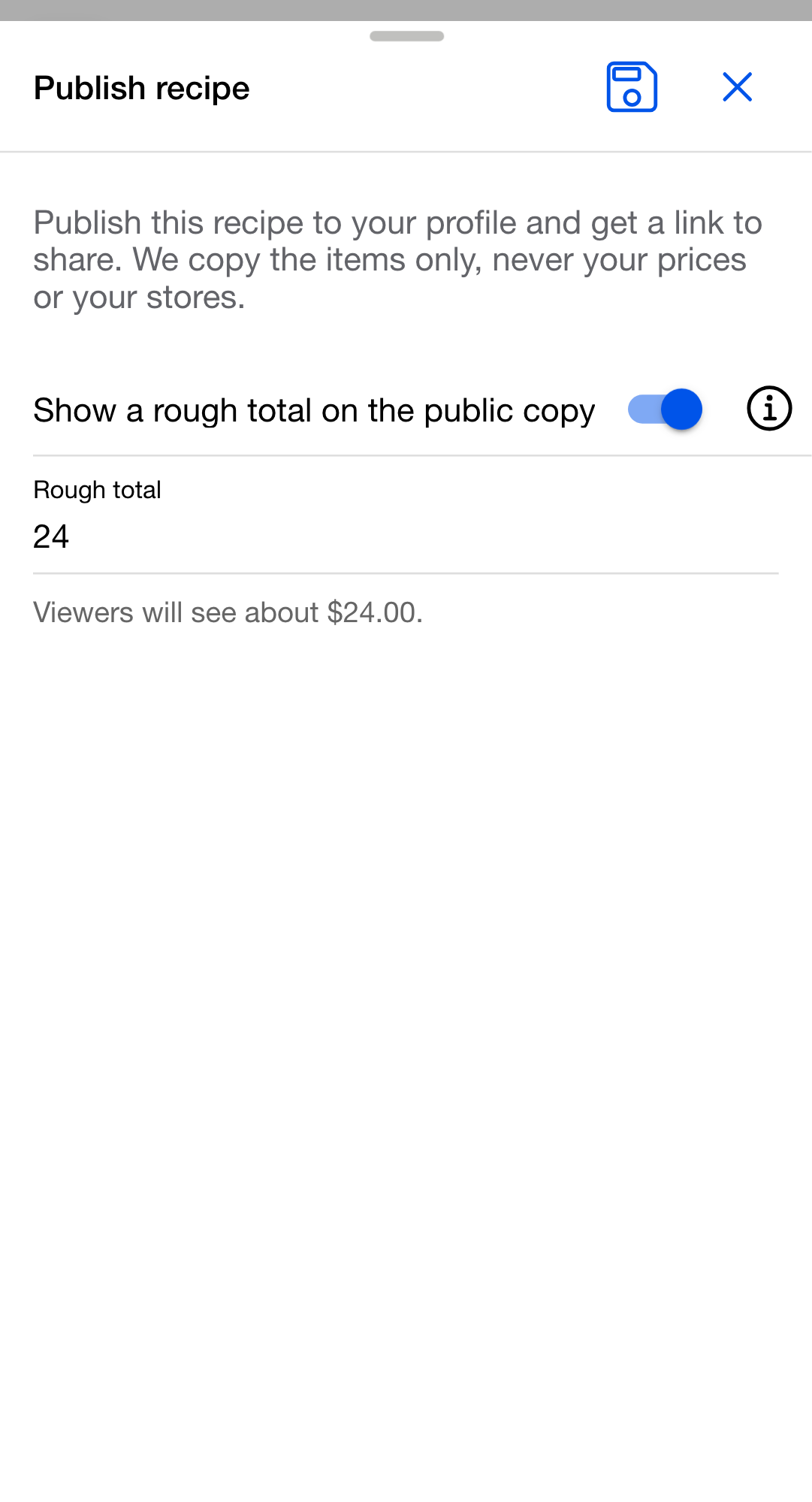
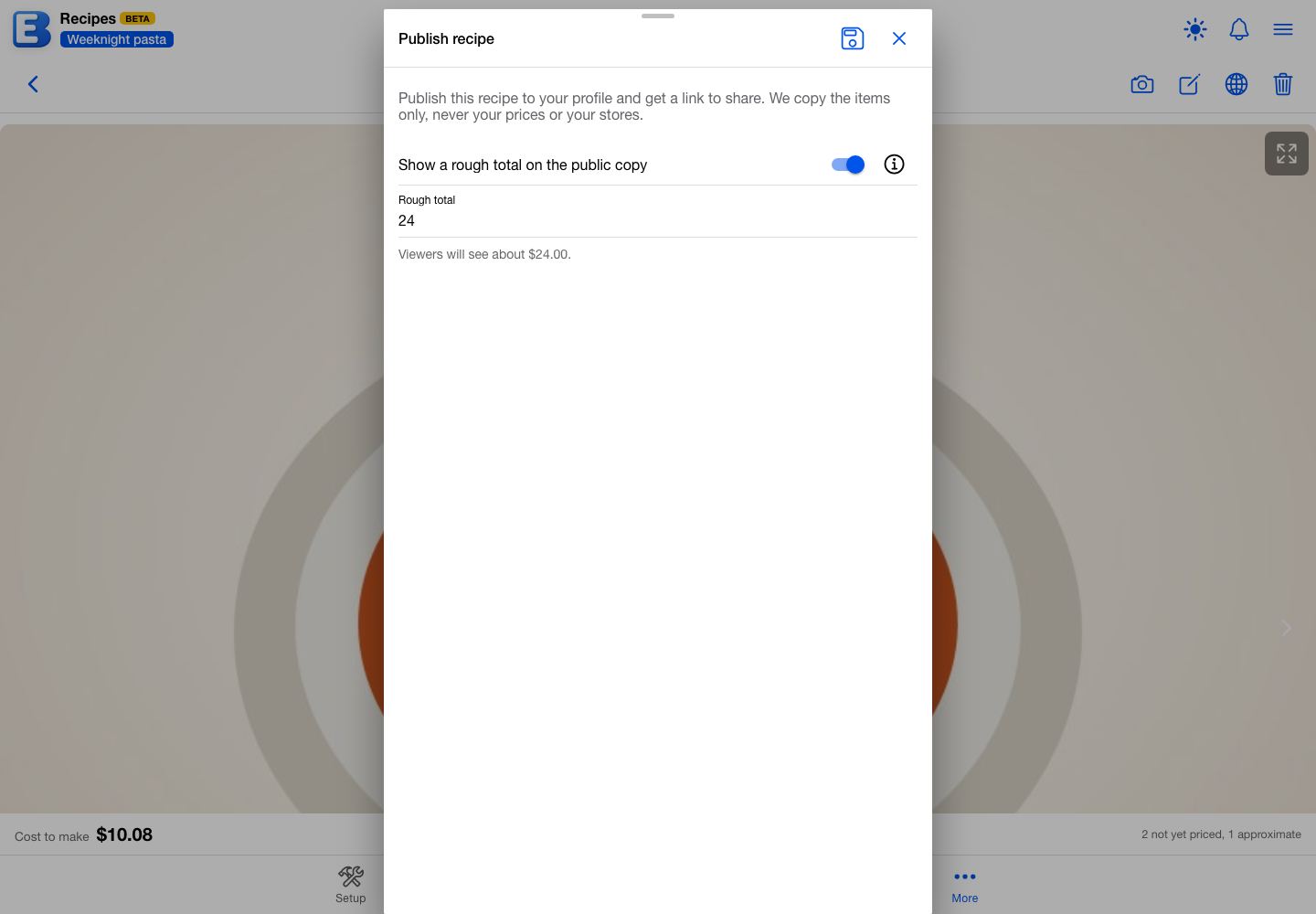
This rough total is the single number a viewer can ever see. It is a figure you type by hand, not your computed estimate, so it never reveals what you actually paid or where.
Why this default? Off by default, and a number you choose. The estimate the app shows you comes from your receipts, so it is never put on a public copy automatically. The rough total is a separate, optional figure you decide to share, useful for a deal list where the headline price is the point. If you skip it, the published copy shows items with no cost at all.
Managing what you have published
Everything you have published lives on the Published tab of your own profile: tap Profile in the hamburger menu, then Published in the bottom tab bar. Only you can see this tab; it is a management surface, not part of the public profile (Your Public Profile covers the page around it). The list holds your published lists and recipes from all your budgets, newest first by when each was first published, each row labeled Recipe or List.
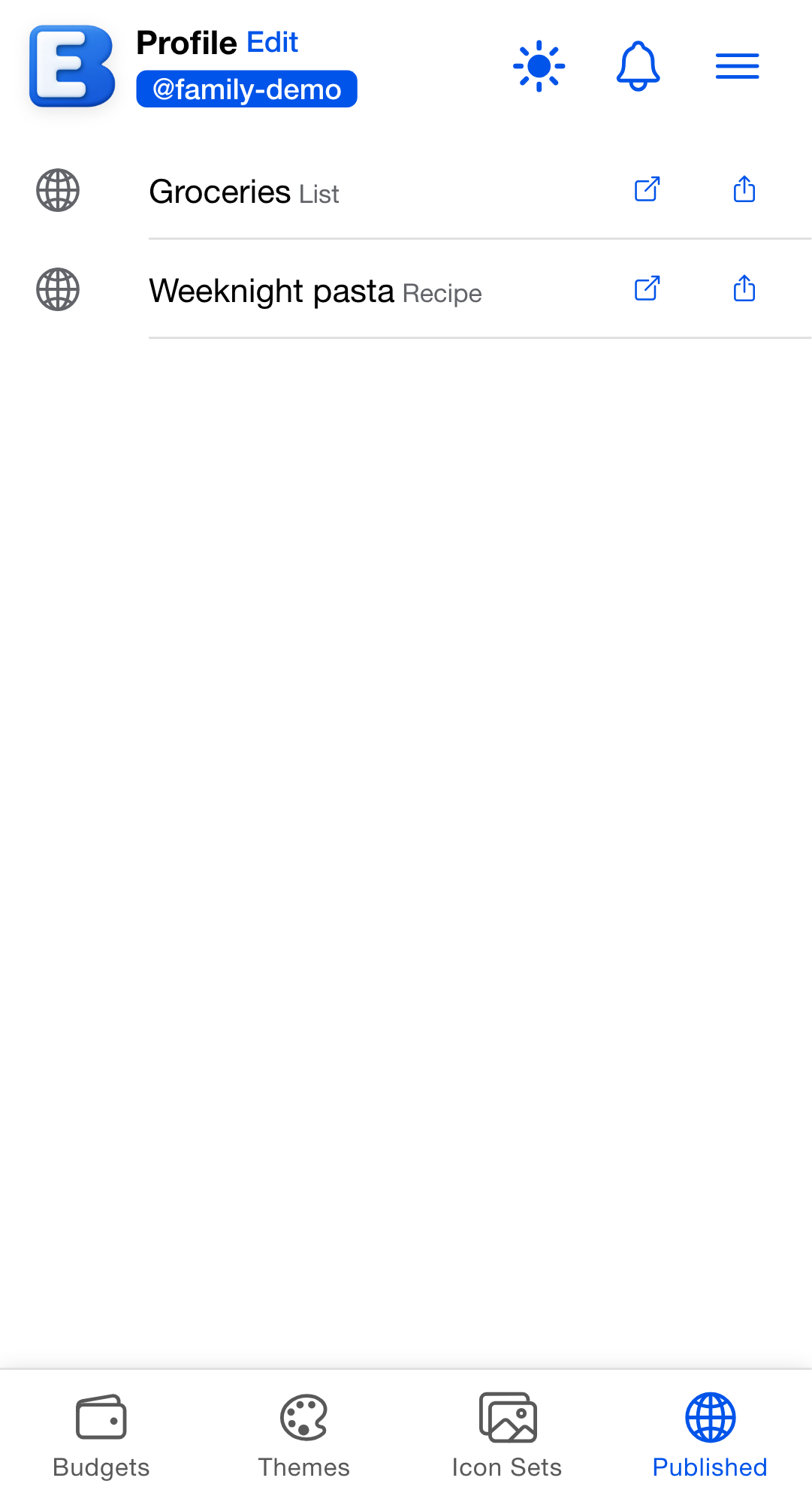
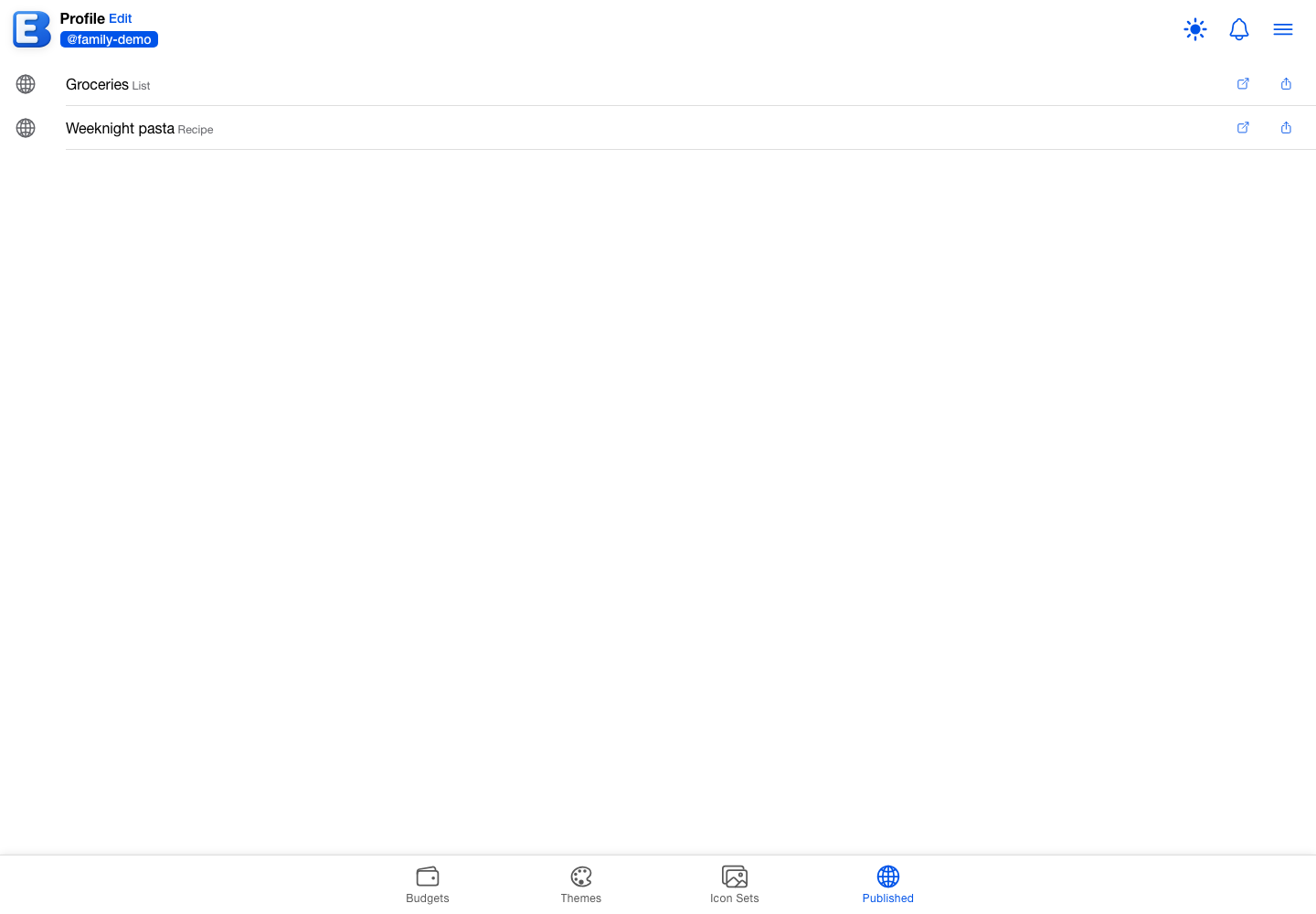
Each row has three controls:
- Open shows the public page the way a viewer sees it.
- Share offers the link again through the share sheet, or copies it to your clipboard with a
Link copiedtoast. - Unpublish appears when you swipe the row toward the left. Tap it and the row disappears immediately, the link stops working, and a toast reads
Unpublished.
Unpublishing is immediate and final for that link. If you publish the same list or recipe again afterward, it gets a fresh link; the old one does not come back.
If you have not published anything yet, the tab reads Nothing published yet: Publish a shopping list or recipe to share it with a link. Anyone who opens it can add it to their own budget, priced for their kitchen.
Why this default? Unpublish is the off switch. A published list or recipe stays reachable by its link until you unpublish it, even if you later edit or delete the original in your budget (the public copy is a frozen snapshot). Unpublishing is how you stop sharing. There is no “anyone who saved it” list to manage, because importers get their own independent copy, not a live view of yours.
Opening a shared link
A published link works without an account: a signed-out visitor sees the same public page a signed-in viewer does, and is asked to sign in only if they tap Add to my budget (they return to the page right after). The public page shows: a Shared list or Shared recipe badge, the title, and the items. A list shows its items under an Items heading; a recipe shows its ingredients under Ingredients, plus its servings (“Serves 4”), prep and cook times (“Prep 15 min”, “Cook 30 min”), and an Instructions section, whenever the publisher set them. If the publisher disclosed a rough total, it shows as “About $X” near the top. No other cost appears, and nothing on the page identifies the publisher or their budget; the public copy does not even carry a username.
A published recipe shows its photos at the top of the page, the same gallery the publisher sees, with the arrows, dots and full-screen view. There is nothing to change: no visitor can add, delete, or re-order the publisher’s photos. A recipe published without photos shows no gallery.
An Add to my budget button is the way to keep the content.
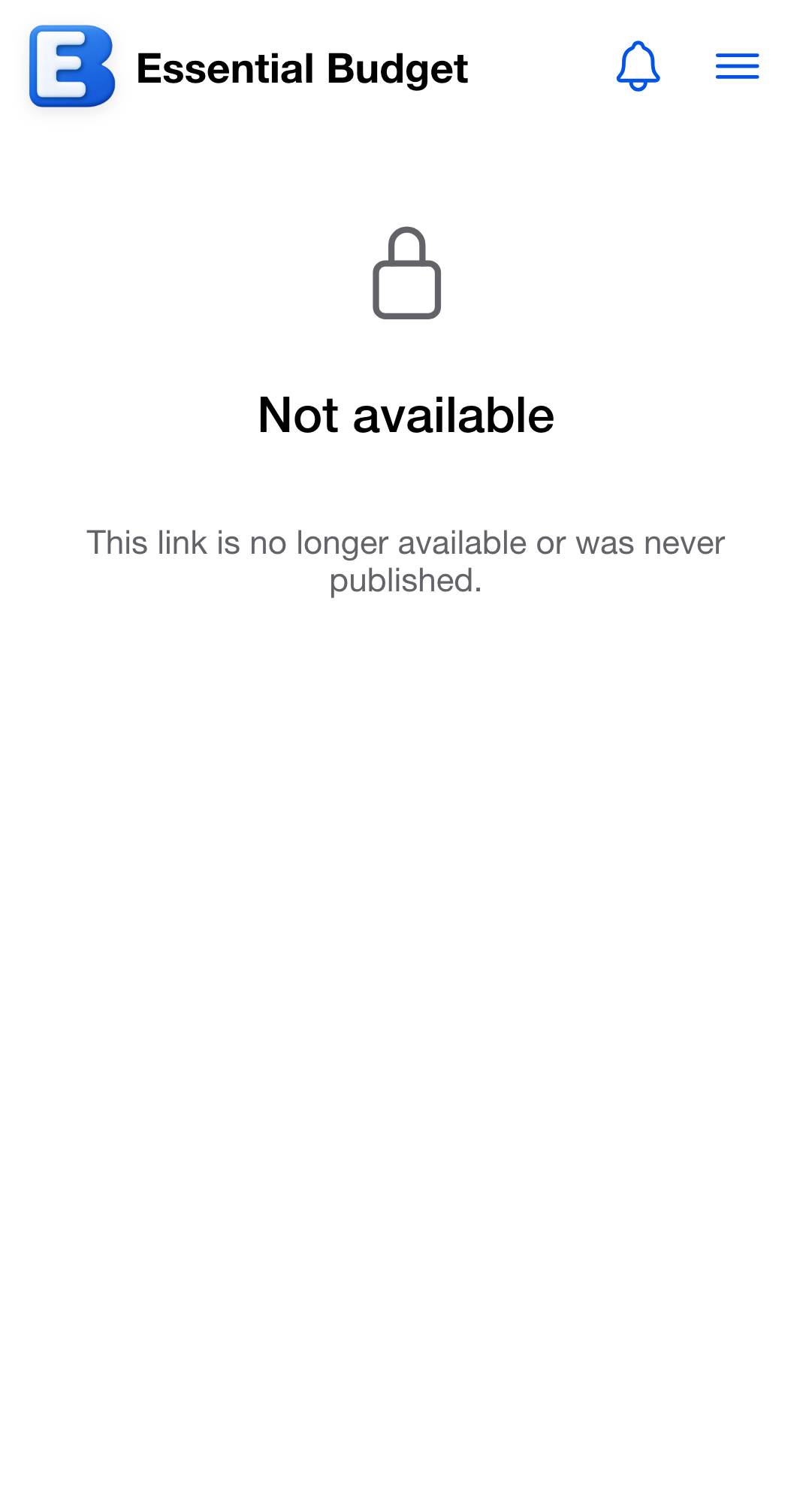
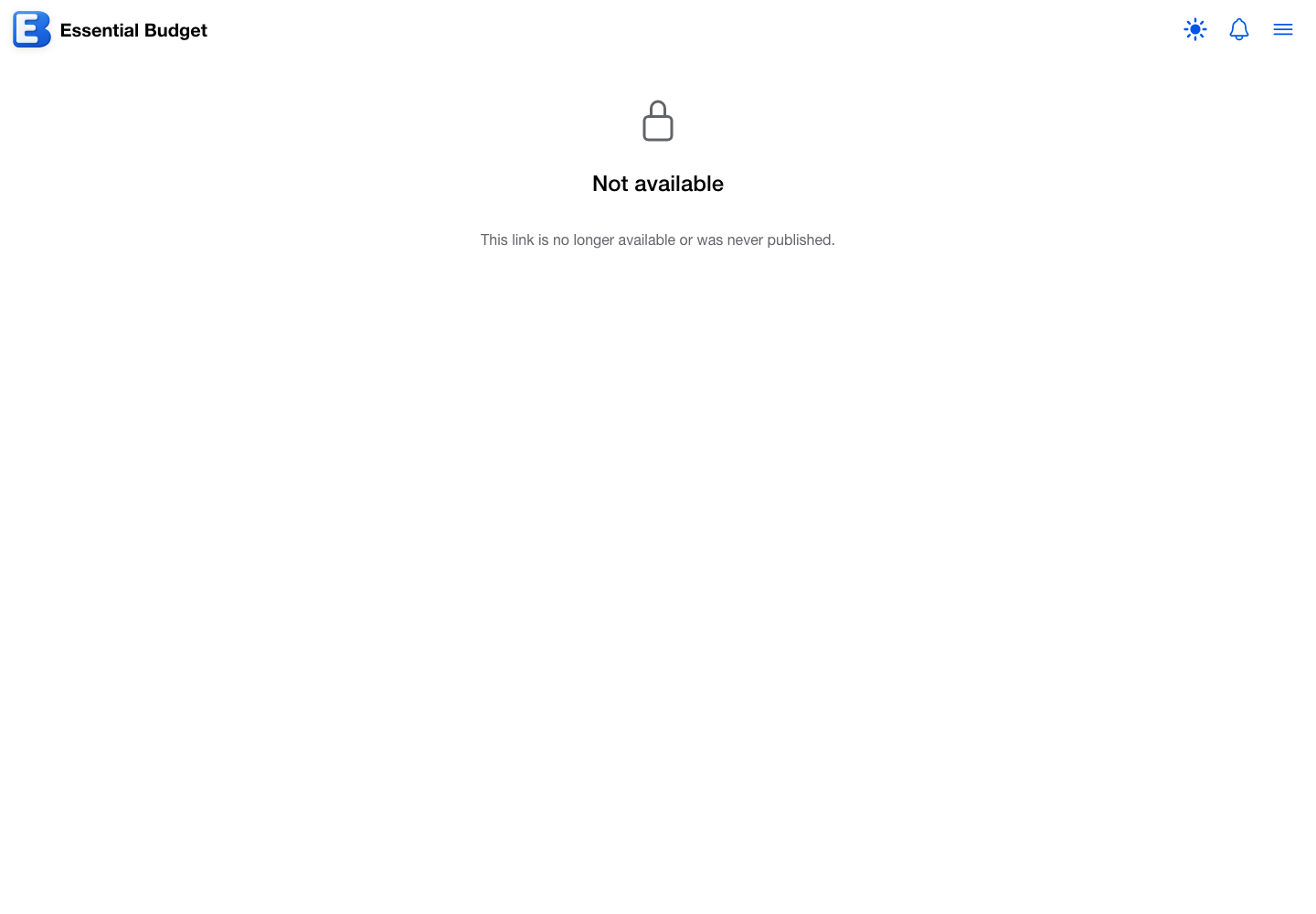
If a link has been unpublished or was never valid, the page reads Not available: This link is no longer available or was never published.
Importing into your budget
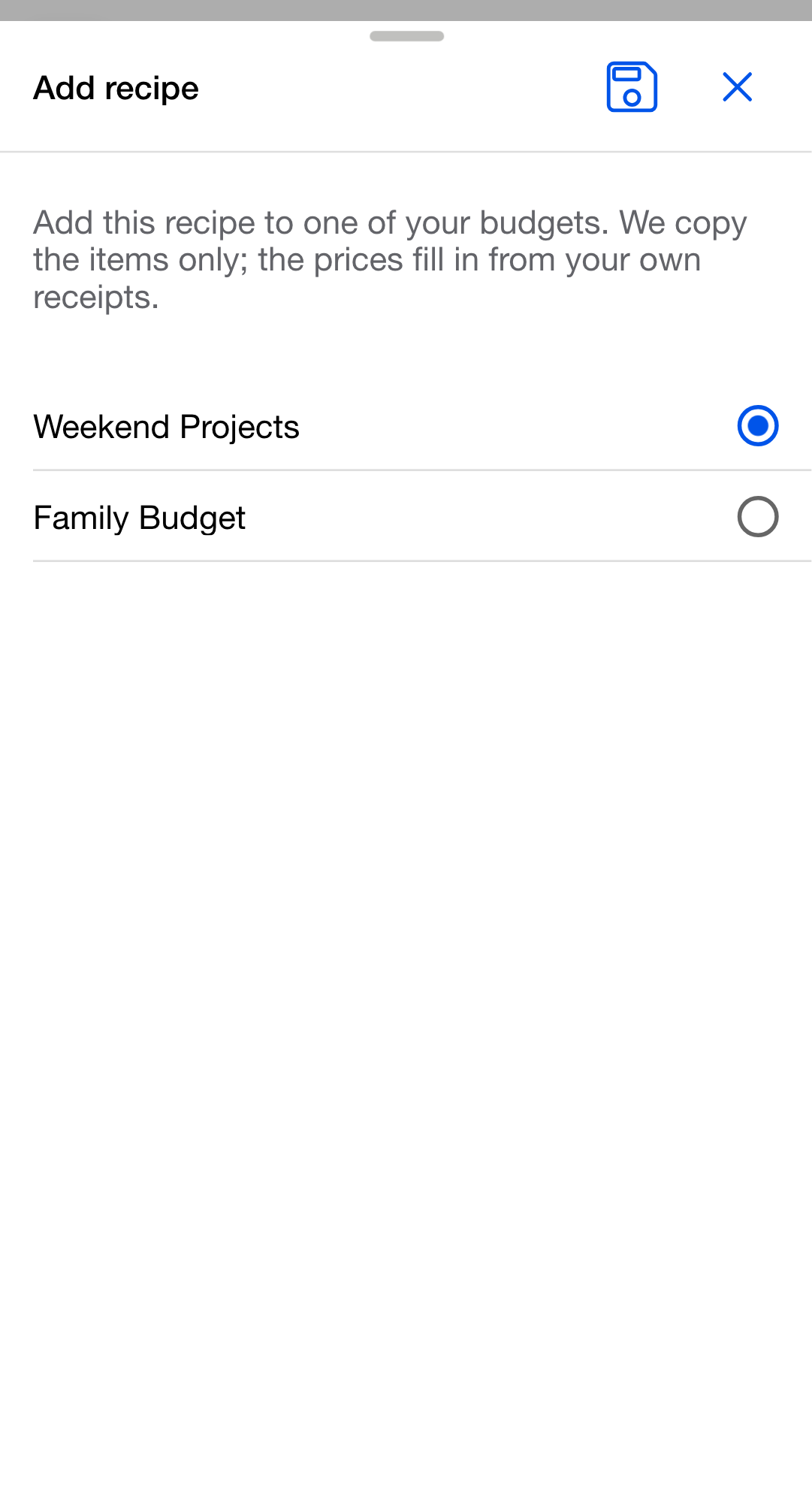
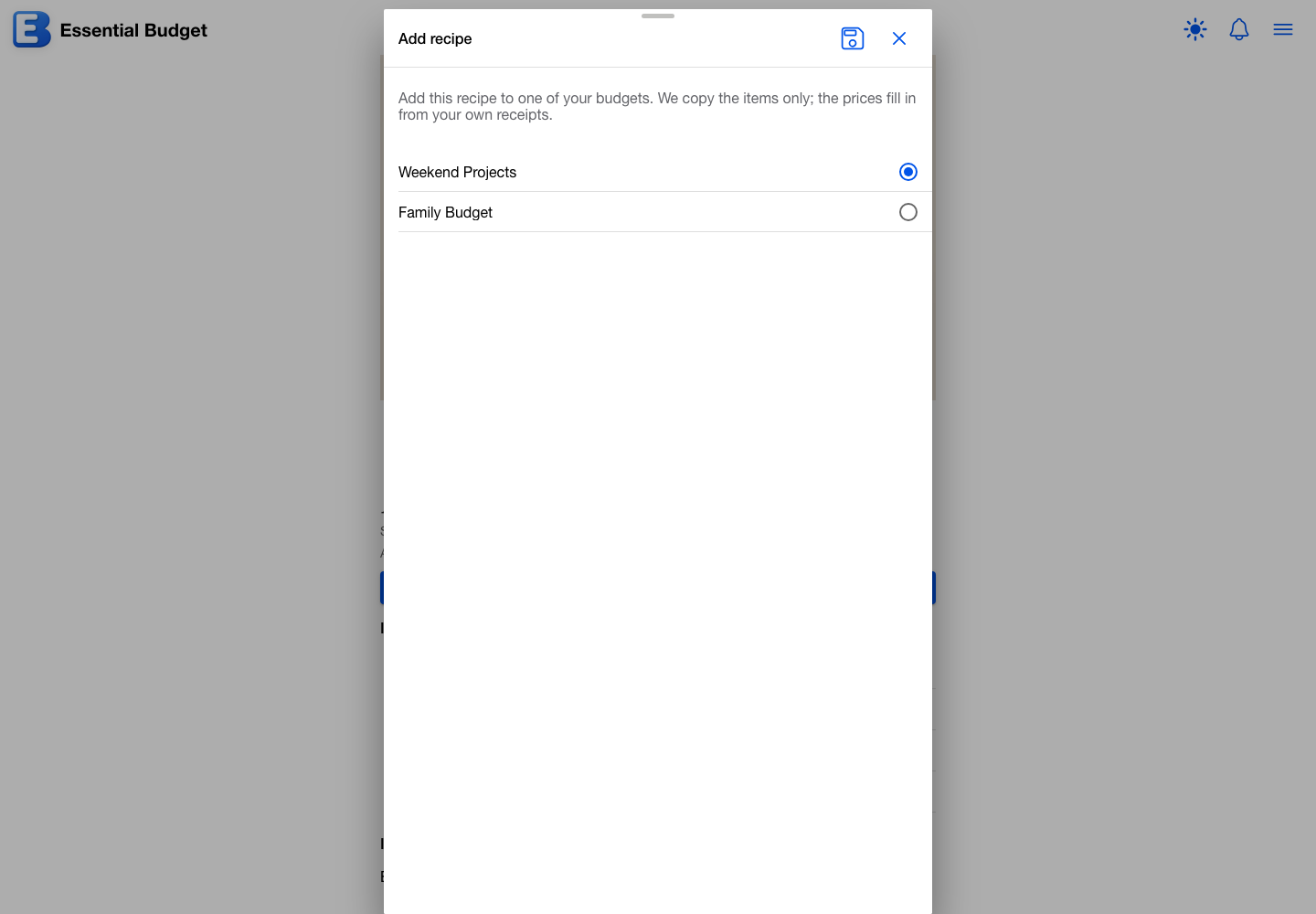
Tapping Add to my budget opens the import dialog, titled Add list or Add recipe: We copy the items only; the prices fill in from your own receipts. It lists the budgets the viewer can edit; they pick one and tap Save.
A recipe’s photos come across too, as your own copies in your own budget. They are yours from that moment: the publisher unpublishing the recipe, deleting their photos, or deleting the recipe entirely leaves your copy untouched. Adding photos needs Premium, but importing them does not, because you are not adding a photo, you are taking a copy of one.
Importing creates a fresh, editable copy in the chosen budget, and the app opens it. From there it is a normal list or recipe: it can be edited, checked off, turned into a shopping list, or published again, like any other. The imported copy starts with no prices and builds its own estimate the same way any list does: from a price the importer types, their own receipts, or the community’s typical price where that is enabled.
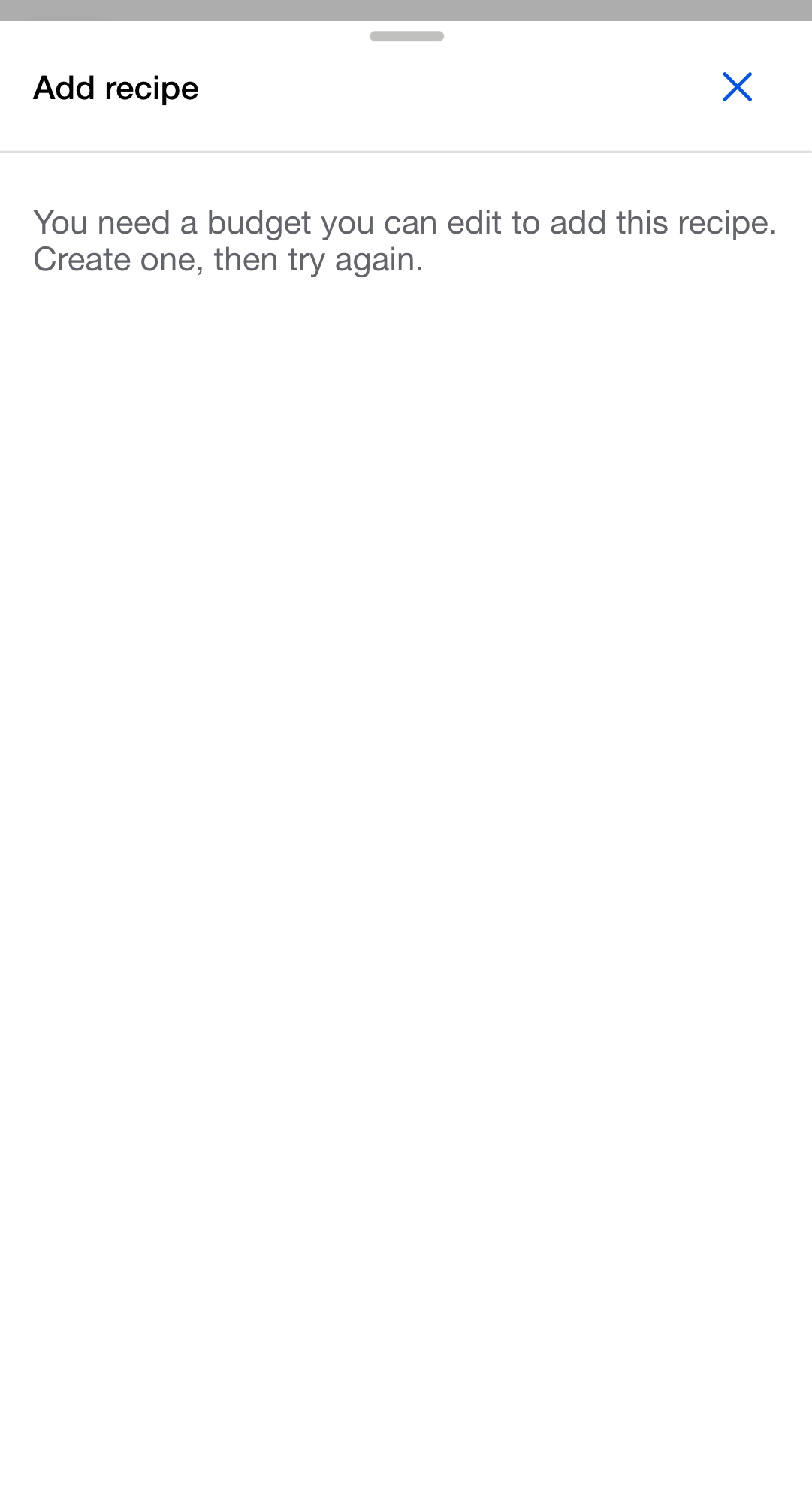
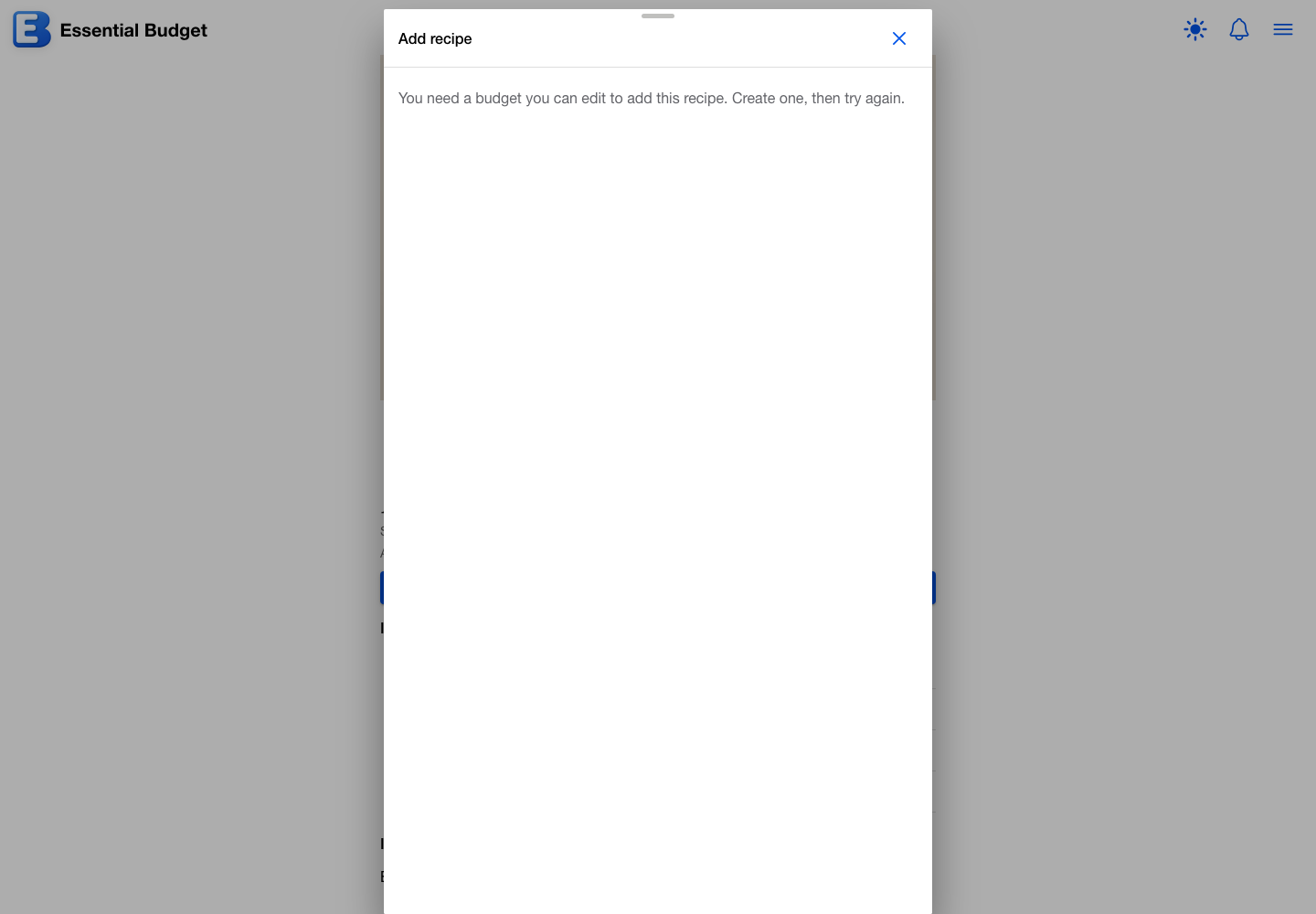
Only a budget the viewer can edit is a valid target; a budget they only view is not offered. If they have no budget they can edit, the dialog says You need a budget you can edit to add this recipe. Create one, then try again. (naming a list or a recipe to match the link) and the Save button is withheld.
Why this default? An import is a copy, not a subscription. Adding a shared list or recipe gives you your own independent version to change however you like. It does not stay linked to the publisher’s copy, and it does not update when they edit theirs. The publisher’s prices were never in the snapshot, so your copy prices itself from your receipts, which is the estimate that is actually useful to you.
How this differs from publishing a budget
The app has two separate “publish to a link” features, and it is easy to mix them up:
- Publishing a list or recipe (this page) shares one shopping list or recipe. It is free, the public copy carries items only and no prices or stores, and anyone who imports it gets an editable copy in their own budget.
- Publishing a budget (Publishing a Budget) shares a whole budget as a read-only teaching example. It requires Premium, it masks account names and hides bank merchant names, a budget created with a bank connection cannot be published, and viewers who add it get a read-only view they cannot edit.
If you want to share what to buy or how to cook something, publish the list or recipe. If you are a coach or teacher walking people through an example budget, publish the budget.
Quick reference
| If you want to… | Do this |
|---|---|
| Share a shopping list | Open the list, tap the globe button (Publish list), tap Save, then Share link |
| Share a recipe | Open the recipe, tap the globe button (Publish recipe), tap Save, then Share link |
| Show a ballpark price on the public copy | In the publish dialog, turn on Show a rough total on the public copy and type an amount |
| See everything you have published | Profile in the hamburger menu, then the Published tab |
| Send a link again | On the Published tab, tap a row’s Share button |
| Update a published list or recipe | Open it and publish again; the link stays the same |
| Stop sharing | On the Published tab, swipe the row left and tap Unpublish |
| Keep a list or recipe someone shared | Open their link, tap Add to my budget, pick a budget you can edit |
| Share a recipe’s photos | Publish the recipe; its photos go with it and come back off when you unpublish |
Behind the scenes
A few details the screen does not spell out:
- A published copy is a snapshot, frozen at publish time. Editing or deleting the original list or recipe in your budget does not change the public copy or break the link. This covers photos as well: the public page keeps its own copies. Re-publish to push your latest items and photos to it; unpublish to take it down.
- The only number a viewer can see is the rough total you choose to type. Per-item prices, your basket estimate, and the stores you shop are never part of a published copy, by design.
- The link is keyed to the published copy itself. It carries no username, so renaming your username never invalidates it, and the public page names no publisher at all.
- Deleting your account deletes your published links. Published copies belong to your account; when it goes, they go. See Your Account.
- AI is not involved. Publishing, importing, and viewing a shared list or recipe use no credits and no AI, and neither does importing a recipe’s photos: each was checked once when the publisher added it. The paid parts of recipes are adding photos and scanning a photo or PDF, both covered on Recipes.
Related pages
- Shopping Lists: building and checking off the lists you publish, and what an imported list can do.
- Recipes: creating recipes, cost to make, and turning an imported recipe into a shopping list.
- Your Public Profile: the profile page whose owner-only Published tab manages your shared links.
- Publishing a Budget: the separate, Premium feature for sharing a whole budget as a read-only example.
- Sharing a Budget: the other way to work on a list or recipe with someone, by sharing the budget it lives in so you both edit it live.
- Subscription: what is free and what Premium covers.
Questions or feedback about this page?Email us.