
Learn - Accounts
The places your money sits, and the number you keep in step with your bank.
Accounts
Your accounts hold the number everything else is built on. Each one carries a running balance that moves as you record transactions and resolve events, so the Planner can project forward from something real. When your bank disagrees, you set the number straight yourself in a few seconds.
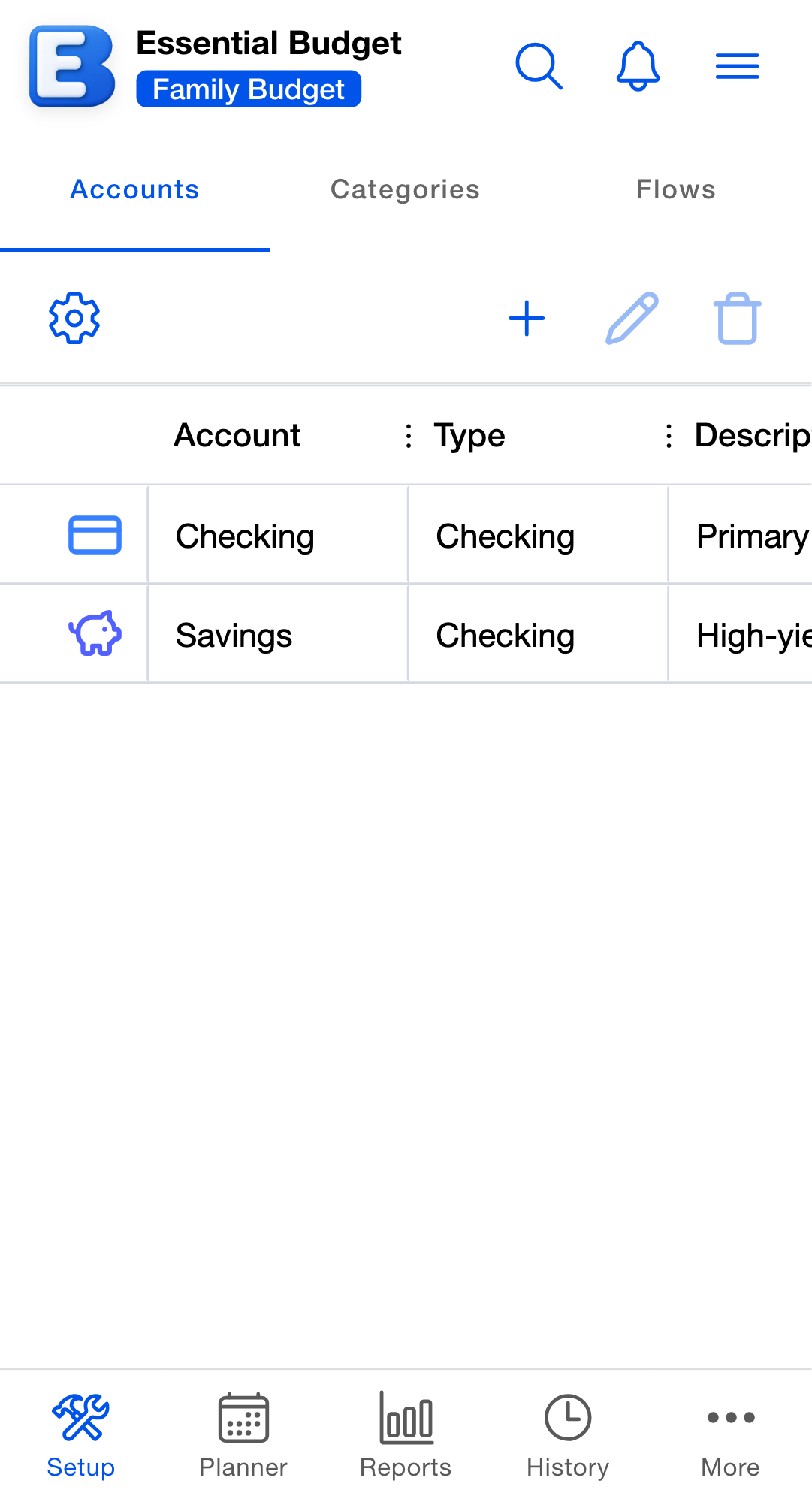
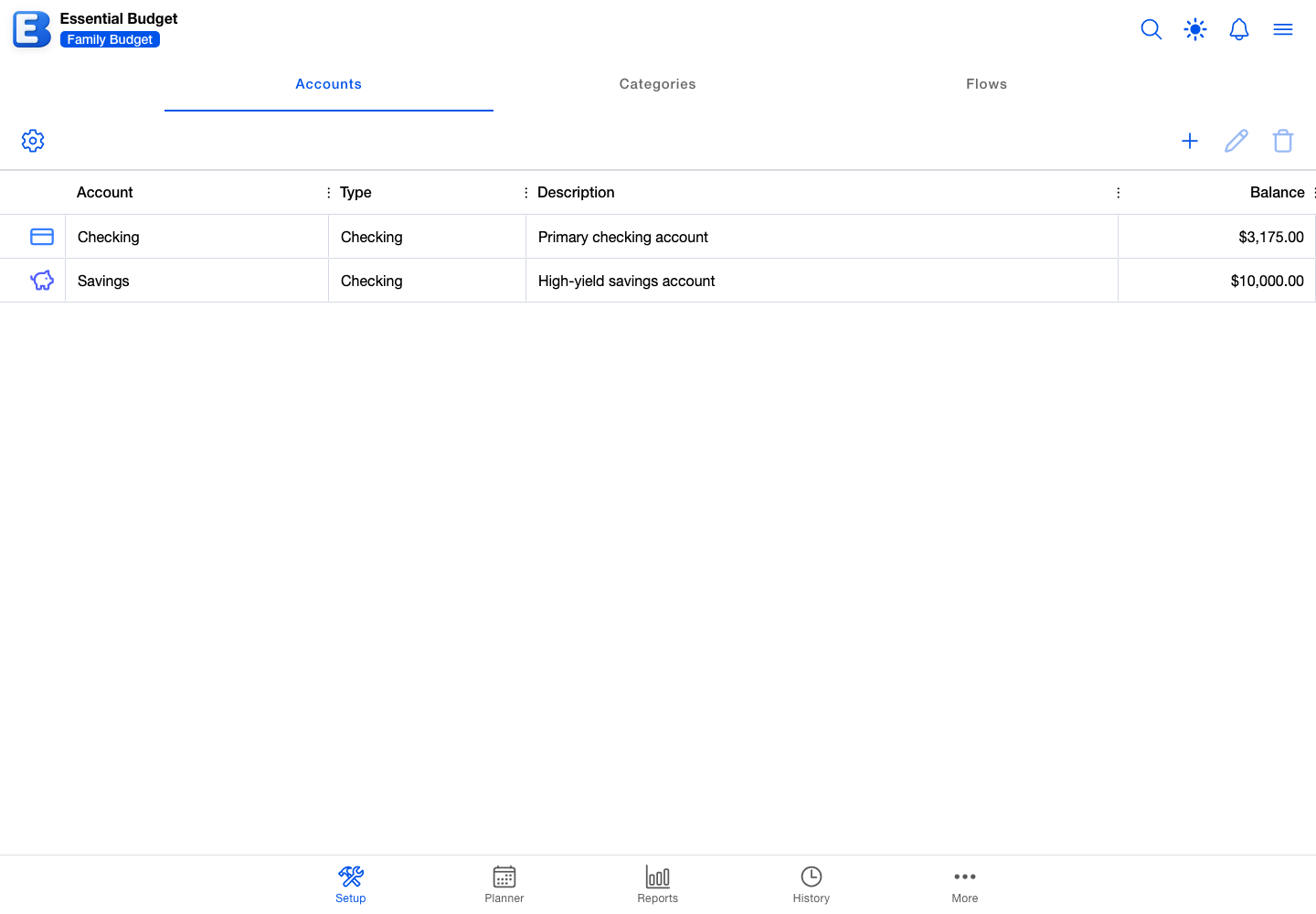
An account stands in for one place your money sits, like a checking account or a savings account.
Where Accounts lives
Open a budget and tap Setup at the bottom of the screen. The tab opens on Accounts. Categories and Flows are the other two segments of the same tab.
The list is a grid with four columns: Account, Type, Description, and Balance. On a phone the first columns fill the screen and the rest scroll into view sideways. Each row starts with the account’s icon, colored from the budget’s theme.
The toolbar carries Grid Settings on the left, and Add Account, Edit Account, and Delete Account on the right. Edit and Delete stay greyed out until a row is selected.
Tapping a row once selects it. Tapping it twice opens it. To change the order, drag a row by the grip at its left edge.
Tapping Search in the page header opens a search box. It matches account names, about half a second after you stop typing, and a search with no matches shows “No accounts match your search query.”
Adding an account
Tap Add Account on the toolbar. The New Account dialog opens with five fields:
- Account Name. A name you will recognize at a glance. “Chase Checking” beats “Account 1.” Up to 50 characters, and no two accounts in one budget can share a name, ignoring capitalization. Reusing a name keeps Save switched off and shows An account named “Chase Checking” already exists.
- Current Balance. What your bank shows the account at, right now. Open your bank app and copy the number across.
- Account Type. Checking or Savings. It starts on Checking. On an account linked to a bank the field is fixed, with the note “Account type is set by your bank” beneath it.
- Description. Optional, up to 1,000 characters.
- Account Icon. Optional.
Save stays switched off until Account Name and Current Balance are both filled in.
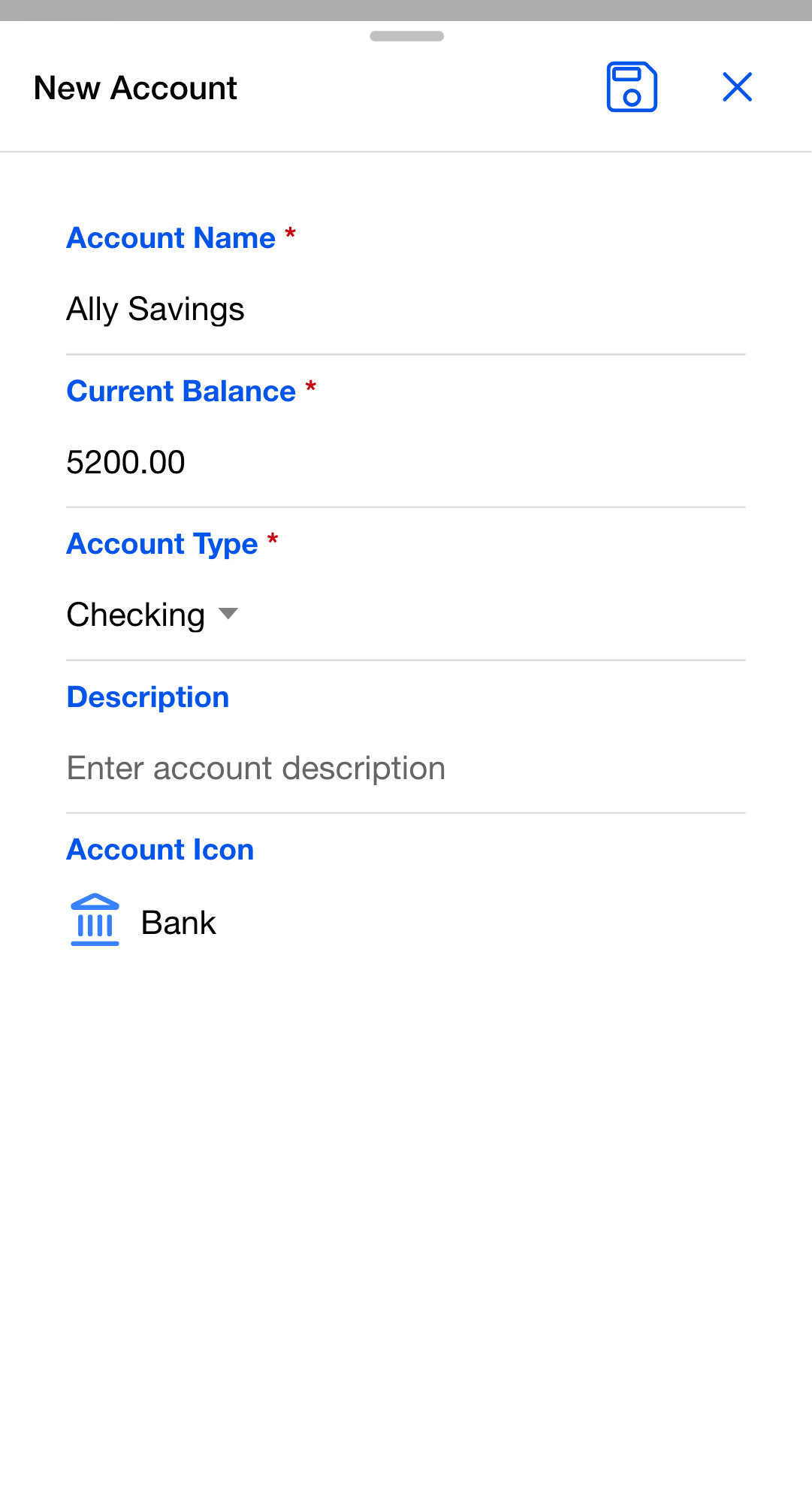
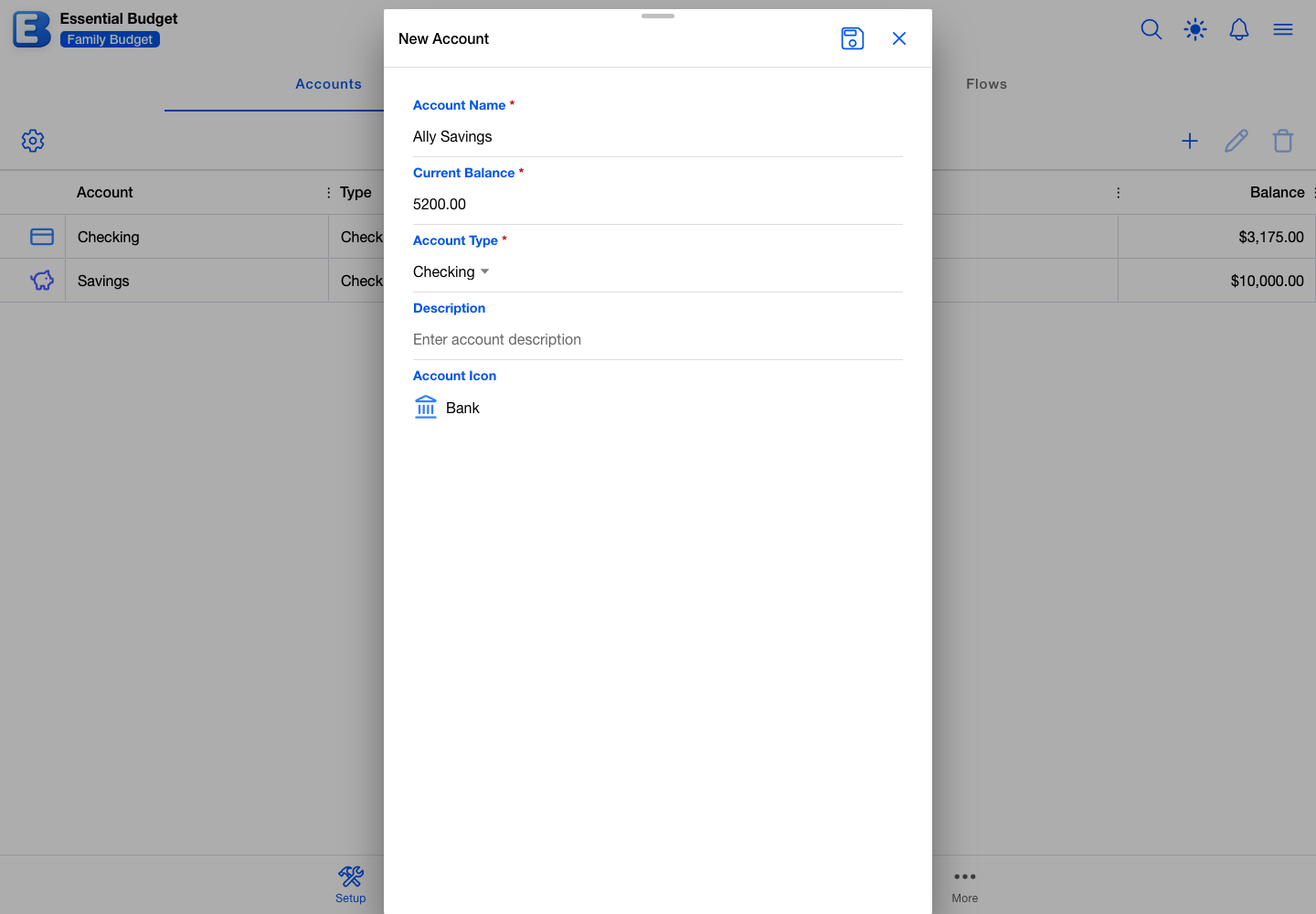
For example, you might add a Chase Checking account with a Current Balance of $2,847.13 and the Checking type, then add a second account named Ally Savings with a Current Balance of $5,200.00 and the Savings type.
You do not need to add every account on day one. Two or three is enough to start using the Planner. One budget holds up to 250 accounts; at that point tapping Add Account shows “Account limit reached (250/250 per budget).” and the dialog does not open.
Why this default? Current Balance stays editable after you save. Your bank’s number is the number to trust. If the app’s number ever stops matching your bank’s, you fix it directly. The app does not quietly change the balance on its own, because that could hide a transaction it missed.
How the balance changes
Six things move an account’s balance.
A transaction is saved, changed, or removed inside an event. A transaction you type by hand, pull from a linked bank, or upload from a file moves the balance the moment it is saved. Editing its amount moves the balance by the difference, and removing it moves the balance back. The direction comes from the category on the flow the event belongs to, not from the amount: an Income category raises the balance, an Expense category lowers it.
An event resolves with no transactions attached. Many fixed bills, paychecks, and transfers resolve as whole events. What moves the balance is the event’s amount: the planned amount from the schedule, or the amount you typed on that one event if you changed it.
You undo a resolve of that kind. The confirmation carries a Reverse Balance Change toggle, on by default, and leaving it on puts the balance back. History and Undo covers when the toggle appears.
You edit Current Balance. Open the account, change Current Balance, and save. The number you type replaces the old one outright, and the running total continues from there. This is not recorded in History and cannot be undone; typing the previous number back in is the only way to reverse it.
A receipt you posted is removed. Deleting a receipt, detaching it, or confirming it again reverses the amounts it had posted. See Receipts.
A new budget is built through Connect Bank. When AI budget creation sets a budget up from your linked accounts, it writes each account’s opening balance from your bank’s figure. That happens once, at creation.
A Transfer event moves money between two of your own accounts: the From Account goes down and the To Account goes up by the same amount.
Nothing else moves an account’s balance. In particular, deleting a flow, an event, or an account never reverses money that was already recorded, so a delete leaves the surviving balances where they were.
When the app and your bank disagree
The app’s running balance and your bank’s balance sometimes stop matching. Common causes:
- A charge your bank has applied that has not reached the app yet, like a small fee or a card hold.
- A transaction in the app that the bank later reversed.
- The Current Balance you typed when you added the account was a few cents off from the start.
- Pending and posted transactions counted differently on each side.
You have two ways to bring them back together.
Set Current Balance to your bank’s number. Open the account, change Current Balance to whatever your bank shows right now, and save. Fast, and the running balance is correct from that point on. It does not explain what caused the gap, which for day-to-day differences is fine.
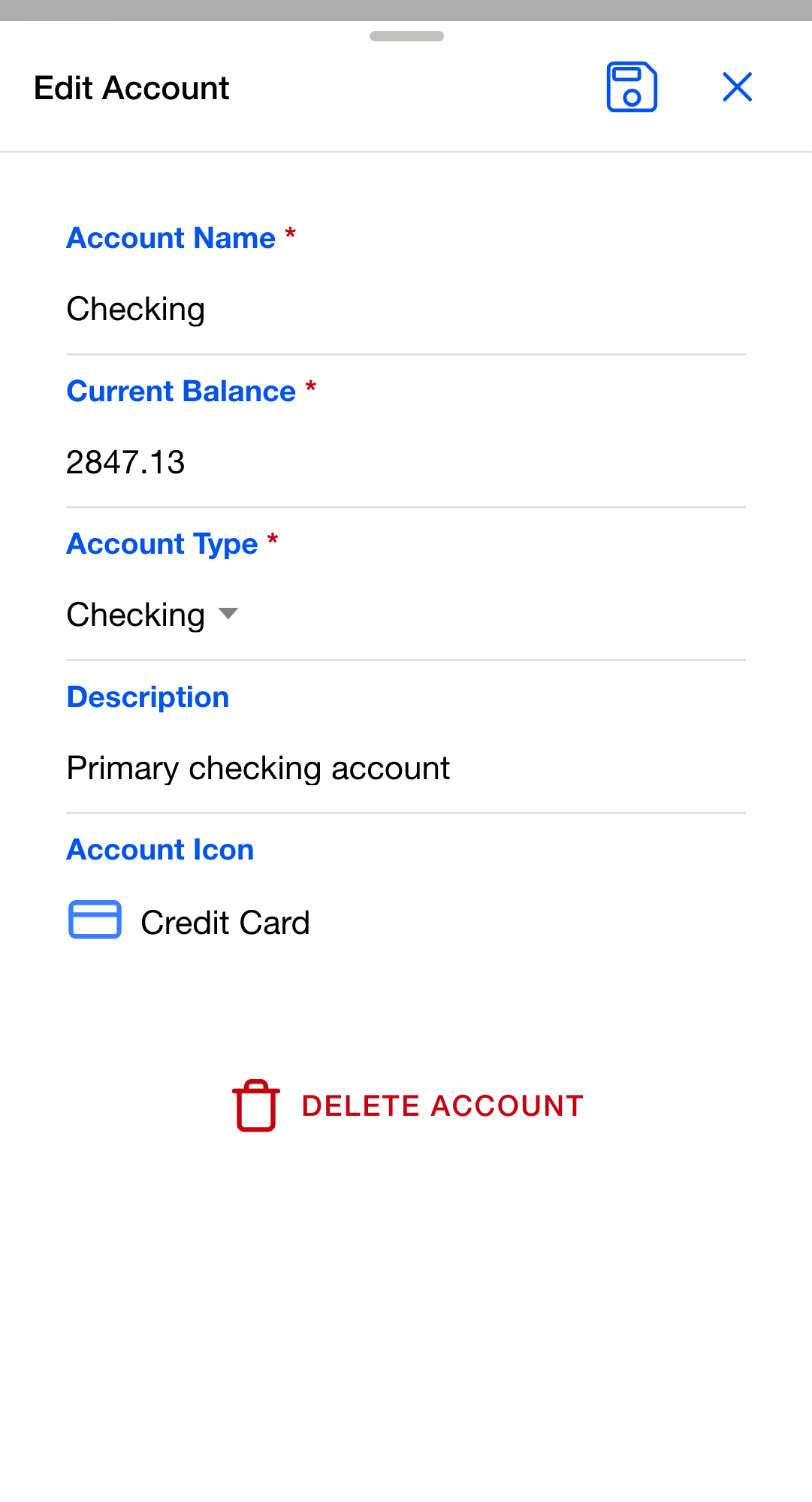
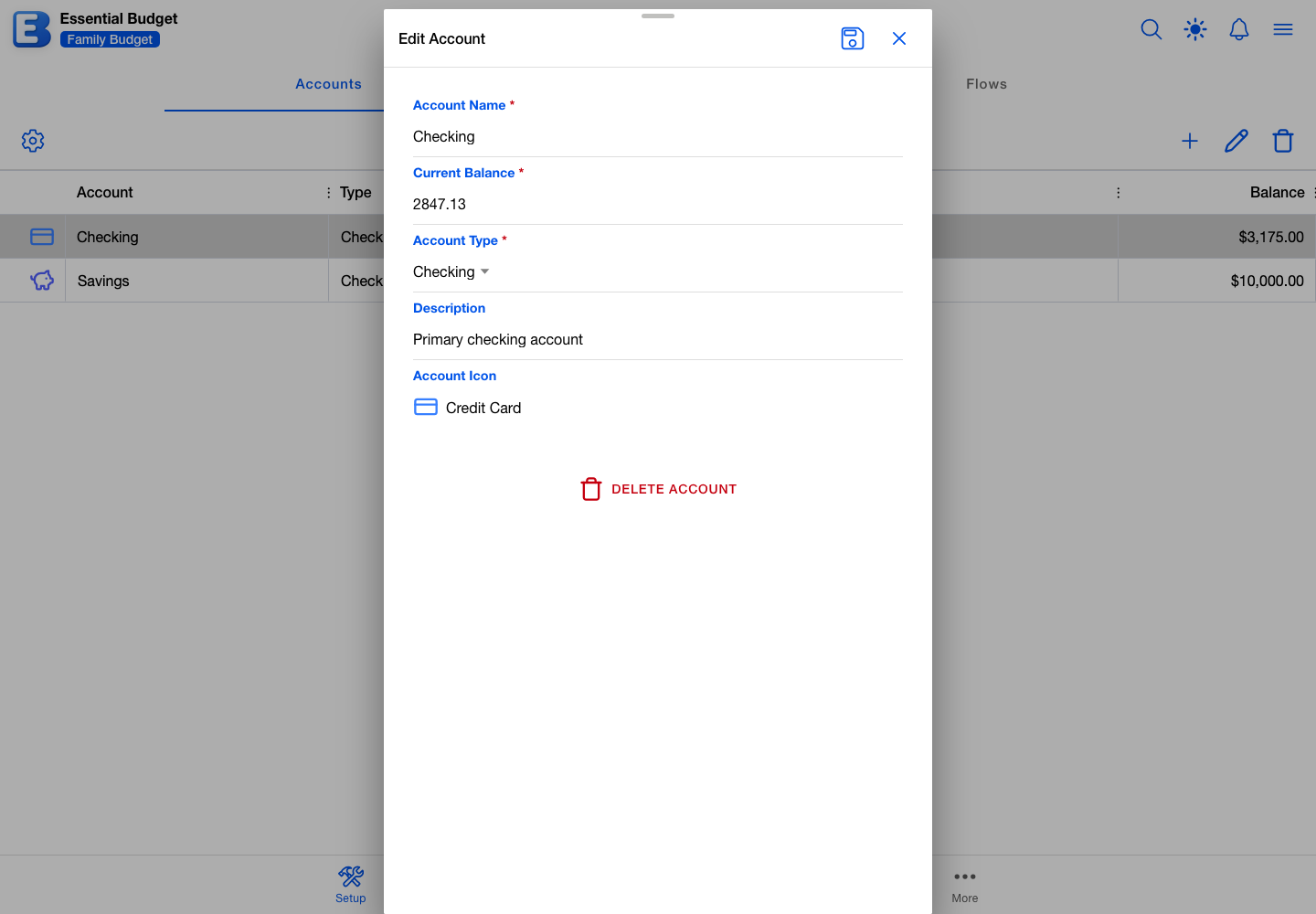
Find the cause and fix the record. Open the Planner and walk back through recent events to find a transaction that should have been recorded and was not, or one that was recorded twice. Tap the event row to open Edit Flow Event, then add the missing transaction or remove the duplicate. Either change moves the balance as soon as it saves. Slower, and it keeps the record of what happened accurate.
Why does the app let you change Current Balance at all? Treating the app’s number as final would mean losing your trust the first time it drifted from your bank’s. Setting it directly keeps the balance honest even when the movement behind it is something the app cannot see, like a fee charged overnight that will not appear until tomorrow.
Linking an account to your bank
Pulling bank transactions into Match Transactions is part of the Premium Bank Account Linking feature. The connection is made when a budget is created. In the Create Budget dialog, choosing AI Generated offers Connect Bank as a source, where you pick up to five of your linked bank accounts for the new budget.
An account inside a budget that already exists can be unlinked, but a different bank account cannot be linked to it. To start a budget with bank linking, create a new one through Connect Bank.
On a linked account, the dialog shows a Bank Connection row with an Unlink button. Tapping it opens the Unlink Bank Connection dialog, which names what stops. New transactions stop syncing from your bank, and once no linked accounts remain, Match Transactions can no longer pull from your bank for this budget. Existing transactions and History are not affected. The confirm button reads Unlink Account.
Only the budget owner can unlink. For everyone else the Bank Connection row does not appear at all. Unlinking does not disconnect the bank itself; the connection stays on your account for the next budget.
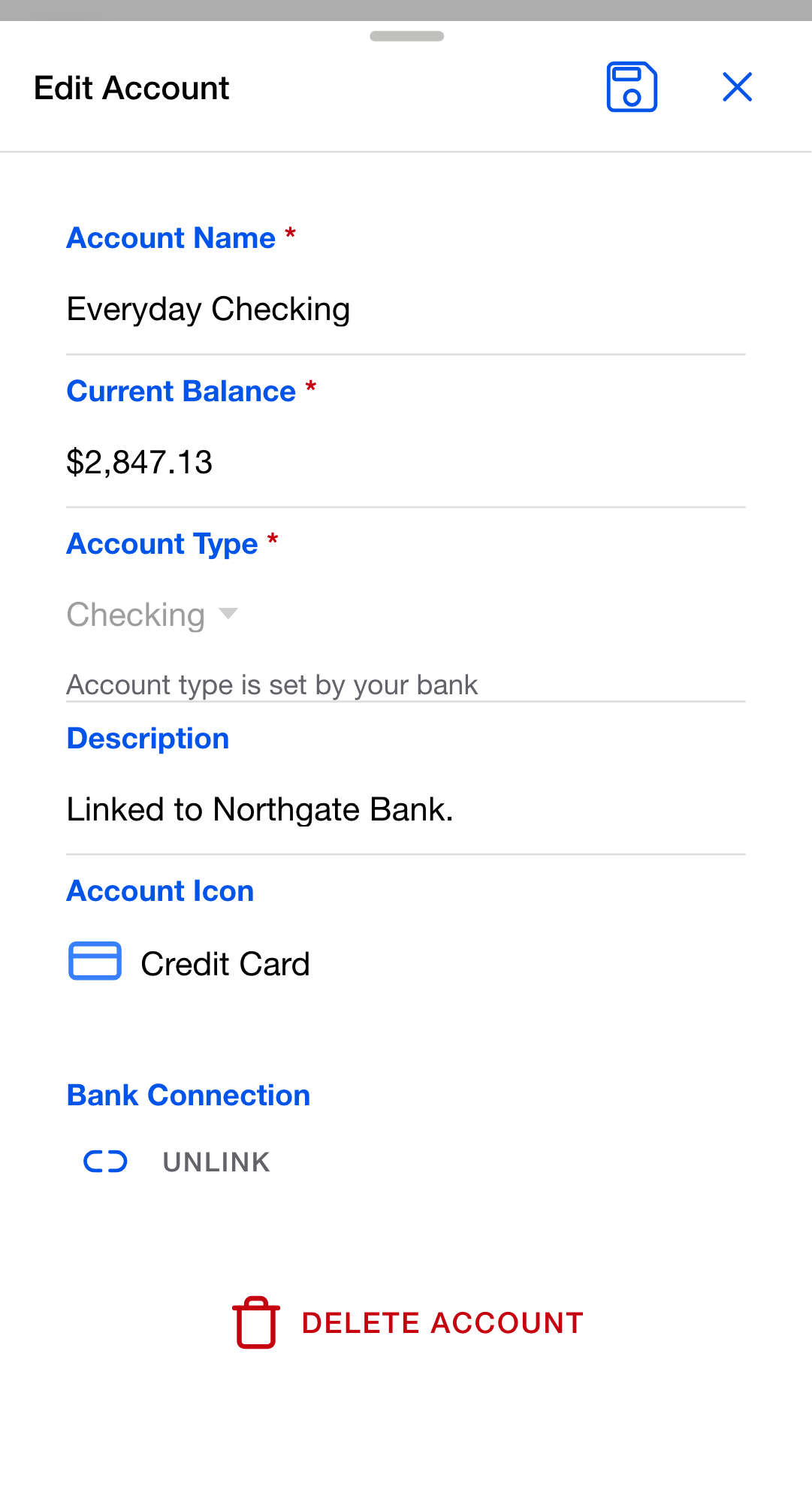
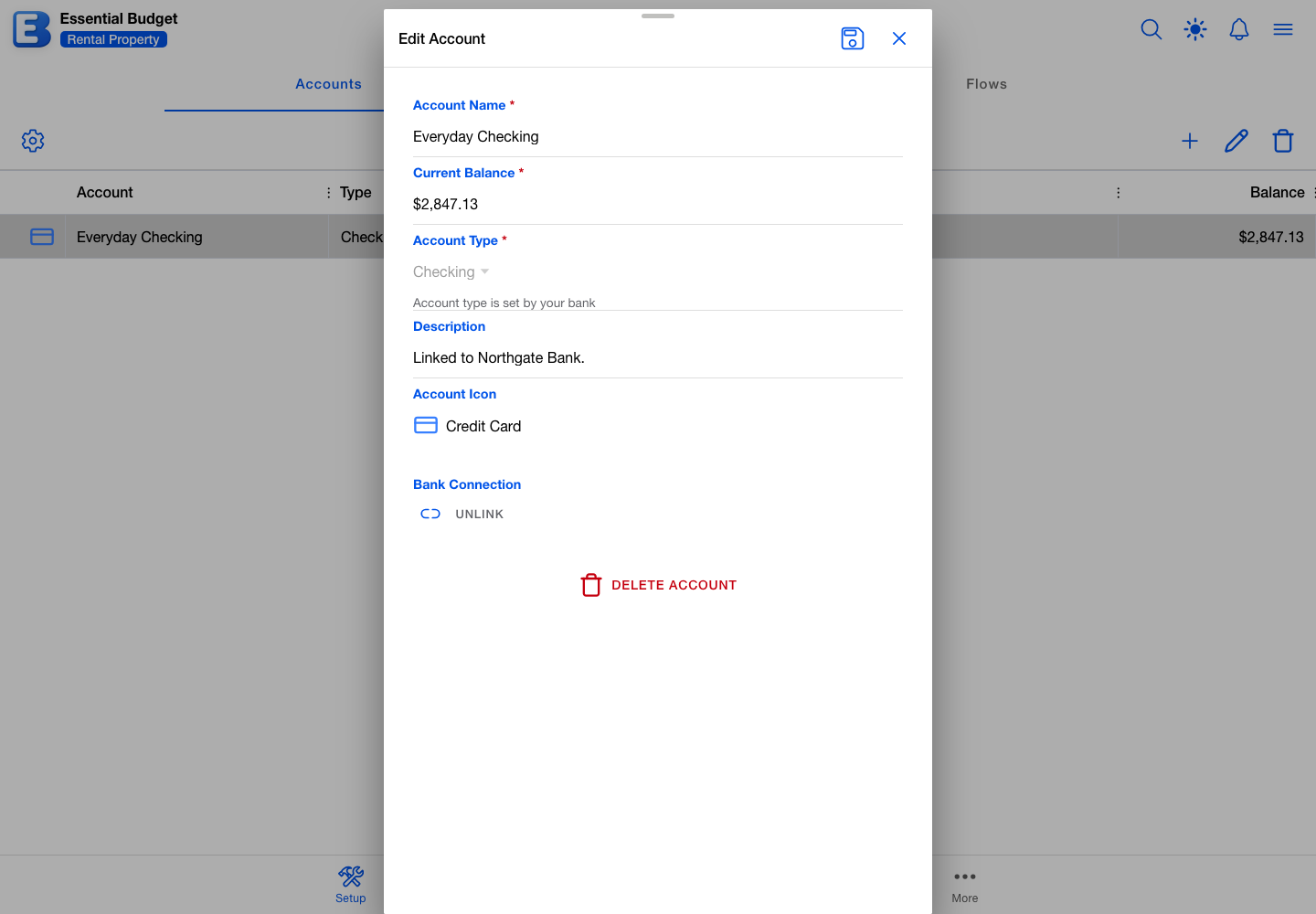
The full setup, including how transactions are pulled, is on Bank Linking.
Why is bank linking only set up at budget creation? Rewiring a long-running budget to a new bank account raises questions with no good answer: which past transactions move with it, what happens to balances on the day of the switch, and whether the bank’s history or the budget’s should win. A budget either starts with bank linking or it does not.
Account types
Two account types exist: Checking and Savings. The type does not affect any math, since the direction of every balance change comes from the flow’s category. It labels the account and appears in the Type column.
If your account does not fit either label exactly, pick the closer one. On a bank-linked account the type is fixed, and the field carries the note Account type is set by your bank.
Deleting an account
Select the account and tap Delete Account on the toolbar, or open it and tap Delete Account at the bottom of the dialog. Either way, the Delete Account dialog opens and tells you how many budget flows use the account.
When flows use it and you have another account, the dialog asks what should happen to them: Move them to each of your other accounts, or Delete them too. Moving is selected for you, because it is the choice you can change your mind about later.
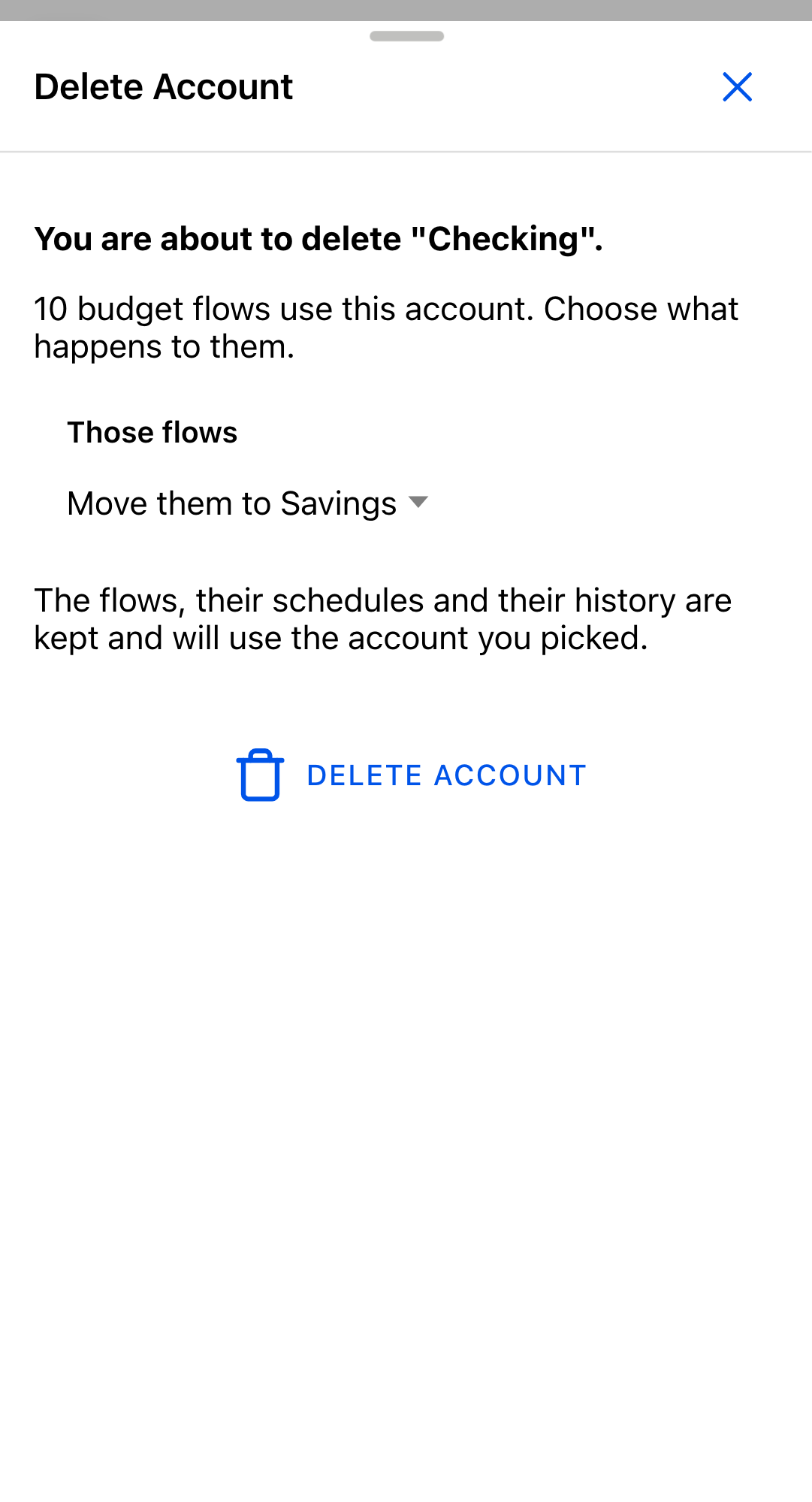
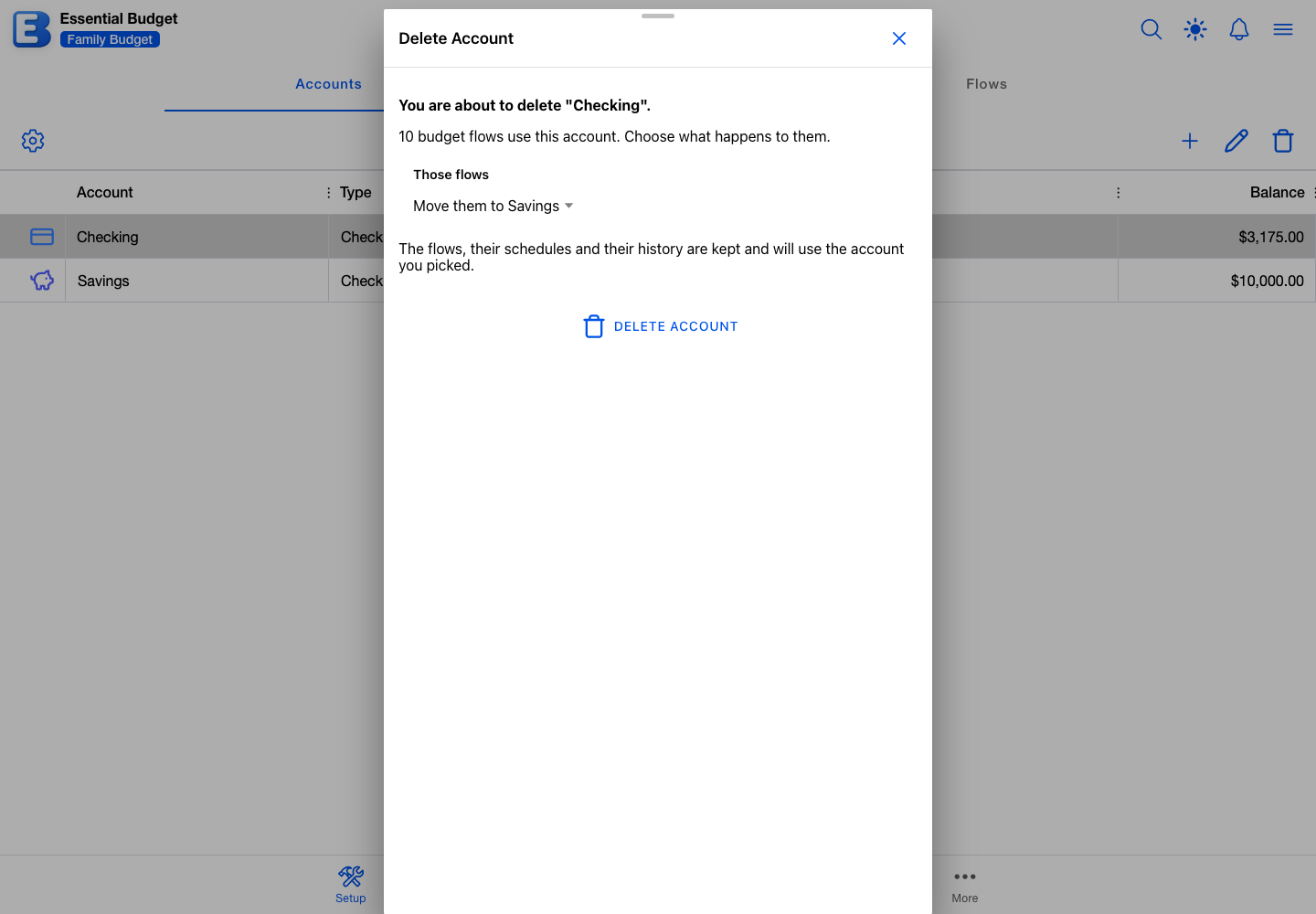
Pick Move them to an account and nothing is lost. The flows, their schedules and their transaction history all stay, and simply use the account you chose from then on.
Pick Delete them too and the cost is real. Deleting those flows deletes every transaction filed against them, including transactions already filed with resolved History rows.
The History rows themselves survive. Each one keeps the flow name, account name, category, and amount recorded on the day it was resolved, so the record of what happened stays readable. What those rows lose is their Undo: with the parent flow gone, the app has nothing to put back on the Planner, and Undo is refused with “The parent flow no longer exists.”
Balances do not move. Deleting an account never reverses the transactions it held, so every other account keeps the balance it had.
Only the budget owner can delete an account that is linked to a bank. For everyone else the Delete Account control is not offered on that account, because removing it would detach the bank connection, and only the owner may do that.
The choice does not appear when there is nothing to decide: when no flow uses the account, or when it is the only account in the budget and there is nowhere for the flows to go. In both cases the dialog lists what will be removed, as before.
Why does the dialog default to moving the flows? Moving them is the choice you can reverse: if you pick the wrong account, open the flow and change it. Deleting them cannot be undone, because the flows, schedules, and transactions are removed outright rather than parked somewhere, so there is nothing left to restore from. The safer option is the one you get without having to think about it.
The dialog works that count out from the flows on your device, and gives up after a couple of seconds. If it cannot reach them, it says so and offers Try Again rather than guessing, and the delete is not offered until the list arrives.
Transfer flows and account deletion
A Transfer flow points at two accounts, a From Account and a To Account. Deleting an account on either side deletes the whole Transfer flow, even though the other side is an account you are keeping. The count in the delete dialog includes those flows.
A Move to Savings flow that transfers from Chase Checking to Ally Savings is removed when you delete Ally Savings. Chase Checking itself is untouched, balance included. To keep the recurring move going, create a replacement Transfer flow against a different destination.
Who can do what
Your role on the budget decides what you can do here. Roles come from Sharing.
- Viewers open the account as View Account: every field is read-only, with no Save and no Delete. The toolbar’s Add, Edit, and Delete buttons stay visible but greyed out.
- Editors can add, edit, and delete accounts, and change Current Balance. The one thing they cannot do is delete an account linked to a bank.
- The owner can do everything an editor can, plus unlink an account from a bank and delete a bank-linked account.
When two people edit the same account
If a collaborator saves the same account while your dialog is open, your save is refused rather than quietly overwriting theirs. The app tells you what they changed and offers two choices: keep your edits and save them on top of the newer version, or drop yours and take theirs. Your edits stay on screen either way.
AI and your accounts
Adding, editing, and deleting accounts is entirely manual. AI does not name accounts, set balances, change types, or remove anything. The only place AI touches accounts is AI Generated budget creation, which proposes a starter set of accounts as part of building the budget. Those accounts arrive already created, and the Review Budget Setup button takes you to this segment to adjust their balances. Building from receipts can create an account too, and that step is entirely yours: on its Paying Account step you pick an existing account or name a new one and set its starting balance.
Quick reference
| If you want to… | Do this |
|---|---|
| Add an account | Setup tab, Accounts segment, Add Account, fill in the New Account dialog |
| Open an account | Tap the row twice, or select it and tap Edit Account |
| Reorder accounts | Drag a row by the grip at its left edge |
| Search the list | Tap Search in the page header and type a name |
| Match the app’s balance to the bank | Open the account, set Current Balance to the bank’s number, save |
| Track an account that isn’t Checking or Savings | Pick whichever type is closer; the type changes no math |
| Unlink a linked account | Open the account, tap Unlink in the Bank Connection row (owner only) |
| Delete an account | Select it, tap Delete Account, confirm in the Delete Account dialog |
| Delete a bank-linked account | Same, but only the budget owner can do it |
| Keep the flows when removing an account | Move each flow to a different account first, then delete the account |
| Add more than 250 accounts | Not possible; the cap is 250 per budget |
Behind the scenes
The running balance is stored, not recalculated. Every path that moves money applies its change to the account directly, which is what keeps balances quick to read. Editing Current Balance writes the new number in place, and the running total carries on from there.
Icon colors come from your theme, by position. The icon you pick is only the shape. Its color is drawn from the theme’s palette using the account’s place in the list, so reordering changes which color each account uses, and switching themes restyles them all at once.
Related pages
- Bank Linking: the Premium Bank Account Linking feature, how the connection is set up, and what is pulled.
- Matching and Resolving: the day-to-day flow that keeps your balance current as events resolve.
- Transactions: adding, editing, and removing individual transactions, and how each one moves a balance.
- Flows: flows reference accounts, including transfer flows that touch two at once.
- Categories: the Type on a category decides which way a balance moves.
- History and Undo: what survives when you delete an account, and every reason Undo can refuse.
- Sharing: the role on a shared budget that controls what you can do here.
Questions or feedback about this page?Email us.