
Learn - Publishing a Budget
Public budgets are read-only example budgets you publish for teaching.
Publishing a Budget
A public budget is a read-only copy of one of your budgets that signed-in users can add to their own Budgets list from a link. It exists for one purpose: showing other people a worked example. Coaches use it to walk students through a demonstration budget; teachers use it to seed a class with the same numbers on every screen. Viewers see your flows, schedules, and balances and can run the planner forward themselves, while your account names are masked and nothing they do can change your data.
This page covers how to publish, what viewers see, the rules that block publishing, how to unpublish, and how someone who added your budget can drop it. Inviting specific people by email is a different mode, covered on Sharing a Budget. Publishing requires Premium; the feature appears on the Subscription page as Community Publishing.
The whole feature is for example budgets, not real ones. Build a fresh budget specifically for teaching, with invented but realistic numbers, and publish that. Keep your real budget private.
How to publish
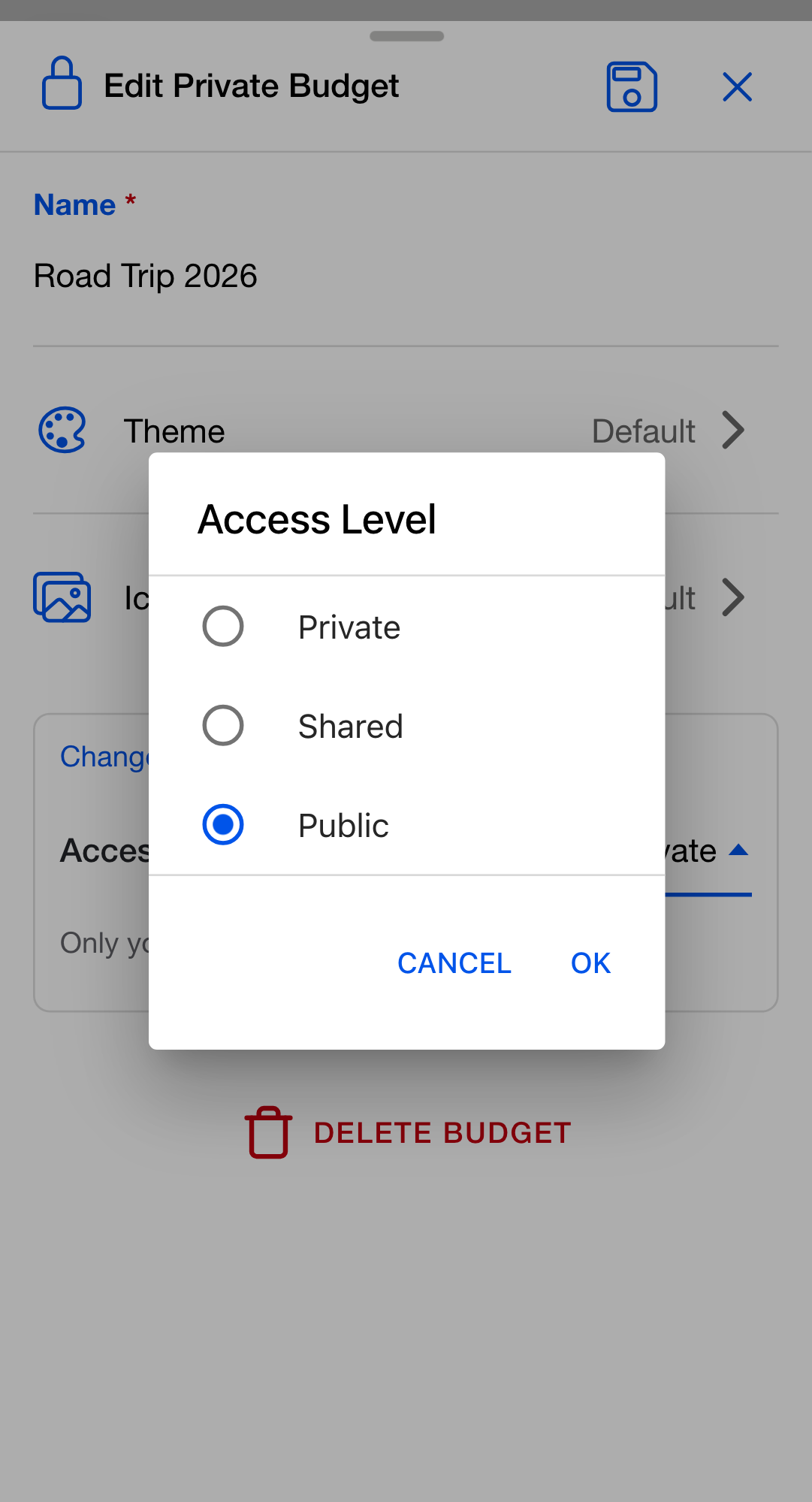
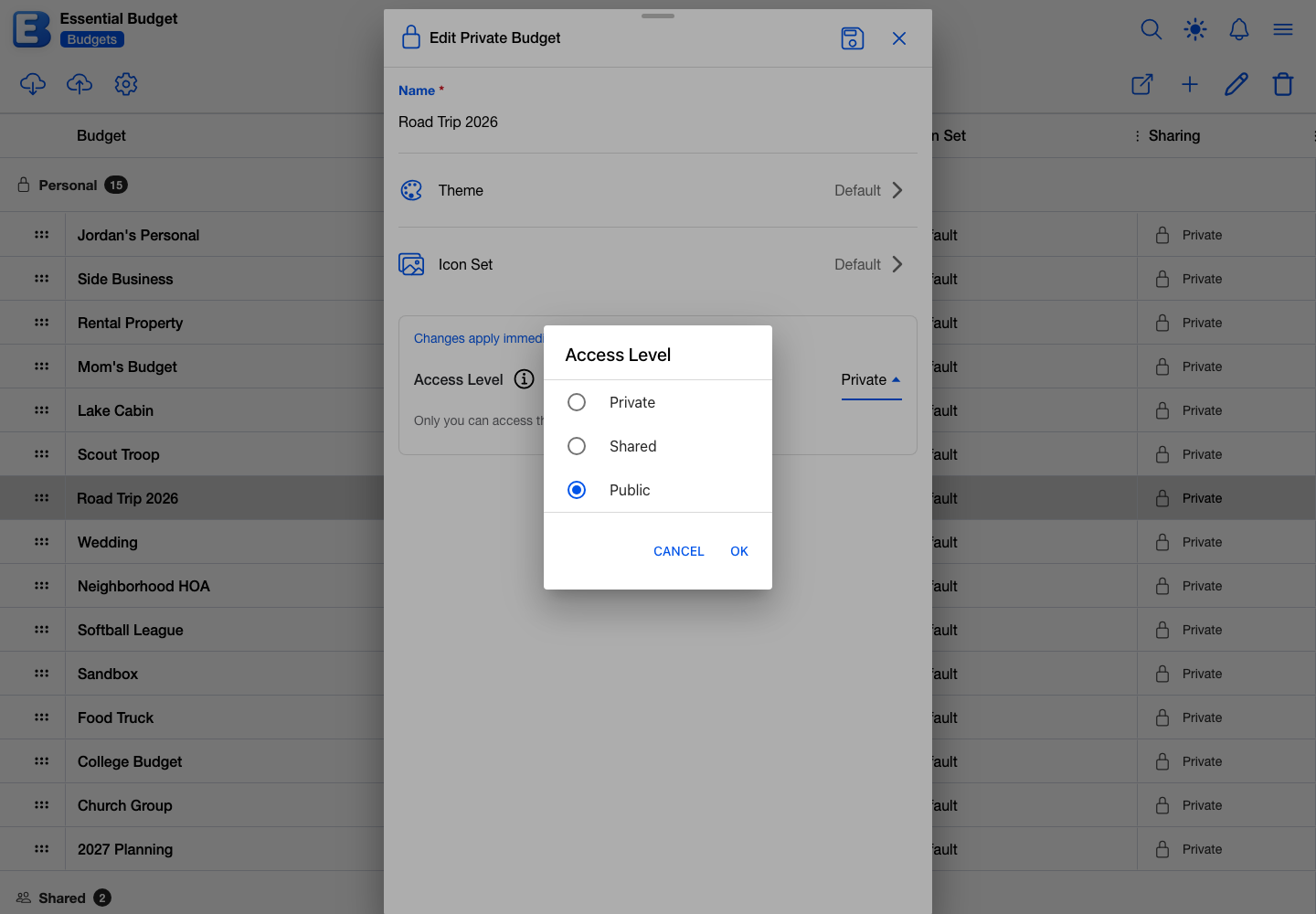
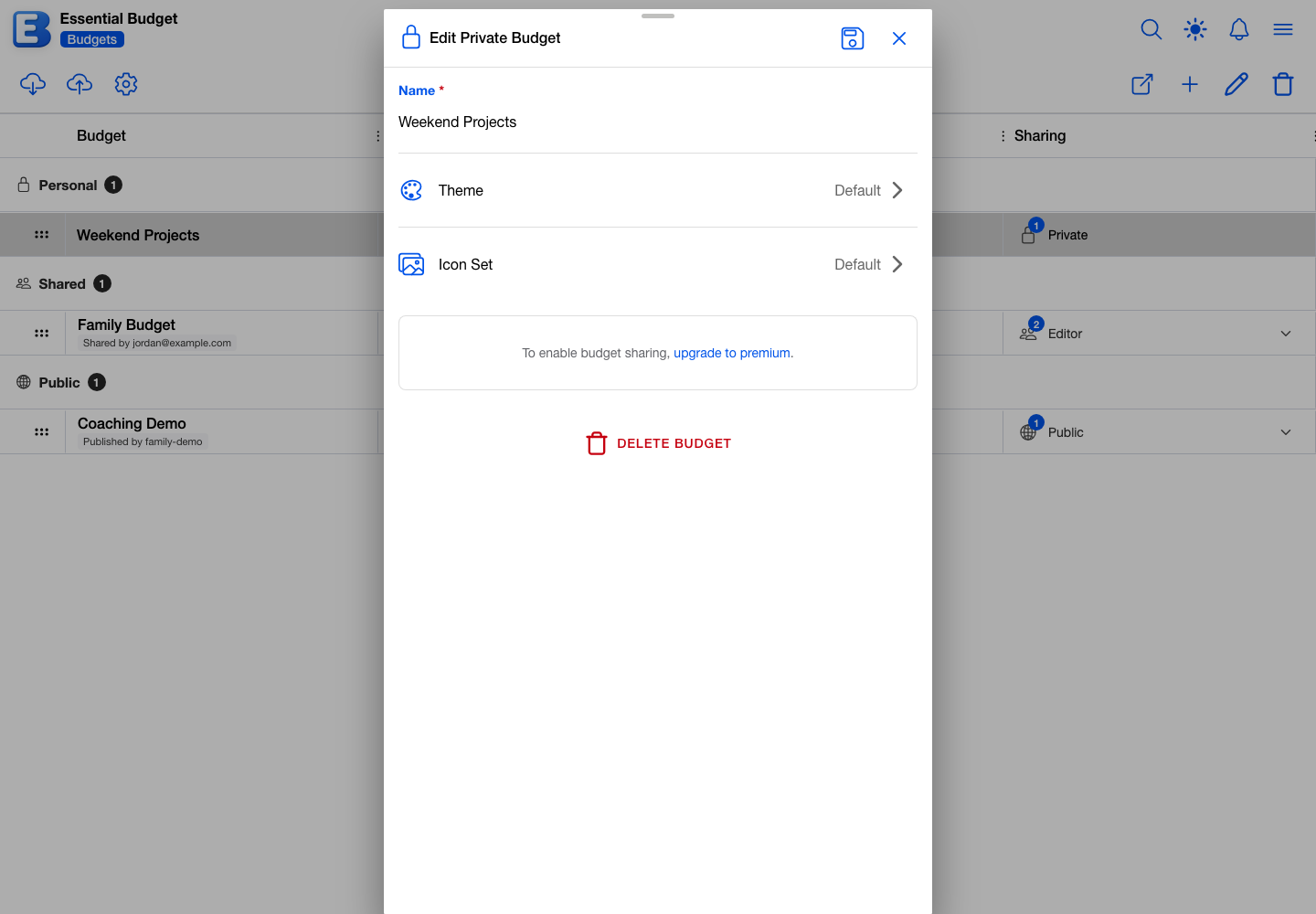
Open the Budgets list, select the budget, and tap the pencil-icon Edit Budget button. In the dialog (titled Edit Private Budget while the budget is private), tap the Access Level selector and pick Public.
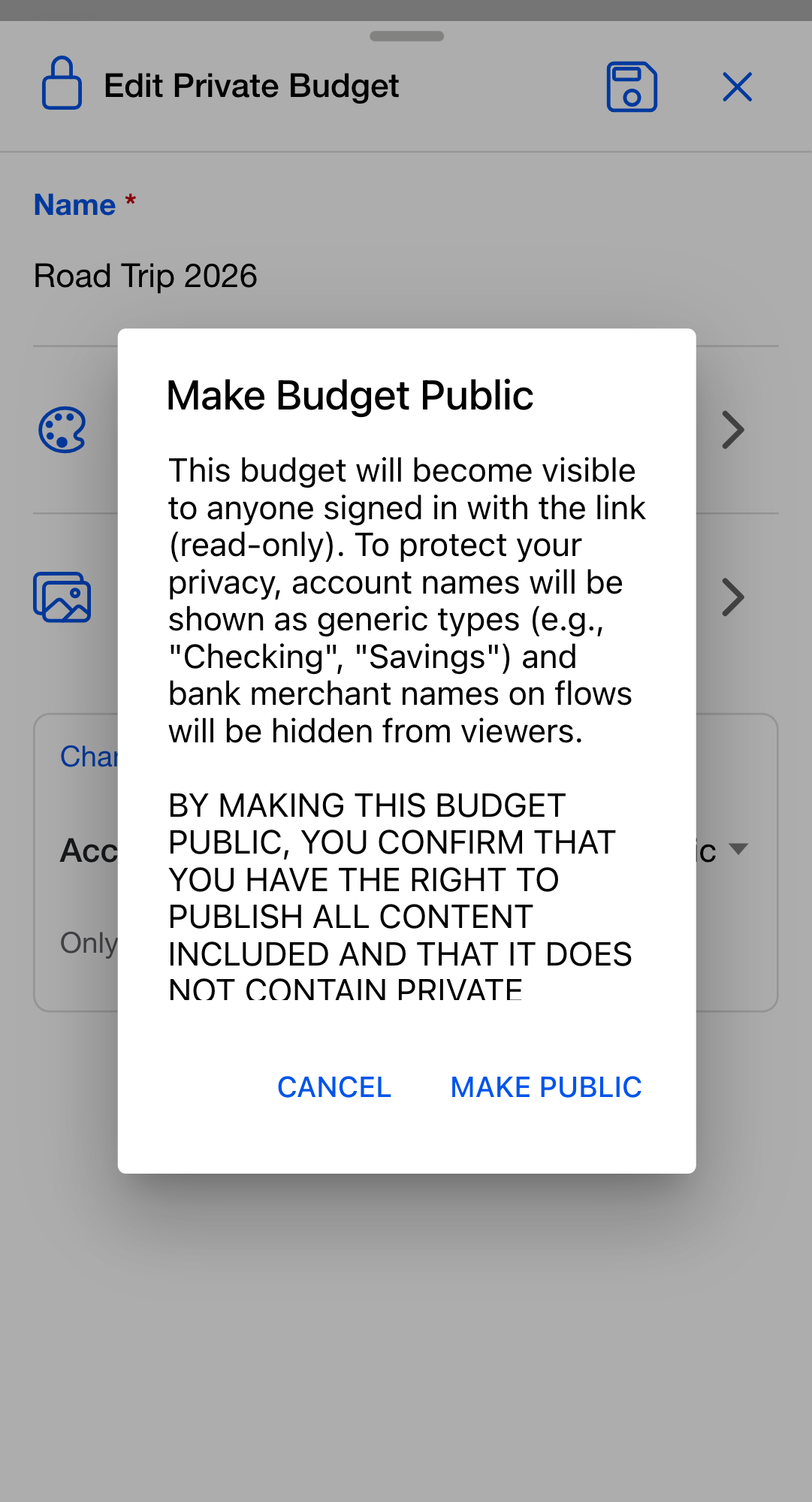
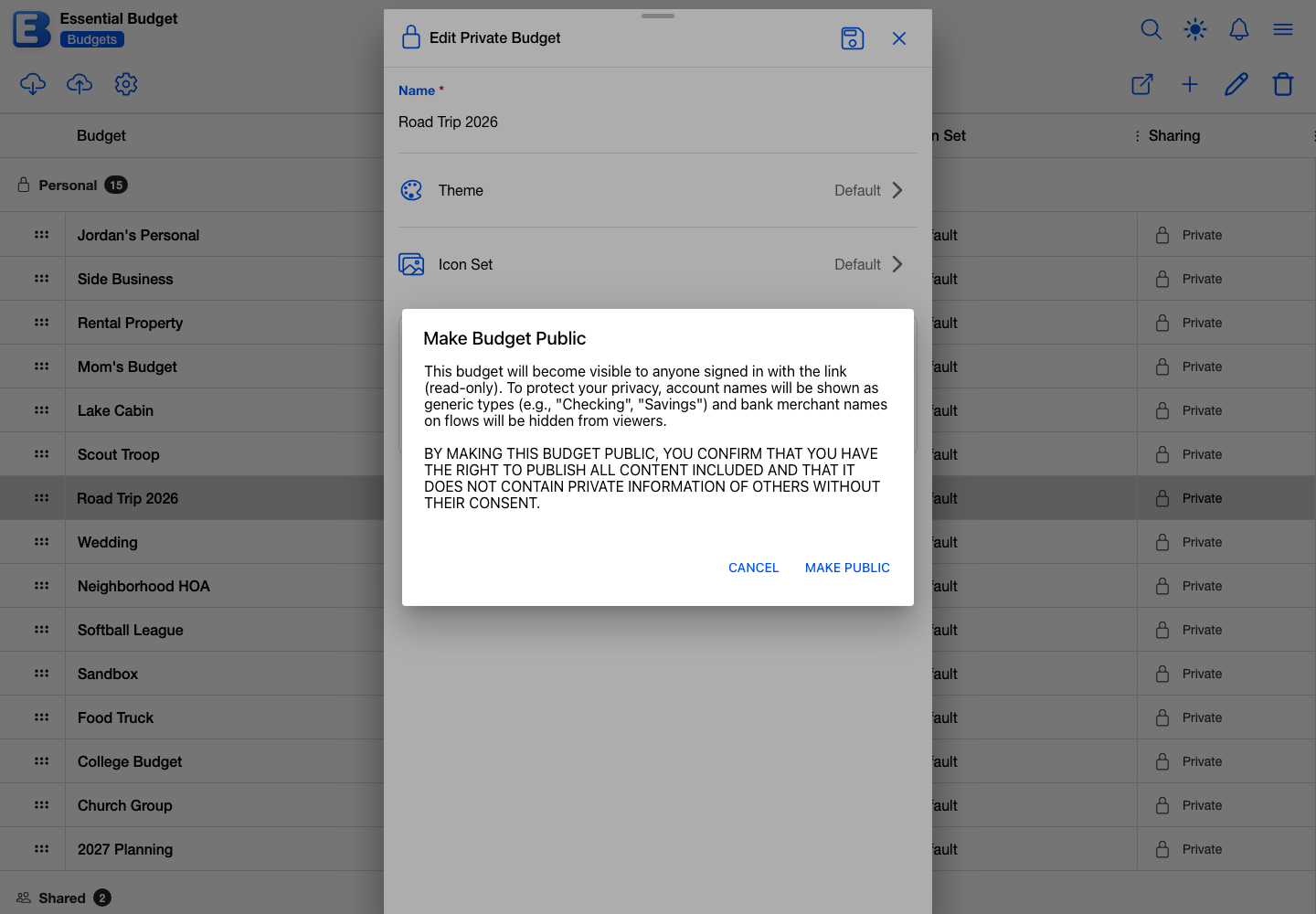
A confirmation titled Make Budget Public appears. It explains that the budget will be visible, read-only, to anyone signed in with the link, that account names will be shown to viewers as generic types (Checking, Savings), and that bank merchant names on flows will be hidden, and then asks you to confirm that you have the right to publish all the content and that it contains no private information about others. Tap Make Public; a toast reads Budget is now public.
Once the budget is public, the sharing card shows the public link with a copy icon next to it. Tap either to copy it; a toast confirms Link copied to clipboard. The link is built from the budget itself (it ends in /budgets/.../public), so it keeps working even if you later rename your username.
Why is Public a separate state from Shared? Sharing by email is collaboration on a real budget. Public is strangers reading an example. The privacy rules are stricter on a public budget (account names masked, bank merchant names removed even from your own view), and a public budget has exactly two roles: you, and read-only viewers with the link.
What viewers see, what they don’t
A published budget is a live, narrow window onto your budget. Every viewer sees the same thing:
- Flow names, schedules, and planned amounts, and the categories they sit in.
- Transactions you typed by hand: description, amount, and date, exactly as you saved them.
- Account balances, types, order, and icons, so the planner’s running balances work for them the way they work for you.
- Your applied theme and icon set.
- The budget name, your username with an
@prefix, the publish date, and aCreated with AIbadge when the budget was generated with AI.
What is masked or removed while the budget is public:
- Account names become generic type labels. An account you named
Coaching Demo Checkingshows asChecking. With several accounts of one type, the labels are numbered in your sort order (Savings 1,Savings 2); a lone account of its type gets the bare label. - Account descriptions are not sent to viewers at all.
- The Bank Transaction Merchant Name field on each flow is hidden from everyone, including you, for as long as the budget is public. The values are kept and return when you unpublish.
Your email address is never part of a public budget; the username is the only personal identifier. Because a budget that ever came from a bank cannot be published at all (see below), no bank-imported data can appear.
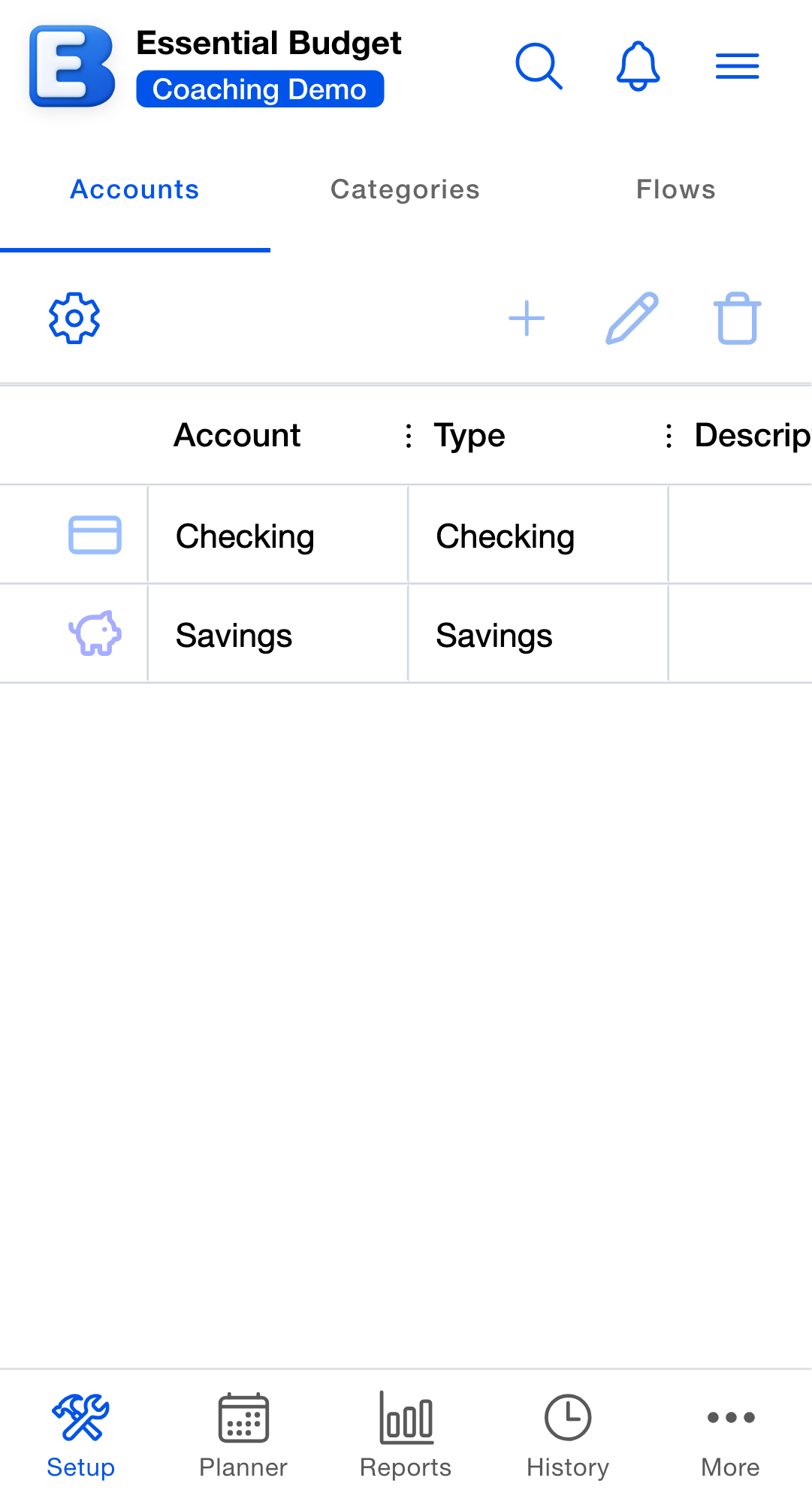
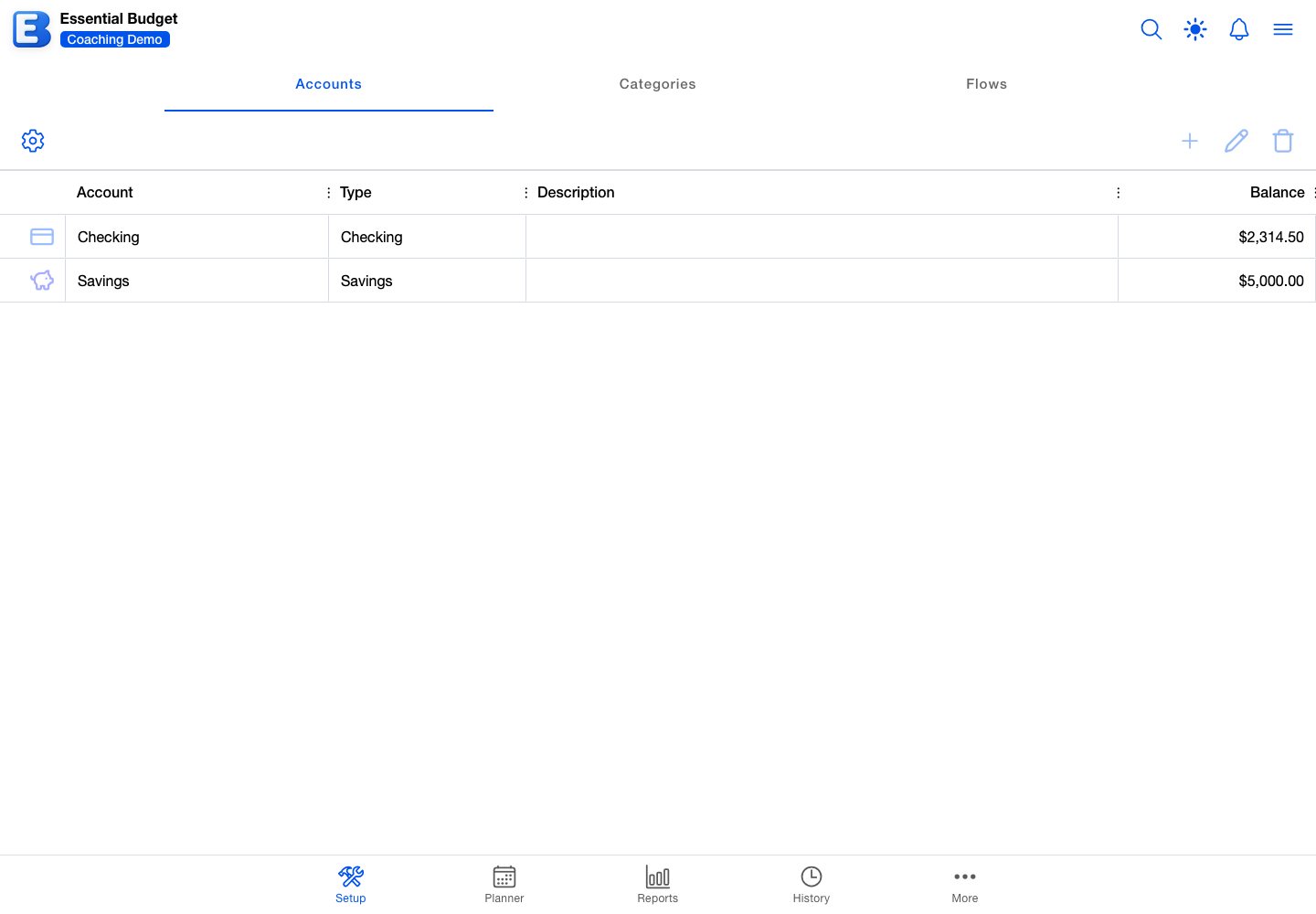
Why this default? Account balances are part of the example. The balance on each account is what makes a public budget runnable: a viewer who adds it can scroll the planner forward and watch the same projected balances you see. Stripping balances would reduce the budget to a shape. Masking the account names hides the personal anchor without breaking the math.
Live updates while you teach
When you edit the budget while viewers have it open, your changes appear on their screens shortly after: when you move an event, add a transaction, or rename a flow, everyone following along sees it. The channel is one-directional, since viewers cannot edit. This is what makes a public budget work for a live walkthrough: put the link in the chat and everyone follows the same data in their own app.
If you switch the budget back to Private mid-session, viewers lose access immediately: anyone inside the budget sees Your access to this budget has been revoked. and is returned to their Budgets list, where the budget is gone.
Adding a public budget to your list
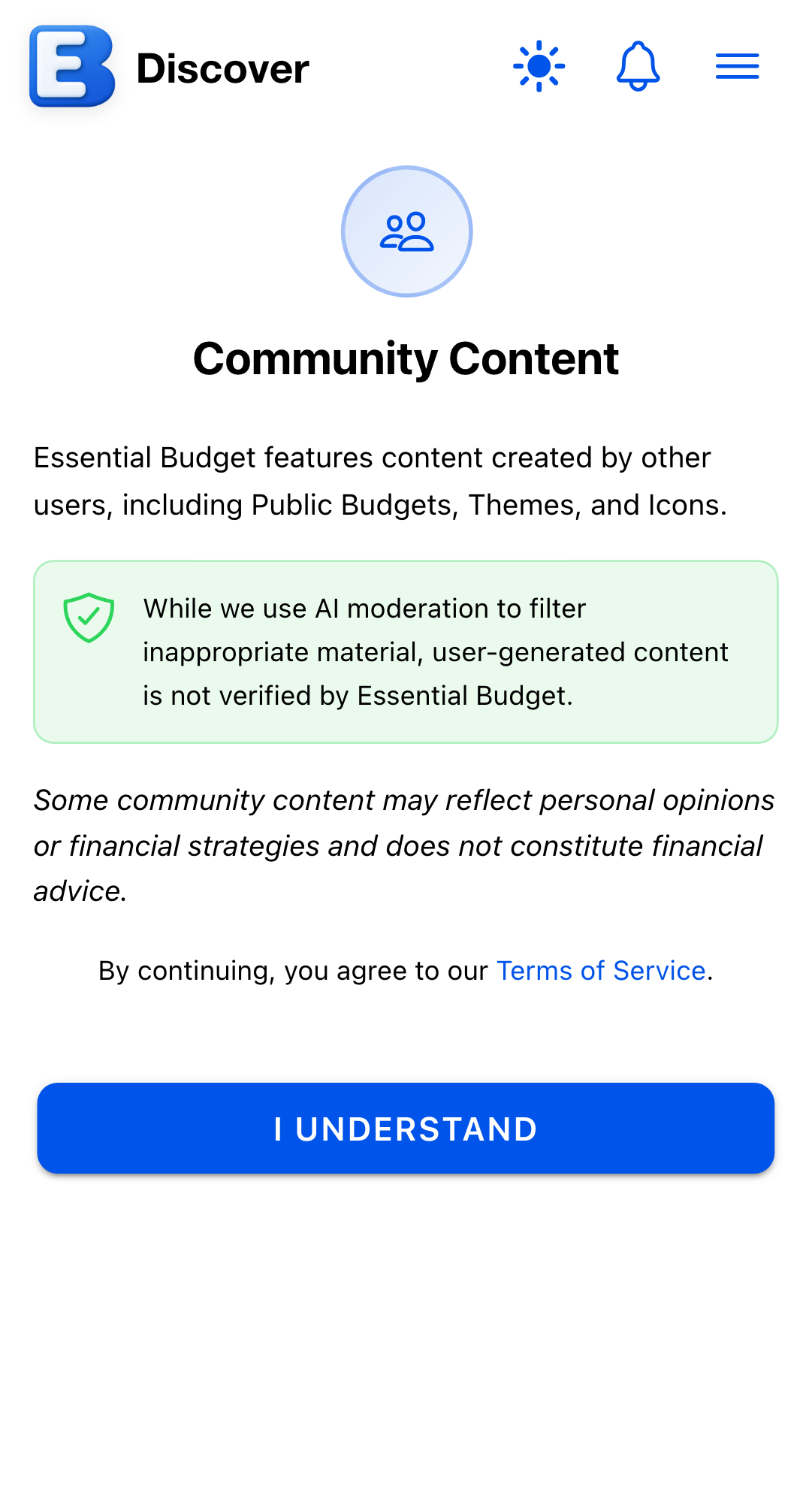
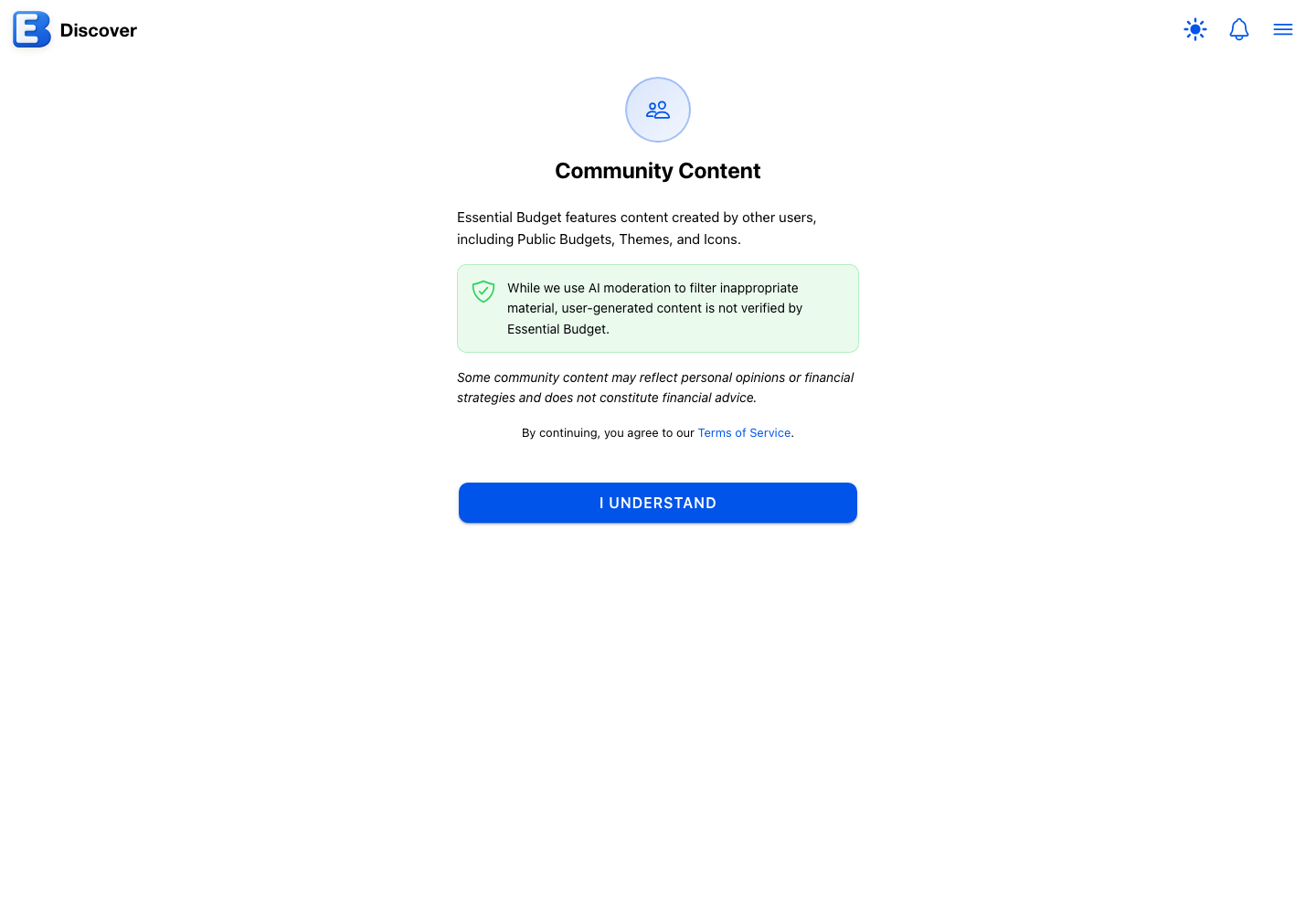
The link requires signing in. A signed-out visitor who opens it sees a screen headed Sign In Required (Sign in to review community content and view this public budget.) with a Sign In button that returns them to the budget after they sign in. Someone seeing community content for the first time also acknowledges the one-time Community Content notice (tap I Understand) before the budget appears.
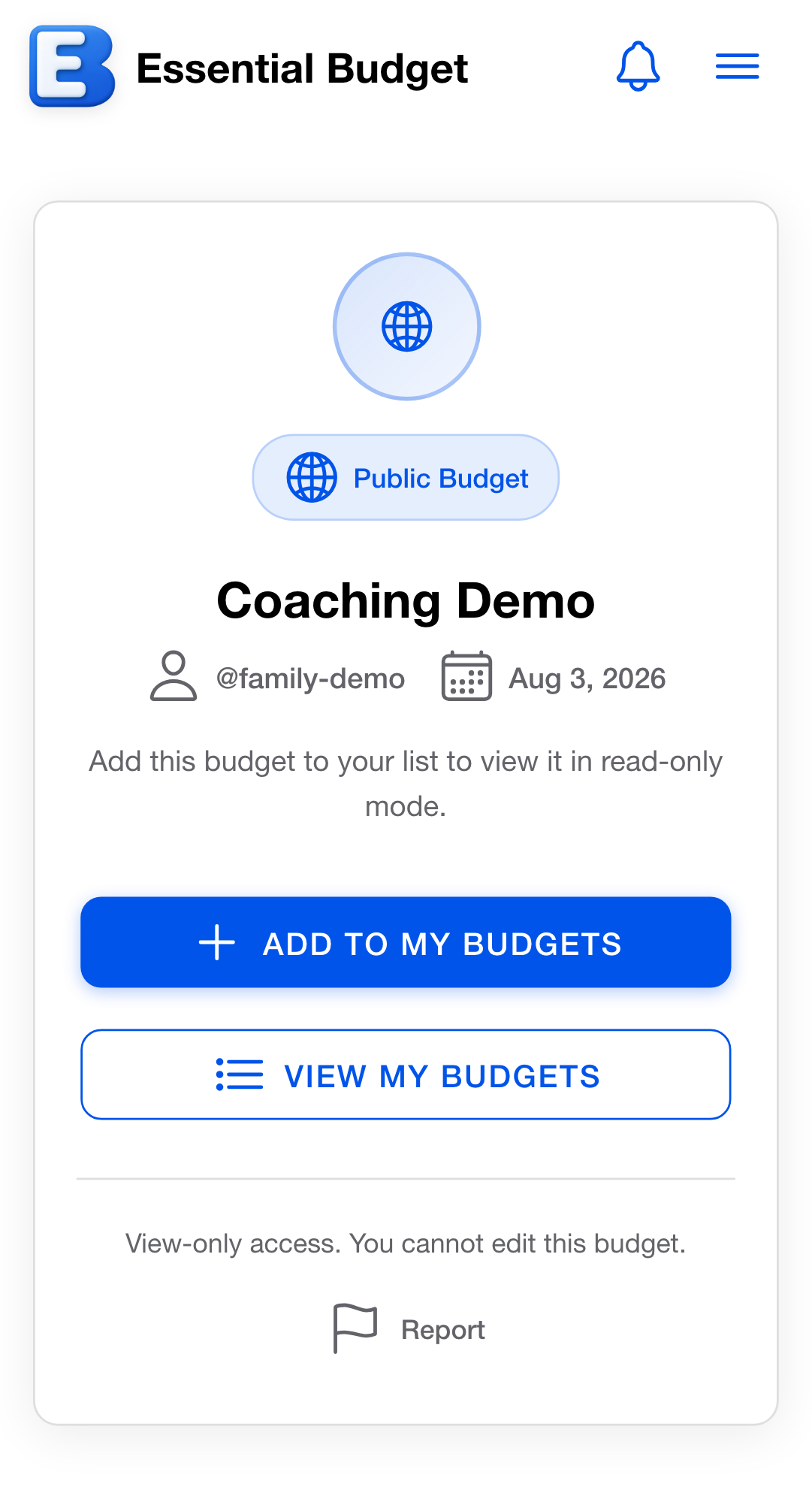
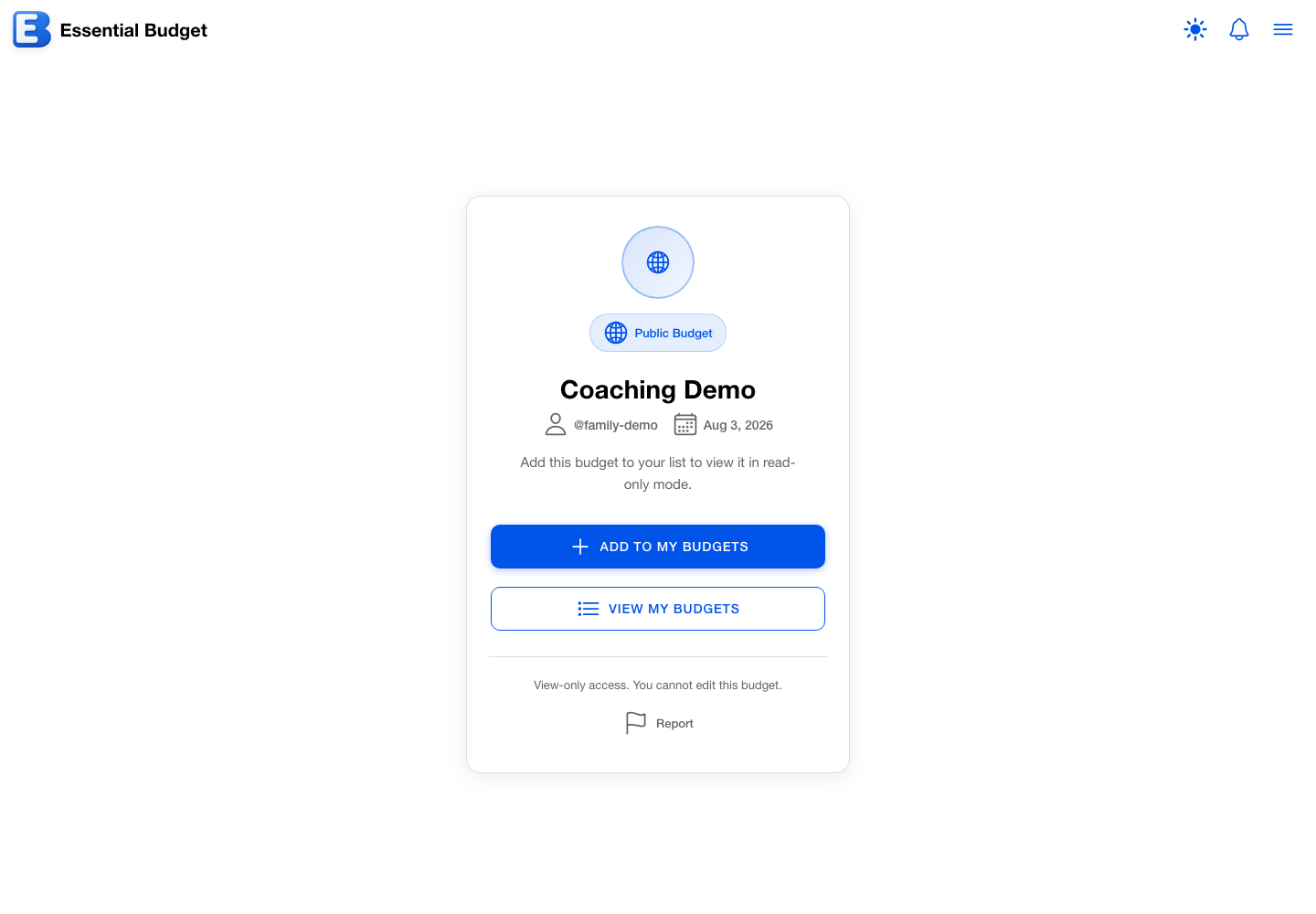
What they then see is a preview card: the budget name, your @username, the publish date, a Created with AI badge when it applies, and an Add to My Budgets button. The planner itself is not visible until they add the budget.
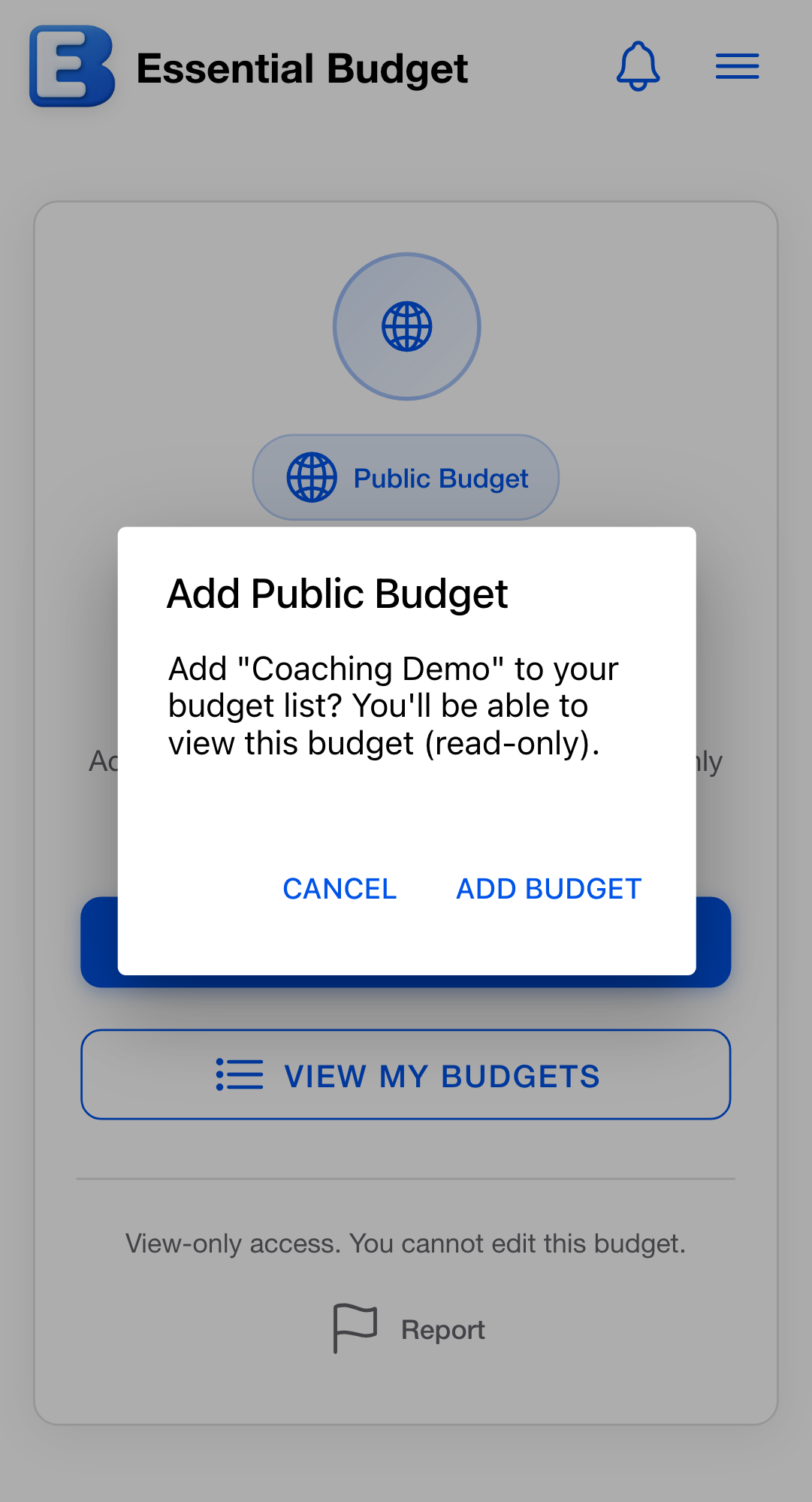
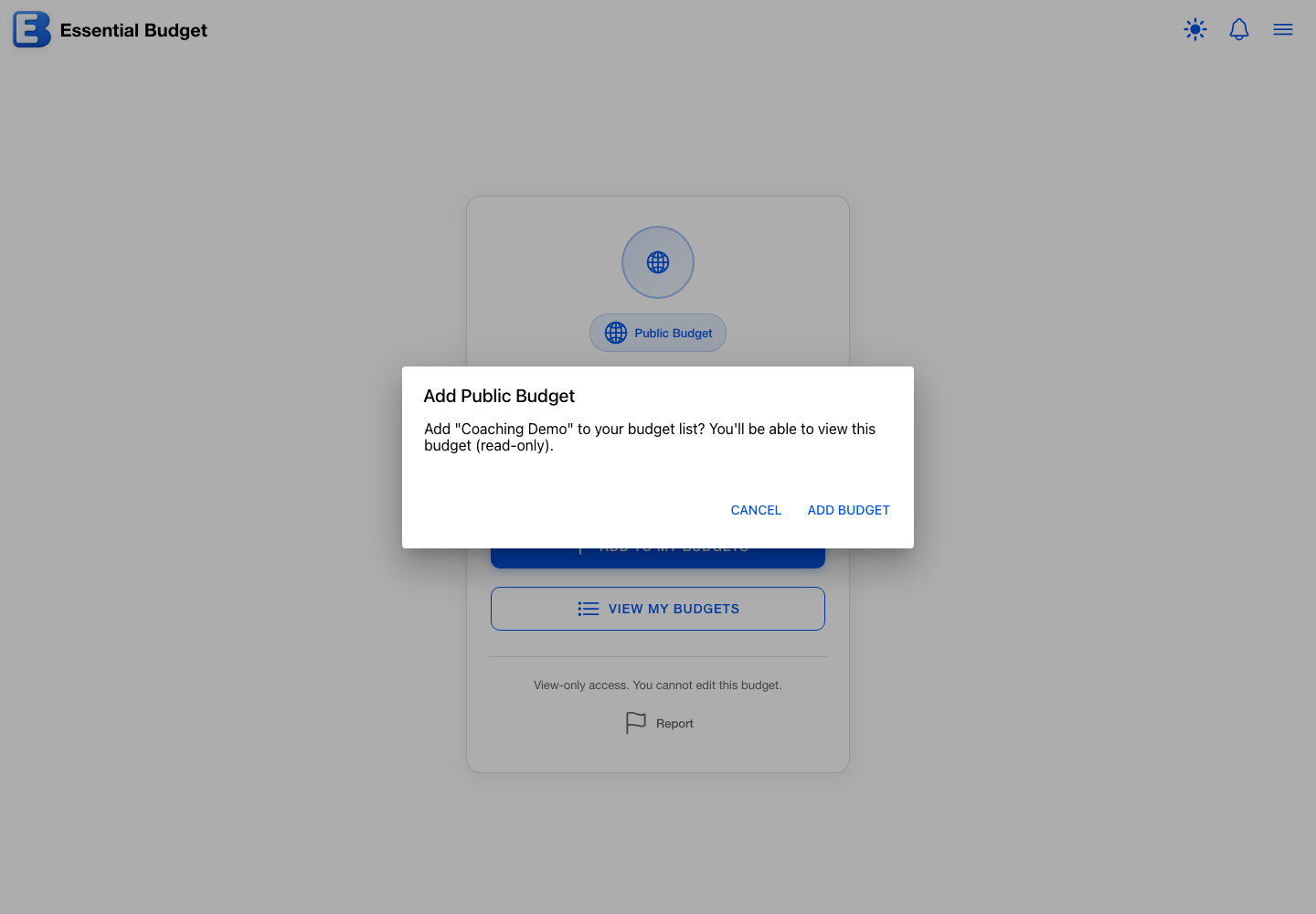
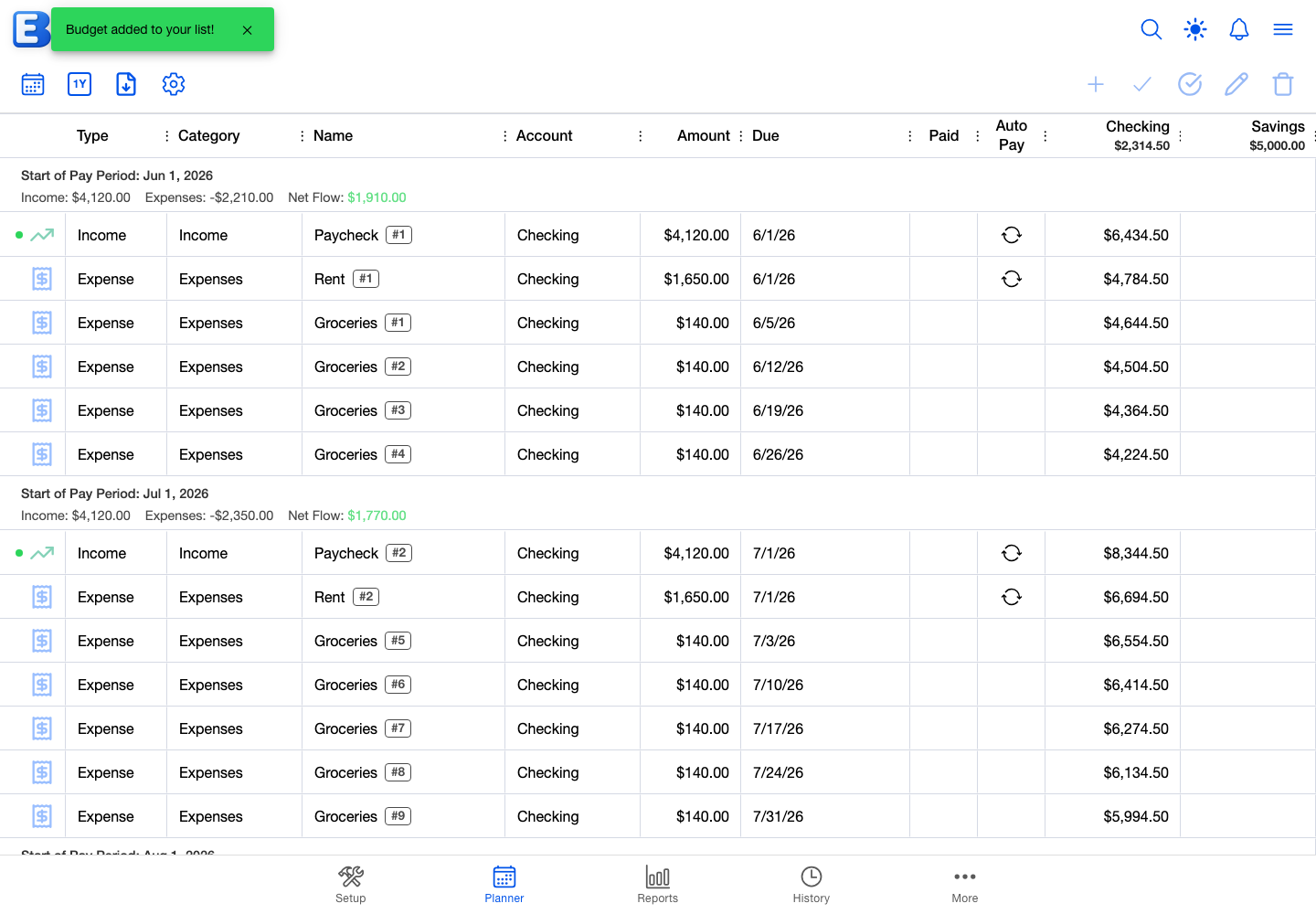
Tapping Add to My Budgets opens a confirmation titled Add Public Budget: Add "{budget name}" to your budget list? You'll be able to view this budget (read-only). Confirming with Add Budget shows Budget added to your list! and takes them to their Budgets page, where your budget now appears alongside their own.
If the visitor is you, the card shows You own this budget instead; if they already added it, Already in your budgets. Either way a View My Budgets button leads back to the list, and no second copy is ever created.
What people who added the budget can do
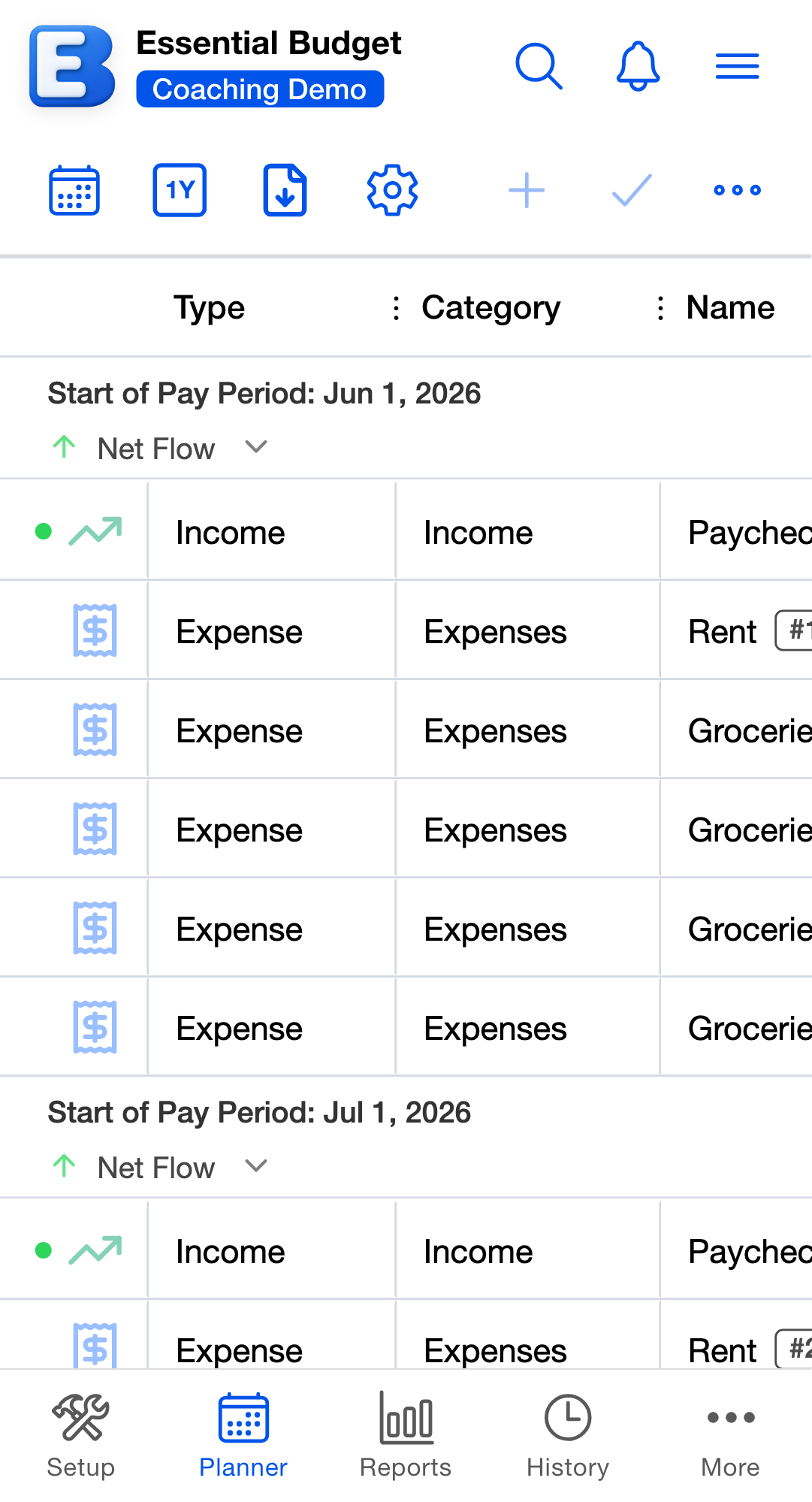
Opening the budget lands them on the planner, in full read-only mode: flows, schedules, transactions, and running balances, with the masked account names. They cannot change anything, and there is no “copy this budget” button. That is deliberate: a student who rebuilds the example in their own budget thinks through every line, which is the point of the lesson.
Removing a public budget from your list
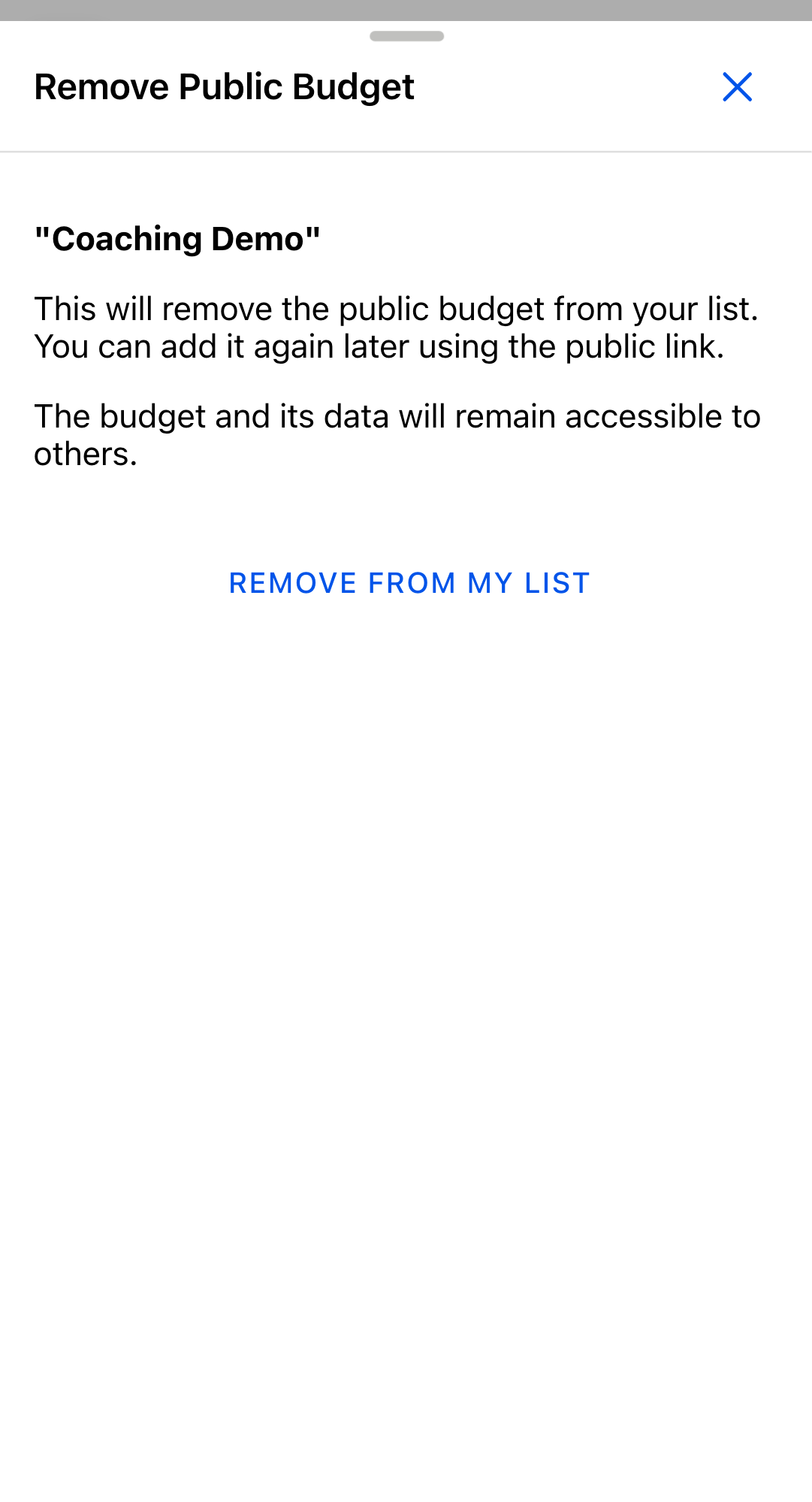
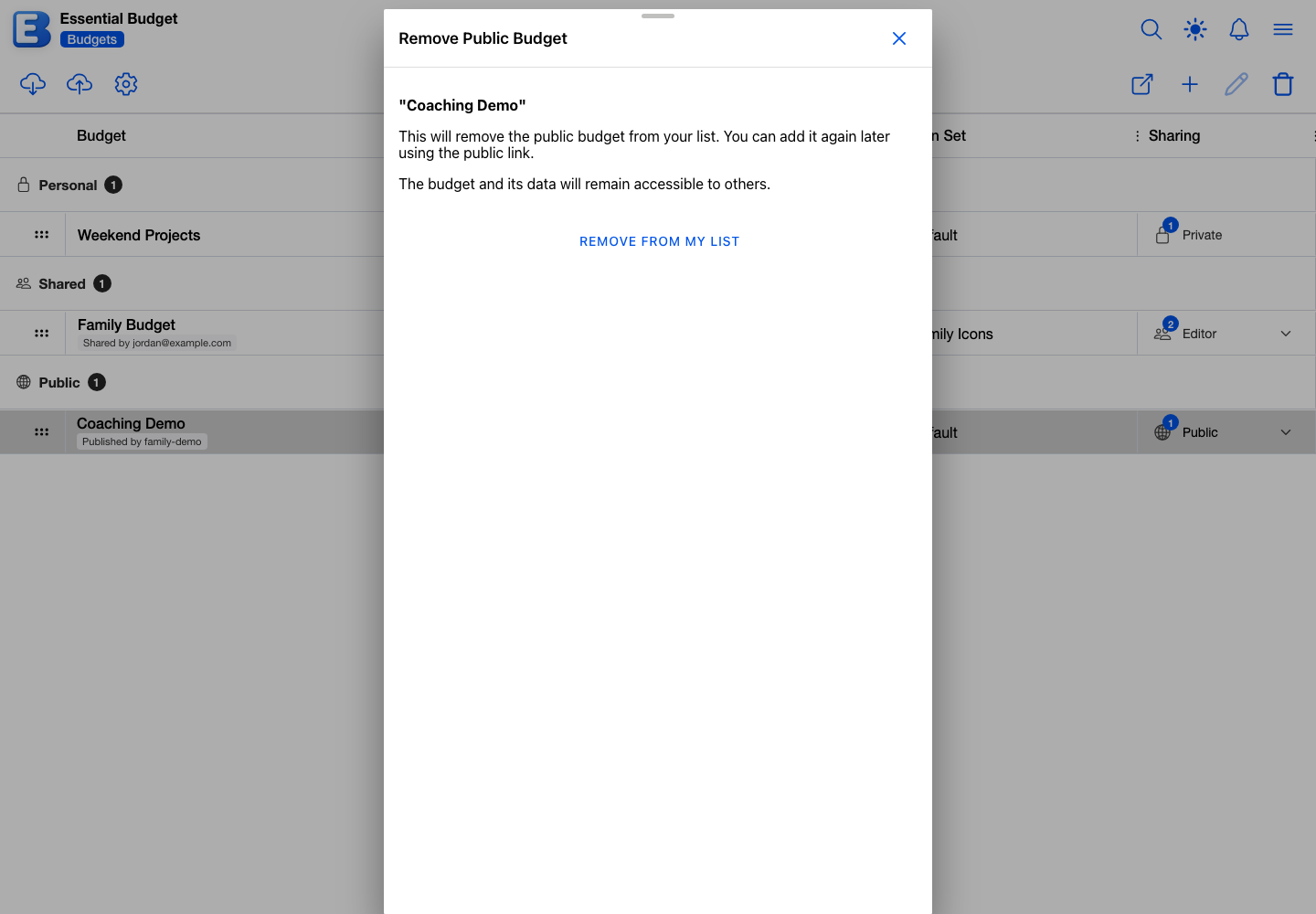
To drop a public budget someone else published, select it on the Budgets page and tap the toolbar’s Leave Budget button (it takes the place of Delete Budget on a budget you do not own). The confirmation is titled Remove Public Budget and its button reads Remove from My List; the note explains you can add it again later from the public link.
Reporting a public budget
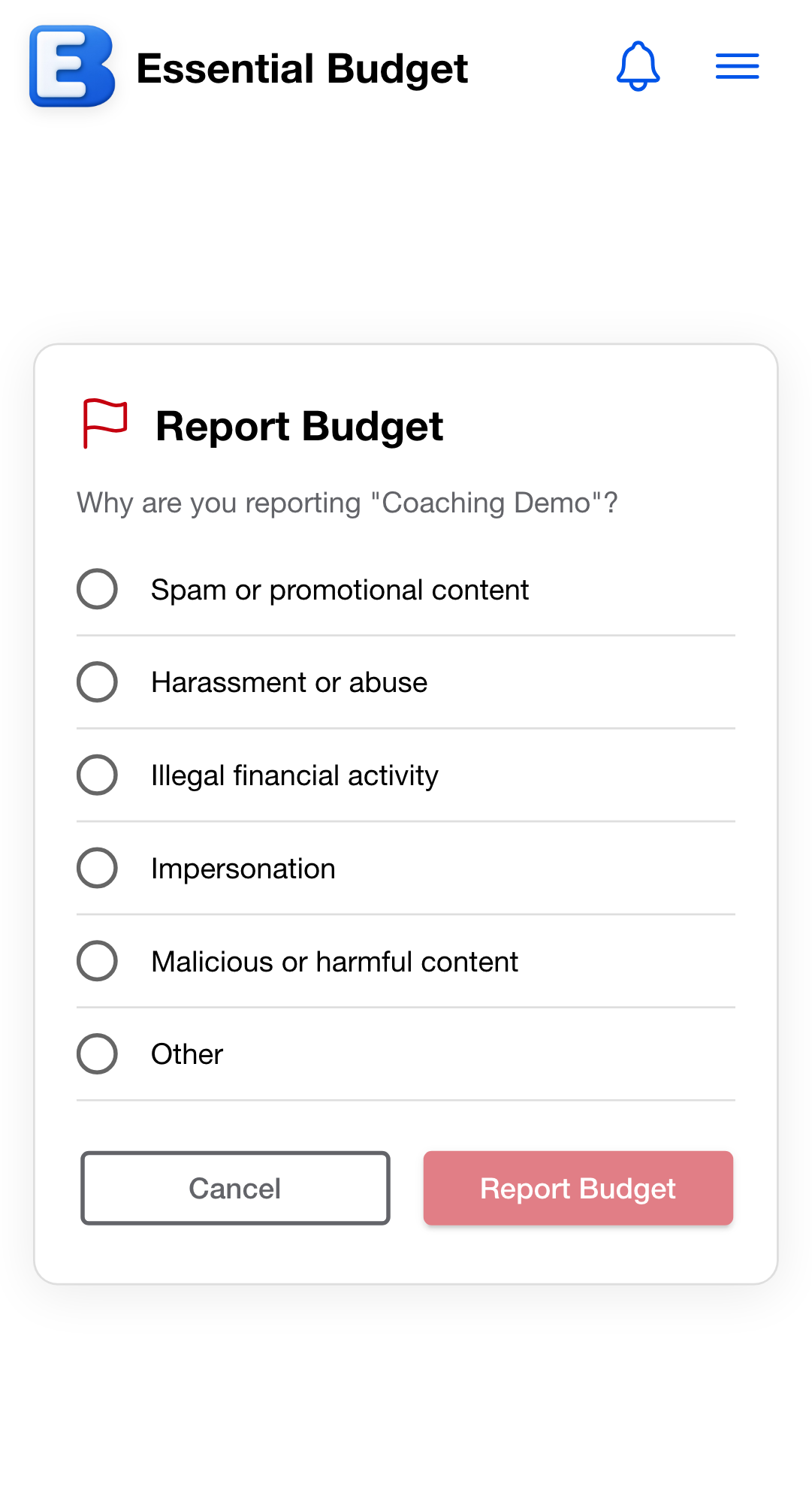
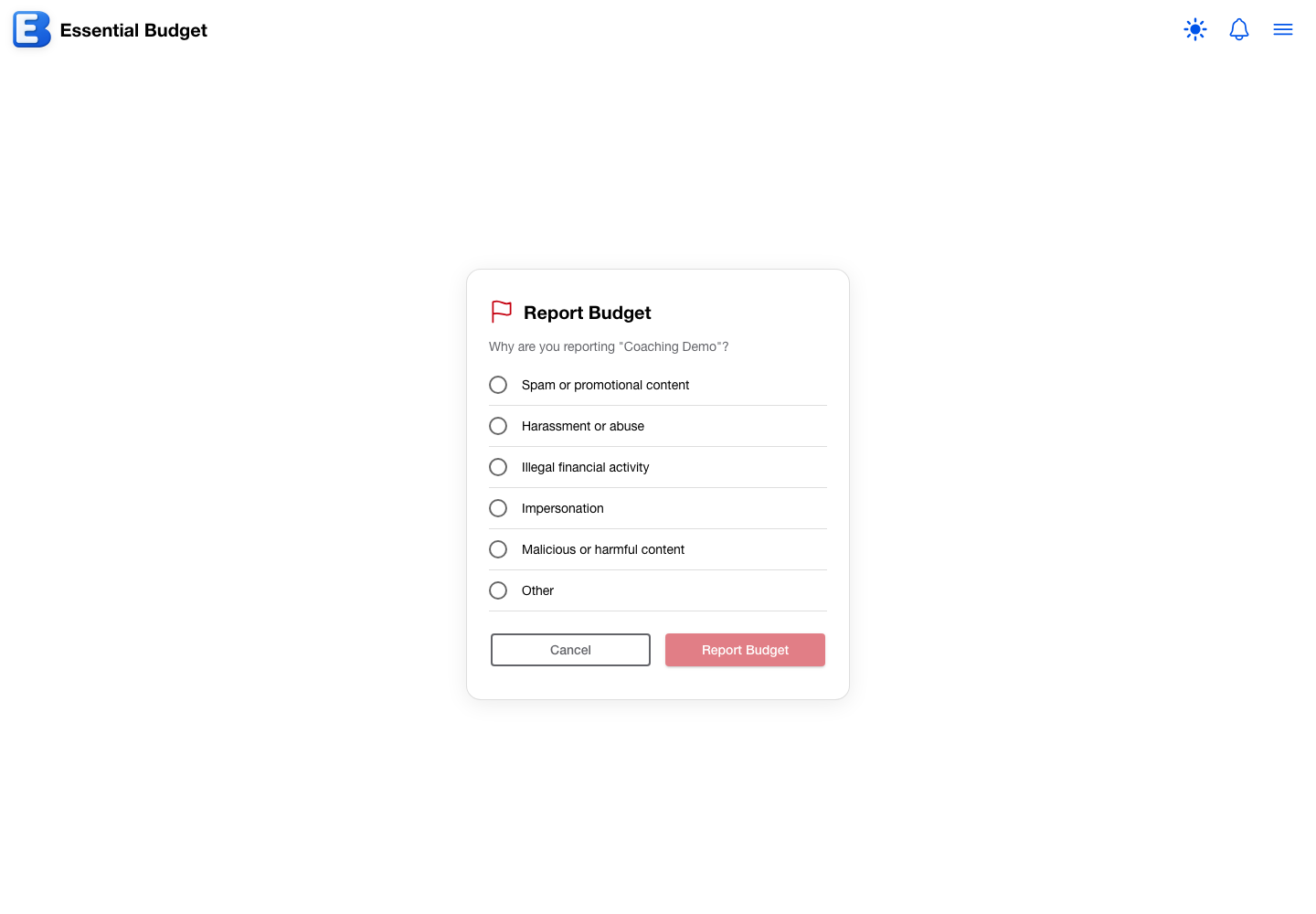
The preview card carries a small Report button at the bottom. Tapping it swaps the card for a Report Budget form asking Why are you reporting "{budget name}"?, with a list of reasons (Spam or promotional content, Harassment or abuse, Illegal financial activity, Impersonation, Malicious or harmful content, Other). Choosing Other adds a Tell us what’s wrong box where you describe the problem; the report cannot be sent until you do. Confirming with Report Budget files the report for review, blocks the budget’s owner from ever inviting you to a budget, shows Budget reported. The owner has been blocked., and returns you to your Budgets page. The owner is not told who reported them. Reporting does not remove the budget from your list; use Leave Budget for that.
The full block list lives on Sharing a Budget.
Where your public budget shows up
Two places: the share link, and your public profile.
The share link is on the Edit Budget dialog’s sharing card, as described above. Send it however you would send any link.
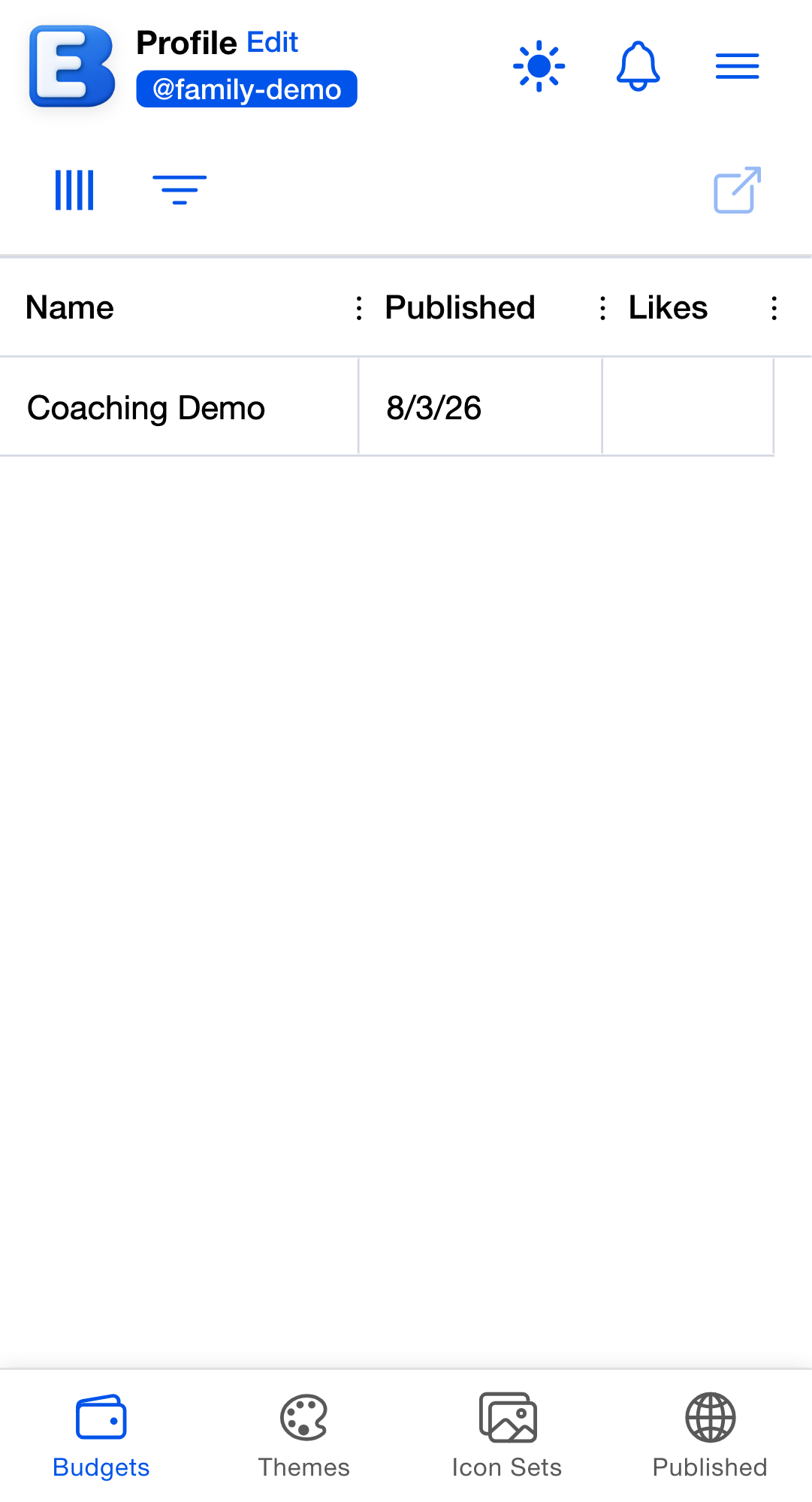
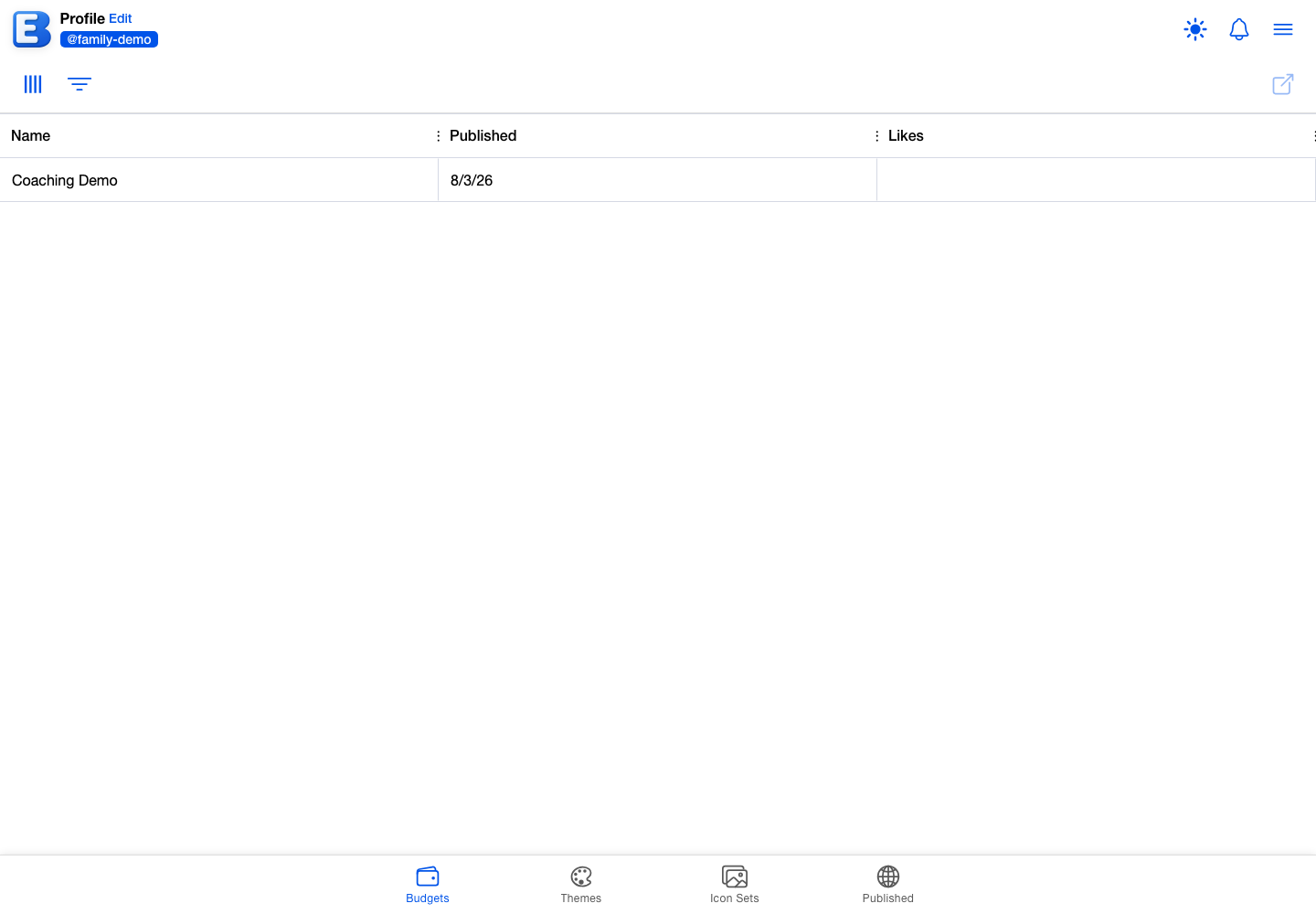
Your public profile at /profiles/{your-username} lists every public budget you have published in its Budgets tab, next to any themes and icon sets you have published. There is no browse page, search, or feed for public budgets, and Discover does not include them; the only ways to your budget are the link you send and your profile. The profile page, and the Show public budgets toggle that controls whether the Budgets tab is visible there, are covered on Your Public Profile.
Why this default? The link is yours to send; the profile is a destination. The share link goes by hand to the people you mean to teach. The profile page serves visitors who already have a link to you and want to see what else you have published. Both reach the same budget; the audiences differ, so the controls do too.
Rules that block publishing
Five conditions block making a budget public.
Premium subscription required
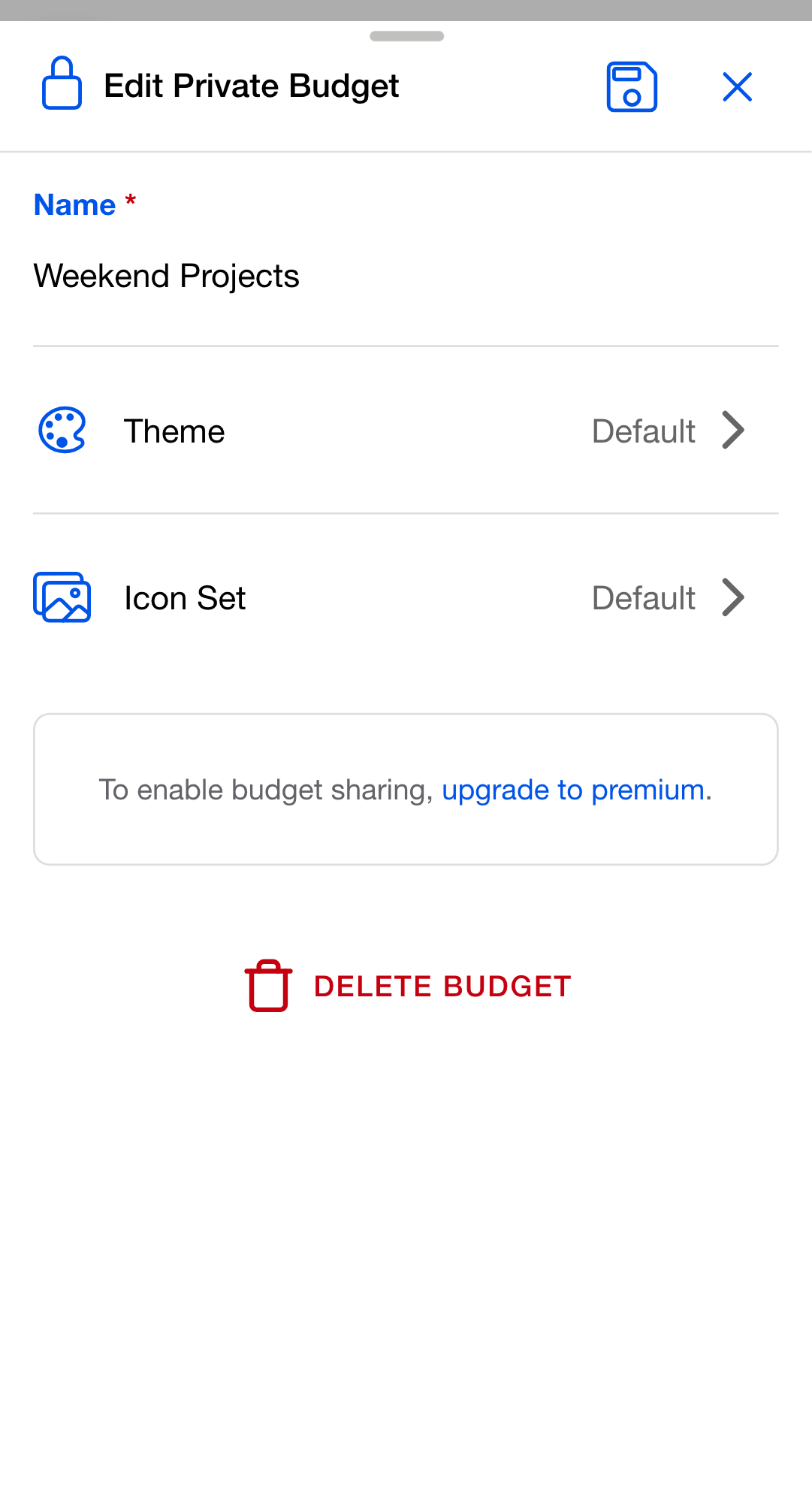
Publishing requires Premium (Community Publishing on the Subscription page). Without it, the Edit Budget dialog shows To enable budget sharing, upgrade to premium. in place of the Access Level selector. Free accounts can still open links, add public budgets, and read them; only publishing is Premium.
Username required
The @username on the preview card is yours, so publishing needs one. Without a username, the sharing card notes To make this budget public, first create a username., and picking Public shows a dialog titled Username Required with a Create Username button that opens the Set Up Your Profile dialog. Usernames are covered on Your Public Profile.
Only the owner can publish
Only a budget’s owner controls its Access Level. Editors and viewers cannot open the Edit Budget dialog at all.
Shared budgets must go through Private first
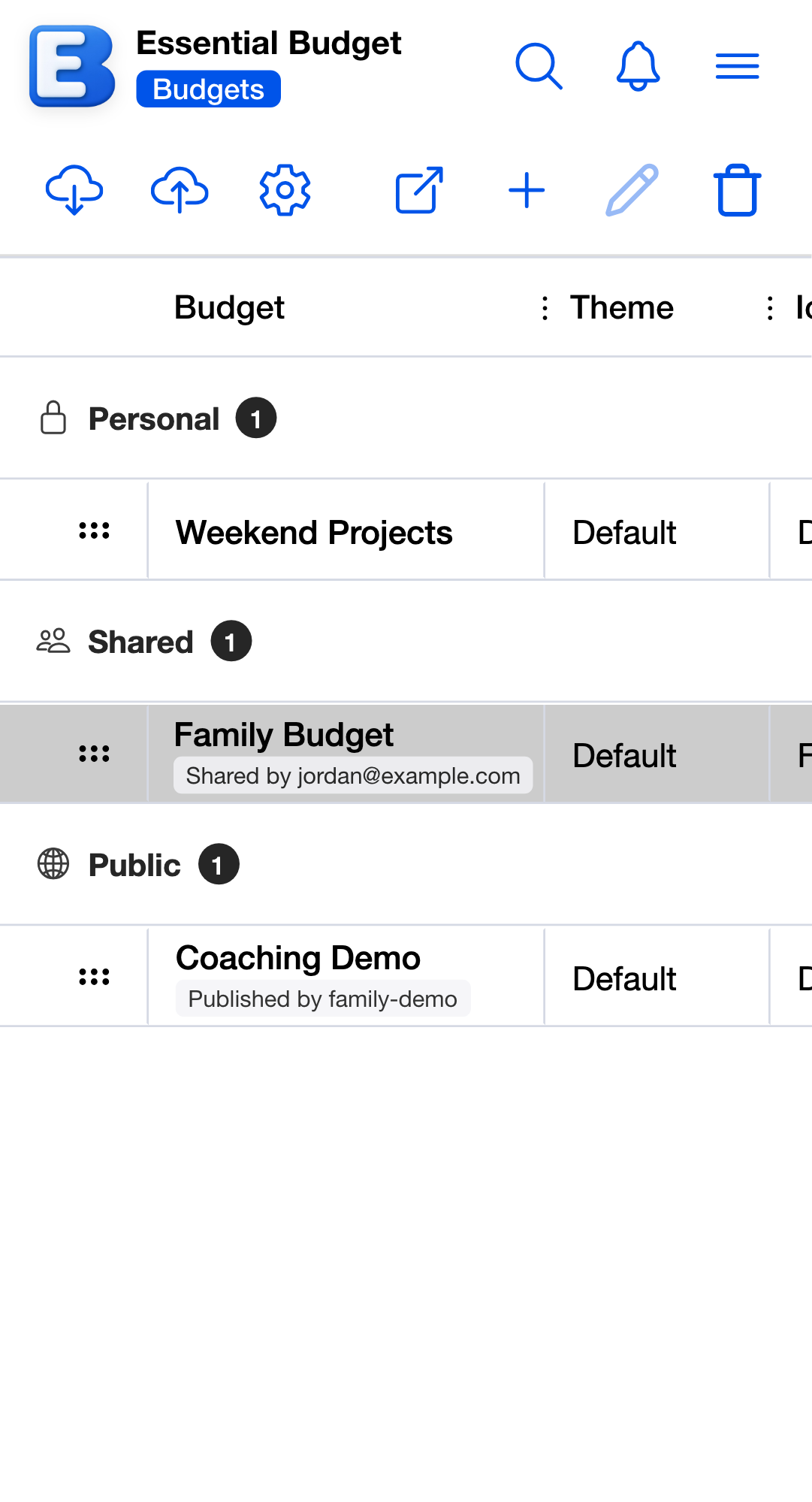
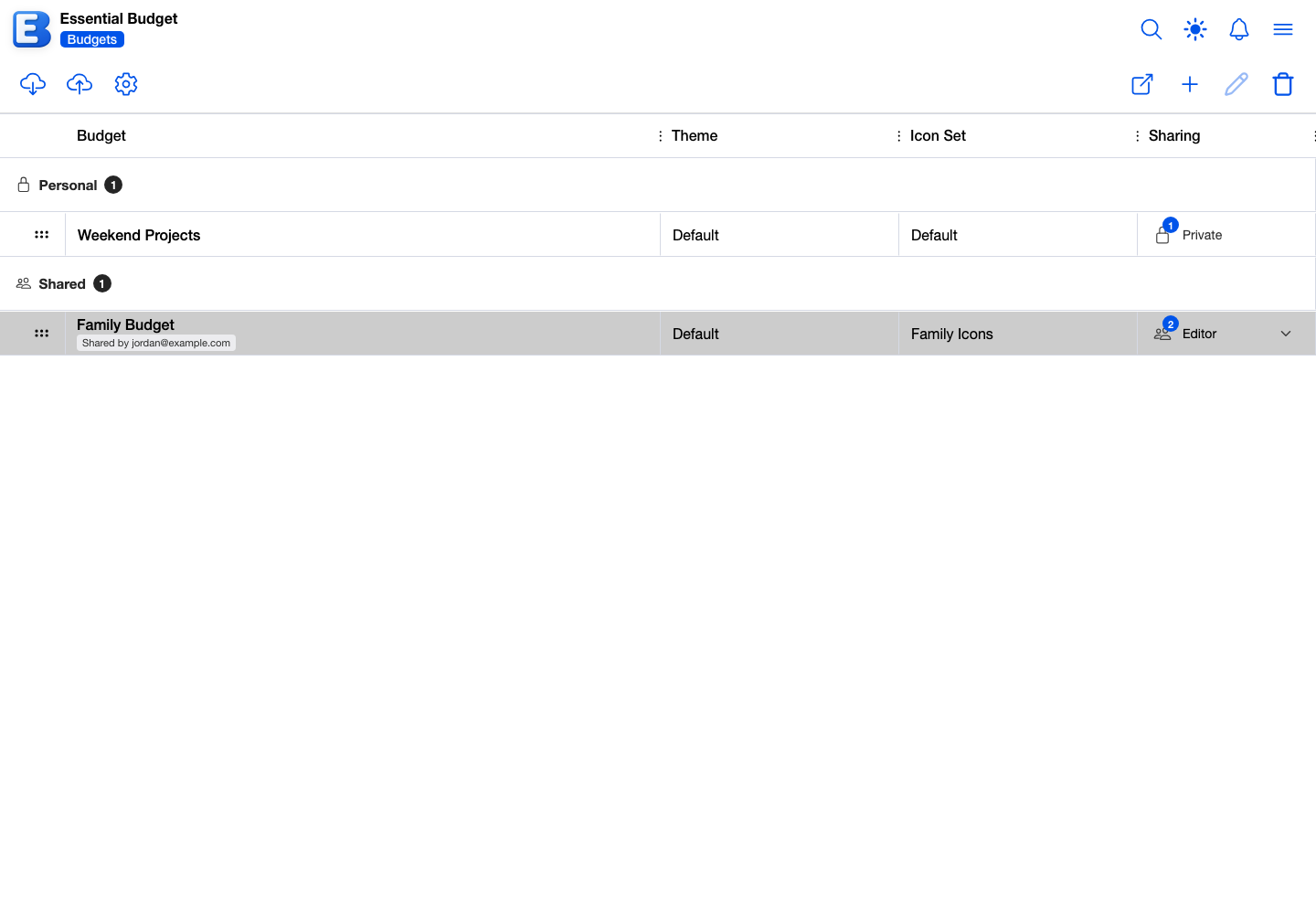
While a budget is in Shared mode, the selector does not offer Public, and a note reads Shared budgets cannot be made public. Switch to Private first: the Make Private? confirmation tells you how many people lose access (see Switching back to Private). A co-owner survives that switch, and publishing stays blocked while any co-owner or pending invitation remains on the budget.
Why consent matters. A budget other people have been editing contains their entries too. Making you revoke access deliberately, person by person if necessary, is what keeps their contributions from being published without their consent.
A budget created with a bank connection can never be published
If the budget was created with a connected bank, its bank lineage is permanent: disconnecting the bank later does not clear it. On such a budget the Access Level selector is disabled, and a note under it reads This budget contains bank data imported from Plaid and cannot be made public.
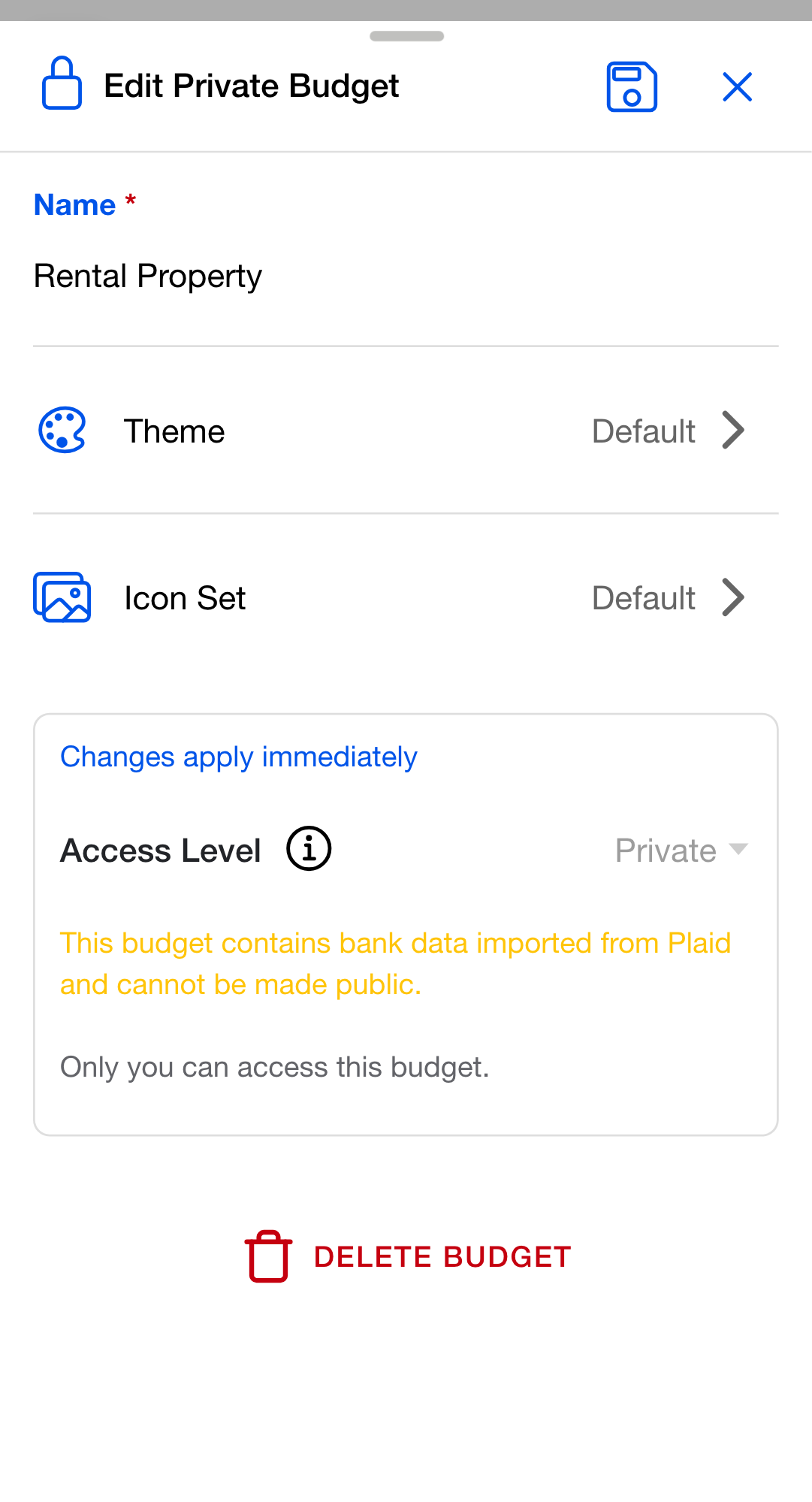
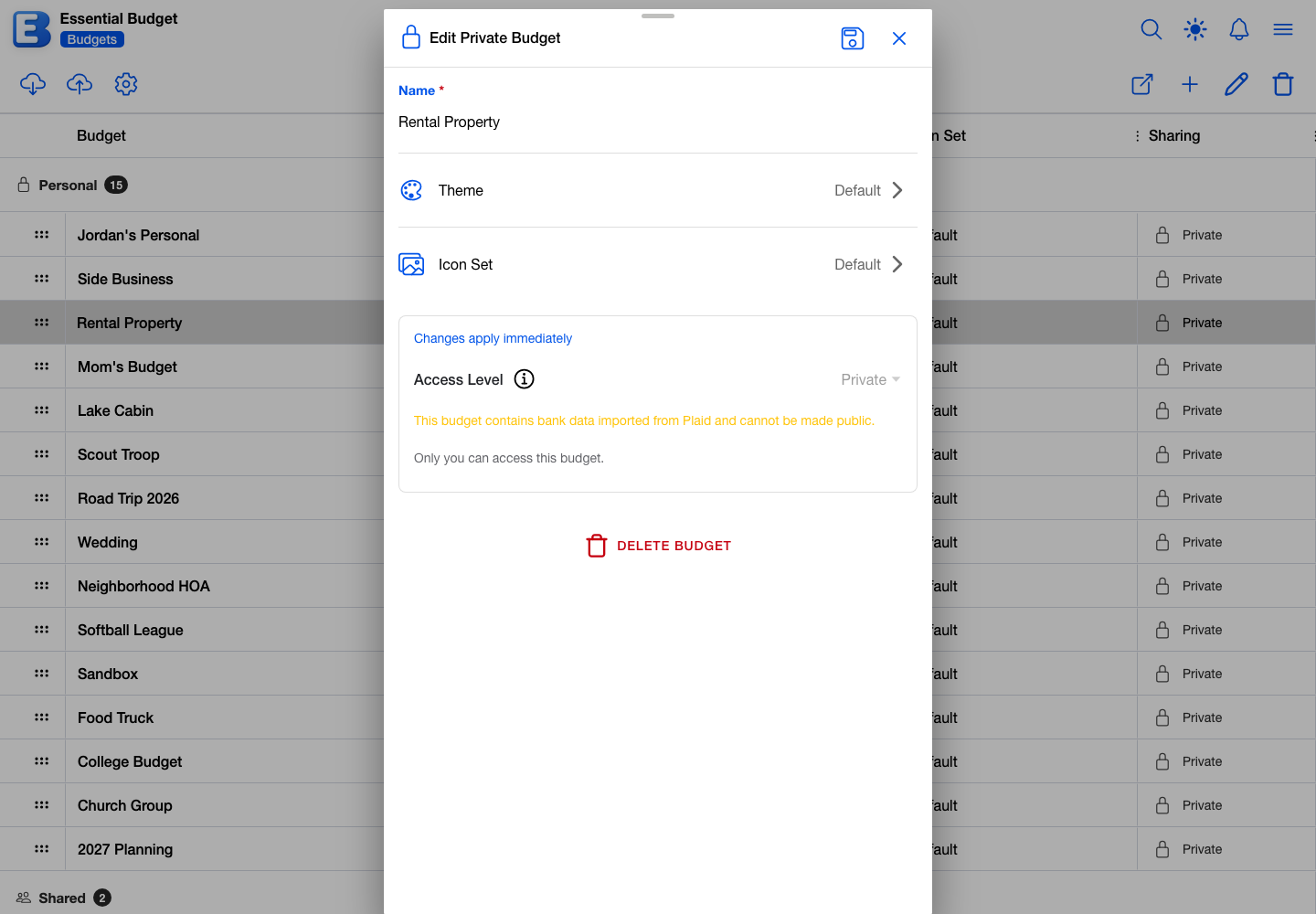
This is a legal restriction on bank-imported data, not a preference. For teaching, start a fresh budget with manual flows and invented balances, and publish that one; Bank Linking explains what bank data is.
Going back to private
You can unpublish at any time. Select the budget, tap Edit Budget, and switch the Access Level to Private. The confirmation is titled Make Budget Private?: This budget will no longer be publicly accessible. The public link will stop working and anyone who saved this budget from the public link will lose access. Confirm with Make Private; the toast reads Budget is now private.
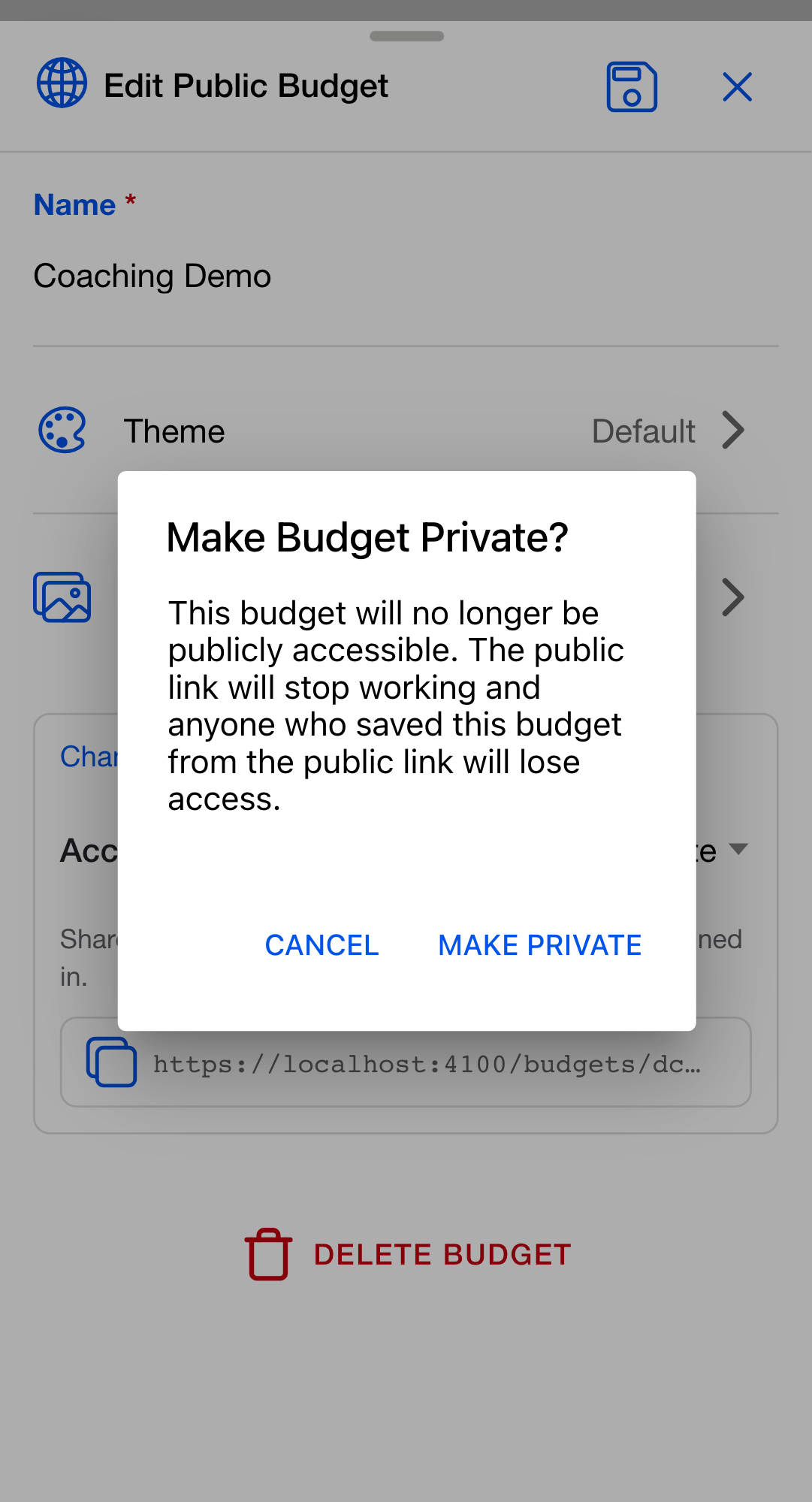
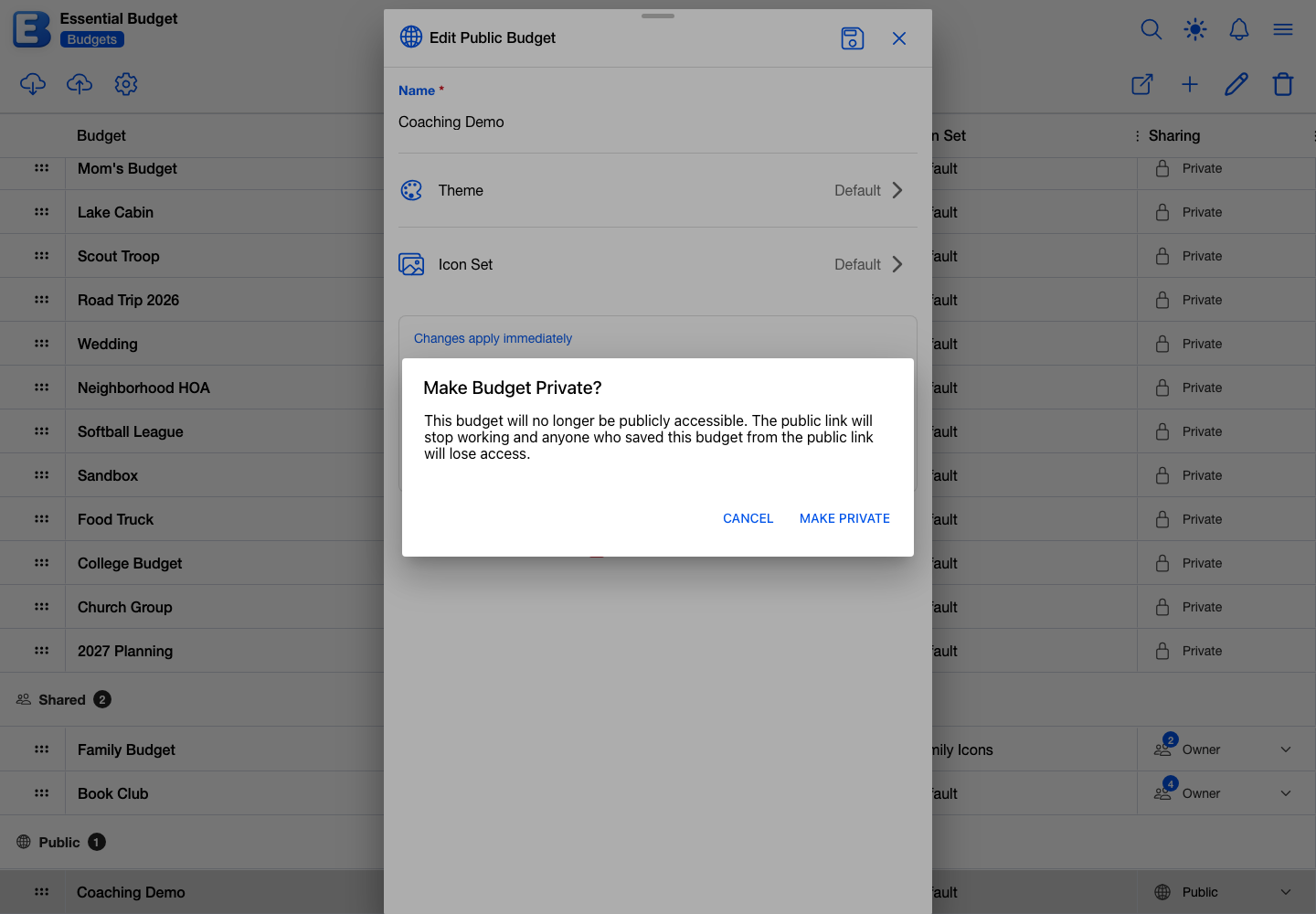
Everyone who added the budget loses it immediately, as described under Live updates above. Republishing later starts clean: the link works again, but nobody’s list is restored; they would add it again themselves.
If you delete your account instead, the budget is deleted with it (see Your Account), and everyone who added it loses it the same way.
Quick reference
What each person sees on a published budget:
| Person | Account names | Account descriptions | Bank Transaction Merchant Name | Can edit |
|---|---|---|---|---|
| You (owner) | Real names | Visible | Hidden while public | Yes |
| Someone who added the budget | Type labels (Checking, Savings, numbered when there are several) | Not sent | Hidden | No |
| Signed-in visitor with the link | Preview card only (name, @username, date, optional AI badge) | n/a | n/a | No |
| Signed-out visitor with the link | Sign In Required screen | n/a | n/a | No |
| Anyone without the link | Cannot reach the budget | n/a | n/a | No |
What blocks publishing:
| Block | What you see | How to resolve |
|---|---|---|
| No Premium | To enable budget sharing, upgrade to premium. | Upgrade, then publish |
| No username | Username Required dialog with Create Username | Pick a username, then publish |
| Not the owner | Edit Budget is disabled | Ask the owner |
| Budget is Shared | Public missing from the selector, Shared budgets cannot be made public. | Switch to Private first (co-owners must leave too) |
| Budget created with a bank | Selector disabled with the bank-data note | Publish a fresh budget that never had a bank |
Behind the scenes
A few details the screen does not show directly:
- The preview card reads your username live. It is looked up when the visitor opens the link, so it always shows your current username, even after a rename.
- There is no “saved by N people” counter. The app does not show you who added your budget or how many did. Public budgets can collect likes, which appear in the Budgets tab of your profile.
- Publishing costs nothing and uses no AI. Making a budget public, adding one, and viewing one never spend any AI credits. The
Created with AIbadge only records how the budget was originally created; it has no effect on publishing.
Related pages
- Your Public Profile: the page that lists your public budgets, and the Show toggles that control it.
- Sharing a Budget: the invite-by-email mode, blocking, and switching between access levels.
- Your Account: your username, and what account deletion does to published work.
- Subscription: Community Publishing and the rest of Premium.
- Bank Linking: what bank-imported data is, and why it locks publishing.
- Discover: community themes and icons; public budgets are deliberately not browseable there.
Questions or feedback about this page?Email us.