
Learn - Bank Linking
Connecting your bank so you can pull transactions with Match Transactions.
Bank Linking
Connecting a bank means you stop typing transactions in one at a time. The app holds a link to your bank through Plaid, and whenever you tap Match Transactions it fetches what has posted since last time, lines those transactions up against the events you already planned, and lets you confirm them in one pass. Nothing arrives without you asking for it.
An event is one dated occurrence of something you planned, like this month’s rent, and the flow it comes from is the template that produces it.
Bank linking is the Premium feature Bank Account Linking. The free plan covers typing transactions in by hand and uploading a file from your bank. See Subscription for what Premium includes.
Two places a bank link lives
A bank link exists at two levels, and they are managed in different places.
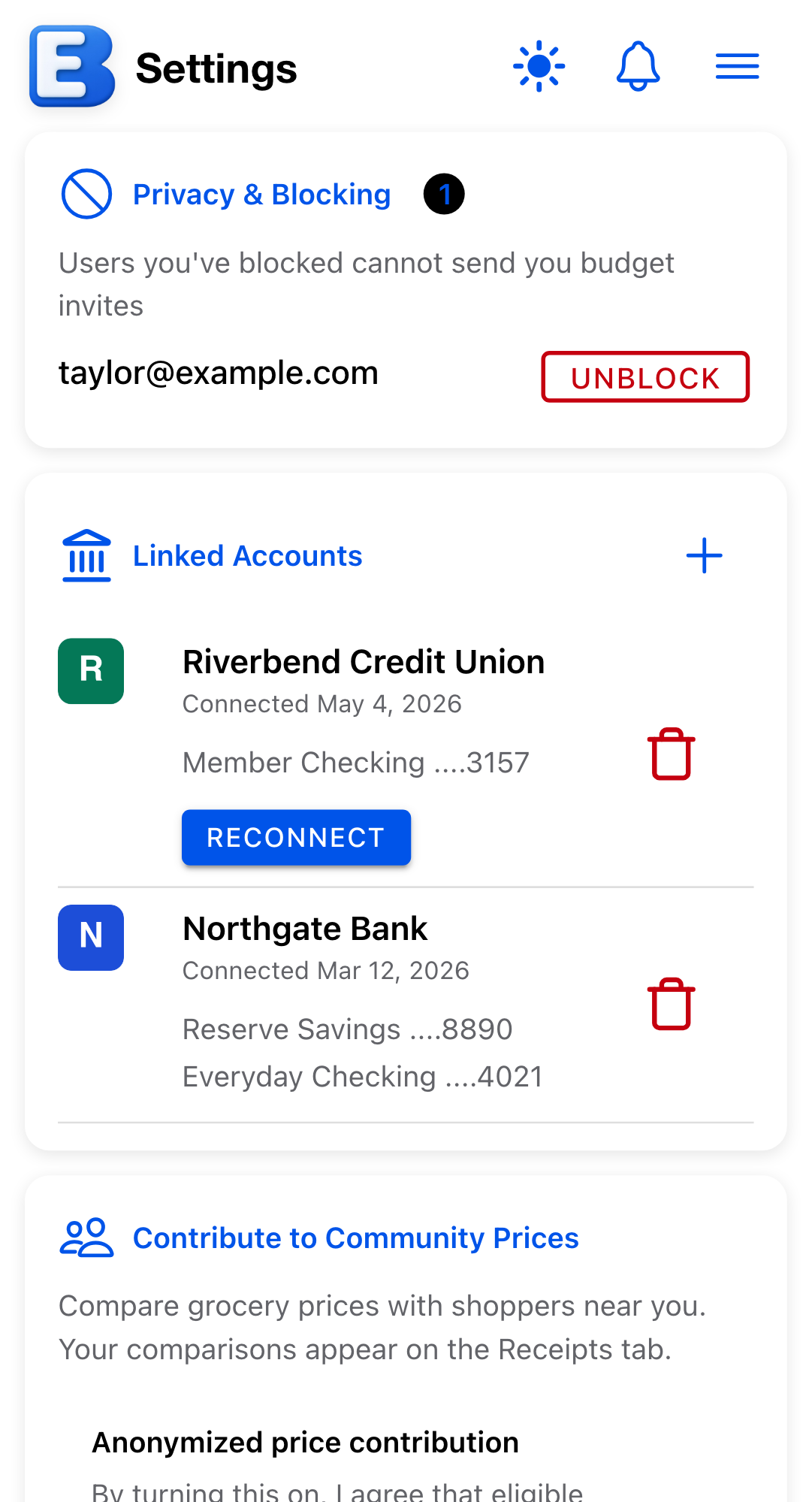
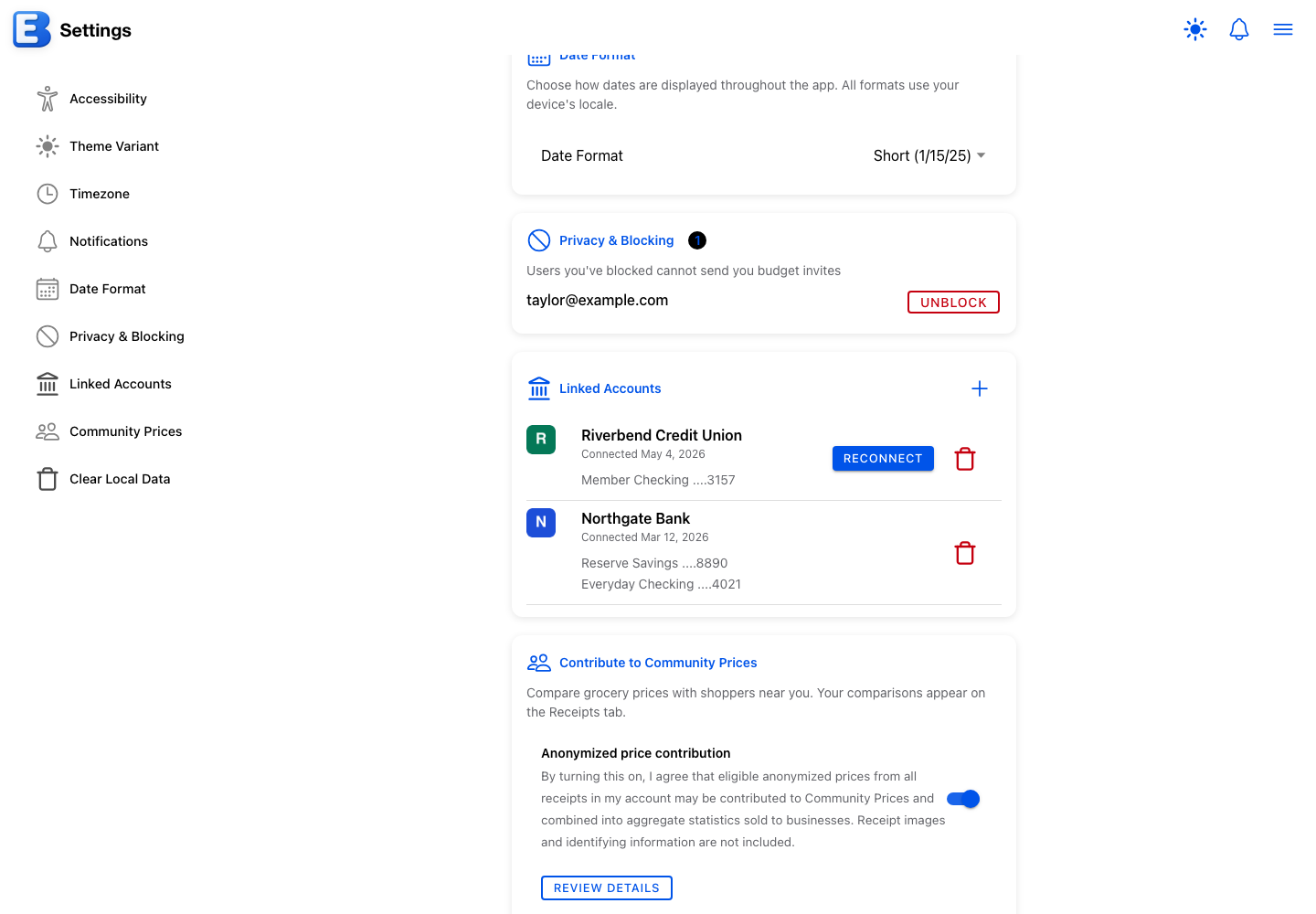
- The connection to the bank belongs to you, not to any one budget. You add and remove connections in Settings, in the Linked Accounts card.
- The tie between one bank account and one budget account is made when a budget is created, and only then. The app offers no way to attach a bank account to a budget you are already running.
Connecting a bank does not put anything into a budget on its own. It gives the app permission to see the accounts you chose, and nothing more until you create a budget from them.
Connecting a bank to your account
Open Settings from the menu and find the Linked Accounts card. On the free plan the card is not there at all.
If you have never connected a bank, the card reads No banks connected above a Connect Your First Bank button. Once you have one, the card lists your banks and a + button appears at the top right for adding the next one.
Tapping either control opens Plaid. Pick your bank, sign in through Plaid, and choose which accounts to share. Plaid only offers checking and savings accounts, because those are the only two kinds the app tracks.
When Plaid finishes, the bank appears in Linked Accounts with the date you connected it and one line per account, each showing the account’s name and its last four digits. A bank that is working shows nothing on the right of its row but a red trash icon.
Why doesn’t connecting a bank import anything? Because the app has no idea yet which budget the money belongs to, or which of your accounts matches which of the bank’s. Those decisions are made when you create a budget. Until then the connection just sits there, ready.
There is no limit on how many banks you connect.
Linking accounts to a budget
Open the Budgets page and tap Create Budget. Choose AI Generated from the three choices at the top; the other two, Manual and From Receipts, are covered in Creating a budget. On Premium, AI Generated is already selected.
With Premium, a two-part switch appears reading Connect Bank and Upload File. Connect Bank starts selected. You do not need a connected bank to see it: with none, the panel reads “No bank accounts connected yet.” above a Connect Bank button that opens Plaid from inside the dialog.
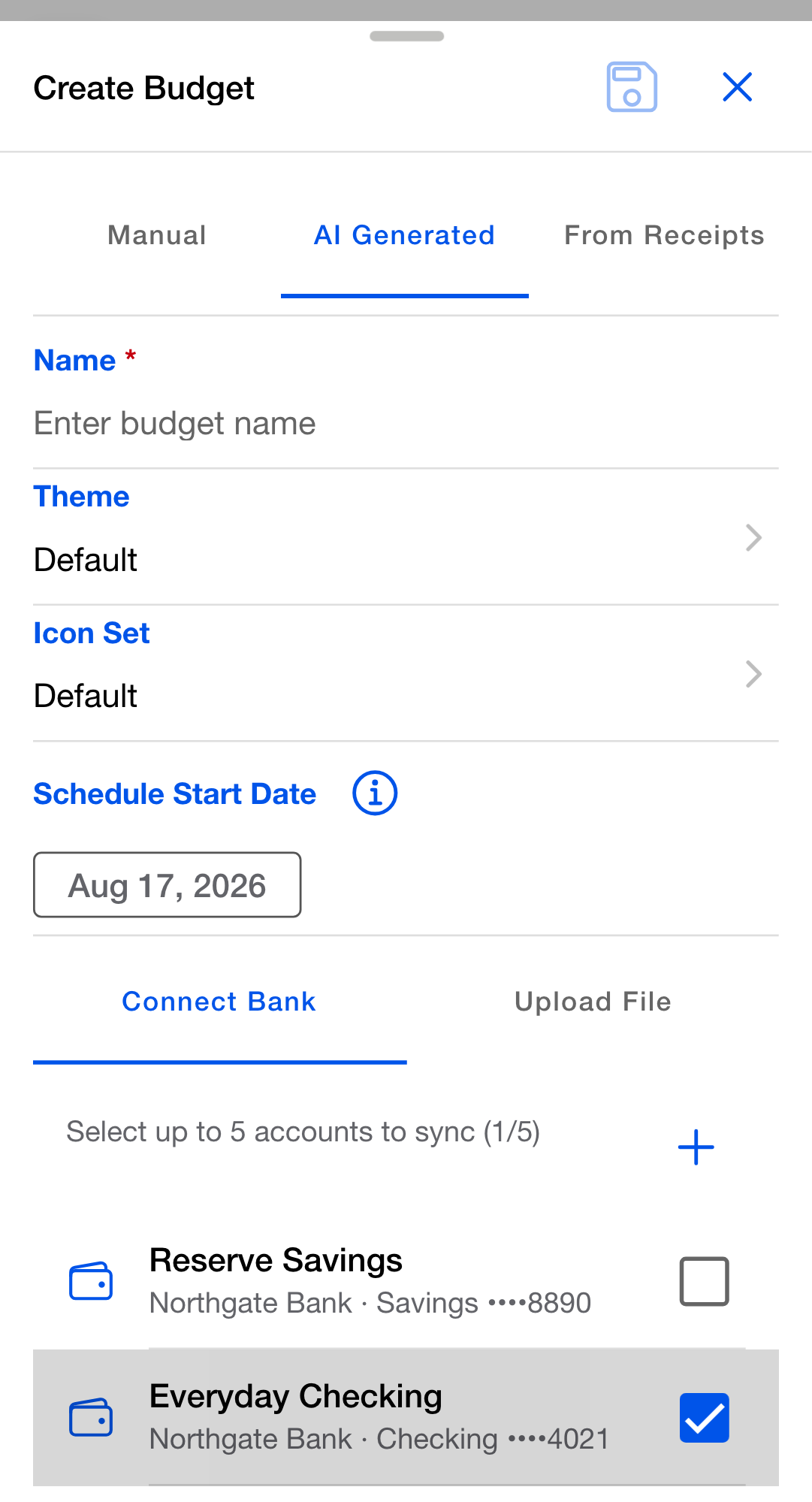
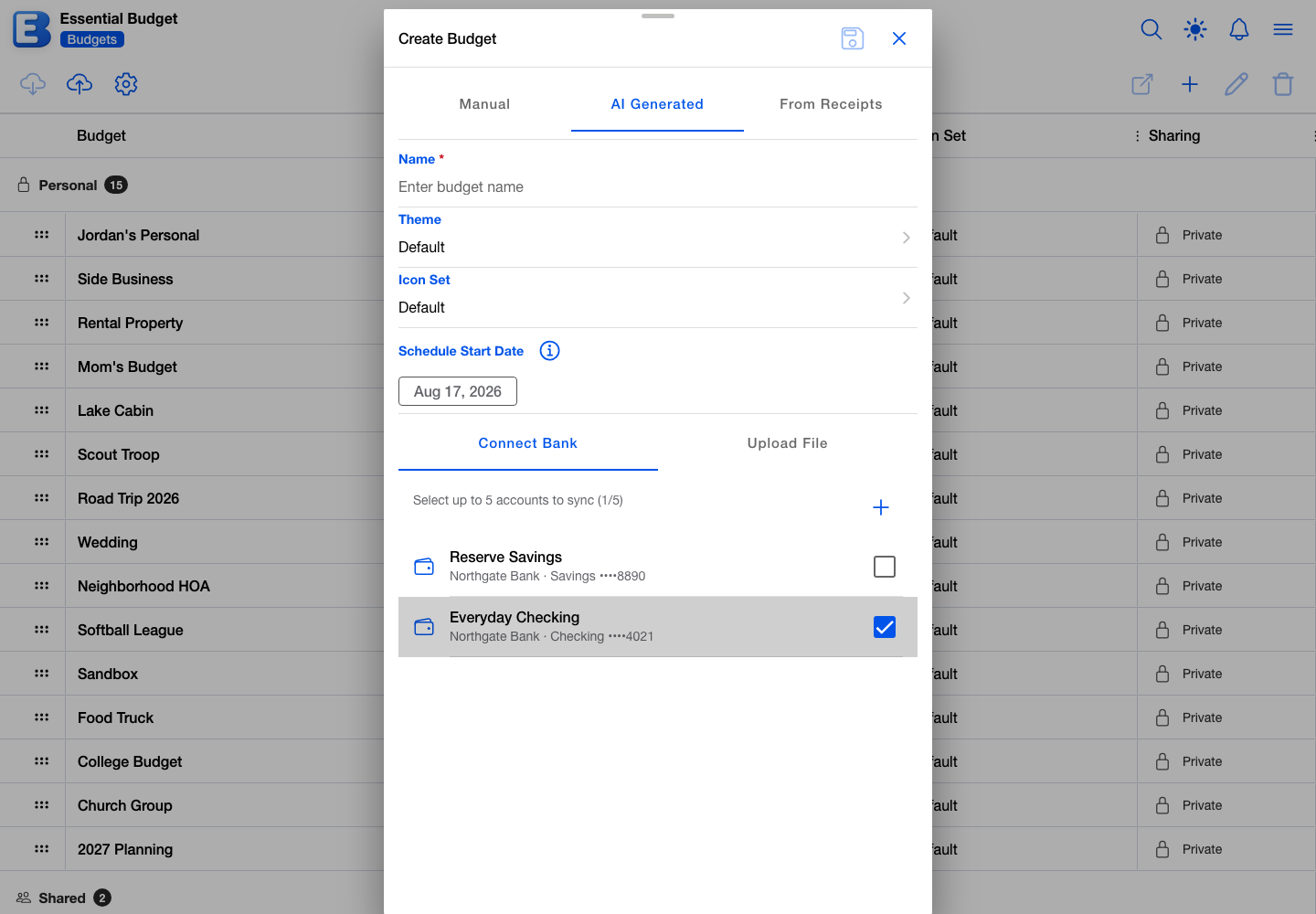
Tick the accounts the new budget should pull from. You can pick up to five, and the line above the list counts them for you. Once five are ticked the rest grey out. To add another bank without leaving the dialog, tap the + at the top right of the list.
Only banks in working order appear here. If one of yours is missing, it is waiting to be reconnected in Settings, and its accounts return to this list once you have reconnected it.
Fill in the name, theme, icon set and schedule start date, then tap Save. The app pulls the transactions it already holds for those accounts, builds a budget from them, and creates one account per bank account you picked, named after the bank.
Each of those new accounts starts at the balance your bank reports, copied across once at that moment. From then on the number is yours: the app moves it as you record transactions, and never overwrites it from the bank again. If it drifts, you correct it yourself on Accounts.
Why is a bank tied to a budget only at creation? Bringing a bank into a budget that has been running for months would force a decision about every transaction, balance and flow already in it: keep them, replace them, trust the bank, or trust what you built. Those answers are different every time and easy to get wrong. If you want a bank-linked budget and your current one is not, create a new one on the Connect Bank path and rebuild your flows there.
Building a budget with AI is capped at 20 runs a day, and Premium allows 10 new budgets a month.
One owner per bank-linked budget
A budget that holds bank data can have exactly one owner, and the app enforces that in every direction. You cannot invite a second owner, you cannot promote an existing collaborator to owner, and as the owner you cannot leave the budget. Going the other way, a budget that already has two owners cannot be given a bank connection.
Inviting people with edit access or view access works normally, up to the usual five. See Sharing.
Why only one owner? So there is always exactly one person who can revoke the bank’s access. Shared ownership of somebody’s bank feed leaves no clear answer to who is allowed to switch it off.
This rule outlives the connection. Once a budget has held bank data it keeps that history permanently, so unlinking every account later does not let you add a second owner.
What gets imported, when
The transaction history the app can ever see is fixed when you connect the bank, at which point it asks for the last 180 days. Everything after that is an update against what it already has.
Three things pull from your bank, and all three are buttons you press:
- Match Transactions on the Planner toolbar, in Auto-Resolve Events mode.
- Match Transactions in Compare Budget mode.
- Create Budget on the Connect Bank path.
Nothing else does. There is no overnight sync, nothing runs when you open the app, and although Plaid tells the app when new transactions are ready, the app files that away rather than acting on it.
Pending charges are skipped. The app stores a transaction only once your bank has posted it, so a pending charge appears on the first Match Transactions run after it settles.
If your bank corrects a transaction later, the next run takes the correction. That also gives the row a new fingerprint, so a transaction you had already matched can be offered to you a second time. If your bank withdraws a transaction, the app drops its copy of the bank row; anything you had already matched into a budget stays exactly where it is.
Balances are not pulled at all. Your bank’s balance is read once, when the budget is created and each account’s opening figure is set from it. After that the number is yours, moved only by the transactions you record.
The matching itself, including what gets recorded when you confirm, is on Matching and Resolving.
When a connection breaks
Banks expire sessions and ask you to sign in again. When that happens the bank’s row in Linked Accounts grows a Reconnect button.
Some rows also carry a Disabled chip. That marks a connection the bank has ended rather than merely timed out: permission withdrawn, the account locked after failed sign-ins, or a bank Plaid no longer supports. Both states show Reconnect, and only the chip tells them apart. The notice in your Notifications hub says which of the two it is.
Tap Reconnect and Plaid reopens the connection you already have, so you go straight to your bank’s sign-in without picking it from a list again. When it succeeds, the app confirms the connection, the Reconnect button and any chip disappear, and a toast reads “Bank connection updated successfully”. Your transactions are untouched throughout.
While you are reconnecting, your bank may show the list of accounts you share. You can tick a new one or untick one you no longer want shared. A newly shared checking or savings account joins the bank’s row and is available the next time you create a budget; anything that is not checking or savings is skipped, and the app tells you how many were left out. Unticking an account makes the app drop its stored copy of that account’s bank activity. Transactions already recorded in a budget are not affected.
If you tap Match Transactions before dealing with a broken bank, the dialog opens as usual, and tapping Analyze raises a red message naming the bank and telling you the connection needs to be updated. Fix it in Settings first. One broken connection stops the whole run, so a healthy bank will not pull either until the broken one is sorted out.
Why doesn’t the app fix this itself? Because your bank is asking for you, not for the app. Reconnecting is a conversation between you and them, and the app’s job is to show the prompt where you will see it.
When Reconnect can’t fix it
A few states cannot be repaired by signing in again, most often when permission was withdrawn at the bank’s own website rather than simply timing out. Plaid cannot reopen a connection that no longer exists on the bank’s side.
Tapping Reconnect on one of these raises a yellow message: “This bank can’t be reconnected automatically. Tap the trash icon to disconnect it, then tap the plus icon to add it again.” That is the fix. Disconnect the bank, then add it as if for the first time. Your budgets and everything already imported are untouched by the disconnect.
Notifications you may see
When Plaid reports that a connection changed, the app posts to your Notifications hub. Five notices can appear, each naming the bank it is about in place of [your bank] below.
- Bank Reconnection Needed. The bank wants you to sign in again: “[your bank] needs to be reconnected to keep your transactions in sync.”
- Bank Access Revoked. You withdrew the app’s access at your bank: “Access to [your bank] was revoked at your bank. Re-grant permission there, then reconnect to resume syncing.”
- Bank Connection Ended. The connection stopped for a reason you cannot undo at your bank, such as the bank locking it after failed sign-ins: “Your connection to [your bank] has ended and cannot be restored by signing in again. Disconnect it in Settings, then add it again.” See When Reconnect can’t fix it above.
- Bank Connection Expiring. The bank’s permission window is closing and needs renewing: “Your connection to [your bank] is expiring soon. Reconnect to keep transactions syncing.”
- Bank Connection Restored. The connection recovered on its own: “[your bank] reconnected automatically. No action needed.”
A successful Reconnect marks the earlier notices for that bank as read and dealt with, so they stop counting toward your unread badge. They stay in the list as a record. Re-adding a bank after disconnecting it does not clear its old notice, because the old connection is gone along with the link to it; mark that one read yourself.
Every notice except Bank Connection Restored can also reach you as a push notification, if you have turned on push and left that alert type switched on in Notification Settings. See Push notifications and alerts.
Disconnecting a bank
Open Settings, Linked Accounts, and tap the red trash icon on the bank’s row.

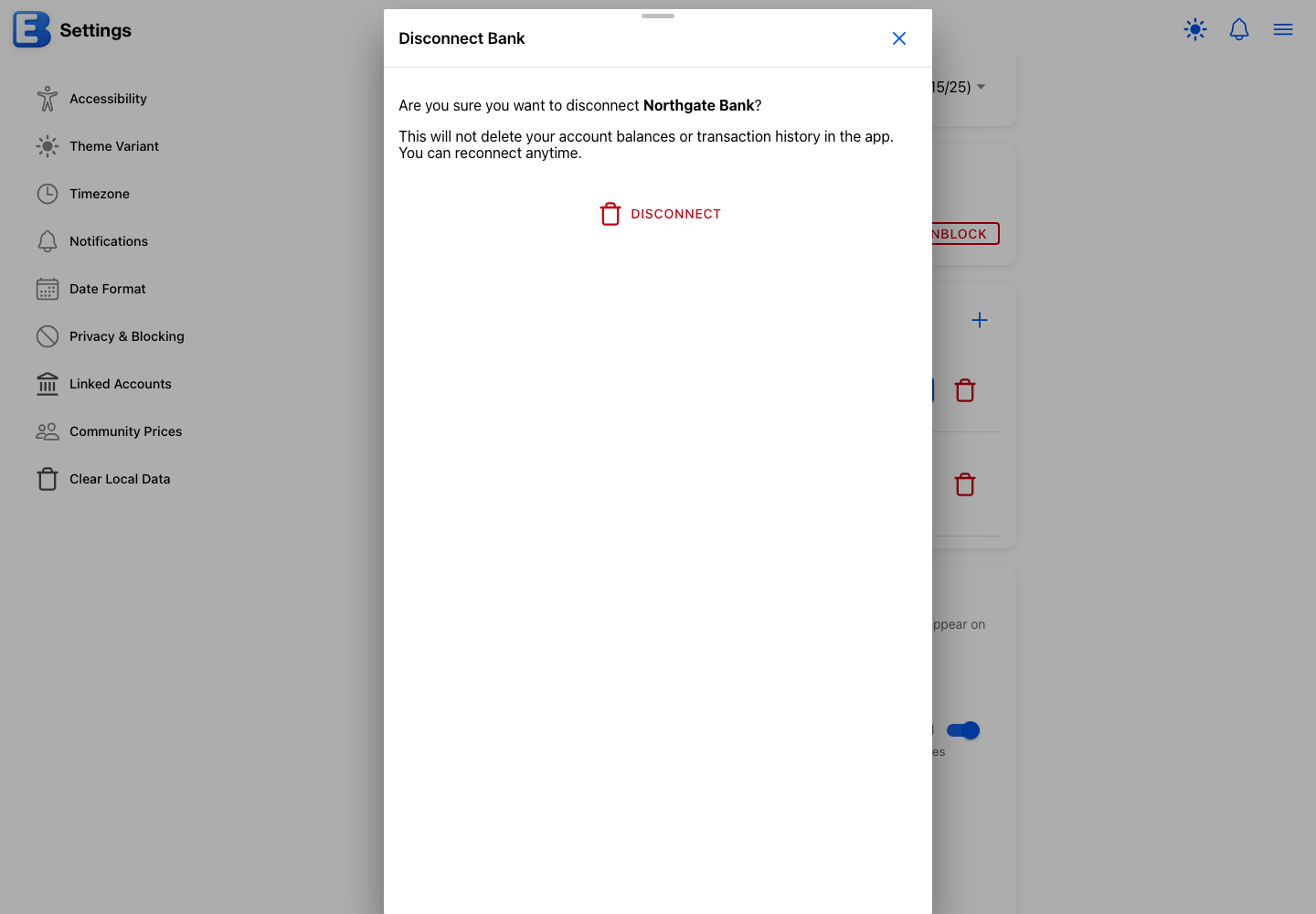
The Disconnect Bank dialog names the bank and tells you what survives: “This will not delete your account balances or transaction history in the app. You can reconnect anytime.” Tap Disconnect to go ahead.
After disconnecting, the bank leaves the card and new transactions stop arriving. The app also asks Plaid to end its side of the connection, though it will finish removing the bank locally even if Plaid does not answer. Everything already in your budgets stays: the transactions are still recorded, so your balances are still right, and only future pulls stop. Budgets that were pulling from that bank keep working for file uploads and typed entries.
To bring the bank back, connect it again from the same card. With no banks left, the control is Connect Your First Bank; with others still connected, it is the + at the top right.
Unlinking a single account from a single budget
Unlinking is the narrow version: it stops one budget account pulling from one bank account, and leaves the bank connected for everything else.
Open the budget, tap Setup, and stay on Accounts. Select the linked account and tap Edit Account. The form carries a Bank Connection section with an Unlink button. The section appears only if you own the budget and the account is still linked.
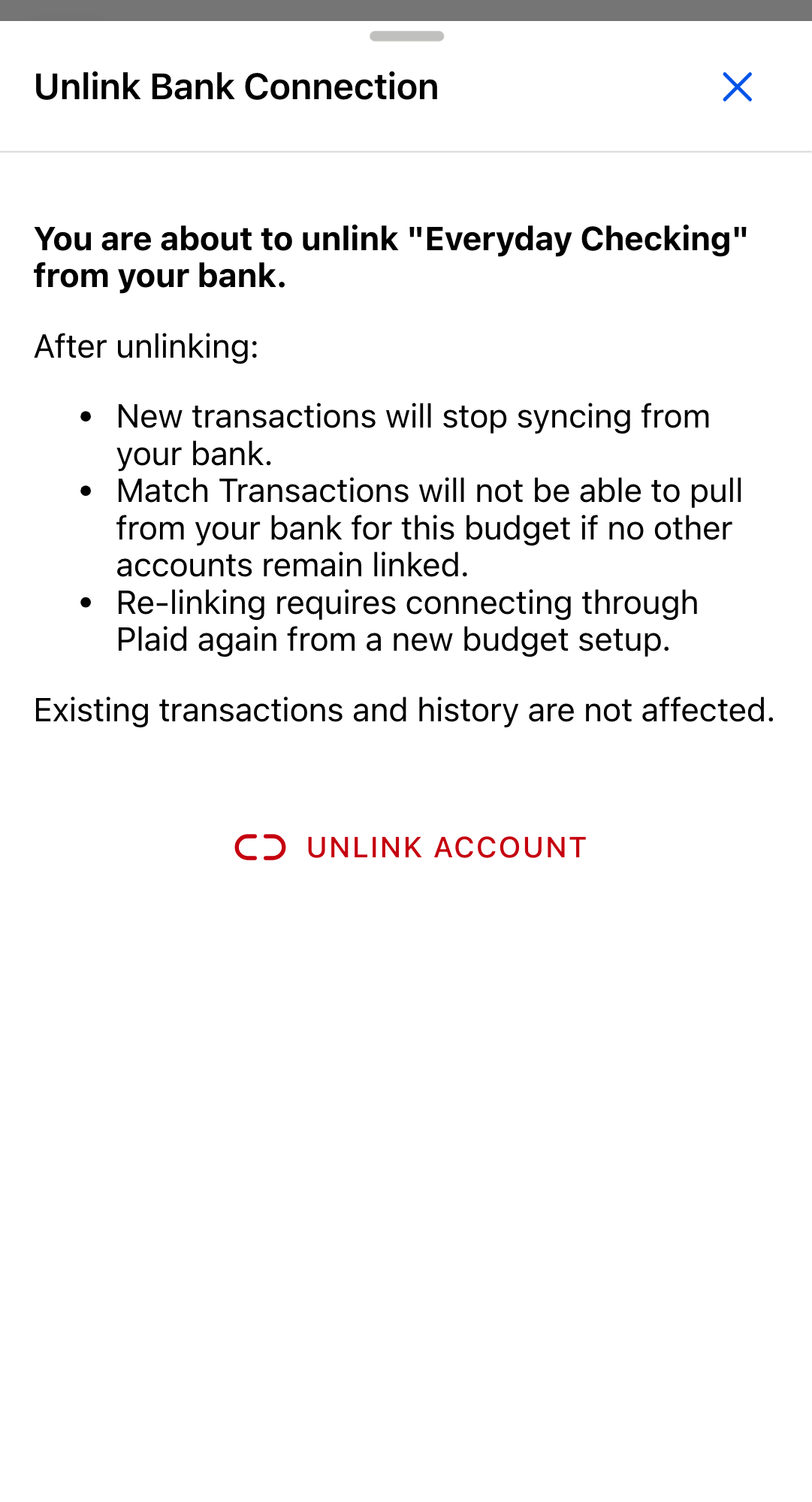
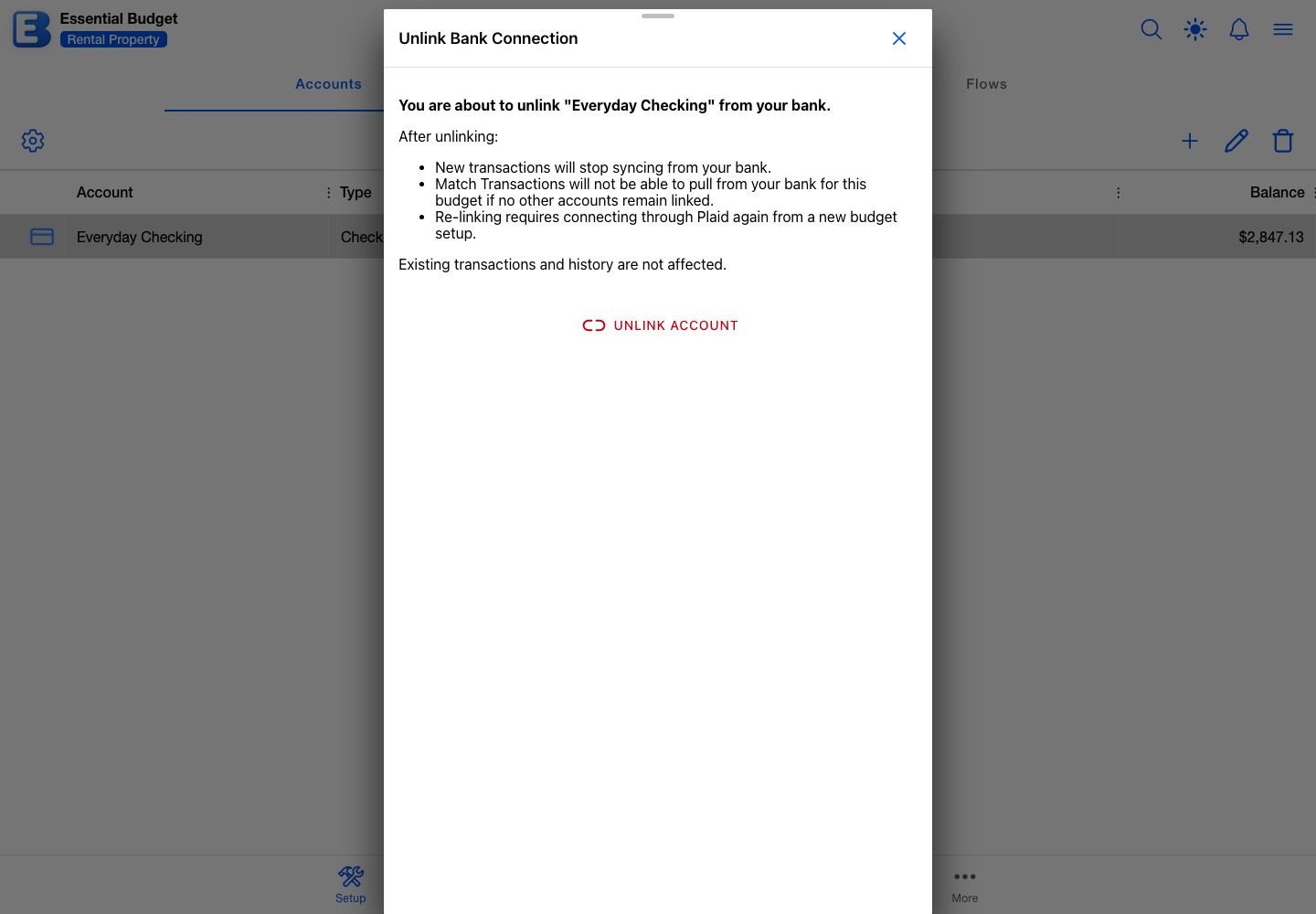
Tap Unlink and the Unlink Bank Connection dialog spells out what follows. Tap Unlink Account to confirm.
New transactions stop arriving for that budget account. Your bank stays connected, so other budgets are unaffected. Everything already imported stays where it is, and neither your balance nor your history changes. You cannot put the link back afterwards. Attaching a bank account to a budget only happens when the budget is created, so pulling this account into a budget again means building a new one.
Disconnect or Unlink? Disconnect removes the bank from your account, and every budget pulling from it stops. Unlink stops one budget account while the bank stays connected. Use Unlink to narrow what a budget pulls, and Disconnect when you are finished with a bank altogether.
Deleting a bank-linked account is owner-only too. See Accounts.
What happens when Premium ends
Two things can end Premium, and they treat your bank connections differently.
If you cancel, every bank connection is removed. The app asks Plaid to end each one and clears the link from every budget account that was using it. Renewing later does not bring them back: connect each bank again from Settings, Linked Accounts.
If a payment fails, your connections are paused rather than removed. Nothing is deleted, and the Linked Accounts card stays in Settings with a note saying the banks are paused. Pay again and they resume pulling with no re-linking, picking up everything that posted while you were away. You can also disconnect any of them from that card while paused, and reconnect one whose bank has asked you to sign in again.
Paused is not permanent. Your card issuer is retried for about a month, and once the subscription closes for good the connections are removed like a cancellation. You get a notification before that happens, and renewing at any point beforehand keeps everything.
Either way, your data is untouched. Every transaction already imported, every balance and everything in History is unchanged, and the accounts themselves remain, minus their tie to the bank in the cancelled case.
While you are on the free plan you cannot add a bank, and Match Transactions no longer pulls from one. The button itself stays on the Planner toolbar and still takes uploaded files, on bank-linked budgets too.
Privacy and what data leaves your bank
Plaid is the bridge, and your bank credentials never reach the app. You enter them inside Plaid’s own window, which hands the app a key to your data rather than your password. That key is encrypted before it is stored.
What the app keeps from your bank:
- The accounts you shared: name, whether each is checking or savings, and the last four digits.
- Your bank’s name and logo.
- The transactions on those accounts: date, amount, and a description built from the merchant name when your bank supplies one.
- The balance read when the budget was created, used to set the account’s opening figure.
- Plaid’s read on which payments repeat, including its spending category for each repeating payment, used to suggest flows when a budget is created.
What it does not keep: pending charges, and the category or location Plaid attaches to individual transactions.
Only one feature sends bank data to an AI model, and that is building a budget with AI, which sends the transactions as dates, descriptions and amounts. Matching does no such thing: it compares dates, amounts and merchant names on the app’s own servers, with no model involved. See Subscription.
A budget that has held bank data can never be published. The block is permanent and survives unlinking, because the budget keeps the record that bank data was once in it. See Public Budgets.
Quick reference
| If you want to… | Do this |
|---|---|
| Connect your first bank | Settings, Linked Accounts, Connect Your First Bank |
| Connect another bank | Settings, Linked Accounts, the + at the top right |
| See which banks you have connected | Settings, Linked Accounts |
| Use a connected bank for a new budget | Budgets, Create Budget, AI Generated, Connect Bank |
| Sign in again after a bank asks you to | Settings, Linked Accounts, Reconnect on the bank’s row |
| Disconnect a bank from your account | Settings, Linked Accounts, the trash icon on the bank’s row |
| Stop one budget account pulling | Setup, Accounts, select it, Edit Account, Unlink |
| Manage your banks after a failed payment | Settings, Linked Accounts, still there and marked paused |
| Pull new bank transactions | Match Transactions on the Planner toolbar |
Related pages
- Accounts: how balances behave, and what deleting a linked account removes.
- Matching and Resolving: what happens after a pull.
- File Uploads: the free alternative to a bank connection.
- Notifications: where connection notices appear.
- Public Budgets: why a budget that held bank data cannot be published.
- Subscription: what Premium covers.
Questions or feedback about this page?Email us.