
Learn - Accessibility
Settings that affect readability and display.
Accessibility
Four settings change how text and dates read in Essential Budget: text size, light or dark mode, date format, and timezone. All four live in Settings, reachable from the Settings entry in the hamburger menu, and all four are free.
All four settings apply across every budget you open. A theme is the one visual choice that is set per budget separately, on the budget itself. Of the four settings here, only your timezone is saved to your account and shared with every device you sign in on; text size, light or dark mode, and date format are saved per device, since the right value depends on the screen. The Clear Local Data button at the bottom of Settings resets the three device settings to their defaults; the timezone is unaffected.
Text size
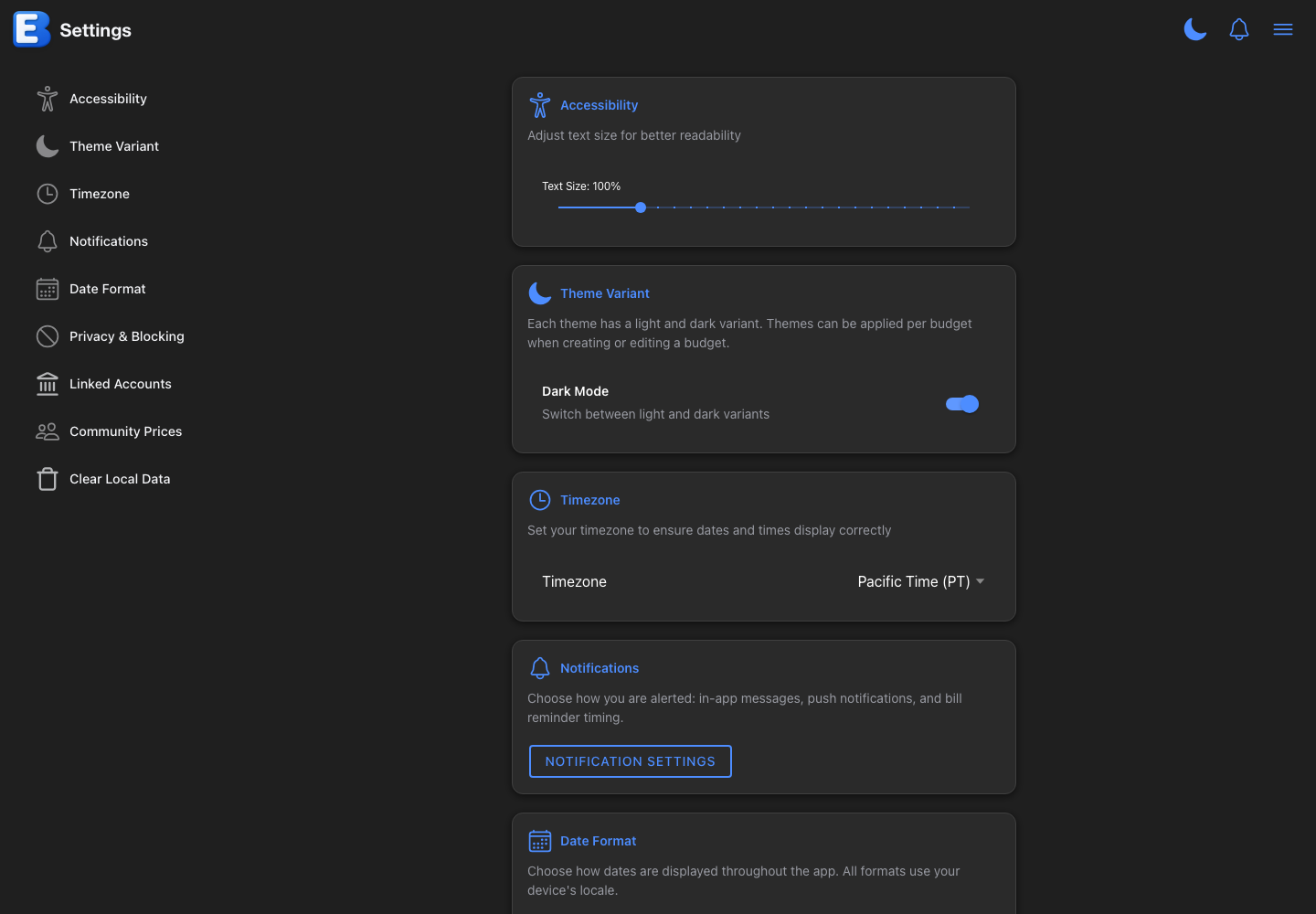
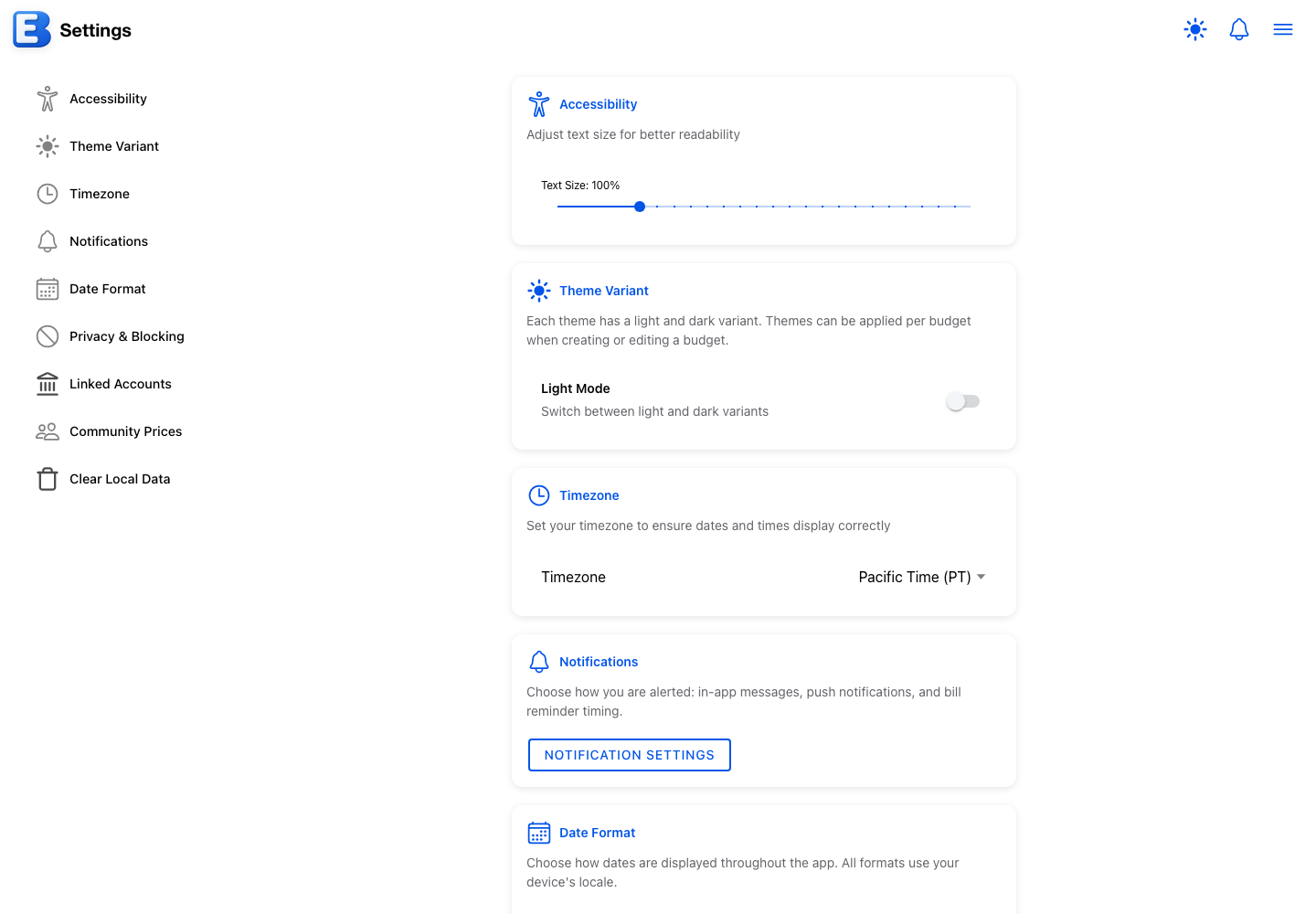
Open Settings. The Accessibility section has a single slider, Text Size, that ranges from 75% to 200% of the default size in 5% steps. The current value shows next to the label as a percentage, and the default is 100%.
The slider is live. As you drag, every page in the app re-flows to match. The new size saves automatically about half a second after you release the slider.
Text size is a per-device setting. The size you pick on a tablet does not follow you to a phone or desktop, so each device can keep the size that suits its screen.
The Accessibility section only appears when the app window is wider than 480 pixels. On a phone, or in a desktop window narrowed below that width, the section is hidden, because text scaled to 200% on a narrow screen wraps awkwardly and pushes table rows and chart legends off the visible area.
Why is this device-only instead of synced? Because the right size depends on the screen. A 200% setting that reads well on a 27-inch monitor is unusable on a 10-inch tablet. Saving per device lets each one stay at the size it should.
Light mode and dark mode
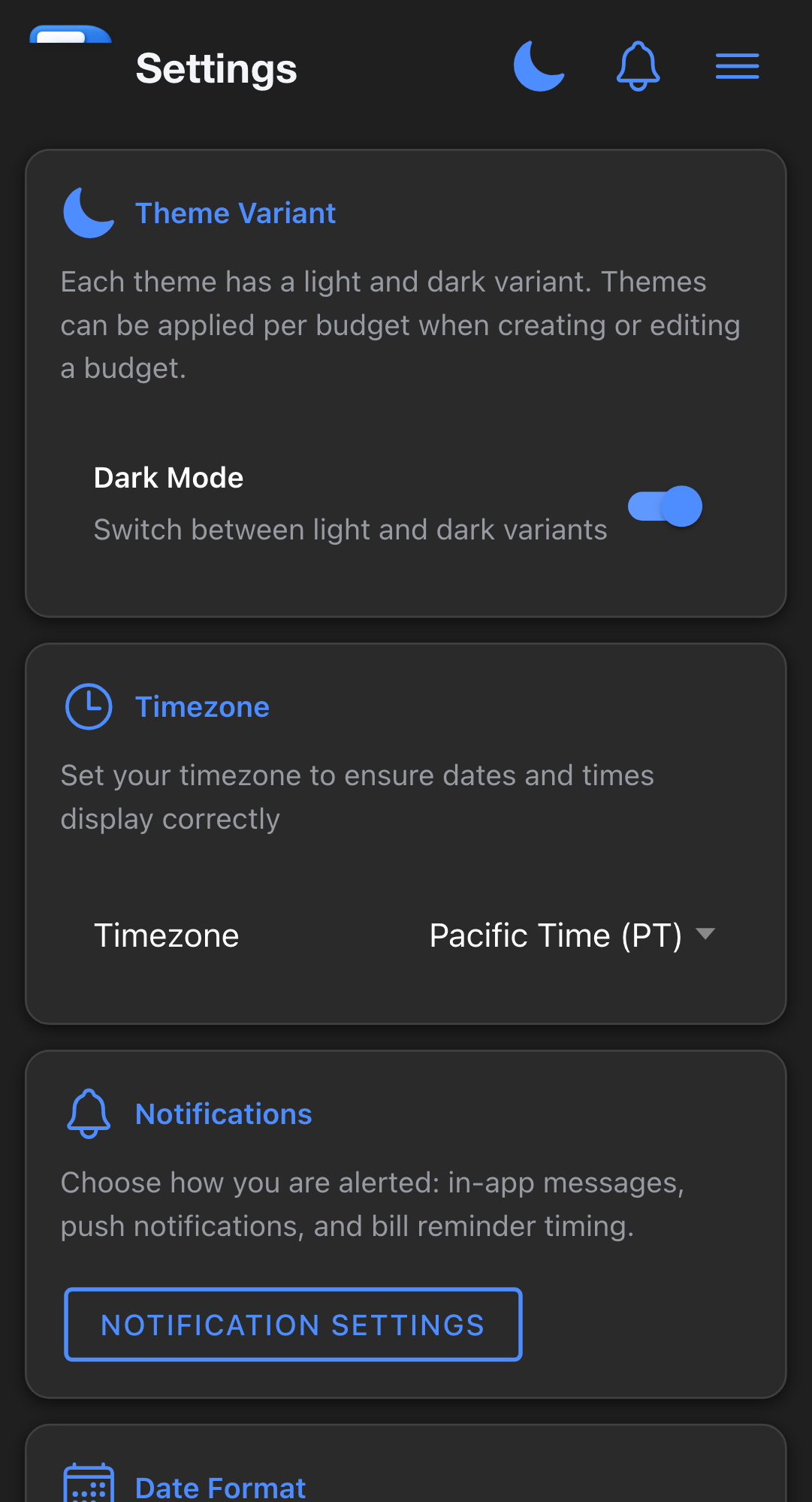
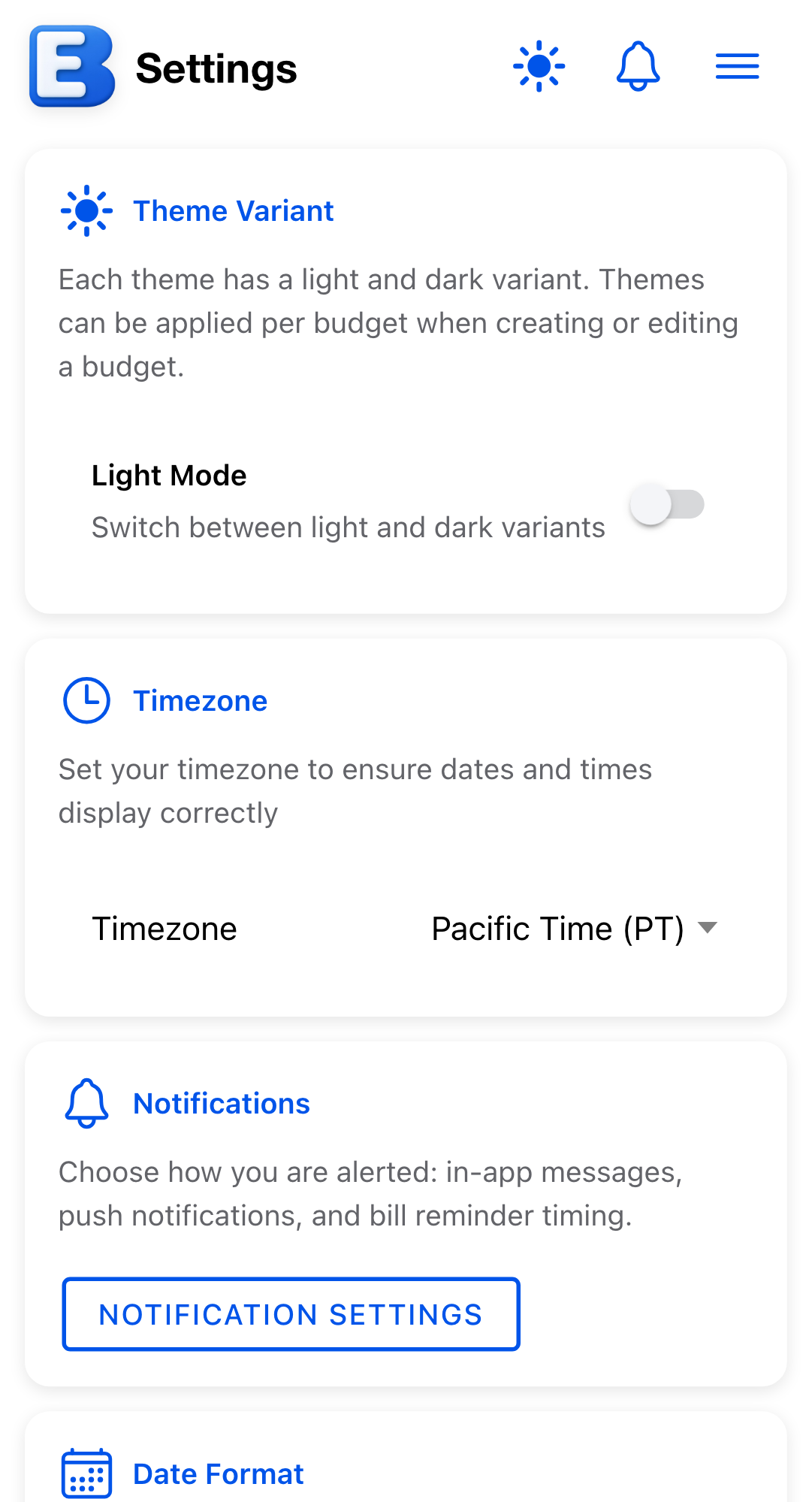
Settings, Theme Variant section. A single toggle switches between Light Mode and Dark Mode. The toggle title shows the active mode.
The same switch also sits in the header at the top of every page, as a sun or moon button, so you can flip modes without opening Settings. On narrow screens the header hides the button when there is no room for it.
Each theme has both a light and a dark variant, and each variant carries its own set of colors. The toggle picks which variant of the active theme the app uses; the theme itself does not change.
Like text size, the mode you pick is saved per device. The default is light, and the choice is remembered for the next time you open the app on the same device.
Why no “follow the system” option? Because this is a small setting, and a binary toggle is easier to scan than a three-way picker. If you want the app to match your system theme, set this toggle once when the system changes; the choice stays.
Picking a higher-contrast theme
If the colors of the default theme feel low-contrast, switching themes is the more direct fix than tweaking individual settings. Themes ship with both light and dark variants; some have stronger contrast than others.
Open the hamburger menu and tap Themes. The page has two segments: My Themes (your saved themes) and Community (themes published by other users). Browse the Community segment and apply any theme that looks easier to read.
For the full picker details, see Themes and Icons.
Why no separate high-contrast toggle? Because contrast is built into the theme. Every theme picks every color you see in the app, so swapping the theme is what changes contrast directly and consistently, including chart palettes and category colors. A toggle on top of the theme would have to override colors the theme’s author had already chosen, which would erase those choices on every screen.
Date format
Settings, Date Format section. Three options:
- Short (1/15/25): compact, all-numeric.
- Medium (Jan 15, 2025): abbreviated month name.
- Long (January 15, 2025): full month name.
The example in parentheses next to each option shows what the format looks like on a device set to the United States locale. On a device set to a different locale, the same option renders with that locale’s conventions: a device set to the United Kingdom shows the day before the month, for example. The format you pick controls how detailed each date is, not the order of the day, month, and year.
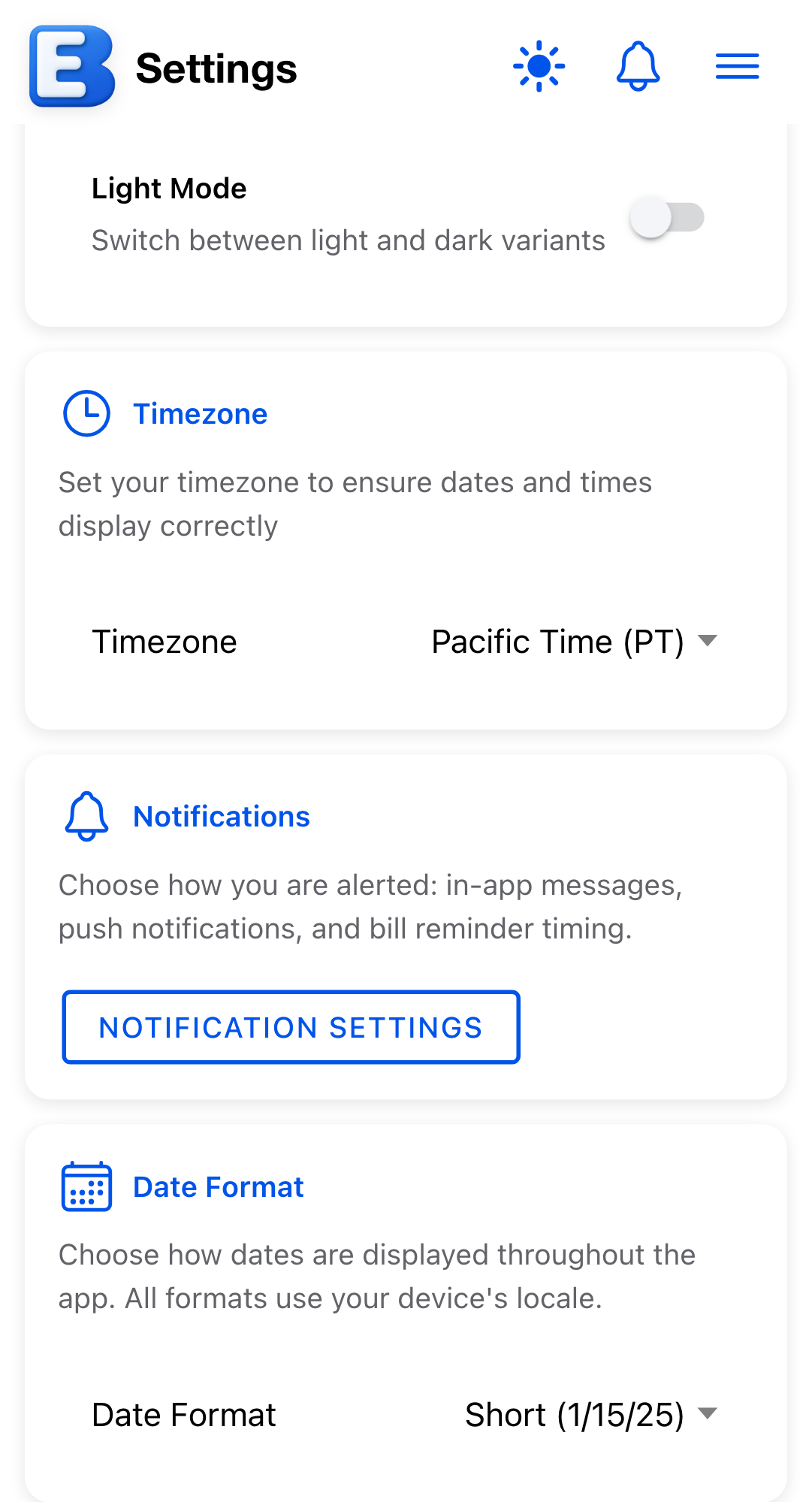
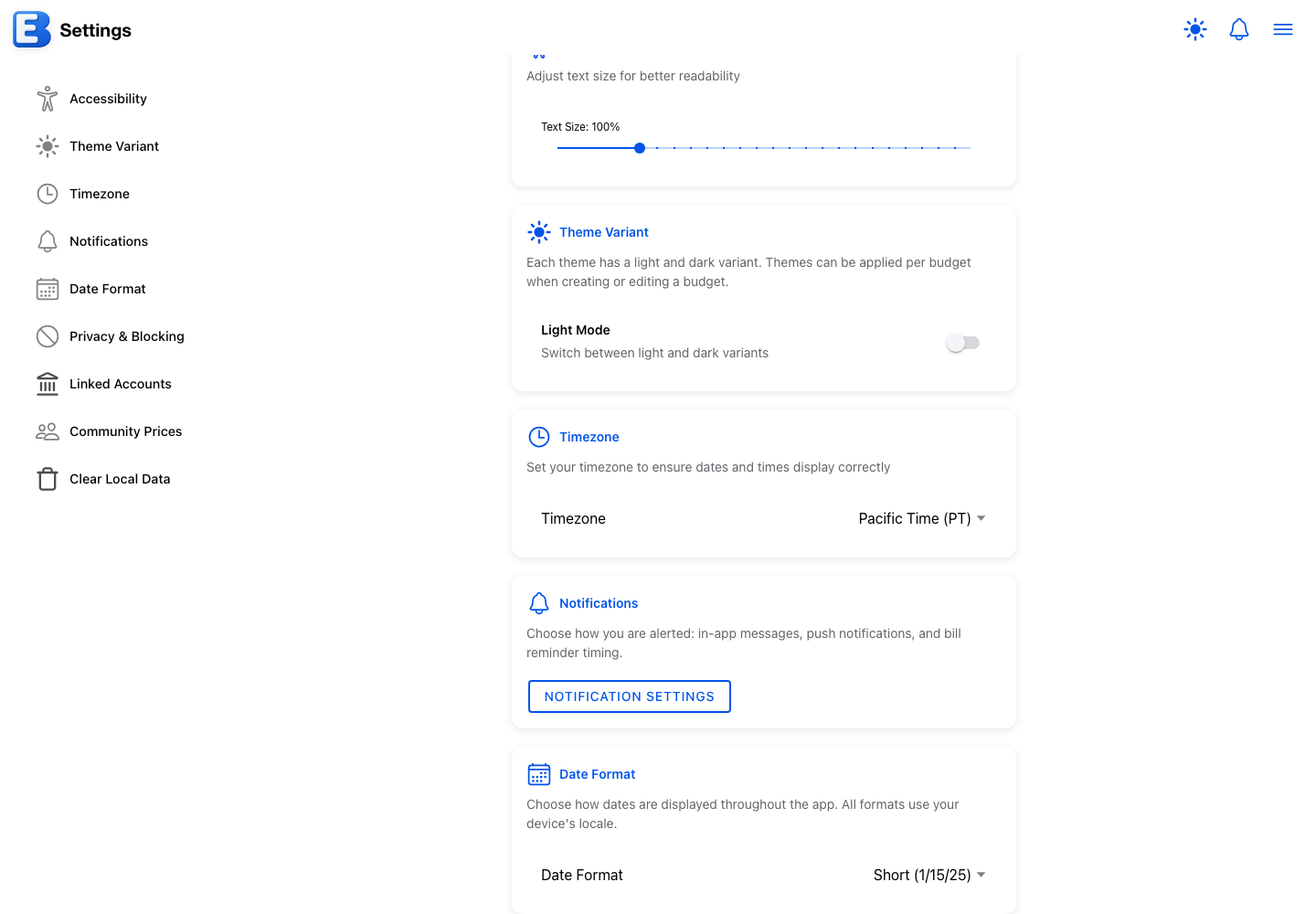
The chosen format applies wherever the app shows a date: the date columns in the Planner, History, and the themes and community tables, and the dates inside dialogs too, including Edit Flow Event, the schedule summaries on a flow, and the dates shown when you match transactions or attach a receipt to an event. The default is Short. Like text size and light or dark mode, the format is saved per device, so a phone set to Short can sit alongside a tablet set to Long.
Timezone
Settings, Timezone section. The first time you open Settings, the app detects the timezone from your device and saves it to your account, so the same timezone applies on every device you sign in on. After that, you can change it manually from a list of named zones (UTC, the United States zones, Arizona, Hawaii, Alaska, London, Paris, Tokyo, Sydney).
The saved timezone controls two things: which calendar day a History entry shows as its resolved date (and which entries a date search on the History page finds), and when your bill reminders arrive, since the Delivery time in Notification Settings is interpreted in this timezone. Screens that depend on today’s date, like the Planner, read the clock of the device you are holding.
Why auto-detect once instead of always? Because the saved timezone anchors your History days and your reminder schedule. Detecting on every load would shift both while you traveled: a bill reminder set for 9:00 AM would follow the hotel clock instead of home. Detecting once and leaving the choice to you keeps those times stable until you decide to change them.
Quick reference
| If you want… | Open Settings, then… |
|---|---|
| Bigger or smaller text (windows wider than 480 pixels) | Accessibility, drag the Text Size slider |
| Light or dark mode | Theme Variant, flip the toggle (or tap the sun or moon button in the header) |
| A higher-contrast theme | Open the hamburger menu, tap Themes, browse the Community segment |
| Compact, abbreviated, or full date labels | Date Format, pick Short, Medium, or Long |
| History days and bill reminders on your home clock | Timezone, pick from the list |
Related pages
- Themes and Icons: how palettes and per-budget themes work.
- Notifications: the bill reminder schedule that uses your saved timezone.
Questions or feedback about this page?Email us.