
Learn - Flows
An income, expense, or transfer whose schedules create your planner events.
Flows
A flow is an income, an expense, or a transfer that you set up once: rent, your paycheck, a phone bill, a streaming subscription, a weekly grocery budget. Every flow carries one or more schedules, and each schedule produces dated events on your Planner. You write the rule once, “Rent, $1,800.00, on the 1st of every month, from Checking”, and the app produces the events from there.
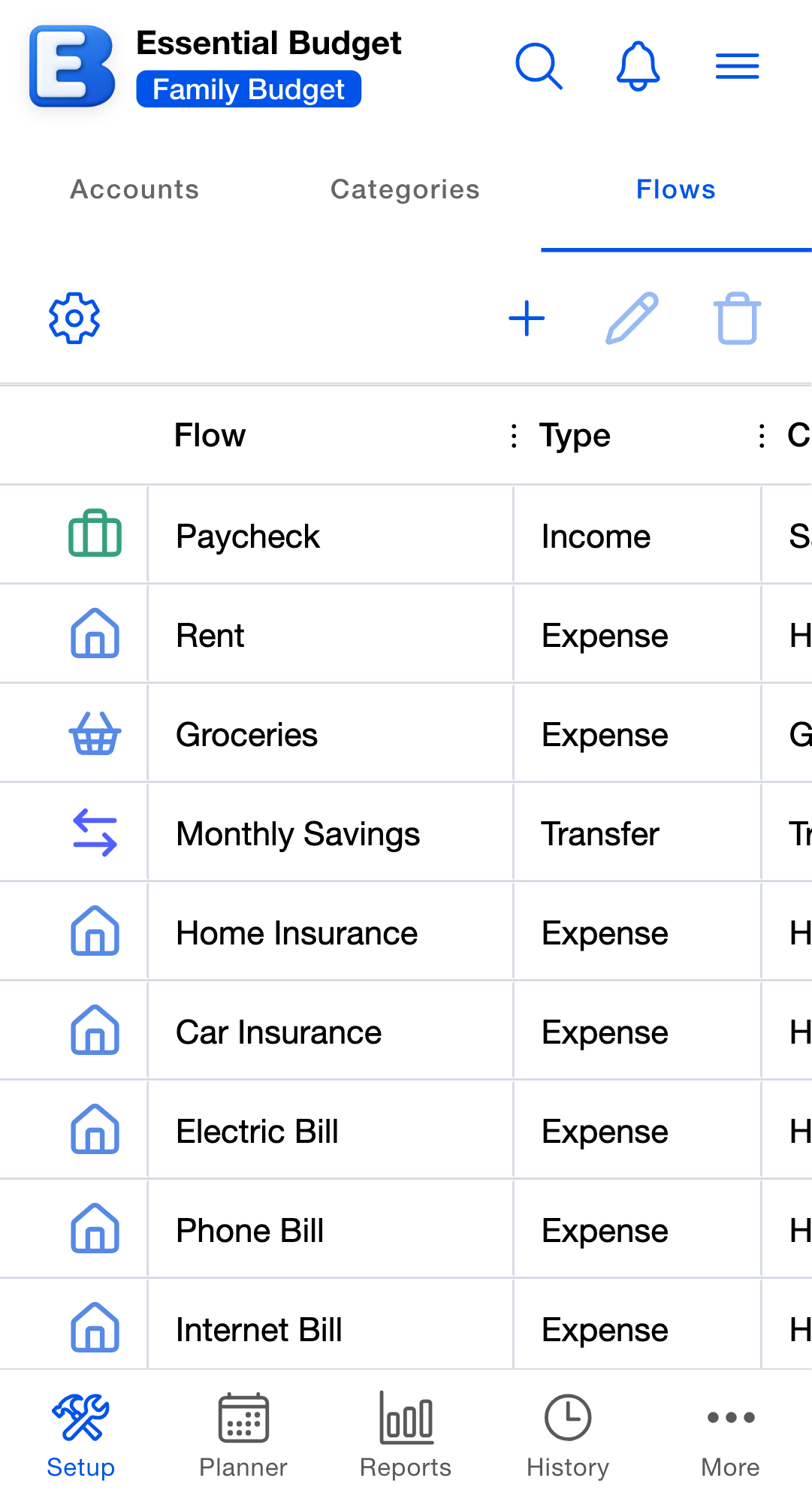
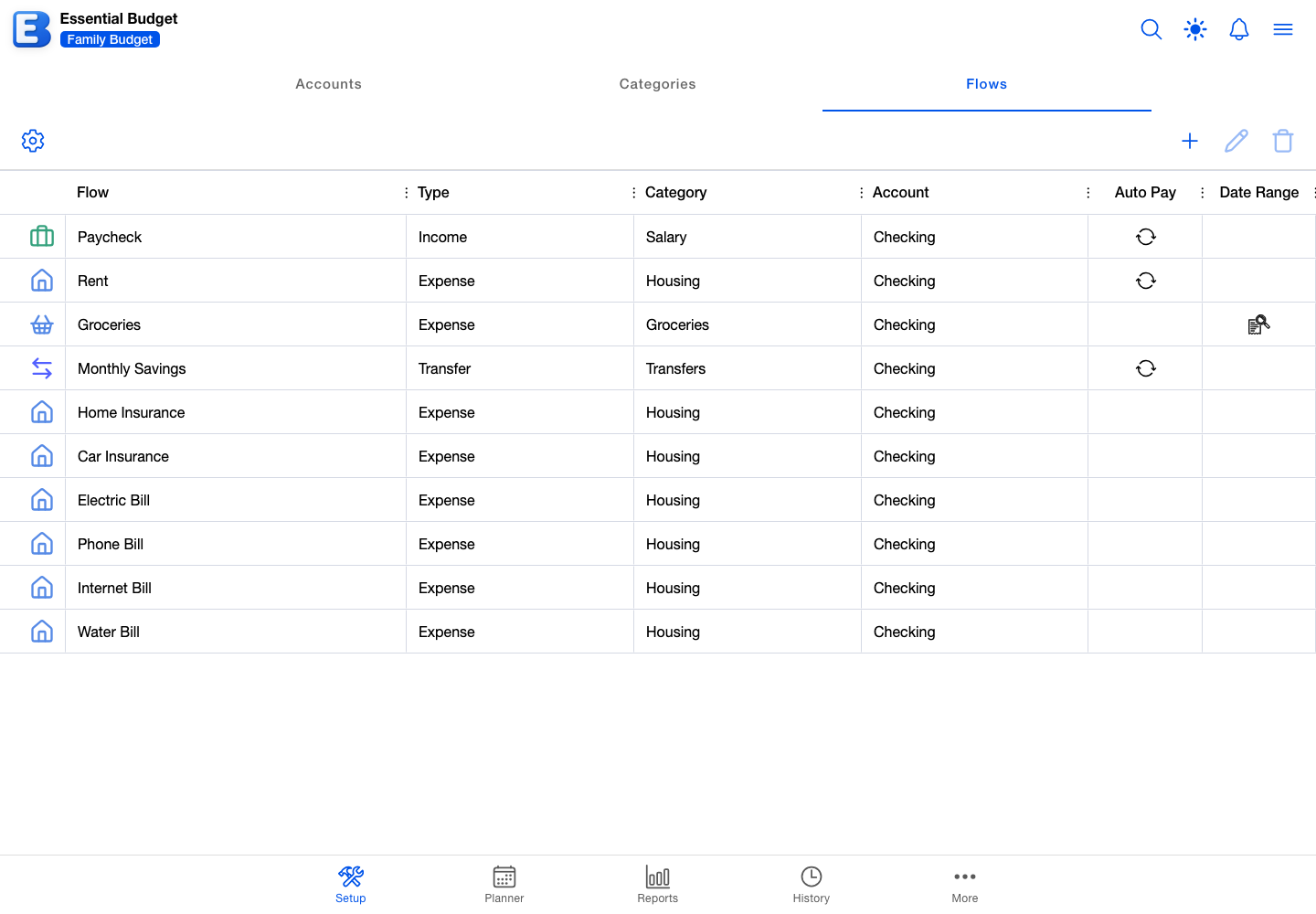
Flows are the third segment of the Setup tab, next to Accounts and Categories. Opening the Setup tab lands you on Accounts, so tap Flows at the top to reach the list. The toolbar carries Add Flow, Edit Flow, and Delete Flow on the right, and Grid Settings on the left for hiding columns you do not use.
Tapping a row selects it. To open a flow, double-tap the row or select it and tap Edit Flow. With view-only access the dialog opens as View Flow, with every field readable and no Save button.
The list shows each flow’s name, type, category, and account, plus a marker in the Auto Pay column and one in the Date Range column. Drag a row to change the order the list uses. To find one flow among many, tap the search button in the header and type: the search matches flow names, account names, and category names.
A budget can hold up to 250 flows, on the free tier and on Premium alike. At the cap, tapping Add Flow shows the notice “Flow limit reached (250/250 per budget).” instead of opening the dialog. Delete a flow you no longer need to make room.
What’s on a flow
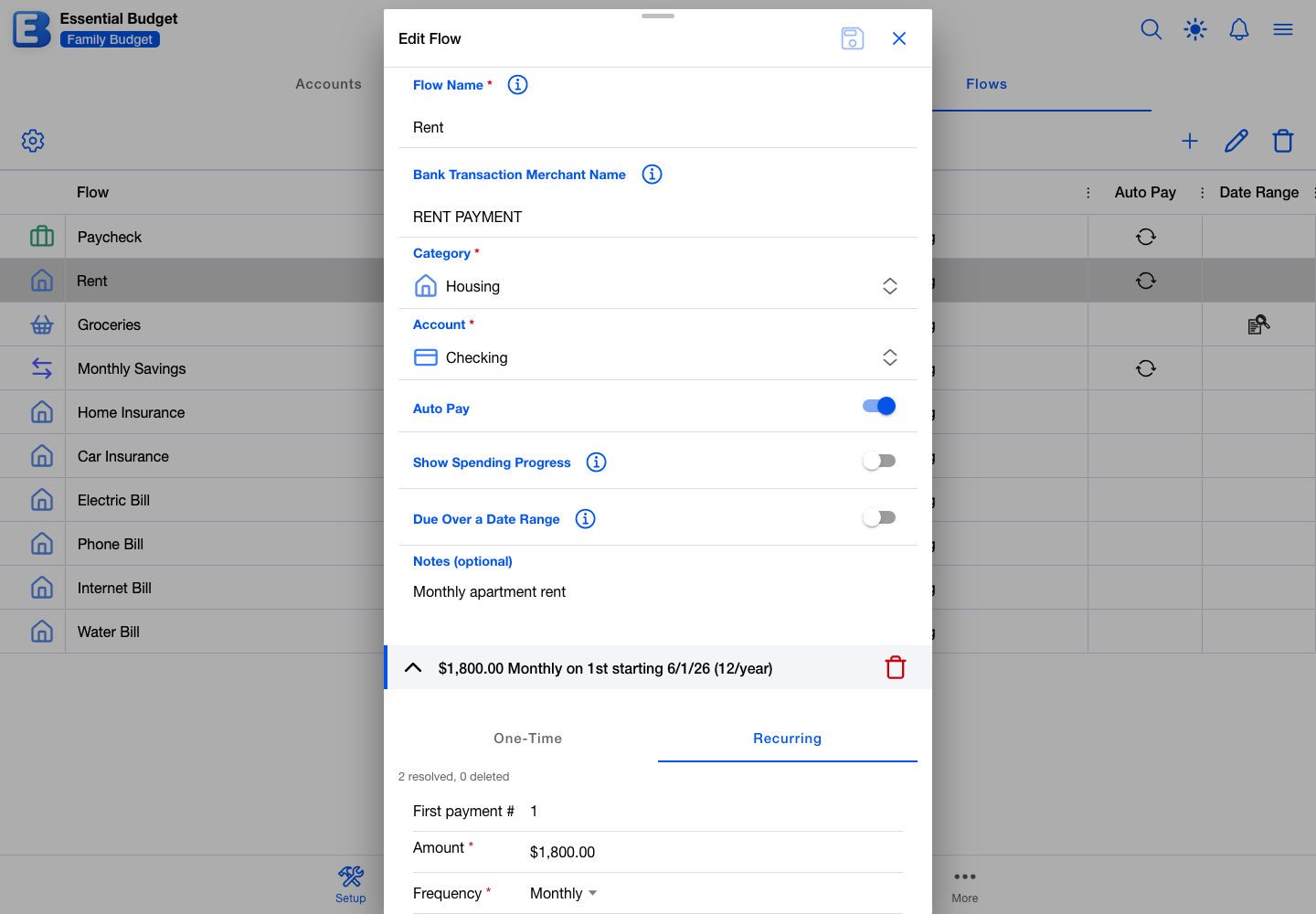
The form is the same whether you are creating a flow or editing one. Its fields, in order:
- Flow Name. Up to 50 characters. It appears on the Planner, in Reports, and in History. Two flows in one budget cannot share a name, and Save stays greyed out until the name is unique.
- Bank Transaction Merchant Name. Optional, up to 50 characters. The merchant string as your bank writes it, which the app uses when matching transactions to this flow.
- Category. Tap to open the Select Category picker, which lists your categories with their sub-categories nested underneath. The category’s Type is what tells the app which way the money moves.
- Account. The account the money lands in, for income, or comes out of, for expenses. A Transfer category replaces this with From Account and To Account.
- Auto Pay. A label, not an automation. See below.
- Show Spending Progress. Adds a progress bar to the flow’s Planner rows. Hidden for Transfer flows.
- Due Over a Date Range. Makes each event cover a stretch of days instead of falling due on one. Hidden for Transfer flows. See below.
- Notes (optional). Free-form text, up to 1,000 characters.
- Schedules. One or more rules for when the flow produces events.
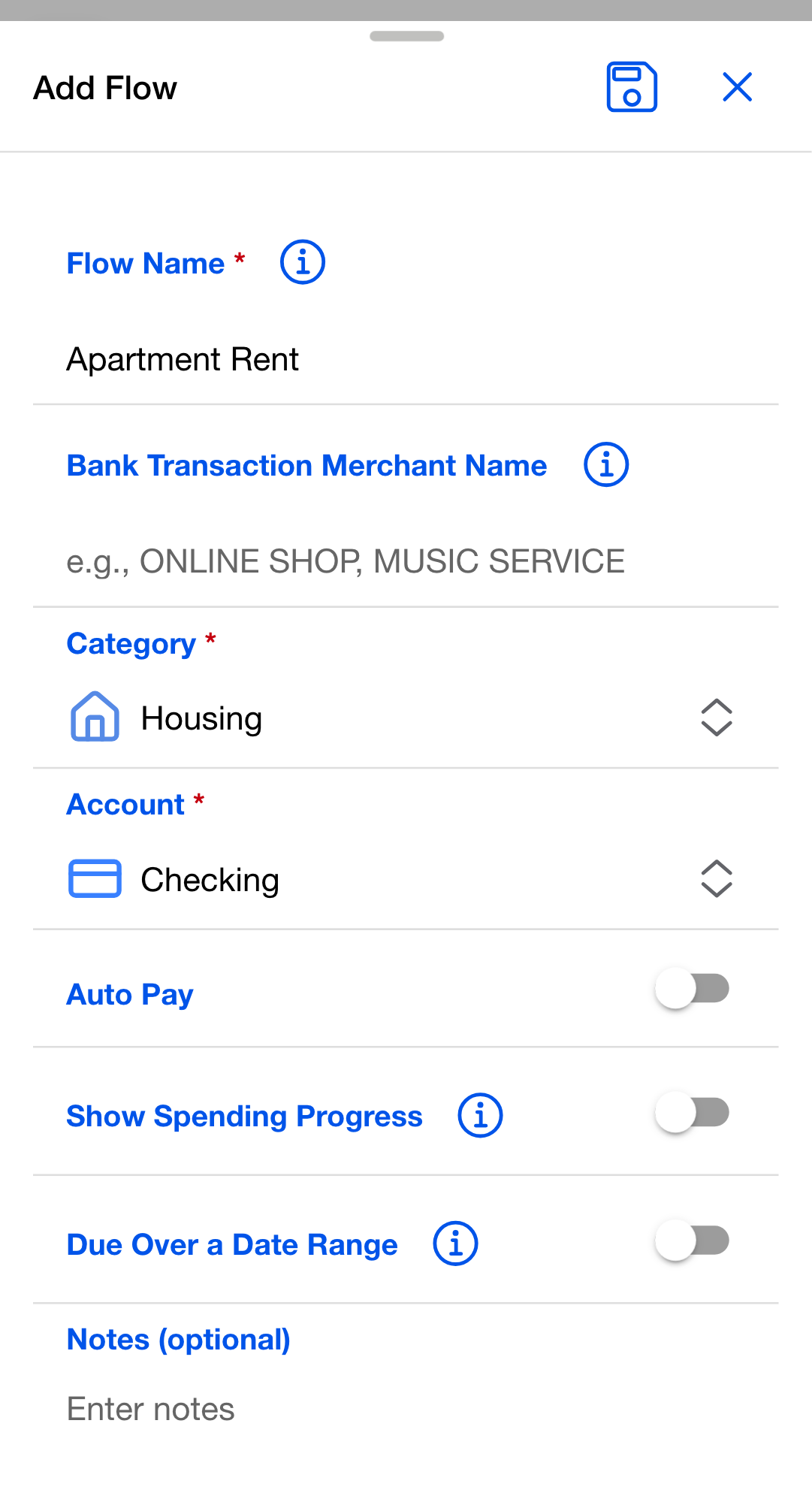
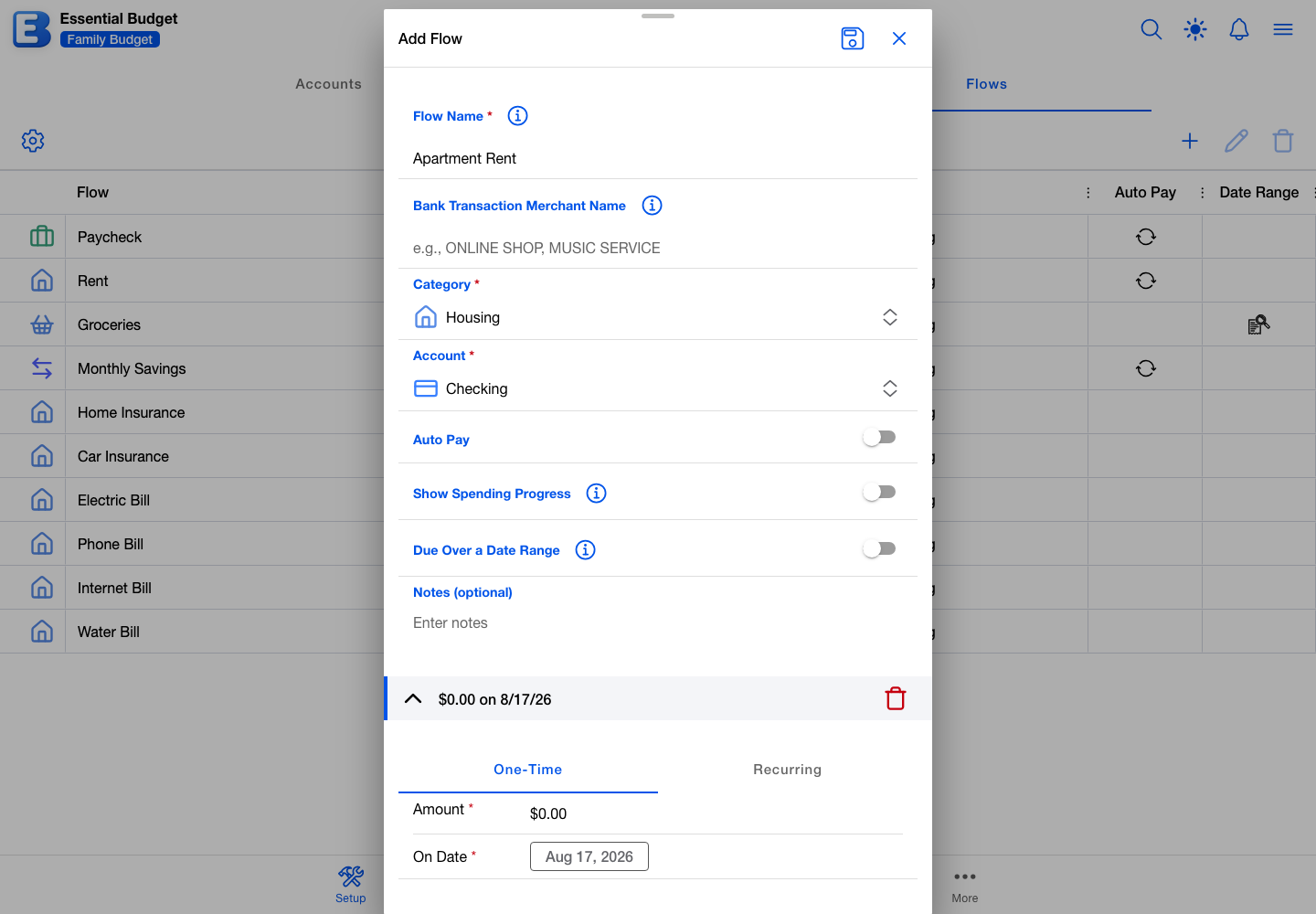
A new flow opens with no category, no account, all three toggles off, and one schedule already there, set to One-Time for today at $0.00. Only the name, the category, and the account are required, so a flow is savable in three fields.
The Category and Account pickers can create what you are missing without leaving the form. When the category or account you want does not exist yet, tap the add button inside the picker and fill in the new record. It drops straight into the list you were choosing from.
Why is Bank Transaction Merchant Name a separate field from the flow name? Your bank’s merchant string is rarely what you want to call the flow. “AMZN MKTP US*B5K2L9X” on the statement is “Amazon” in your head. Keeping the two apart means you name the flow naturally and the matcher still has the bank’s exact string to work with. Without a linked bank the field is still useful: it is the hint the app matches an uploaded file against.
Once any account in the budget is linked through Plaid, the Bank Transaction Merchant Name becomes plain text on every flow, including flows whose own account is not the linked one. The values then come from the linked bank’s own merchant data. Unlinking every bank in the budget makes the field typeable again.
Schedules: when the flow happens
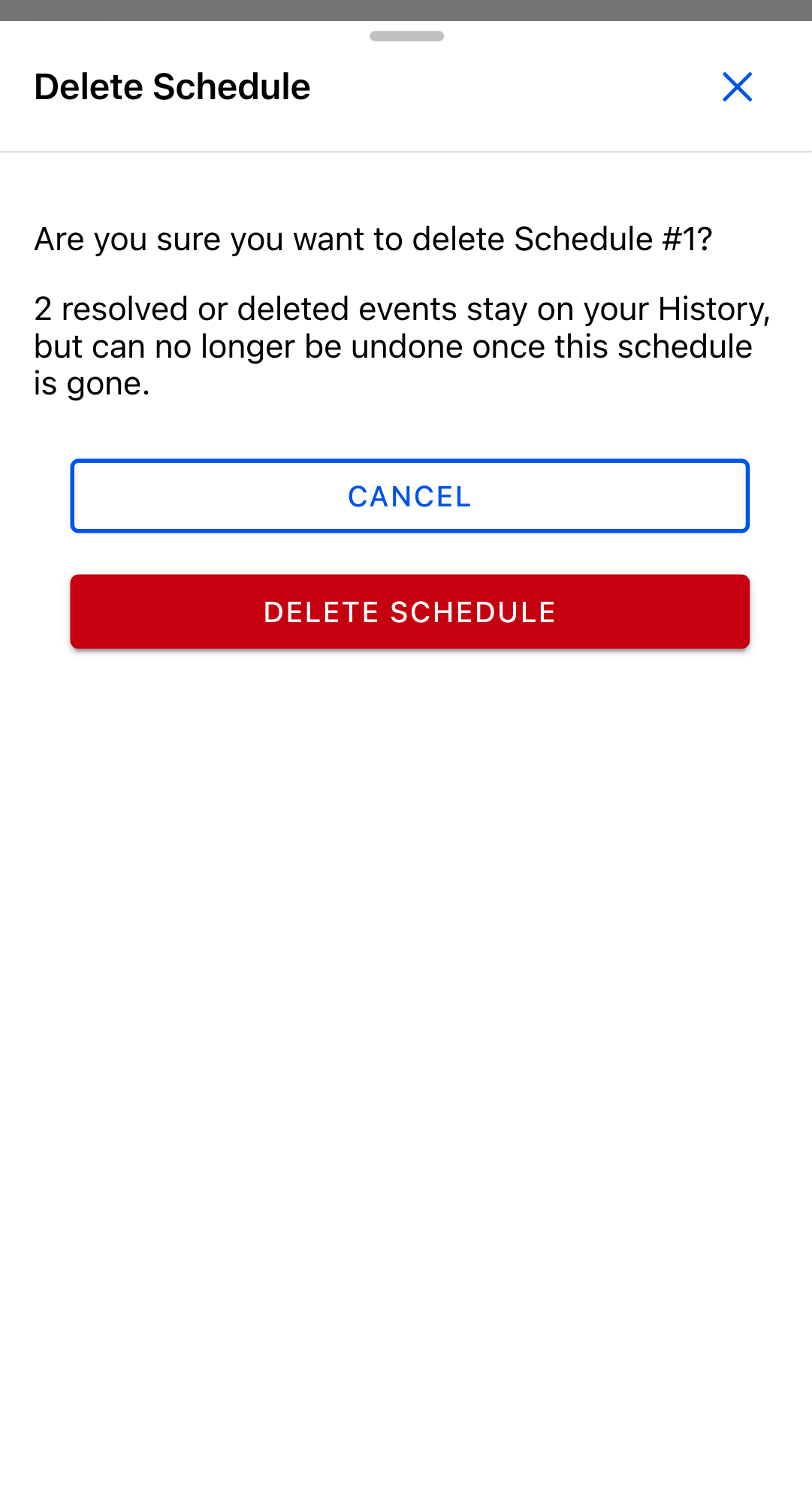
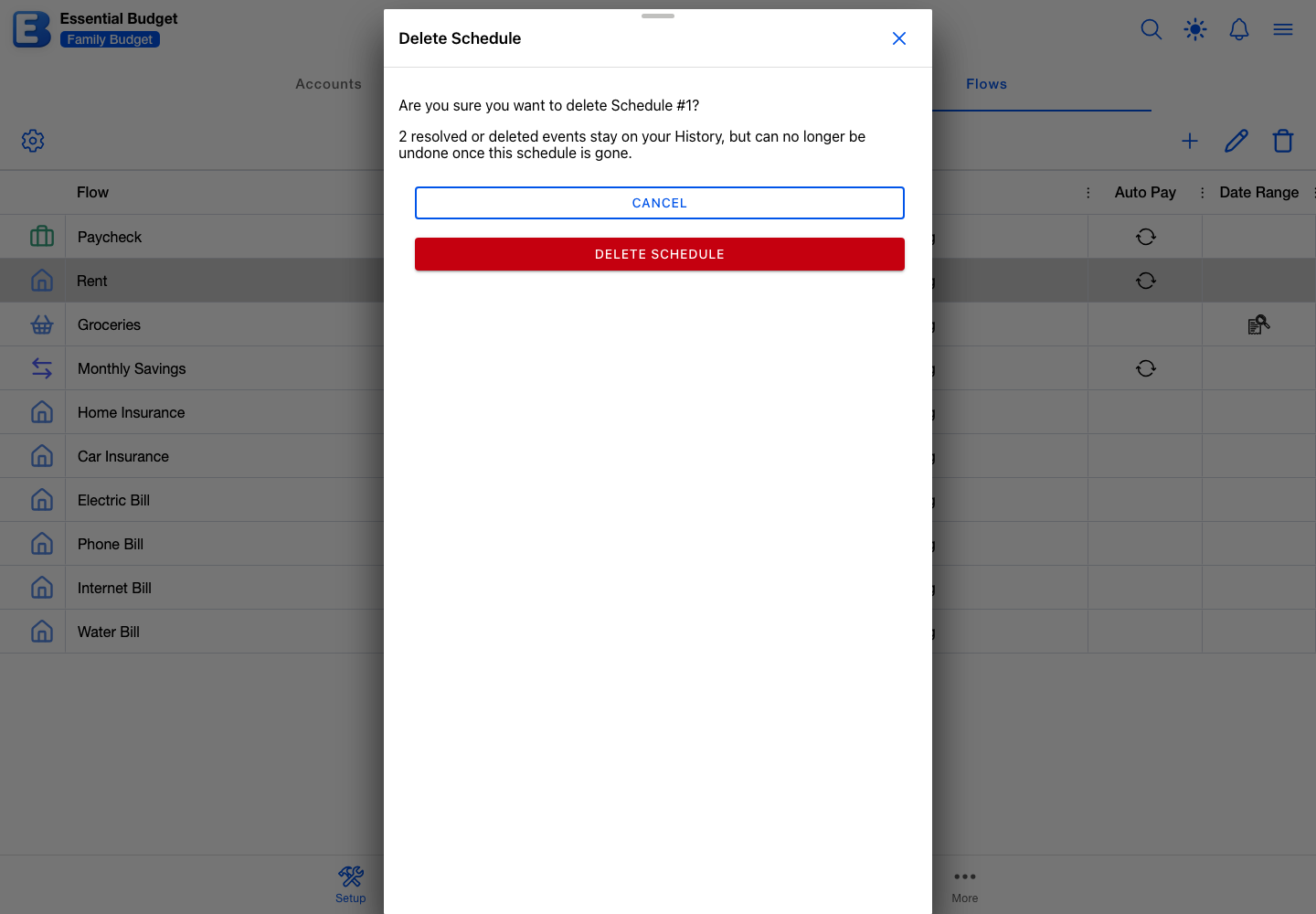
A schedule is the rule that produces events. Schedules sit in an accordion below the fields, one panel each, with a live summary on the panel header like “$1,800.00 Monthly on 1st starting May 1, 2026 (12/year)”. Tap Add Schedule below them to add another; you can stack up several before you save for the first time. Tap the trash icon on a panel header to remove one. A schedule with nothing attached goes straight away; one that carries your per-event changes, transactions, or resolved events opens the Delete Schedule dialog first, counting what it will take with it. Either way the removal sticks when you save the flow.
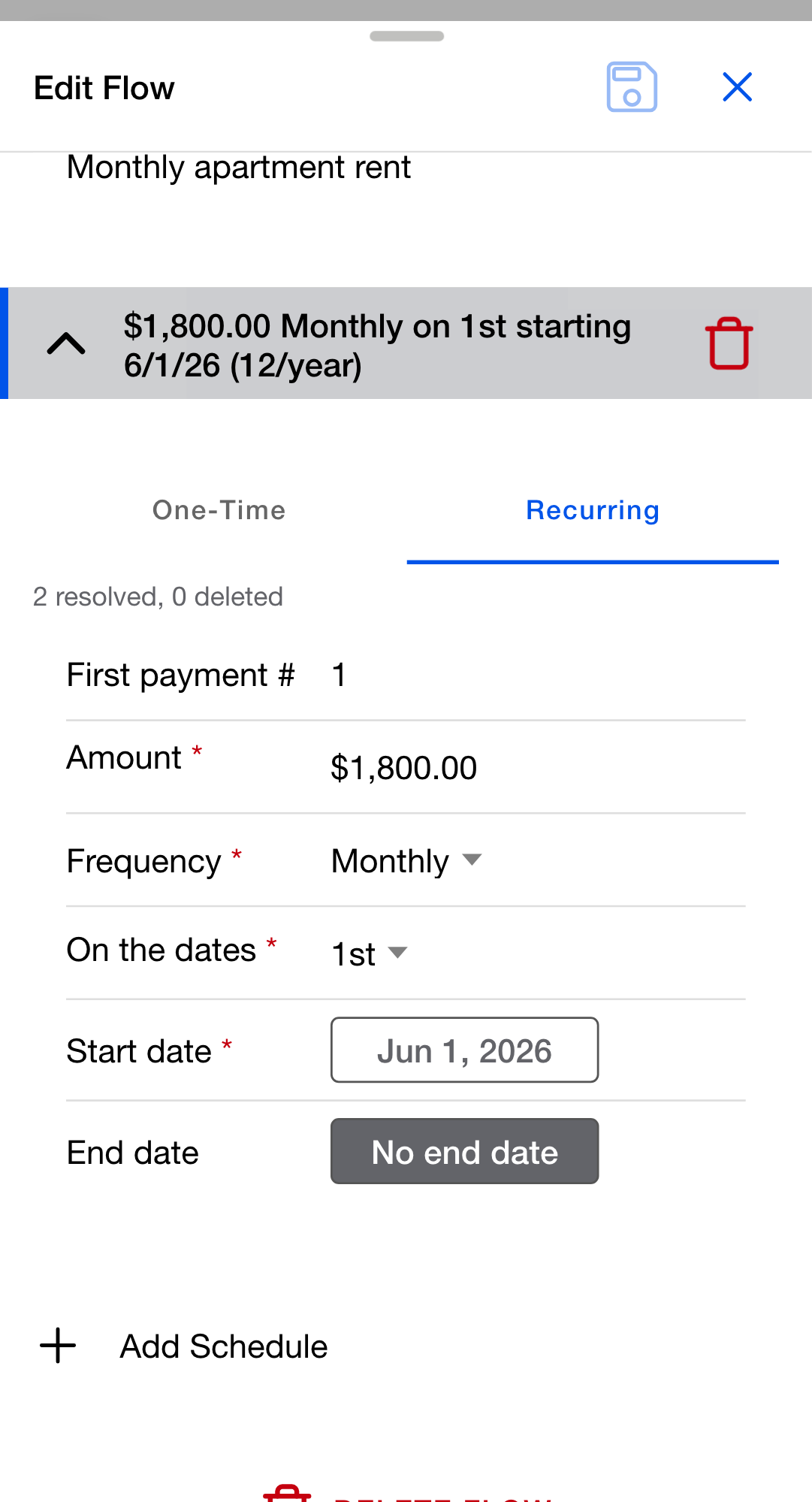
At the top of each schedule, choose One-Time or Recurring.
A One-Time schedule produces a single event. You set the Amount and the On Date. Useful for a planned one-off: an annual fee, a tax payment, a single deposit.
A Recurring schedule produces events on a repeating cadence, from these fields:
- First payment #. The number the schedule’s first event is labelled with. Defaults to 1.
- Amount. What you expect each occurrence to cost or pay.
- Frequency. Weekly, Bi-weekly, Monthly, Quarterly, Semi-annually, Annually, or Every … for a cadence the list does not cover. Custom intervals run from 1 to 99 weeks or months.
- On the dates for monthly cadences, or On weekdays for weekly ones. Monthly offers the 1st through the 31st plus a Last entry that resolves to whatever the real last day of each month is. Weekly offers Sun through Sat. Pick as many as you like, whether or not the flow is due over a date range.
- Start date. Filled in for you with the next date that matches your choices, and editable. It appears once you have picked at least one date or weekday.
- End date. Optional, and it appears once a start date exists. Setting one shows how many events the schedule will produce, so you can stop a series at an exact count.
A few patterns and the settings that produce them:
| Pattern | Schedule settings |
|---|---|
| Rent on the 1st, every month | Recurring, Monthly, On the dates 1st |
| Paycheck every other Friday | Recurring, Bi-weekly, On weekdays Fri |
| A fee on the last day of each month | Recurring, Monthly, On the dates Last |
| Twice a month, the 1st and the 15th | Recurring, Monthly, On the dates 1st and 15th |
| Weekly groceries every Tuesday | Recurring, Weekly, On weekdays Tue |
| A single deposit on June 15th | One-Time, On Date 2026-06-15 |
Events appear on the Planner as far ahead as the Planner’s forecast horizon reaches. The default setting, 1 Year, runs through December 31st of next year, so the same choice covers more months in January than it does in November. See Planner for the control.
Numbered events
Every schedule numbers the events it produces, sequentially. The first opens as Payment #1, and each one after counts up by one. Set First payment # higher when you are picking up a series that started outside the app: a car loan you are five payments into, a mortgage, a course of treatments. The number appears at the top of the Edit Flow Event dialog and beside the flow name on the Planner, and it reads Payment # whether the flow is income or expense.
Each schedule on a flow counts on its own, so a second schedule starts again from its own First payment #.
More than one schedule on a flow
Most flows need one schedule. Some do not, and a flow can hold as many as you want:
- A paycheck whose timing changed mid-year. Cap the original every-other-Friday schedule with an end date, then add an every-other-Wednesday schedule starting later. Two schedules, one flow, one unified history.
- A bill that lands twice a month on two patterns a single schedule cannot express.
A flow with no schedules at all is allowed. It simply produces no events until you add one.
Editing a single occurrence on the Planner
Schedule rules are templates, not commitments. When rent goes up for one month, or your paycheck arrives a day late, tap the row on the Planner instead of opening the flow. The dialog that opens, Edit Flow Event, overrides that occurrence’s Name, Amount, Pay On date, Category, Account, Status, and Notes (optional). The rest of the schedule keeps its original values.
The override is tied to that event’s position in its schedule. Changing the parent flow’s name, category, account, or a schedule’s amount leaves it alone. Changing a schedule’s timing clears it, along with everything else attached to that schedule. See Editing a flow below.
Due Over a Date Range: one payment or a period of spending
Every event except a transfer holds transactions, whichever way its flow is set. You can type one in by hand inside the Edit Flow Event dialog, match one from a linked-bank pull or an uploaded CSV, TSV, or TXT file, or attach a receipt. What Due Over a Date Range decides is when the event is due and what it takes to resolve. The setting lives on the flow, so it covers every event that flow produces. Transfer flows do not have it.
Why is Due Over a Date Range off by default? Most flows are dated. Rent, a subscription, or a paycheck falls due on a day and finishes as one whole event once the payment or deposit lands. The date range is for the categories where the planned amount is a budget you spend down across several smaller purchases. Starting it off keeps the simple case simple.
When the setting is off:
- The event is due on its scheduled date, and the Planner shows that single date.
- The first matched payment, deposit, or transfer resolves it, whatever the amount. You can also resolve it yourself.
- Best for fixed bills: rent, your phone bill, a streaming subscription, the gym.
When the setting is on:
- The event covers the stretch from its own date to the day before the schedule’s next one, and the Planner shows that range instead of a single date. A one-time schedule has no next occurrence, so it runs from your On Date to the End Date the form then requires.
- Transactions build up against the planned amount, and the event resolves on its own once they reach it. Falling short leaves the event on the Planner until you resolve it yourself, and nothing resolves it automatically when the period ends.
- Best for spending you accumulate: groceries, gas, dining out.
The self-resolving check runs when you finish a Match Transactions session and when you confirm a receipt. Transactions you type in by hand never trigger it, though they do count toward the total the next match or receipt measures.
The setting changes nothing about the schedule itself. A schedule that produces several events a month keeps producing them, and each one covers the days up to the next: set to the 1st and the 15th, the first event covers the 1st through the 14th and the second covers the 15th through the end of the month. Turning the setting off puts every event back on a single due date.
Why does each event stop the day before the next one? The point of a date range is to answer “how much have I spent on this so far”, and that only works when each purchase belongs to exactly one event. Handing each event the days up to the next one covers the whole period with no gaps and no overlaps, so a purchase on the 12th counts against the event that started on the 1st, and one on the 20th counts against the event that started on the 15th.
To resolve an event yourself, tap Resolve Event on the Planner toolbar, or set Status to Resolved inside Edit Flow Event. Resolving an event that has no transactions moves the planned amount through your balance. For the matching rules, see Matching and Resolving.
Show Spending Progress
Show Spending Progress is a separate setting, and it changes nothing about due dates or resolving. It adds a progress bar to the flow’s rows in the Planner’s Grid view, showing what has been recorded against what was planned. The Calendar view does not carry it. Inside Edit Flow Event the same bar appears on every non-transfer event regardless of the setting, so you can always check one event’s progress without turning anything on.
Transfer flows: two accounts, one record
Choosing a category whose Type is Transfer changes the form. The single Account field splits into From Account and To Account, and Show Spending Progress and Due Over a Date Range disappear. The two accounts cannot be the same one; Save stays greyed out with the message “Source and destination accounts must be different” until they differ.
A transfer resolves as one event that takes money out of the From Account and puts it into the To Account at the same moment. You cannot add transactions to a transfer event by hand, so Edit Flow Event has no Transactions section for one. A matched bank transaction still resolves the event. Why a transfer is one record with two sides rather than two entries is covered in Categories.
Why does deleting either account remove the whole Transfer flow? A Transfer flow only works with both sides intact: one balance down, the other up by the same amount. Left with one side, the recurring transfer would have nowhere to send money, or nowhere to take it from. Removing the flow is cleaner than leaving one that cannot do its job.
Deleting either the From Account or the To Account therefore deletes the Transfer flow. The Delete Account dialog counts it among the flows it will remove, even when the other side is an account you are keeping. Past History rows survive with the name and amount they were resolved at. To keep a recurring transfer going against a different destination, create the replacement Transfer flow before or after you delete the old account.
Auto Pay is a label, not an automation
The Auto Pay setting puts a marker on the flow’s rows and nothing more. It does not change how an event resolves, does not reach your bank, and does not move money.
Use it to remember which bills your bank pays for you and which ones you send yourself. Resolving works the same either way: a payment or deposit appears and is matched, or you resolve the event.
Why is Auto Pay just a label? Real autopay is a setting on your bank or biller’s website, and the app cannot switch it on or off for you. Treating the marker as a control would imply otherwise, and that promise would be false.
Editing a flow
Open the flow, change what you need, and save. The change applies to every future event the flow produces. Events already resolved into History keep the name, amount, account, and category they had at the time, so renaming Spotify to Streaming services does not rewrite the older rows.
Changing a schedule’s timing is the one edit that clears records. These count as timing changes:
- switching between One-Time and Recurring;
- switching between a weekly and a monthly cadence, or changing the interval;
- changing the dates or the weekdays;
- changing a one-time On Date, or the Start date;
- adding an End date where there was none, or moving an existing one earlier.
Removing an end date, or pushing one later, is not a timing change. Neither is changing an amount.
On the schedule you changed, and only that one, a timing change clears your per-event overrides, the transactions on its events that have not resolved yet, its record of which events were already resolved or deleted, and any unresolved receipts attached to it. The form warns you first and names the counts, so you can step back. The History rows themselves survive.
Why does the balance not go back when those transactions are removed? A transaction moves your account balance the moment it is saved, and the app does not silently reverse that when a schedule changes underneath it. Reversing it could hide a payment your bank really made. The warning names how many transactions are affected so you can set Current Balance on the account back to your bank’s number yourself. See Accounts.
A timing change also ends undo for that schedule’s existing History rows. Opening one shows “Cannot undo: The schedule’s timing has been modified since this event was resolved.” So if you want a flow to stop producing events but you want to keep the option of undoing a recent resolve, delete the schedule’s future events on the Planner rather than capping the schedule with an end date.
When two people edit the same flow at the same moment, the second save is stopped rather than allowed to overwrite the first. The Update Conflict dialog opens with two choices: Retry My Changes saves your version over theirs, and Use Server Version discards yours and keeps what they saved. Your edits stay on screen until you pick.
Deleting a flow
Open the flow and tap Delete Flow at the bottom, or select it in the list and tap Delete Flow on the toolbar. Either way the Delete Flow dialog opens. Anyone with edit or owner access can delete a flow.
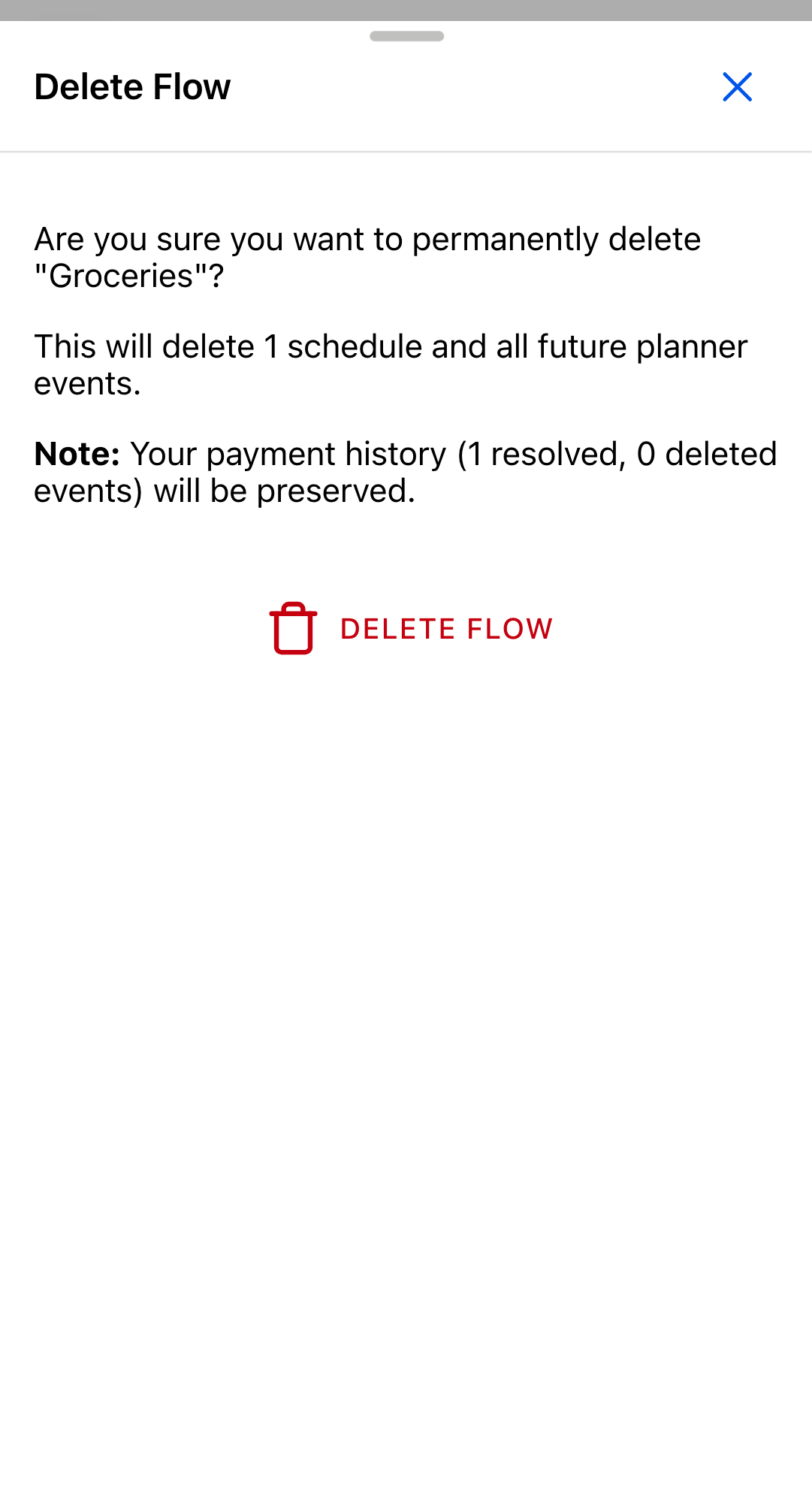
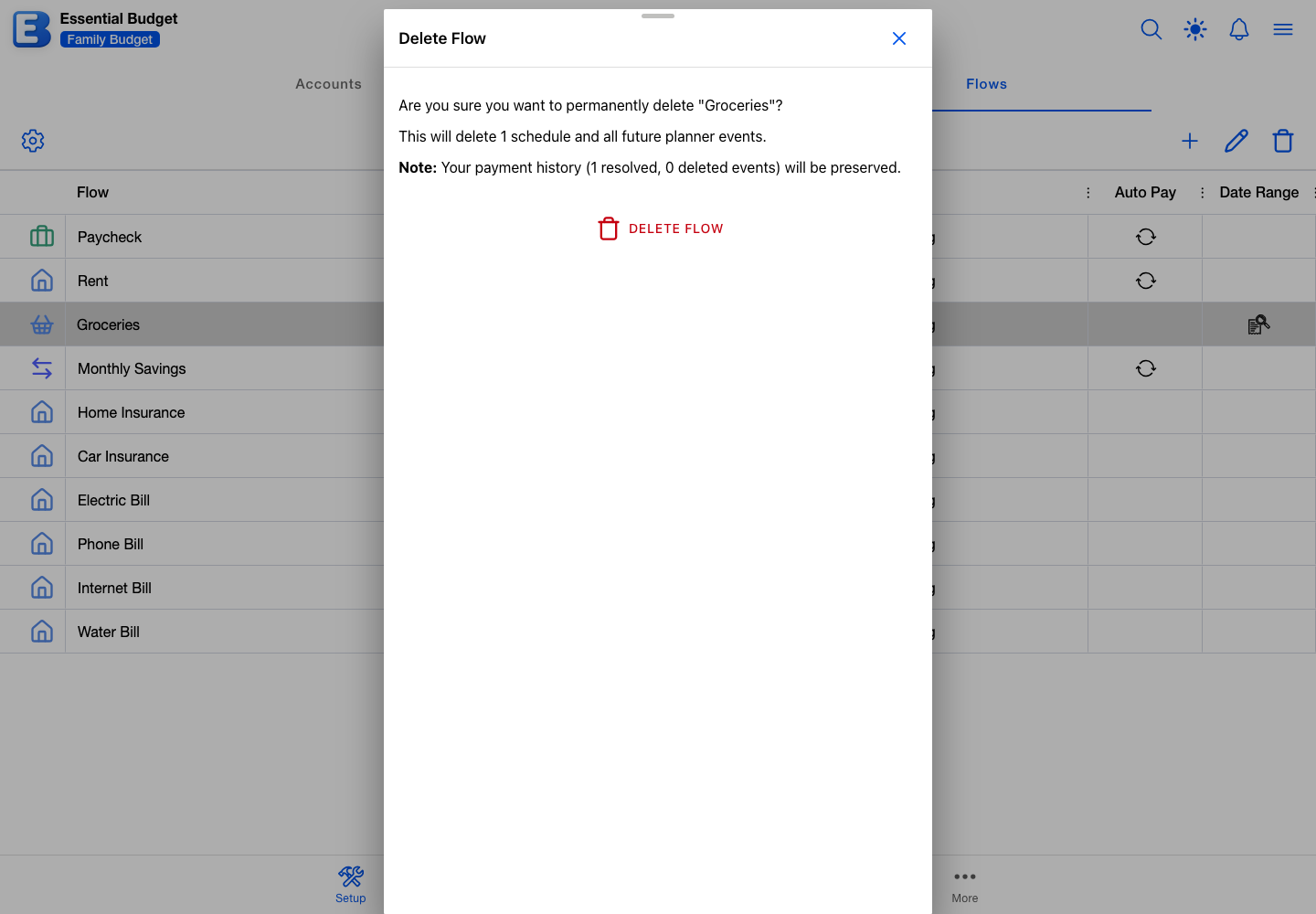
The dialog counts what goes: the schedules, all future planner events, and any per-event overrides, broken down by what you had changed. When the flow has resolved or deleted events, a Note line confirms your payment history is kept. When shopping products are mapped to the flow, a further line offers Reassign to another flow, which moves those mappings to a flow you pick so deleting this one does not unmap them. See Shopping Lists.
Your History rows stay, with the name, amount, category, and account they held when you resolved them. Two things do not survive. The individual transactions filed with those events are removed along with the flow, so a row keeps its total but loses the detail behind it. And undo ends: opening one of those rows shows “Cannot undo: The parent flow no longer exists.”, and Undo Action is greyed out.
Quick reference
| If you want to | Do this |
|---|---|
| Add a flow | Setup tab, Flows segment, Add Flow. Fill in name, category, and account, then set the schedule. Save. |
| Open a flow | Double-tap the row, or select it and tap Edit Flow. |
| Change a flow’s amount | Open the flow, change the schedule’s Amount. Save. Future events follow; overrides and transactions are untouched. |
| Edit just one occurrence | Tap the event on the Planner and change it inside Edit Flow Event. |
| Budget a period of spending rather than a dated bill | Open the flow, turn Due Over a Date Range on. Save. The schedule is left as it is. |
| Show a progress bar as transactions are recorded | Open the flow, turn Show Spending Progress on. Save. |
| Mark a flow as autopay (label only) | Open the flow, turn Auto Pay on. Save. |
| Add a second schedule pattern | Open the flow, tap Add Schedule, fill in the new pattern. Save. |
| Delete a schedule from a flow | Open the flow, tap the trash icon on the schedule’s panel header, confirm if asked. Save. |
| Stop future events while keeping undo on past ones | Delete the future events on the Planner. Adding an End date ends undo for that schedule’s History rows. |
| Delete a flow entirely | Open the flow, tap Delete Flow, confirm. Future events go; History rows stay but can no longer be undone. |
| Move a recurring transfer to a different destination account | Create the Transfer flow against the new account; the old flow goes when its original destination account is deleted. |
| Add more than 250 flows | Not possible. The cap is 250 per budget on every tier. |
Behind the scenes
Skim past this section on a first read. It explains a few details you can sometimes feel without needing to know them.
Short months and odd days. A monthly schedule set to the 31st lands on the real last day of each month, so February resolves to the 28th, or the 29th in a leap year, and April to the 30th. The Last entry asks for that behaviour explicitly. An annual schedule on February 29th lands there in leap years and on the 28th otherwise. No month is ever skipped, and no event ever rolls into the next month.
Schedule dates carry no time. They are stored as plain dates and anchored to midday whenever the app compares them, so no daylight-saving change or timezone shift can move an event off its day. A monthly-on-the-1st schedule lands on the 1st wherever you are.
Flows have no icon or colour of their own. The icon on a flow’s rows is its category’s, and the colour comes from the active theme. Income flows use the theme’s income colour. Expense and Transfer flows take a palette swatch based on where their top-level category sits in the tree, and a sub-category gets a lighter shade of its parent’s. Switching themes restyles every flow at once. See Categories for the full rule.
The Flows segment never calls AI. Flows can arrive from elsewhere, and every one of them is an ordinary flow you can edit or delete afterwards. AI budget generation writes flows when you create a budget that way, and that same step turns the recurring payments spotted at your linked bank into flows; later on, the app offers new ones it spots as suggestions you accept yourself (Bank Linking). Building from receipts writes flows too, one for each budget line you confirm, repeating at the rhythm your receipts show; AI chooses where each line belongs, and the amounts are calculated from what you actually paid. Matching calls no AI either: it compares each flow’s Bank Transaction Merchant Name, the amount, and the date against your transactions (Matching and Resolving).
One event holds up to 500 transactions. Only a long date range gets close, and the Edit Flow Event dialog says so when you reach the limit.
Related pages
- Categories: every flow lives in one category, and the category’s Type drives whether the flow adds to an account, takes from it, or moves money between two.
- Accounts: what happens to a flow when an account it points at is deleted.
- Planner: where the events your flows produce show up, and where the forecast horizon is set.
- Matching and Resolving: how events resolve, and how to match bank transactions to planned events.
- Bank Linking: how a linked bank’s recurring payments become flows.
- History and Undo: what survives when you delete a flow, and when undo is refused.
- Shopping Lists: lists you check off as you shop, priced from the receipts behind your grocery flows.
- Recipes: meals you save, what each costs at your own prices, and turning one into a shopping list.
Questions or feedback about this page?Email us.