
Learn - History and Undo
Every resolve and delete is recorded, and almost every one can be reversed.
History and Undo
History keeps a permanent record of every event you have resolved or deleted, so you can look up what you paid, when you paid it, and what it was filed against long after it left your planner. Almost every row can be reversed: one confirmation puts the event back on your planner with its transactions and edits, and adjusts your account balance only when the resolve was what moved it.
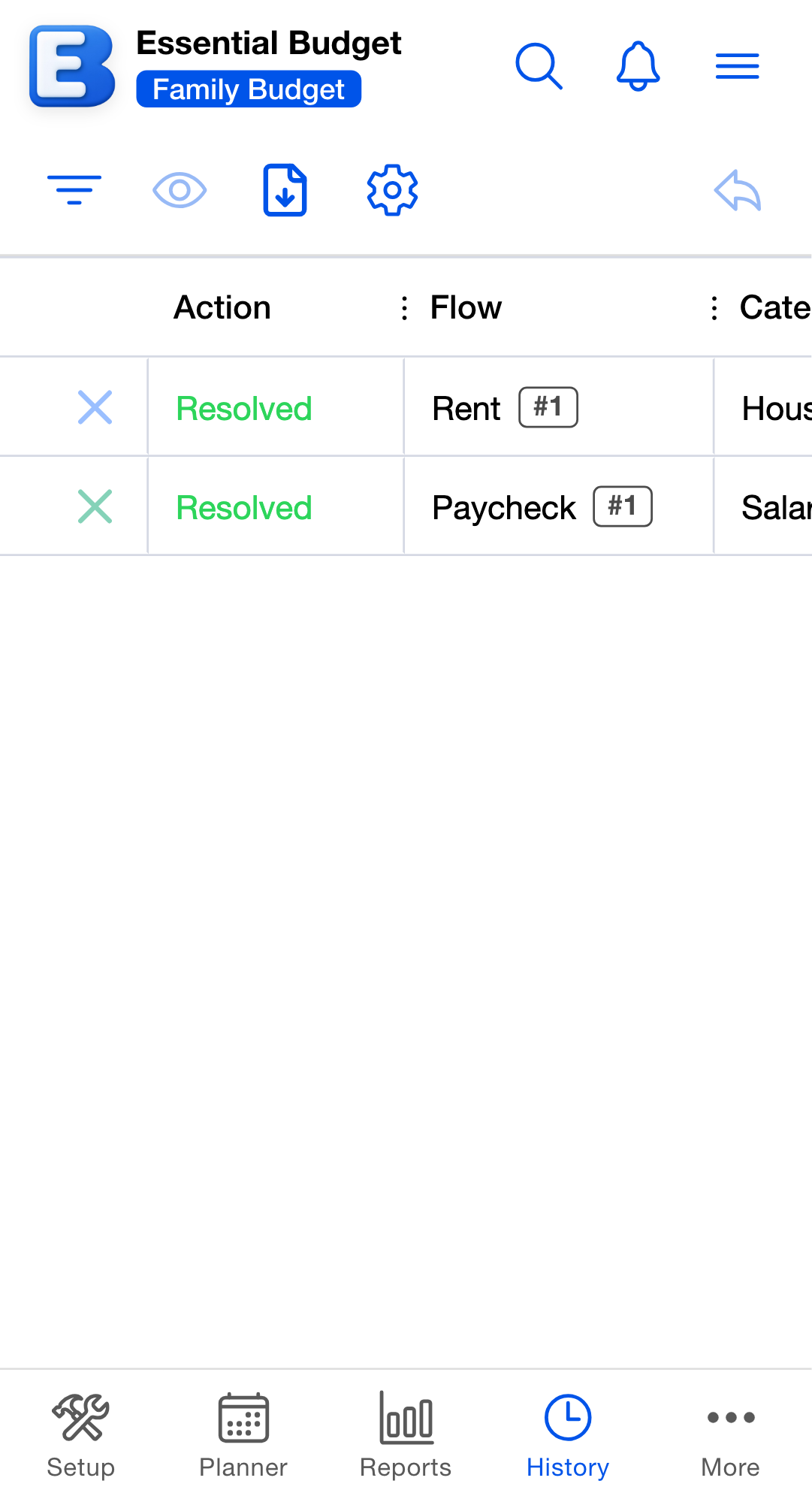
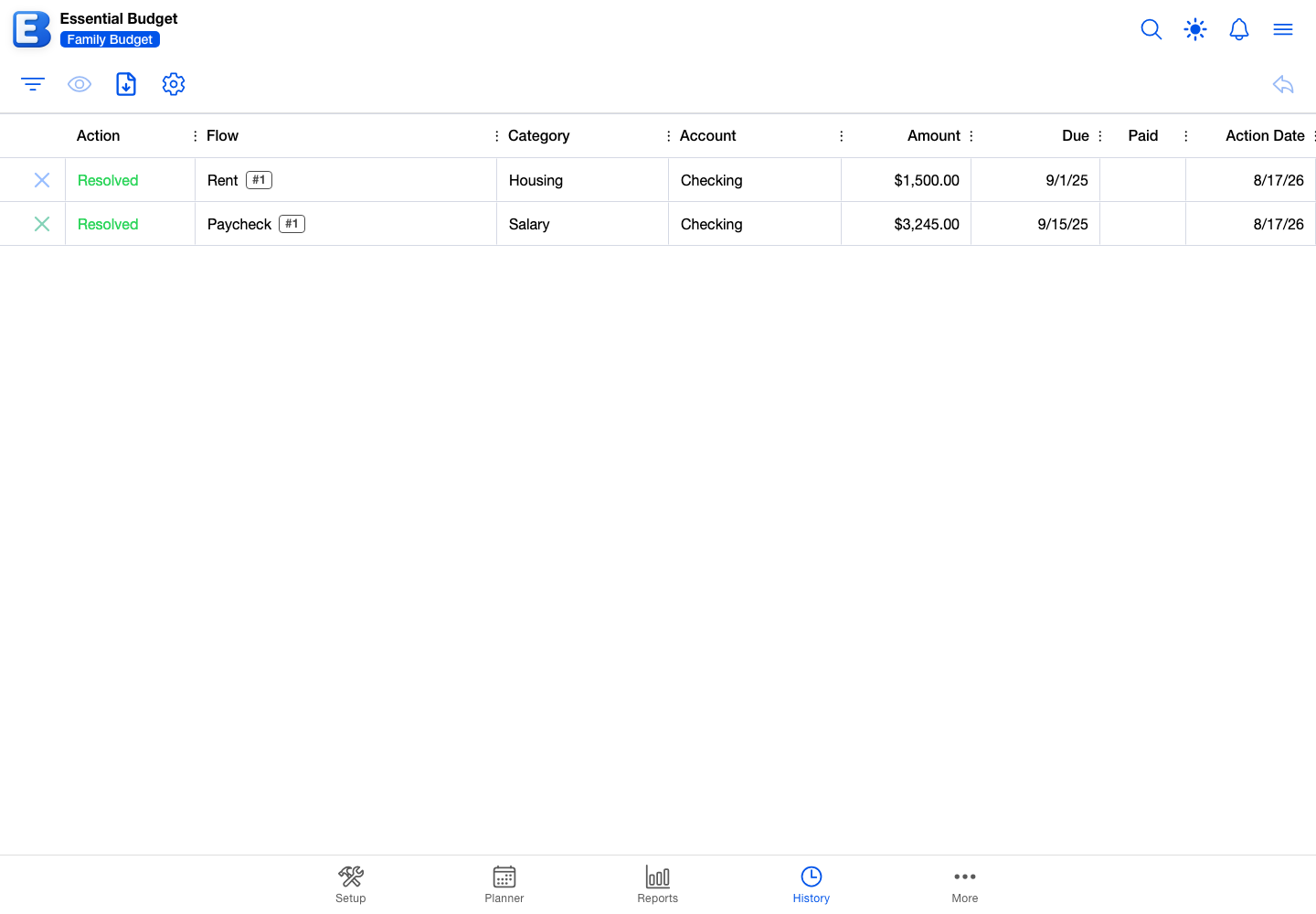
History is one of the five tabs in most budgets, alongside Setup, Planner, Reports, and More. In a budget created from receipts, it is the first entry in the More menu instead. Everything else on this page applies to both kinds of budget.
A row lands here whenever an event (one occurrence of a flow on one date) leaves your planner. Four things do that:
- Resolving an event on the planner.
- Deleting an event on the planner.
- Saving a batch of matches in Match Transactions. A flow due over a date range resolves once its matched transactions reach the planned amount; a flow due on a single date resolves on its first match.
- Confirming a scanned receipt whose amounts land on an event, on those same terms.
Marking an event paid does not create a row, because Paid is a status on an event that is still scheduled. If you change your mind, flip it back on the planner.
What’s in a row
Each row is a snapshot of one event at the moment it left the planner. The flow, category, and account names are recorded as they stood on the day the row was created. If you rename the parent flow (the recurring income or expense the event came from) later, the old rows keep the original name.
The columns are:
- Action. Either Resolved or Deleted.
- Flow. The name on the event when it was recorded.
- Category and Account. The category and account on the event when it was recorded.
- Amount. The amount recorded on the row. When the event carried transactions, this is their total. When it carried none, this is the amount the event was due for, including any change you made to that one occurrence.
- Due. The date the event was scheduled for.
- Paid. The date you marked the event paid. Blank if you never marked it paid.
- Action Date. The day the row was created.
Rows are listed newest first by Action Date, and that order is fixed: History columns cannot be sorted. The grid loads another hundred rows each time you scroll to the bottom.
Why are the names a snapshot rather than the current names? So your old History stays true to what actually happened. If you rename the Streaming category to Subscriptions this year, last year’s Netflix rows still read Streaming, because that is what they were filed against at the time. The Event History dialog has a separate Flow tab when you want to see what the parent looks like today.
The History toolbar
The toolbar runs across the top of the page. Its five controls are icon buttons, so their names appear when you hover over them. When the screen is too narrow to fit them all, the ones that do not fit move into a More Options sheet, where they are listed by name.
Filter by Status. Opens a dialog titled Filter by Status holding two rows, Resolved and Deleted. Both start on, and a checkmark shows which are on. At least one has to stay on, so tapping the only one left does nothing. Your choice is remembered on this device rather than on your account, so a different phone or browser starts with both on again.
View History Item. Opens the Event History dialog for the selected row. Double-tapping a row opens it too.
Export to Excel or CSV. Opens a dialog titled Export with two choices, Export to Excel and Export to CSV. The file is named for your budget and today’s date, for example MyBudget_history_2026-05-08.xlsx.
Grid Settings. Controls how the grid looks: which columns show, what order they sit in, whether columns stretch to fill the width or hold a fixed width, and a Reset to Defaults button. These choices are remembered on this device.
Undo Action. Reverses the selected row, after a confirmation. It sits on the right by itself, and it greys out when no row is selected or the selected row cannot be reversed (see When Undo is blocked).
Export and Grid Settings grey out whenever the grid is empty, which includes a search that matched nothing.
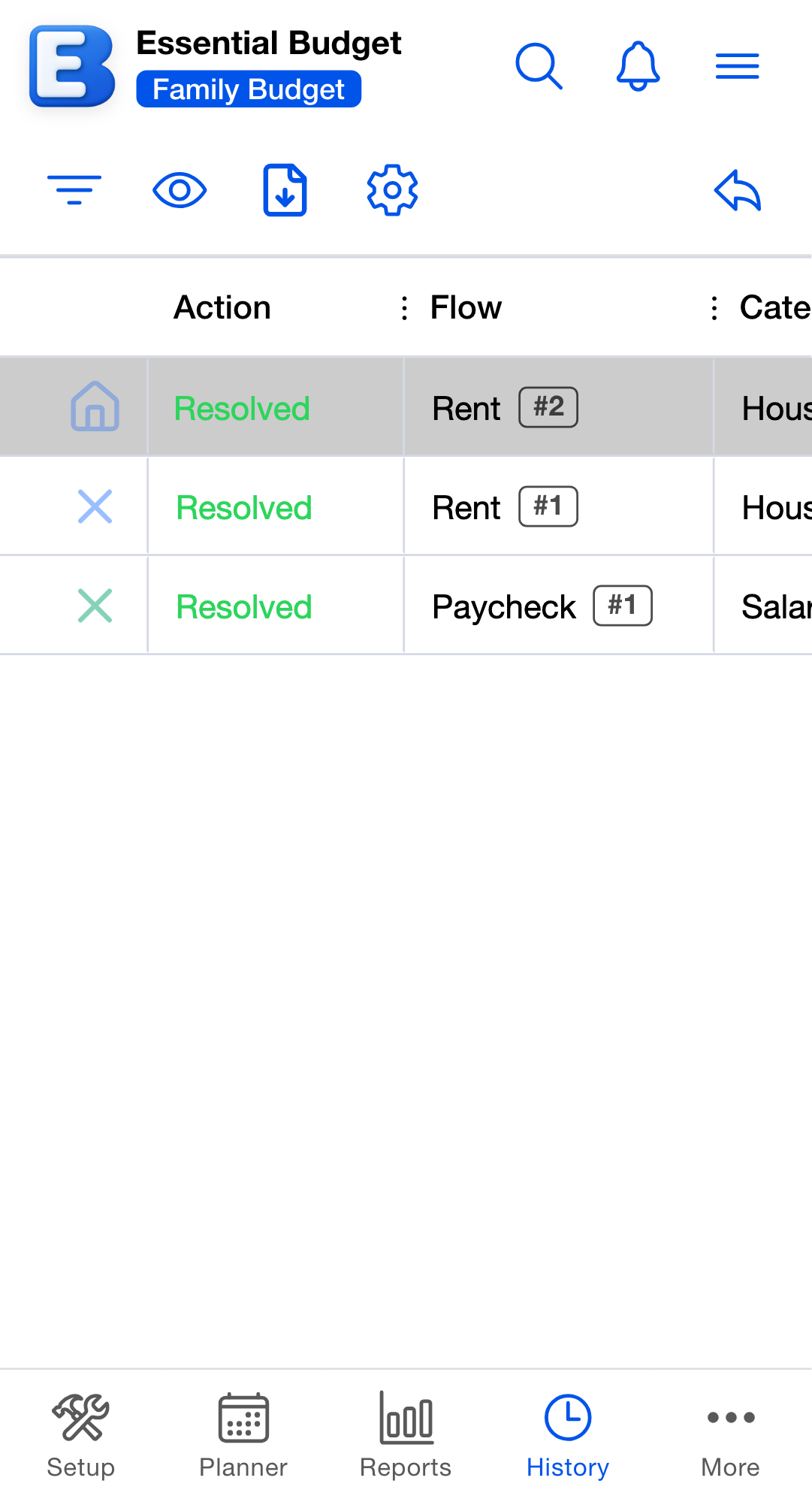
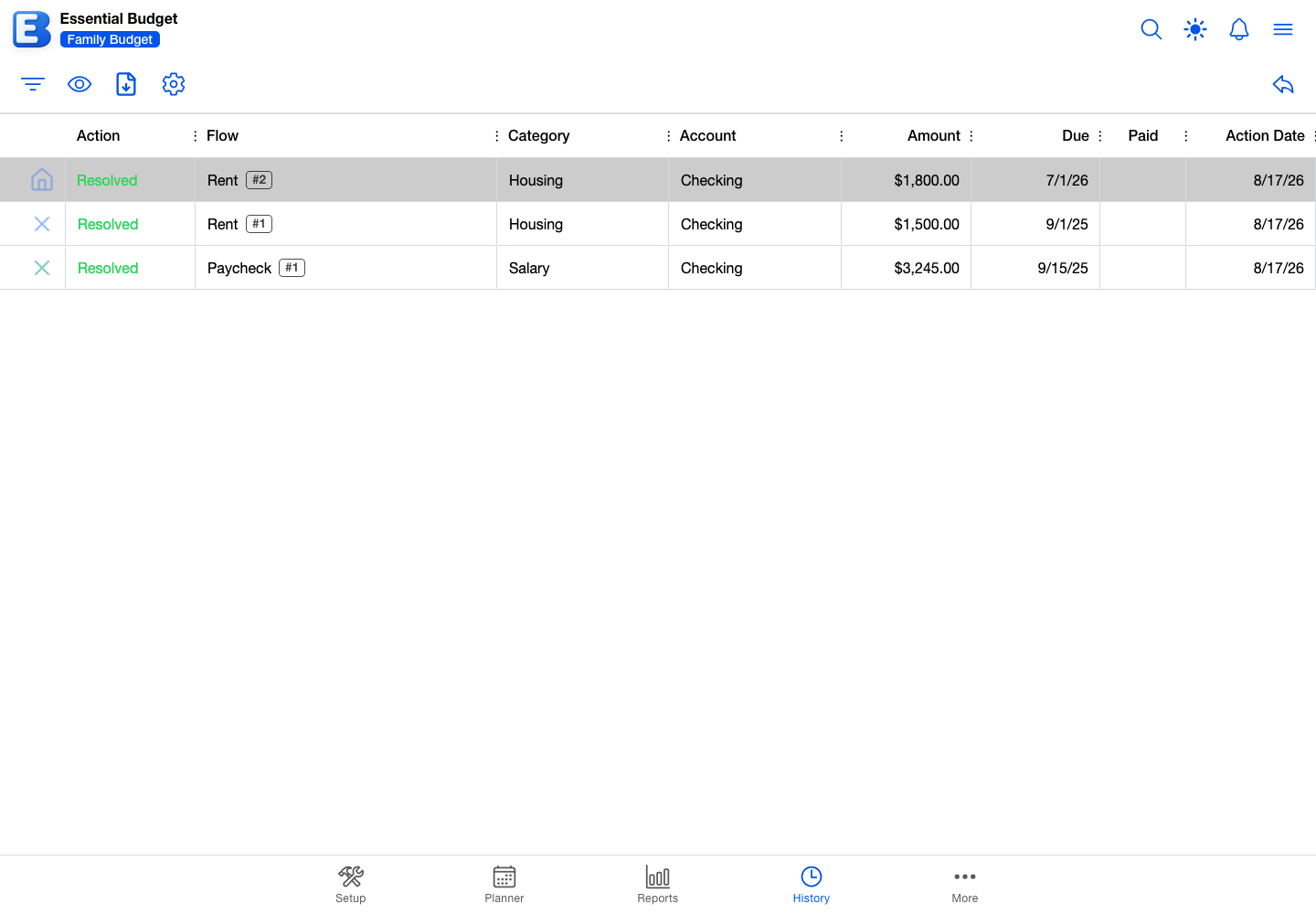
The export does not fetch rows you have not seen. It writes the rows currently loaded into the grid, which is the first hundred matches plus any further pages you loaded by scrolling. Scroll to the bottom of a long History before exporting it.
The Event History dialog
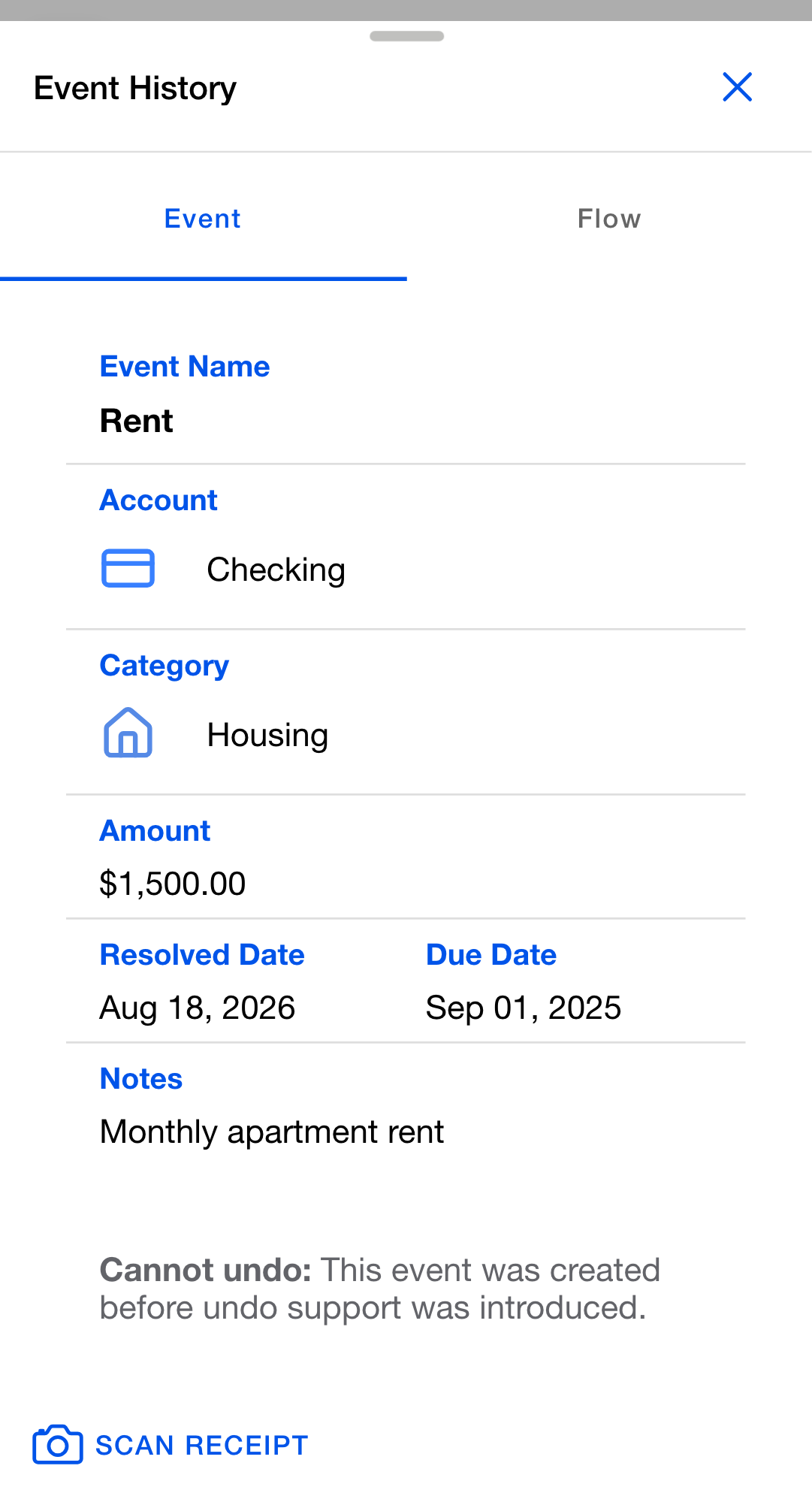
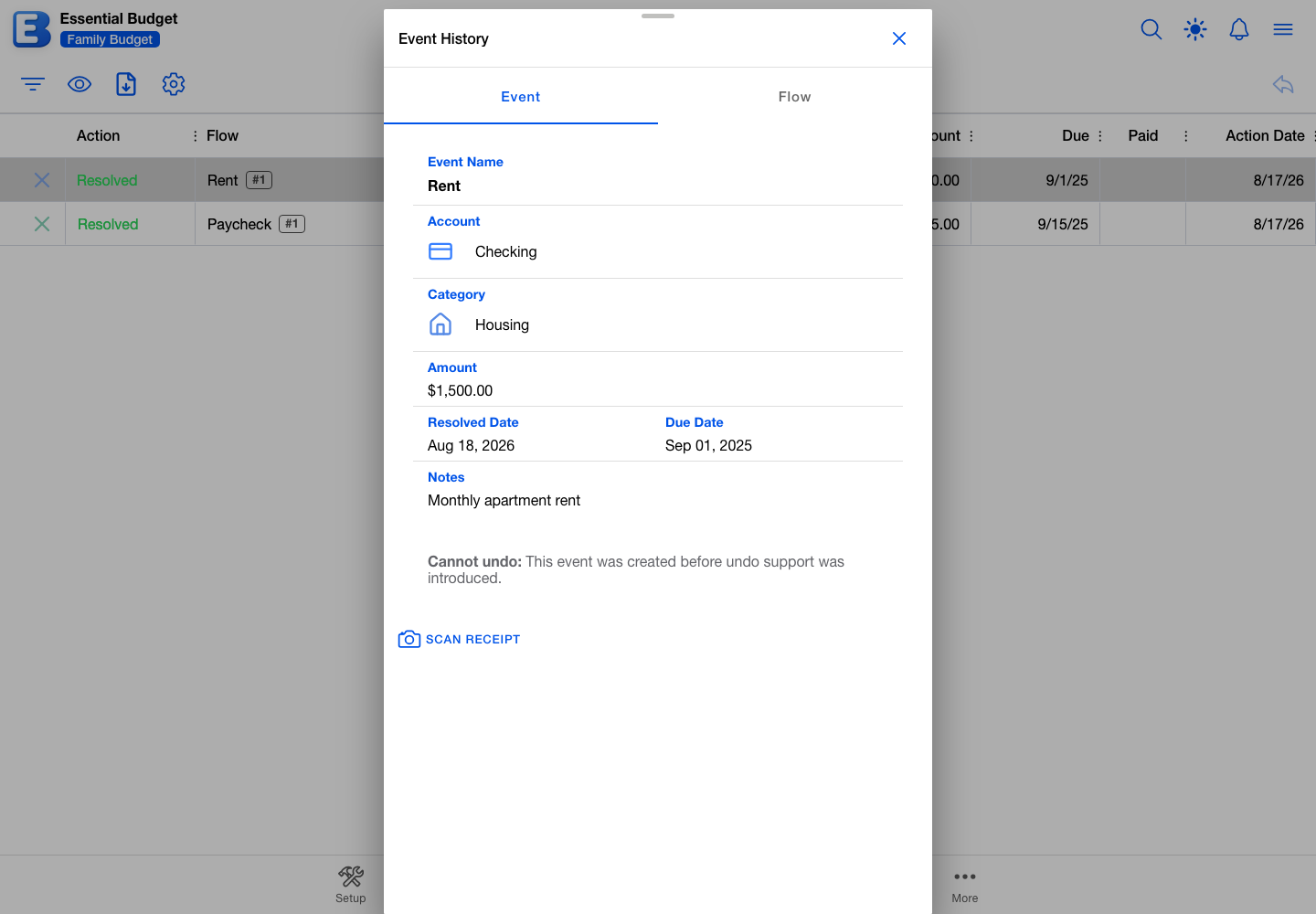
The dialog has two views. Event shows the snapshot recorded when the row was created, including the transactions filed against the event. Flow shows the parent flow as it stands today, so you can compare. The recorded values cannot be edited: to change anything, undo the row, edit the event on the planner, then resolve it again.
The Event view also carries the undo control for this row, labeled Undo Resolution or Undo Deletion, and a strip of any receipts attached to the event with a Scan receipt button for adding another.
Searching History
When you tap the magnifying glass in the app’s top bar, a search row opens beneath it. On History, that search runs against every row in the budget, not only the ones already loaded.
Search looks at the flow name, the description, the category and account names recorded on the row, the amount in several written forms (125, 125.00, $125.00), the due and paid dates, and the word Resolved or Deleted. Capitalization does not matter, and partial words match, so typing net finds Netflix.
Dates are indexed in their own written forms, which are not the form the grid shows. A due date of 8 May 2026 is found by 2026-05-08, May 8, 2026, May, or 2026. The Action Date is not searchable at all.
Your Filter by Status setting still applies while you search: turn Deleted off and the search returns resolved rows only. Clearing the search field brings back the full filtered list.
Undoing a row
Select a row, then tap Undo Action. A confirmation dialog opens. Its title reads Undo Resolution of or Undo Deletion of, followed by the event name recorded on the row, which is the name as it stood then rather than the flow’s name today.
Under the heading This action will:, the dialog lists two outcomes. The first is always Restore to Planner. The second is a balance line that takes one of three shapes, described below. A red Undo button at the bottom carries it out.
What restoring means in practice: the event reappears on the Planner in the date slot it occupied before, with its notes, any per-event change to its amount or date, and its Paid status if it had one. Transactions filed against the event become active again. Import hashes are re-registered so a later bank pull treats those transactions as already known. The History row is removed. Everything in that list happens together or none of it does.
If you are undoing a resolve on an event that took amounts from a scanned receipt, the undo also unlocks that receipt’s mapping so you can change how it is split; see Receipts.
A resolved row with no transactions on it
When the event carried no transactions, the resolve itself was the moment your balance moved, so the dialog shows a Reverse Balance Change toggle, on by default.
Leave it on and the undo restores the event and reverses the balance change the resolve made. Turn it off when you have already corrected the balance another way and do not want a second adjustment.
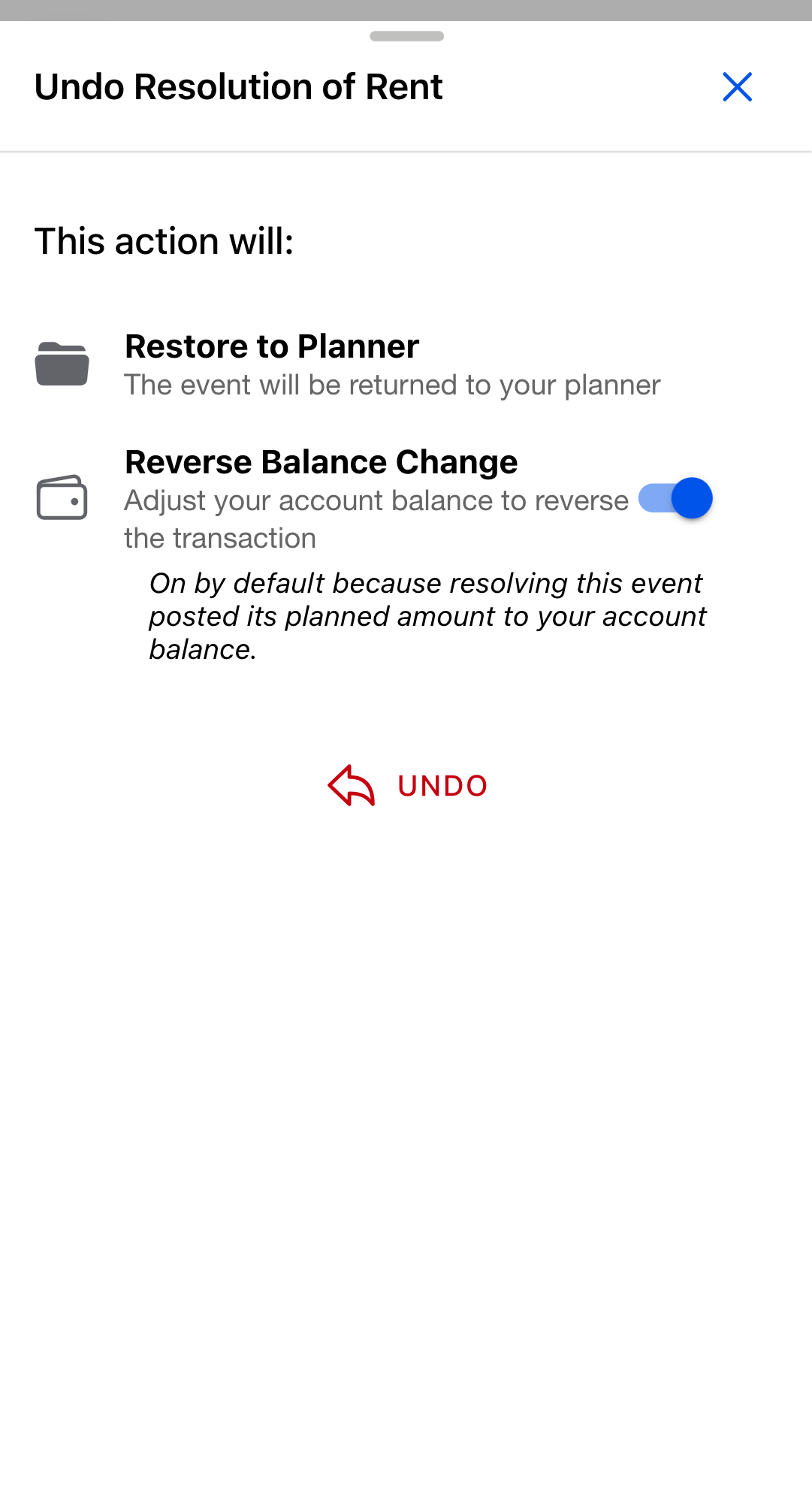
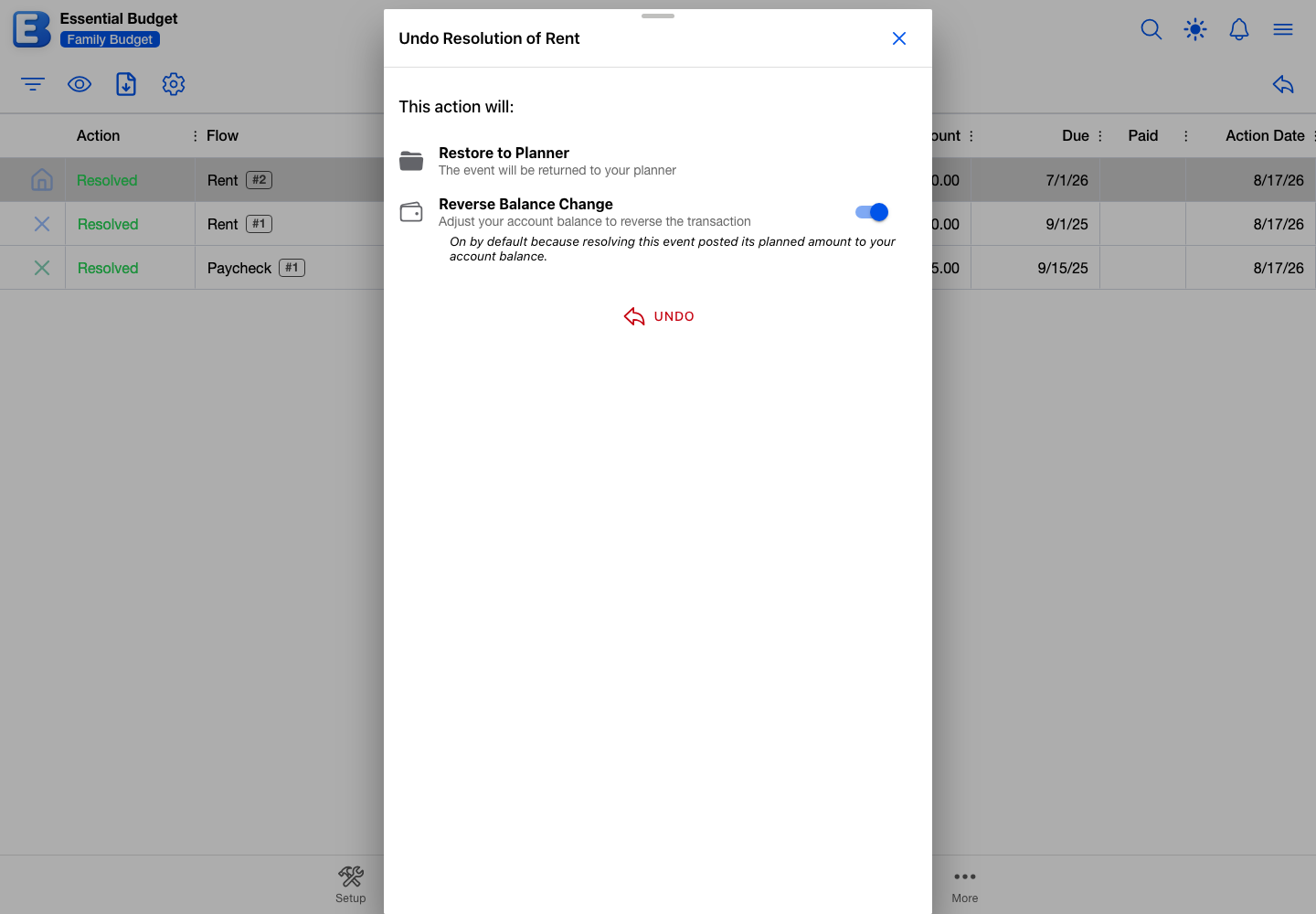
Why is Reverse Balance Change on by default? Because on an event resolved with no transactions, the resolve was the only step that ever moved money. The app posted the planned amount to your account when you resolved it. Undoing the resolve should undo that too, so the toggle starts on. It is there for the times you have already fixed the balance yourself.
A resolved row with transactions on it
When the event carried transactions, those transactions moved your balance the moment they were added, not when the event resolved. The dialog shows no toggle. An Account Balance line explains that the balance is not adjusted: the transactions come back as active and keep the effect they already had.
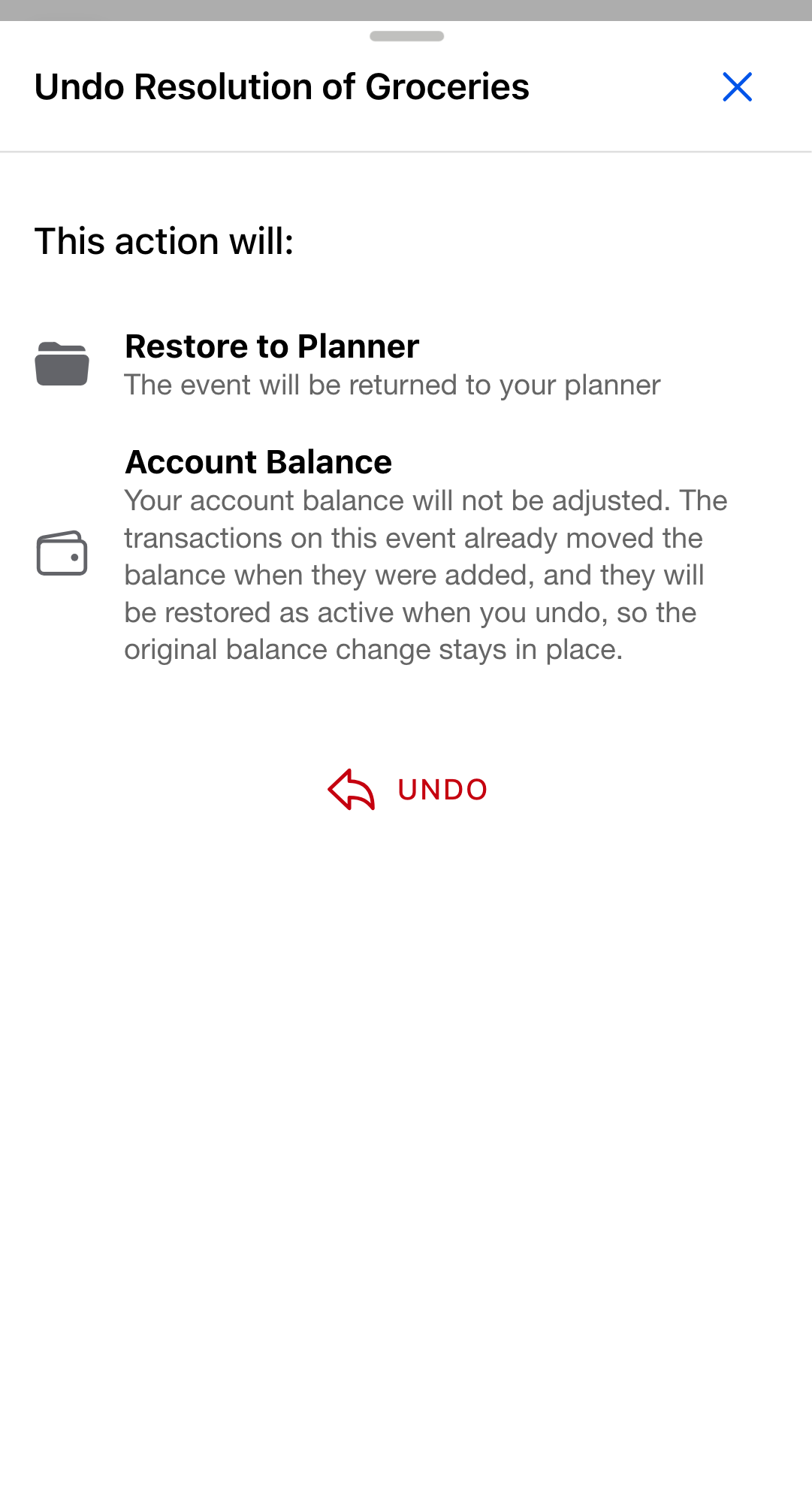
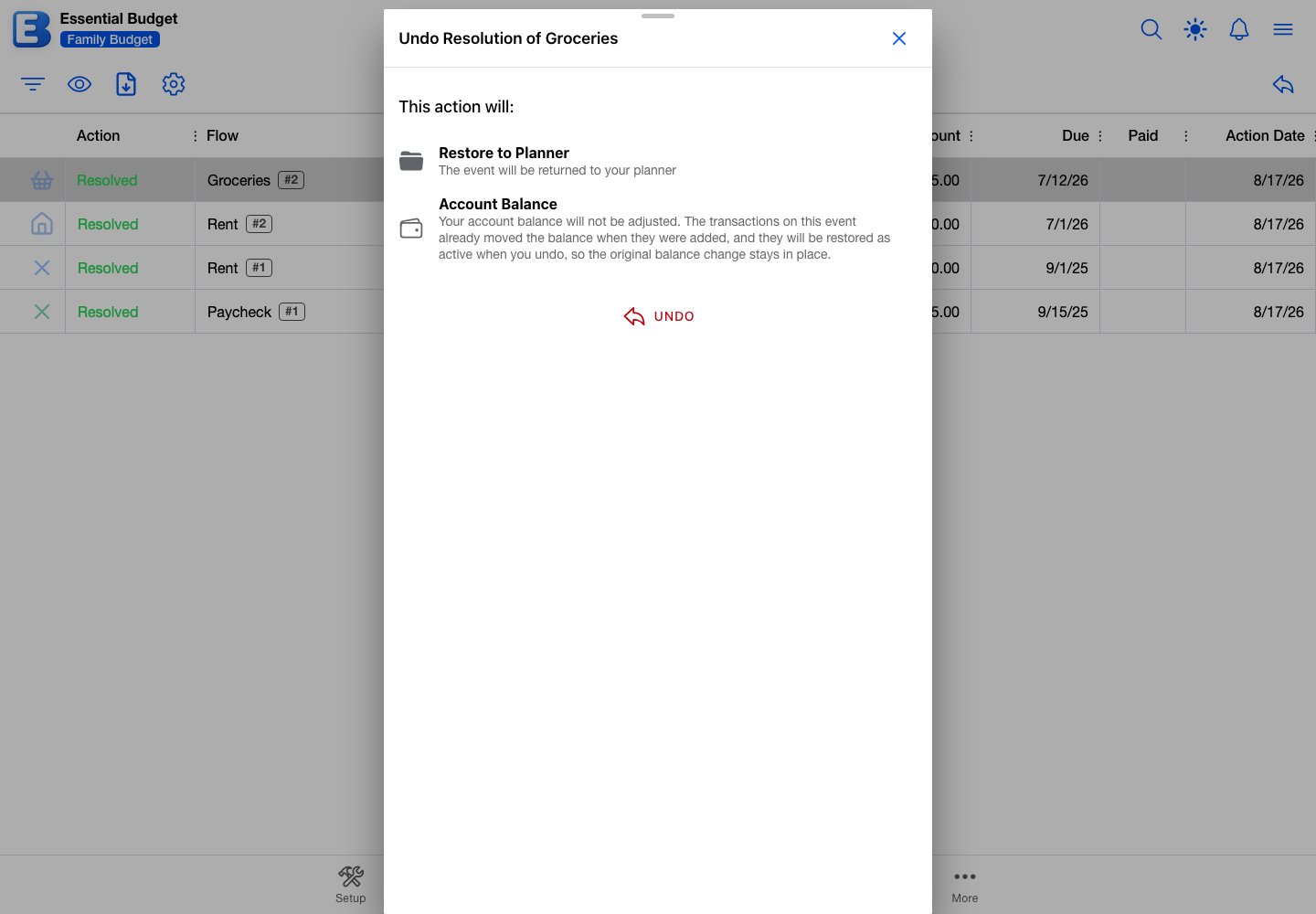
Why is there no toggle here? Reversing a balance the resolve never moved would subtract the same money twice. The dialog hides the toggle so the arithmetic stays right, and the app ignores the setting on this kind of row even if it were shown.
A deleted row
Deleting an event never moved your balance, so there is nothing to reverse. The dialog shows no toggle and an Account Balance line saying the balance is not modified.
Undoing a delete does not re-attach receipts. Deleting an event releases any receipts attached to it, and they stay loose in your budget after the undo; attach them again from the event.
When Undo is blocked
Most rows can be reversed. A row is blocked when something the event needs on its way back to the planner is gone: its flow, its category, or the schedule slot it came from. The Undo Action button greys out for those rows, and the Event History dialog names the reason on a line starting Cannot undo:. Whichever way an undo is refused, the row stays in History and nothing is changed.
The button greys out when any of these is true:
- The flow was deleted. With the parent gone, there is nothing to attach the event to.
- The schedule was deleted, removed from the flow, or changed in its timing. Resolving records the schedule’s exact timing. If you change how often it repeats, which dates it lands on, or when it starts or ends, the event no longer maps back to a slot. Changing a schedule’s amount blocks nothing.
- The category was deleted or replaced. Replacing a category across your flows deletes the old one, and that blocks undo on every row that recorded it, even though the flows themselves are fine.
- The row is from an older version of the app. A few early rows do not carry the data undo needs.
Those apply to rows you created this morning as much as to old ones. A new row is reversible until you delete its flow, delete or replace its category, or change its schedule, so undo first and reorganize afterwards.
Deleting an account is the exception that does not block an undo. The undo goes through, but your balance is not reversed even with the toggle on, because the account it would adjust no longer exists.
When the undo fails on confirm
Three refusals cannot be detected before you confirm. The button stays enabled for those, and the dialog reports the reason in red without closing.
The one worth planning around applies to deleted rows whose bank-imported transactions have since been matched elsewhere. Deleting an event releases its import hashes so a later pull can match those transactions somewhere else (see Why the same imported transaction is not recorded twice). If you then run Match Transactions and the same transactions land on a different event, undoing the original delete would put one transaction on two events. The app refuses, and asks you to remove the other matches first. Open the event that now holds them, delete them there, then retry the undo.
The other two are simpler. Someone with view-only access is refused (see below). An undo is also refused while a collaborator is editing the same flow, schedule, account, or category, and works again once they are done. Both are safe to retry.
Why does the app refuse to pick a side on a matched transaction? The same bank transaction cannot belong to two events at once without being counted twice everywhere. The deleted event was its original home, and another event has since claimed it. Either answer could be the right one, so the app waits for you to remove the wrong one rather than overwriting a match you made deliberately.
Who can undo
Anyone who can open the budget can browse, filter, search, and export History. Undoing a row needs edit access: the budget owner, or someone the owner shared the budget with as an editor. To grant edit access, the owner uses Sharing; see Sharing.
With view-only access the Undo Action button still looks available. The refusal arrives after you confirm, as an error inside the dialog, and the row stays where it was.
How long History keeps your rows
History keeps the current calendar year plus the previous five full years. Older rows are removed automatically as new ones are added to that budget. The cleanup goes by age, never by count, so an active budget keeps just as much history as a quiet one.
A row that has been cleaned up is gone for good. Undo only works on rows still in History, and budget backups do not include History. In practice the cutoff sits far enough back that you will rarely see a row drop off.
Why the same window on every plan? History is record keeping, not a paid extra. Five years plus the current one covers taxes, year-over-year comparisons, and any look back you would want to do inside the app, and clearing the rest keeps the grid quick however busy your budget is. The window is the same on the free plan, on Premium, and on shared budgets.
Quick reference
| If you want to… | Do this |
|---|---|
| See everything you’ve resolved or deleted | Open History (under More in a budget created from receipts). |
| Look up an event’s details | Select the row, then View History Item. |
| Show only resolved rows or only deleted rows | Tap Filter by Status and turn one off. |
| Find a specific row | Tap the magnifying glass in the top bar and type. |
| Reverse a resolve or a delete | Select the row, then Undo Action. Confirm the dialog. |
| Reverse a resolve without changing the account balance | Turn the Reverse Balance Change toggle off before confirming. |
| Restore an event whose bank transactions are now on another event | Open the other event, delete the transactions there, then retry the undo. |
| See why a row cannot be undone | Open it with View History Item and read the Cannot undo: line. |
| Save your whole History to a file | Scroll to the bottom of the grid, then tap Export to Excel or CSV. |
| Hide a column you do not use | Tap Grid Settings. |
Behind the scenes
Snapshots, not live values. Every value on a row is captured when the row is created and never changes afterwards. Renaming a category, deleting an account, or editing the parent flow leaves existing rows alone. The Event History dialog’s Flow view is the one place that shows the parent as it is today.
There is no per-row delete. Nothing on the page removes a single row by hand. The age-based cleanup is the only deletion there is. Filtering, hiding columns, and exporting change what you see and nothing else.
Search runs against a stored index. When a row is created, the app builds one searchable line from its values and stores it on the row. A search then matches that line two ways at once, as whole words and as a plain substring, which is why partial words work. The Action Date is left out on purpose: it depends on your timezone, so a row you found by its date today could stop matching once you change your timezone setting.
Undoing a transfer moves two balances. A transfer event has a From and a To account, and resolving it moved both. Undoing a resolved transfer with Reverse Balance Change on reverses both in the same step. Transfer events do not have a Transactions section.
No AI reads your History. The grid, the search, the filter, the export, and the undo all run on the app’s own servers against your budget’s data, with no AI model involved. The one AI feature reachable from this page is the Scan receipt button inside the Event History dialog, which reads a photo of a receipt. See Subscription for where AI is and is not used.
Undoing an undo. There is no second-level undo. Resolve or delete the event again from the planner and it comes back to History as a new row.
Related pages
- Matching and Resolving: the lifecycle that fills History.
- Planner: where Undo restores events to.
- Flows: how Due Over a Date Range decides which amount lands in History.
- Transactions: how import hashes interact with deleting and undoing events.
- Sharing: who can undo on a shared budget.
- Subscription: where AI is and is not used in the app.
Questions or feedback about this page?Email us.