
Learn - Receipt-Based Budgeting
Your receipts already know your budget.
Receipt-Based Budgeting
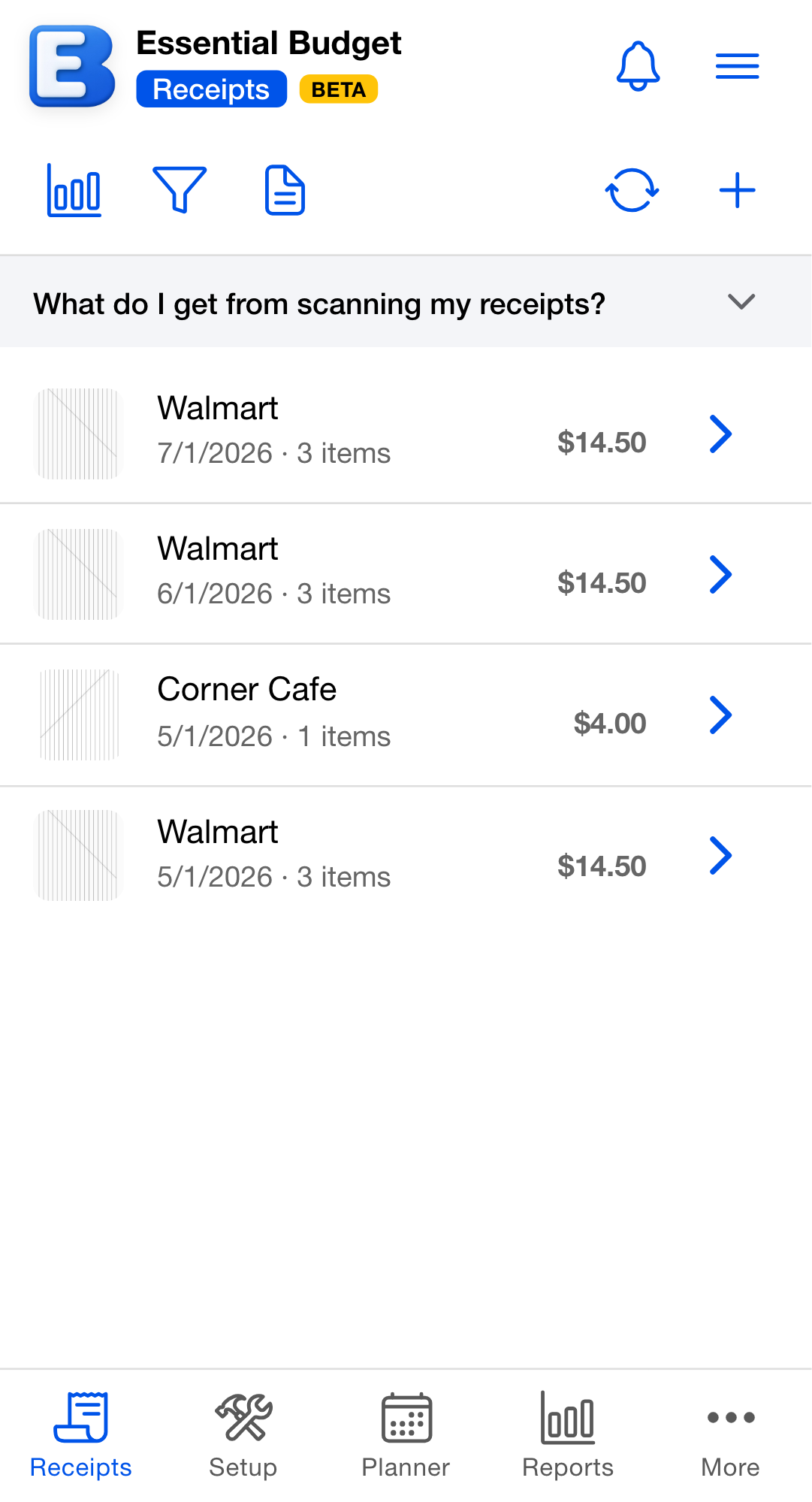
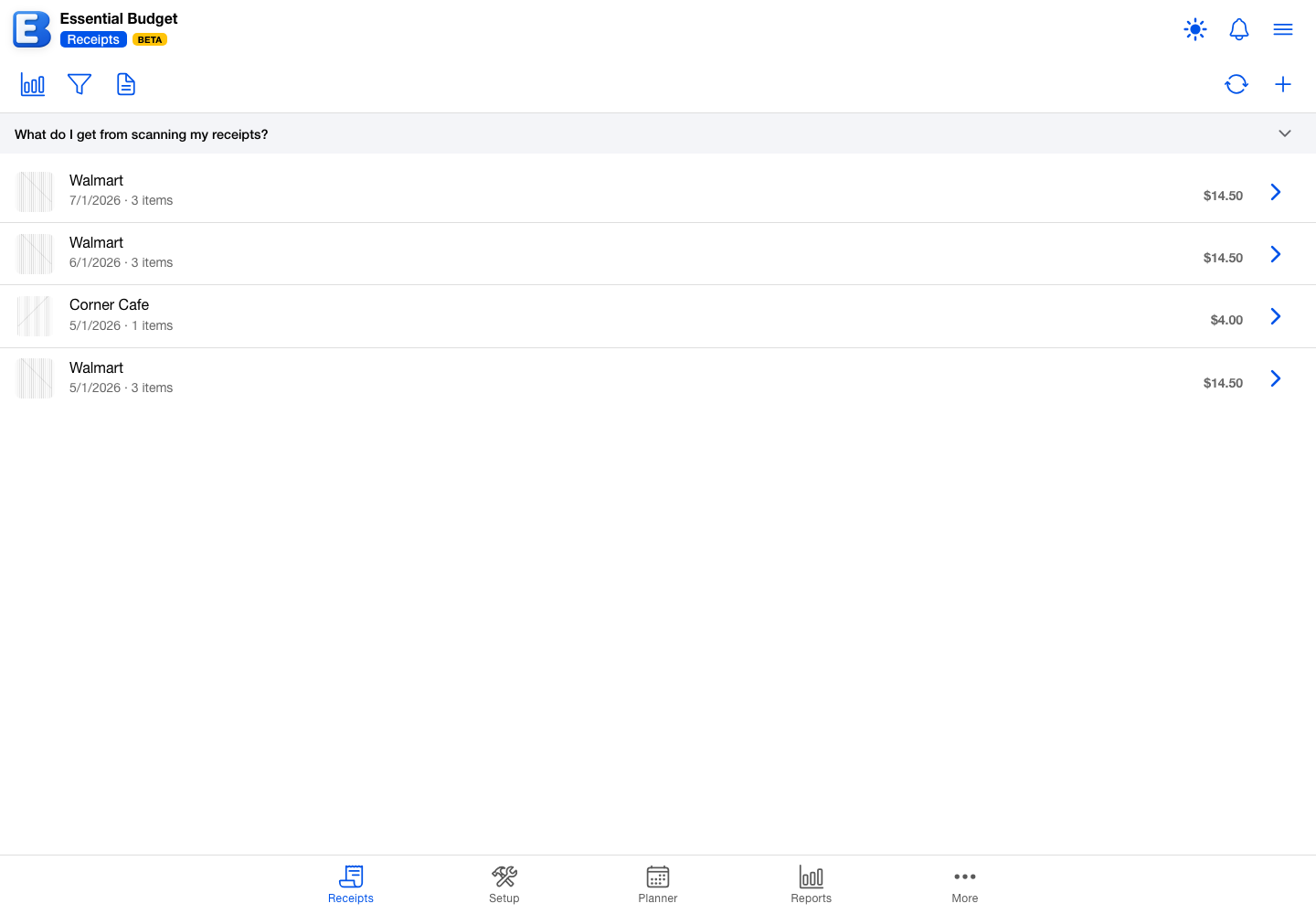
Receipt-Based Budgeting turns your scanned receipts into a working budget. Instead of guessing what you spend, you scan receipts as you shop and tap Sync on the Receipts tab whenever you want. The app proposes budget lines for the stores and products your receipts show, each with how often it repeats, an amount calculated from what you actually paid, and a preview of the past months it will file into History. You review every suggestion, adjust anything, and nothing changes until you confirm. There is no waiting period: one receipt is enough to start, and the same button keeps your budget current afterwards. Building and updating a budget this way is part of Premium. Every account includes 10 receipt scans, granted once at sign-up, and every receipt report built from them is free for everyone.
Starting with receipts
There are two ways to begin, and both create a budget for your receipts to live in.
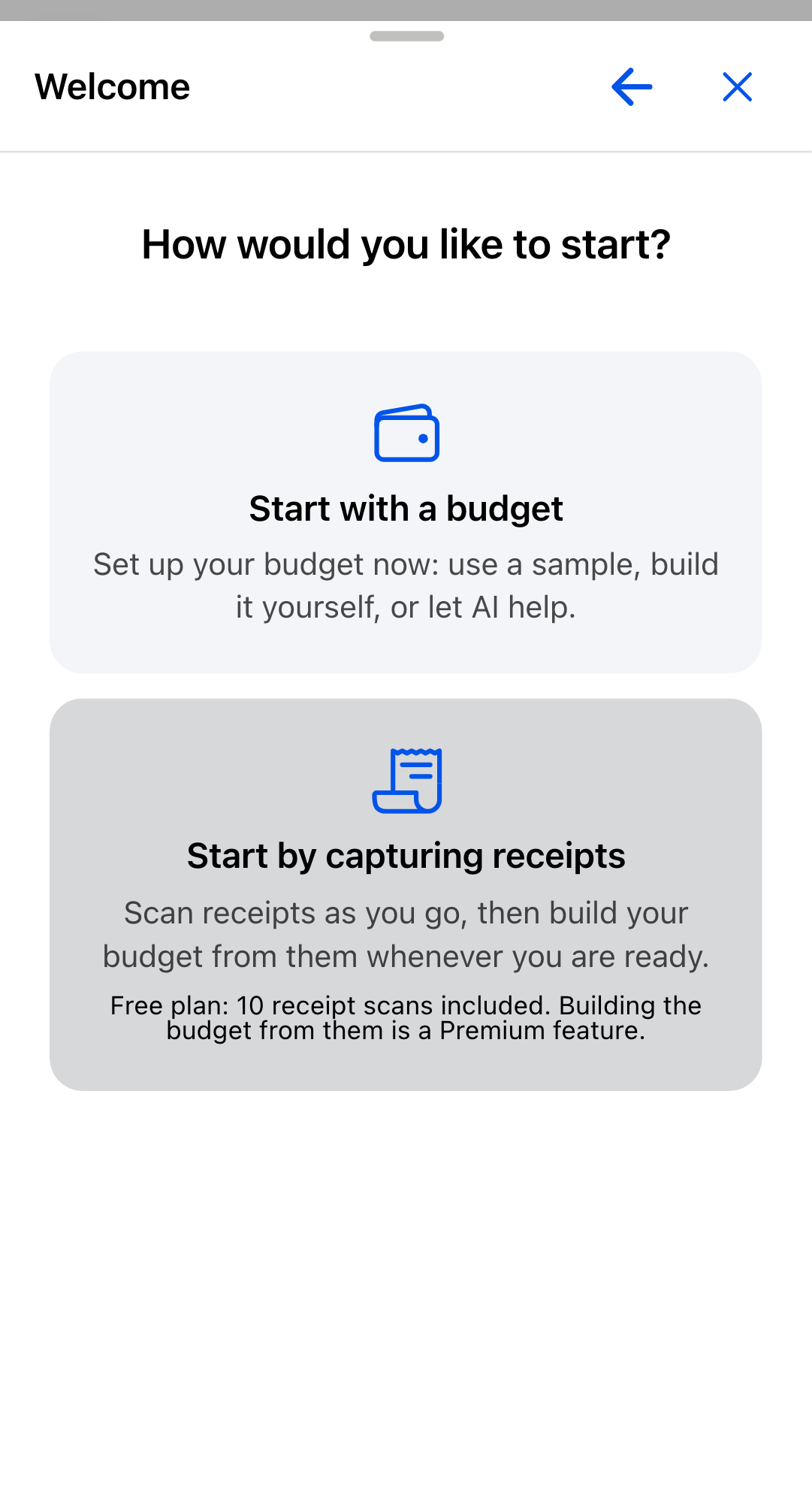
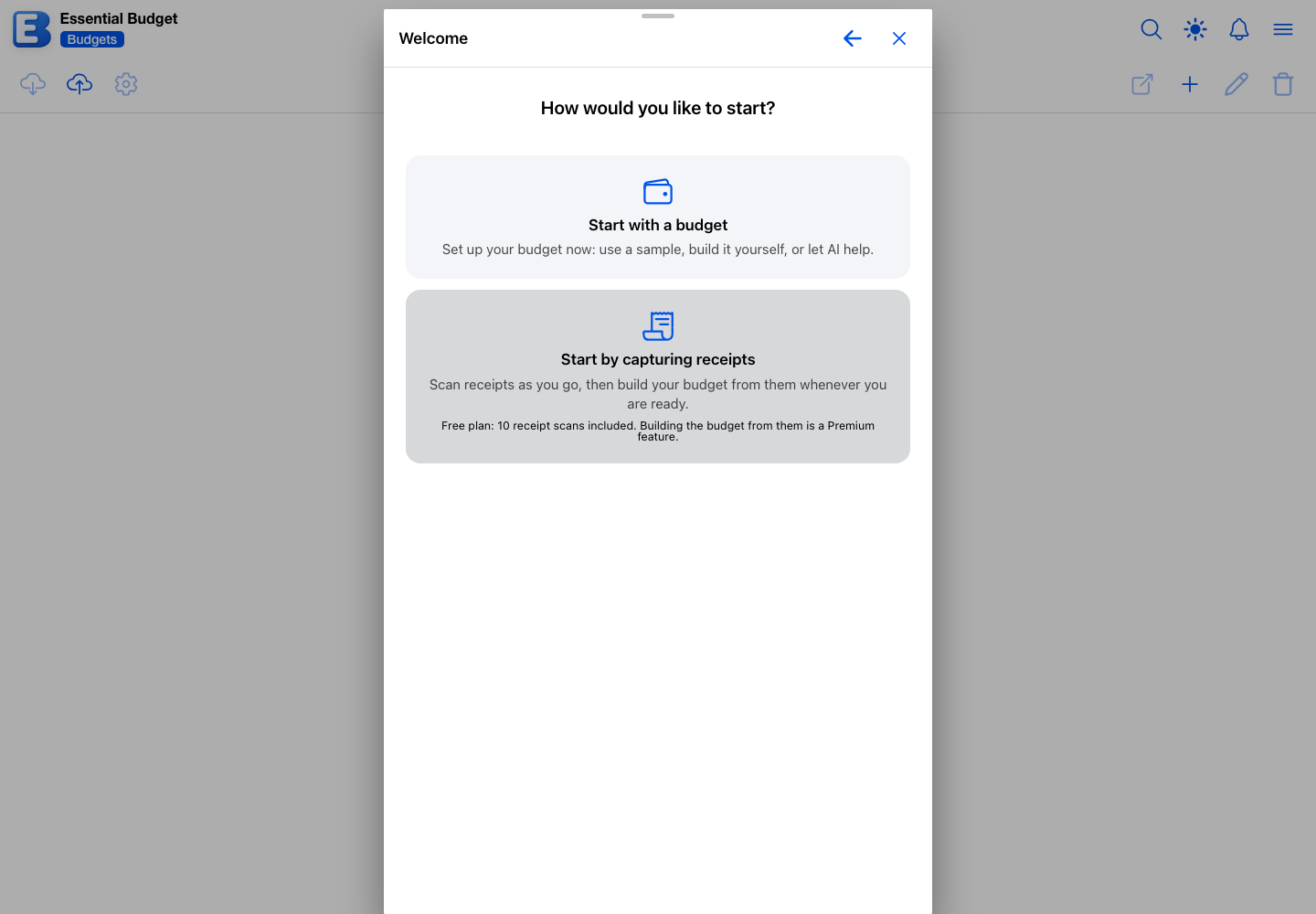
When you create your account, the app asks How would you like to start? Choose Start by capturing receipts. On the free plan, the card itself states the plan up front: how many free scans are included, and that building the budget from them is a Premium feature. The app asks you to name your budget (the name is prefilled with My Budget), and the Start Capturing Receipts button creates it and takes you straight to the Receipts tab, ready to scan. No bank connection and no setup questions stand in the way. The same question appears any time you sign in without any budgets.
From the Budgets page, open the Create Budget dialog and choose From Receipts next to Manual and AI Generated. On the free plan, a line under the selector states the number of free receipt scans included with your account. The panel explains the plan in one line: start by capturing receipts into this budget, and the sync button on the Receipts tab builds your budget from them whenever you want. Name the budget and save. On Premium, if you are already collecting receipts in another budget that has not been built yet, the panel points that out (“You’re already collecting receipts in My Budget. Open it instead?”) so you do not start a second collection by accident, but a second one is allowed: separate budgets for personal and business receipts work fine.
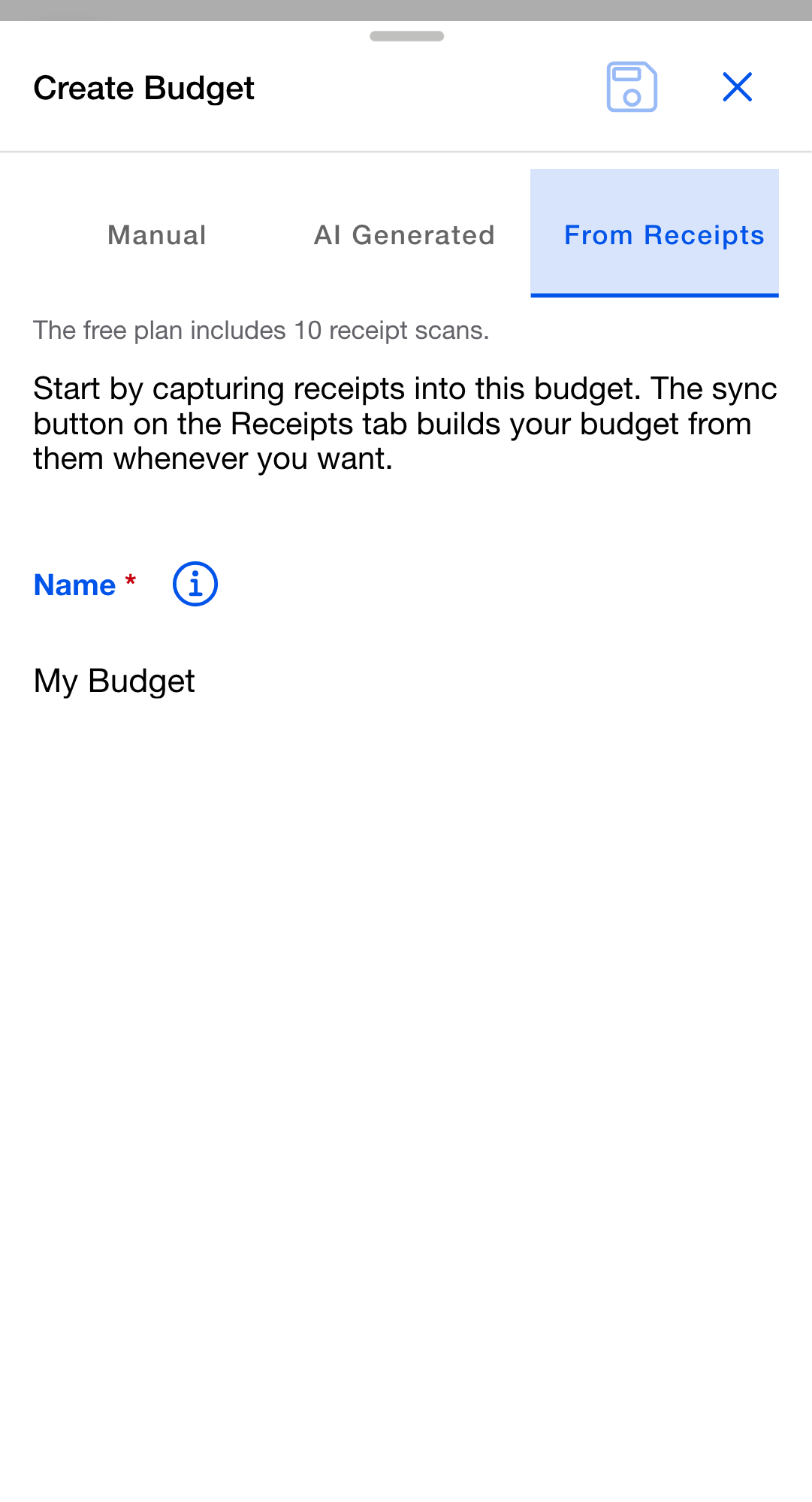
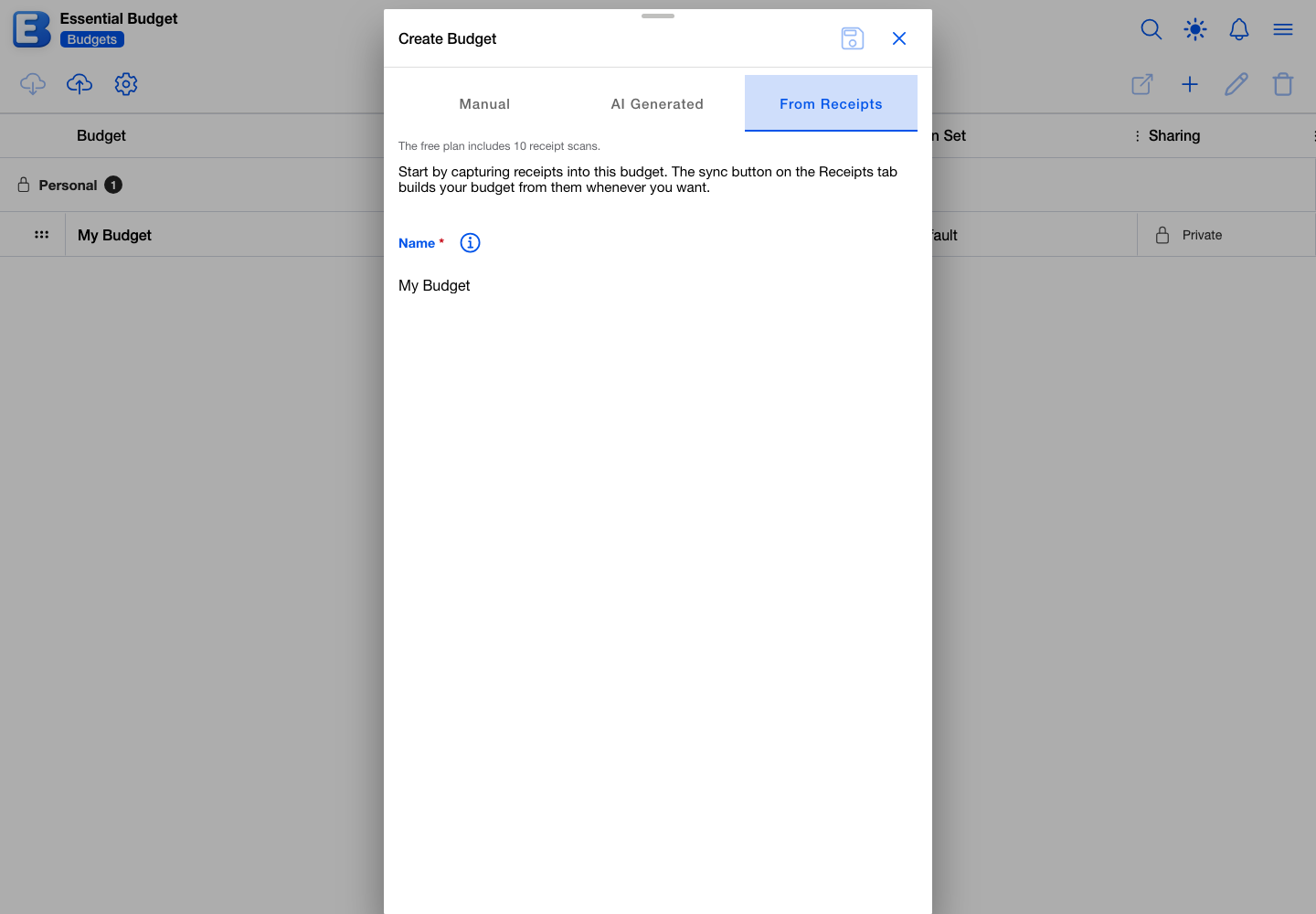
Every receipt stays in the budget you scanned it into. Building your budget always means building out the budget your receipts already live in.
Why does the app create a budget before you have scanned anything? Receipts are always collected inside a budget, so the app creates an empty one to hold them. It starts with no accounts, categories, or flows; those come later, from your receipts. The name is just a label. You can rename it anytime from the Budgets page.
Your tabs when you start from receipts
A budget created from receipts puts receipts first. The tabs across the bottom are Receipts, Setup, Planner, Reports, and More, and the History page moves into the More menu as its first entry. Every page works exactly as it does in any other budget; only the layout changes. Budgets you start the usual way keep their usual tabs.
The Sync button
Everything happens from one button. The Receipts tab toolbar carries Sync next to the Scan button, and the first time you open the tab a short callout points at it and explains what it does. Dismiss the callout with Got it and it does not come back.
Building and syncing are part of Premium. On the free plan the button stays in the toolbar, and tapping it opens the Upgrade to Premium dialog instead of a review, with your budget untouched. Your scanned receipts and their reports keep working either way, and upgrading later picks up every receipt you have collected. See Subscription.
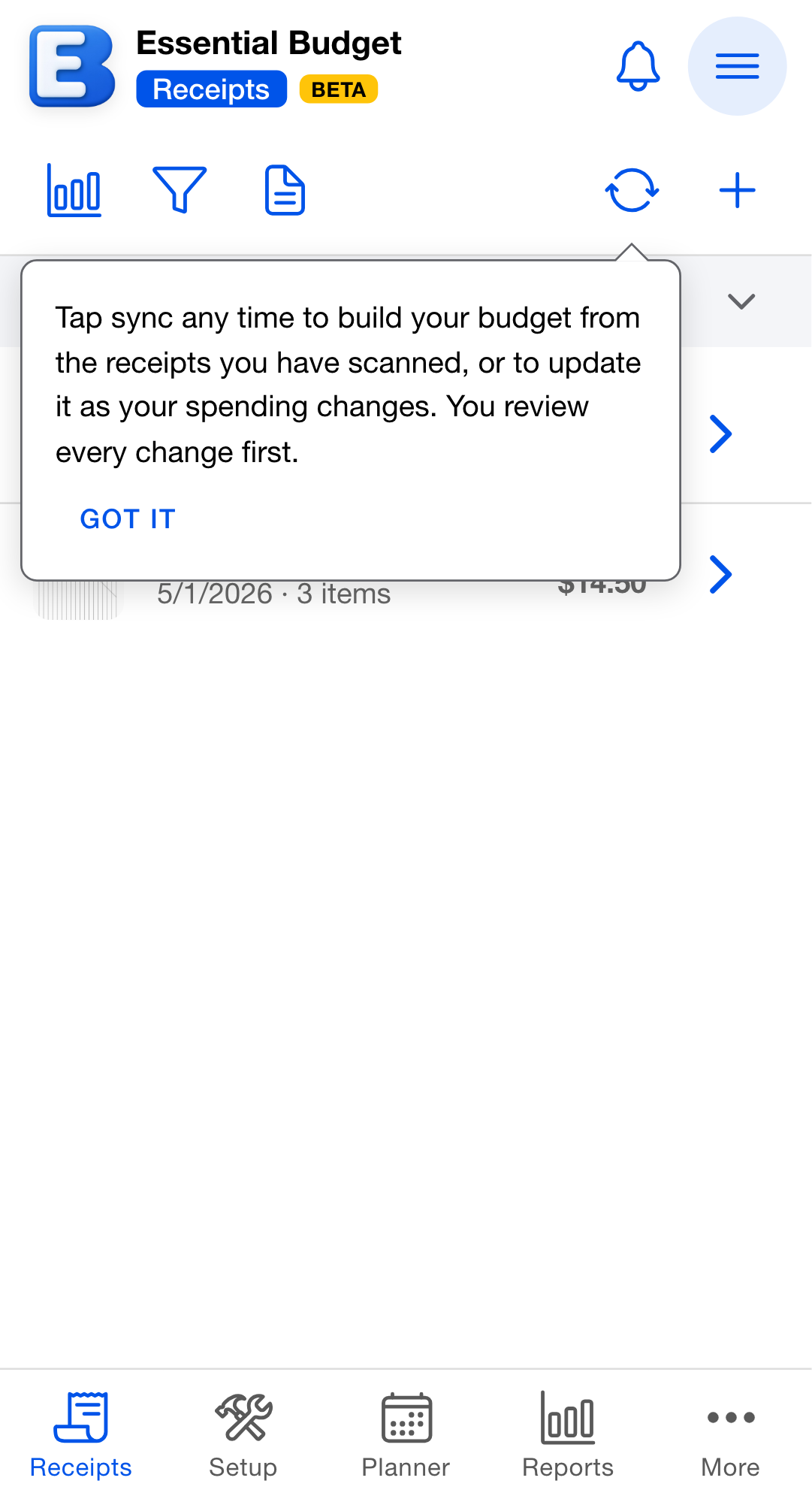
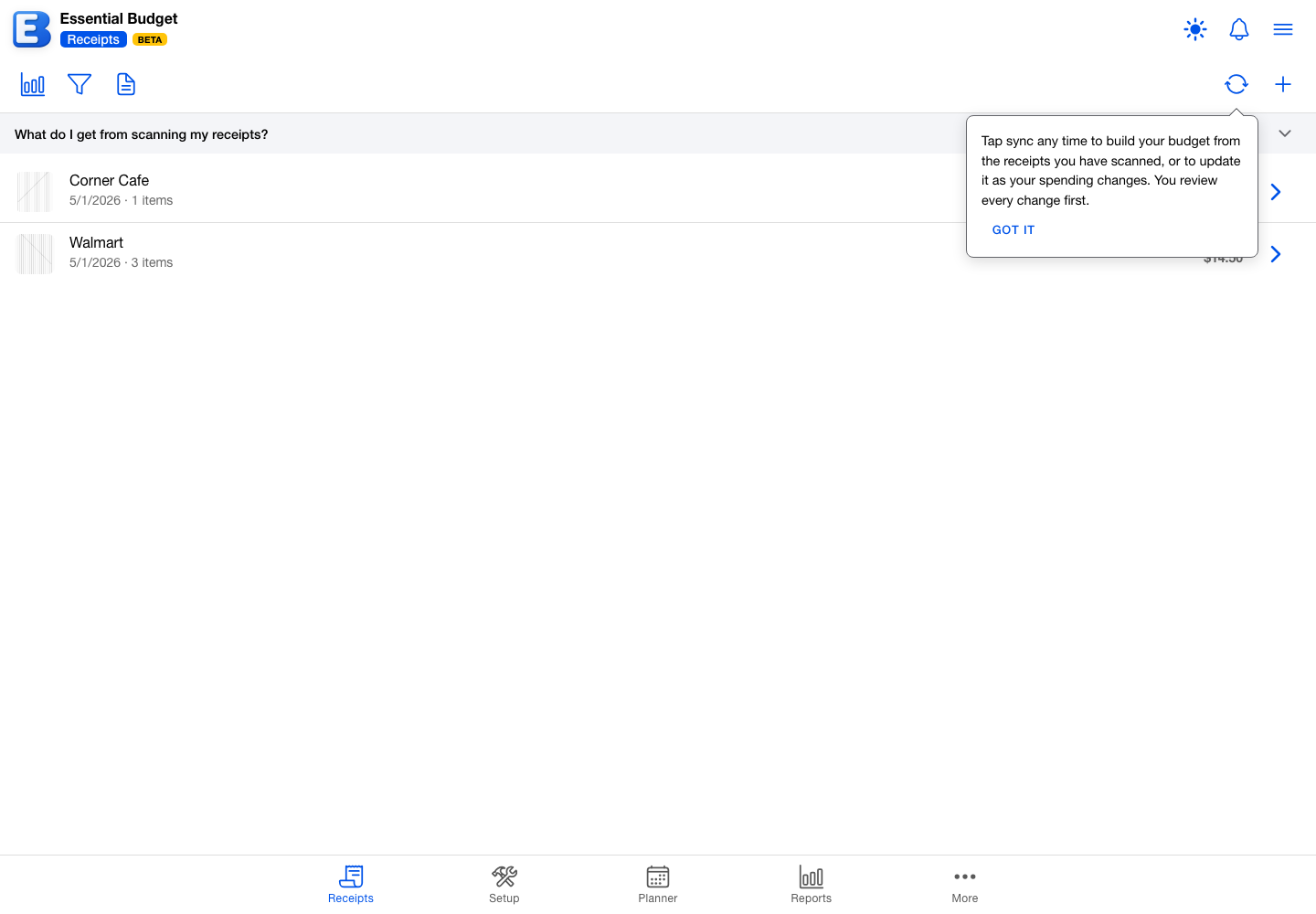
Tap Sync whenever you like:
- Before your budget exists, it builds one from the receipts you have scanned so far.
- After your budget exists, it suggests updates: stores and products you have started buying, amounts that have drifted, and budget lines your receipts no longer show.
The button always answers. If you have not scanned anything yet, it says so (“There are no receipts to build from yet. Scan a receipt, then sync again.”). If your budget already matches your receipts, it says that instead of opening an empty dialog. If a sync cannot finish, it offers Try Again and nothing is changed.
Receipts count once the app has finished reading them and they are not waiting in the review queue: returns, refunds, and duplicates awaiting your decision do not count. Scanning itself is covered in Receipts, including how many scans your plan includes.
What a sync costs
A sync that has something new to work out sends the store and product names from those receipts to an artificial intelligence model, which suggests where each one belongs in your budget. That call uses up to 15 of your monthly AI credits, and the app tells you so before it starts: tapping Sync opens Sync with AI, which states what the sync does and what it can cost, with Start Sync as the only way forward.
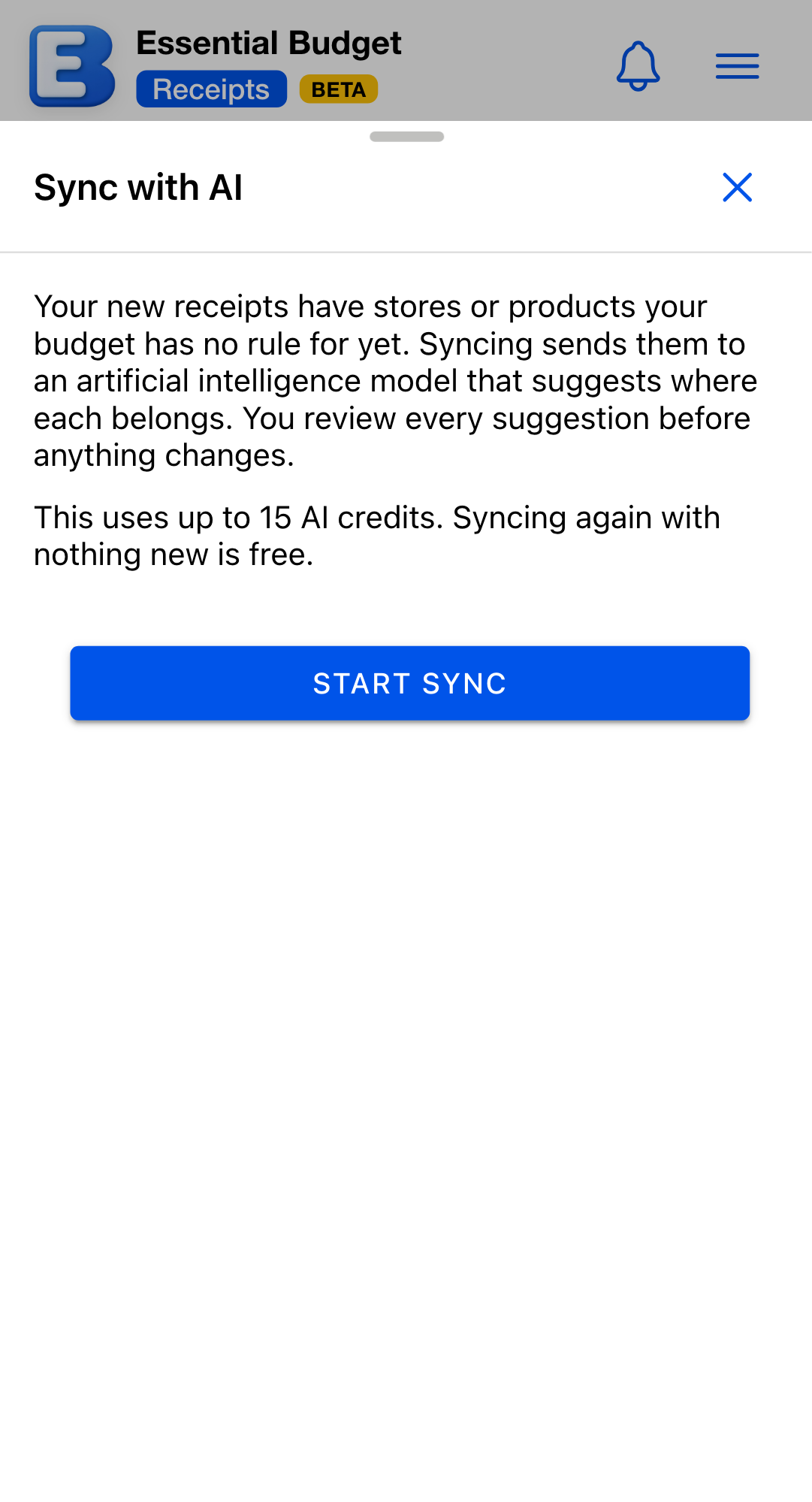
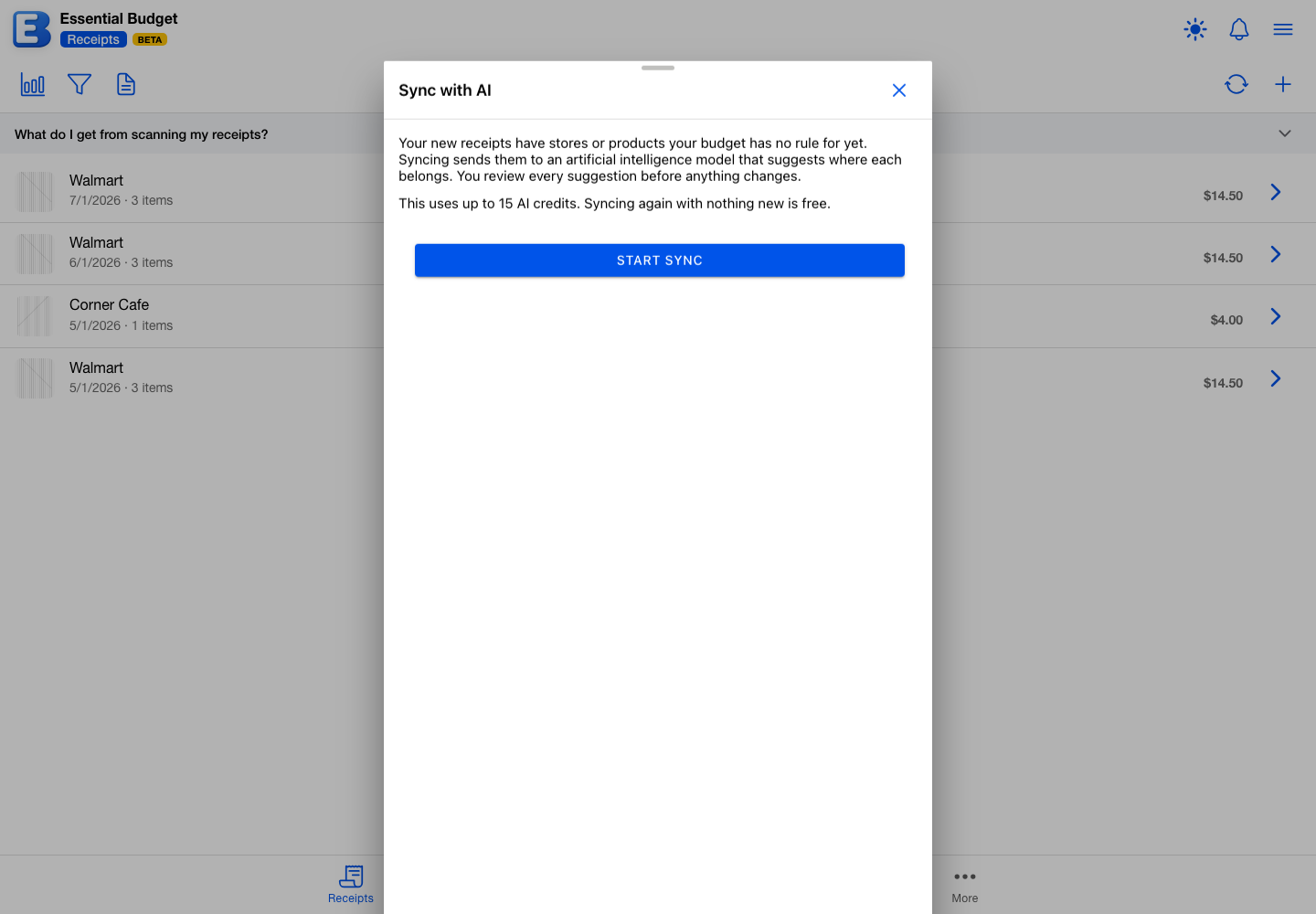
After that, cost follows new information rather than clock time:
- Every decision you confirm is remembered, so a store the app has already placed never has to be worked out again.
- A sync with nothing new to place costs nothing and opens no confirmation. It still checks your amounts and your quiet budget lines, which are calculated in the app.
- Reviewing a proposal, adjusting it, and confirming it cost nothing. The work was already done when the sync ran.
- If your credits run out, the sync stops before spending anything and offers Add 500 AI Credits next to Try Again.
The amounts themselves never come from the model. It decides where a store belongs and how often you shop there; the app calculates every dollar figure from your own receipts.
Building your budget
While a sync runs, a strip above your receipt list reports where it is (“Reading your receipts…”, then “Organizing your spending into a budget…”, then “Checking the result…”). Anyone else in the budget with the Receipts tab open sees the same strip, and the review opens for the person who started the sync. The sync keeps running if you leave the page; tap Sync again when you come back and it picks up where things stand.
The review is titled Build from Receipts whenever it has new budget lines to propose, and Sync from Receipts when every row is a change to a line you already have. A collapsed How does syncing from receipts work? section at the top explains the method in three short paragraphs. Every row has a checkbox, and nothing is created until you confirm.
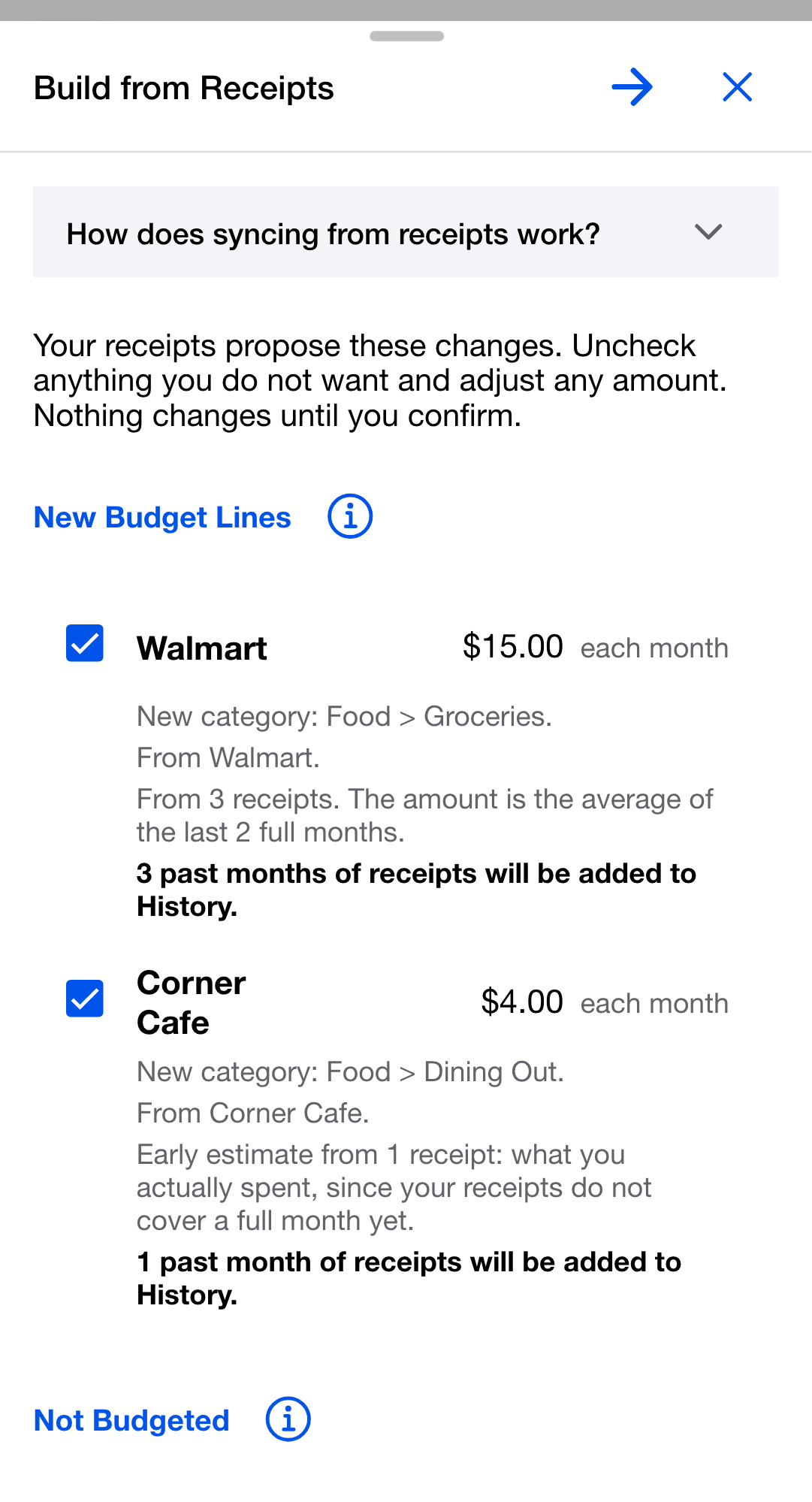
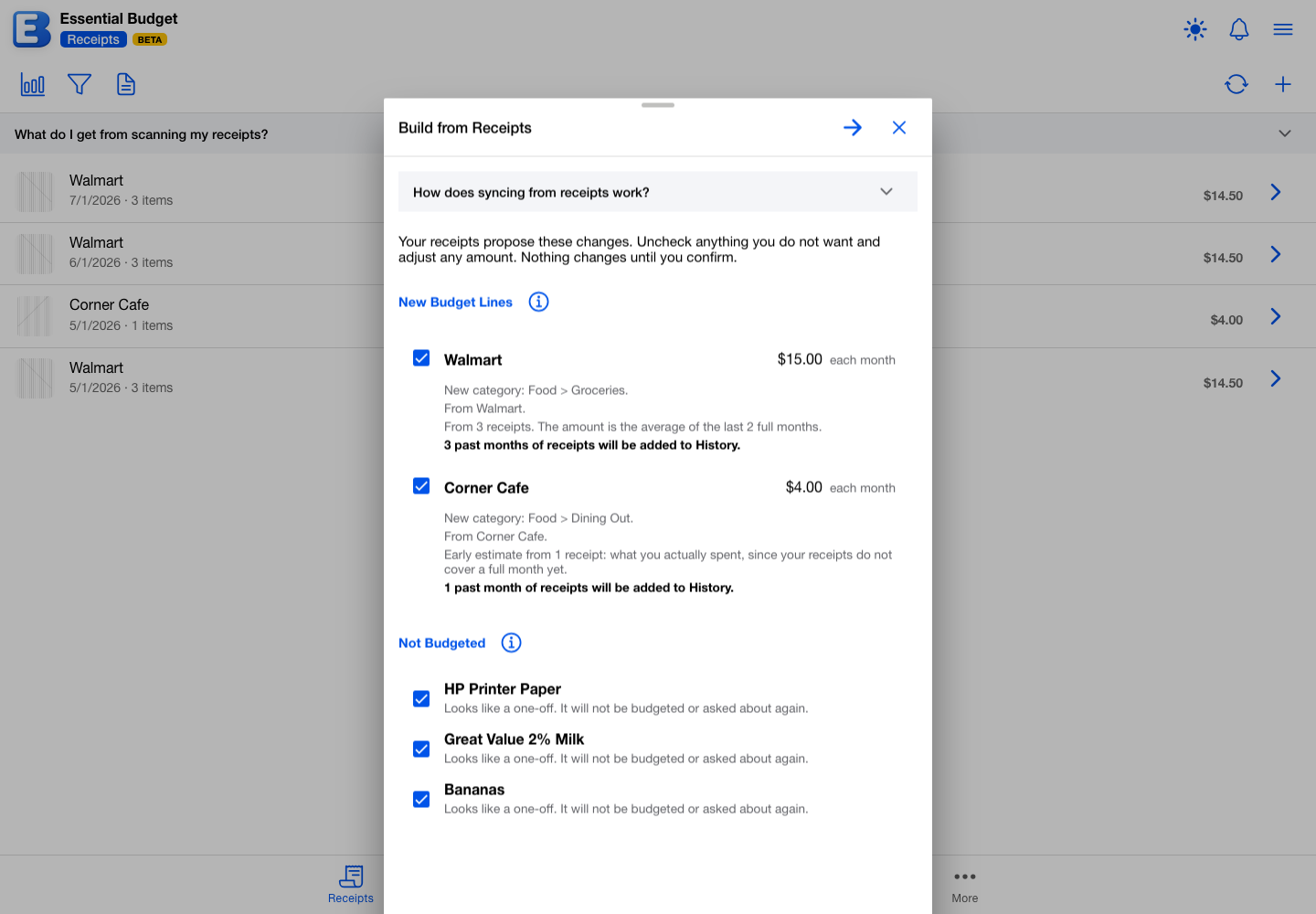
Rows are grouped by what confirming them does:
- New Budget Lines are the flows the app proposes: a planned amount in your budget (see Flows). Each row shows an editable amount, how often it repeats (“each week”, “each month”, “every 3 months”, or “each year”), where it will live (“In your Groceries category” or “New category: Food > Groceries”), which stores or products feed it, a note saying what the amount was calculated from, and, when there is past spending to file, a line such as “3 past months of receipts will be added to History.”
- Adding to Existing Lines covers stores and products that belong in budget lines you already have. Confirming one sends its receipts to that line from now on.
- Not Budgeted lists one-off purchases the app does not think deserve a recurring line. Confirming records that decision so a later sync does not ask again. Uncheck one to have it suggested again later.
- Amount Updates and No Longer in Your Receipts appear once your budget exists; they are covered under Keeping your budget up to date.
Uncheck anything you do not want. An unchecked row is not remembered either way, so its store or product simply comes back in a later sync.
When at least one new budget line is checked, Next opens the Paying Account step. Every planned amount is paid from one account, and the app never guesses which: pick an existing account, or choose New account and enter an Account Name and Starting Balance to create a manual one. Then tap Save.
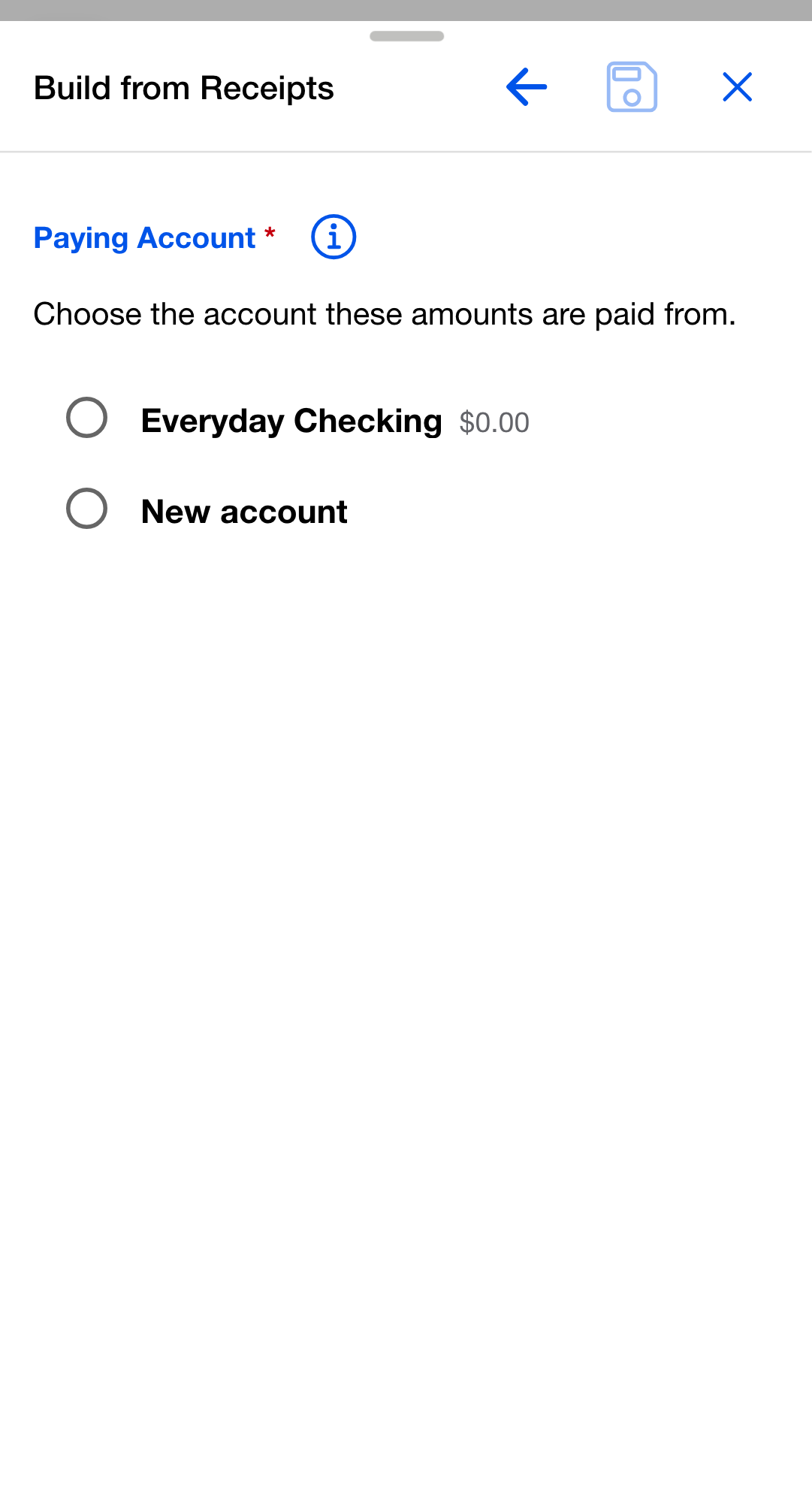
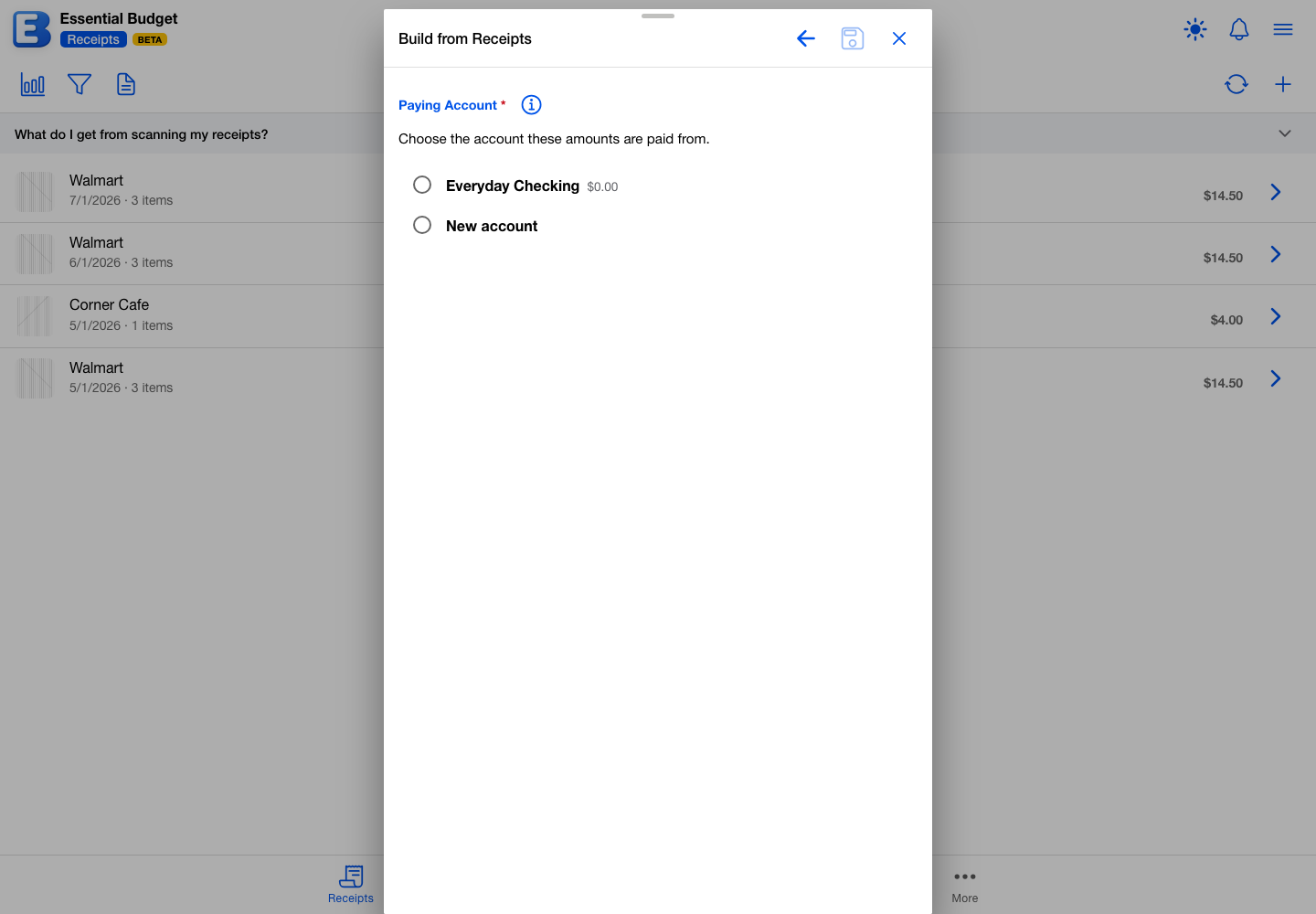
Saving creates the categories and flows you confirmed, files the past months you already paid for (below), and confirms what happened: “Your budget was built from your receipts: 2 budget lines added, 3 past periods added to History. See it on the Setup and Planner tabs.” From there your budget behaves like any other: events appear on the Planner, and you can edit everything in Setup.
Why does nothing get picked for you on the account step? The paying account decides where every planned amount comes from, so it is always your explicit choice. If the budget has no accounts yet, the new-account form is shown, and you still confirm by naming the account yourself.
How the amounts are calculated
Each proposed amount is what one occurrence of that line costs you, calculated from the receipts that feed it:
- The app looks back over the last three periods of the line’s own rhythm, counting from your most recent receipt for it rather than from today’s date.
- For a line that varies, such as groceries, the amount is the average of the periods your receipts fully cover.
- For a line that is billed at a set price, the amount is the most recent full period, so a price increase is not averaged away.
- When your receipts do not yet cover one full period, the amount is simply what you have spent so far, never scaled up, and the row calls it an early estimate.
- Every amount is rounded up to the next whole dollar.
The note under each amount says which of these applied, for example “From 3 receipts. The amount is the average of the last 2 full months.” or “Early estimate from 1 receipt: what you actually spent, since your receipts do not cover a full month yet.” Every amount stays editable in the review, and you can change it later in Setup like any other flow.
Filling in the months you already paid for
Receipts are records of money already spent, so building your budget also fills in the past that your receipts prove.
Each new budget line starts up to three occurrences back, at the oldest recent period its receipts reach. A year of monthly grocery receipts starts three months back; three yearly insurance receipts start two years back, since the newest one belongs to the year you are in now. Receipts older than that reach are left alone, and the line still starts from the period they support.
For each fully past period that has receipts, the app records what you actually paid and resolves that period into History, so your past months read as done rather than as overdue. Past periods with no receipts stay unresolved, and the period you are in now stays open on the Planner with its spending progress filling in as you scan.
Does filling in the past change my account balance? No. The balance you entered, or the one your bank feed maintains, was measured after those purchases already happened, so it already reflects them. Filing them into History records what was spent without moving the balance again.
Keeping your budget up to date
Keep scanning, and tap Sync again whenever you want. The title follows what it found: Sync from Receipts when every row is a change to a line you already have, and Build from Receipts again as soon as your newer receipts also call for a new line. Either way it proposes changes rather than a whole budget:
- New Budget Lines, Adding to Existing Lines, and Not Budgeted work exactly as they do the first time, for stores and products you have started buying since.
- Amount Updates are budget lines whose spending has drifted. Each row shows the current amount (“Currently $120.00 each month.”) and changes only the amount; the flow’s schedule, its timing, and its history stay as they are.
- No Longer in Your Receipts lists budget lines that have had no receipts for at least two full periods of their own rhythm. A monthly line goes quiet after two quiet months; a yearly one is left alone until two years have passed. These rows start unchecked, because they are the one suggestion that removes something. Checking one deletes that budget line exactly the way deleting a flow does, and a later sync suggests the line again if you start buying there again.
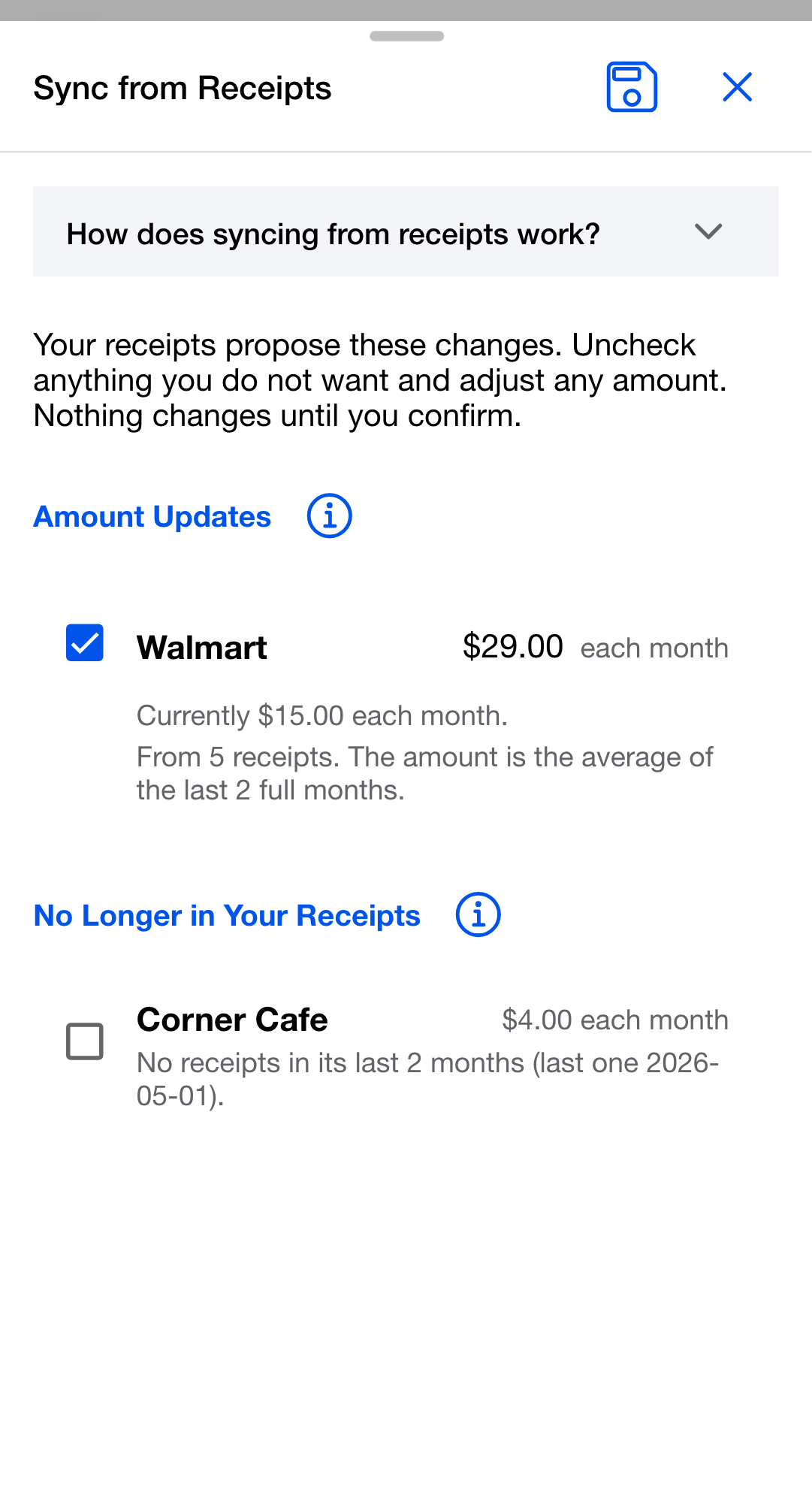
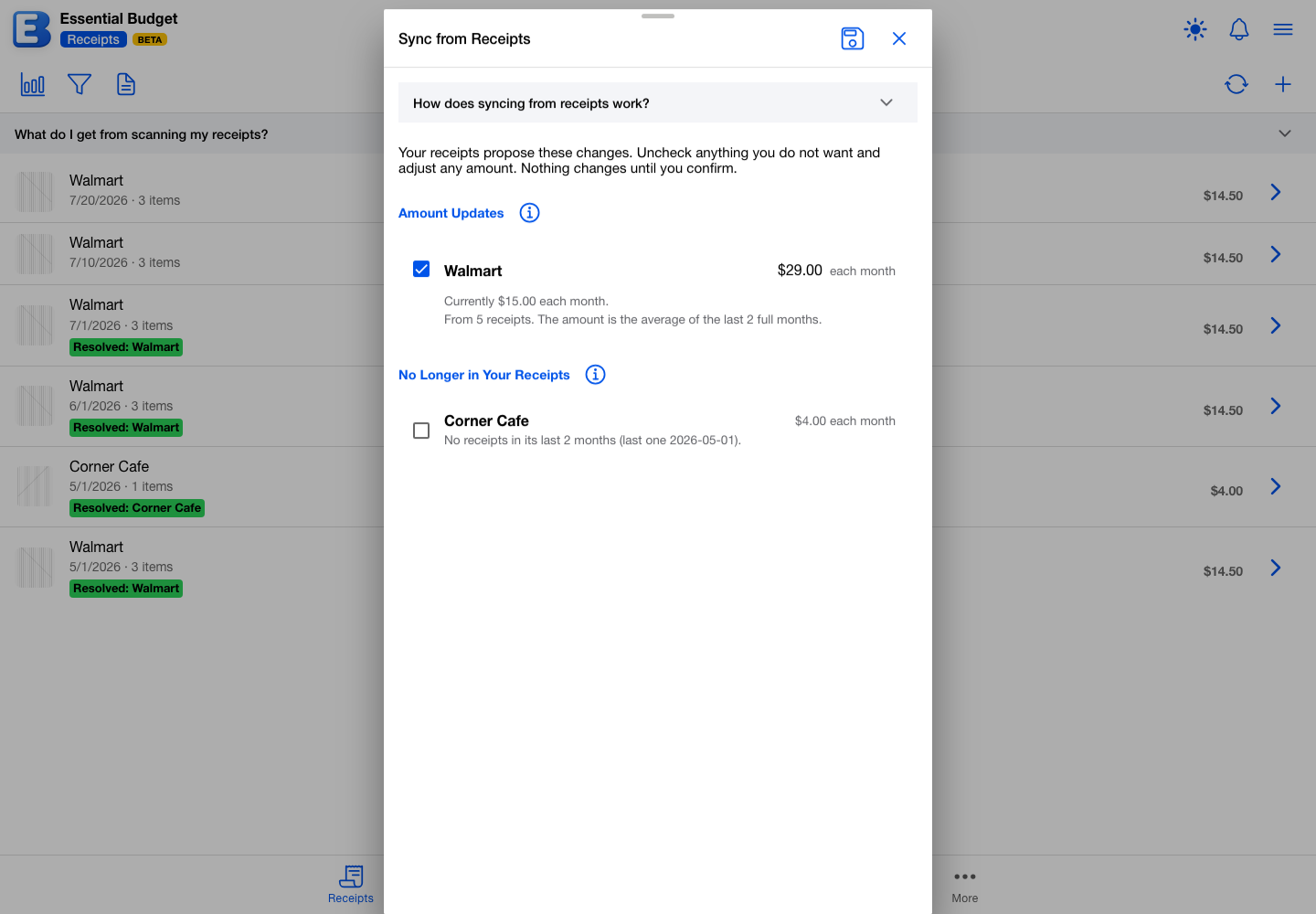
Removing a quiet line keeps your category, and it keeps your History rows with the name, amount, category, and account they held when they were resolved. Two things go with the line. The individual transactions filed with those past events are removed, so a row keeps its total but loses the itemized detail behind it. And undo ends for those rows: opening one shows “Cannot undo: The parent flow no longer exists.” Those transactions are the ones filled in from your receipts when the line was created, so if that detail is worth keeping, leave the row unchecked.
As always, nothing changes until you confirm. If a sync has nothing to suggest, the button tells you your budget already matches your receipts.
The quiet-line check is measured against your most recent receipt, never against today’s date. If you stop scanning for a while, nothing is ever flagged just because time passed.
Why does the app only ever suggest changes, never apply them? Your budget is yours. The app can see that grocery spending drifted from $180 to $210, but only you know whether that is a new normal or one unusual month. Every change goes through the same review with the same checkboxes, so your budget never changes behind your back.
Good to know
- The Sync button appears only in budgets created through Start by capturing receipts or From Receipts. A budget you started the usual way keeps its usual tabs and does not show it; to budget from receipts, create a budget with From Receipts and scan into it.
- On a shared budget, the Sync button appears only for people who can edit the budget. Building and updating change the budget, so view-only access hides it.
- Only one sync runs at a time per budget. If someone else in the budget is already syncing, your tap joins theirs instead of starting a second one.
- Receipts never move between budgets.
- Building and updating a budget from receipts is included with Premium. Scanning (within the free allowance), your receipt reports, Shopping Lists, and Recipes stay free on every plan.
Questions or feedback about this page?Email us.